Finance Basic User Training Guide for Dynamics 365 Business Central
Journal Types
Financial transactions can be performed through journals and there are different types of journals in Business Central
- Standard General Journals – create standard journal templates to be re-used
- Payment Journals – use for payment runs to pull vendor invoices in a payment batch, or to enter a single payment that is applied to invoice entries in the Payable accounts.
- Cash Receipt Journals – use for registering customer payments and applying these against customer invoices
- Item Journals – use to post item adjustments into the Item Ledger and General Ledger
- General Journals – these record directly into G/L and comprise of mainly:
- Recurring Journals
- Reversing Journals
- General Journals
Standard General Journal
A Standard General Journal is a template of selected journal lines. Standard journals are created by saving selected journal lines during journal entry.
Here is an example:
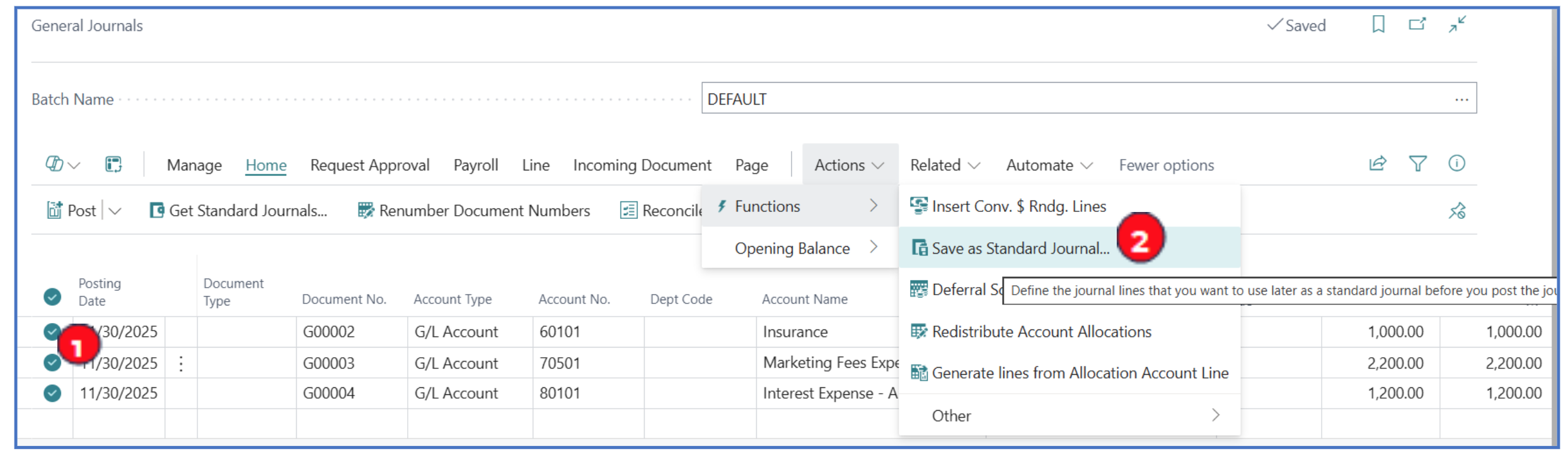
- Multi-select the lines to save in a Standard Journal template.
- Click on menu option Actions > Functions > Save as Standard Journal.
-
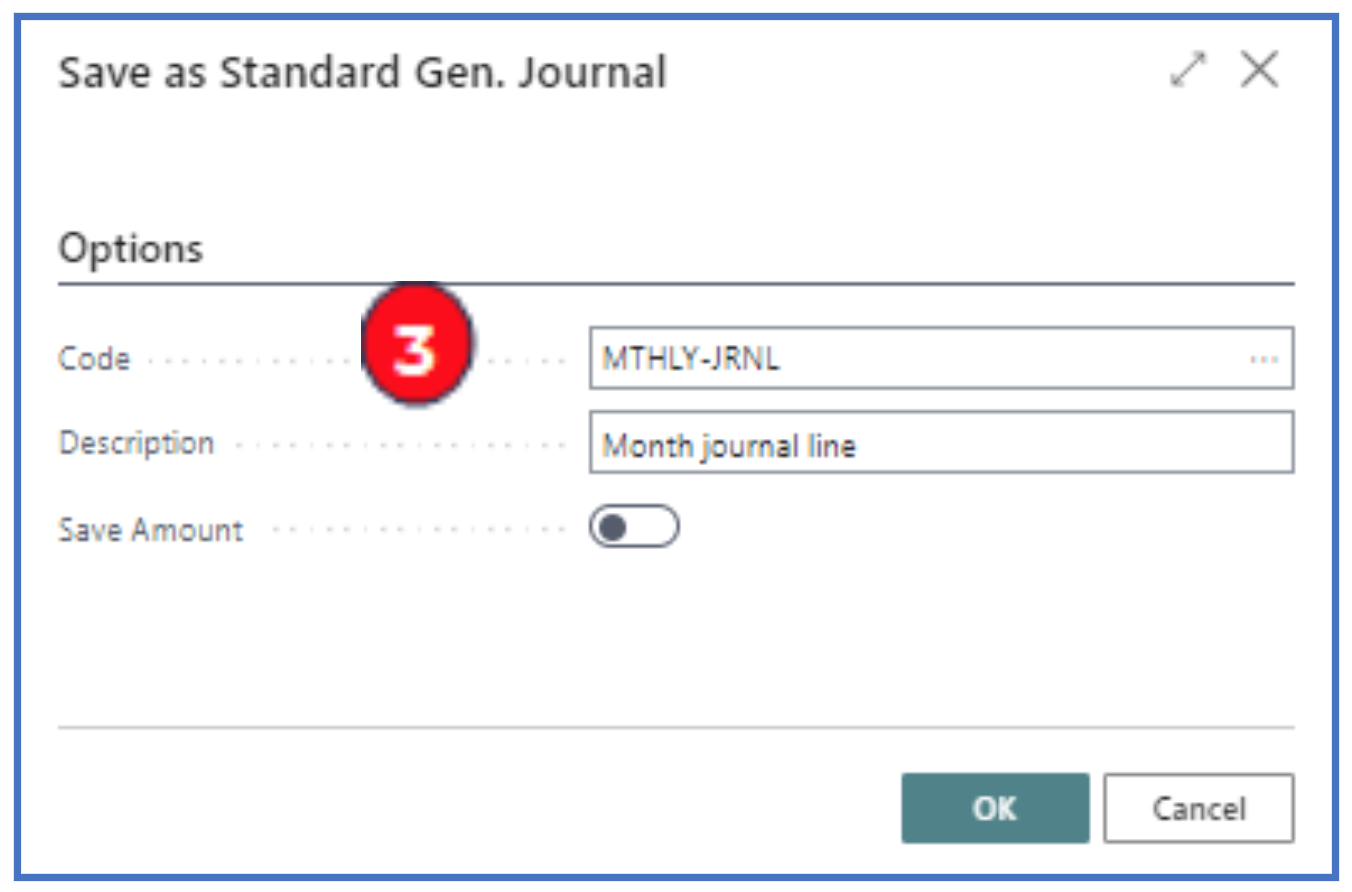
A prompt is revealed to enter:
a. Code – Enter a new Standard Journal code.
b. Description – Enter a description for the code.
c. Save Amount – This is disabled. Enable it to capture the amount to repeat when the Standard Journal is re-used.
To use any saved Standard Journal, open a General Journal document page.
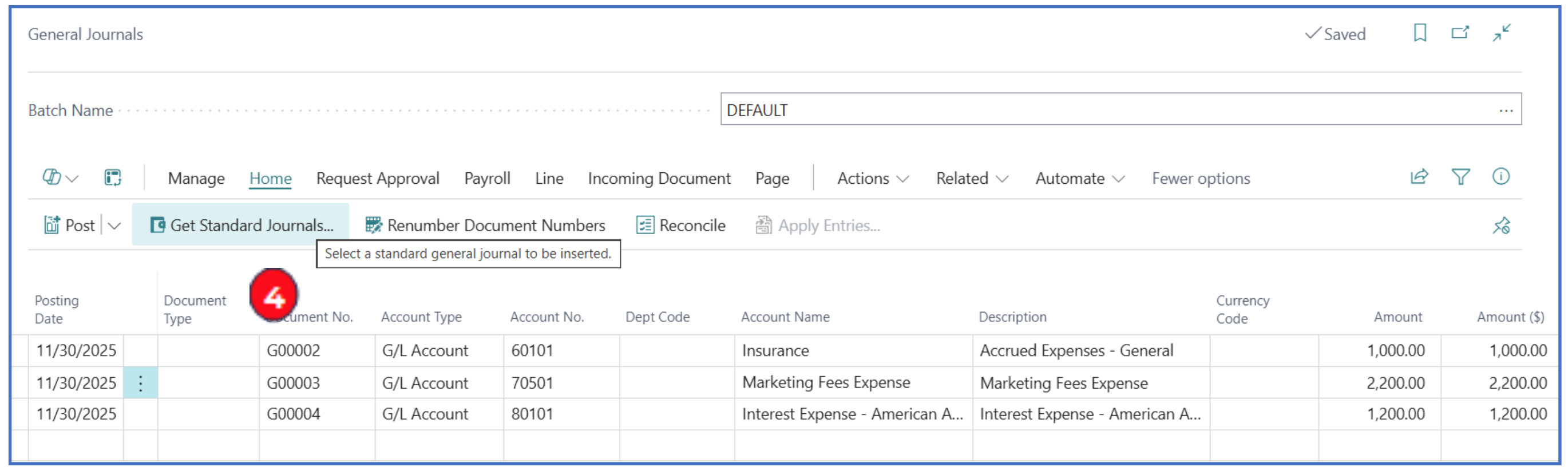
- Click on menu option Get Standard Journals to open the list of Standard Journal lines for selection.
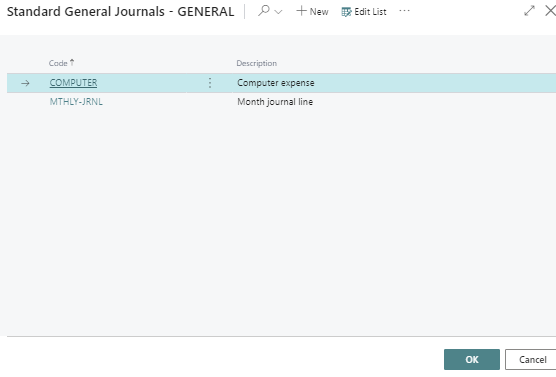
- Select the Standard Journal code and click OK. This will add all saved journal lines from this code into the journal.
NB: the posting dates for the added journal lines will be copied from the last posting date used.
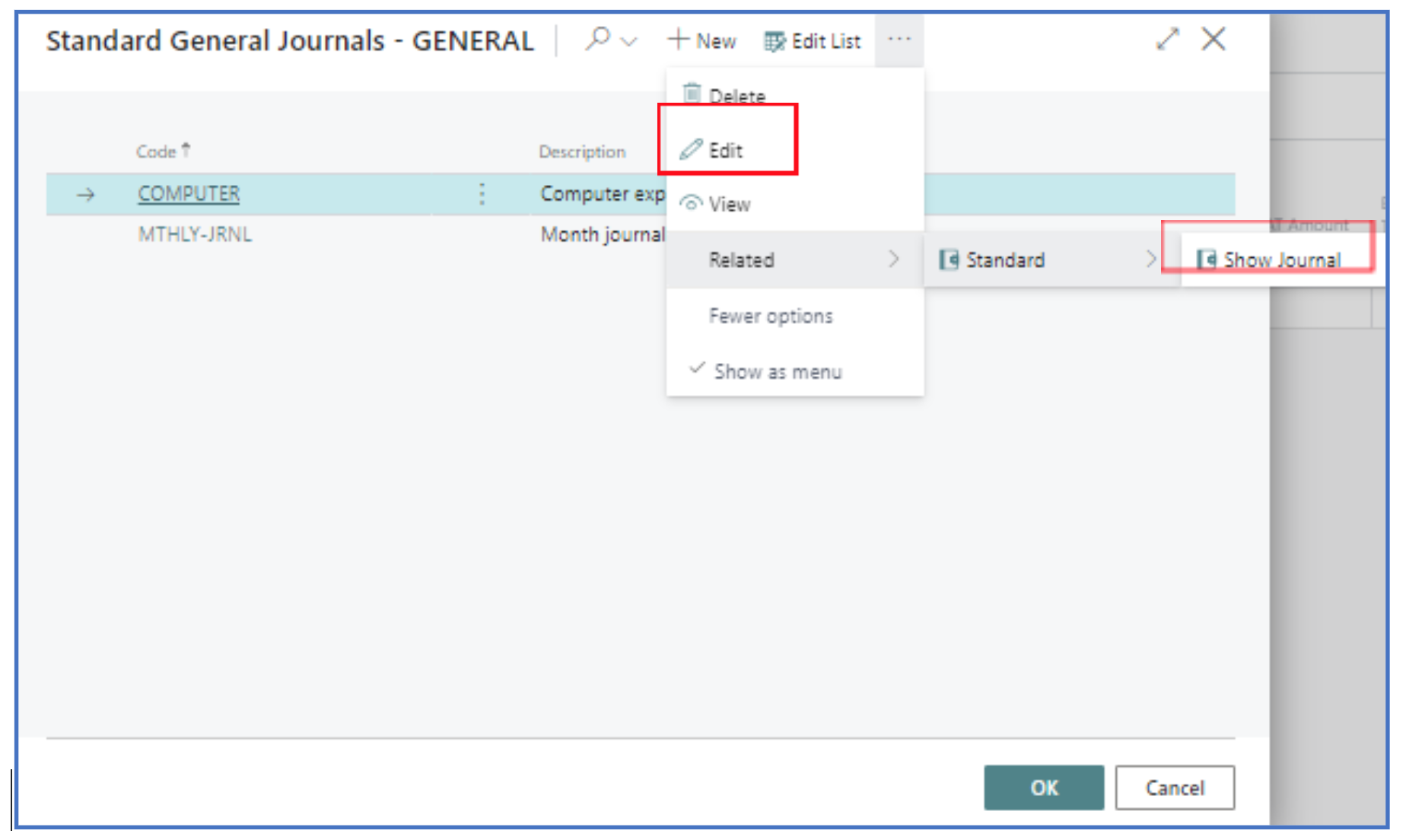
To edit the saved Standard Journal lines, select Get Standard Journals to open the Standard General Journals list pop-up page.
- Highlight the standard journal code, click on the ellipsis menu and select Edit or Related > Standard > Show Journal. This will open the Standard Journal page for the highlighted code.
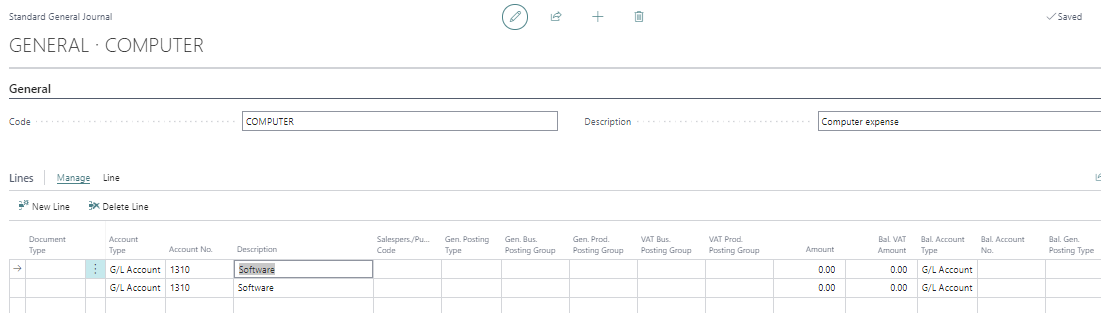
- In the Standard General Journal page, define the journal lines to be saved and close the page.
Deferral Template (General Journal)
To automatically defer a posted amount into future periods, a Deferral Template needs to be set up and used in the General Journal (or any transaction document).
Navigate to Deferral Templates list page.
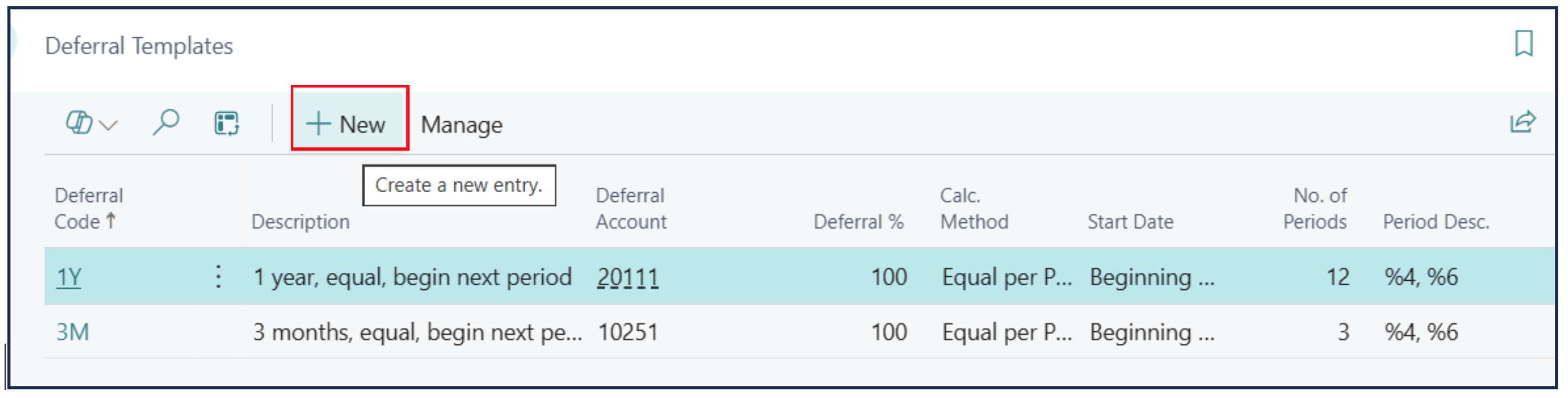
From here, click on New to open a new Deferral Template card to define the deferral method.
-
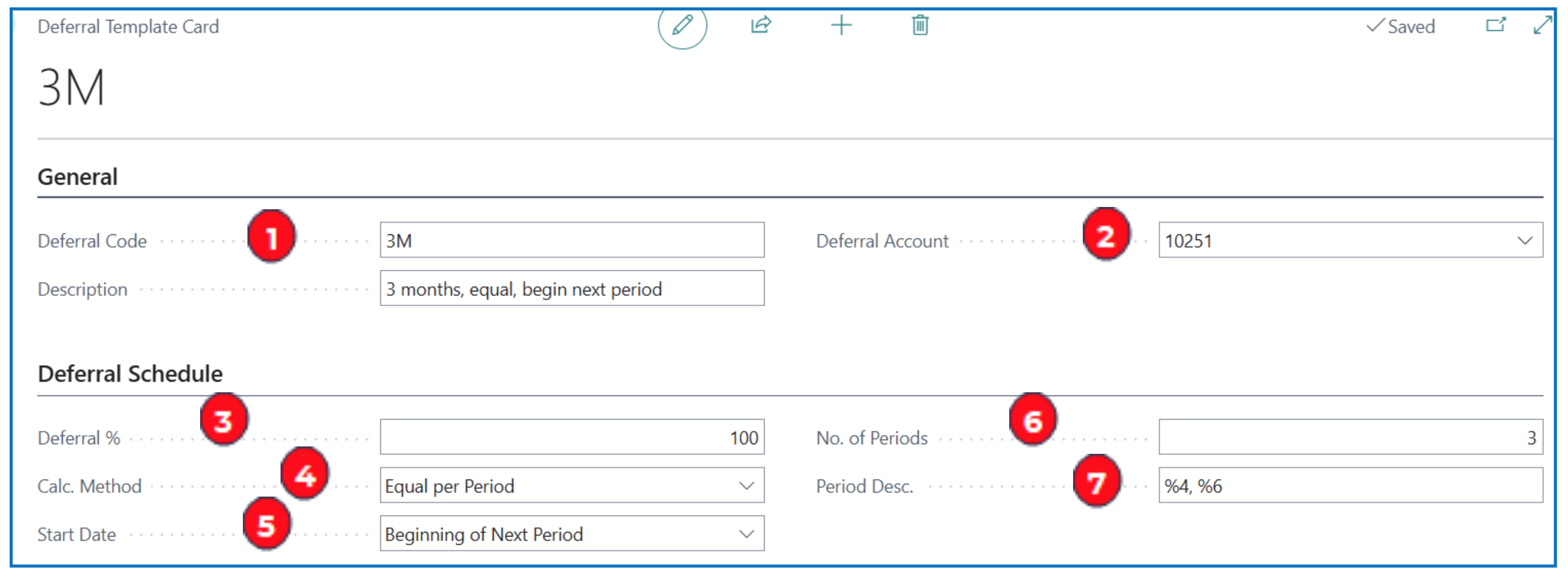
Deferral Code and Description – Enter a unique code and deferral description for this deferral method
-
Deferral Account – Select the deferral account defined in the COA. This account is the holding account where the amount is drawn down from in each future period.
-
Deferral % - Enter the % of the line amount to be deferred (usually 100%)
-
Calc Method – Select a deferral calculation method.
a. Straight-Line – The periodic deferral amounts are calculated according to the number of periods and distributed according to period length.
b. Equal Per Period – The periodic deferral amounts are calculated according to the number of periods, distributed evenly on periods.
c. Days Per Period – The periodic deferral amounts are calculated according to the number of days in the period (e.g. calendar month).
d. User-Defined – The periodic deferral amounts are not calculated. You must manually fill in the Amount field using the Deferral Schedule page.
-
Start Date – Select a start date for the deferral when applied to the transaction.
-
No of Periods – Define the number of accounting periods as the basis for calculating the deferral amounts.
-
Period Description – Enter a description for each monthly posted amount. Use the following placeholder codes to automatically insert period description:
- %1 = The day number of the period posting date.
- %2 = The week number of the period posting date.
- %3 = The month number of the period posting date.
- %4 = The month name of the period posting date.
- %5 = The accounting period name of the period posting date.
- %6 = The fiscal year of the period posting date.
To view the Deferral Schedule, e.g. from a General Journal,
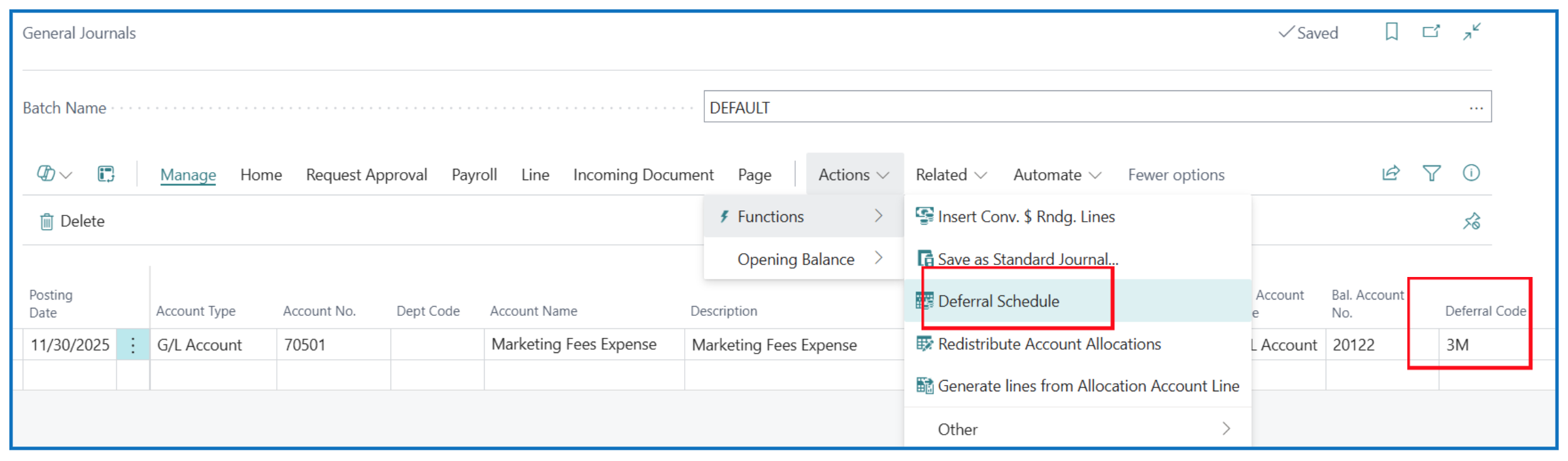
- Select menu Actions > Functions > Deferral Schedule to open the Deferral Schedule.
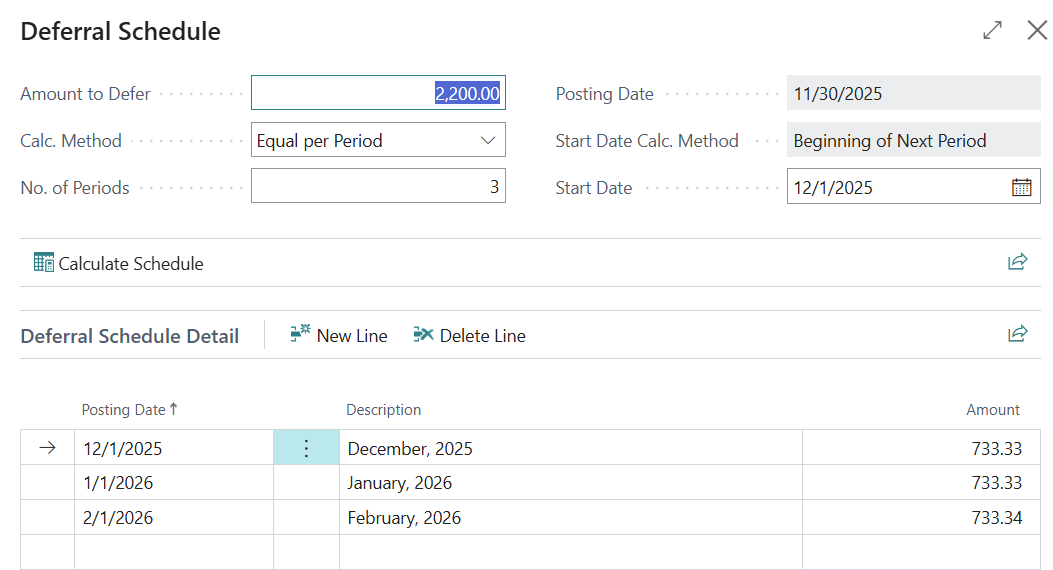
- Edit amounts if necessary (if Calc Method is User-Defined, the amounts will be blank).
Recurring Journal
A Recurring Journal is a general journal with specific fields for managing transactions that you often post with few, if any, changes. For example, transactions for expenses such as rent, subscriptions, electricity, and heat. Using recurring journals lets you post fixed and variable amounts and optionally specify automatic reversal entries for the day after the posting date.
Navigate to the Recurring General Journal document page.
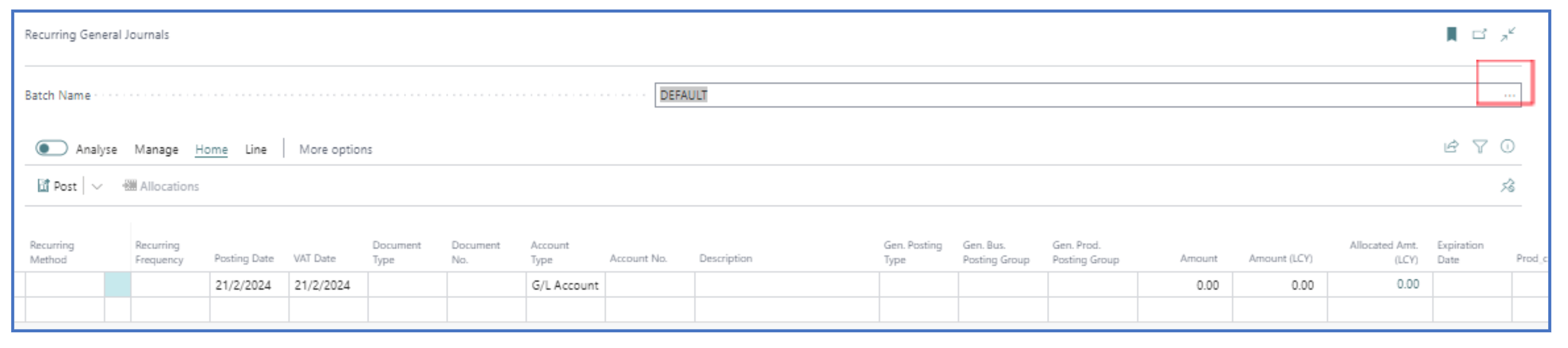
Use the DEFAULT batch name or click on the ellipsis menu option to open General Journal Batches list page and create a new batch name.
Journals with some default settings can be organised/grouped into different batches. Each batch can contain unposted journal lines.
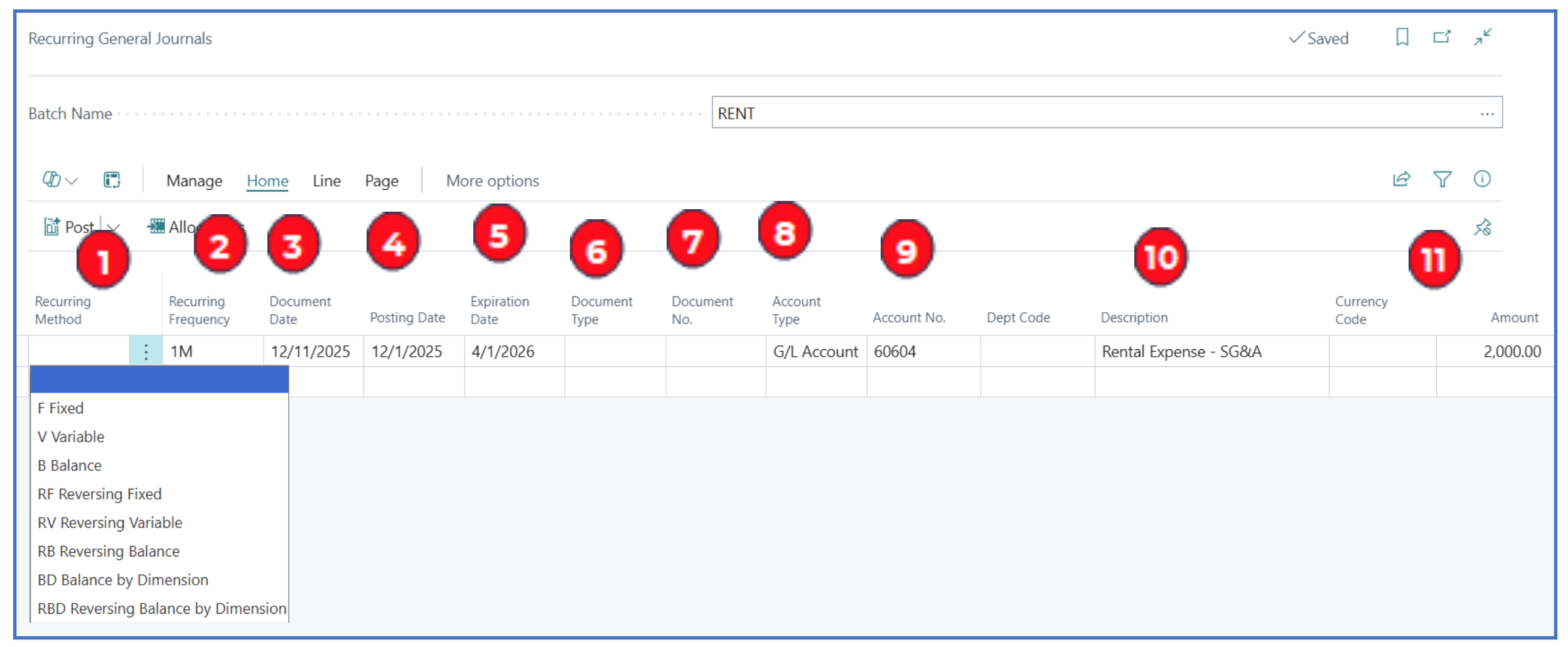
- Recurring Method — Determines how to treat the amount on the journal line after posting.
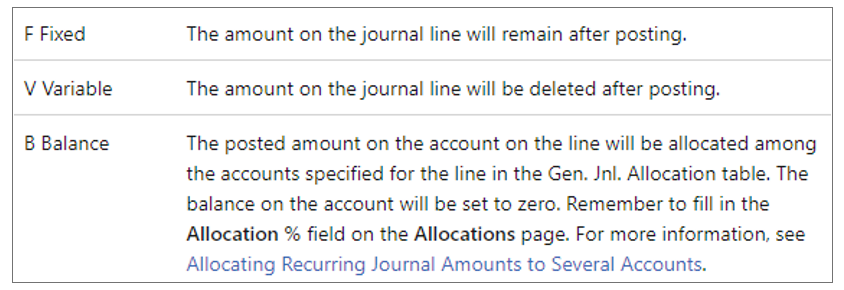
-
Recurring Frequency — Specify a date or use a Date Formula (see Appendix).
-
Document Date — Enter the journal date.
-
Posting Date — Enter the first posting date for the recurring journal series.
-
Expiration Date — Leave blank or enter a date when this recurring journal will stop recurring.
-
Document Type — Leave blank or select a document type (relevant to the transaction).
a. Payment — For payment from customer or vendor (depend on Account Type).
b. Invoice — For invoice from customer or vendor (depend on Account Type).
c. Credit Note
d. Finance Charge Memo
e. Reminder
f. Refund
-
Document No. — Enter the recurring journal number. The same number applies to all DR and CR lines.
-
Account Type — Select an Account Type for the line:
a. G/L Account — Charge the line to G/L account.
b. Customer — Charge the line to the Customer ledger account.
c. Vendor — Charge the line to the Vendor ledger account.
d. Bank Account — Charge the line to the bank ledger account.
e. Employee — Charge the line to the employee ledger account.
-
Account No. — Select the relevant account number based on the Account Type.
-
Description — Default description or enter a new description.
Use these notations to add variable period label to the description:
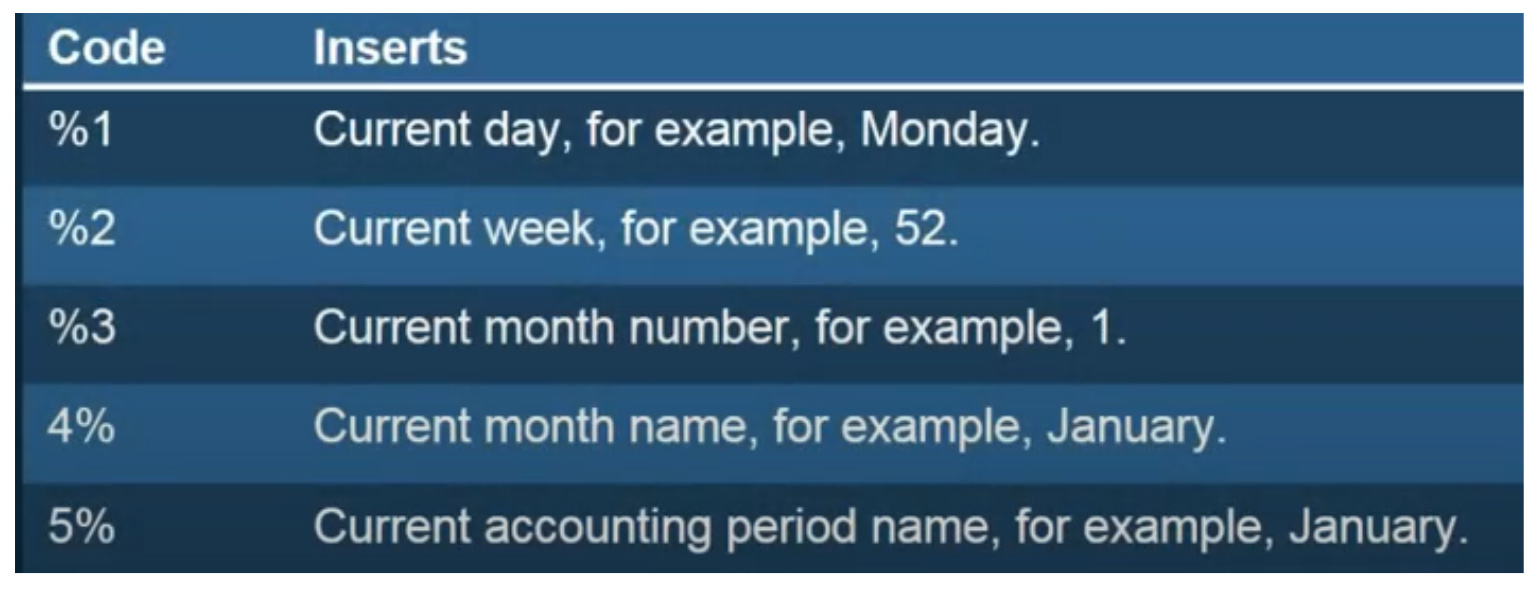
- Amount and Currency Code — Enter the amount (“-ve” allowed) and currency code for FOREIGN currency only.
Reversing Journal
NB: For a reversing general journal, it should be created with a posting date on the same date as the “Working Date” (current date).
Navigate to the Recurring General Journal document page and select an existing batch or create a new journal batch.
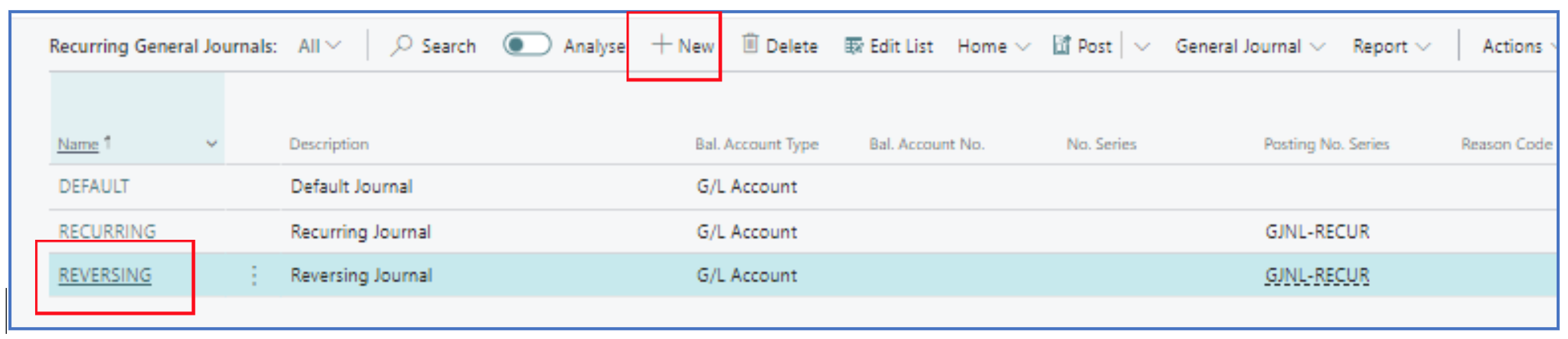
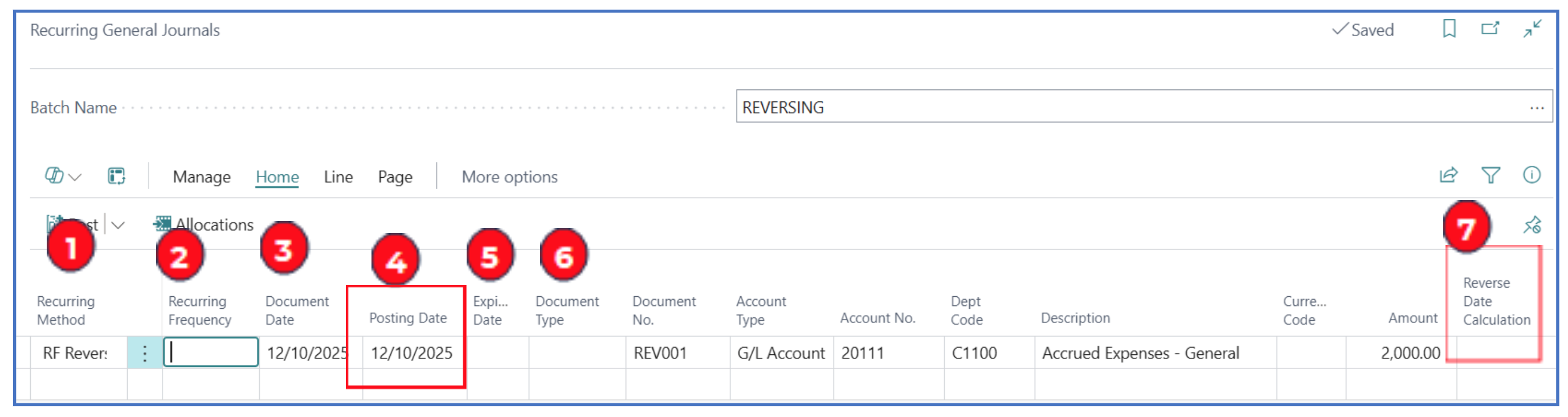
Enter the reversing journal lines:
- Recurring Method — Select a Reversing Method from the list.

-
Recurring Frequency — (optional). Use this field if the reversing journal line is also to recur at a regular interval.
-
Document Date — Enter the journal document date.
-
Posting Date — NOTE: the posting date must be the same as the working date i.e. reversing journal lines must be created and posted on the Working Date.
-
Expiration Date — This is used if Recurring Frequency is defined. This is the date that the recurring journal expires.
-
Document Type — (optional) same as the Recurring Journal line.
-
Reverse Date Calculation — (optional). If this is left blank, the posting date of the Reversing Journal line will be one day after the Posting Date entered.
Define a date calculation format if the Reversing Journal posting date is not one day after the Posting date.
Written By:
Peter Loo
Team Leader, Business Central
Connect on LinkedIn