Integration for Admin Guides for Education
Introduction to Integration
Integration refers to the process of connecting Microsoft Dynamics 365 applications with other systems, both within the Microsoft ecosystem and with third-party applications. These integrations enable seamless data flow, automate business processes, eliminate data silos, and provide a unified view of critical business information.
By connecting different systems, data that was previously isolated in separate applications can now be shared and accessed across departments. This improves data accuracy and consistency. This makes it crucial for business operations to automate workflows and data transfers.
Access the Integration Modules
- Navigate to the Power Platform Admin Center
- Select your Dynamics 365 environment.
- Under Solutions, locate the installed Education Accelerator.
- Open the solution to view and manage integration components (e.g., connectors, dataflows, entities).
Enable External Integrations
Use Power Automate to create flows that connect Dynamics 365 Education with:
- Student Information Systems (SIS)
- Learning Management Systems (LMS)
- Microsoft Teams
- SharePoint and OneDrive You can also use custom connectors or Dataverse APIs for more advanced integrations.
Customize and Extend
- Use Power Apps to build custom interfaces or dashboards.
- Use Power BI for analytics and reporting.
- Configure security roles to control access to integration features.
Document Management
Document management integration in Dynamics 365 is about efficiently storing, accessing, managing, and collaborating on documents directly related to your business records within Dynamics 365. While Dynamics 365 can handle small attachments natively, for robust document management, particularly with large volumes of files or when advanced features like versioning, co-authoring, and granular permissions are needed, integration with a dedicated document management system is essential.
Document Management Settings
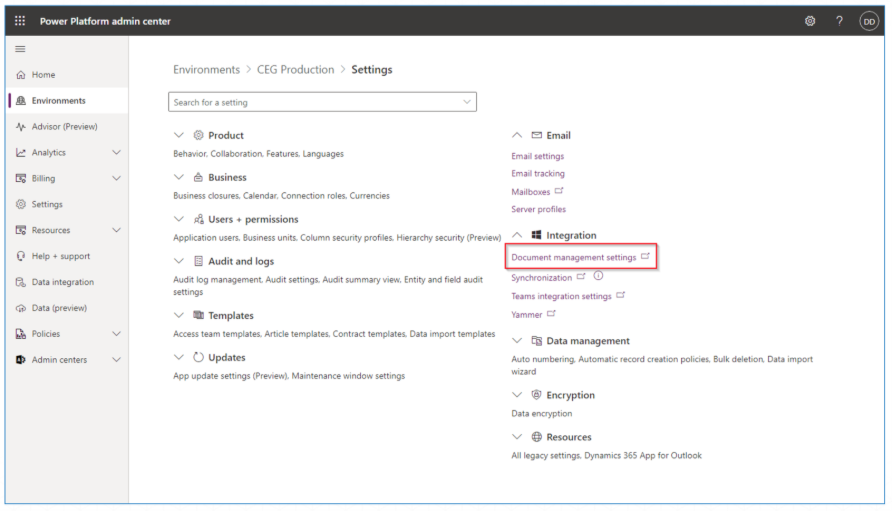
Document Management Settings in Dynamics 365 (which are configured through the Power Platform admin center) are the core configurations that enable and control how your Dynamics 365 environment interacts with external document storage, most commonly SharePoint Online. These settings determine where documents are stored, how they are linked to Dynamics 365 records, and what entities will utilize document management.
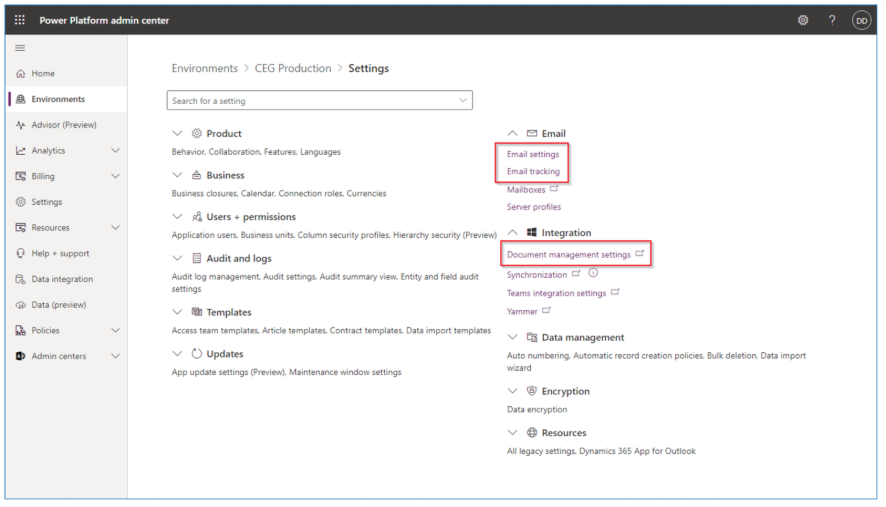
In the Power Platform admin center, select your environment, and go to:
- Settings > Integration > Document management settings
- Then select Enable Server-Based SharePoint Integration
When you enable the server-based integration, here are some quick notes:
Deployment Type: You’ll choose whether your SharePoint sites are Online (SharePoint Online, part of Microsoft 365) or On-Premises. For most modern deployments, online is the correct choice.
SharePoint Site URL: You’ll provide the URL of the primary SharePoint site collection that Dynamics 365 will use for document storage. This URL is validated to ensure it’s a valid site within the same Microsoft 365 tenant.
Benefits: This server-based integration offers single sign-on (users don’t need to sign into SharePoint separately), improved performance, and a more seamless user experience compared to older client-side integration methods.
After enabling the server-based integration, you’ll proceed to define the actual document management behavior:
Choose Entities for Document Management: This is where you select which specific Dynamics 365 entities (tables) will have document management enabled. By default, common entities like Account, Lead, Opportunity, Quote, Product, and Article are often pre-selected. You can add or remove entities based on your business needs.
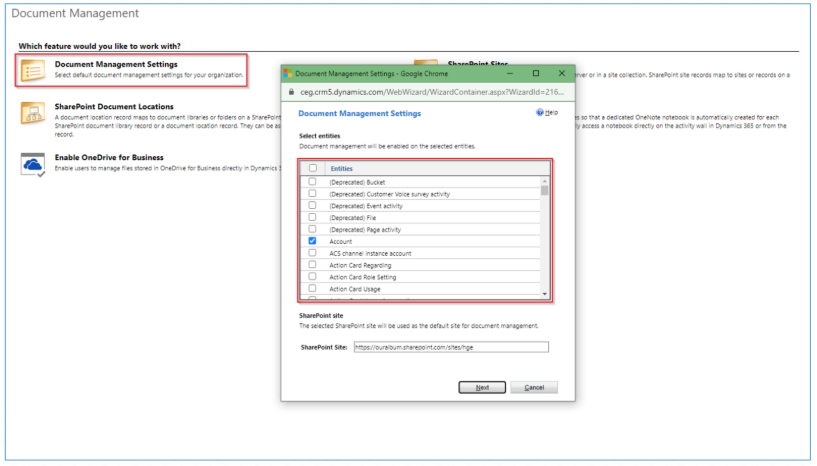
Specify Default SharePoint Site: While you configure the main SharePoint site during the initial integration setup, you can also specify or confirm the default site used for new document locations here.
Folder Structure Configuration: This is a critical setting that dictates how folders are created in SharePoint to house documents related to your Dynamics 365 records.
“Based on entity” checkbox (Recommended for most cases): When selected, Dynamics 365 will automatically create a document library for each enabled entity in SharePoint (e.g., “account,” “opportunity”). Within these libraries, folders are then created for individual records.
-
Automatic Folder Creation: If enabled (often the default when “Based on entity” is checked), Dynamics 365 will automatically create the folder for a record in SharePoint the first time a user clicks on the “Documents” tab for that record. The folder name typically follows a pattern like [RecordName]_[RecordGUID] (e.g., Contoso Ltd_a1b2c3d4-e5f6-7890-1234-567890abcdef).
-
Hierarchical Folder Structure (Optional): For certain entities (like Opportunity, Contract, and others with a 1:N relationship to a parent), you can choose to have folders created under a parent entity’s folder. For instance, an Opportunity’s documents could be stored under its associated Account’s folder in SharePoint, creating a path like SharePointSite/account/Contoso Ltd/opportunity/Big Deal. This allows for a more organized, nested structure.
Manual Folder Creation (If “Based on entity” is cleared): If this option is not selected, users would typically be prompted to manually create folders in SharePoint when they first access the Documents tab for a record. This gives more control but requires more effort.
When you enable document management for an entity and choose automatic folder creation, Dynamics 365 creates corresponding Document Location records internally within Dataverse. These records are not the documents themselves, but rather the links that point to the specific SharePoint folders where the documents for a given Dynamics 365 record are stored. This is how Dynamics 365 knows where to find and display the relevant documents in the Documents tab for each record.
SharePoint
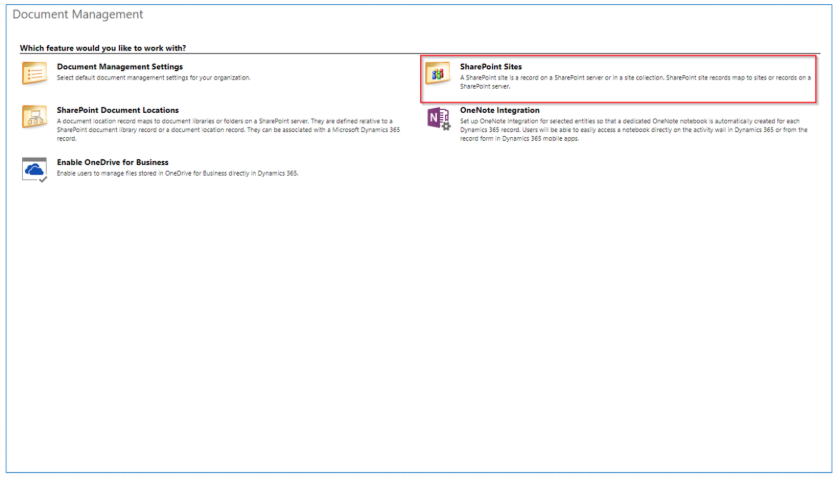
The primary and most powerful integration for document management in Dynamics 365 is SharePoint. The integration between Dynamics 365 and SharePoint is typically “server-based,” meaning it’s configured at the server level and provides a seamless experience for users.
Overview
Here is a quick overview regarding configuration of SharePoint integration:
- An administrator sets Enable Server-Based SharePoint Integration in the Power Platform Admin Center or Dynamics 365 settings.
- Specify the SharePoint site URL that will be used for document storage.
- Select the specific Dynamics 365 entities (e.g., Account, Contact, Opportunity, Lead, Case) for which document management should be enabled.
During this setup, Dynamics 365 often automatically creates corresponding document libraries and folders in SharePoint for the selected entities. For example, for an Account record in Dynamics 365, a folder might be created in SharePoint.
Within a Dynamics 365 record (e.g., an Account record), users will see a Documents tab or section. When a user clicks on this tab, Dynamics 365 intelligently displays the documents stored in the corresponding SharePoint folder for that specific record.
User Access
Users will then have access to the following features directly:
- Upload new documents from their computer to SharePoint.
- Create new documents (e.g., Word, Excel) that are automatically saved to SharePoint.
- Open and edit existing documents in their native Office applications (e.g., Word, Excel, PowerPoint) or directly in Office Online.
- Check In/Check Out documents (if versioning is enabled in SharePoint) for controlled editing.
- Manage document properties and view version history.
- Share links to documents.
At its core, SharePoint integration links Dynamics 365 records (like Accounts, Contacts, Opportunities, or custom entities) to specific folders or document libraries within SharePoint. This means that instead of documents being stored directly within the Dynamics 365 database (Dataverse), they reside in SharePoint, and Dynamics 365 maintains a pointer or link to their location.
Email Management
Email integration in Dynamics 365 is a fundamental capability that connects your organization’s email system (most commonly Microsoft Exchange/Outlook) directly with your Dynamics 365 environment. The goal is to provide a seamless flow of communication data, enhance user productivity, and give sales, service, and marketing teams a complete view of customer interactions.
Server-Side Synchronization (SSS)
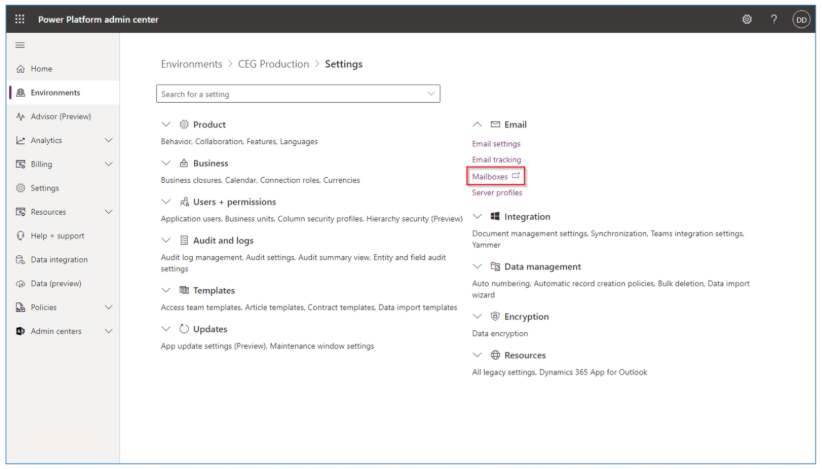
SSS recommended and is the most robust method for email integration. It’s a server-to-server connection between Dynamics 365 (Dataverse) and Microsoft Exchange (Online or On-Premises), or other POP3/SMTP email servers.
To configure SSS, here are some points to consider:
Email Server Profiles: This is where you configure profiles for the email server type (e.g., Exchange Online, SMTP/POP3).
Mailboxes: Each user’s mailbox in Dynamics 365 needs to be configured and tested to use Server-Side Synchronization for incoming and outgoing email, appointments, contacts, and tasks.
System Settings: Global settings related to email tracking, email processing, and allowed attachments are managed here.
Email Tracking Rules: You can set up rules (e.g., tracking emails for contacts, leads, accounts, or only emails with a specific subject line).
Dynamics 365 App for Outlook
This is an add-in for Outlook(web, desktop, or mobile) that provides users with a direct interface to Dynamics 365 data and functionality within their Outlook client. It works in conjunction with Server-Side Synchronization.
The Dynamics 365 App for Outlook is deployed by an administrator to users’ mailboxes, often through the Microsoft 365 admin center or the Dynamics 365 system settings. The users will need appropriate Dynamics 365 security roles to use the app and perform actions.
Email Integration Considerations
Here are other email integration considerations:
- Email Templates: Dynamics 365 allows you to create standardized email templates that can be used directly from the application or within the Dynamics 365 App for Outlook, ensuring consistent messaging.
- Email Signatures: Users can configure personal email signatures within Dynamics 365 or rely on their Outlook signatures.
- Auditing: Email activity tracked in Dynamics 365 is subject to auditing, providing a history of who viewed or modified the email record.
- Marketing Emails: Dynamics 365 Marketing (a separate module) provides advanced email marketing capabilities, including mass email sending, segmentation, and detailed analytics, often working in conjunction with the core email integration.