Finance For Schools in Microsoft Dynamics 365 Business Central Education Solution User Guide
Introduction
Purpose
Finance for Schools in Education Solution is a Microsoft Dynamics 365 Business Central extension developed to meet the student fee invoicing process of all education levels. We have taken education industry needs to design the module, where:
-
Parents are payees while students are Customers.
-
Divorced parents need to have separate fee billings and statements for shared responsibility of the student.
-
Education fees could be packaged (e.g. tuition with sports or canteen).
-
Education fees billing could be in-advance or scheduled regularly over school terms.
-
Sibling discounts and scholarships are also considered.
To get the extension, visit the Microsoft Marketplace: Finance for Schools in Business Central .
Feature Overview
The module extension utilizes Business Central subscription orders and billing, in addition to meeting requirements for parent-student relationships and payments.
-
Separate menu structure for configuring and processing student billing
-
Split billing of school fees if the family structure requires
-
Sibling discount computation
-
Scholarship awarded
-
Scheduled billing by school term as well as in-advance billing of fees
Module Configuration
The following configuration data is needed before the student enrolment can be created and billing started. This diagram shows an overview of the module components:
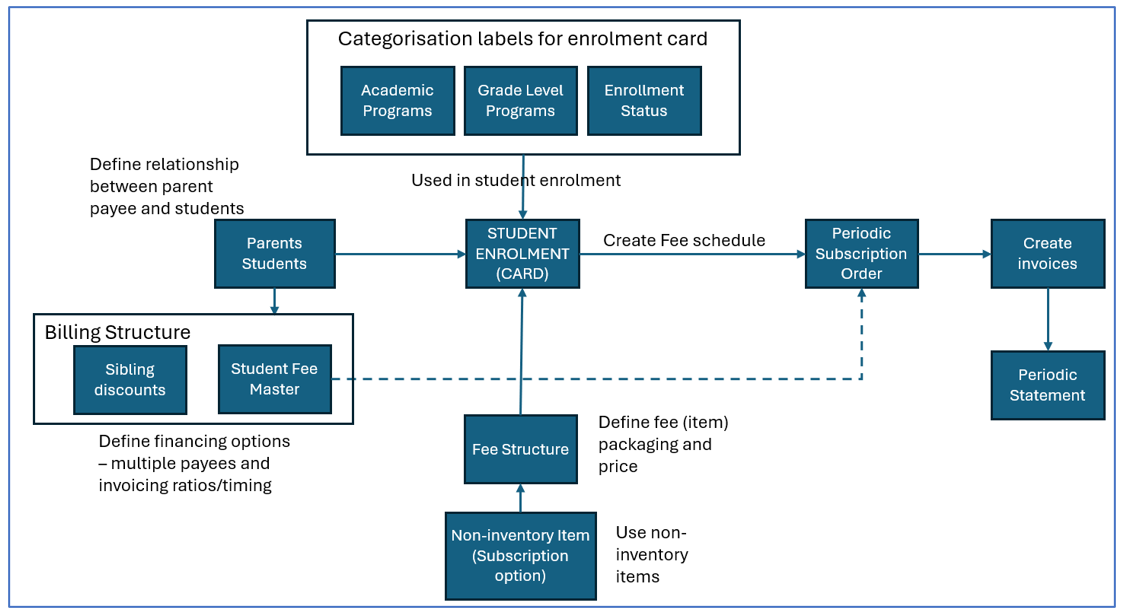
New configuration options are under Finance for Schools menu.

Enrollment Categorization
The following 3 custom categorization groups used in the student enrolment are available:
Academic Programs
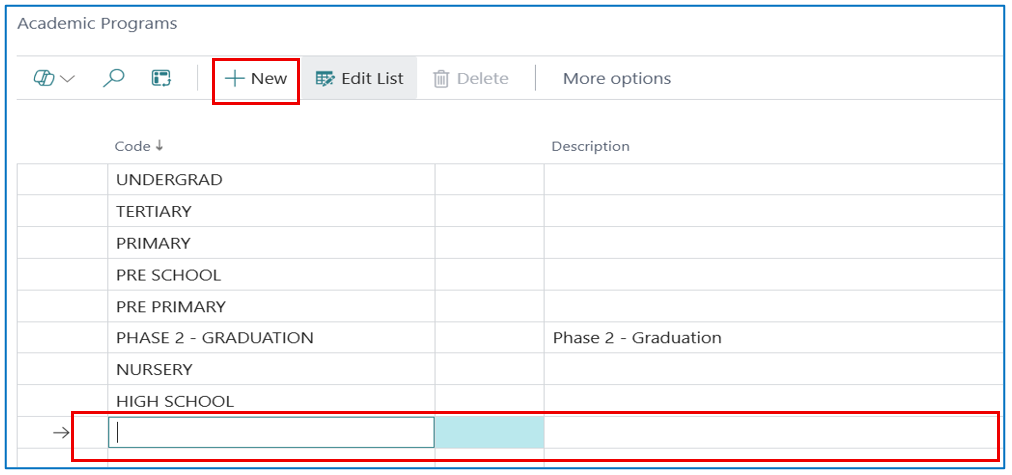
Select Academic Programs sub-menu option to open the Academic Programs list page. Click +New to add a new label for the Academic Program in your education institute.
Example: Enter a program code and the program description
Grade Level Program
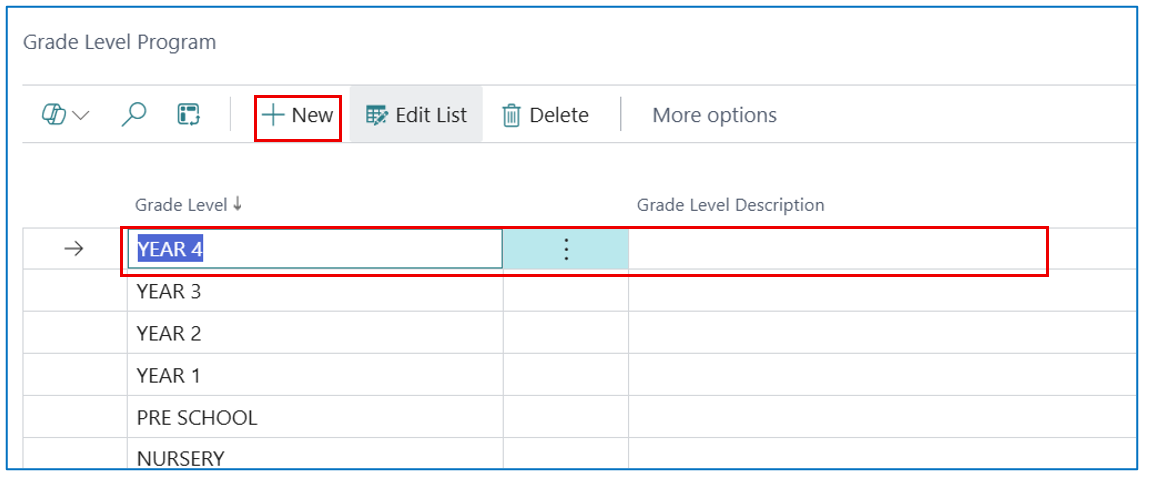
Select the Grade Level Program sub-menu option to open the Grade Level Program list page. Click +New to add a new label for the Grade Level Program in your education institute.
For example, your institute may have a Secondary academic program with 4 grade levels. Enter the Grade Level code and description.
Enrollment Status
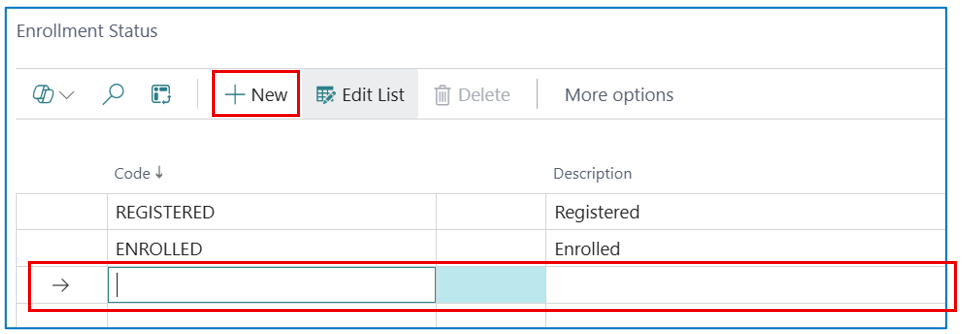
Define your own enrolment status to identify the student’s enrolment cycle.
e.g. registered > approved > enrolled
Select the Enrollment Status sub-menu option to create status codes and descriptions.
Example:
Parent & Student Records
These records utilize the customer card that has additional custom fields.
Parent Record
Select the Parents sub-menu option to open the Parents master list page. Click +New to add a new parent master card.
Example:
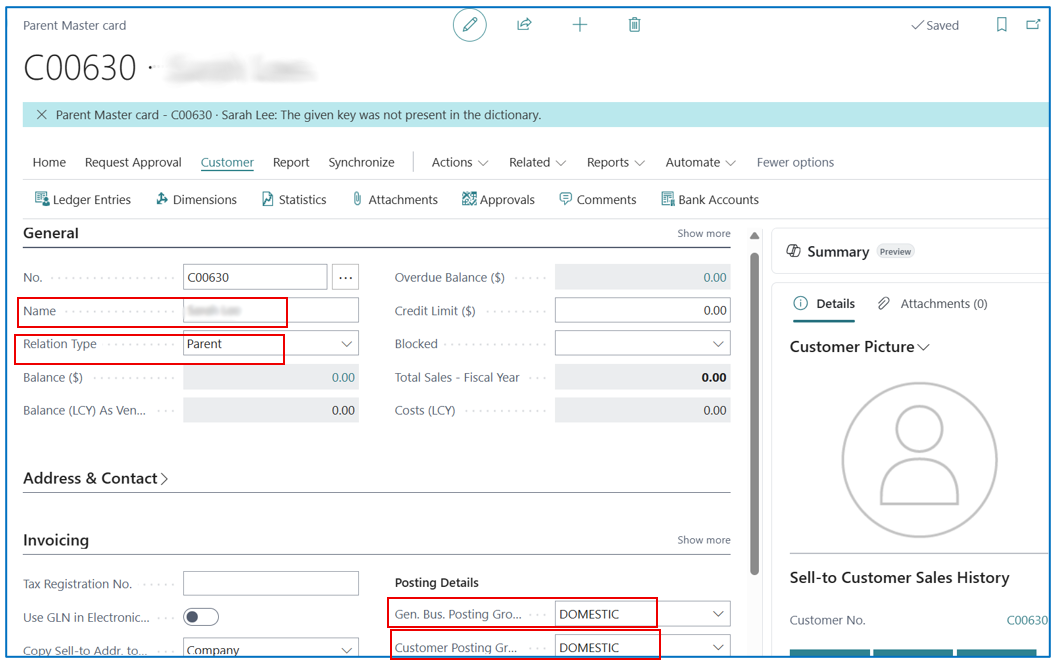
Key fields required:
-
Name — Name of the parent.
-
Relation Type — Select Parent since this parent (customer) card is for the parent record
-
Gen. Bus. Posting Group — Select the posting group for recognition of sales accounts.
-
Customer Posting Group — Select the posting group for recognition of the receivable accounts.
Student Record
Select the Students sub-menu option to open the Students master list page. Click +New to add a new student master card.
Example:
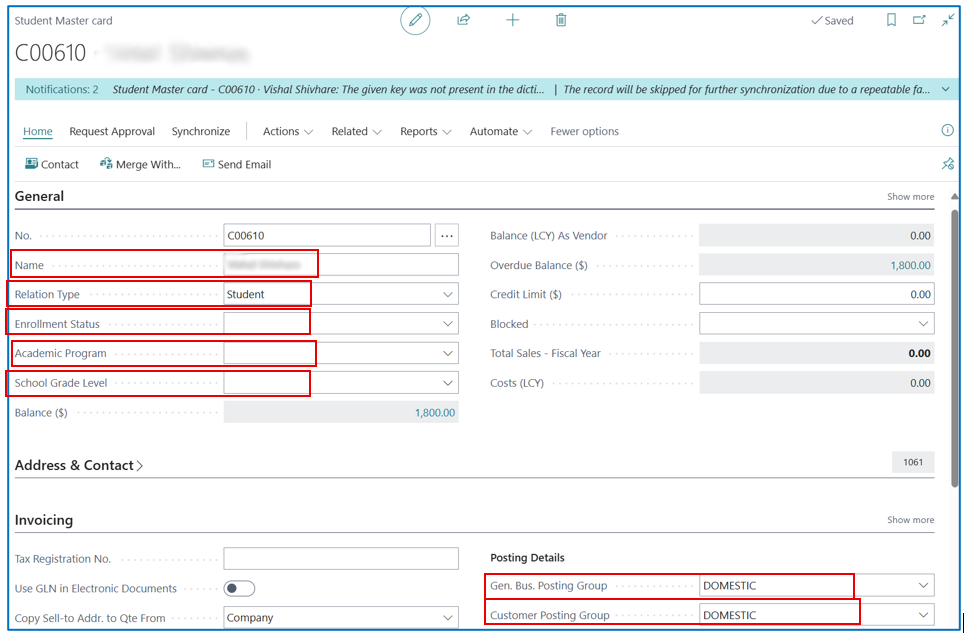
Key fields required:
-
Name — Name of the student.
-
Relation Type — Select Student since this student (customer) card is for the student record.
-
Enrollment Status — This status is updated from the Student Enrollment Card.
-
Academic Program — Select the Academic Program that the student registered for.
-
School Grade Level — Select the Grade Level that the student registered for.
-
Gen. Bus. Posting Group — Select the posting group for recognition of sales accounts.
-
Customer Posting Group — Select the posting group for recognition of the receivable accounts.
Siblings & Discount
If school fee discounts are provided for student siblings enrolled in the same school, these discount rates are set up in the sub-menu Sibling Discounts.
Example:
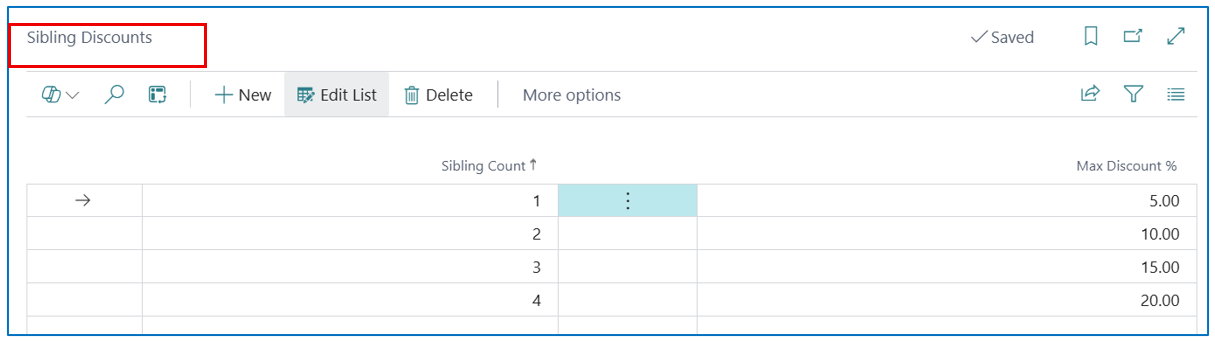
NB: Sibling count indicates each additional student enrolling after the initial student from the same family unit.
Example:
1st Student — Sibling count = 0
2nd Student (brother or sister) — Sibling count = 1
3rd Student (2nd brother or sister) — Sibling count = 2
The sibling count of the enrolled student is defined in the student master card. Select menu option Related > Prices & Discounts > Parent/Guardian Details to open the Parent/Guardian page.
Example:
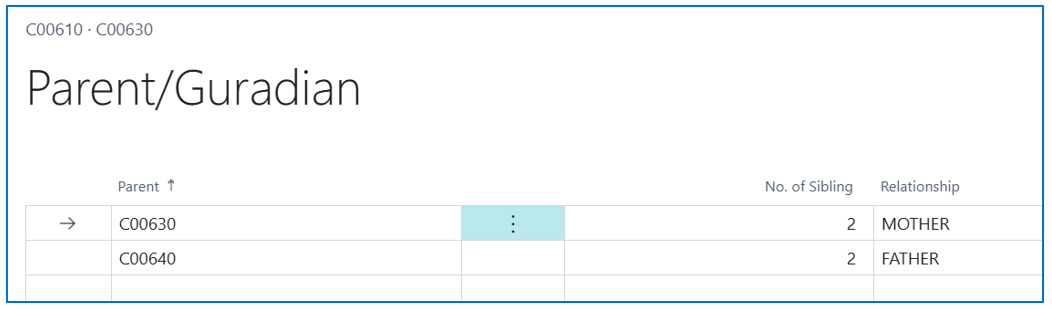
-
Select and define the parent and the number of siblings (sibling count).
-
For families with separate parent responsibilities, there may be different set of siblings under each parent.
Fee Structure & Billing Item
School fee items for billing purposes, e.g. course fee, boarding fee, and meal card fee, are defined as non-inventory type items in Business Central, and these items are associated with different Fee Structures (fee packages).
Select the Fee Structure sub-menu option to open the Fee Structure list page. Click +New to open a new Fee Structure card.
Example:
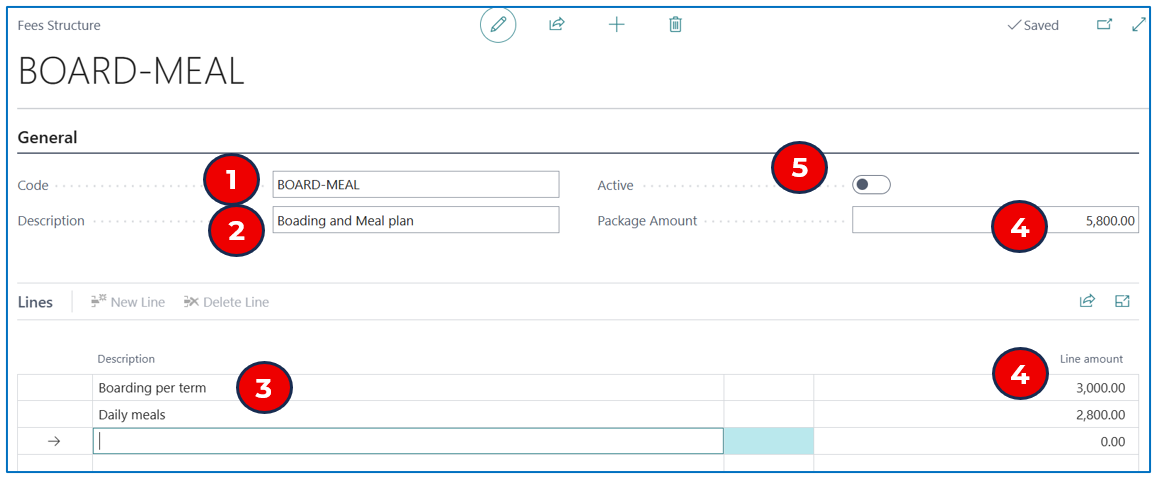
General
-
Code — Enter a code label for the fee structure.
-
Description — Enter a description for the fee structure.
Lines
Enter a billing fee type and amount for each billable fee.
-
Description — Enter the description of the fee type.
-
Line amount — Enter the billable fee amount. The Package Amount totals the line amounts. When all the fee types are defined, the Package Amount (total) displays.
-
Click on Active to activate this fee structure for billing purposes.
The defined fee structure must be associated with a non-inventory item to be used in fees billing. Search and navigate to the Items menu option to open the Item master listing page. Select a non-inventory item to associate with the fee structure.
NB: The Subscription Option field for the item must be set to Subscription Item.
Example:
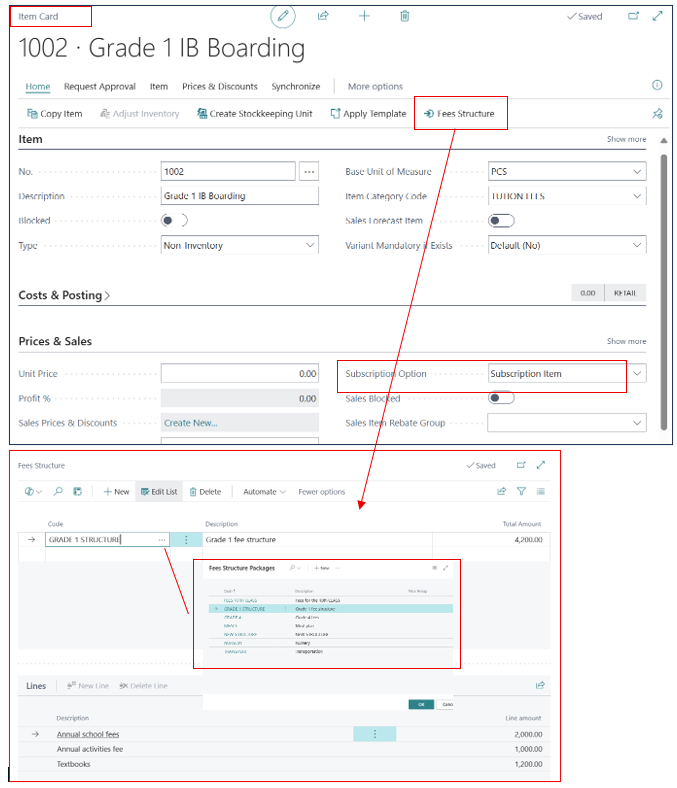
From the billable non-inventory item master card, select Home > Fees Structure to open the Fee structure page.
-
Code — Select a pre-defined Fee Structure code by clicking the 3-dot menu to list the codes for selection.
-
Once selected, the different fees defined in the Fee Structure will be displayed in the Lines section.
NB: Fee Structure must be Active before it can be selected.
-
When this billable item is selected for billing in the Student Enrollment card, the amount from the Fee Structure will apply.
Student Fees Master & Split Billing
As mentioned above, the parents-students-siblings relationship is defined on the student master card, and identifies the sibling count of the student. Additionally, if the student fees are borne separately by both parents (i.e. shared responsibility), the split in fee billings is defined in the Student Fees Master.
Select the Student Fees Master sub-menu option to open the list page displaying the defined billing ratios.
Example:
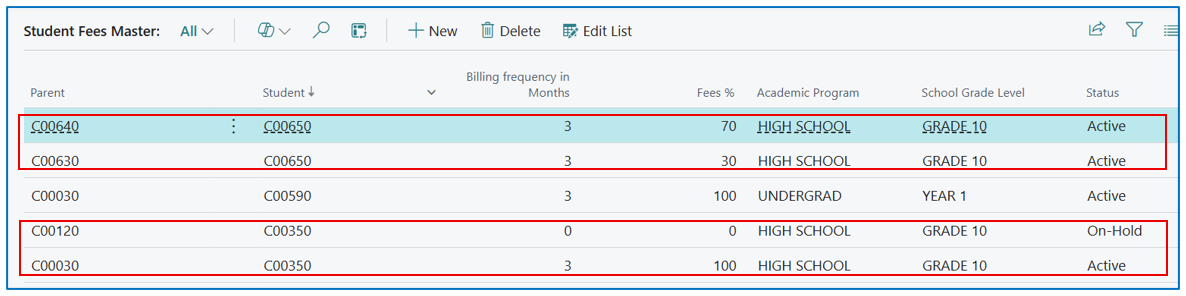
-
By sorting the list on the “Student” column, the “Fee %” column shows the percentage of the fee billed to the responsible parent (shown in the “Parent” column)
-
To create a new fee master combination, click on “+New” to open the list in edit mode.
Example:
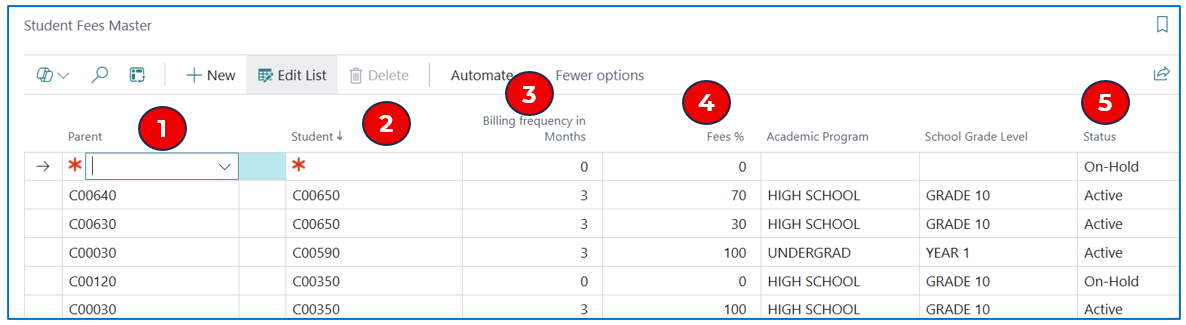
-
Parent — Select the Parent name from the list.
-
Student — Select the Student name from the list.
-
Billing Frequency in Months — Enter the billing frequency for generating invoices.
-
Fee % - Enter the % of the total fee amount to be billed (based on the Fee Structure) to the selected parent
-
Status — Select the status:
-
On-Hold — This fee amount (%) is on-hold for billing.
-
Active — The fee amount is Active and will be used to compute the amount to bill for the parent.
-
Deactive — The fee amount will not be available for use.
-
Scholarship
If the student is entitled to a Scholarship, this can be entered as a scholarship discount % in the Student Enrollment card.
Scholarships may be awarded selectively for certain programs or fee packages, so the scholarship % must be entered in the Lines fasttab of the Student Enrollment card.
Example:
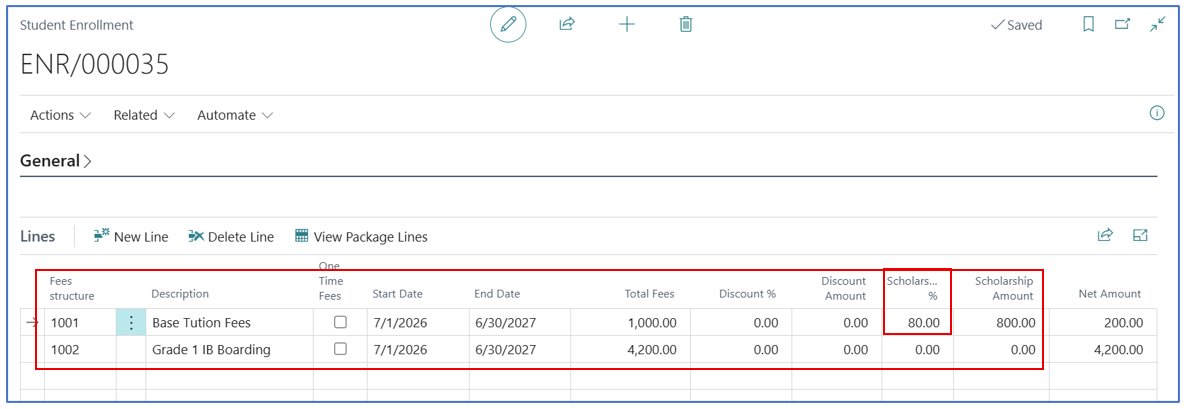
- Tuition Fees are given a Scholarship discount of 80% but not for Boarding Fees.
Student Enrollment & Billing
Each student enrolled in a program needs to have an enrollment card created for each enrolled school year. The enrolled Fee Structure displays the various fees to be invoiced during the year, and the subscription billing frequency is used to schedule the recurring billing for each school term during the year.
Student Enrollment Card
At the heart of the module is the Student Enrollment record where billable fees are defined and billed on a periodic basis or in advance.
Select the Student Enrollment sub-menu option to open the list of students enrolled in your school/institute.
Example:
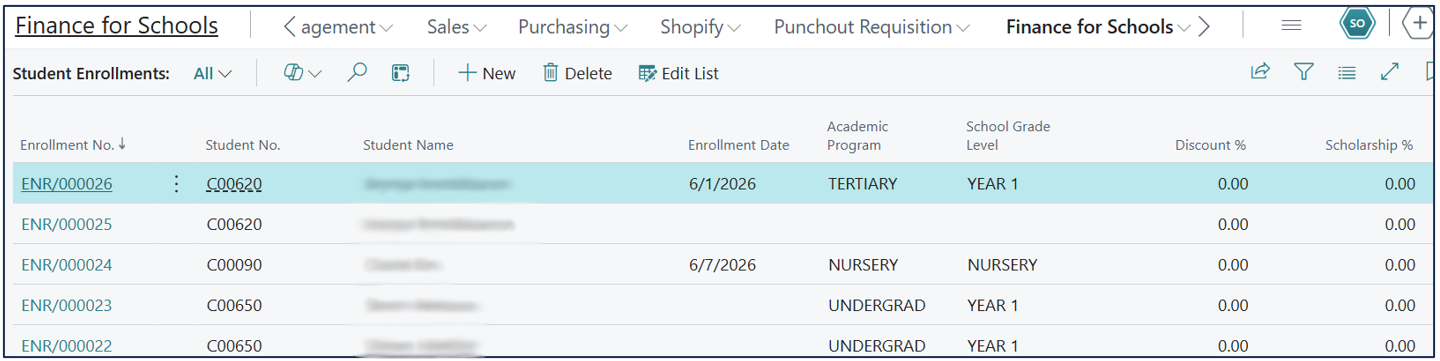
To create a new enrollment, click on +New to open a new enrollment card for the student.
Example:
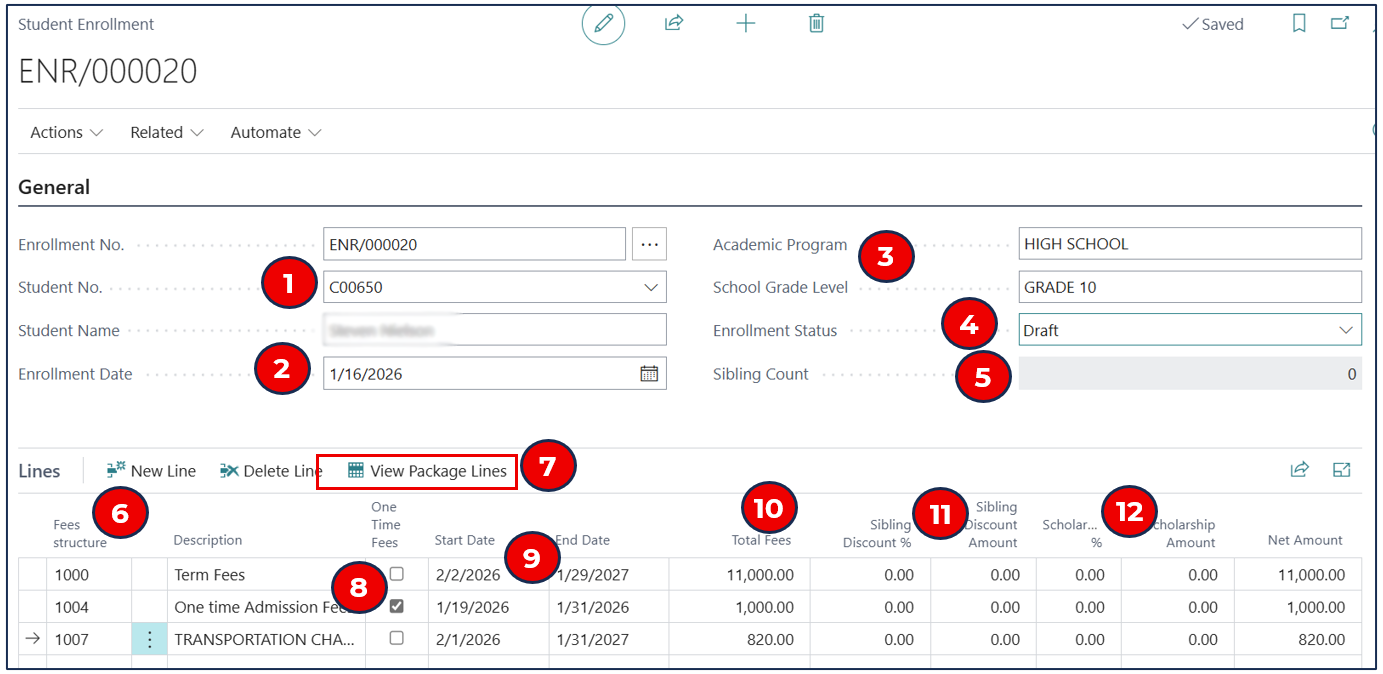
General fasttab
-
Student No. — Select the enrolled student
NB: The student record must be created as a customer card with Student relationship.
-
Enrollment Date — Select the date of enrollment.
-
Academic Program and School Grade Level — These defaults from the Student Card (at registration).
-
Enrollment Status — Select the following status:
a. Draft — Enrollment is still editable.
b. Pending for Approval — If approval workflow is created for enrollment approval (enrollment is not editable).
c. Enrolled — If the student registered and enrollment is confirmed (enrollment is ready for the start of the billing cycle).
d. Blocked — The student enrollment is blocked. This also stops further billing for the enrolled student.
-
Sibling Count — This is defaulted from the Parent/Guardian Details setup in the Student Card.
NB: The sibling count defaults the sibling discount % for each fee structure line.
Lines Fasttab
-
Fee Structure — Select the item code for fees
NB: The item must be associated with a Fee Structure and has Subscription Item in the subscription option.
-
View Package Lines — Select this menu option to view the various fees included in the Fee Structure for the line.
-
One Time Fees — Enable this flag if the billing item is to be invoiced once (on the initial invoice).
-
Start Date and End Date — This is the start and end date for the billing duration of the selected item/fee structure.
NB: The billing frequency for this period is defined under Student Fees Master.
-
Total Fees — The total fee from the Fee Structure will be displayed.
-
Sibling Discount % and Discount Amount — If the sibling count <>0, this student has a previously enrolled sibling and the sibling discount % and amount will default as defined.
-
Scholarship % - If scholarship applies to the Fee Structure line, enter the scholarship %.
Creating Fees Schedule — Billing Frequency & Parent Contribution
The pre-defined billing frequency and parent contribution for the student can be viewed from the Student Enrollment card. Select menu option Actions > Fees Master to view the breakdown of billings — billing frequency and parent contribution.
Example:
Fees Master view:
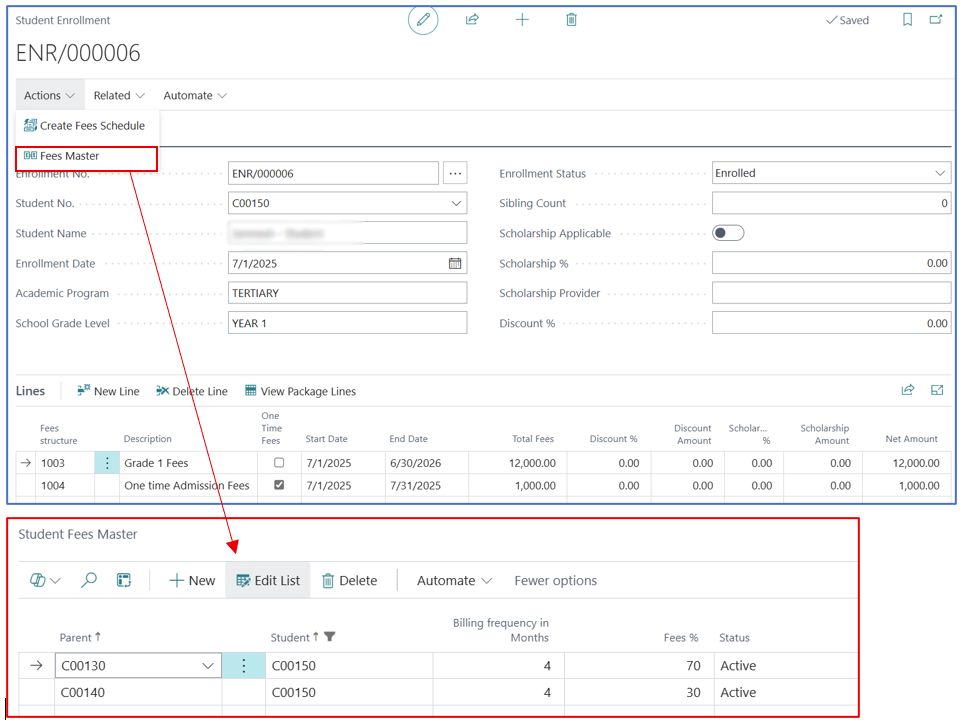
-
Billing Frequency in Months — The schedule will generate each billing order based on this interval.
-
Fees % - This indicates the % of fee amount that will be billed to the responsible parent.
-
Status — The status must be Active for the billing record to be used in the fee schedule.
Select menu option Actions > Create Fees Schedule to generate a series of subscription billing orders to each parent, according to the fees split defined in the Student Fees Master. The billing frequency for each fee type (defined in the Fees Structure) is displayed in months, but the computation of the billing amount is based on the number of days in the billing interval divided by 365 days (ratio of billing days to 365 days in the year).
Periodic Billing & Monitoring
When a Fee Schedule is generated from the Student Enrollment card, it creates a series of Subscription Orders based on the billing frequency.
To view the resulting subscription billing orders, select Finance for Schools > Subscription Orders**.
Example:

-
No. — This is the subscription order number.
-
Source No. — This is the Fee Structure/Item selected in the Student Enrollment card Lines section i.e.
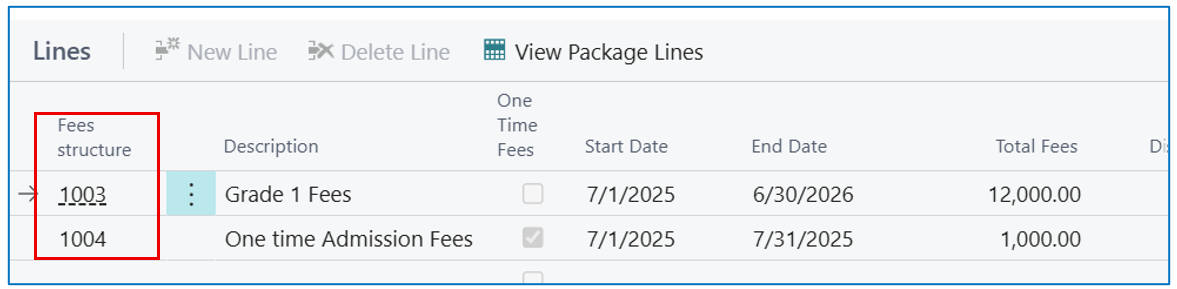
Subscription Order Lines
All subscription orders will have subscription lines for each selected fee structure.
To view these subscription order lines, select sub-menu Finance for Schools > Student Billing Lines.
Example:
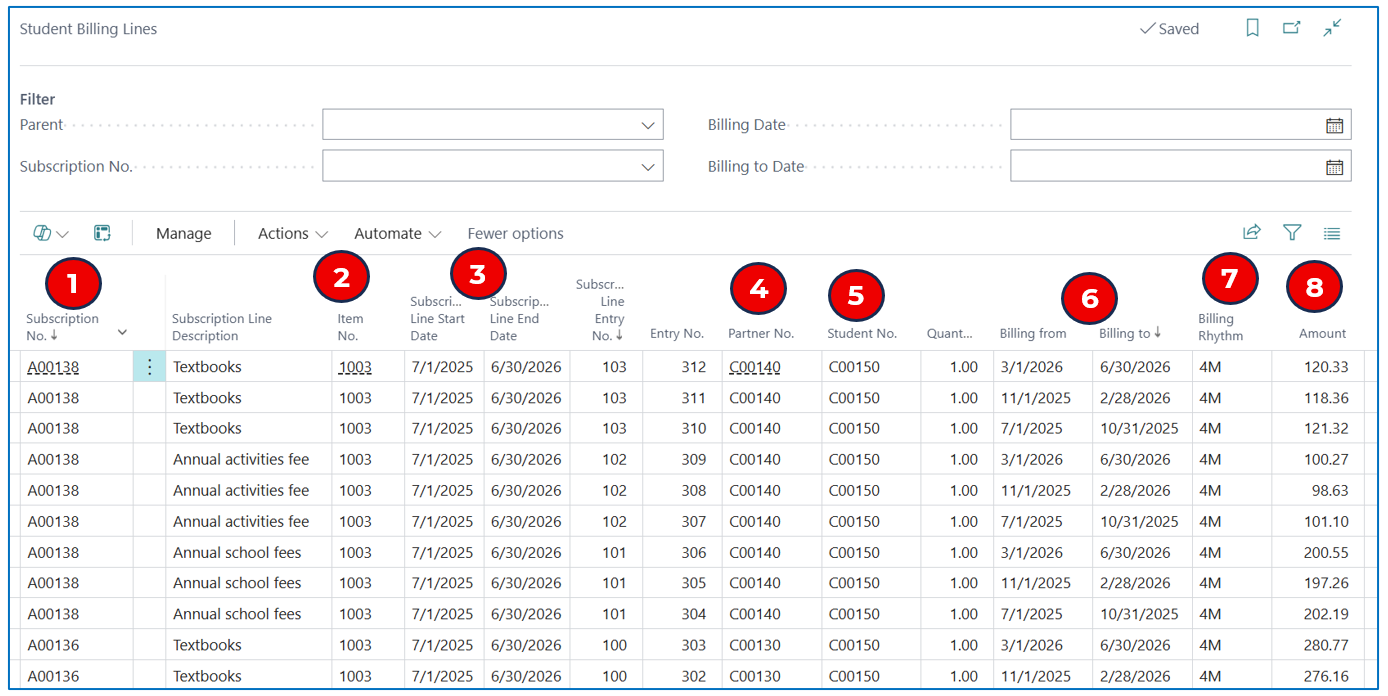
-
Subscription No. — This is the subscription order number.
NB: Each order has several line items per billing period.
-
Item No. — This is the line-item number (defined in the enrollment card).
-
Subscription Line Start Date and End Date — These dates default from the dates defined in the Student Enrollment card.
-
Partner No. — This is the customer code for the parent account.
-
Student No. — This is the customer code for the student account.
-
Billing From and Billing To — These are the computed billing dates of the billing frequency interval.
-
Billing Rhythm — This is the defined billing frequency (from the Student Fees Master).
-
Amount — The amount is computed based on a ratio of days in the billing frequency interval (dates) to the number of annual days (365).
NB: If it is a One Time Fees, the full amount is billed once.
Fees Invoicing
Invoices are created from the Student Billing Lines — by using filters to list the lines to invoice and multi-select billable lines.
Example:
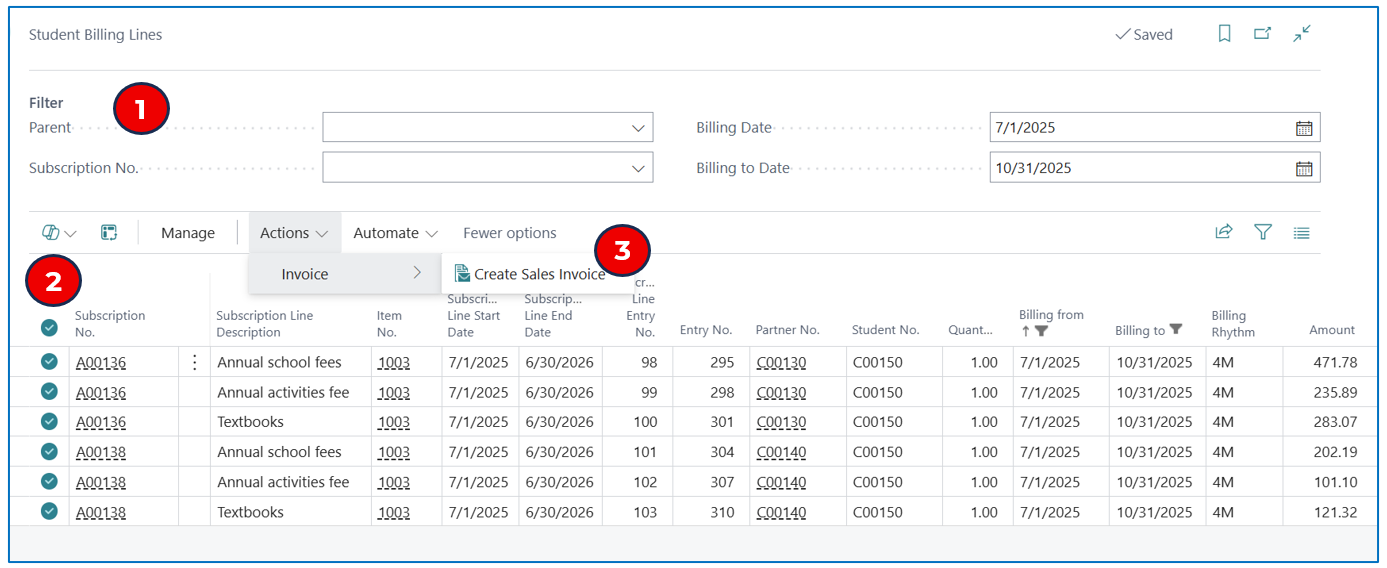
-
Use the filters to display subscription order lines for billing/invoicing:
a. Parent — If invoicing to a parent is needed.
b. Subscription No. — Select a specific subscription order to invoice.
c. Billing Date and Billing to Date — Define a date range for selection of billing lines for the period.
-
Multi-select the billing lines to add to invoices (these are added to unposted invoices).
-
Select Actions > Invoice > Create Sales Invoice to generate invoices for the selected subscription billing lines.
Reporting
Statements
To run statements to the parent responsible, select the menu option Parents and then select the name to open the Parent card.
Example:
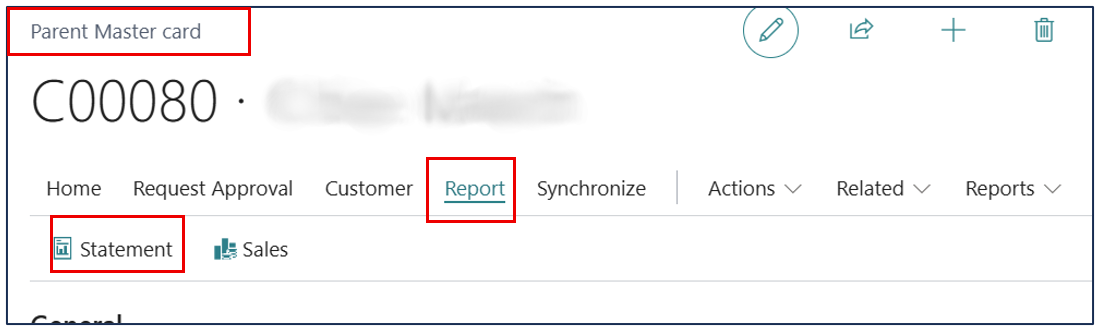
Select menu Report > Statement to open the report filter dialogue.
Example:
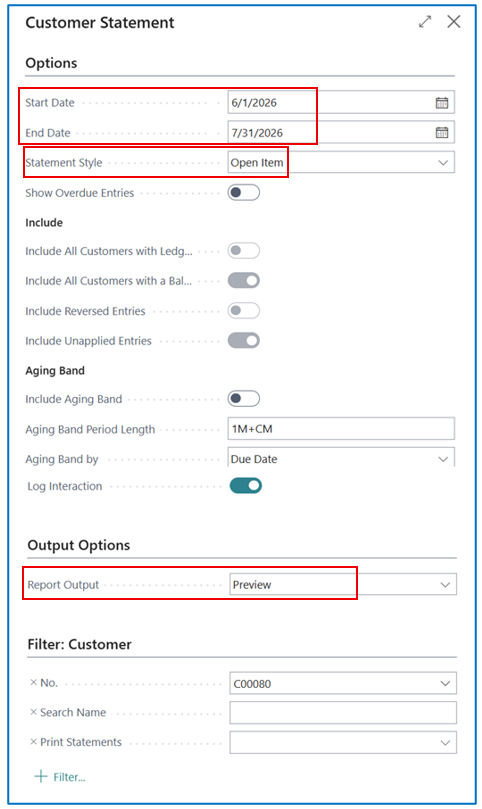
Key filter fields:
-
Start Date and End Date — Select the date range for the statement.
-
Statement Style — Select either to display the Balance or list the Open Item.
-
Report Output — Select to Preview, Print, or Email the statement.
Student Enrollment List
Select sub-menu Student Enrollments to open the list of enrollments.
Example:
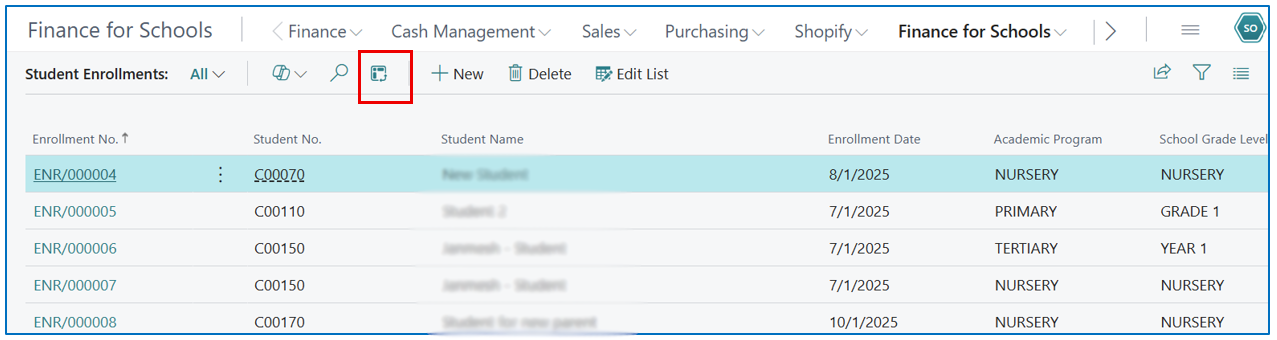
Select the Analysis icon to run the list as an analysis report.
Example:
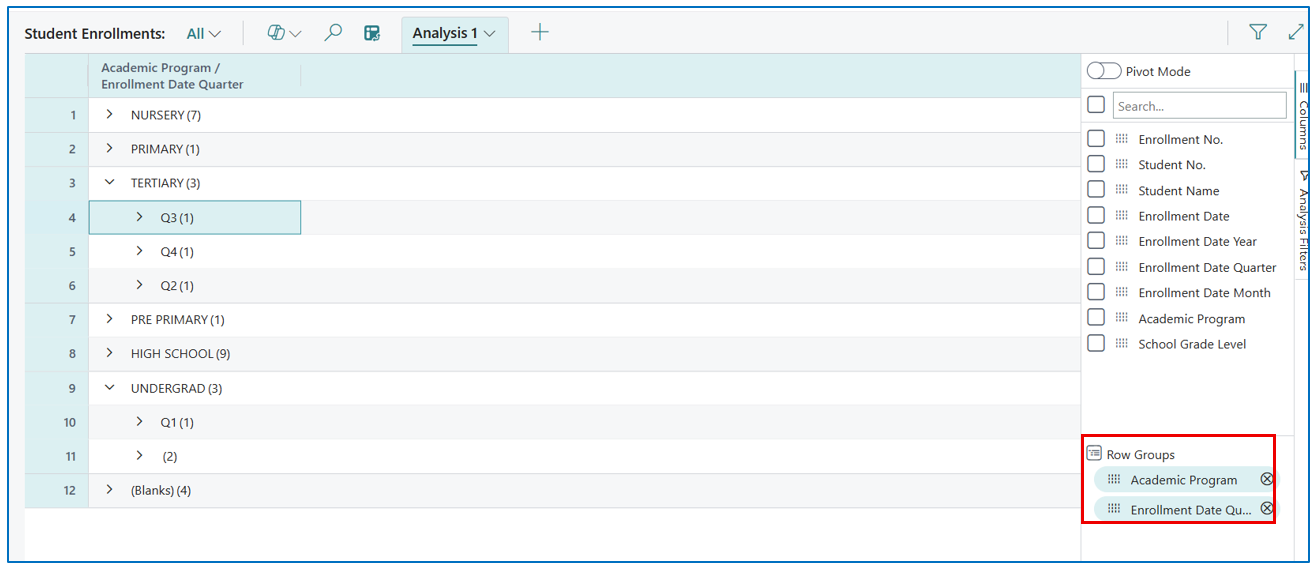
To show a report listing students enrolled for a particular academic program and across different enrollment dates.
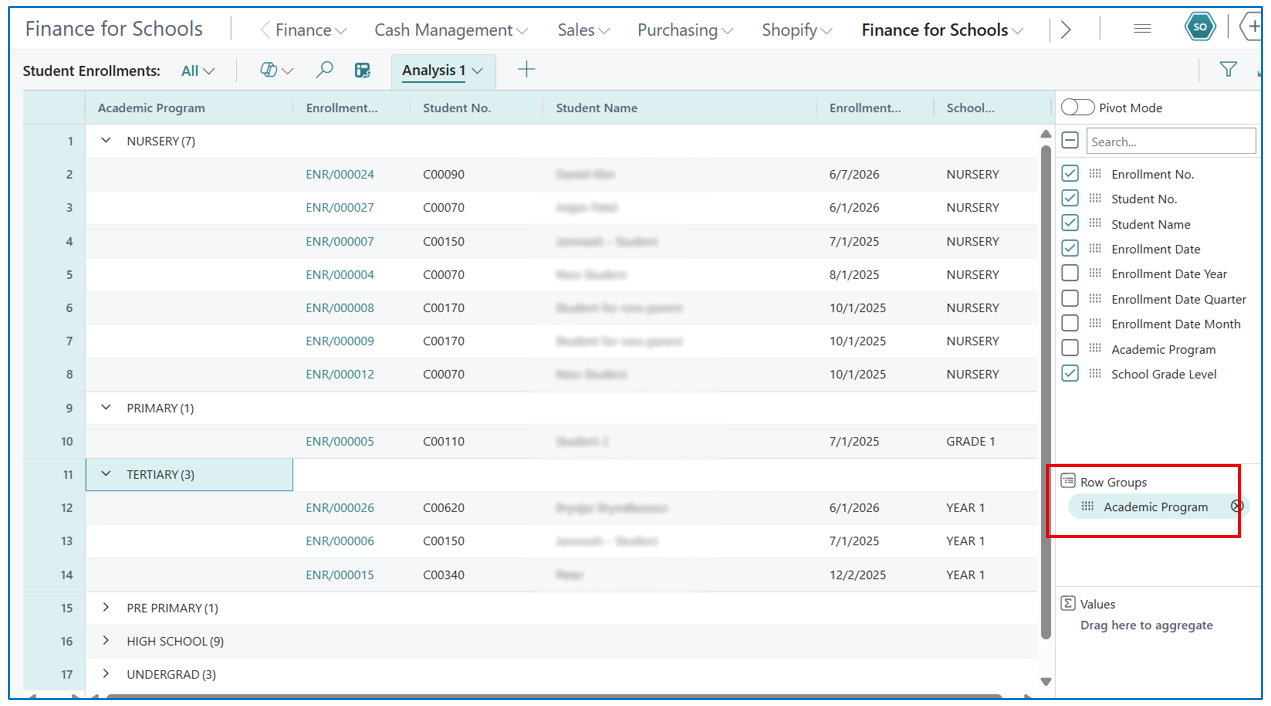
Another view could be an aggregate of the enrollment count by quarter.
Example: