Microsoft Dynamics 365 for AP Automation User Guide
Leveraging Azure AI Document Intelligence and Power Automate
Introduction to AP Automation
Dynamics 365 Business Central’s Accounts Payable (AP) Automation empowers organizations to manage invoices efficiently, reduce manual intervention, improve accuracy, and enhance compliance. This guide explores the features of AP Automation, from basic navigation to available integrations, providing new and experienced users with practical, actionable steps for maximizing the platform’s capabilities.
Basic Navigation in Dynamics 365 Business Central
Upon signing in or logging in, you’ll encounter the clean, modern Business Central interface, designed to simplify access and visibility.
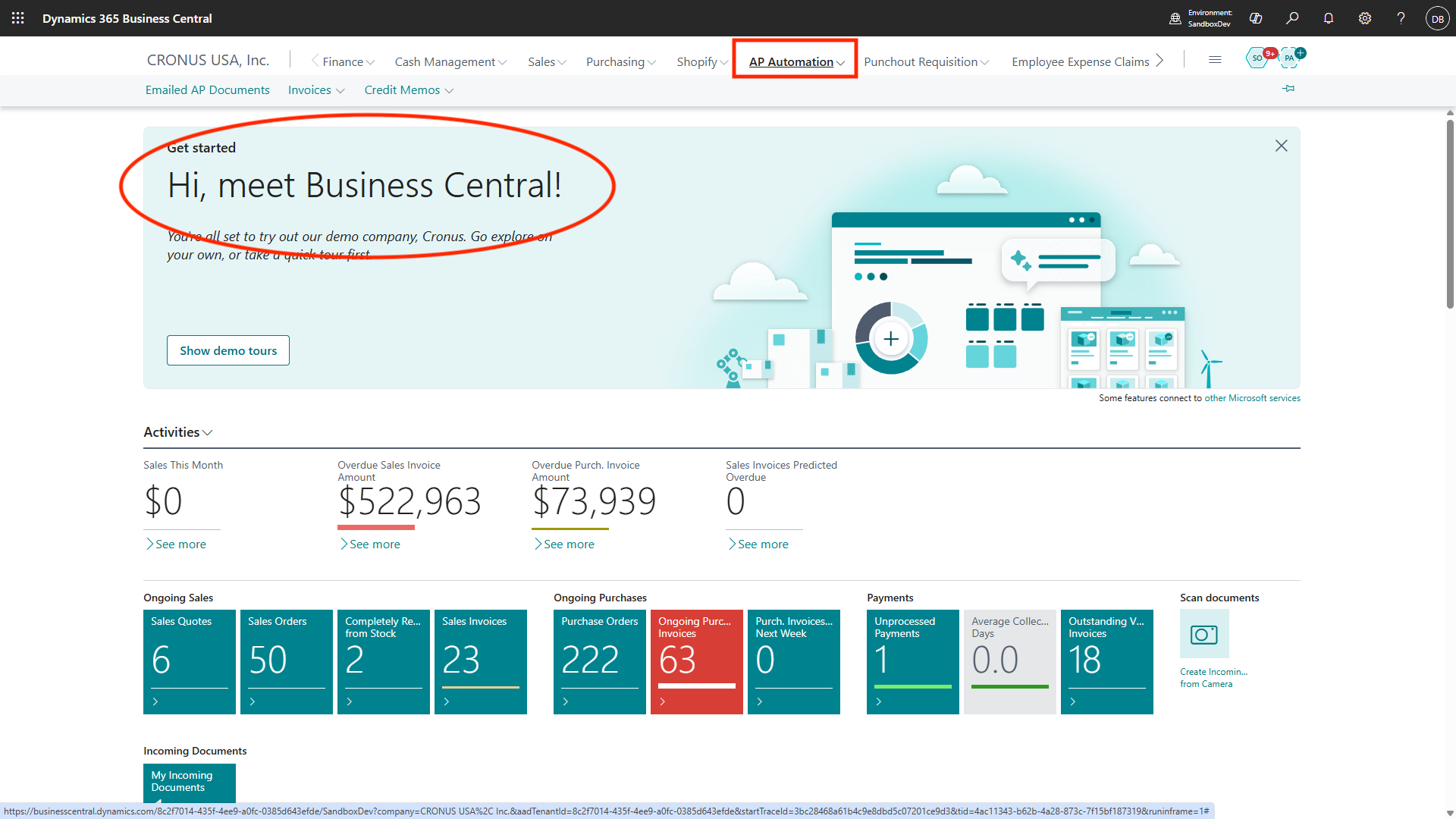
Navigation Overview
Here are the following navigation functions to get started:
-
Navigation Pane: Located on the top, the pane provides quick access to Finance, Cash Management, Purchasing, and AP Automation.
-
Ribbon: The top ribbon houses context-specific actions like posting, editing, and exporting data. The options change depending on the selected module or record.
-
Search Bar: In the top-right, the Tell Me search bar lets users locate pages, reports, tasks, and records rapidly. Type keywords (e.g., “vendor payments,” “pending invoices”), a vendor name or a transaction number to jump directly to relevant functions.
Familiarize yourself with the menu structure and shortcuts for efficiency, including keyboard navigation features and pinned actions.
Home Page: Personalization and Quick Link Actions
The Home page is the user’s command center.
Home Page Overview
The Home page offers a customizable dashboard with the following features:
-
Tiles and Dashboards: Arrange visual tiles for instant access to AP metrics, pending approvals, and workflow summaries.
-
Widgets: Add real-time widgets to monitor financial KPIs, outstanding invoices, and cash flow statuses.
-
Quick Links: Create personalized quick links to initiate common actions (View Pending Invoices, Create Purchase Invoice, Review Emailed Documents, Access Vendor List) in one click.
-
Drag-and-Drop: Rearrange sections and shortcuts as your priorities evolve.
-
Notifications: Set up tailored alerts for invoice approvals, document imports, or changes in AP status.
To personalize, click Personalize in the top menu, then drag, drop, and configure visible fields, actions, and tiles.
My Settings: Ensuring Proper Configuration
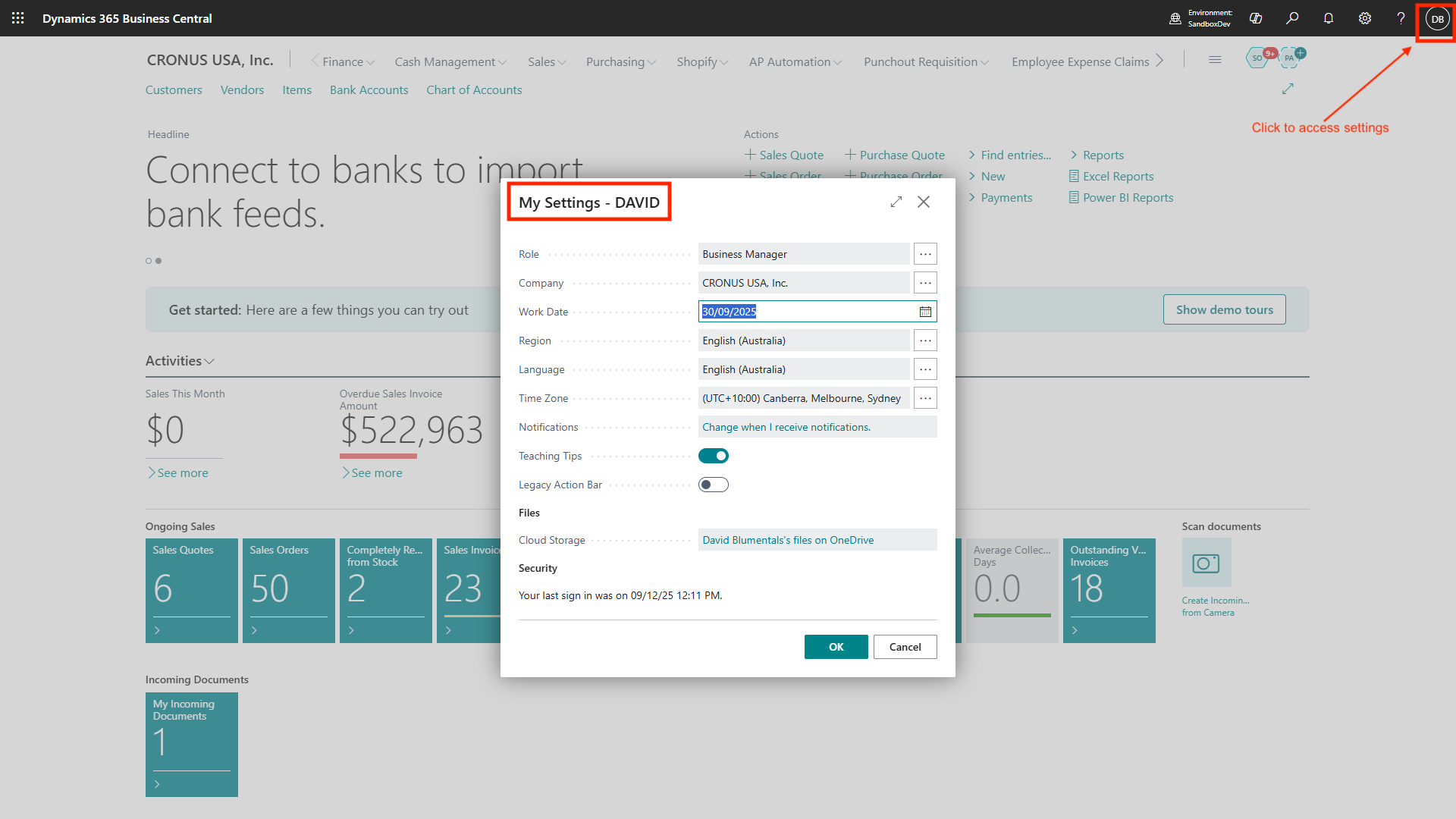
Access My Settings by clicking your user icon (top-right).
You will find the following important configuration options:
-
Role Assignment: Select your assigned role (Payables Agent, Purchasing Agent, Business Manager). This determines which menus, actions, and permissions are available. Only users with appropriate roles can access sensitive AP automation features.
-
Company Selection: Choose the relevant company if your Business Central instance manages multiple legal entities. Switching companies updates the workspace, transactions, and records.
-
Work Date: Set or adjust your work date for transaction entry. This is useful for batch processing, month-end close, or backdating documents.
-
Time Zone: Ensure your time zone is correctly set for accurate timestamps on documents and audit trails, especially when collaborating across regions.
-
Language and Regional Format: Customize language and number/date formatting for better readability.
Double-check these settings regularly to avoid mis posting or data inconsistencies.
Introduction to Azure AI Document Intelligence and Power Automate
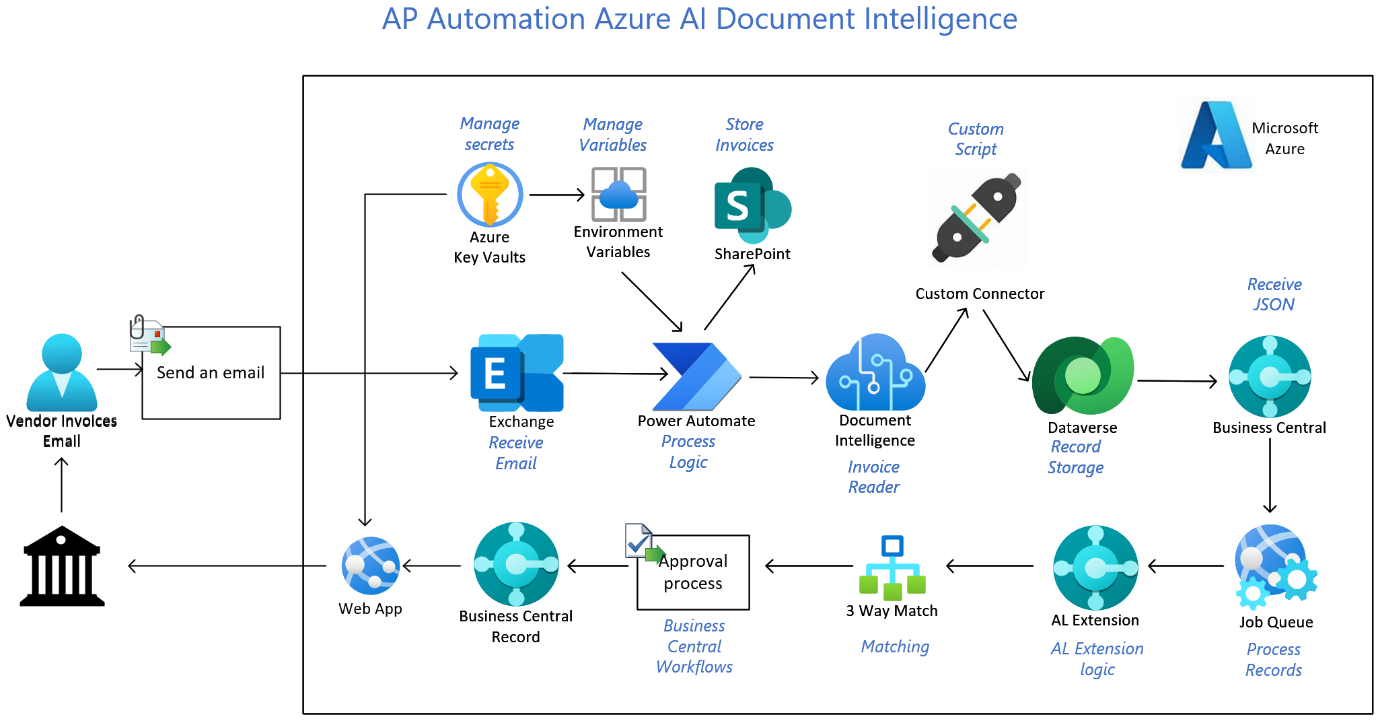
Azure AI Document Intelligence and Power Automate are deeply integrated to enhance AP Automation.
Key Features of Azure AI Document Intelligence and Power Automate
Here are the key features:
-
Azure AI Document Intelligence: Utilizes machine learning to extract key data (invoice number, vendor,amounts, dates, line items) directly from submitted documents, whether PDF, scanned image, or digital format. The AI continually improves its recognition and mapping abilities as more documents are processed.
-
Power Automate: Enables users to build automated workflows, such as:
-
Routing invoices for approval by designated users or managers
-
Notifying stakeholders of new documents or pending actions
-
Integrating with external systems for data import/export
-
Triggering alerts for exceptions (duplicate invoices, missing fields)
-
Together, these features significantly reduce manual entry, accelerate processing times, and minimize errors.
The following diagram provides a high-level technical design.
Supported Formats and Content for AP Invoices
Business Central’s AP Automation processes a wide variety of invoice formats:
-
Common File Types: PDF, DOCX, XLSX, JPEG, PNG, TIFF
-
EDI Documents: Support for electronic invoice transmission and standardized formats
-
Multi-Page and Attachment Support: Extracts data from invoices with multiple pages and gathers related documents (purchase orders, delivery receipts)
-
Non-PO Invoices: Handles invoices without purchase order references, with flexible mapping to accounts
-
Complex Line Items: Reads tables, itemized lines, and descriptions, mapping them to ledger or cost center codes
Validation tools flag inconsistencies or missing data for user review.
Foundational Prerequisites for Successful Automation
For the AP automation engine to function correctly and avoid processing failures, it is strategically important to meet a specific set of system prerequisites. These conditions, related to the existence of purchase orders and the clarity of invoice data, are not optional; they are the essential inputs that allow the system to perform its matching and allocation functions as designed.
Mandatory System Conditions
The invoice matching function relies on the following two critical prerequisites being met without exception:
-
A Purchase Order must already exist within Business Central before the corresponding invoice is received for processing.
-
The corresponding Purchase Order number must be clearly mentioned on the invoice document submitted by the vendor.
Supported Invoice Formats
The system is designed to process a wide variety of common business document formats, offering flexibility in how vendors submit their invoices. Supported formats include:
-
PDF
-
DOCX
-
XLSX
-
JPEG
-
PNG
-
TIFF
-
EDI Documents
Adherence to these prerequisites is the first step toward achieving touchless invoice processing. The next logical step is to ensure each vendor’s master record is configured to reflect their specific business rules and invoice types.
Initial Setup: Vendor Details
The Vendor Card in Business Central serves as the central control panel for defining how the automation engine behaves for each supplier. The settings configured in the AP Automation tab directly govern matching policies, cost and quantity tolerances, and default accounting treatments. Their correct configuration is essential for enabling straight-through, touchless invoice processing and minimizing manual exceptions.
To configure settings, follow these steps:
-
Navigate to Vendors in the Purchasing module.
-
Click New to add a vendor, entering vital information: name, registered address, ABN, contact details, payment terms, bank account info, and default GL account.
-
Set up AP preferences for each vendor, such as default G/L Account, whether the vendor is only related to charge item , and notification settings.
-
Attach supporting documentation (contracts, compliance certificates) using document management features.
-
Configure vendor-specific AP automation rules for mapping and exception handling.
Regularly review and update vendor records for accuracy.
Some of the new fields which will enhance the automation process.
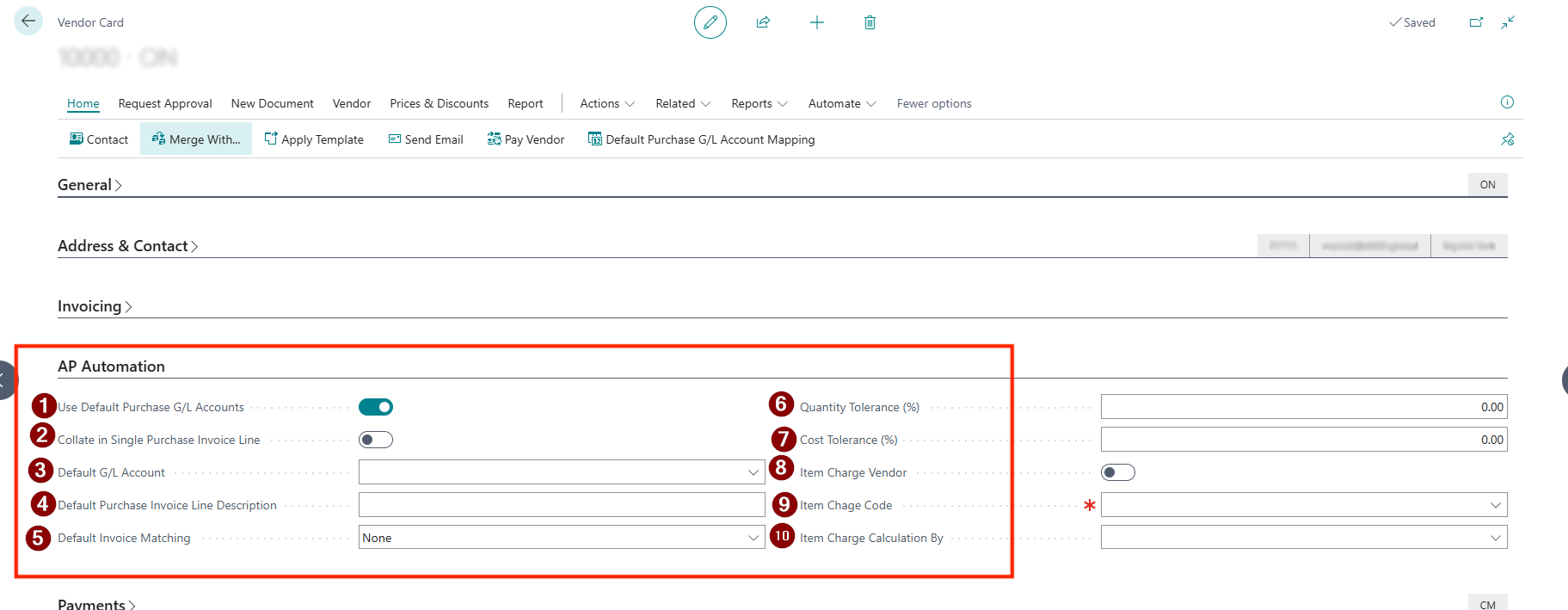
- On the vendor card, we have a new tab AP Automation which has following features
- Use Default Purchase G/L Account — When this toggle is enabled, the system will post the entire value of any invoice from this vendor to a single, pre-defined General Ledger account. This feature is particularly useful for simplifying the processing of recurring, non-itemized invoices, such as utility bills, mobile phone bills, or general service fees where detailed line-item accounting is unnecessary.
Strategic Implication: This feature streamline processing for predictable, non-inventory expenses. However, it sacrifices granular cost analysis at the line-item level. It should be reserved for vendors where detailed reporting is not required.
-
Collate in Single Purchase Invoice Line — This feature helps in managing single invoice line for all the line details found on the vendor invoice. This is done regardless of the number or type of line items found on the invoice document itself.
-
Default G/L Account — This field defines the specific destination account that will be used when the Use Default Purchase G/L Account toggle is enabled. The user can select the appropriate account from the Chart of Accounts lookup.
Analyst’s Note: This field is inactive unless the Use Default Purchase G/L Account toggle is enabled. Ensuring this is set correctly is critical to prevent posting errors for vendors configured for default G/L account processing.
-
Default Purchase Invoice Line Description - This will allow the system to use the description while creating a Purchase Invoice Line using AP Automation
-
Default Invoice Matching — This setting defines the level of rigor applied during the automated matching process for invoices related to a purchase order. A 2-Way Match compares the values captured from the vendor’s purchase invoice directly against the values on the original Purchase Order in Business Central. A 3-Way Match is a more stringent policy that validates data across three documents: the Goods Receipt, the Purchase Order, and the purchase invoice, ensuring the organization only pays for goods confirmed as received.
Analyst’s Note: A 3-Way Match provides superior financial control and is best practice for inventory items, but it can slow down processing if goods receipts are not entered promptly. A 2-Way Match is more efficient for services or non-inventory goods where a formal receiving step is not required.
- Quantity Tolerance (%) — This field sets an acceptable variance percentage for quantity. It allows the system to automatically approve an invoice even if the invoiced quantity differs from the quantity on the source document (either the Purchase Order or Goods Receipt, depending on the matching policy). For example, a 2% tolerance would allow an invoice for 102 units to be matched automatically against a PO for 100 units.
Analyst’s Note: Setting a low tolerance (e.g., 1-2%) is crucial for industries with tight inventory control but may increase manual exception handling. A higher tolerance can speed up processing for bulk goods where minor discrepancies are common but introduces financial risk if not monitored.
- Cost Tolerance (%) — Similar to quantity tolerance, this field sets an acceptable variance percentage for the unit cost. The system can automatically approve an invoice if the unit cost on the invoice is within this percentage tolerance compared to the unit cost on the source document.
Strategic Implication: This setting is key to achieving touchless processing by accommodating minor price fluctuations. However, it must be set carefully in coordination with procurement policies to avoid overpayment and margin erosion. Tolerances should be reviewed periodically.
- Item Charge Vendor — Enabling this toggle designates the vendor as one who typically issues invoices for supplementary costs, such as freight, insurance, or customs fees. When an invoice from this vendor is processed, the system will treat the line items as charges to be allocated across the receipt lines of the associated Purchase Order.
Strategic Implication: This is a critical setting for accurately calculating the landed cost of inventory. Correctly configuring freight forwarders and customs brokers as Item Charge Vendors ensures these costs are capitalized into the inventory value rather than being expensed, leading to more accurate financial reporting.
- Item Charge Code — This field specifies the default item charge code the system will use when allocating charges from an invoice provided by an Item Charge Vendor.
Analyst’s Note: Standardizing the Item Charge Code at the vendor level prevents user error and ensures consistent accounting treatment for all charges from that supplier, which simplifies reconciliation and analysis.
- Item Charge Calculation By - This option helps to select how the item charge assignment will be calculated, by quantity, by amount, by weight, by volume or equally.
- Once these vendor-specific settings are correctly applied, they are automatically put into action during the end-to-end invoice processing workflow.
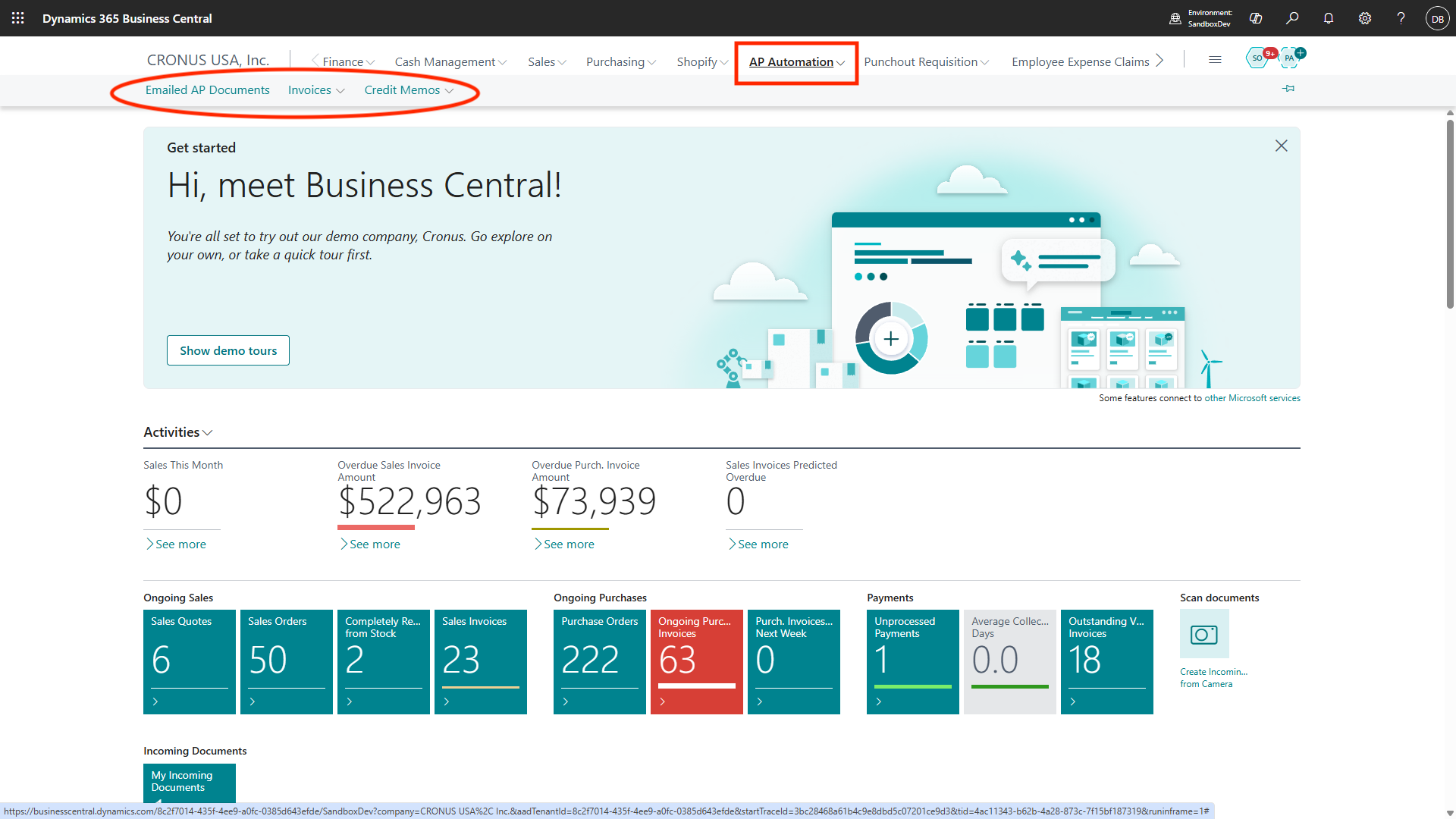
The AP Automation Menu
The AP Automation Menu grants centralized access to critical AP functions:
-
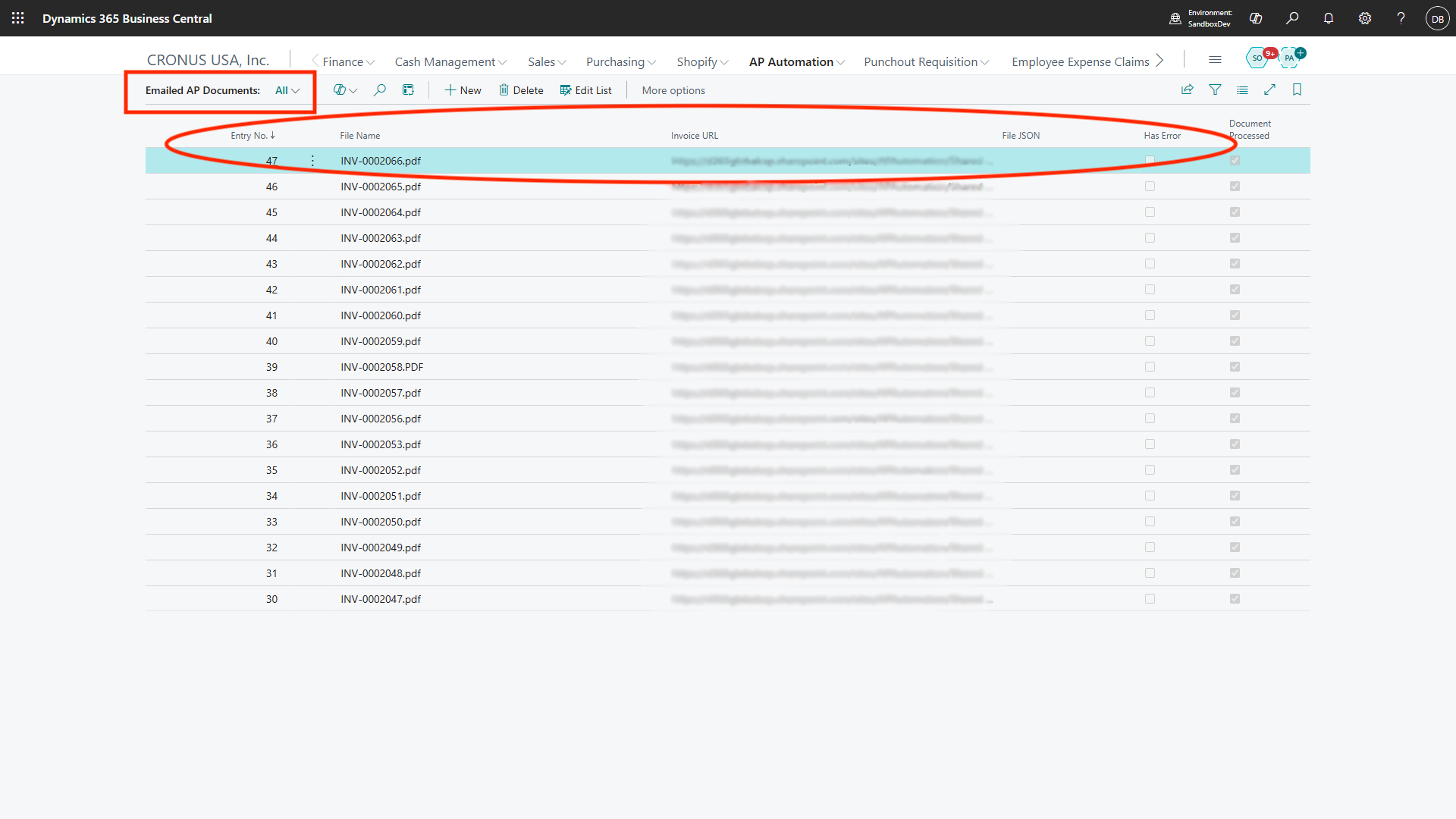
Emailed AP Documents List: Displays invoices received via designated AP email addresses.
-
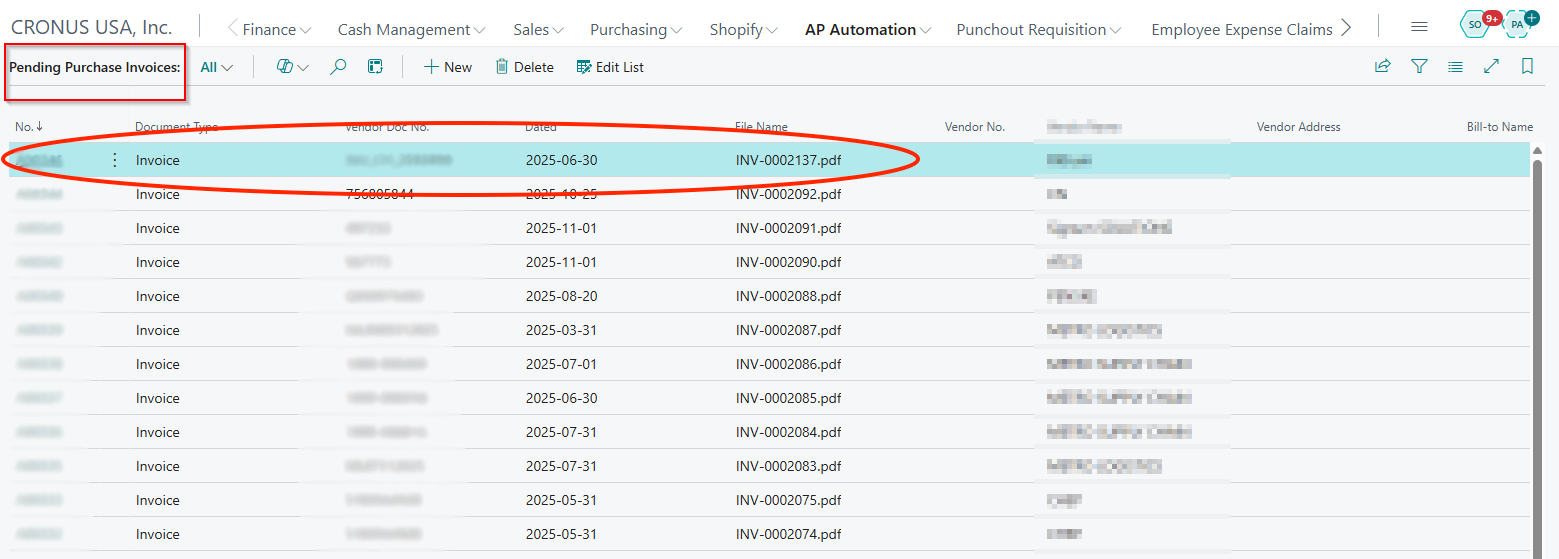
Pending Purchase Invoices List: Shows all invoices awaiting mapping, approval, or posting. Filter by vendor, date, or status. Use batch actions for bulk processing.
-
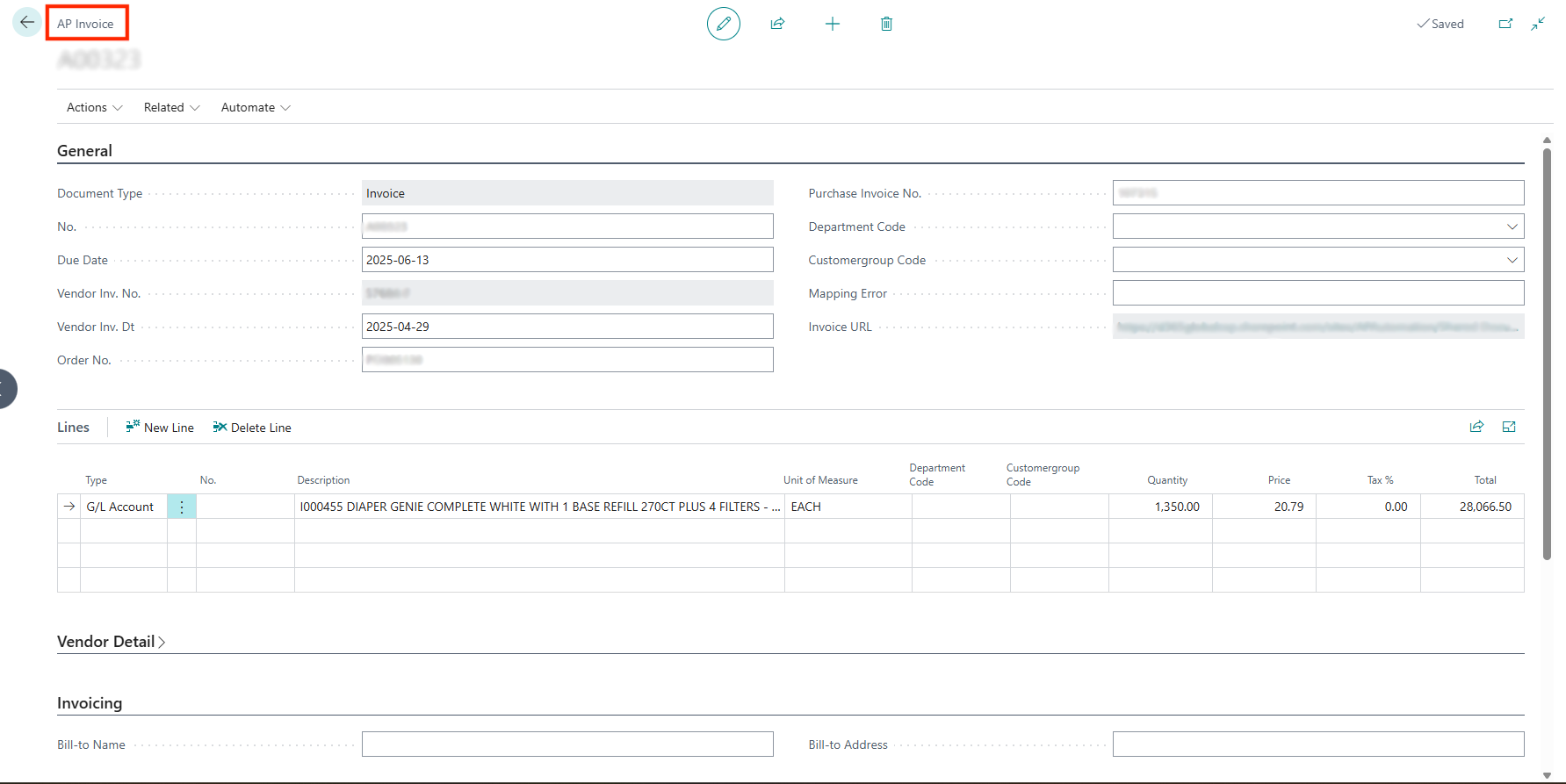
AP Invoice Page: View detailed invoice information, extracted fields, document preview, and mapping tools.
-
Credit Memo Management: Initiate, validate, and post supplier credit memos, applying them to open invoices or accounts.
The End-to-End Automated Invoice Process
The automated invoice workflow is a structured, multi-stage process designed to move a vendor invoice from initial system ingestion to a fully created and validated Purchase Invoice in Business Central. The process includes clear checkpoints for user review and validation, ensuring both efficiency and control.
Invoice Ingestion and Triage
The process begins when vendor invoices are received at one or more designated AP email addresses monitored by Business Central. Business Central can be configured to monitor one or more AP email addresses but typically one per Business Central company.
Upon receipt, the system automatically imports the invoice and any attachments into the Emailed AP Documents List. At this initial stage, the system performs a preliminary triage, attempting to identify the vendor and conducting a check for potential duplicate invoices to prevent redundant processing.
The Core Workspace: Pending Purchase Invoice List
The Pending Purchase Invoice List serves as the primary dashboard and central workspace for AP users. This list aggregates all invoices that have been ingested and now require some form of user action, whether it is review, data mapping, or final validation. The interface is designed for efficient workload management, providing powerful filters to sort documents by vendor, date, or status. Error flags immediately draw attention to invoices with missing information or mapping conflicts, allowing users to prioritize their work effectively.
The 4-Step Validation and Creation Process
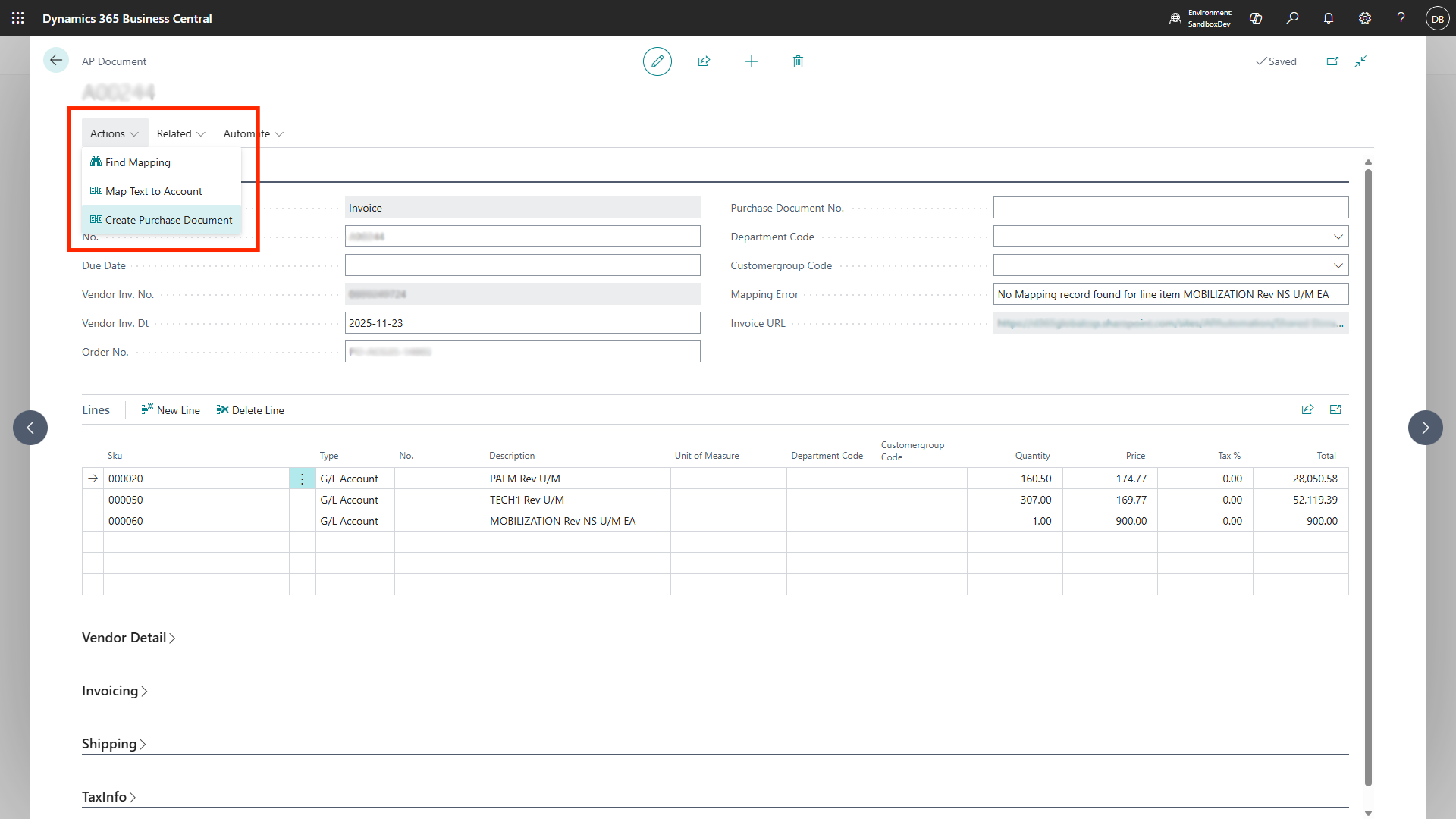
From the AP Invoice Page, where users can see extracted data alongside a preview of the original document, a clear four-step process is followed to finalize the invoice.
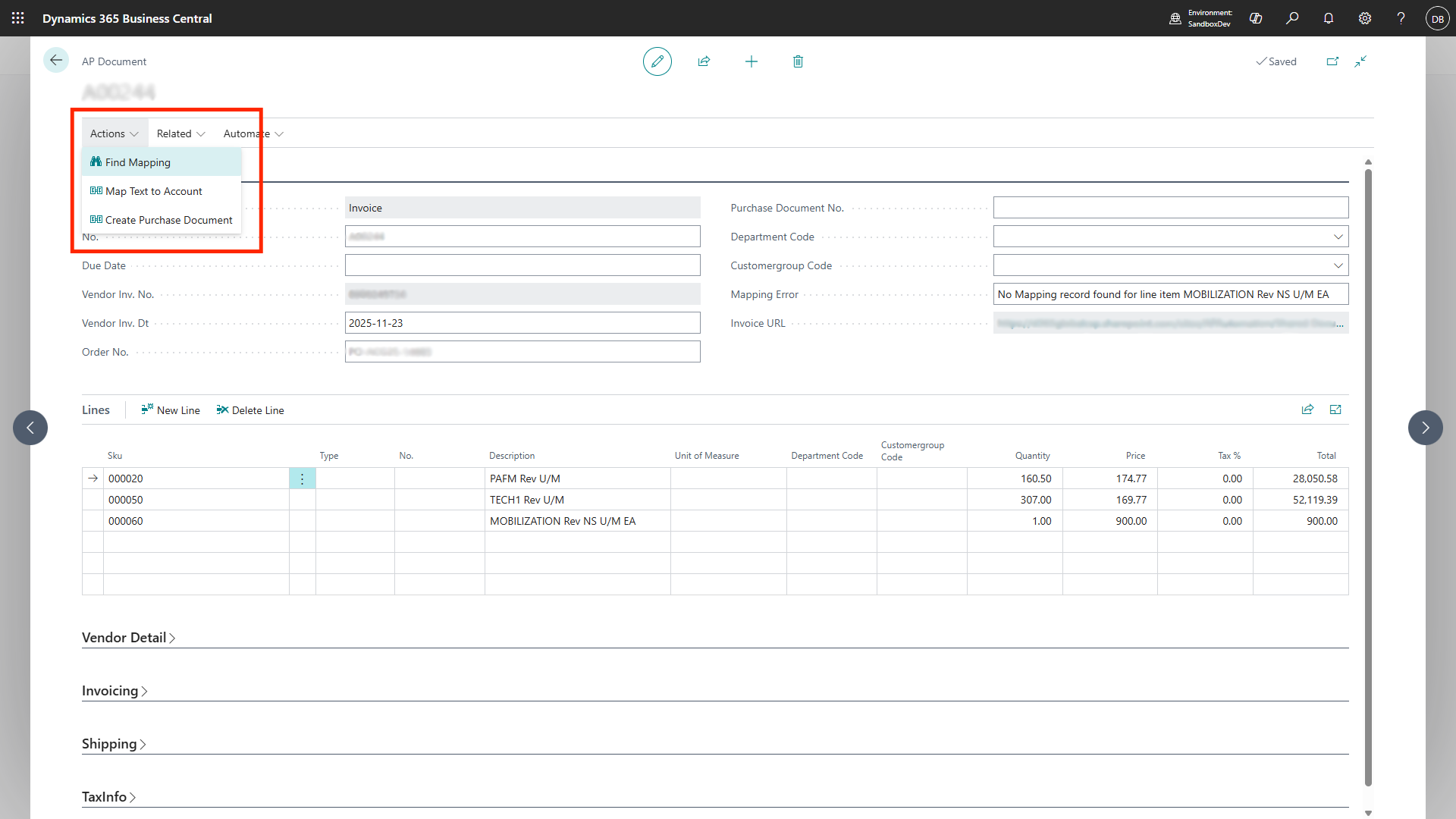
- Find Mapping Feature: This is the AI-driven step where the system intelligently analyzes the extracted invoice data and suggests mappings to corresponding records in Business Central. It proposes links between invoice fields and vendor records, G/L accounts, or cost centers. The user’s role is to simply confirm or, if necessary, edit these suggestions.
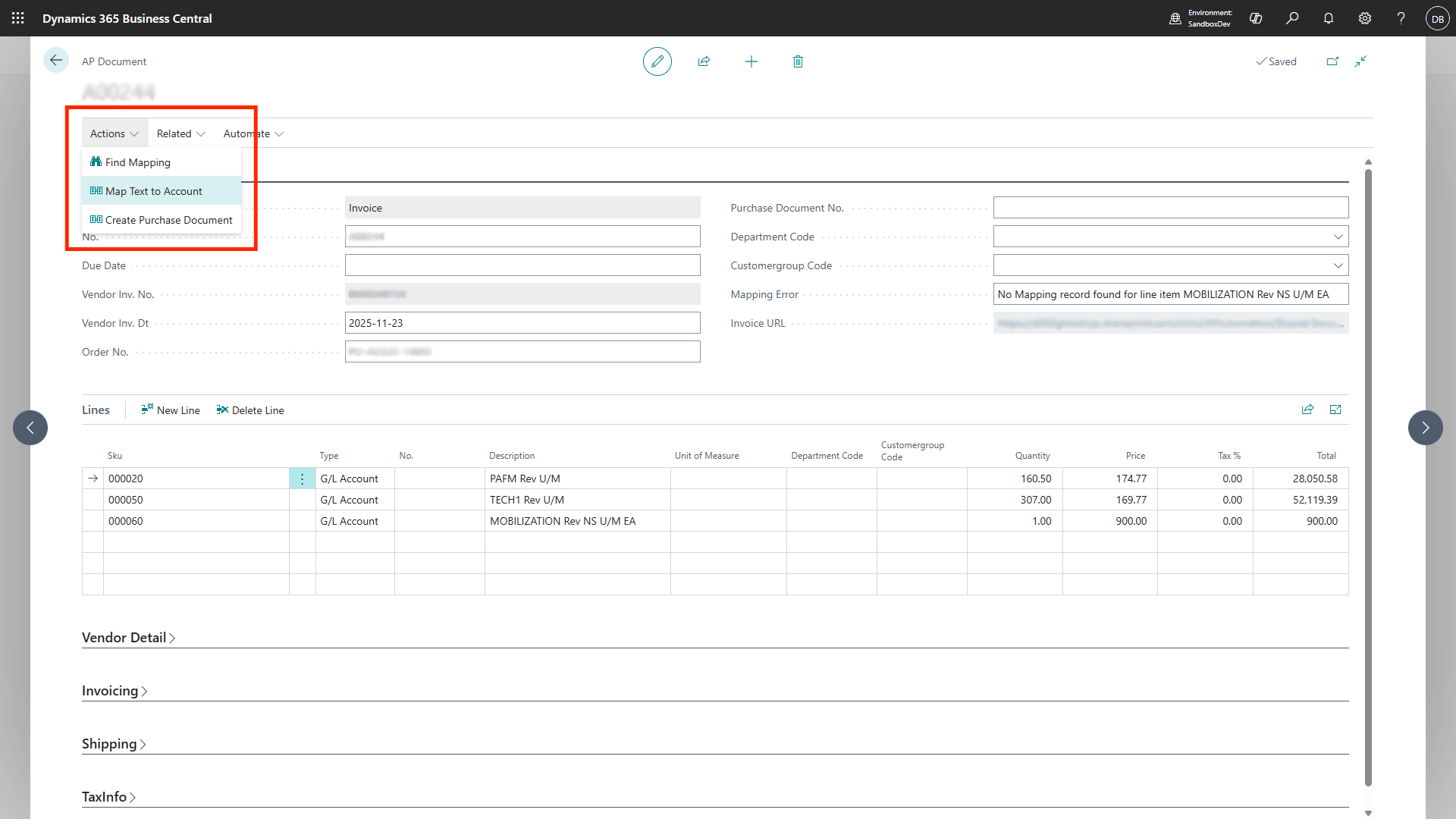
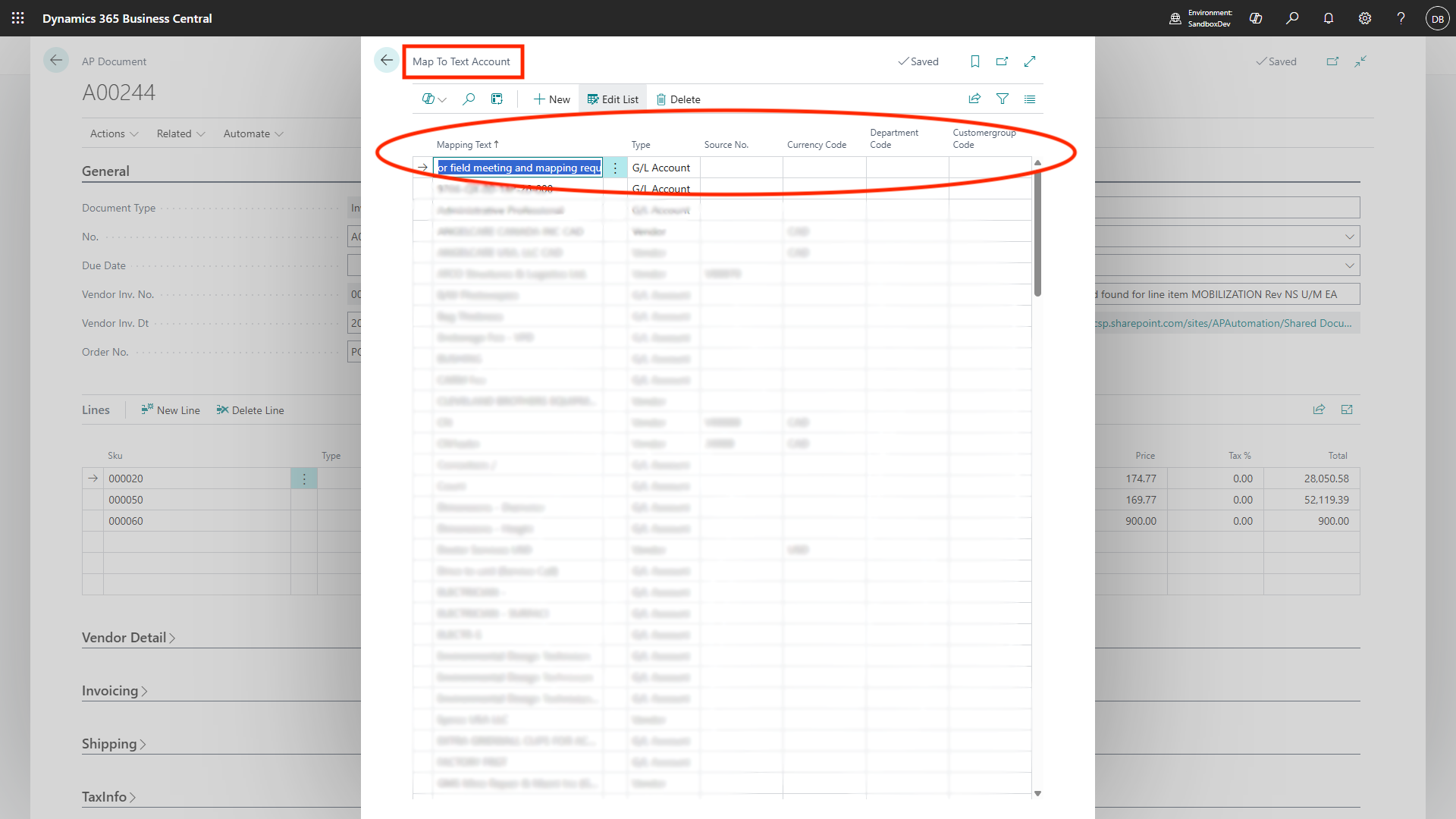
- Map Text to Account Feature: In this step, each line item on the invoice is formally assigned to the correct destination, such as a general ledger account, a specific project, or a cost center. For recurring invoices, pre-configured rules can automate this mapping, while manual selection is available for handling exceptions or more complex invoices.
This also helps in defining same vendor name with different currency codes, so for USD if there is different vendor code for same vendor and different vendor code for CAD currency then the map text to account feature helps in defining such vendor names with different vendor codes with different currency codes.
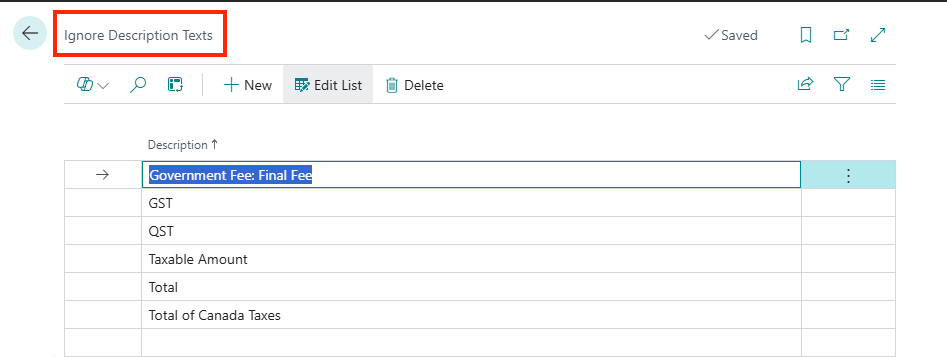
- Ignore Description List Feature: This feature allows the user to prevent unnecessary or irrelevant information from the invoice document (e.g., promotional text, boilerplate terms) from being inserted as line items into the Business Central Purchase Invoice, ensuring cleaner transaction data.
- Create Purchase Invoice Feature: This is the final action in the validation process. Once the user confirms that all mappings are correct, executing this feature instructs the system to generate the official purchase invoice record within Business Central. This creation automatically triggers any subsequent approval workflows and prepares the invoice for payment scheduling.
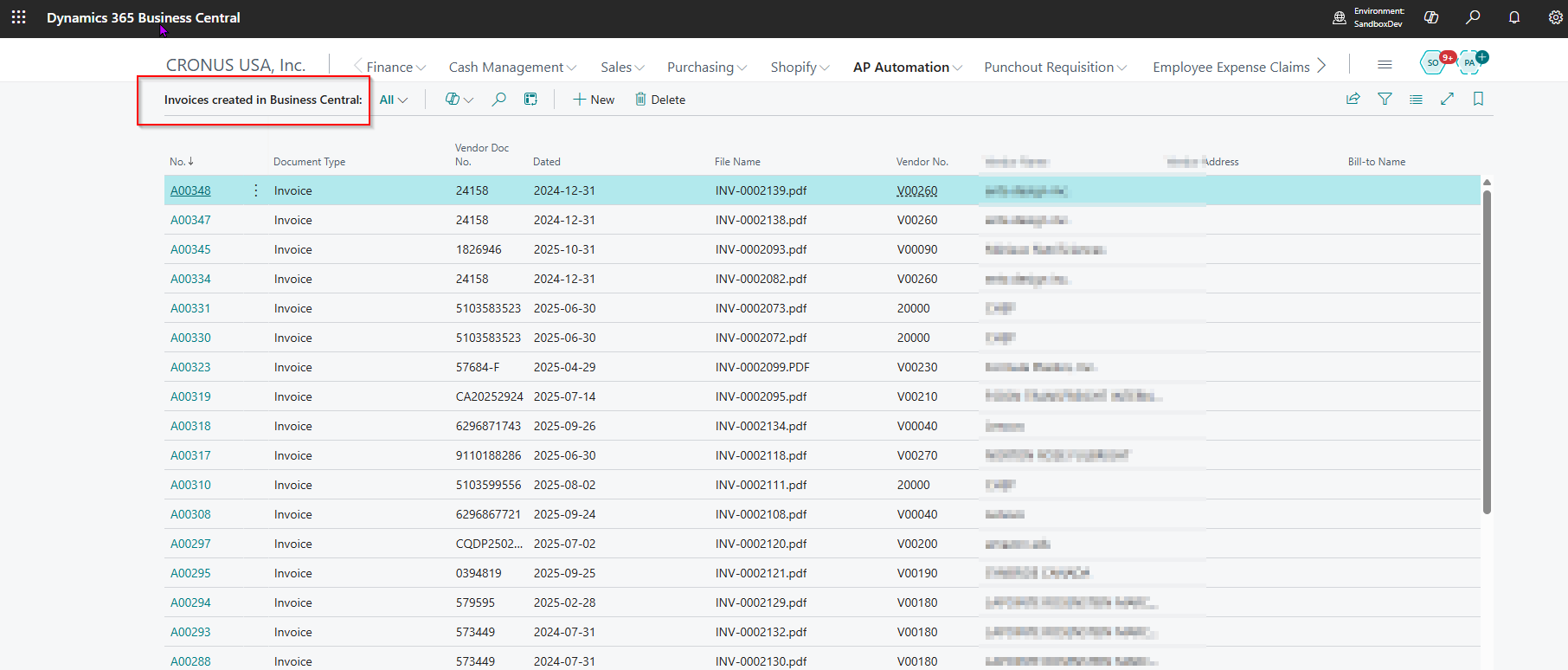
The system learns from the map text to account function, the ignore description list action, and so If similar invoice is received again, it will directly generate a Purchase Invoice document in Business Central, which can be viewed by going to the Invoices Created in Business Central Screen
Managing Special Cases and Exceptions
Maintaining accurate inventory costing and vendor account balances requires standardized processes for handling non-standard documents. The system provides dedicated functionalities for processing item charges and supplier credit memos, ensuring these transactions are managed with the same level of control and accuracy as standard invoices.
Processing Item Charge Invoices
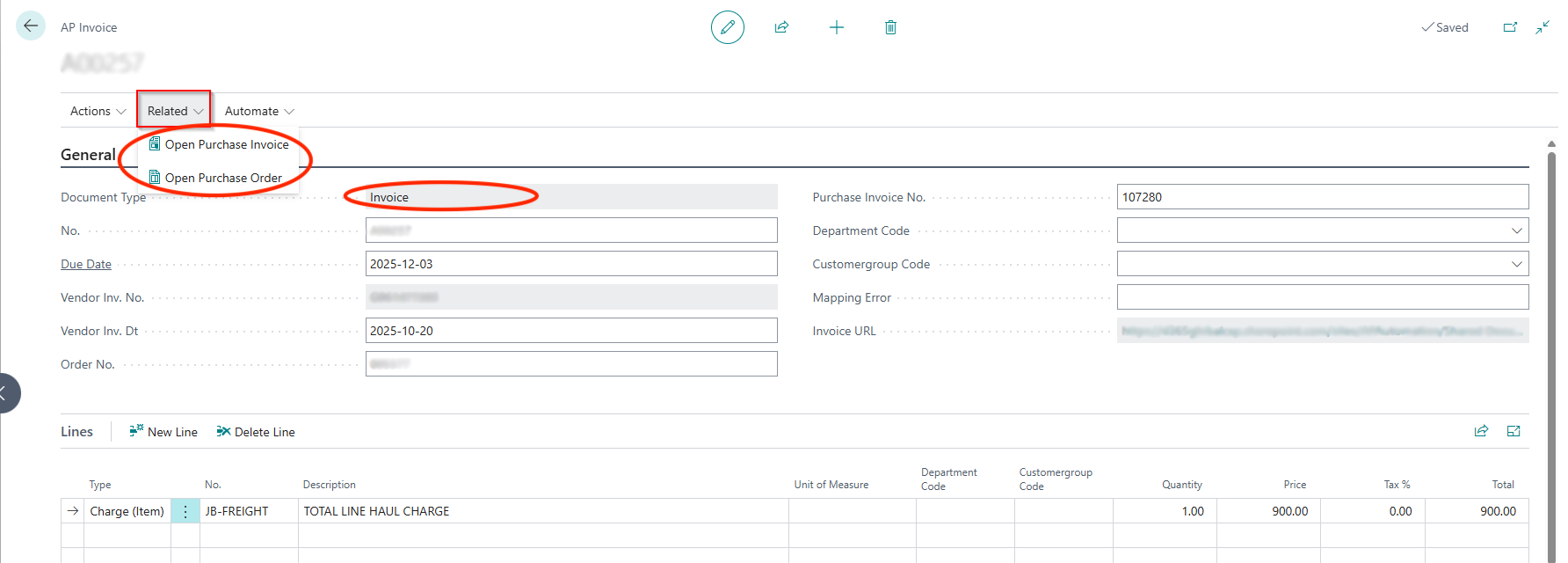
The system is equipped to automatically recognize and extract additional charges from an invoice, such as freight, insurance, or customs fees. The allocation of these costs is governed by the configuration on the vendor card, specifically the Item Charge Vendor settings detailed previously. This ensures that supplementary costs are correctly applied to the relevant inventory items for accurate financial valuation. For full traceability, users can easily view the related Purchase Order and the created Purchase Invoice directly from the related documents tab on the AP Invoice document page.
Managing Supplier Credit Memos
Supplier credit memos are managed through a workflow similar to that for invoices, ensuring consistency and control. The key steps in the process are as follows:
-
Initiation: A new credit memo can be created directly from the AP Credit Memo Page or from the Pending Purchase Credit Memo page.
-
Validation: The system maps the data from the credit memo document, which the user must then verify and, if necessary, correct.
-
Allocation: The credit memo value can be allocated against specific open invoices or applied directly to the vendor’s account balance.
-
Posting: Once validated and allocated, the credit memo is posted to finalize the transaction and officially update the vendor ledger.
Beyond the processing of these documents, the system also provides robust tools for managing and accessing the underlying document files.
Integration with SharePoint and OneDrive
AP documents are automatically saved in SharePoint, connected to Business Central records with document management features including:
-
SharePoint: Automatically save invoice documents to SharePoint folders, link to invoice and vendor records, and enable collaborative review and audit.
-
OneDrive: Securely attach supporting documents from OneDrive to AP records, accessible to authorized users.
-
Document Management: Tag, search, and organize AP documents for compliance and traceability.
Search Features
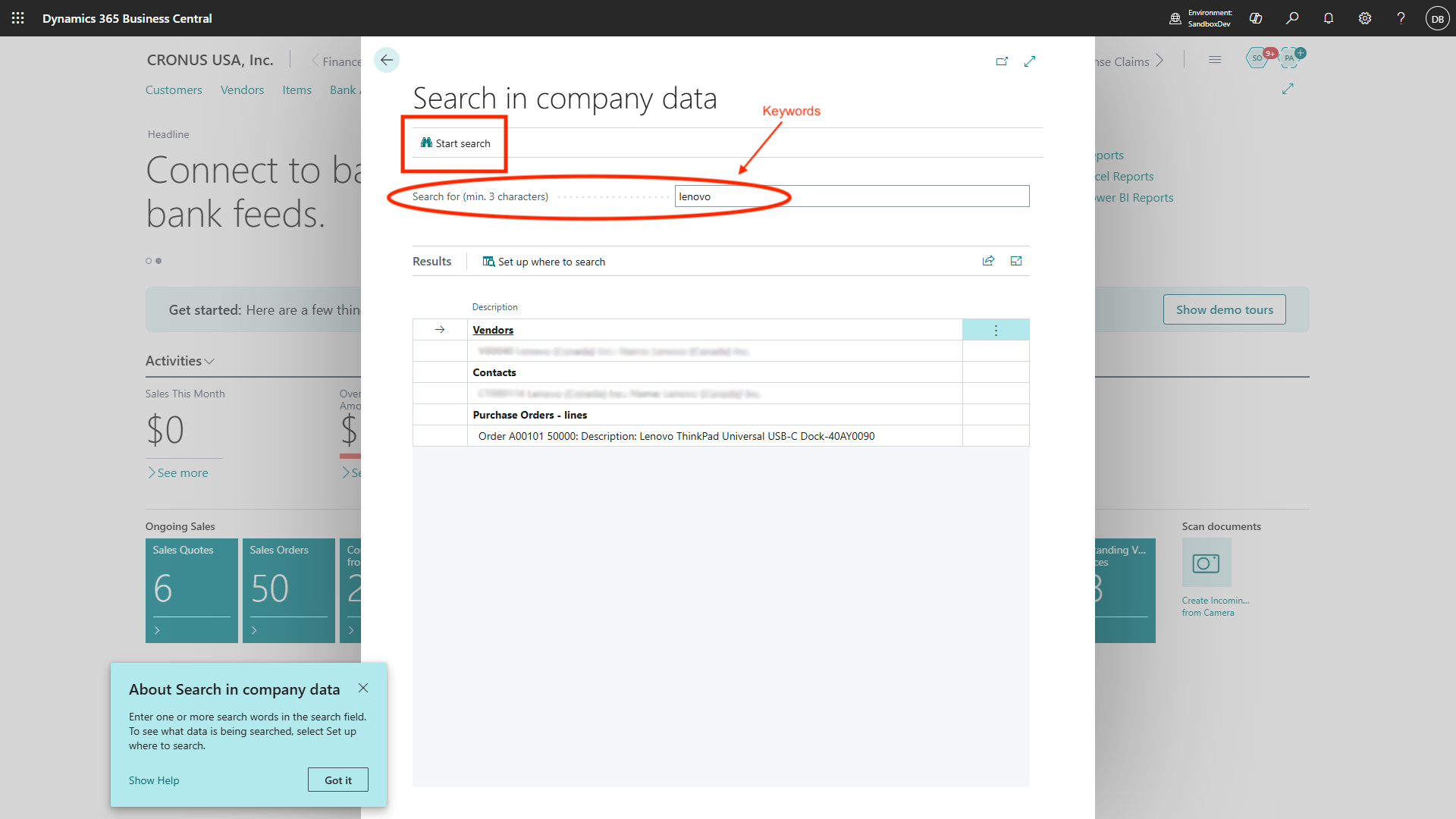
Business Central’s global search makes locating information easy:
-
Use keywords, document numbers, vendor names, or transaction types.
-
Advanced filters let you narrow results to specific pages, records, or statuses.
-
Search extends to tasks, reports, and workflow history.
-
Pin common searches for repeat use.
Copilot Integration
Copilot, Microsoft’s AI assistant, enhances AP Automation:
-
Ask questions in natural language (e.g., “Show me pending AP invoices,” “How do I map item charges?”).
-
Copilot can explain processes, recommend actions, and automate repetitive tasks.
-
Initiate approval flows or document searches through AI-driven suggestions.
Copilot learns from user interactions for increasingly efficient support.
Business Central Outlook Add-in and Its Benefits
The Outlook Add-in embeds Business Central capabilities within your email client:
-
Receive and process AP documents directly from emails.
-
Approve invoices, communicate with vendors, and track workflow progress without leaving Outlook.
-
Synchronize email attachments with Business Central records.
-
Increase speed and accuracy of AP processing for remote or distributed teams.
Install the add-in via Microsoft AppSource or your Outlook integration menu.
Business Central Mobile App: Download and Usage
Take AP Automation mobile for flexible, on-the-go management:
-
Available via Apple App Store and Google Play Store.
-
Log in with your credentials; select the relevant company and role.
-
Approve invoices, review pending documents, and monitor AP workflow from your mobile dashboard.
-
Push notifications alert users to new tasks or approvals required.
-
Mobile interface is optimized for all major devices, offering the same security and functionality as desktop.
Extensions for Enhanced AP Automation
Business Central supports powerful extensions to further streamline AP management.
Purchase Requisition Management
-
Automate purchase requests, approvals, and order creation.
-
Track requisition status, generate reports, and integrate with AP workflows.
Employee Expense Claims
-
Submit and approve expenses via dedicated portal.
-
Automate reimbursement workflows and attach supporting documents.
Self-Service Vendor and Employee Portals
-
Vendors and employees can log in to view payment status, submit invoices, download statements, and resolve queries without direct AP team intervention.
-
Portals are customizable for branding, permissions, and notifications.
Conclusion
By leveraging the powerful features of Azure AI Document Intelligence and Power Automate, Dynamics 365 Business Central users can harness the efficiency of AP Automation — dramatically improving efficiency, accuracy, and compliance in invoice management. With easy navigation, robust automation processes, seamless integrations, and intuitive extensions, users are equipped to handle every aspect of AP with confidence.
Appendix: Additional Resources and Support Contacts
Support
For technical troubleshooting, contact your IT support desk or Dynamics 365 system administrator.
AU: 1 Sussex St, Sydney NSW 2000
SG: 59 Ubi Avenue 1# 03-11, Singapore 408938
UK: 71-75 Shelton St, London, WC2H 9JQ
USA: 8 The Green # 20058, Dover DE 19901
AU +61 2 9037 2385 | SG +65 3 1251534 | UK +44 2036 953042 | USA +1 646 652 0780
Useful Links
Dynamics 365 Business Central: https://learn.microsoft.com/en-us/dynamics365/business-central/
Dynamics 365 Business Central for Outlook: https://learn.microsoft.com/en-au/dynamics365/business-central/work-outlook-addin
Dynamics 365 Business Central Mobile App: https://learn.microsoft.com/en-au/dynamics365/business-central/install-mobile-app