Purchase and Payables Basic User Training Guide for Dynamics 365 Business Central
Vendors and Contacts
A Vendor (Business Central context) represents a specific legal entity (or sole proprietorship). When a vendor account is created, a corresponding Contact is also created for the Business Relationship (used in the CRM module).
It is possible to have a single vendor account with several business contacts (people) associated with the company. These are created as Contacts and each can have different phone numbers, mailing addresses and emails.
Vendor
Navigate to the Vendors list page using menu option.

The vendor list page shows all vendor accounts defined in the system.
From this list, you can:
-
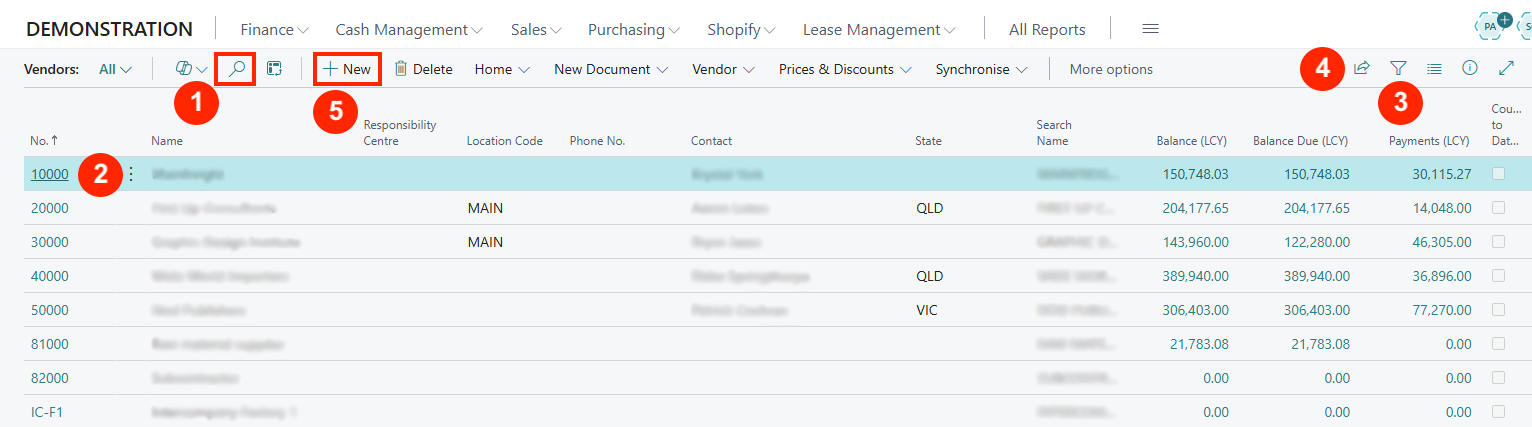
Use the search option to find any vendor based on an alphanumeric search string.
-
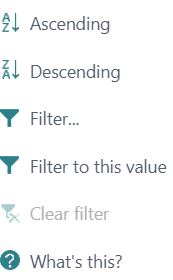
Sort the list based on any column (with the Ascending or Descending arrow).
-
Use the filter option to open a left filter pane and define one or more filters on data fields.
-
Use the Export function to export the list to Excel.
-
Create a new vendor.
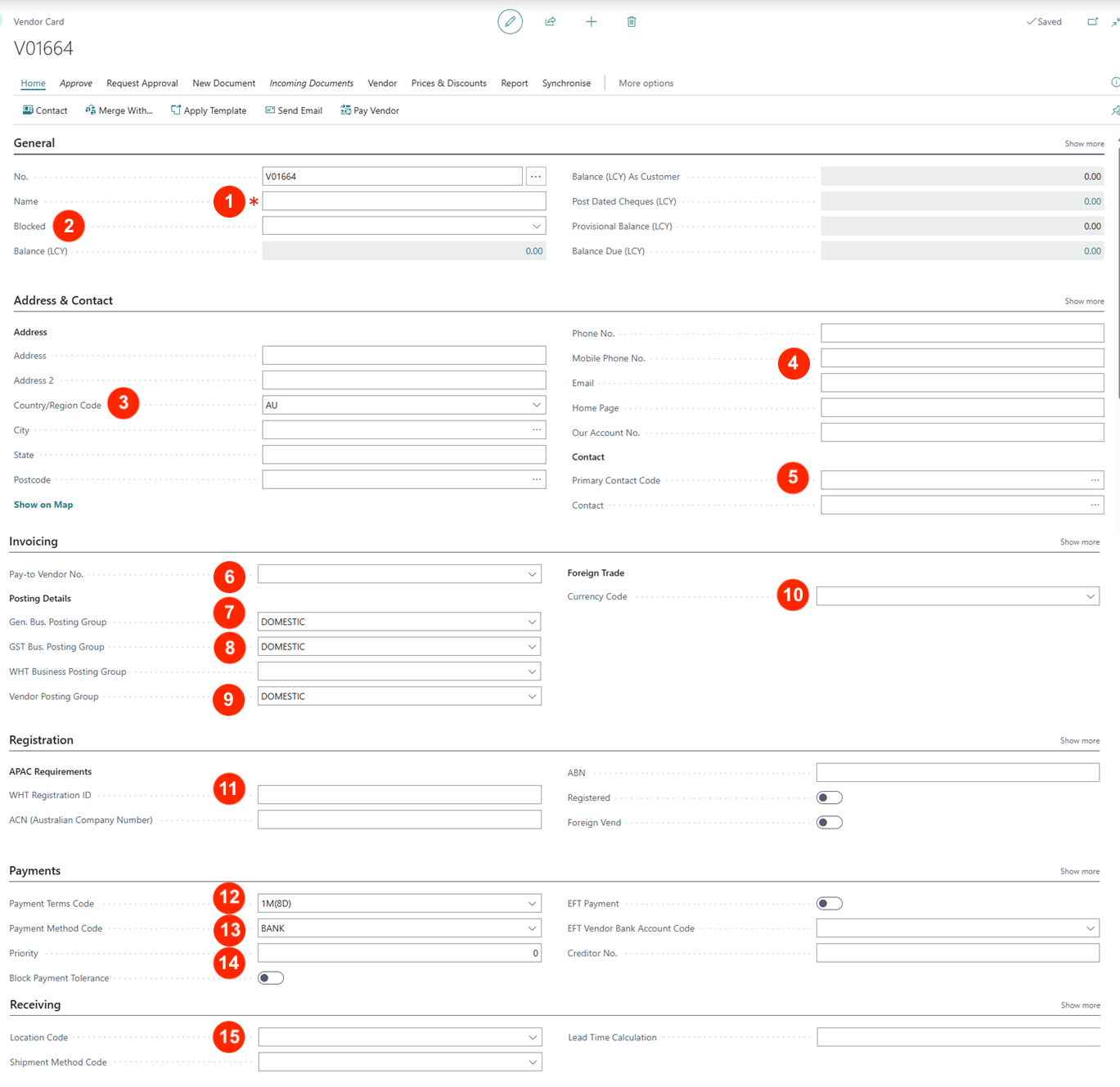
In a new (blank) Vendor card (page), complete the necessary key fields:
General
-
Vendor Name (100-character limit)
-
Blocked — This field is used to restrict Payment or All transactions with the vendor.
Address and Contact
-
Enter the full address for the vendor.
NB: for Country/Region field, select the region code from the dropdown list.
-
Enter the phone and email address.
NB: Email is the default used for sending documents such as purchase orders and statements. To include more than 1 email, use a semi-colon to separate them.
-
Select a Contact (person) for this vendor account or create a new person contact.
Invoicing
-
Pay to vendor No. — This field allows selecting another vendor as the payee (e.g. a vendor’s HQ paying for the branch).
-
Gen. Bus. Posting Group — This is a key field that is used to default the P/L accounts e.g. Purchase.
-
GST Bus. Posting Group — This is a key field for defining the sales tax accounts.
-
Vendor Posting Group — This is a key field to select the code that defaults the Payables account.
-
Currency Code — If the vendor is foreign, select the base currency code for the vendor.
Registration
- The fields in this section are used to define the AU tax registration for vendors or indicate if they are overseas vendors.
Payments
-
Payment Terms Code — Select the appropriate term code. This is used to calculate the due date on a transaction (e.g. invoice) based on the document date.
-
Payment Method Code — Select the method of payment to the vendor e.g. if paid by cheques, bank transfer (EFT), or direct debiting.
-
Priority (optional) — Use a numeric scale to filter payments to vendors e.g. 1 (highest priority) to be selected in a payment run.
Receiving
- Location Code — Select the default location where purchases from this vendor will be received.
Contacts
Each vendor can have several Contacts (people) in the organisation. These Contacts are entered in the Contact card. Navigate to the Contact list page from within the Vendor card under Home > Contact or Address & Contact FastTab:
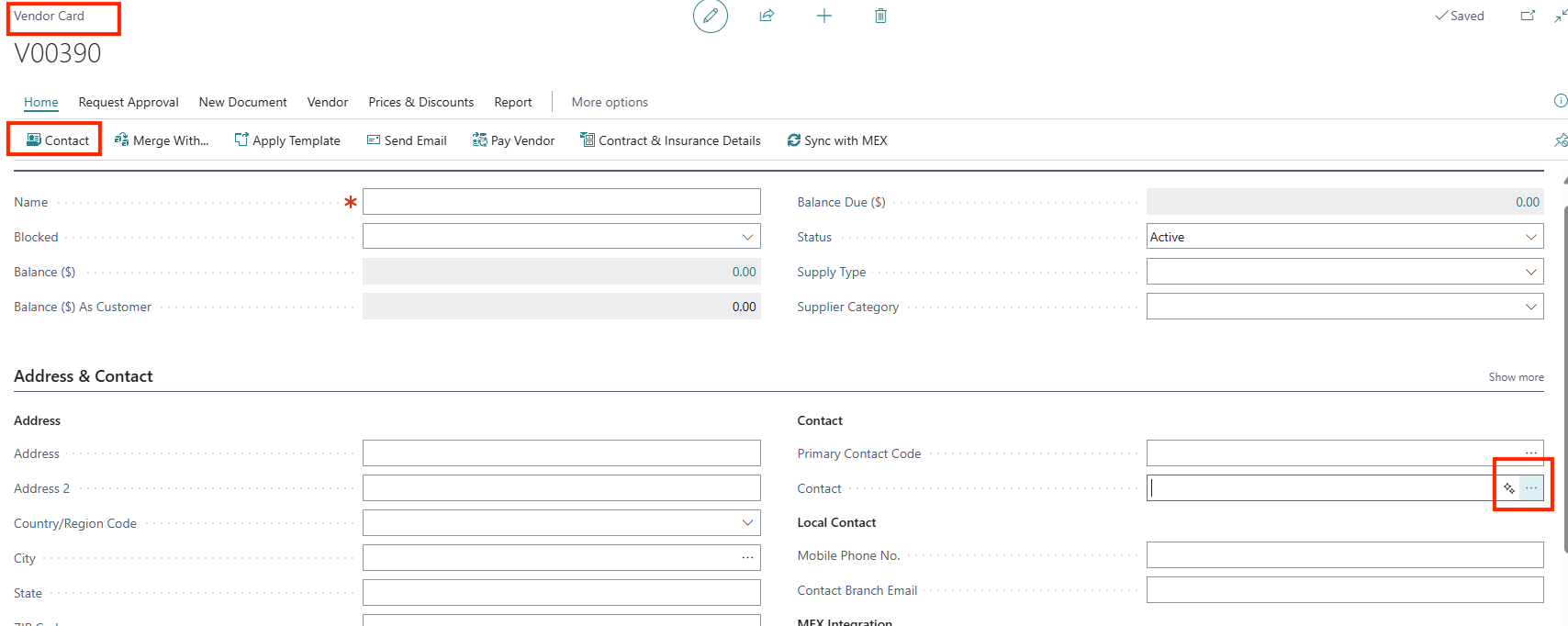
This opens the Contacts list page for the specific vendor.
Example:
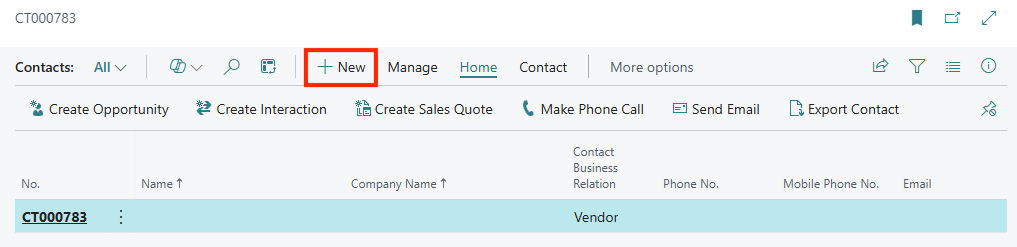
The default Contact for the vendor account is the Company contact, and it is in bold lettering.
Click on +New to open the Contact card to add a new contact.
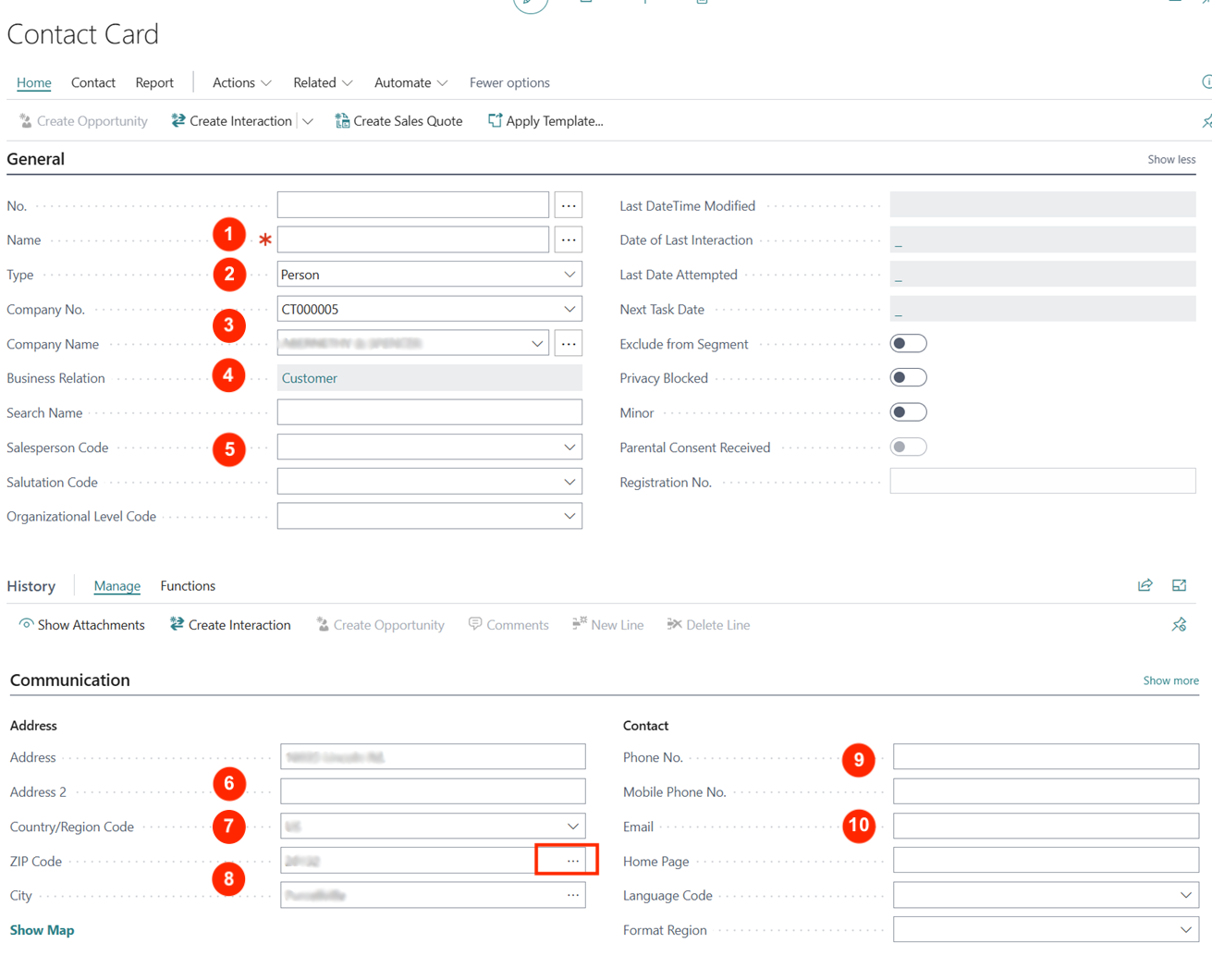
Key Fields
Complete the key fields for the Contact:
General
-
Name — Enter the contact’s name.
NB: the Contact No. field will be auto-populated with the next sequence number when you complete the name field.
-
Type — This defaults to Person since you will be adding people contacts for the same organisation.
-
Company No. & Company Name — These defaults from the customer account.
-
Business Relation — This default from the customer account and cannot be changed (if this is a vendor, the value will be Vendor)
-
Salesperson code — Select the assigned salesperson.
Communication
-
Address — Complete the address fields.
-
Country/Region code — Select the 2-character country code.
-
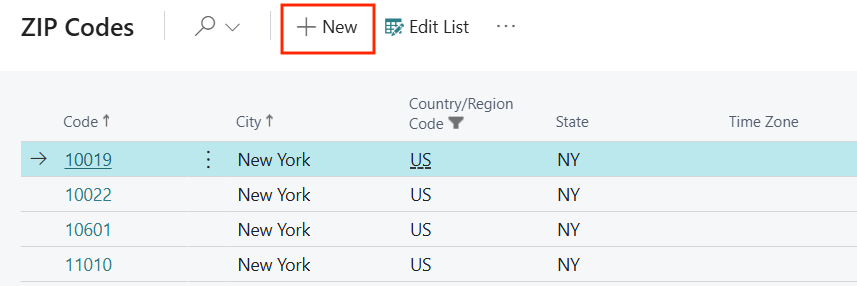
ZIP code and City — Select the available zip code or add a new zip code.
-
Phone no. — Enter the contact phone number.
-
Email — Enter the contact email address (which can be selected when sending documents).
Written By:
Peter Loo
Team Leader, Business Central
Connect on LinkedIn