Purchase and Payables Basic User Training Guide for Dynamics 365 Business Central
Purchasing and Receiving
After a Purchase Order is approved and released, a warehouse receipt is created to receive the purchased items.
NB: The Location must have Receive Enabled to allow receiving of the PO line item for the location. Otherwise, no receiving is possible.
Single PO Receiving
From the Purchase Order screen, the warehouse receipt can be created with menu option Create Whse. Receipt.
Example:
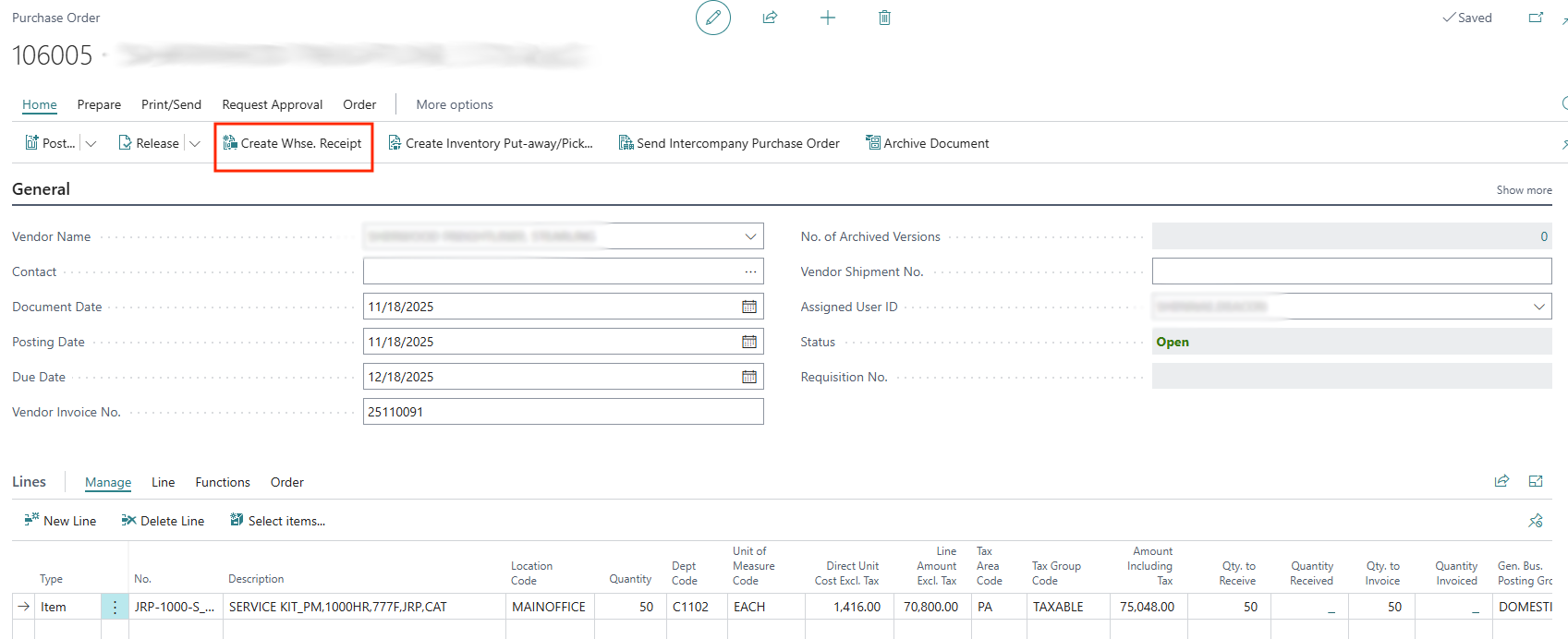
This action creates a warehouse receipt transaction for the items in the PO.
Multiple PO receiving
If several purchase order lines (across different PO’s) are assigned to the same location (e.g. to have a bulk delivery), all the PO line items can be received in one warehouse receipt.
Use the menu option Warehouse Receipts to navigate to the warehouse receipts list page.
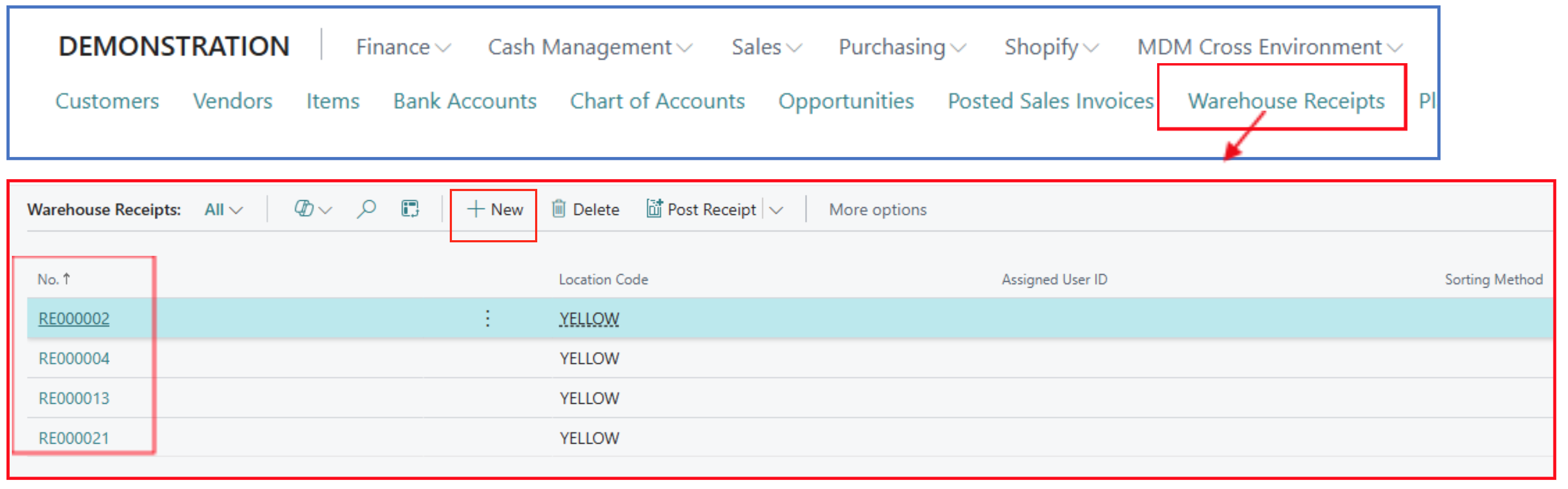
Click on a warehouse receipt number to open the warehouse receipt entry page or click on New to create a warehouse receipt for combining several PO lines.
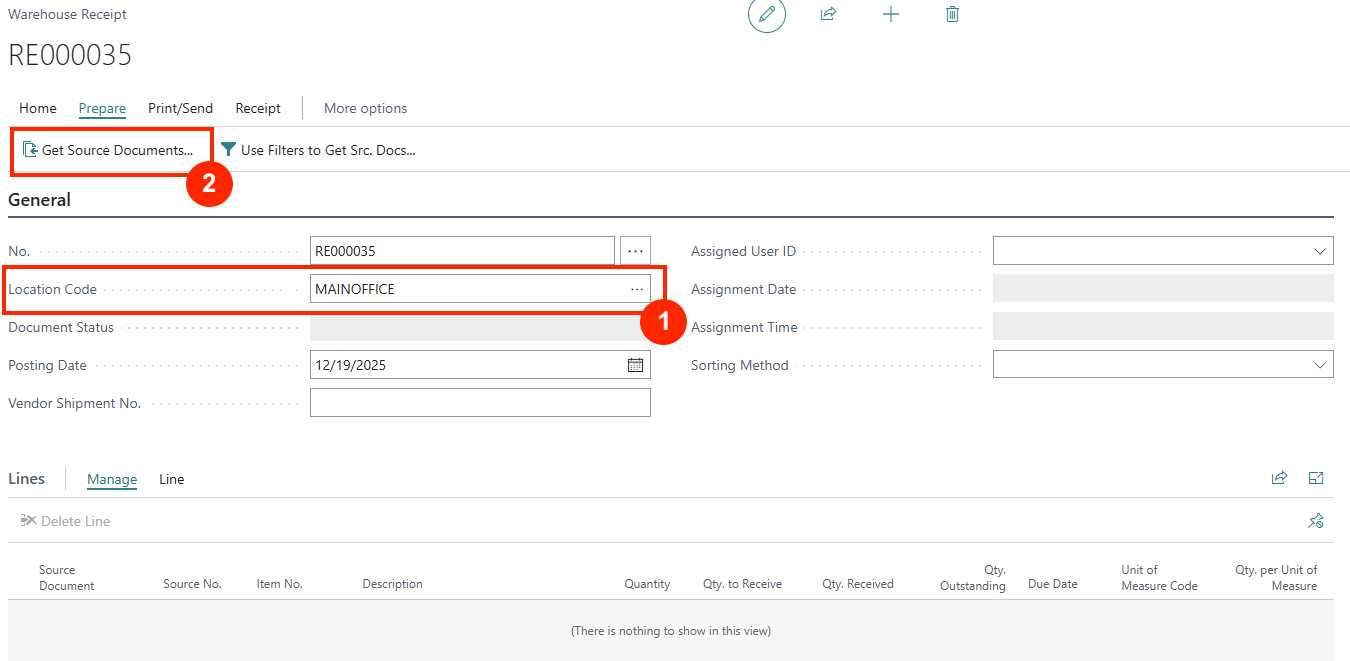
In a new warehouse receipt,
-
Select the location to receive the purchased items. Once this is selected, the warehouse receipt number will automatically be generated.
-
Click on menu option Prepare > Get Source Documents. This opens a page listing all “released” purchase order lines for the selected location.
Example:

-
Select the PO to receive and click OK.
-
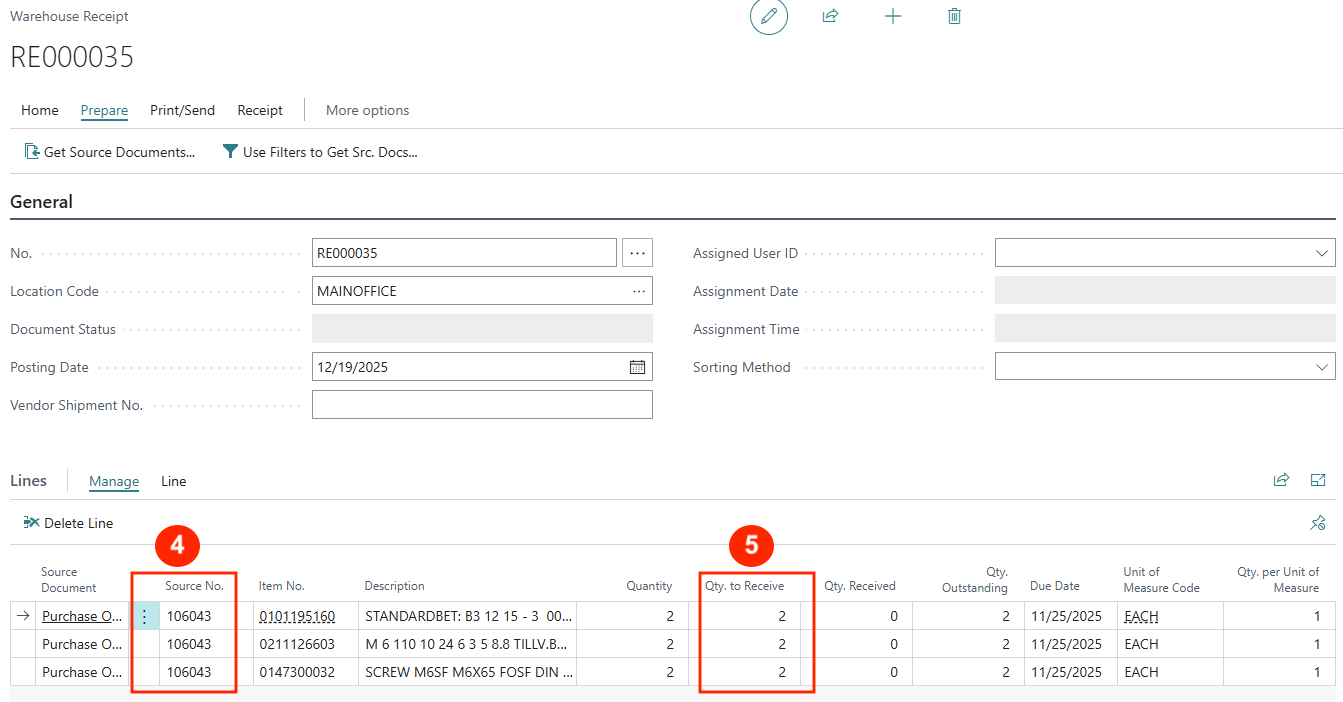
This brings all the PO line items to the warehouse receipt Line FastTab.
Example:
-
Confirm the Qty to Receive. If less quantity is received, update the correct receipt quantity in Qty to Receive.
-
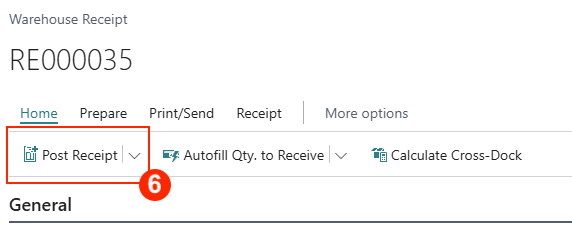
On completing the validation, click Home > Post Receipt.
-
When the Warehouse Receipt is posted, the Purchase Order will reflect this under Qty Received for each line.
Unreceiving (Undoing a Receipt)
When a received purchase needs to be undone so that it could be revised, the posted purchase receipt needs to be reversed.
Use the Posted Purchase Receipt menu option to open the list page showing all posted purchase receipts
NB: Posting a Warehouse Receipt transaction creates both Posted Purchase Receipt and Posted Warehouse Receipt Lines.
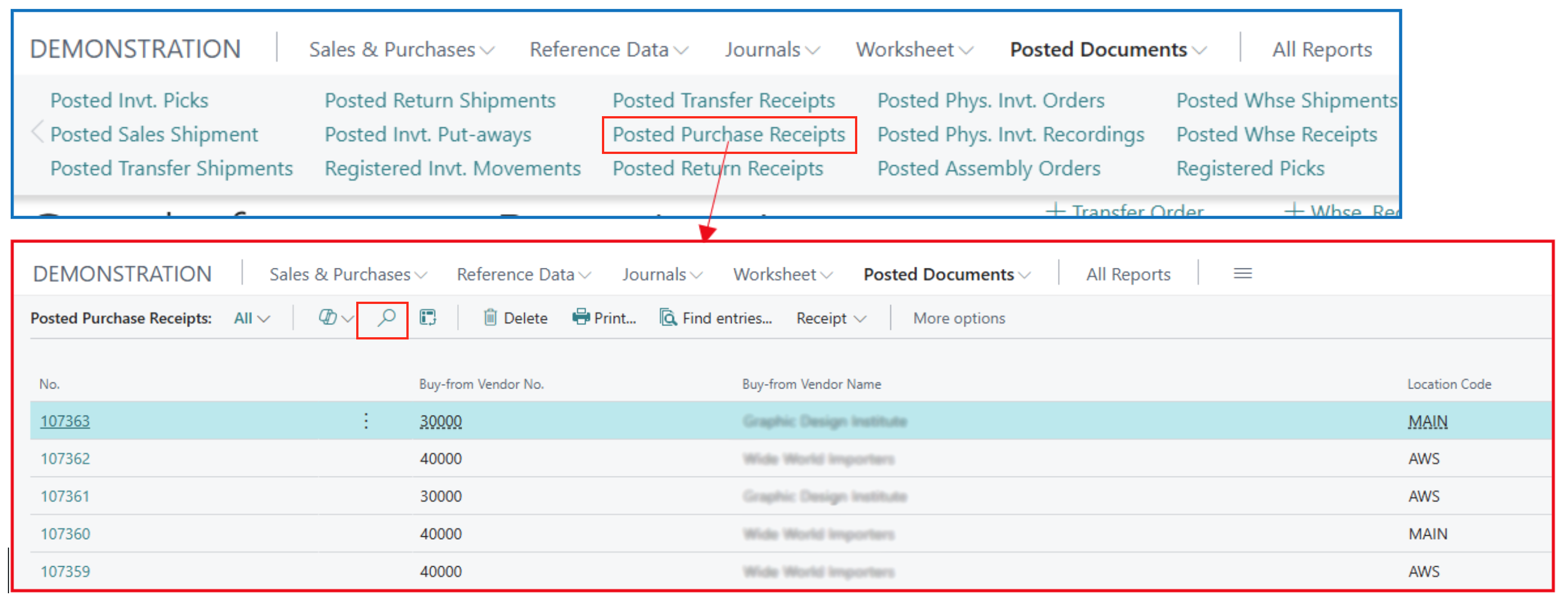
Look for the Posted Purchase Receipt and click on the No. (number) to open the posted purchase receipt page.
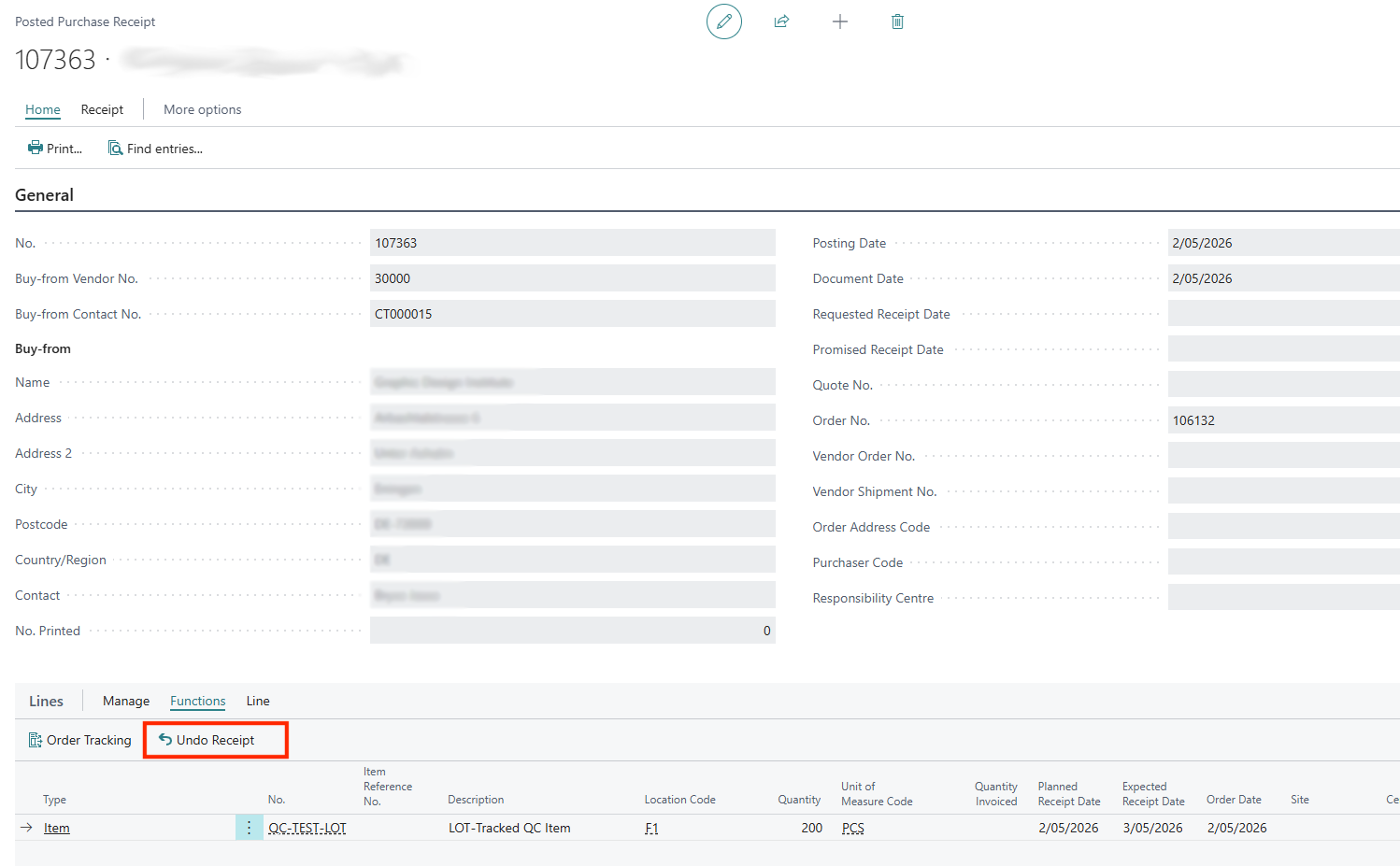
Example:
-
In the Lines FastTab, use menu option Functions > Undo Receipt.
-
This action reverses the receive PO lines (through Warehouse Receipt transaction).
-
On completion of the Undo Receipt, an offsetting entry is added to the posted purchase receipt line (netting off the original received quantity).
When the Posted Purchase Receipt is reversed, the original PO lines can now be added to a new Warehouse Receipt transaction for processing.
Written By:
Peter Loo
Team Leader, Business Central
Connect on LinkedIn