Getting Started With Admin Guides for Education
Signing in to the Microsoft Power Platform admin center is your gateway to managing your Dynamics 365 Education environments and other Power Platform resources.
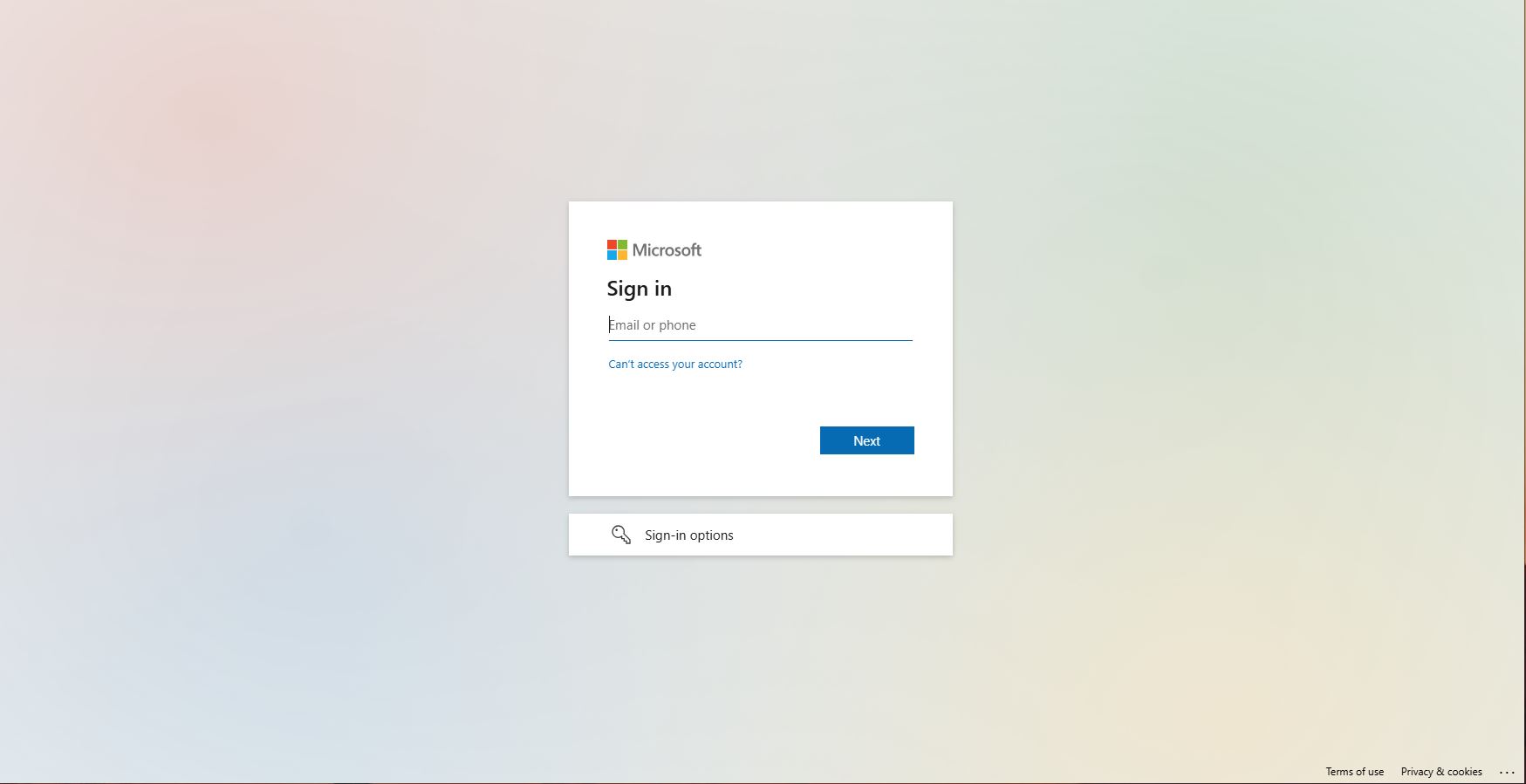
You would generally be redirected to a Microsoft sign-in page, which usually has the following characteristics:
-
Microsoft Logo: A prominent Microsoft logo (often blue or white) is usually displayed at the top or left side of the page.
-
Sign-in Field: A central field where you enter your email address, phone number, or Skype name. Below this, there’s usually a “Next” button.
-
“No account?” or “Sign up”: Options for creating an account if you don’t have one.
-
“Can’t access your account?” or “Forgot password”: Links for account recovery.
-
Background: The page often has a clean, minimalist design, sometimes with a subtle background image or pattern.
-
“Sign in with a different account” or “Use another account”: An option if you need to switch accounts.
This administrator portal allows you to perform critical tasks such as managing environments, users, data integrations, and security settings.
To sign in, you will typically use your organizational account credentials (work or school account) that have administrative privileges for your Microsoft 365 tenant. Once you navigate to the URL, you will be prompted to enter your username and password, similar to signing into other Microsoft online services.