Microsoft Dynamics 365 for HR Management User Guide
A Guide to Features and System Utilization
Introduction
Microsoft Dynamics 365 for HR Management is a robust, cloud-based solution designed to transform HR operations, providing an integrated platform for recruitment, onboarding, employee management, and performance tracking. This guide highlights the key features, providing instruction for maximizing productivity and streamlining all HR processes using Dynamics 365.
Get the app at Human Resource Management for Dynamics 365
Getting Started
Logging In and Accessing Dynamics 365
Take the following steps to log in and access the Dynamics 365 HR module.
-
Open your organization’s unique Dynamics 365 login URL in a web browser or the mobile app.
-
Enter your username and password as provided by your IT administrator.
-
Enable two-factor authentication if prompted for greater security.
-
Upon login, you are greeted with the main dashboard and navigation menu.
-
If using the mobile app, download it from the App Store or Google Play, install, and sign in with your work credentials.
Interface Overview
Here is a brief overview of the Dynamics 365 HR interface.
-
Navigation Pane: On the left, access modules like Employees, Recruitment, Benefits, Reports, and Settings. You can expand or collapse it for more workspace.
-
Search Bar: At the top, this global search lets you quickly find vacancies, applicants, employees, requests, claims and other data. Use keywords, filters, or advanced search to refine results.
-
Dashboard/Home Page: The central area shows key HR metrics, news, tasks, workflows, and quick links.
-
Command Bar: Located above content areas, with contextual actions (e.g., New, Edit, Export, Run Report).
Dashboard and Home Page
Viewing and Navigating Dashboards
Follow these steps for viewing and navigating dashboards.
-
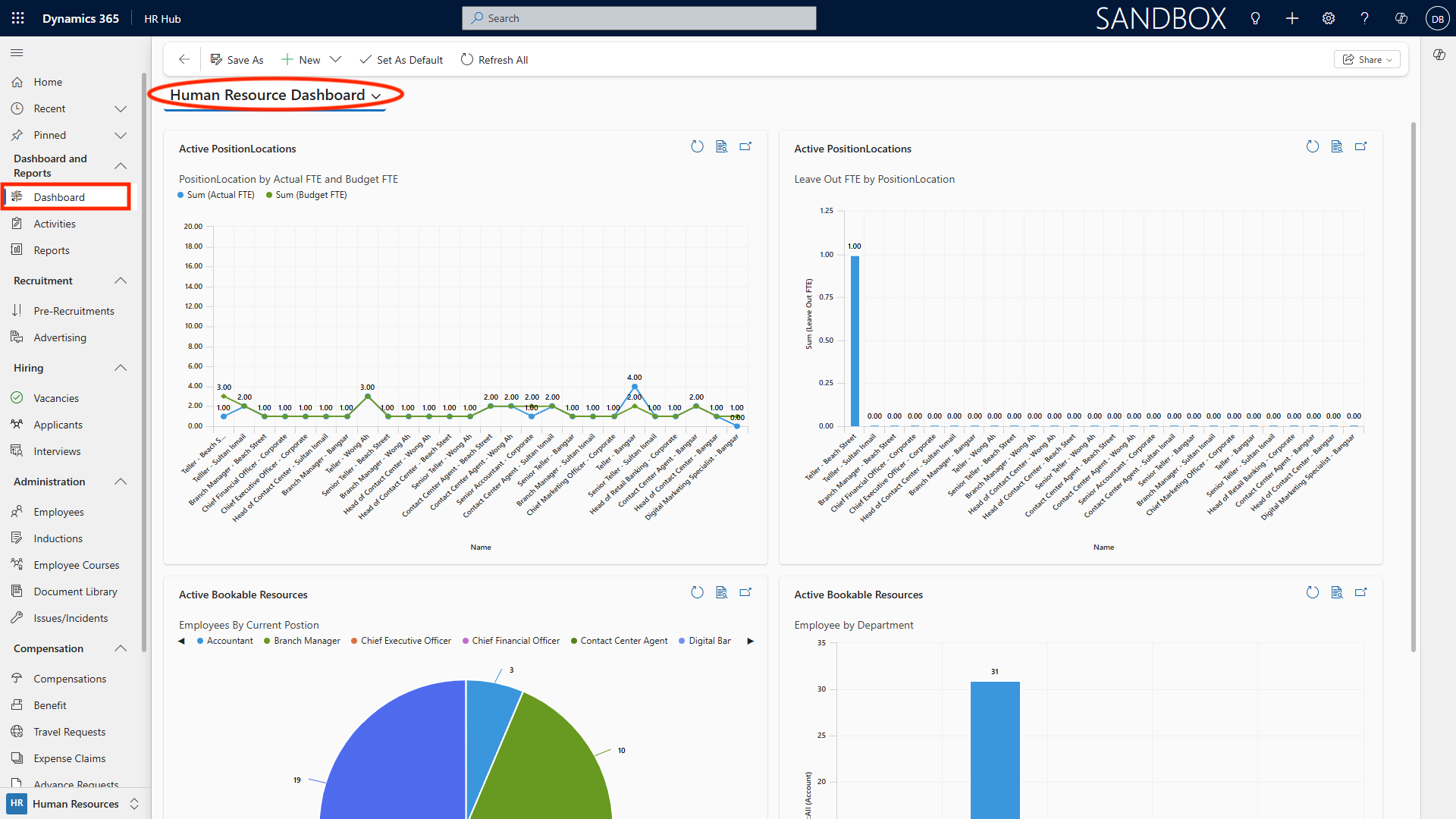
Click Dashboards in the navigation pane.
-
Review available dashboards---choose from system dashboards (foreveryone) or personal dashboards (custom layouts).
- Dashboards show live charts, KPIs, lists, and timelines for HR activities, recruitment status, headcount, and more.
- Click on dashboard widgets to drill down into detailed reports.
Creating and Personalizing Dashboards
Follow these steps to create and personalize dashboards.
-
From the dashboards view, click New Dashboard.
-
Select a layout (e.g., 3-column, 4-column).
-
Add components:
- Charts (e.g., open vacancies, turnover rates)
- Lists (e.g., pending interviews, policy updates)
- Web resources or Power BI tiles for advanced analytics
-
Arrange components via drag-and-drop.
-
Click Save and name your dashboard for easy access.
-
Share your dashboard with specific colleagues or teams if needed.
Setting Your Home Page
In this section, learn how to set your home page.
-
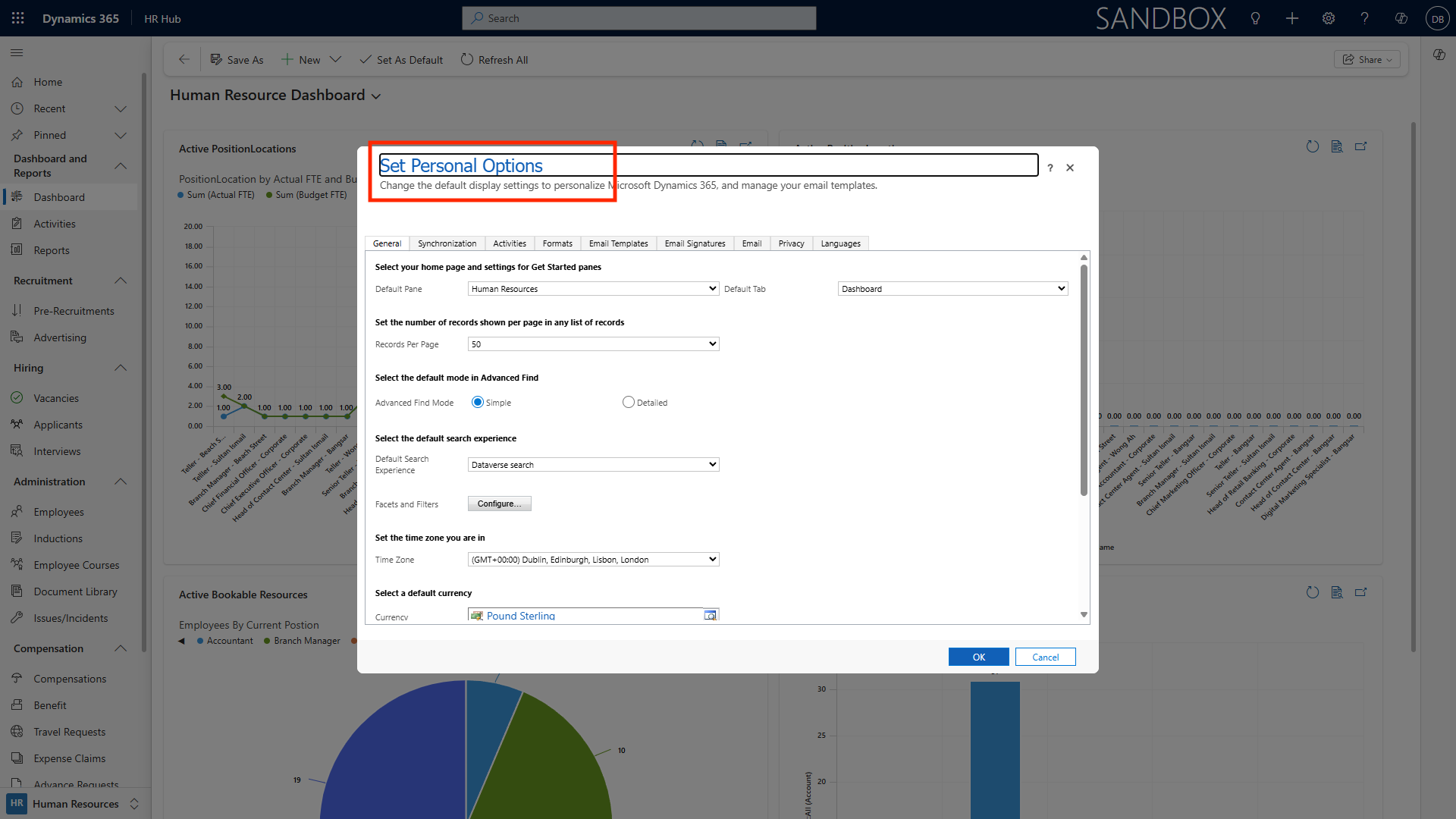
Click on your profile picture in the top right corner.
-
Select Personal Options from the dropdown menu.
-
Navigate to the General tab and choose your preferred default page (e.g., Dashboard, Employees, Recruitment).
-
Save changes. On next login, you’ll be taken directly to your selected home page.
Personalization Settings
Dynamics 365 provides flexible settings to tailor your experience.
-
Language & Regional Settings: Set your preferred language, time zone, and date format (e.g., EN-AU, EN-US).
-
Theme Selection: Choose system themes, high-contrast, or custom color options for better visibility.
-
Notification Preferences: Adjust which alerts you receive---email, in-app, or push notifications for tasks and approvals.
-
Personal Views: Create custom list views and filters for quick access to relevant employee or vacancy records.
Recruitment
Creating Vacancies
Follow these steps to create and manage vacancies.
-
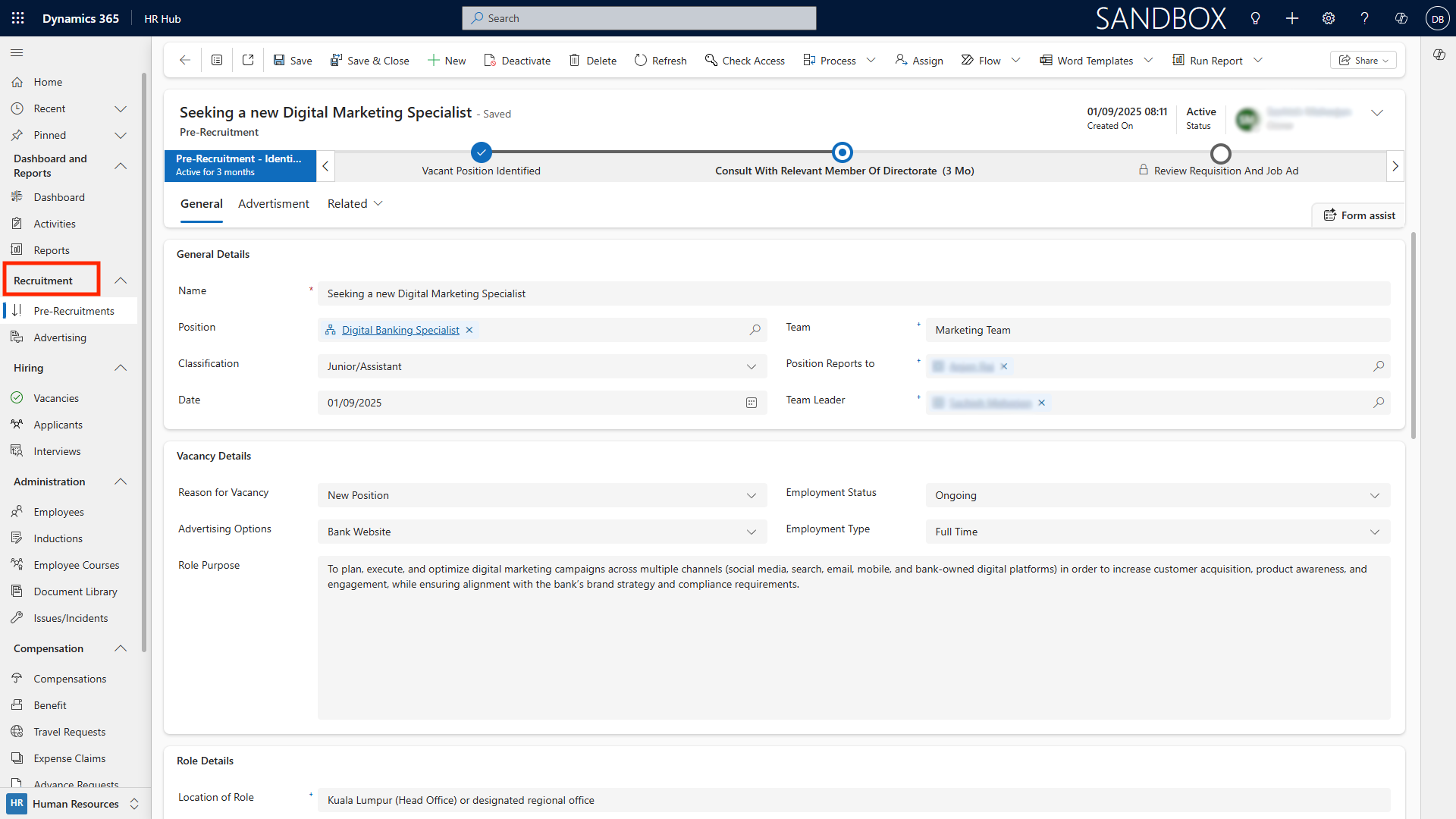
Go to Recruitment > Vacancies.
-
Create new vacancy: Click New Vacancy. Enter details:
-
Role title & department
-
Job description, responsibilities, and requirements
-
Salary range and benefits
-
Location, remote/hybrid options
-
Status (draft, published, closed)
-
-
Attach supporting documents (e.g., position descriptions, selection criteria) via the Documents tab.
-
Edit or update vacancy details as recruitment progresses.
Advertising Roles
Follow these steps for advertising roles.
-
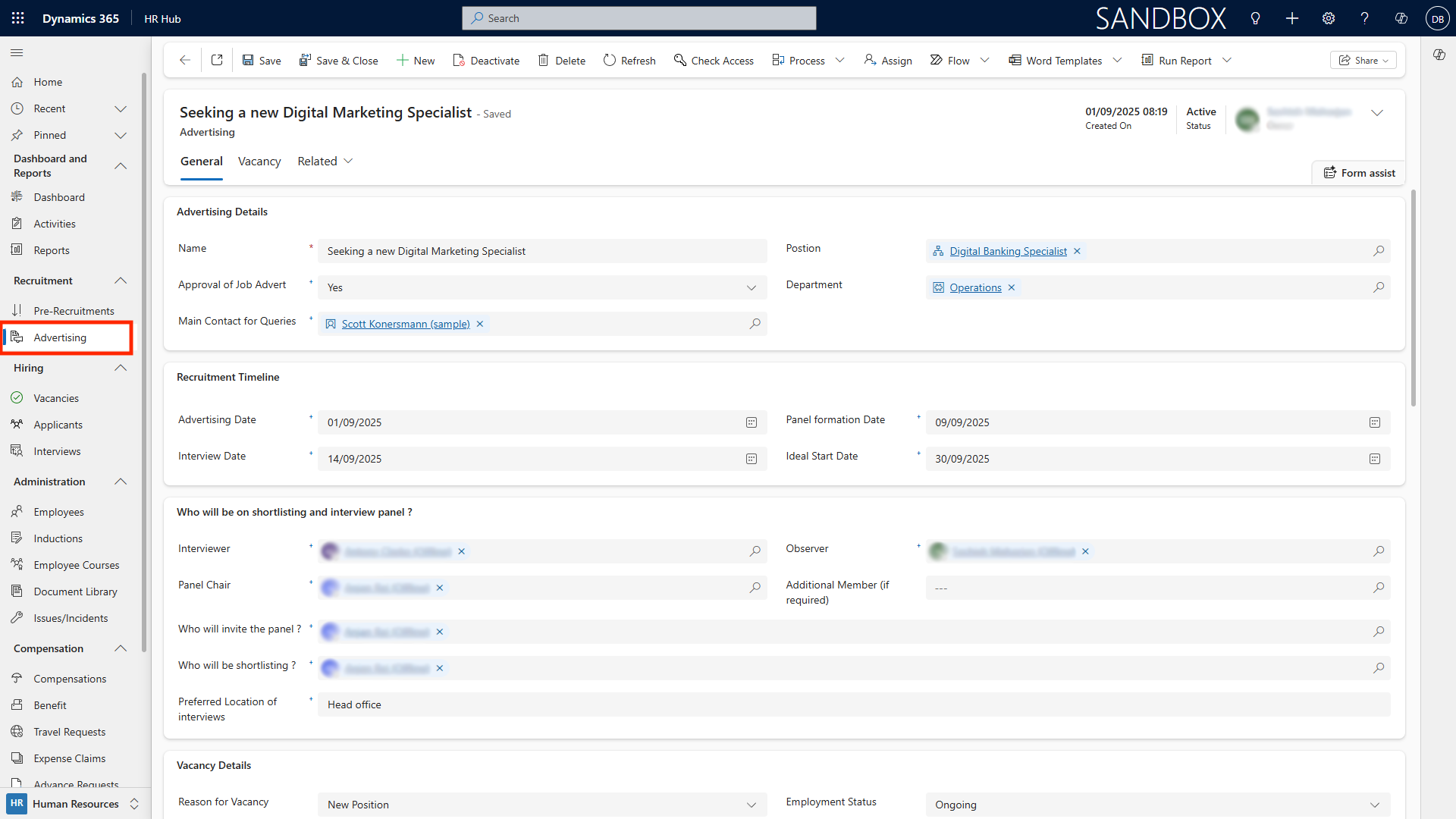
Open a published vacancy.
-
Click Advertise to generate job ads for internal and/or external career sites.
-
Fill in additional advertising fields:
-
Application instructions and close date
-
Posting locations (internal portal, external job boards, LinkedIn, etc.)
-
Role-specific tags or keywords
-
Monitor application volume and source effectiveness via the dashboard.
Hiring Process
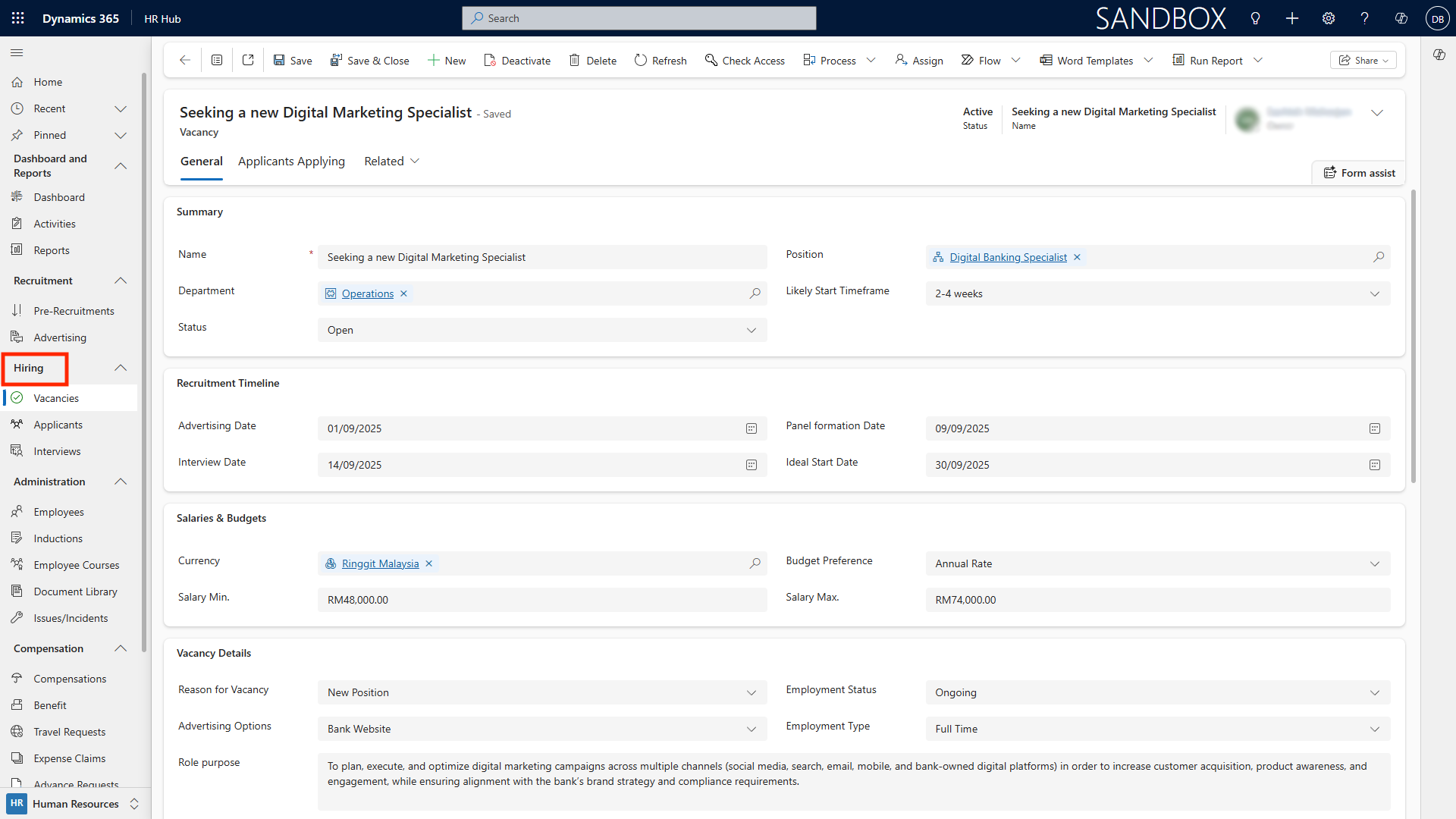
Vacancy Details and Applicant Management
Here are the steps for vacancy details and applicant management.
-
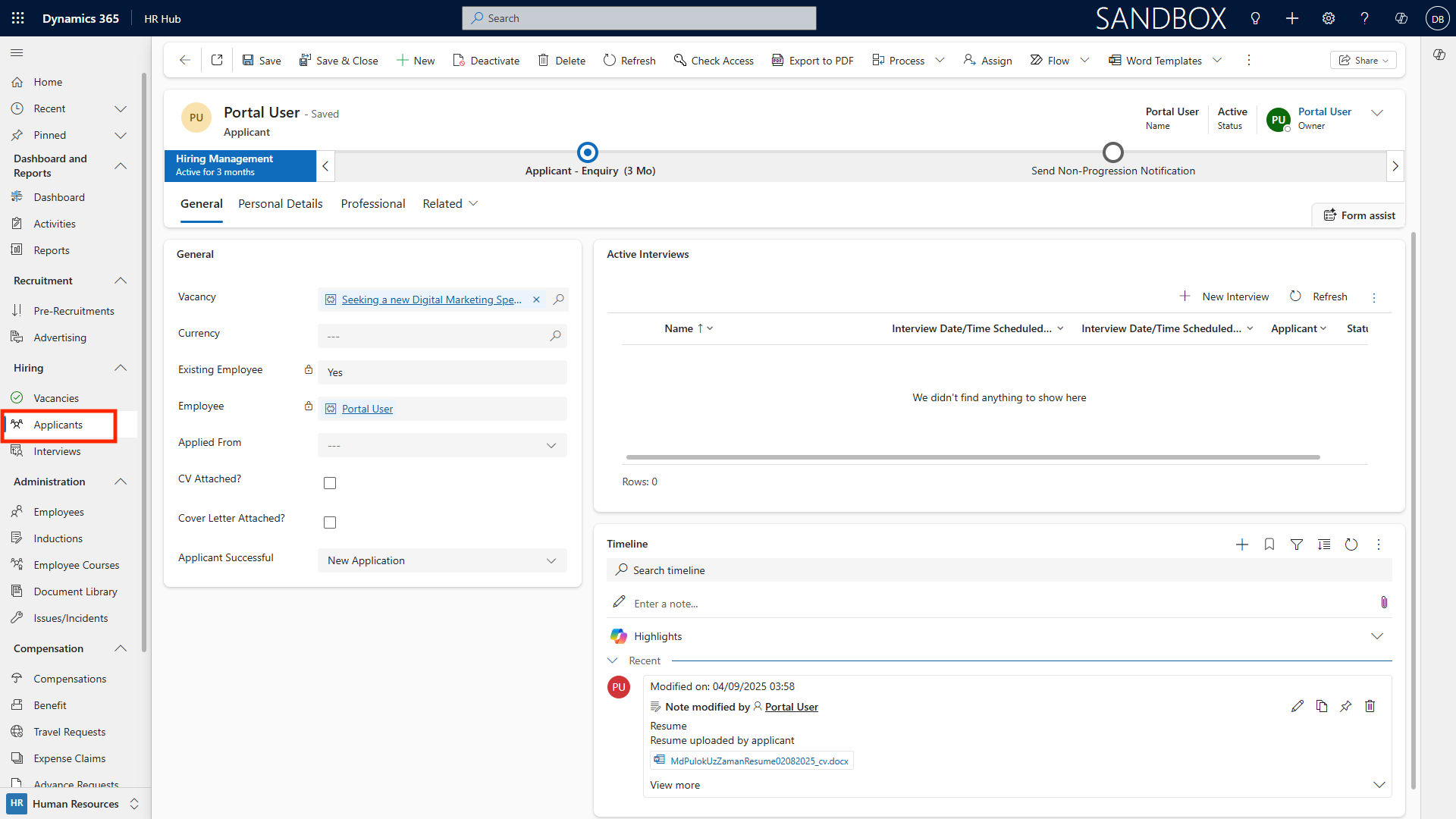
Select an active vacancy, then go to the Applicants tab.
-
Review applicant profiles, CVs, and cover letters attached to their records.
-
Sort/filter applicants by stage (applied, shortlisted, interviewed, rejected, hired) or by skills/criteria.
-
Assign applicants to individual recruiters or panels for furtherreview.
Interview Tracking
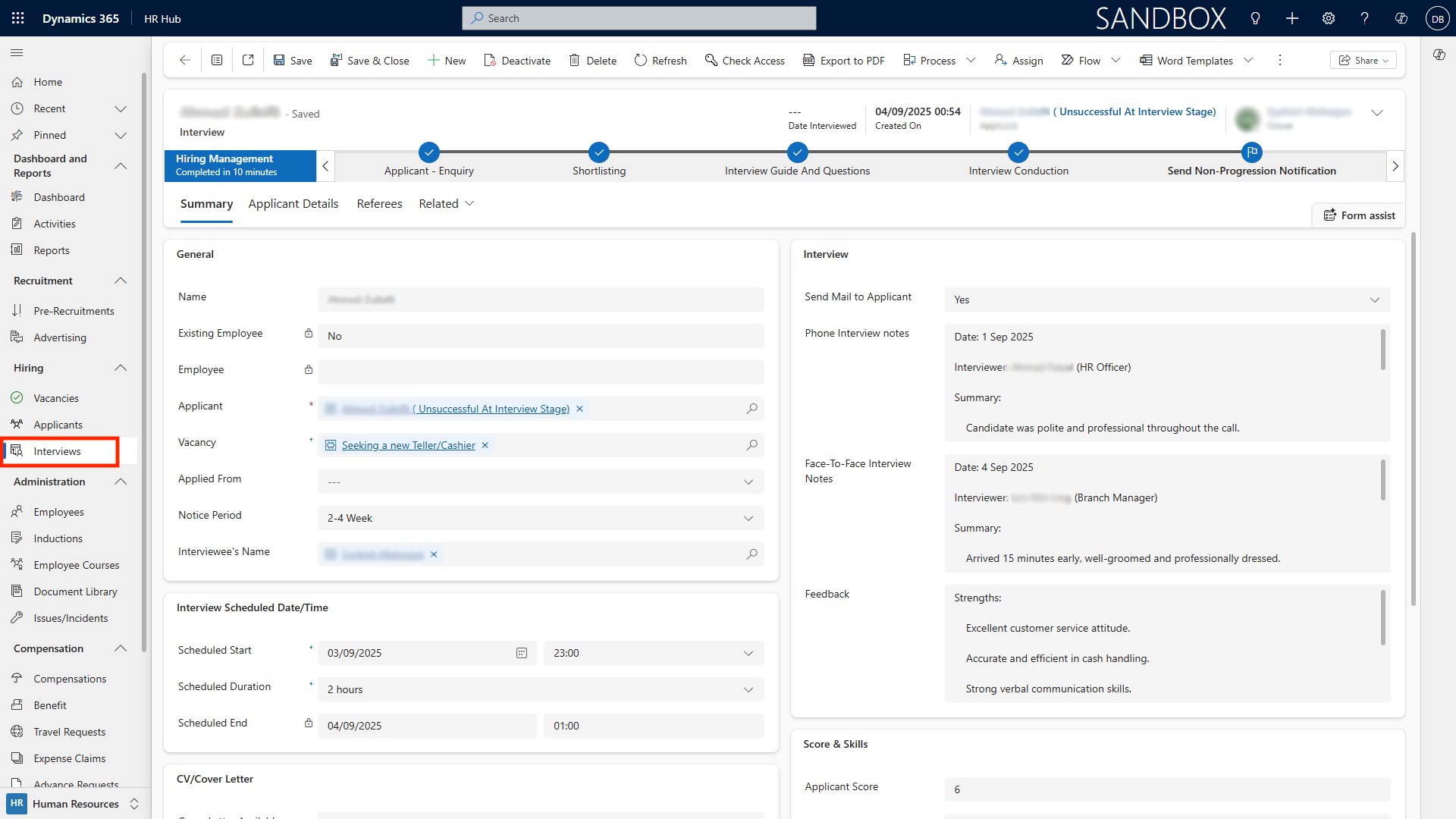
Here are the steps for interview tracking.
-
In the applicant’s record, click Schedule Interview.
-
Choose date, time, location (in-person, Teams/Zoom link), and panel members.
-
Send calendar invites---these sync with Outlook and Teams.
-
Log interview notes, feedback, and outcomes for each candidate.
-
Advance successful candidates or send automated notifications to unsuccessful applicants.
Employee List and Records
Viewing, Searching, and Filtering Employees
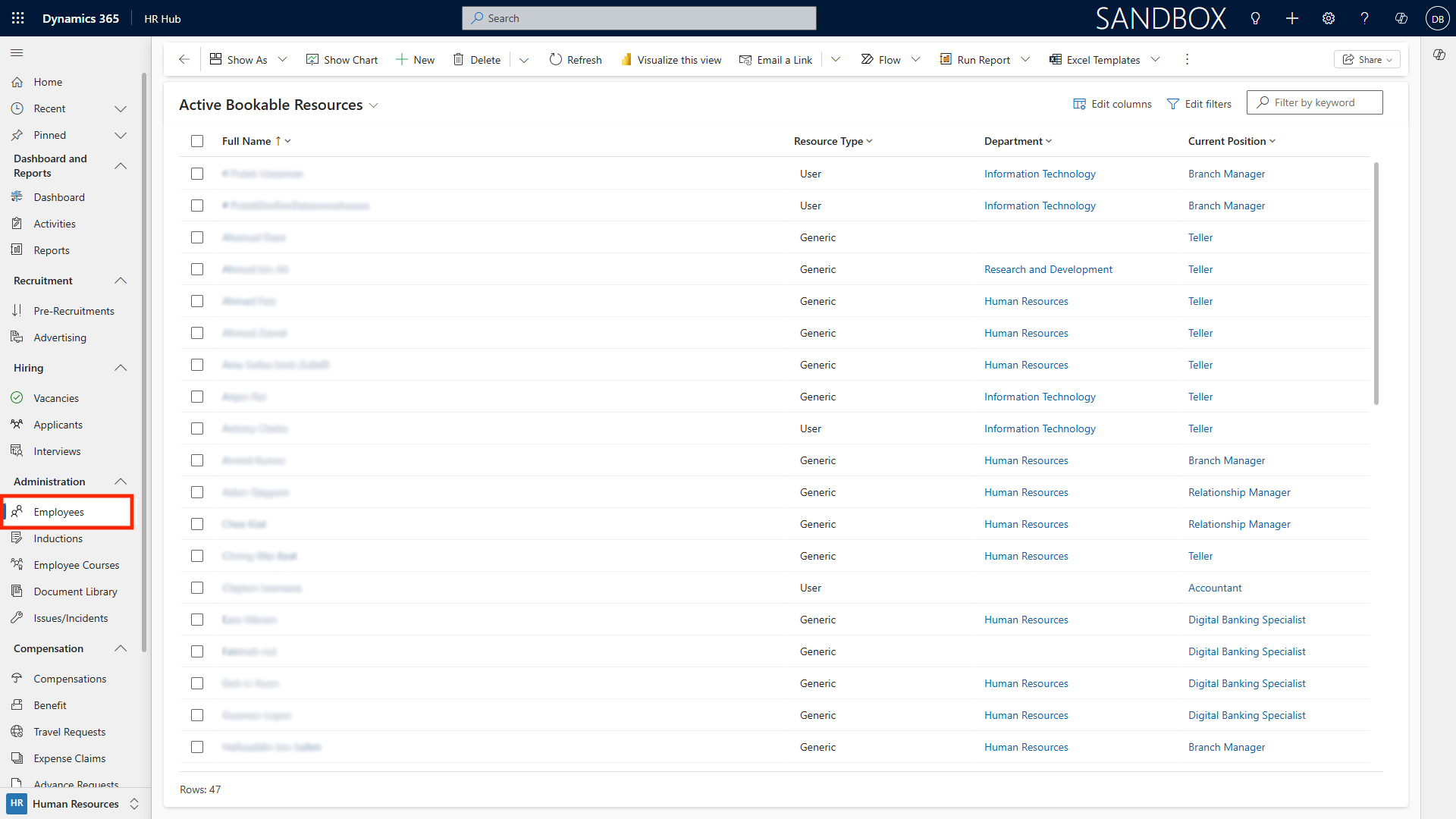
Here are the steps for viewing, searching, and filtering employees.
-
Go to the Employees module for a complete staff directory.
-
Use global search or quick filters (department, status, tenure, skillset).
-
Switch between list and chart views for visual insights (e.g., gender diversity, turnover trends).
-
Export employee data for reporting or compliance as needed.
Creating Employee Records
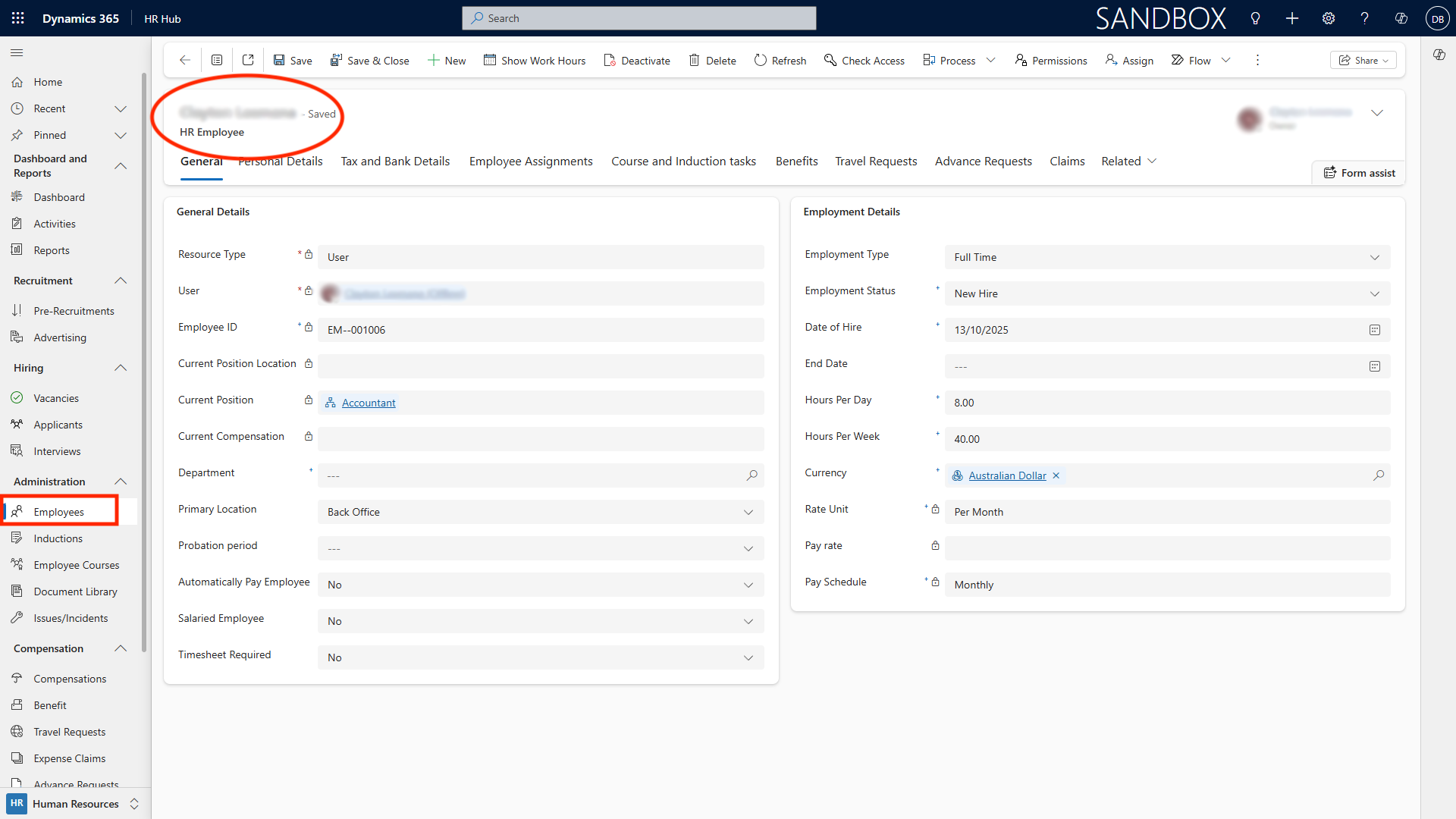
Follow these steps for creating employee records.
-
Click New Employee in the command bar.
-
Enter basic personal info: name, birthdate, address, contact details.
-
Add tax file number, superannuation, and bank account info securely.
-
Assign to a department, manager, and primary location.
-
Link job role, grade, and employment type (full-time, part-time, contract, casual).
-
Add onboarding details:
-
Mandatory training/courses
-
Induction checklists and tasks
-
Document uploads (contracts, ID, certifications)
-
-
Configure benefits, allowances, and leave entitlements.
-
Record travel requests, advances, and manage expense claims through dedicated tabs.
Compensation and Benefit Management
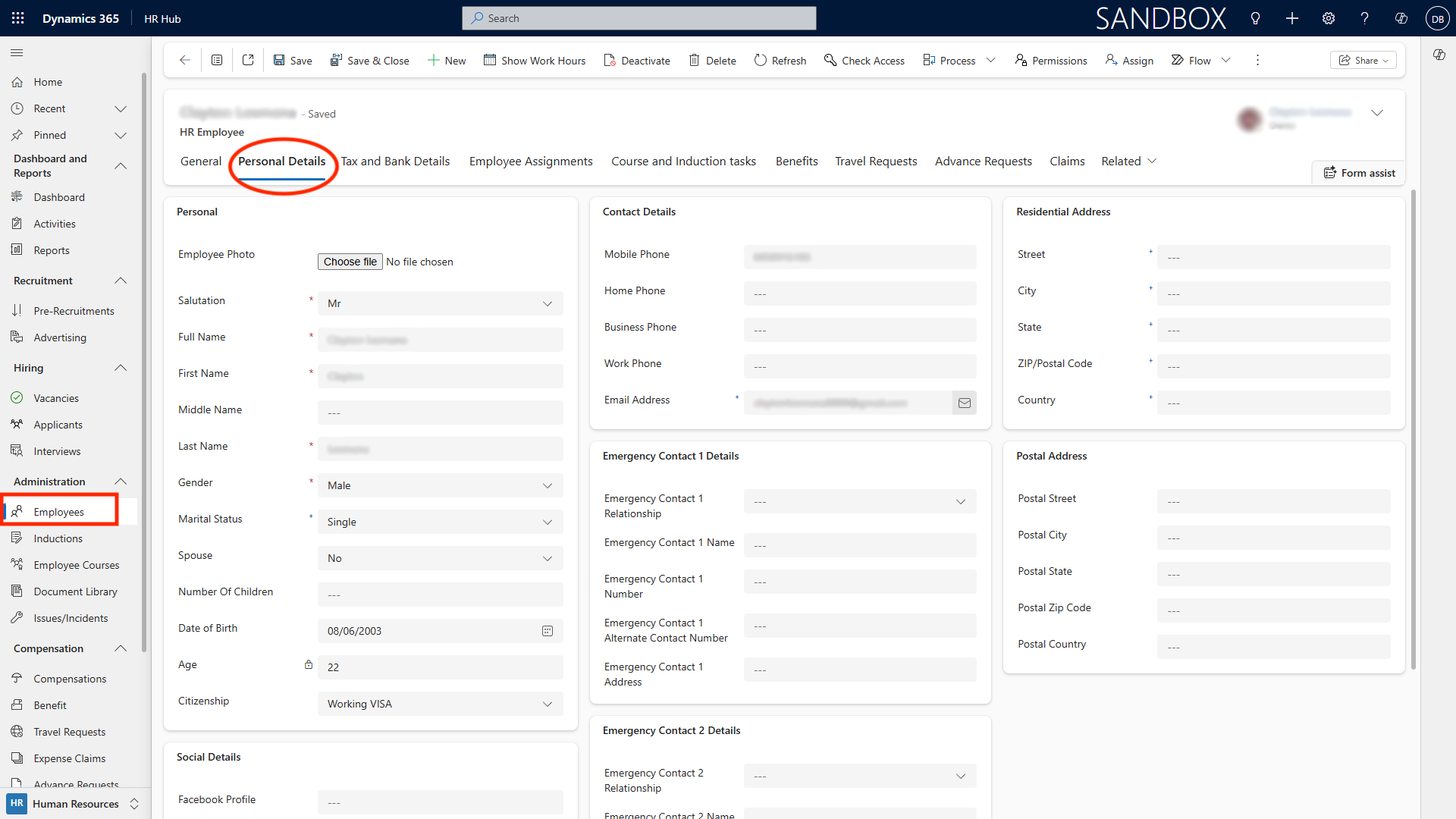
The following are the compensation and benefit management steps.
-
Access Compensation & Benefits from the navigation pane.
-
Manage salary packages, increments, and bonuses for each employee or group.
-
Set up allowances (e.g., car, phone), superannuation, and insurance options.
-
Review and approve benefit claims and eligibility changes.
-
Generate and export remuneration reports for payroll processing or audits.
Document Library Management
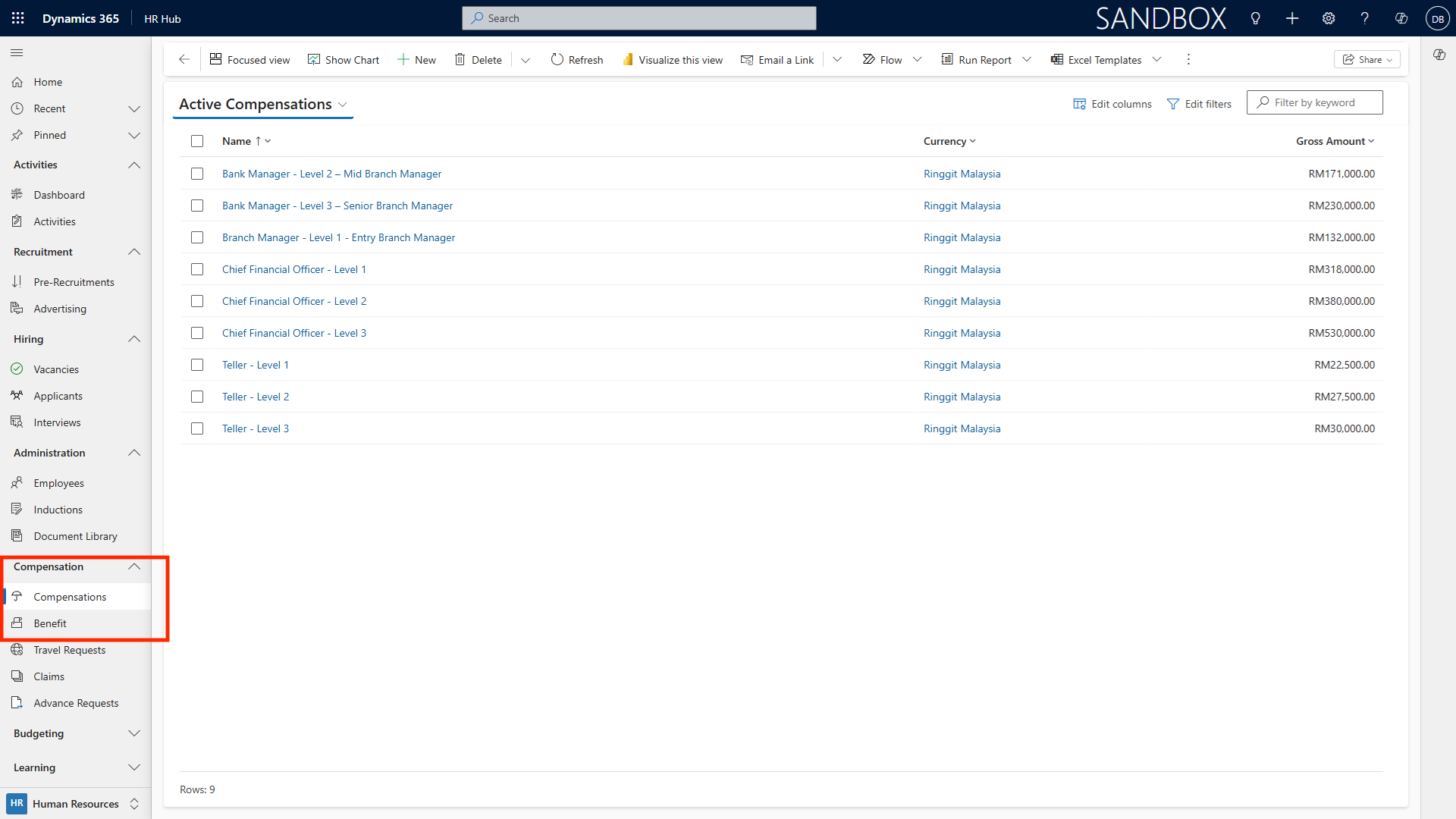
Dynamics 365 seamlessly integrates with SharePoint, providing centralized storage and management for all HR documents. To manage documents, follow these pointers.
-
Open the relevant employee or vacancy record.
-
Click on the Documents tab.
-
Upload contracts, policy documents, certificates, and forms directly to SharePoint.
-
Set access permissions for confidential files.
-
Use full-text search and advanced filters to find specific documents quickly.
-
Maintain version history and audit trails for compliance.
Issue and Incident Management
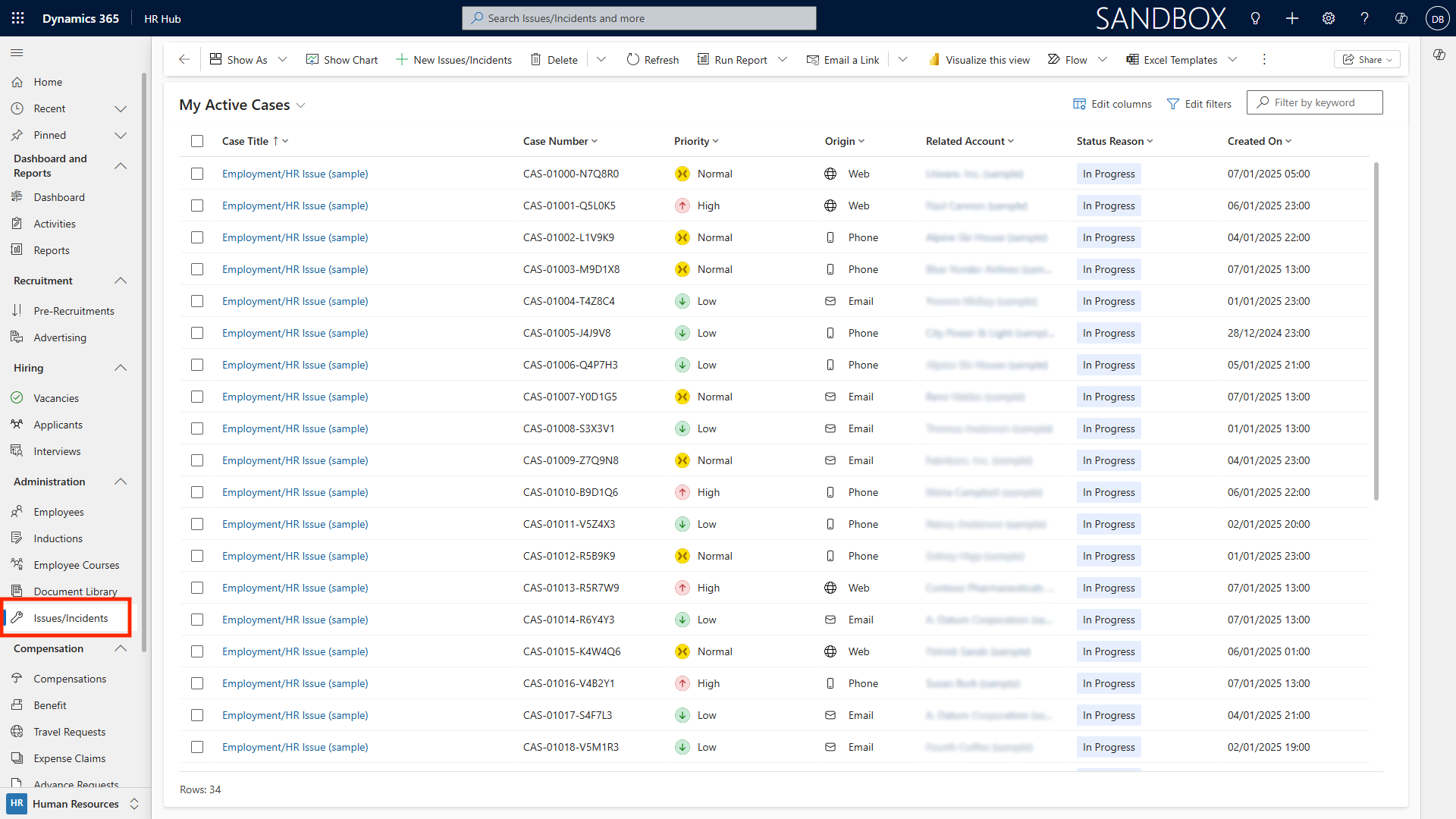
The following pointers outline issue and incident management.
-
Use the Customer Service module for HR incidents---complaints, grievances, policy breaches, or accidents.
-
Create a new case, assign priority/severity, and link it to involved employees or witnesses.
-
Attach relevant documents (incident reports, correspondence) to the case record.
-
Track case progress, set reminders, and escalate if not resolved within SLAs.
-
Close case and archive outcomes for future reference and compliance audits.
Activity Recording
Maintain a holistic log of all HR-related activities to support employee management and development.
-
Record meetings, appointments, interviews, and reviews in the ‘Activities’ tab.
-
Track outbound and inbound emails relevant to employees, positions, or cases.
-
Set and monitor follow-up tasks for onboarding, training, or performance discussions.
-
Generate reports on activity volume and outcomes to inform workforce planning.
Organization Charting
Here are pointers for organization charting.
-
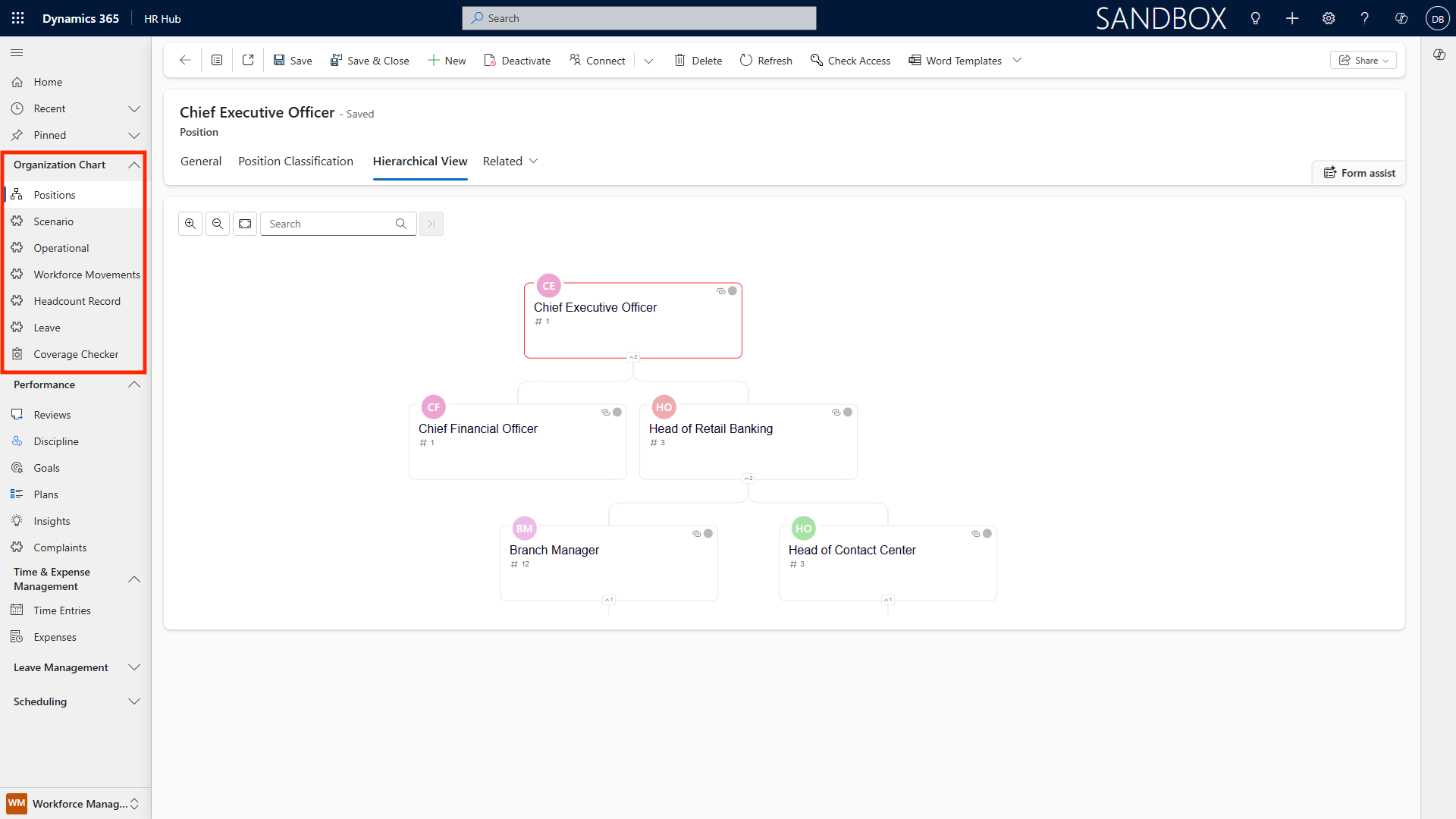
Access the Organization Chart from the navigation pane or within an employee record.
-
Visualize reporting structures and departmental hierarchies.
-
Click on any employee or position node for a summary card (role, tenure, direct reports).
-
Edit chart structure as roles or teams evolve.
-
Export charts for presentations or strategic planning sessions.
Coverage Checker and Headcount Management
The following are pointers for coverage checker and headcount management.
-
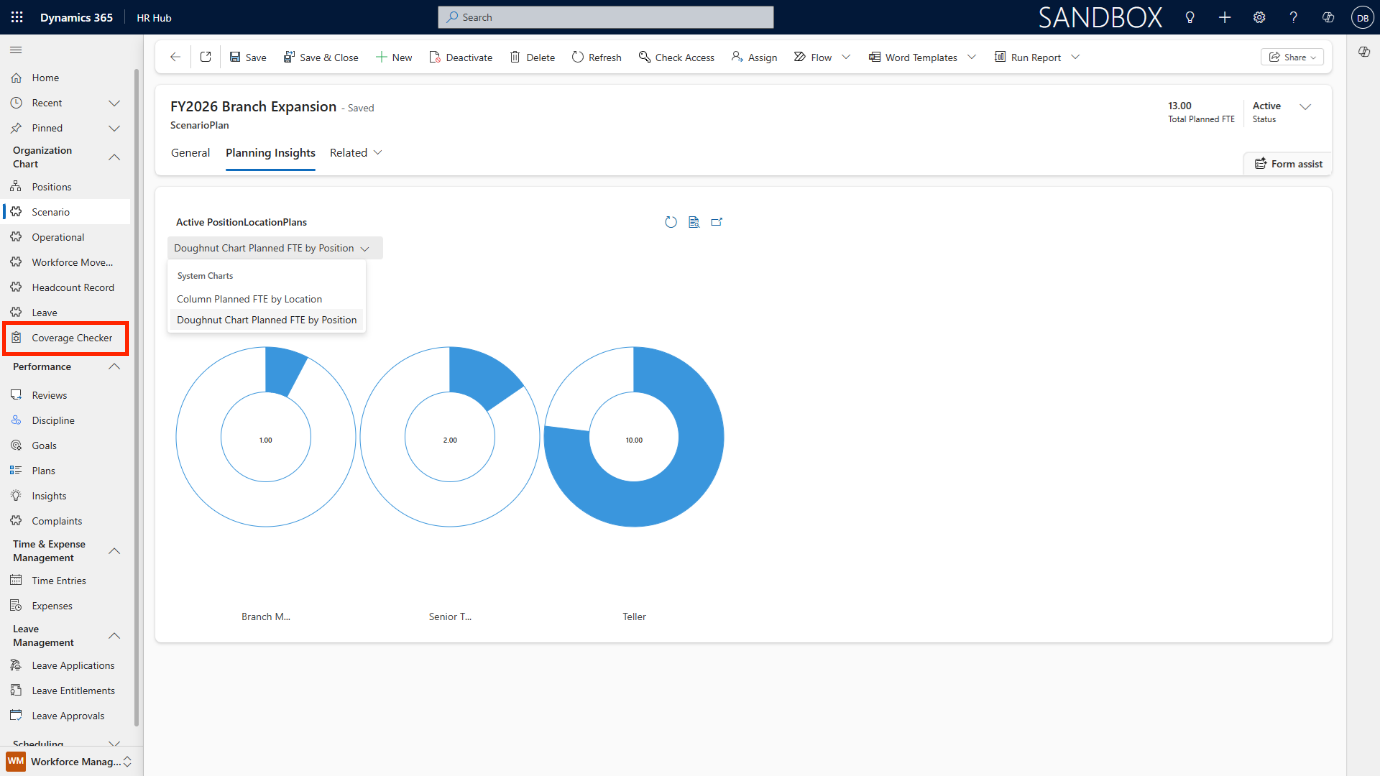
Use the Coverage Checker tool to review staffing levels by department, role, or shift.
-
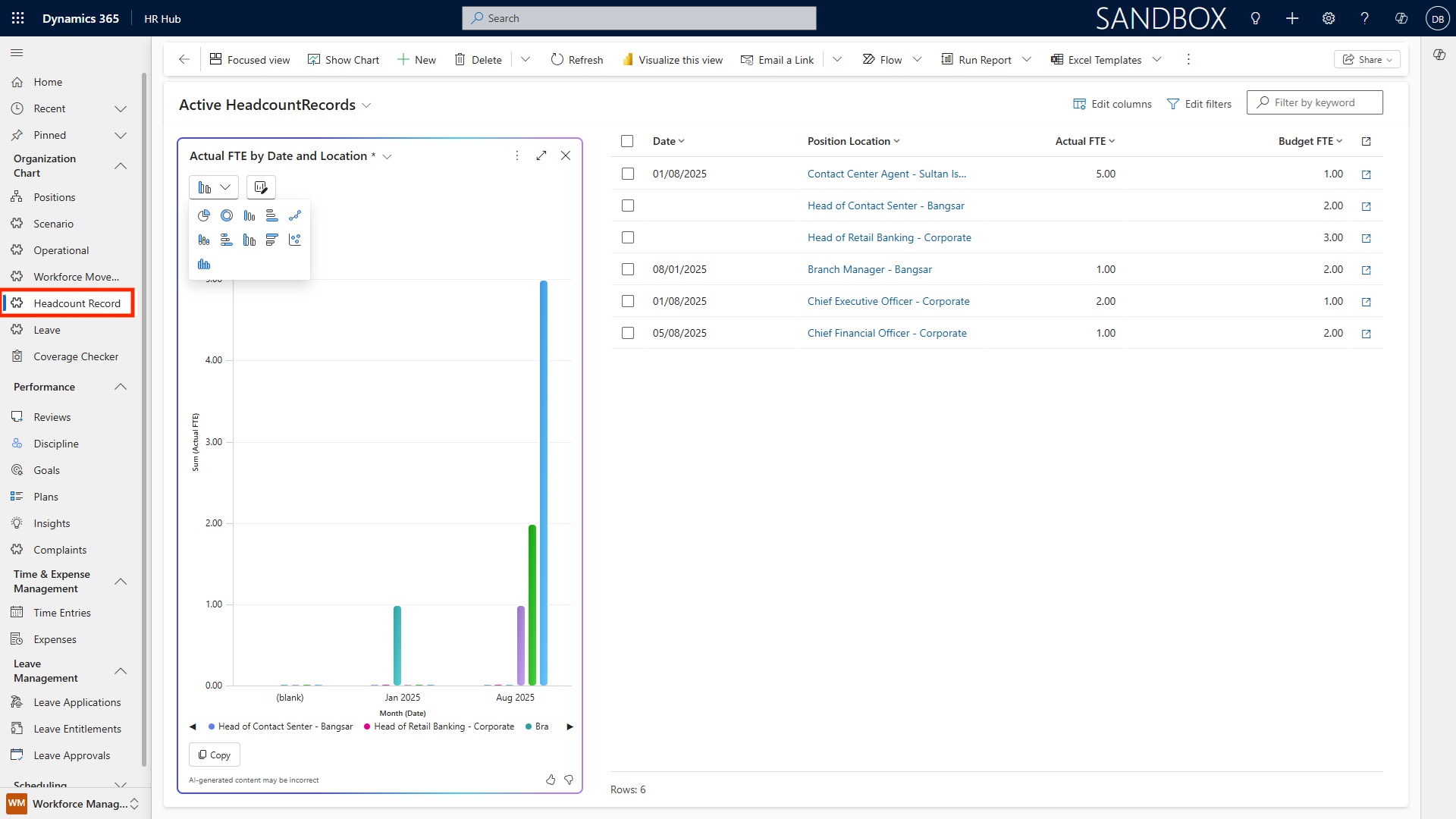
Identify coverage gaps or overstaffed areas using real-time visuals and historical trends.
-
Run headcount and FTE (Full Time Equivalent) reports, filter by location, contract type, or cost centre.
-
Schedule automated reports for monthly or quarterly reviews.
Performance Management
The following is a guide to performance management.
-
Set up individual and team objectives in the Performance module.
-
Schedule regular (e.g., quarterly, annual) performance reviews with built-in templates.
-
Document feedback, achievements, areas for improvement, and learning plans.
-
Track progress towards objectives, link outcomes to compensation or promotion decisions.
-
Monitor performance trends and generate analytics for continuous improvement.
Employee Self-Service Portal
Here is a guide to the employee self-service portal.
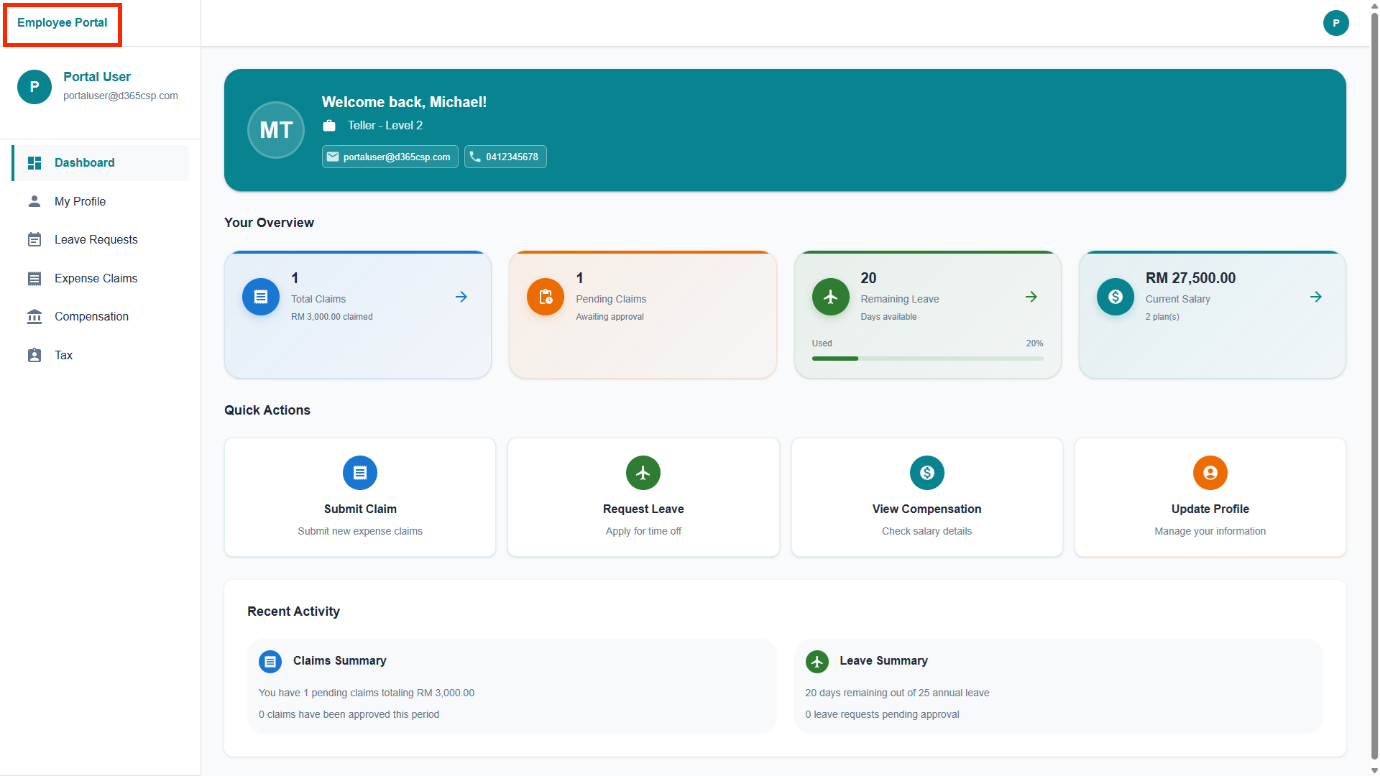
Employees log in to the self-service web app to:
-
Update personal details and contact information
-
Submit leave, travel, and benefit requests
-
Access payslips, tax forms, and HR policy documents
-
Track the progress of approvals and claims
HR can push announcements, updates, and mandatory tasks directly to employees via the portal.
Extensions and Integrations
AI-Powered Attendance Management
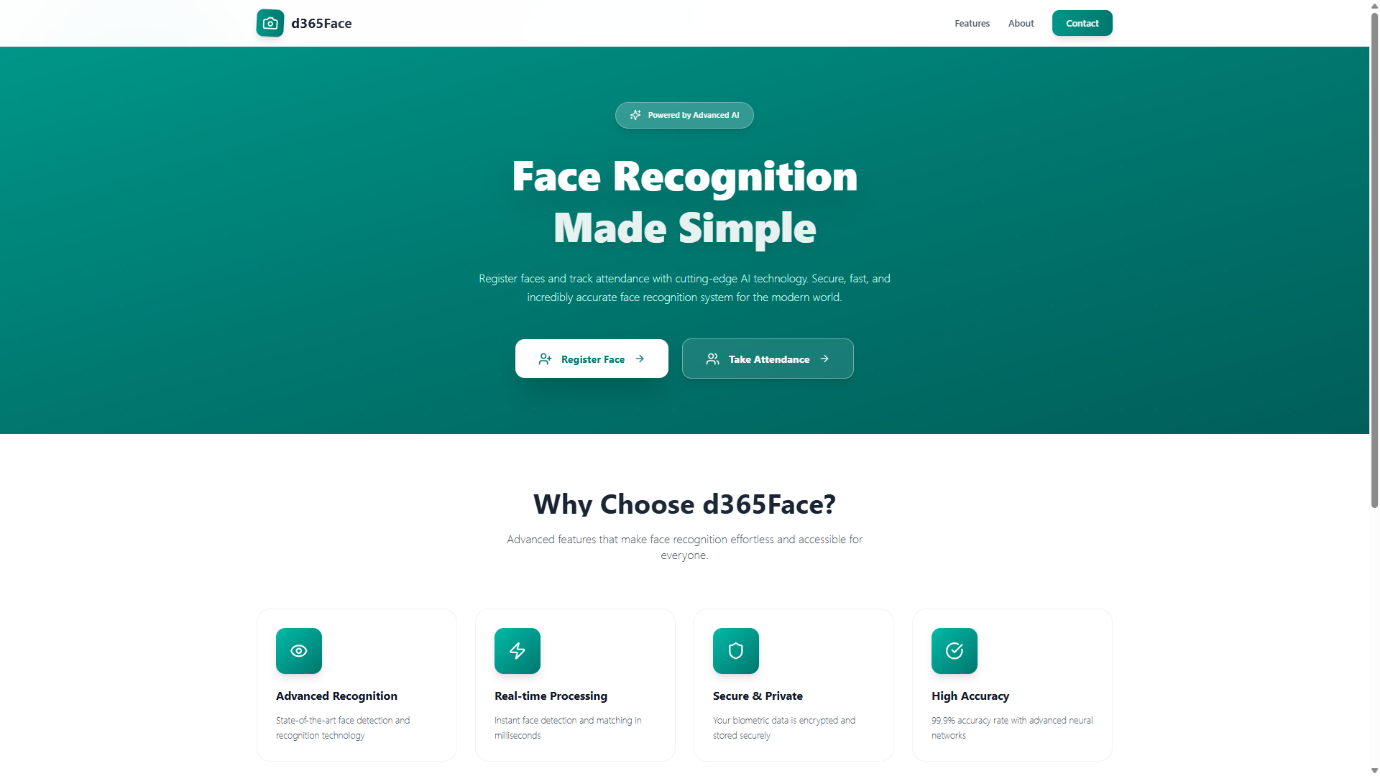
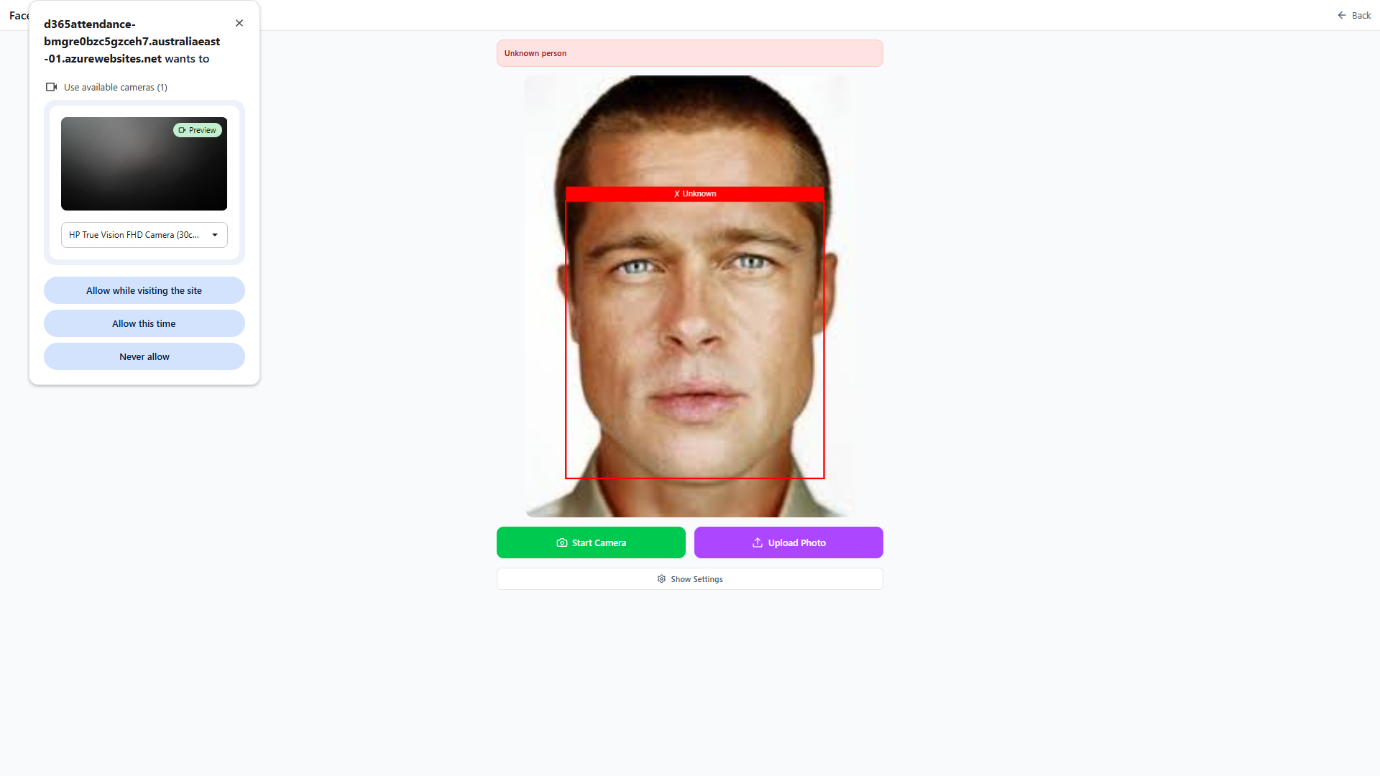
Here are important details about AI-powered attendance management.
-
Install an AI-driven extension for real-time attendance tracking via badges, mobile sign-ins, or geofencing.
-
Set up rules for leave types, absences, and overtime. System flags anomalies for review.
-
Export attendance data for integration with payroll and scheduling systems.
LMS Integration (Learning Management System)
-
Connect to your corporate LMS for seamless assignment of courses and tracking of completions.
-
Sync learning records into employee profiles for compliance and upskilling initiatives.
-
Generate reports on course participation and certification status.
Enhanced Performance Management Extensions
-
Add advanced analytics modules to benchmark performance by department or role.
-
Customize review cycles, KPIs, and feedback workflows to align with business goals.
-
Integrate survey tools for multi-source (360-degree) feedback.
Global Dataverse Search
-
Use the search bar at the top of every page for quick access to records across all Dynamics 365 modules and data.
-
Apply filters to refine search results.
-
Save frequent searches as personal shortcuts for efficiency.
Teams Integration for Collaboration
-
Connect Dynamics 365 to Microsoft Teams for seamless communication.
-
Share records, chat with colleagues, or launch Teams meetings from within an employee or case record.
-
Collaborate on document editing or casework in real time.
Using Dynamics 365 App for Outlook
-
Install the Dynamics 365 Outlook Add-in from the Microsoft marketplace.
-
Track emails, set appointments, and link correspondence directly to HR records from your inbox.
-
Add notes, update statuses, or create new HR entries without leaving Outlook.
Dynamics 365 Mobile App
Here are ponters to access the Dynamics 365 HR module on mobile devices.
-
Download the Dynamics 365 app from the Apple App Store or Google PlayStore.
-
Log in using your work email and password.
-
Access dashboards, employee records, and cases on the go.
-
Submit approvals, assign tasks, and upload documents from your mobile device.
-
Enable push notifications for urgent tasks and updates.
Integration with Dynamics 365 Field Service and Project Operations
Integrating Microsoft Dynamics 365 for HR Management with Dynamics 365 Field Service and Project Operations creates a unified platform that streamlines workforce management, project delivery, and field operations.
This integration enables real-time synchronization of employee data, resource assignments, and work orders, ensuring that HR teams can efficiently allocate skilled staff to field projects and service tasks. It enhances visibility across departments, allowing project managers and field service coordinators to access up-to-date employee profiles, certifications, and availability, which improves scheduling accuracy and compliance.
By connecting HR processes---such as onboarding, training, and performance tracking---with operational workflows, organizations benefit from seamless collaboration, reduced administrative overhead, and data-driven decision-making. Ultimately, this unified approach drives greater agility, operational efficiency, and strategic alignment, empowering businesses to deliver projects and services with optimal resource utilization and improved employee engagement.
Conclusion
Microsoft Dynamics 365 for HR Management serves as a comprehensive and adaptable hub for all HR needs---from recruitment and onboarding, through performance management, to workforce analytics and document compliance. With robust integrations and personalization options, it empowers HR teams and employees alike to drive organizational excellence, efficiency, and ongoing improvement.
Appendix: Additional Resources and Support Contacts
Support
For technical troubleshooting, contact your IT support desk or Dynamics 365 system administrator.
AU: 1 Sussex St, Sydney NSW 2000
SG: 59 Ubi Avenue 1# 03-11, Singapore 408938
UK: 71-75 Shelton St, London, WC2H 9JQ
USA: 8 The Green # 20058, Dover DE 19901
AU +61 2 9037 2385 | SG +65 3 1251534 | UK +44 2036 953042 | USA +1 646 652 0780
Useful Links
Dynamics 365 Sales: https://learn.microsoft.com/en-us/dynamics365/sales/
Dynamics 365 Customer Service: https://learn.microsoft.com/en-us/dynamics365/customer-service/
Dynamics 365 Field Service: https://learn.microsoft.com/en-us/dynamics365/field-service/
Dynamics 365 Project Operations: https://learn.microsoft.com/en-us/dynamics365/project-operations/
Dynamics 365 App for Outlook: https://learn.microsoft.com/en-us/dynamics365/outlook-app/deploy-dynamics-365-app-for-outlook
Dynamics 365 Sales Mobile App: https://learn.microsoft.com/en-us/dynamics365/sales/sales-mobile/install-mobile-app