Admin For Dynamics 365 Education User Interface
Understanding Tables, Columns, Rows, Views and Forms
Microsoft Dynamics 365 and the broader Power Platform, use a data service called Dataverse. Dataverse provides the underlying database and security model. The terms tables, columns, rows, views, and forms are fundamental to how data is stored, structured, and presented within Dataverse and Dynamics 365. The user interface (UI) is how the administrator interacts with these components. Let us take a closer look.
Tables
The Table is where organizing and storing data takes place and is part of the database. It is a fundamental data structure. Think of it as a blueprint for a specific type of data, similar to a table in a relational database. It defines the set of columns that can be used to store data. For example, a “Contact” table defines the structure for all contact records in the system, including columns for first_name, last_name, and email. Every piece of information you store in Dynamics 365 is housed within a table.
Columns and Rows
Columns and Rows are how the data is organized. They are stored in a Table. In a database, the column is like the heading name while the row contains the details under it.
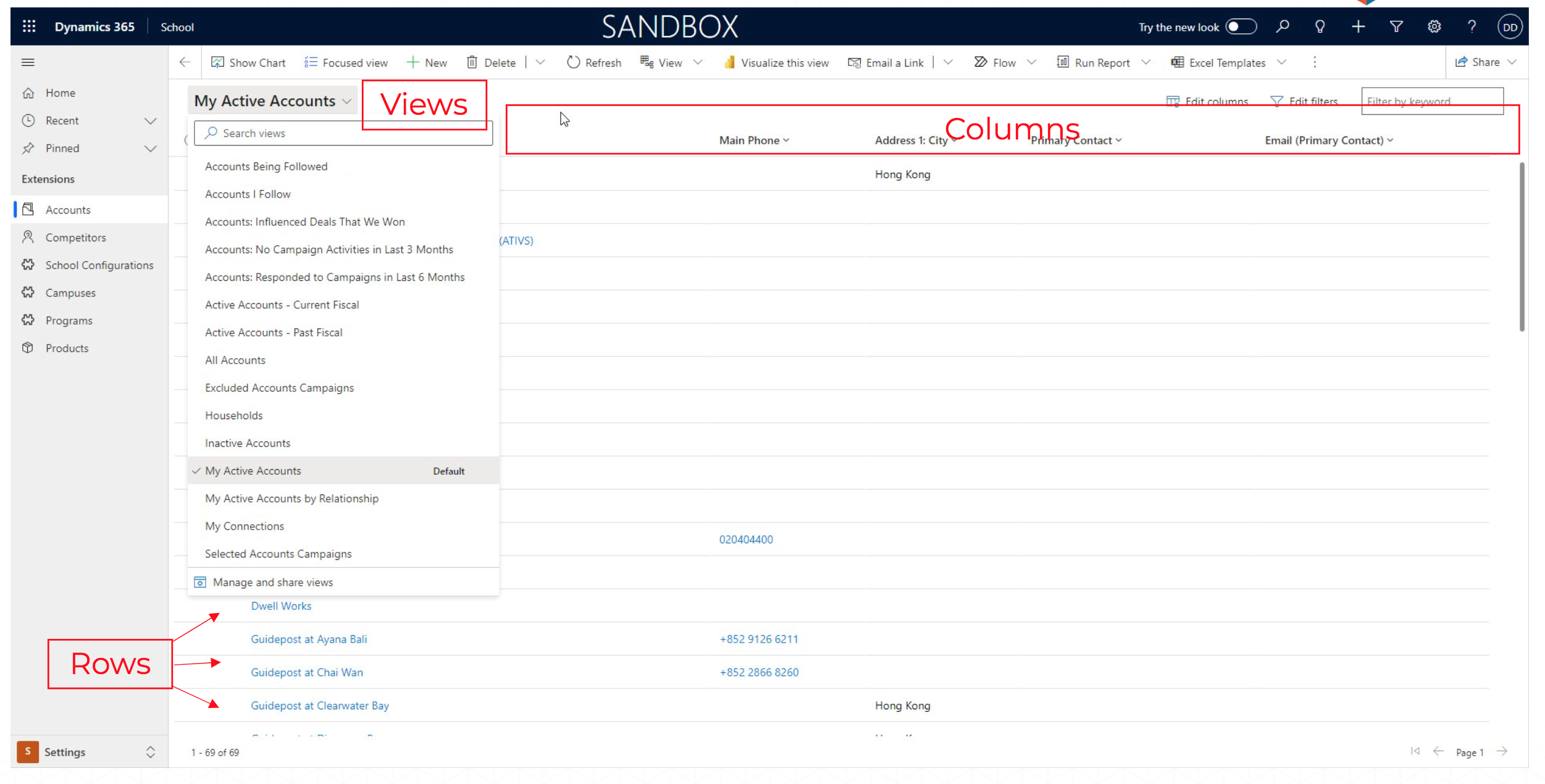
A column is a single data point within a table. It defines the type of data that can be stored, such as text, a number, a date, or a lookup to another table. For instance, in a “Contact” table, first_name and last_name would be text columns, while birth_date would be a date column. Columns are the building blocks of tables, defining what information you can collect for each record.
A row is a single instance of data within a table. It’s an individual record that contains data for each of the table’s columns. For example, in the “Contact” table, a single row might represent a specific person, like “Jane Doe,” with values “Jane” in the first_name column and “Doe” in the last_name column. All of the data in a Dynamics 365 application is stored in rows.
Views
Views display the information. You can also search or query for specific information you want using Search views. A view is a dynamic list of rows from a single table. It’s essentially a pre-configured query that presents a subset of data based on specific criteria. Views allow users to see relevant data without having to search or filter every time. For example, a “My Active Contacts” view might show only the contacts assigned to the current user and whose status is “Active.” Views can be shared and are crucial for providing a tailored user experience.
On the left-hand side of the user interface you will see Extensions. Under that, select Accounts and you will see the window displayed in the example above.
Forms
Forms provide the interface for entering data input or viewing information (i.e. data collection). You will be working with forms to enter data. Forms provide fields, which are for entering data input. Forms are customizable too, so they can be based on user requirements.
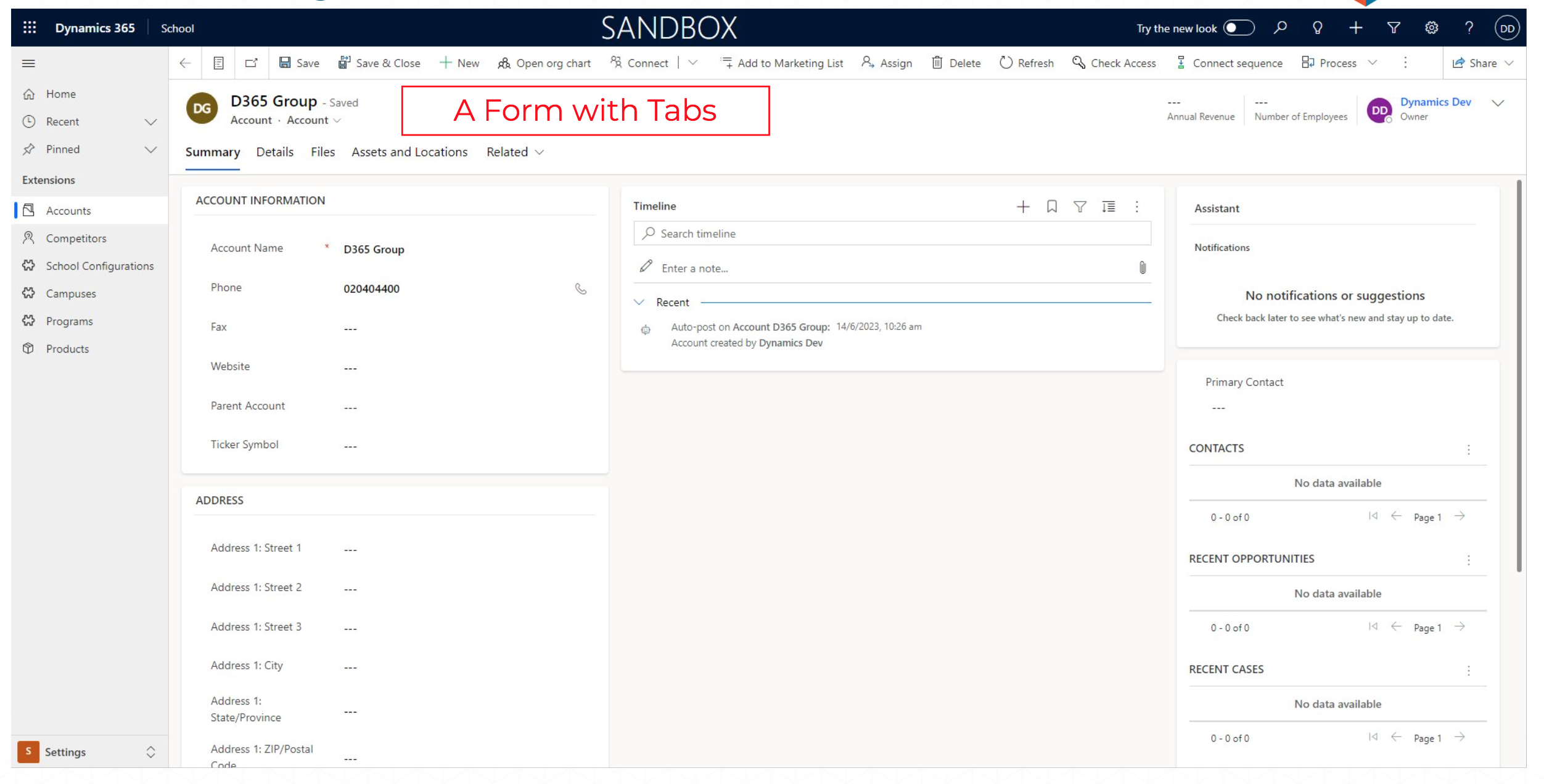
A form is used for viewing and editing the data in a single row. It provides a structured layout of the table’s columns, allowing users to enter, modify, and see data in a readable format. A form can have multiple tabs and sections to organize the information. For example, the “Contact” form would display all the columns for a specific contact, allowing a user to fill in their name, email, phone number, and address. Forms are the primary interface for data entry and interaction within Dynamics 365 applications.
Tabs
A Tab is a user interface that allows access to a single window that contain multiple, distinct forms or documents, each accessible by clicking on a corresponding “name” assigned to the tab. For example, you will see “Summary”, “Detail”, “Files”, etc. You can add new data or view data from tabs.
Navigation
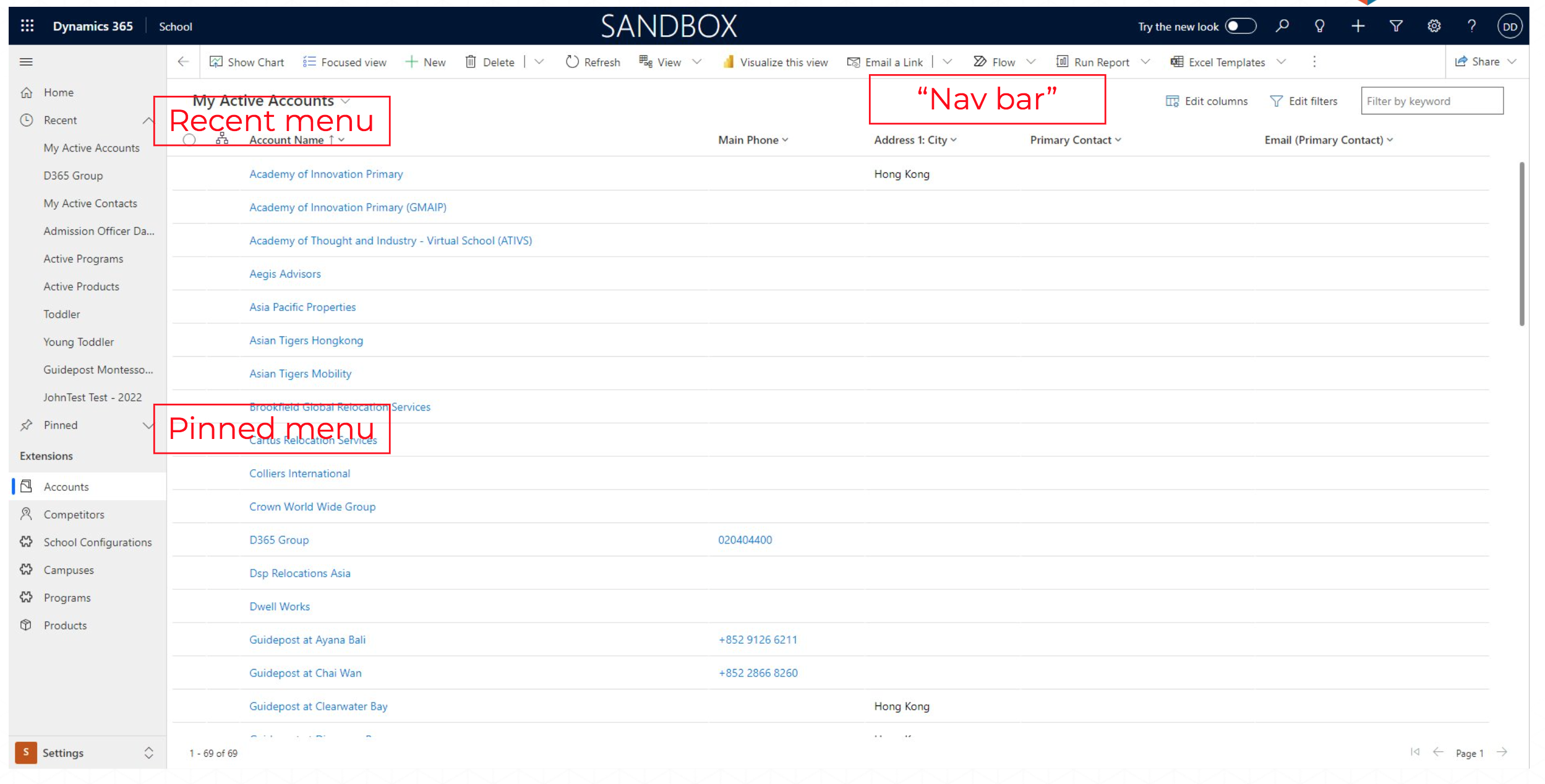
On the left-hand side of the application is the main menu that contains the Settings configuration (lower left-hand side), Extensions (contain the modules of the application), Recent menu (recently accessed functions), and Pinned menu (commonly used functions).
You can quickly navigate using the “Nav Bar” on the top of the application window, which contains access to basic functions like adding new records (New) or deleting them (Delete). A Recent menu contains recently accessed information, while the Pinned menu is a shortcut for convenience and fast access to information.
Personalization
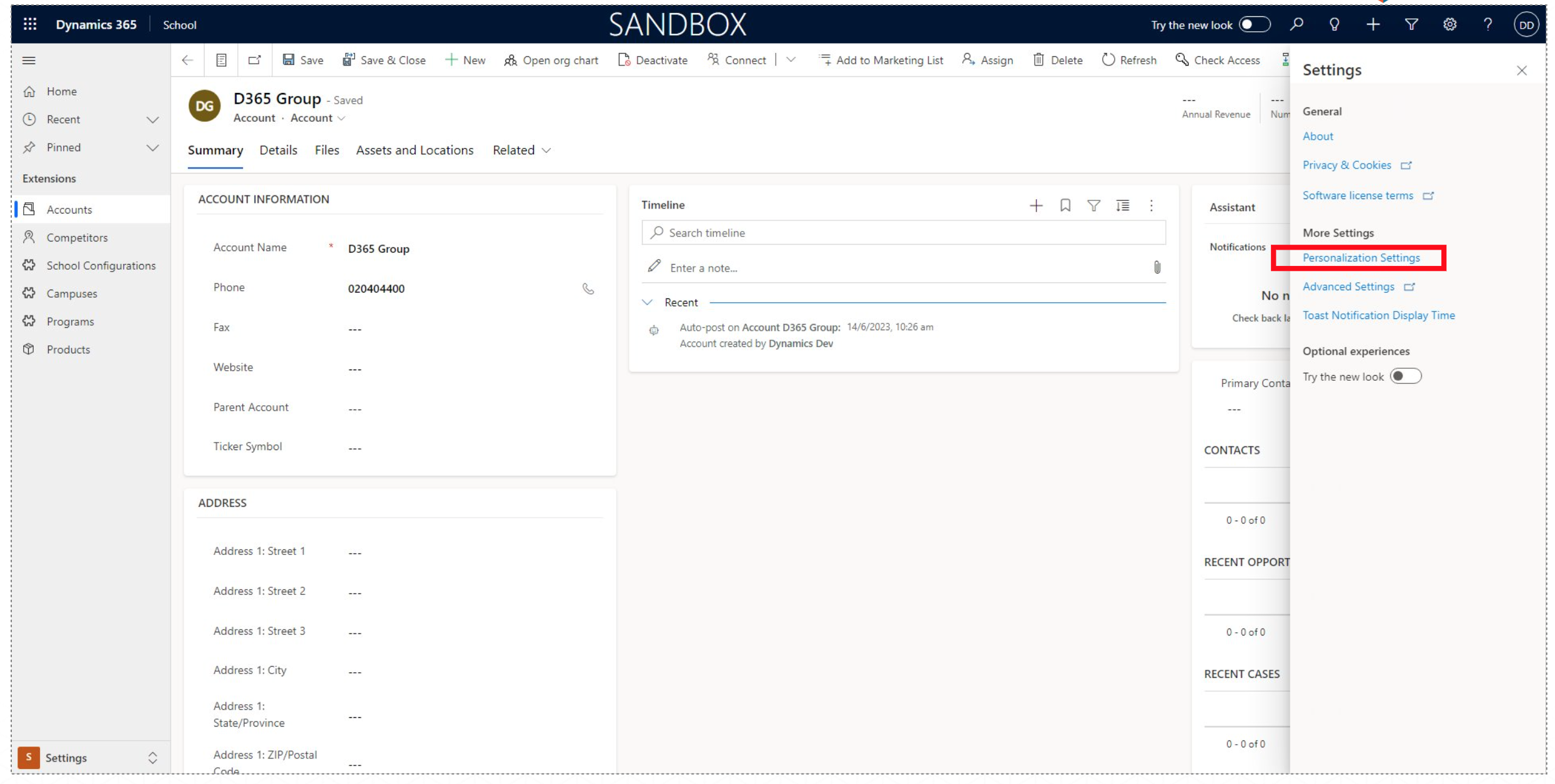
In this example, make sure you are in Extensions, and you have selected Accounts to see the window displayed above.
To begin customizing your preferences, go to the Settings option at the bottom left corner and select under More Settings the option called Personalization Settings.
This will allow you to configure the values for personal custom settings.
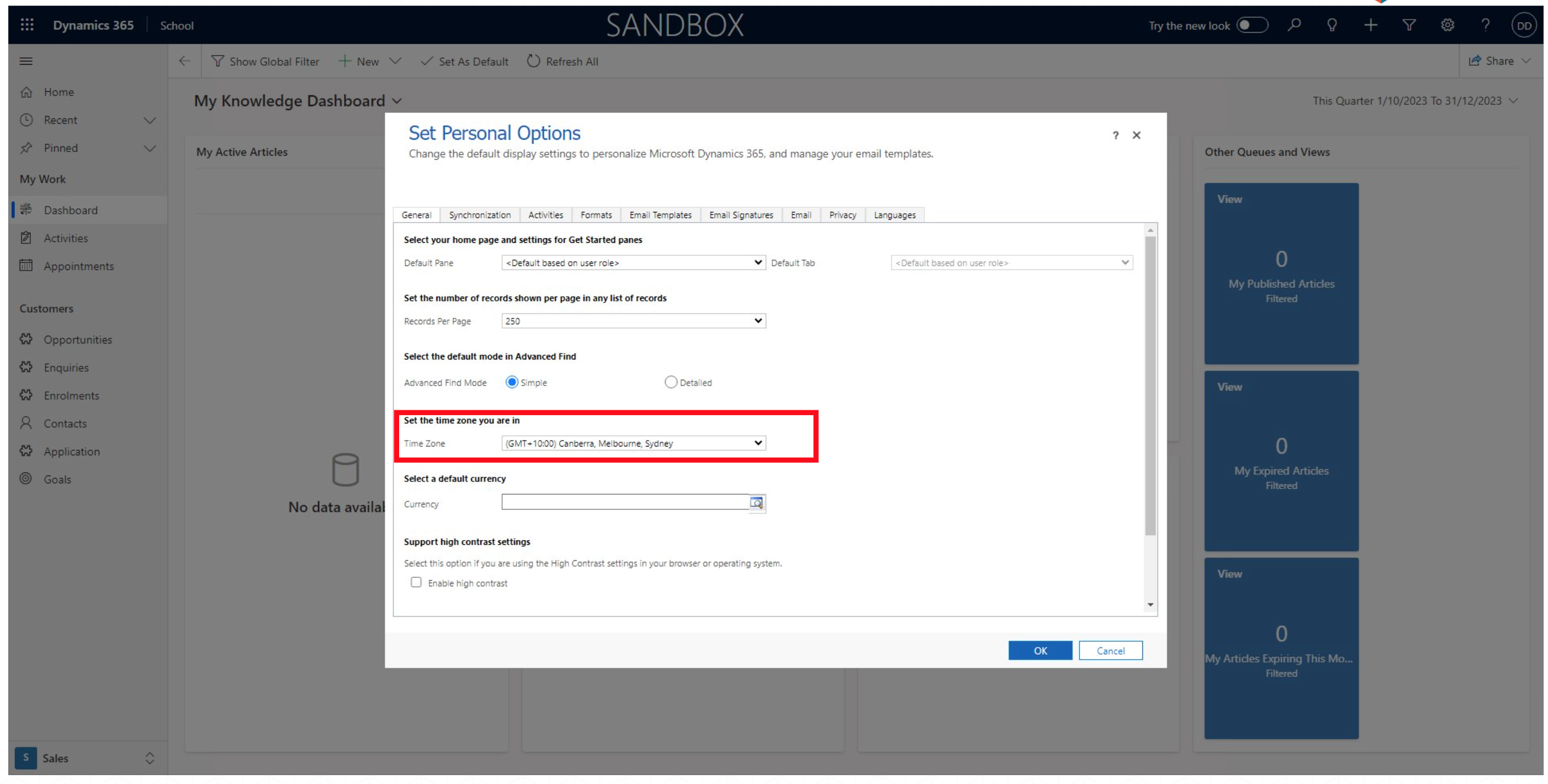
A window will open called Set Personal Options. From here you have multiple tabs which you can select to configure your preferences.
You can set the language under the Language tab or set your time zone in the General tab.
All your personal preferences are configured here. In the highlighted example you can Set the time zone you are in by clicking the drop-down box and choosing where you are located.