Purchasing GL Budget Control in Dynamics 365 Business Central
Introduction
Budget Control in Microsoft Dynamics 365 Business Central is primarily handled through G/L Budgets, allowing you to compare actual revenue/expenses against planned figures by period and dimensions (e.g., departments, projects). It takes the form of Budget Reporting where the budget is compared to actual spend for the period.
Our Purchasing Budget Control app takes a more proactive approach where the purchase amount (Purchase Order or Purchase Invoice) triggers a direct check with the budget against which the purchase is consumed. Each line amount designated against the implied G/L account is compared with the approved G/L account budget for the period, and the system triggers a Budget Overflow (if the line amount is greater than the budget) that stops the purchase from being posted. In this version, each line amount (line type of Item or G/L Account) is validated against the account budget independently.
To get the solution, visit on Microsoft Marketplace GL Budget Control .
Setup Requirement
Define G/L Budget Approval Workflow
Purchase Budget Control assumes that there is a pre-approved G/L Budget for the Purchase, for example, budget approved for spending on advertising. When the G/L Budget is defined, it should be sent for approval to be confirmed.
Example of workflow:
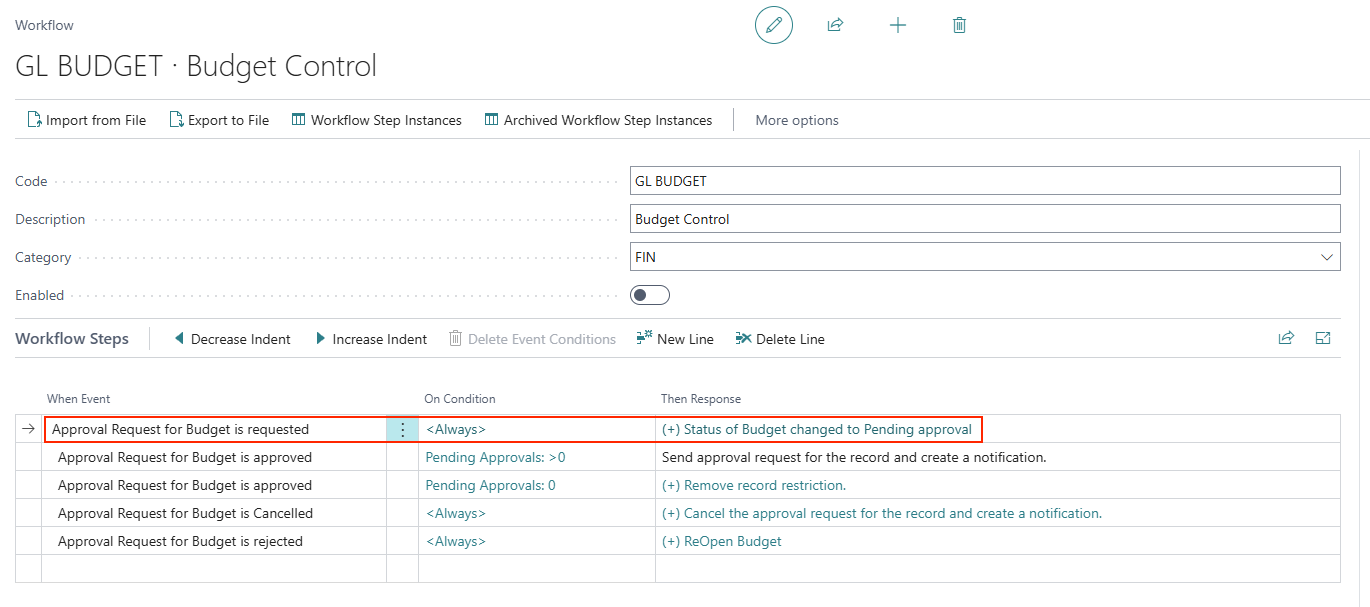
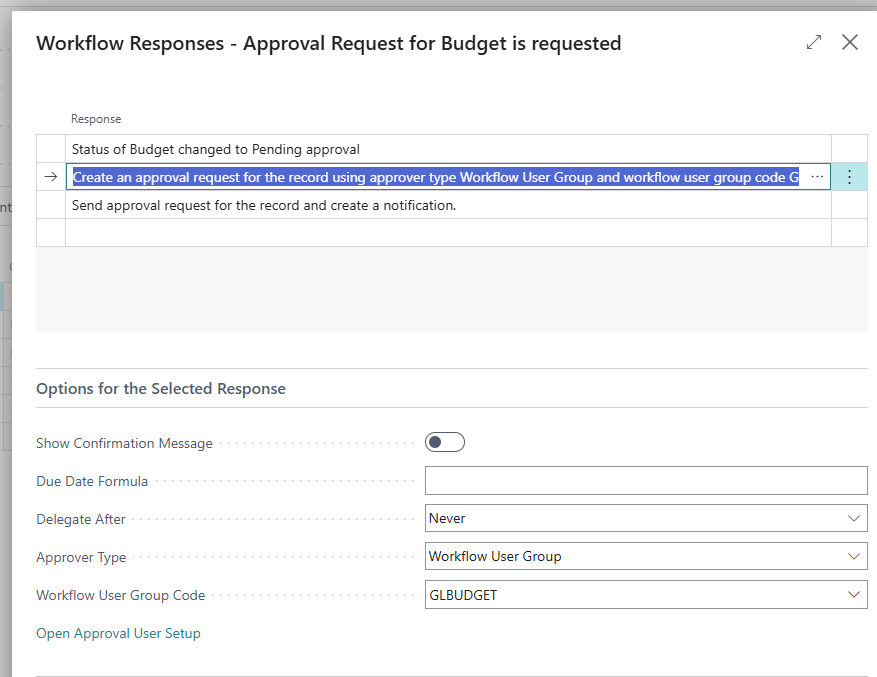
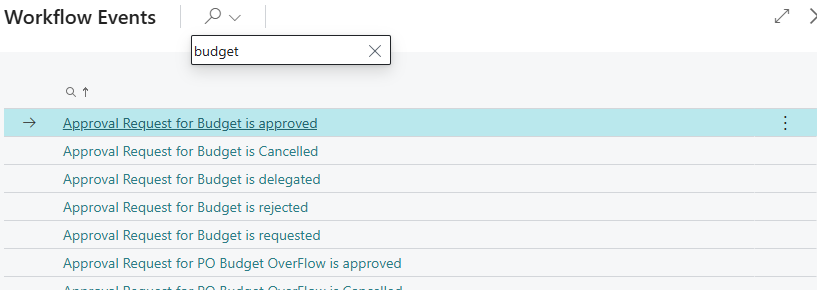
The workflow can be modified from an existing Finance workflow template where the Event is selected for Budget:
Create a G/L Budget for Approval
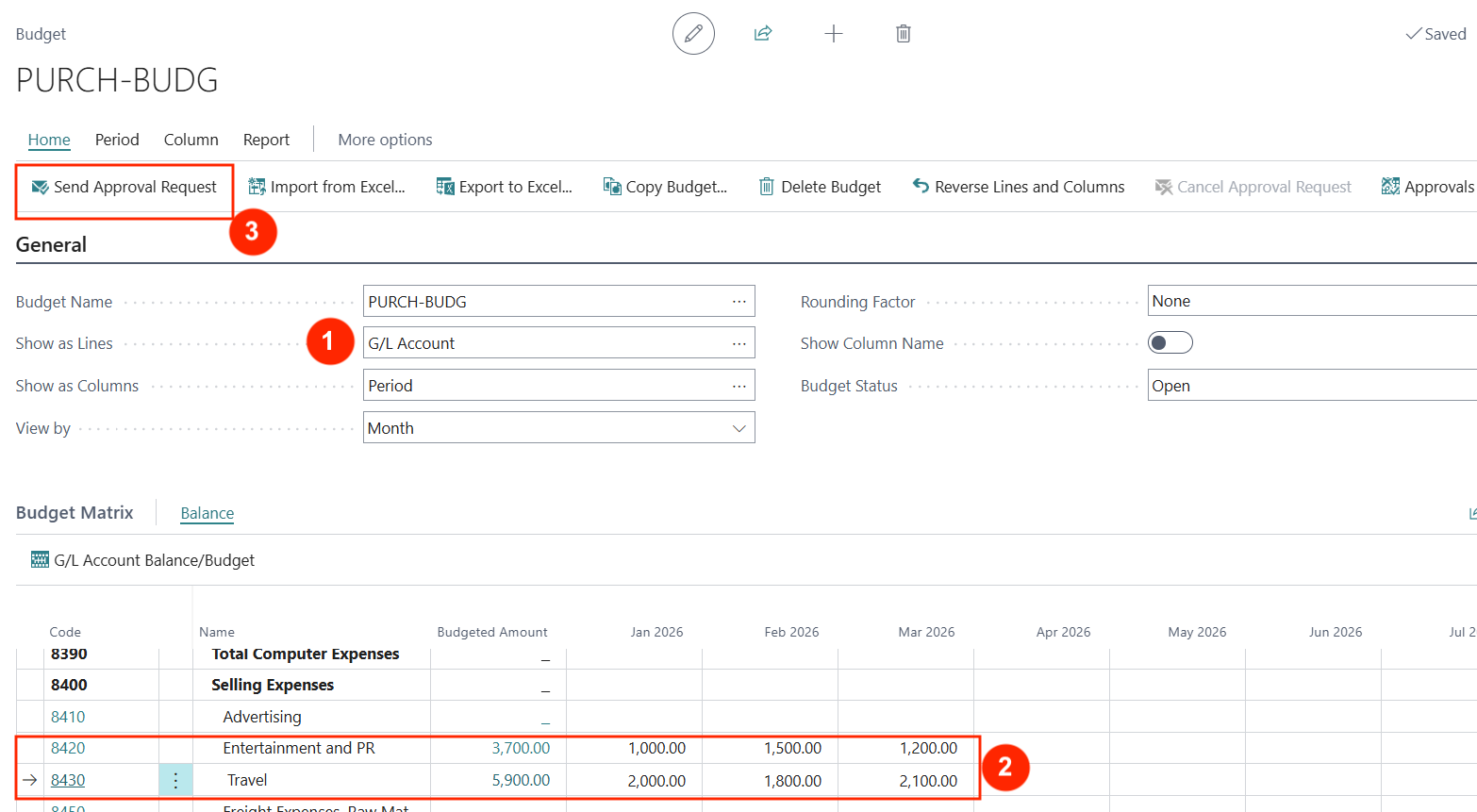
Navigate to Finance > G/L Budgets to open the G/L Budgets List page and click on +New to create a new purchase budget.
For example:
Key Fields
Here are key fields to consider:
-
Show as Lines — Select G/L Account since the budget is monitored by Purchases against a G/L (expense) account.
-
Create budget amounts — By period to monitor spend by period (non-cumulative over several periods).
-
Send Approval Request — Send the budgets (by G/L Account) for pre-approval.
Once the G/L Budget is approved (status=“Released”), spending against the budgeted G/L account is then tracked for every Purchase Order or Purchase Invoice line.
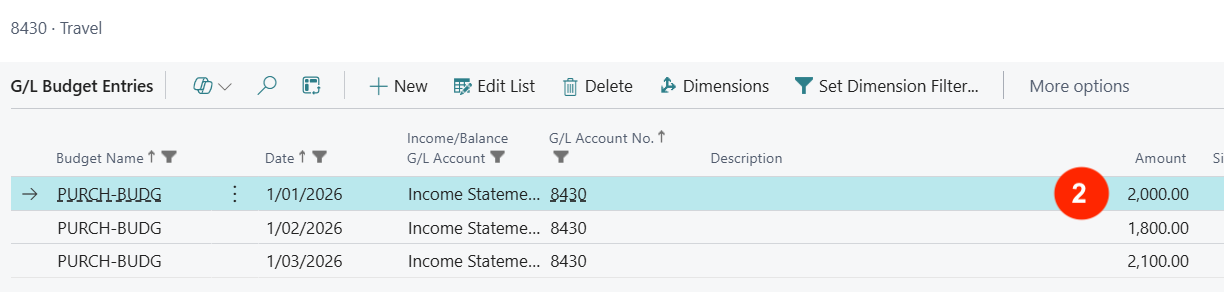
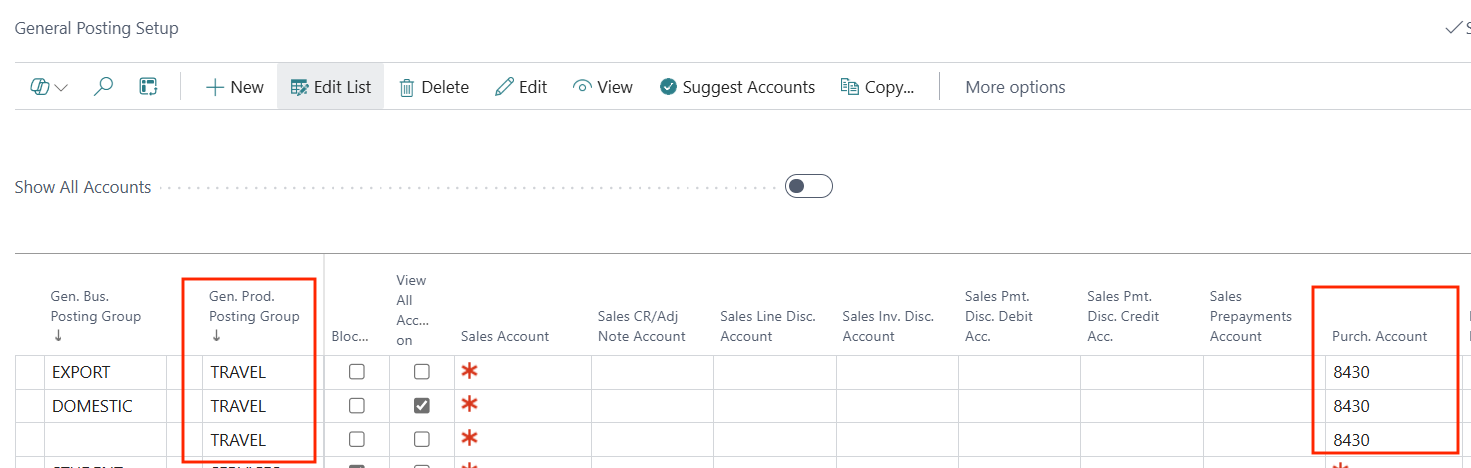
The G/L Budget account can also be associated with an item through General Posting Setup (under Purchase Account).
For Example:
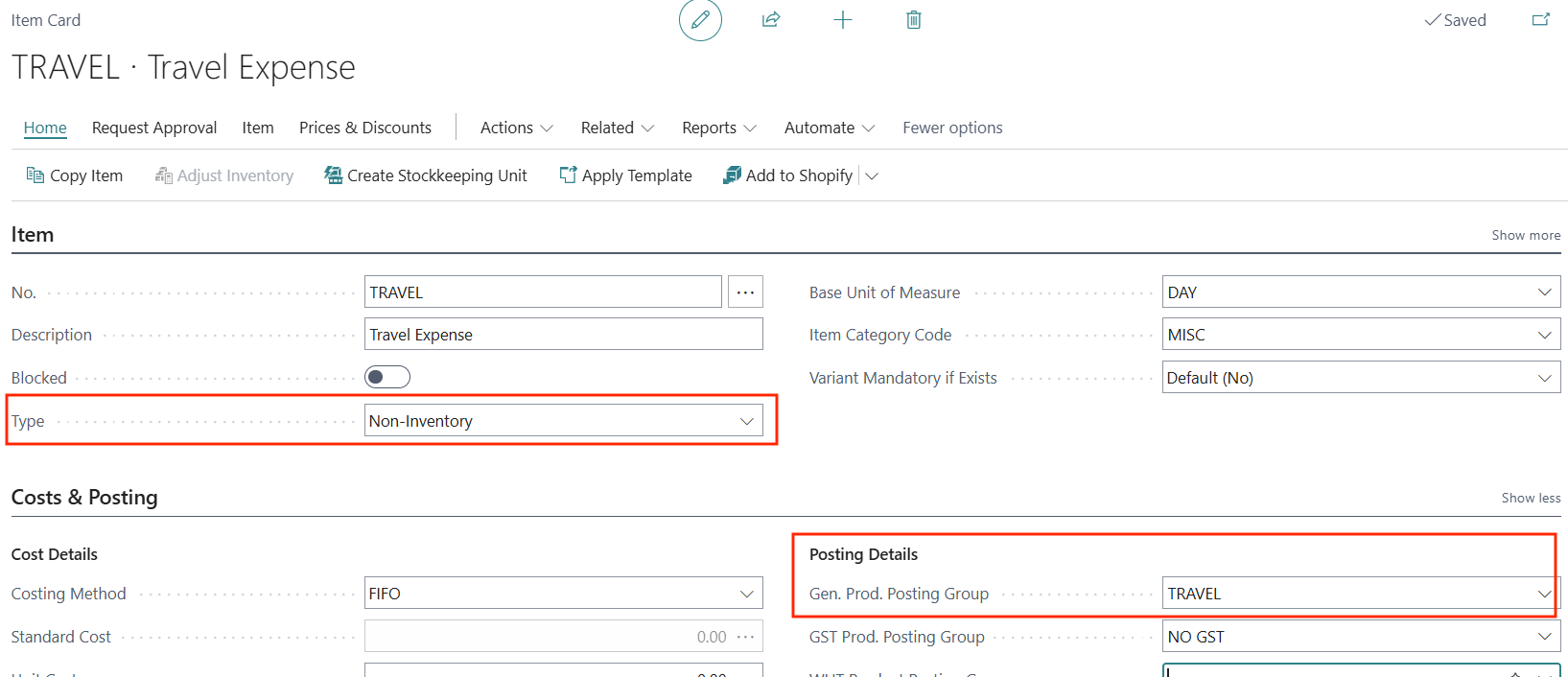
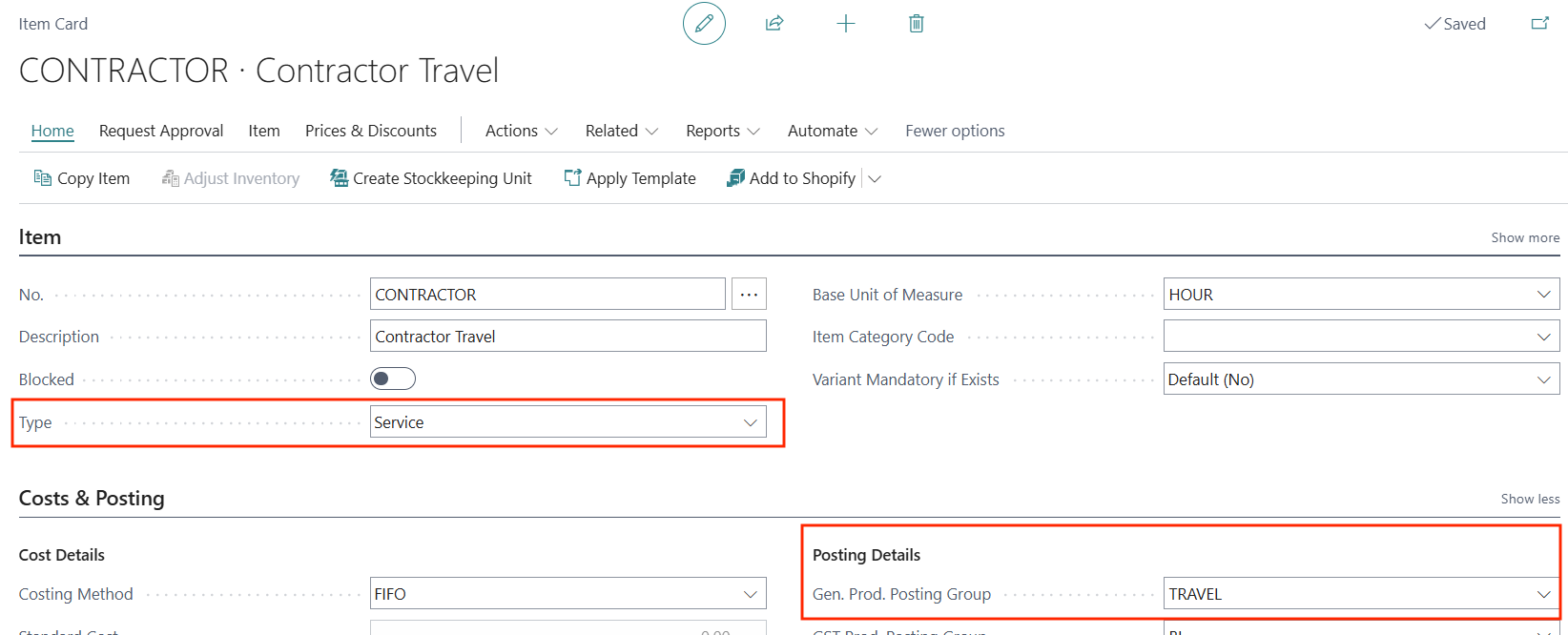
Assign the Gen. Prod. Posting Group to items.
For Example:
Assign Pre-Approved Budget to G/L
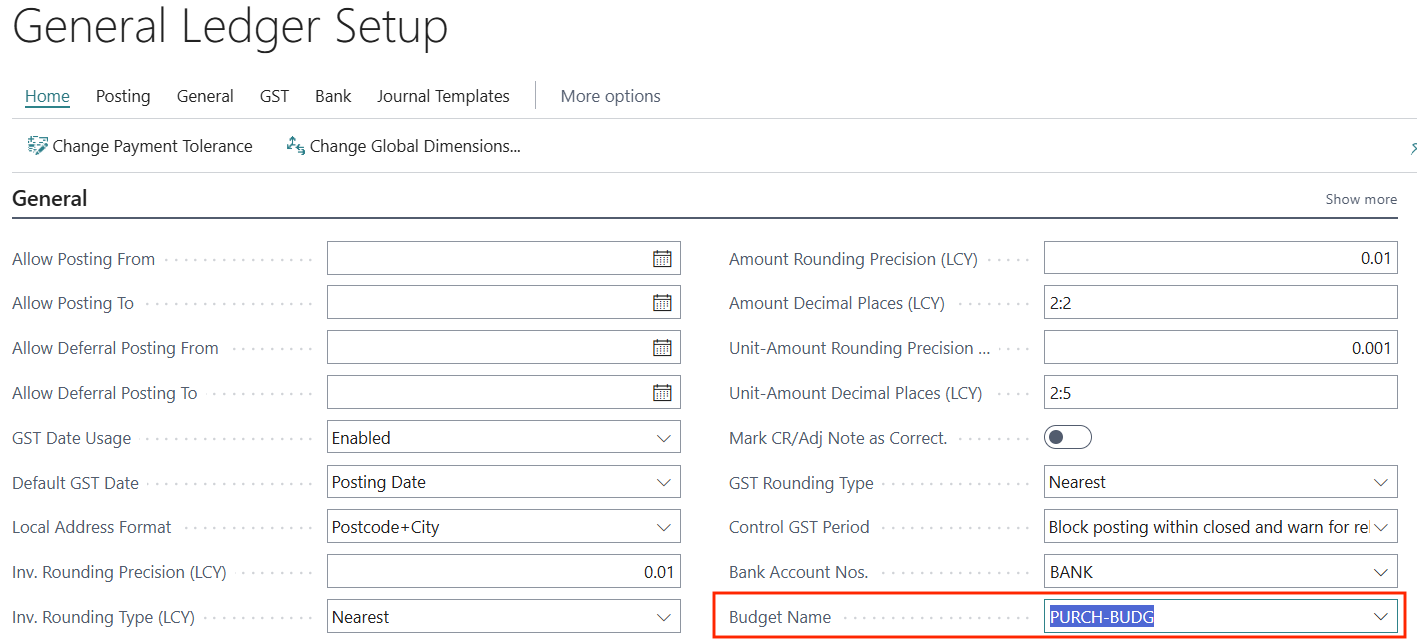
Once the budget is pre-approved and released, assign it for Purchase Budget Control in the General Ledger Setup.
For Example:
Budget Control on Purchases
The Budget Overflow control check applies to both Purchase Order and Purchase Invoice. In the following sections, Purchase Order is used as the example.
Purchase Order Budget
-
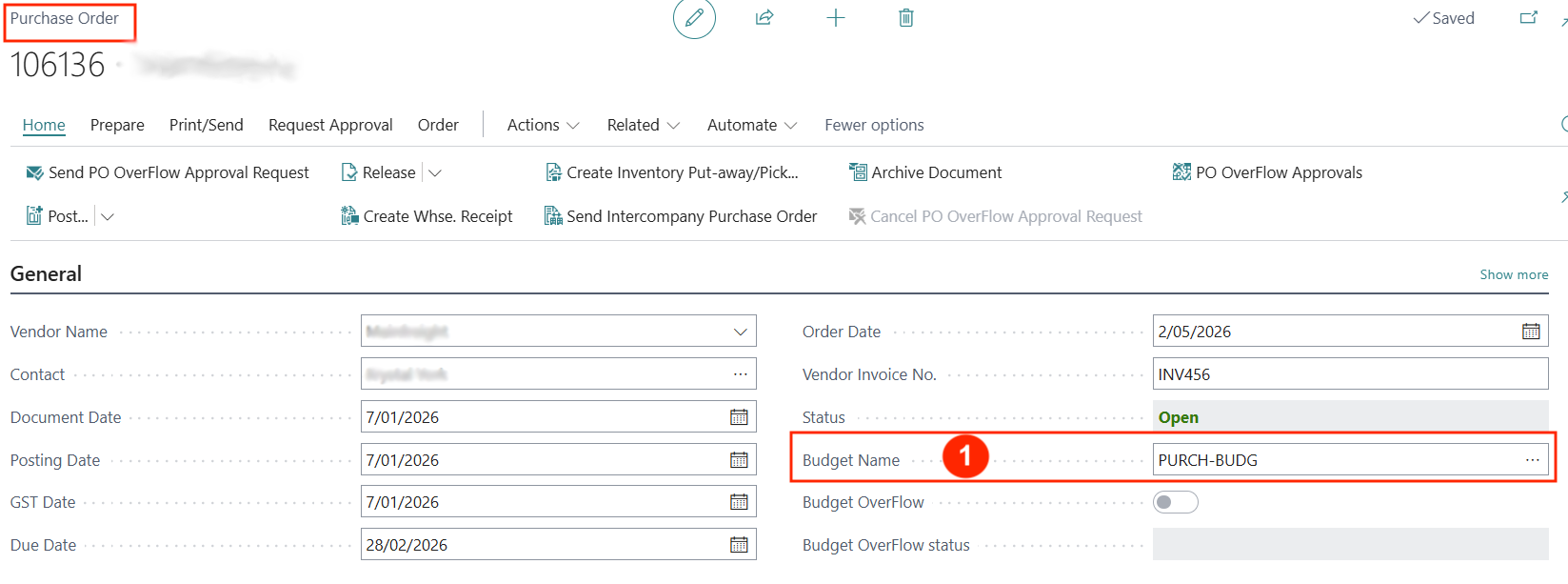
To control the expense recorded in a Purchase Order, it must be linked to the pre-approved budget. In the Purchase Order header, select the pre-approved G/L Budget name.
For Example:
Purchase Budget Control
- Once the Purchase Order budget is established by linking it to the named Budget, the PO lines will be checked against the budget according to the GL accounts in the lines.
Budget Checking by G/L Account (Line Type)
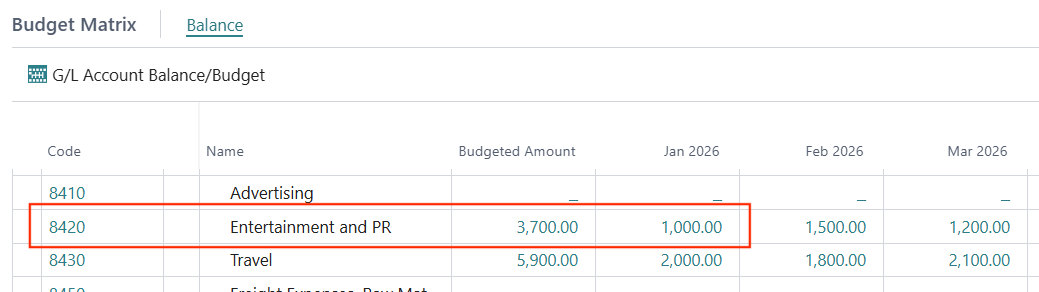
Example:
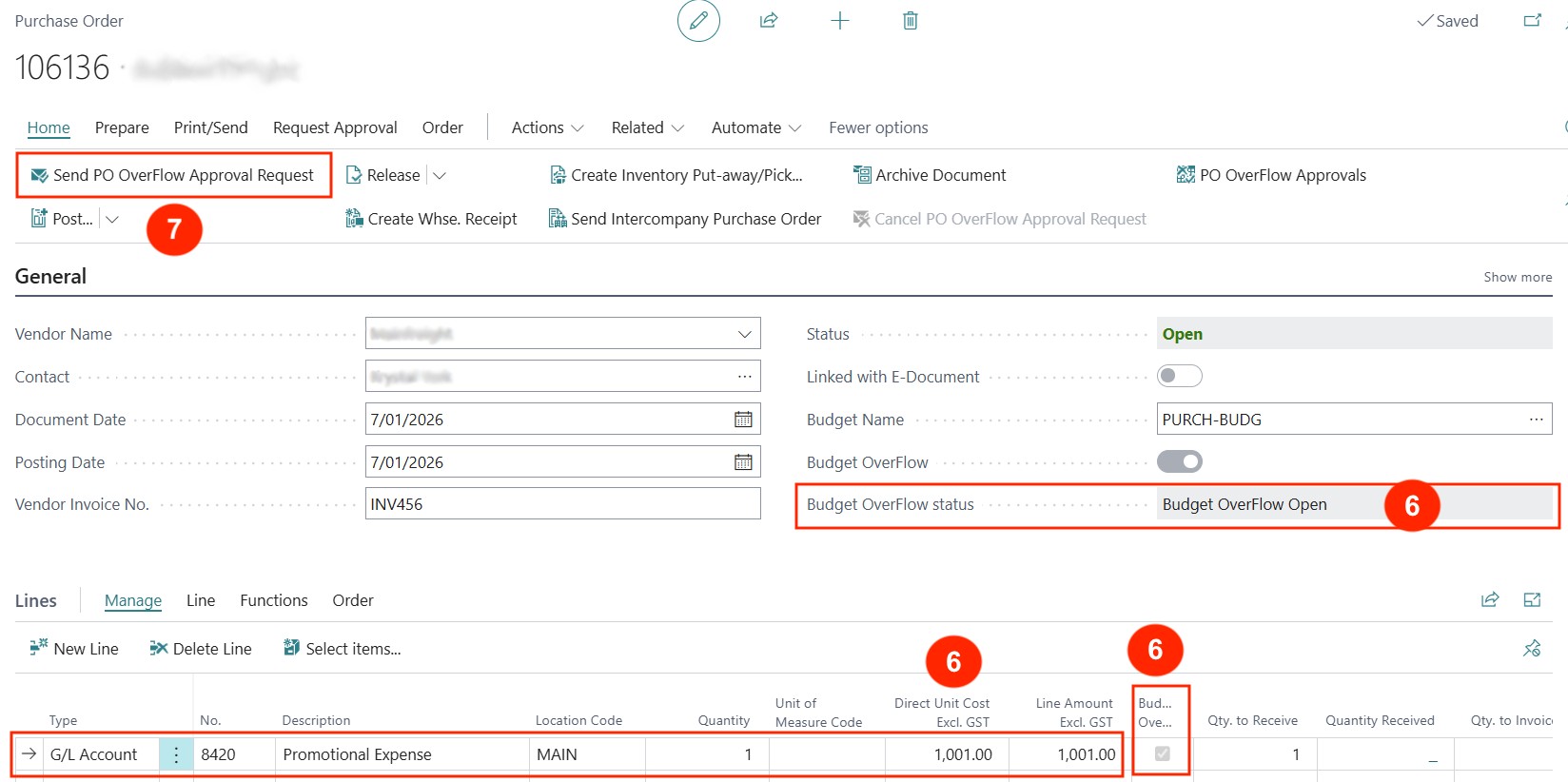
Budget for account 8420 in Jan-2026 is $1,000
-
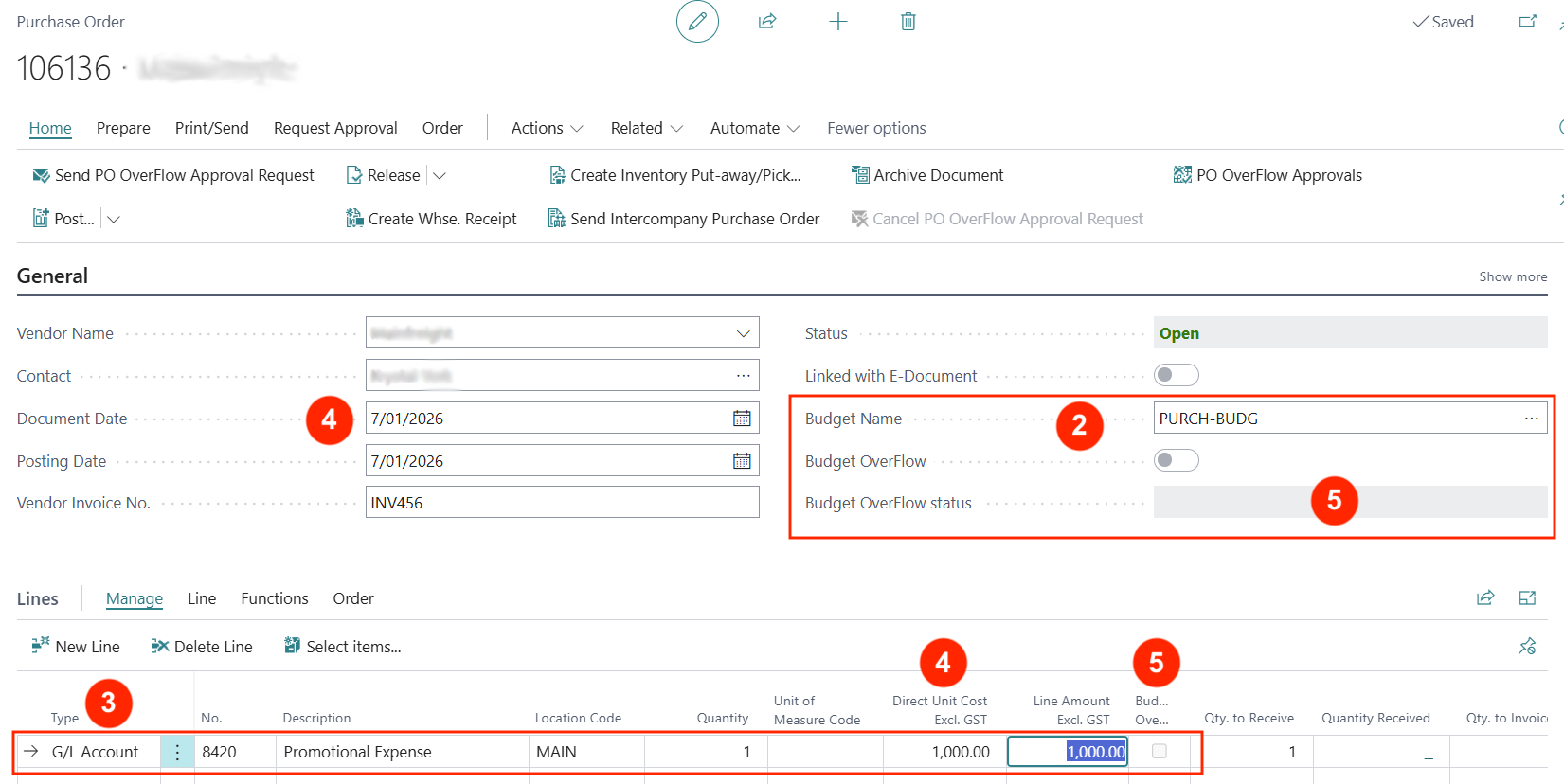
Enter the PO lines — Use line type of GL Account.
-
PO line amount in the Posting month will be checked against the G/L Budget for the relevant G/L account in the same month. Budget validation is not cumulative against unused budget for multiple periods, but it does consider the value of posted GL entries against the same account in the validation month.
-
If the PO line amount is less than the G/L Budget for the account in the same month, the Budget Overflow Status field will be blank. The Budget Overflow flag will also be disabled.
-
If any PO line amount is greater than the budget amount in the qualifying period, the Budget Overflow flag will be enabled and the Budget Overflow Status will display a warning.
-
If the Budget Overflow Status was updated to Budget Overflow Open status, the PO must be sent for Approval.
Budget Checking by Item (Line Type)
If the purchase was for items (service, non-inventory, or inventory), the use of Item line type will also be checked against the Purchase Budget for the same G/L account as defined in the item’s Gen. Product Posting Code used in the General Ledger Setup (refer to above).
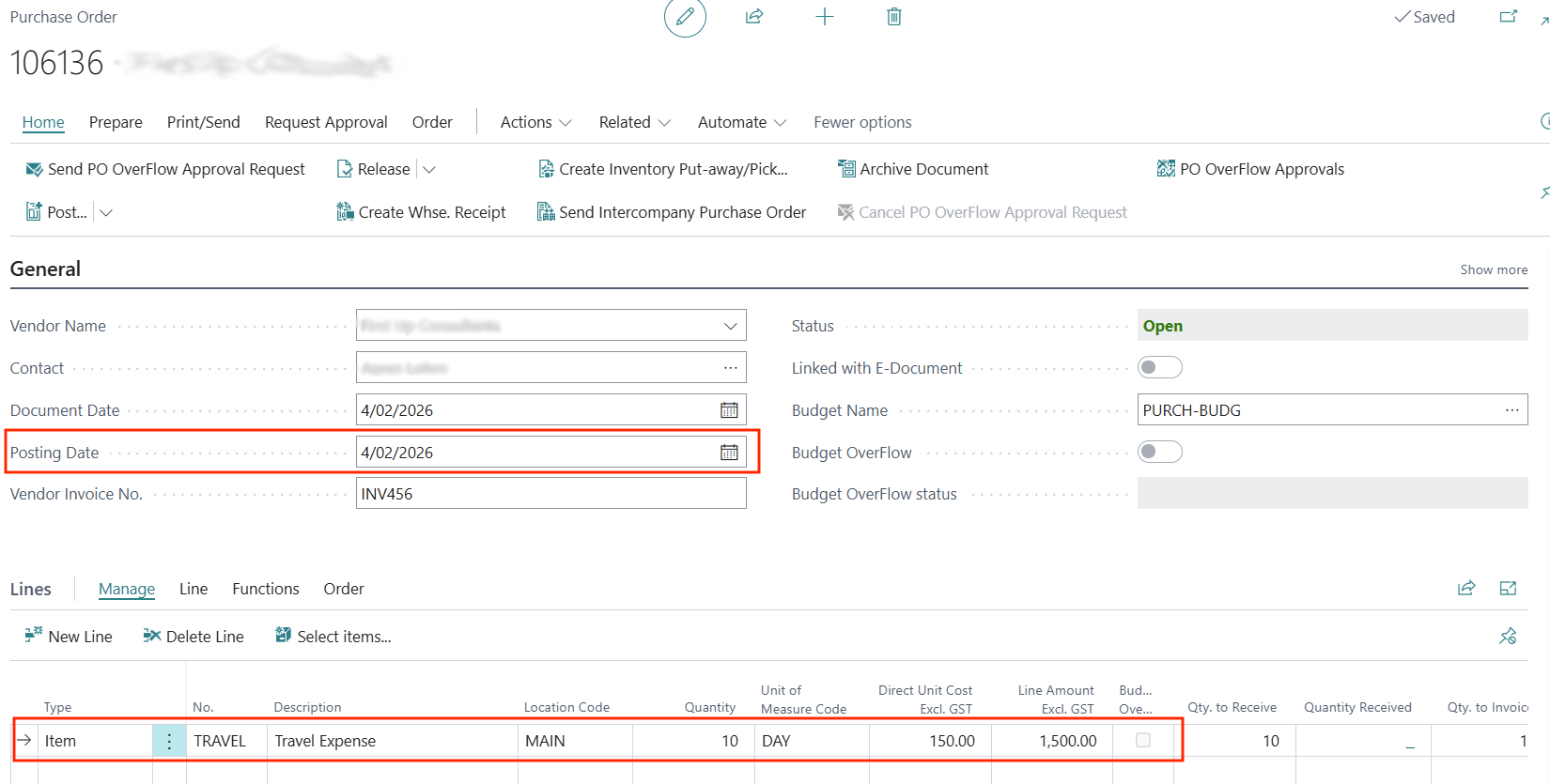
The PO line budget check compares the Line Amount excl. GST with the G/L account budget for the same posting period.
For Example:
The budget for account 8430 in February is $1,800
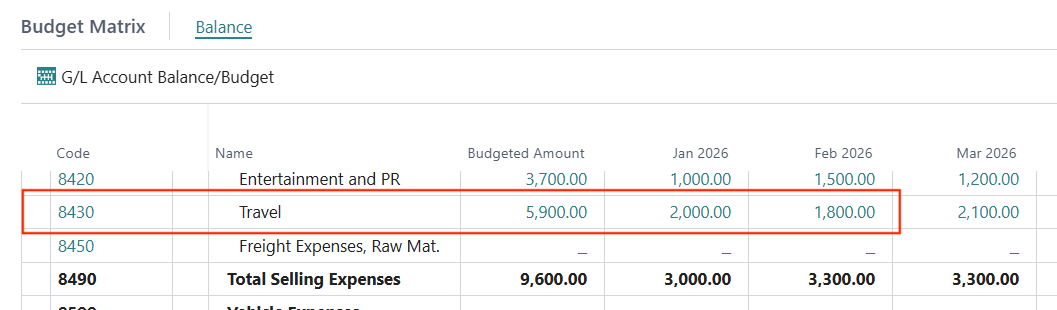
A Purchase Order line with a Line Amount below $1,800 will not trigger the budget overflow restriction.
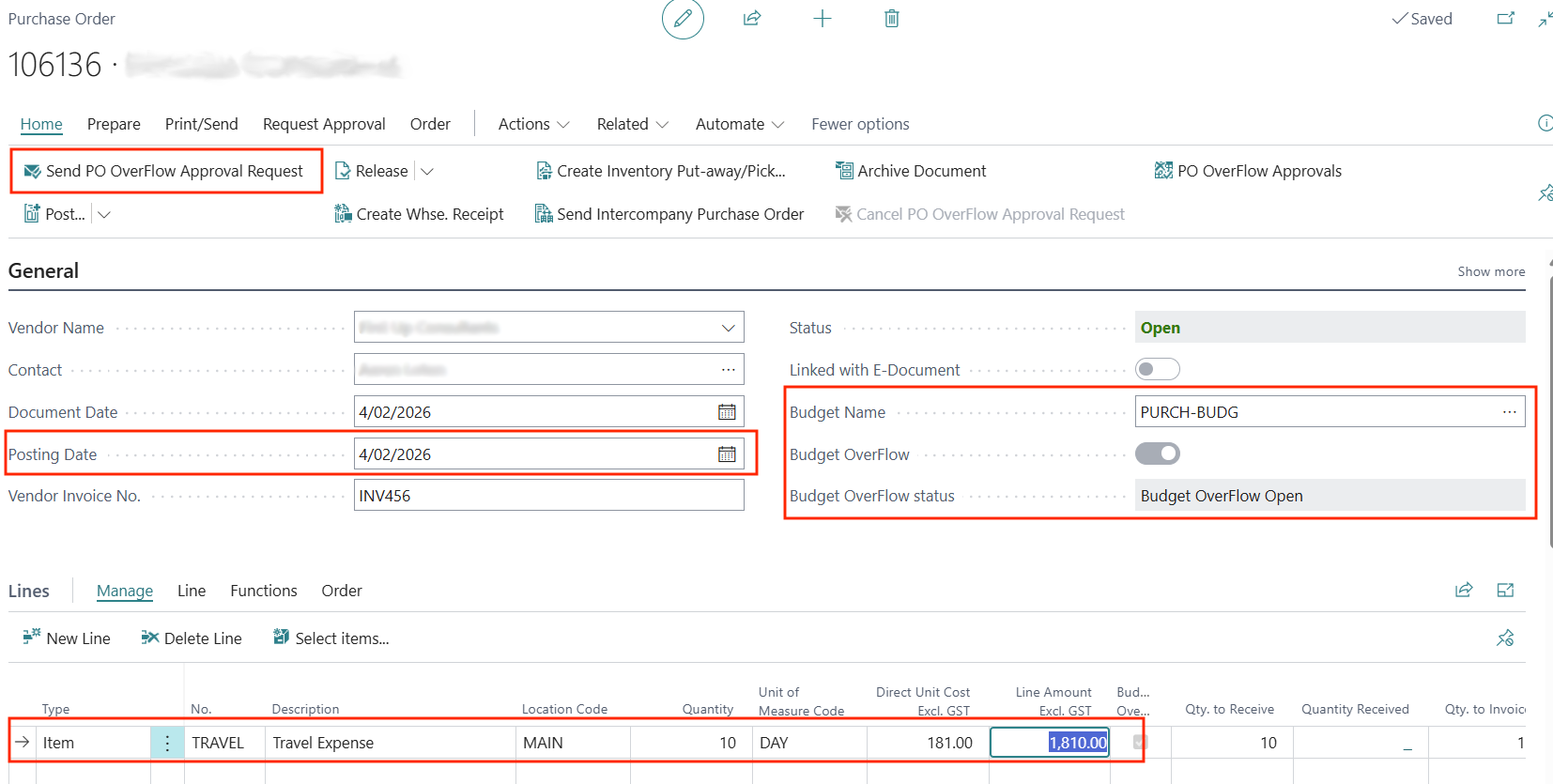
When the line amount is higher than the budget, the budget overflow is triggered and the Purchase Order must be sent for approval.
Approving/Rejecting Purchase Budget Spend
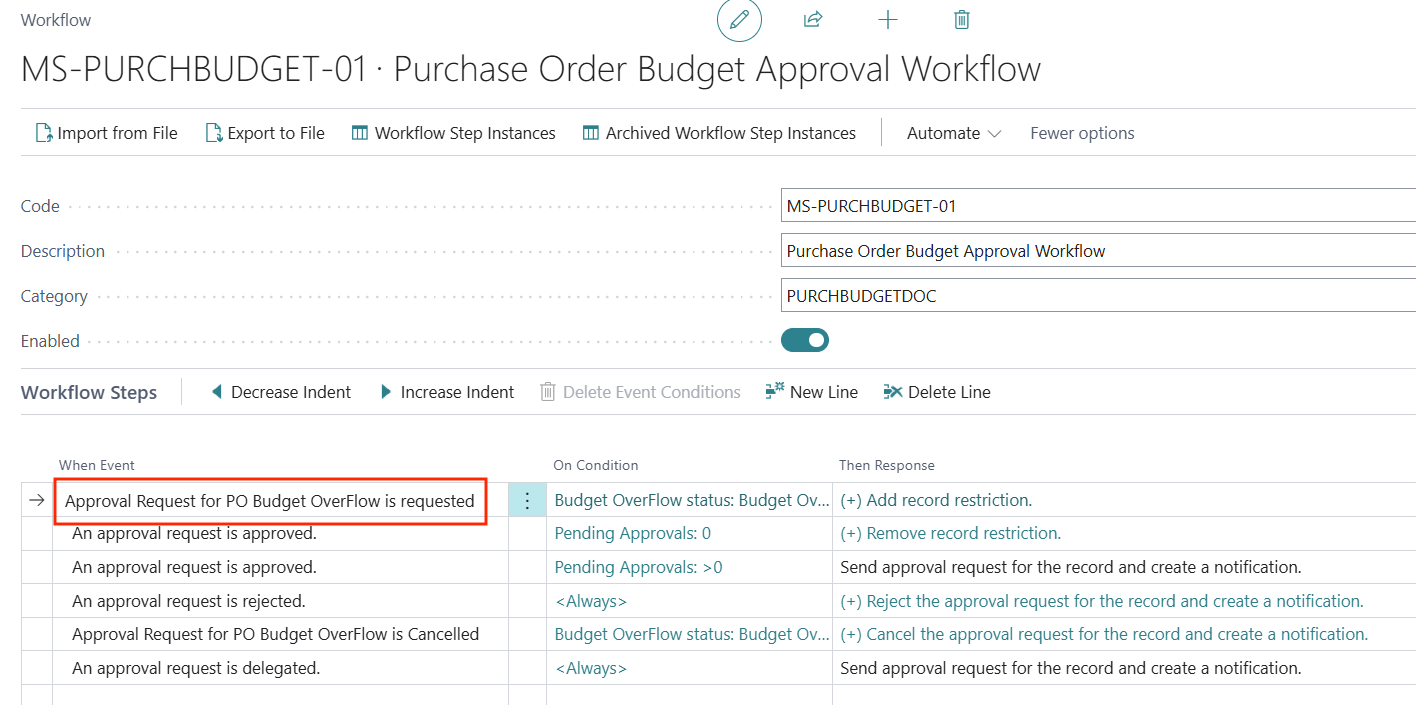
Budget Overflow Approval Workflow
The Budget Overflow Approval Workflow uses the Approval Request for PO Budget Overflow event as shown below:
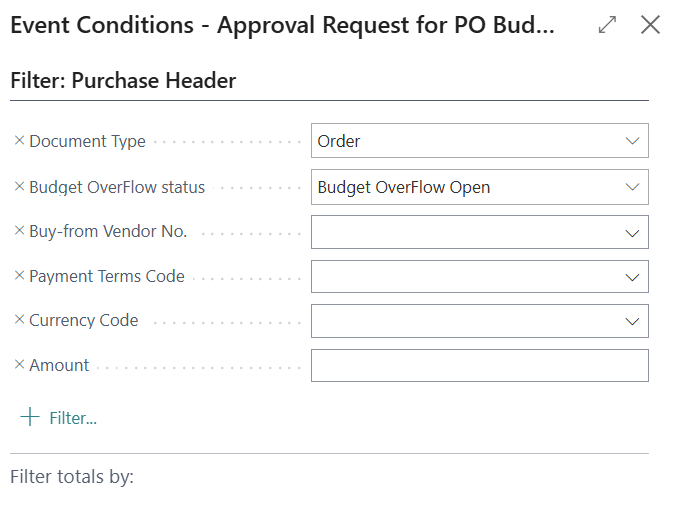
The workflow conditions filter the PO Budget status:
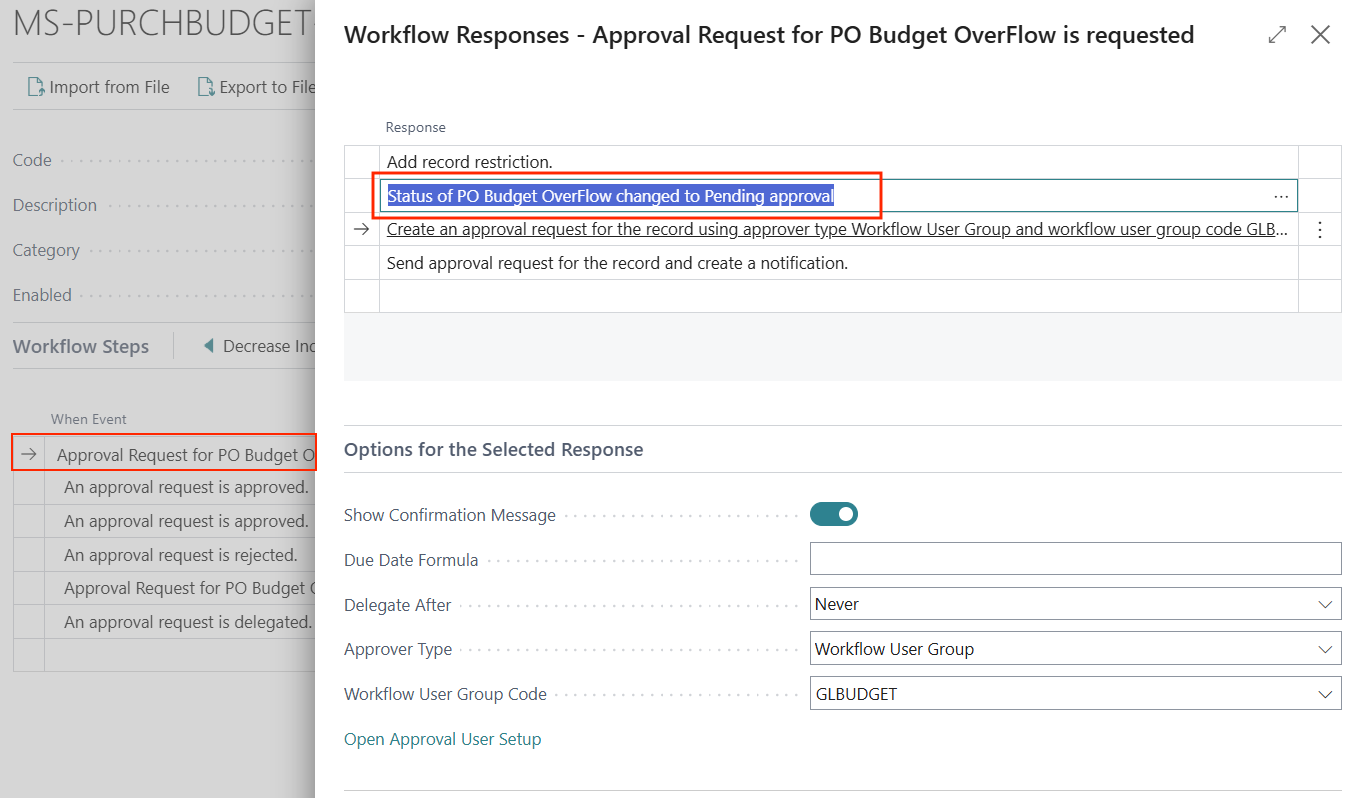
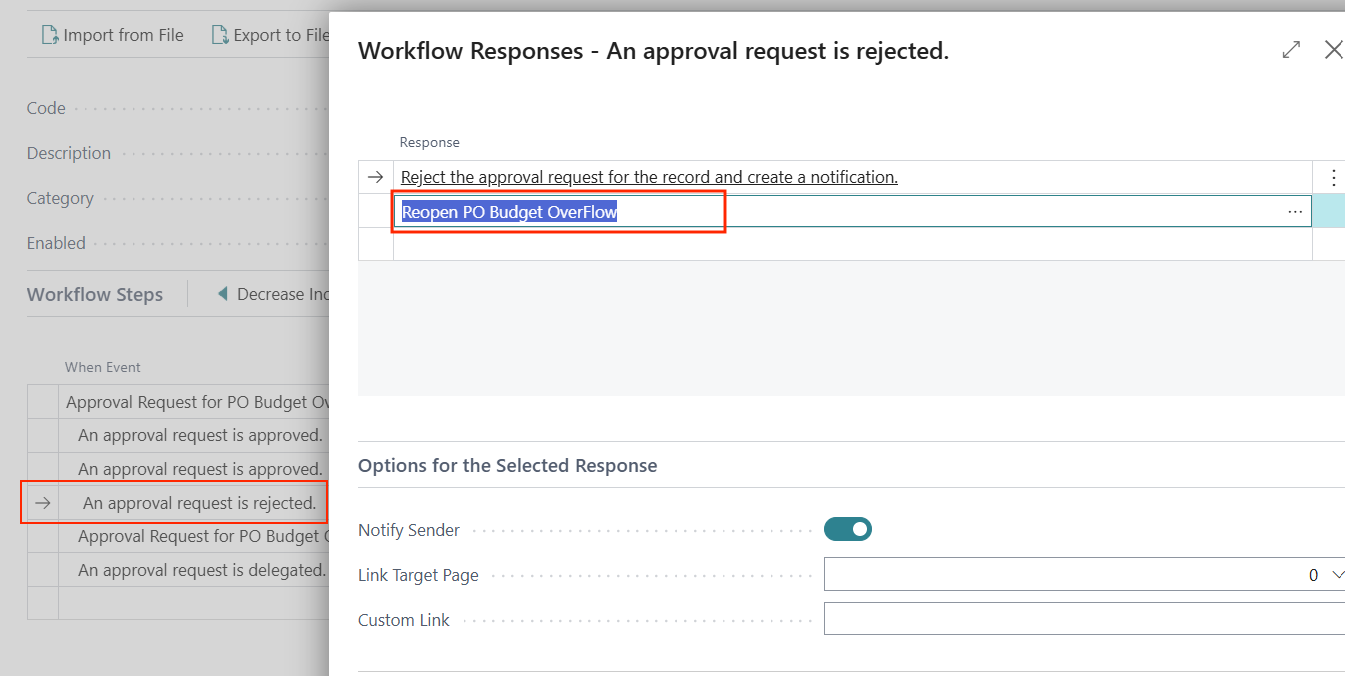
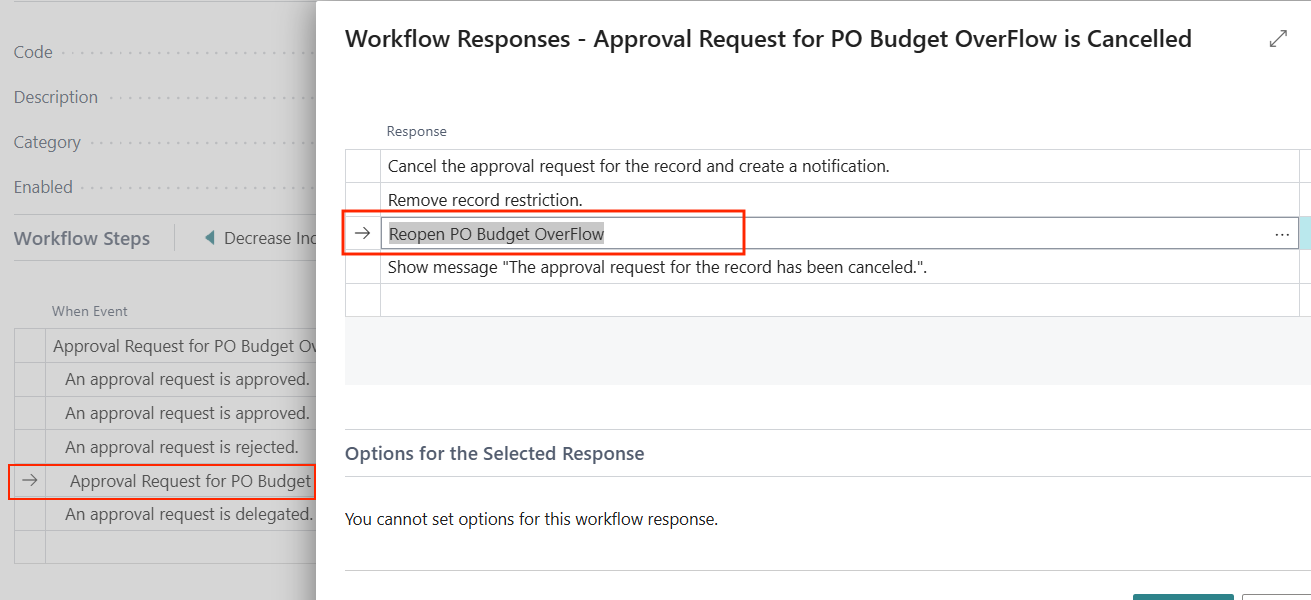
Key Responses for Budget Overflow Workflow
Approval Request Event
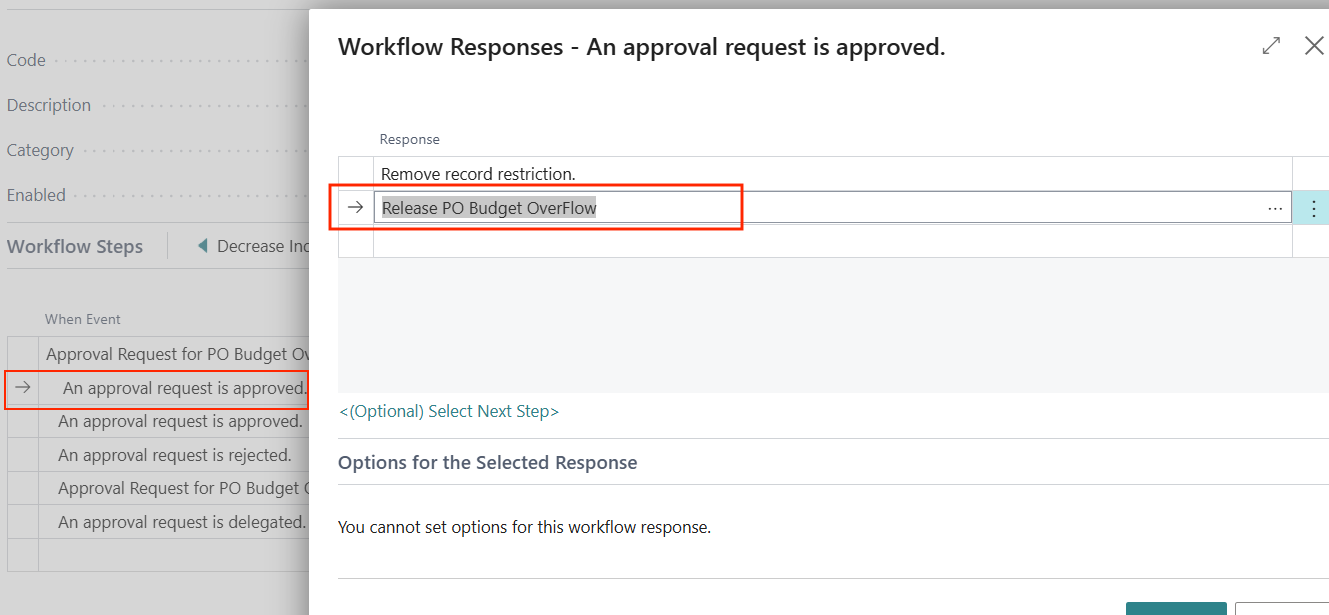
Approval Request is Approved
Approval Request is Rejected
Approval Request is Cancelled
NB: The approval workflow will show a message if the PO posting is attempted when the Budget Overflow flag is triggered by any PO line amount exceeding the G/L Budget.

Approval Update
To approve a budget overrun for the period, based on the G/L Account Budget, the Purchase Order must be sent for budget overflow approval.
For Example:
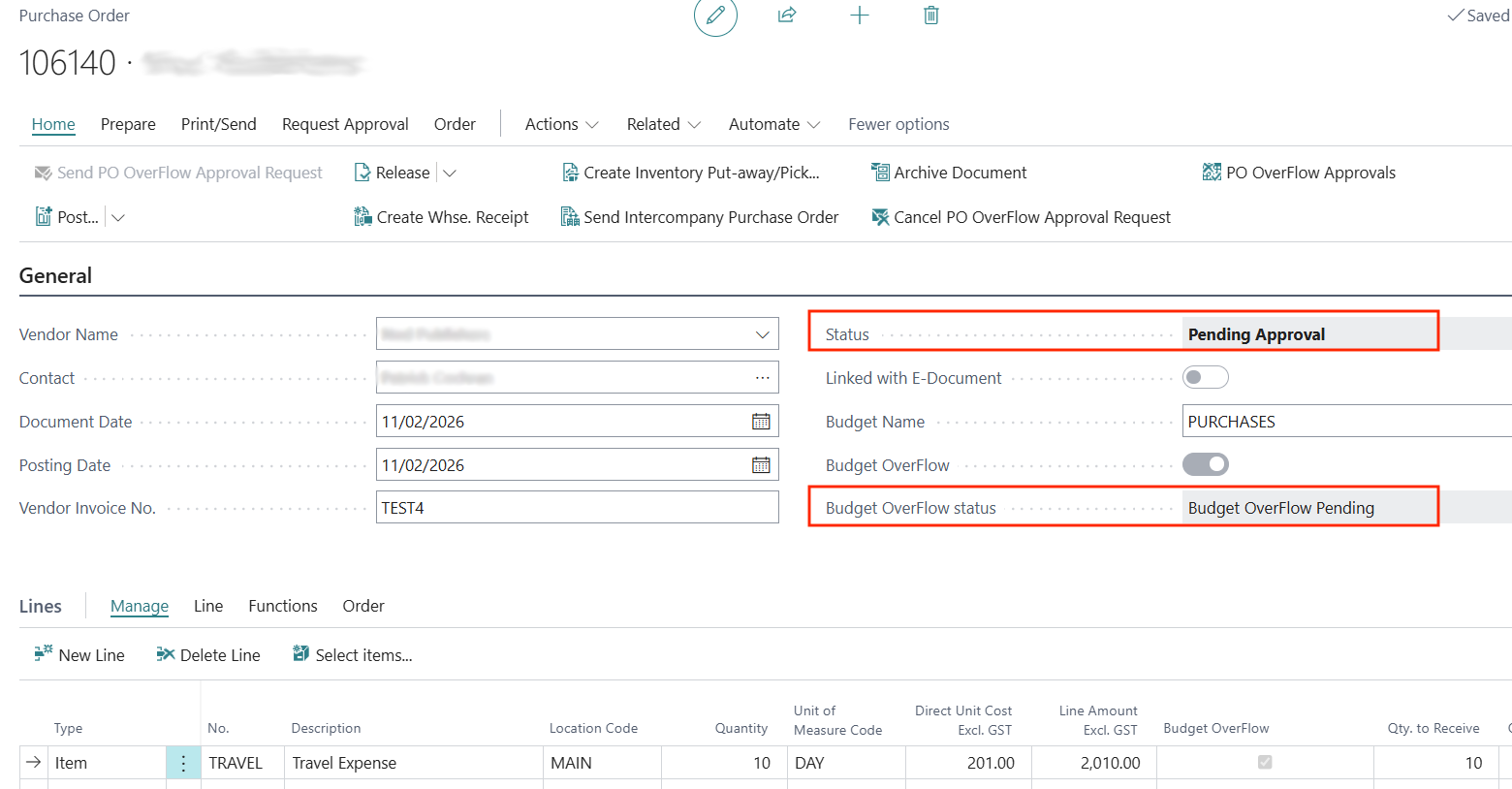
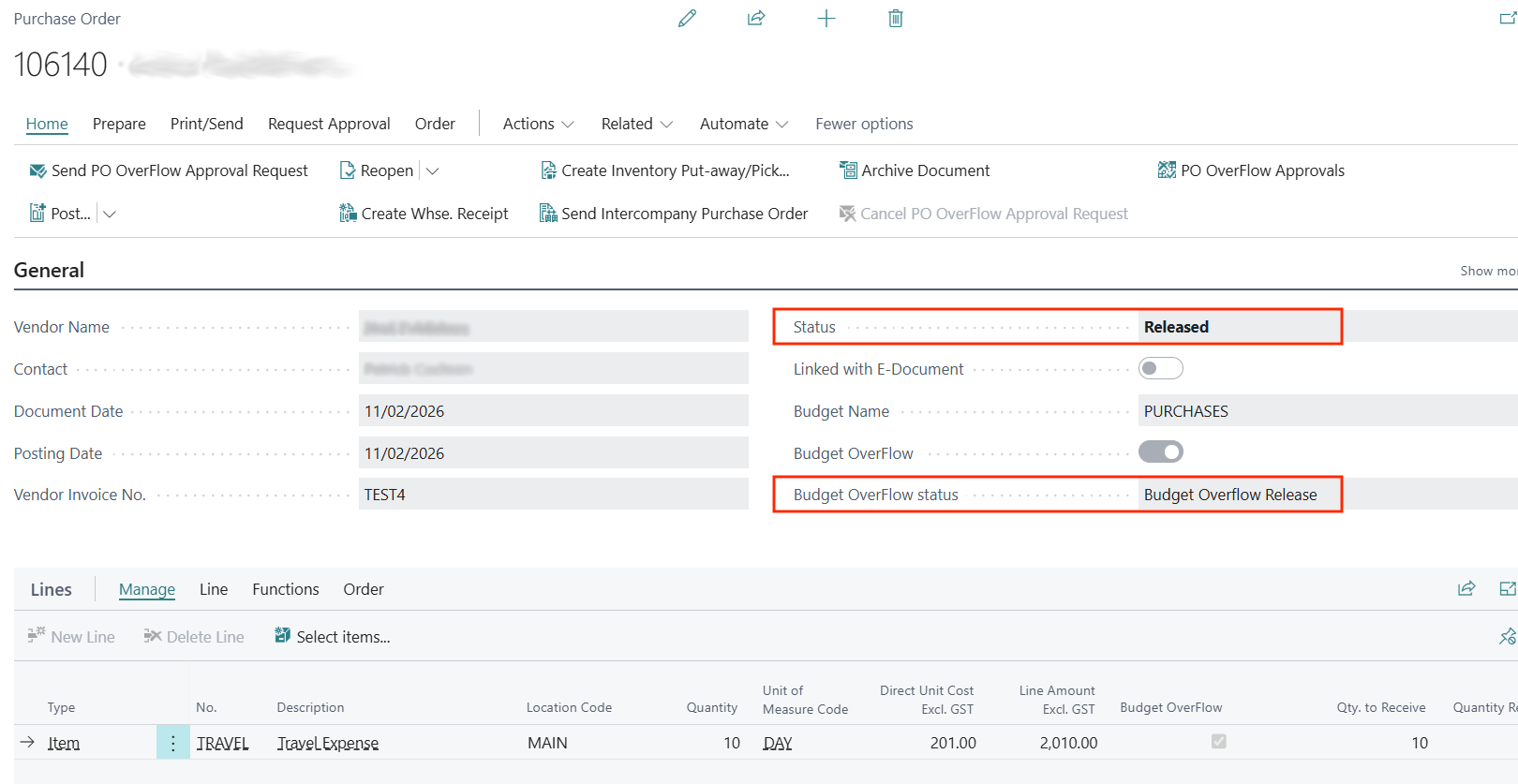
Once the budget overflow is approved, the status will revert to Budget Overflow Release and the Purchase Order status becomes Released and can be posted.
Written By:
Peter Loo
Team Leader, Business Central
Connect on LinkedIn