7. Opportunity
The Opportunity Process
An Opportunity represents a qualified potential Enrollment, or revenue-generating initiative. It’s the mechanism through which you track the progression of an identified prospect or engagement from an initial lead or interest all the way to an erollment (either Won or Lost).
Opportunities are used to prioritize, track, and advance Inquiries, providing a structured framework for managing their lifecycle. Analysis can describe the Opportunities as Won or Lost, which helps provide insights for refining management processes.
The Inquiry form data, including Child and Parent details, is seamlessly incorporated into the generated Opportunity, ensuring all relevant information is captured. It is a structured, trackable process with an expected outcome value.
This streamlined process eliminates manual data entry and enhances the efficiency of Opportunity generation. The automated system links the Inquiry information to the appropriate Child and Parent records within the Opportunity, maintaining a comprehensive representation.
Turning potential leads to opportunities is tracked from initial interest to successful closure (enrollment). This can help with analyzing why opportunities are won or lost, and at what stage. This helps refine lead processes, marketing strategies, and program offerings.
Opportunities provides a structured framework for managing Inquiry lifecycles, enabling efficient resource allocation, collaboration, and informed decision-making. It will follow the journey of potential leads from opportunity to enrollment.
By successfully closing Opportunities as Won or Lost, organizations can gain valuable insights and continually refine their Inquiry management processes to drive further growth in new opportunities that can result in more enrollments.
In an Opportunity, the consolidated data facilitates further analysis and action on the Inquiry.
Customers > Opportunities serve as a powerful tool for users to prioritize, track, and advance Inquiries through stages.
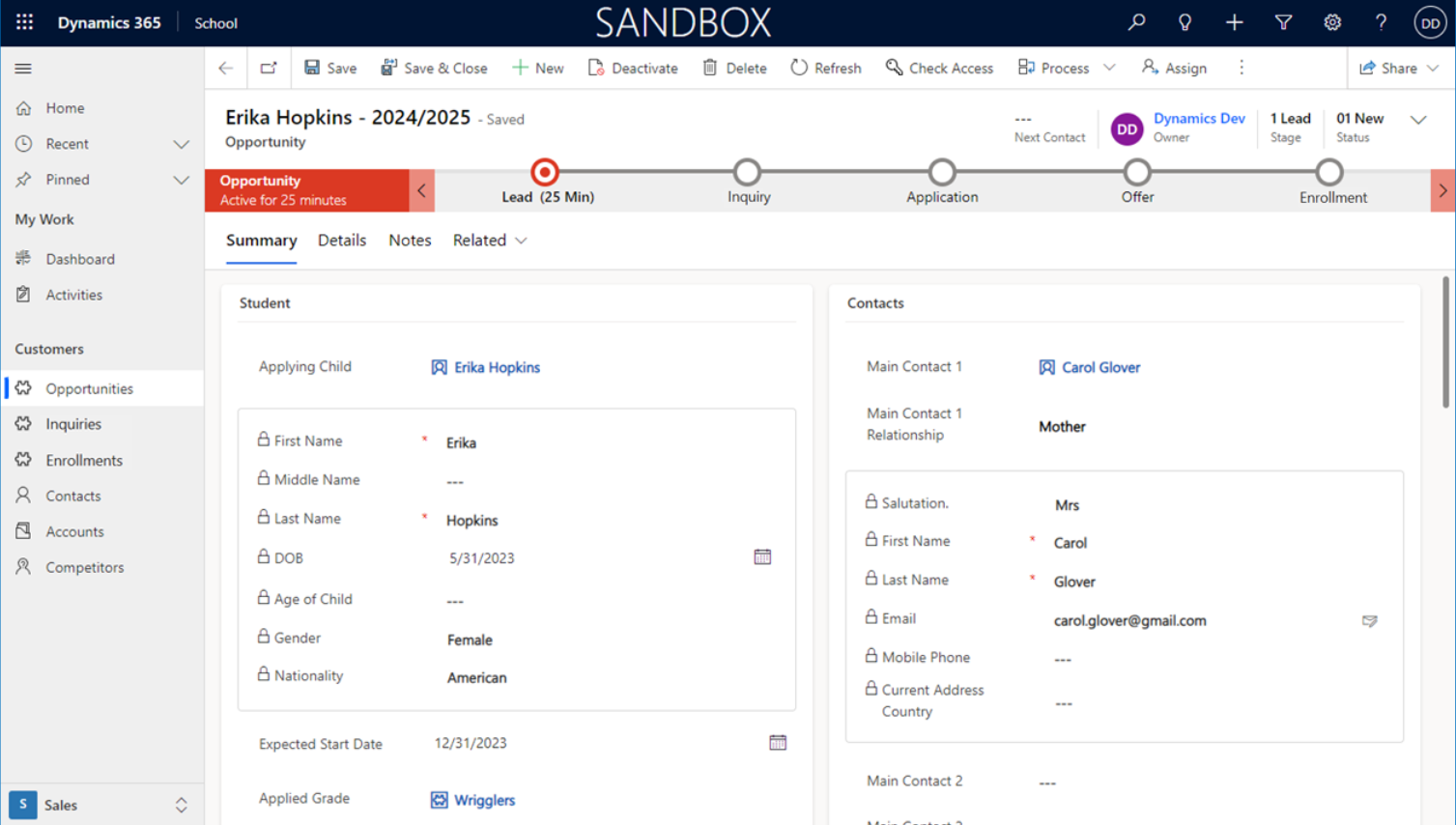
There are 5 stages:
1. Lead -> 2. Inquiry -> 3. Application -> 4. Offer -> 5. Enrollment
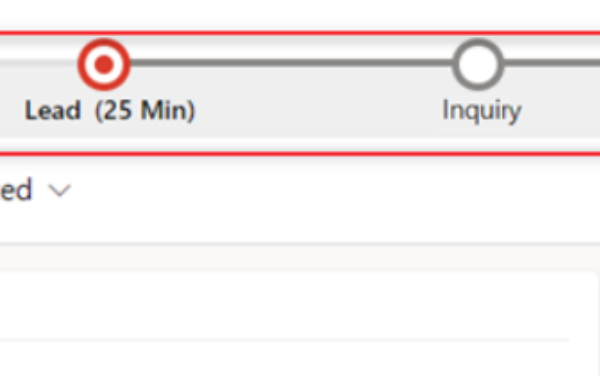
Initially, when you are currently working on a stage, it shows a white circle with a red dot. An incomplete stage is shown as a “blank” or white circle. In the following example, it shows you are working on the Lead stage, while the Inquiry stage is not yet in progress or completed.
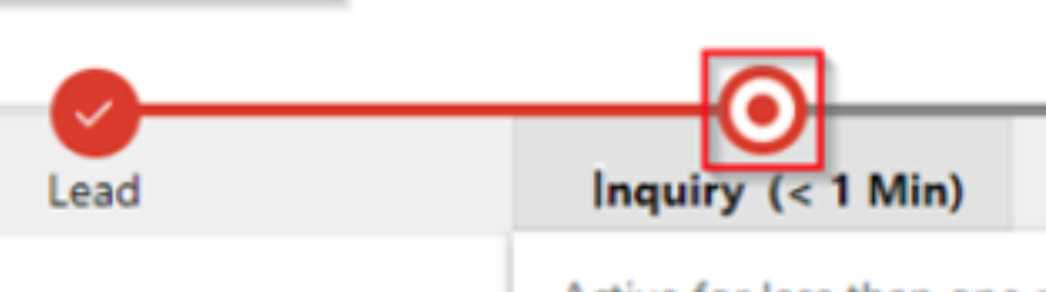
Whenever you complete a stage, the status changes from a white circle with a red dot to a red circle with a white check mark. When you move to the next stage, it will now show a white circle with a red dot, since you are currently working in that stage.
7.1. Create New Opportunity
Open the Opportunities Module: Select the Opportunities module from the Customers main navigation menu from the menu bar on the left-hand side of the application window. This opens the Active Opportunities management area.
Create a New Opportunity Record: Click the + New button to open a blank form.
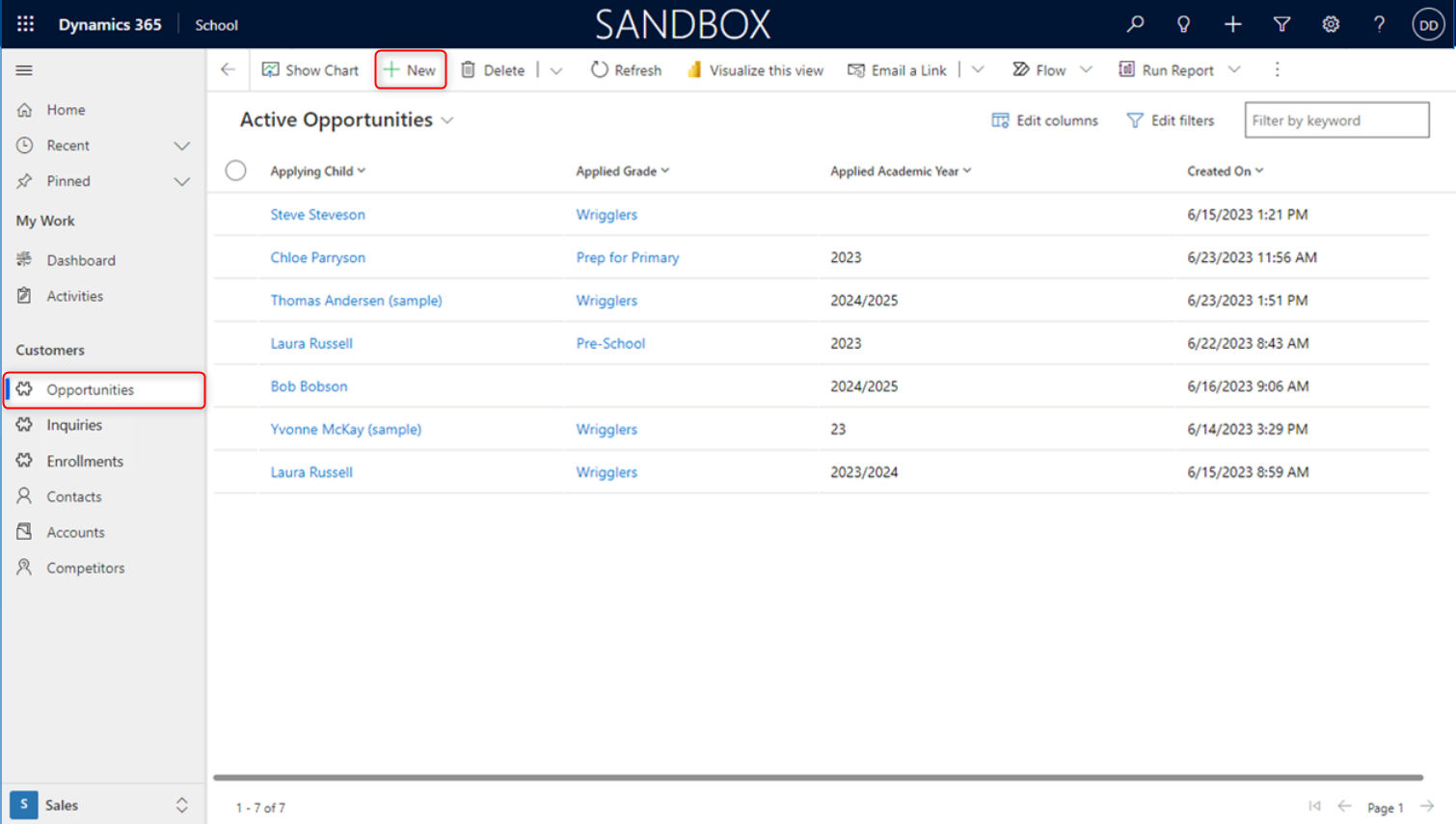
Select Applying Child: Choose a Child in the Applying Child lookup field. Details from the child’s contact record will be displayed at the bottom. Fill out the information under the Summary tab and its sections.
Save: Once all necessary information is entered, click Save or Save & Close. The Opportunity will then be available for further actions.
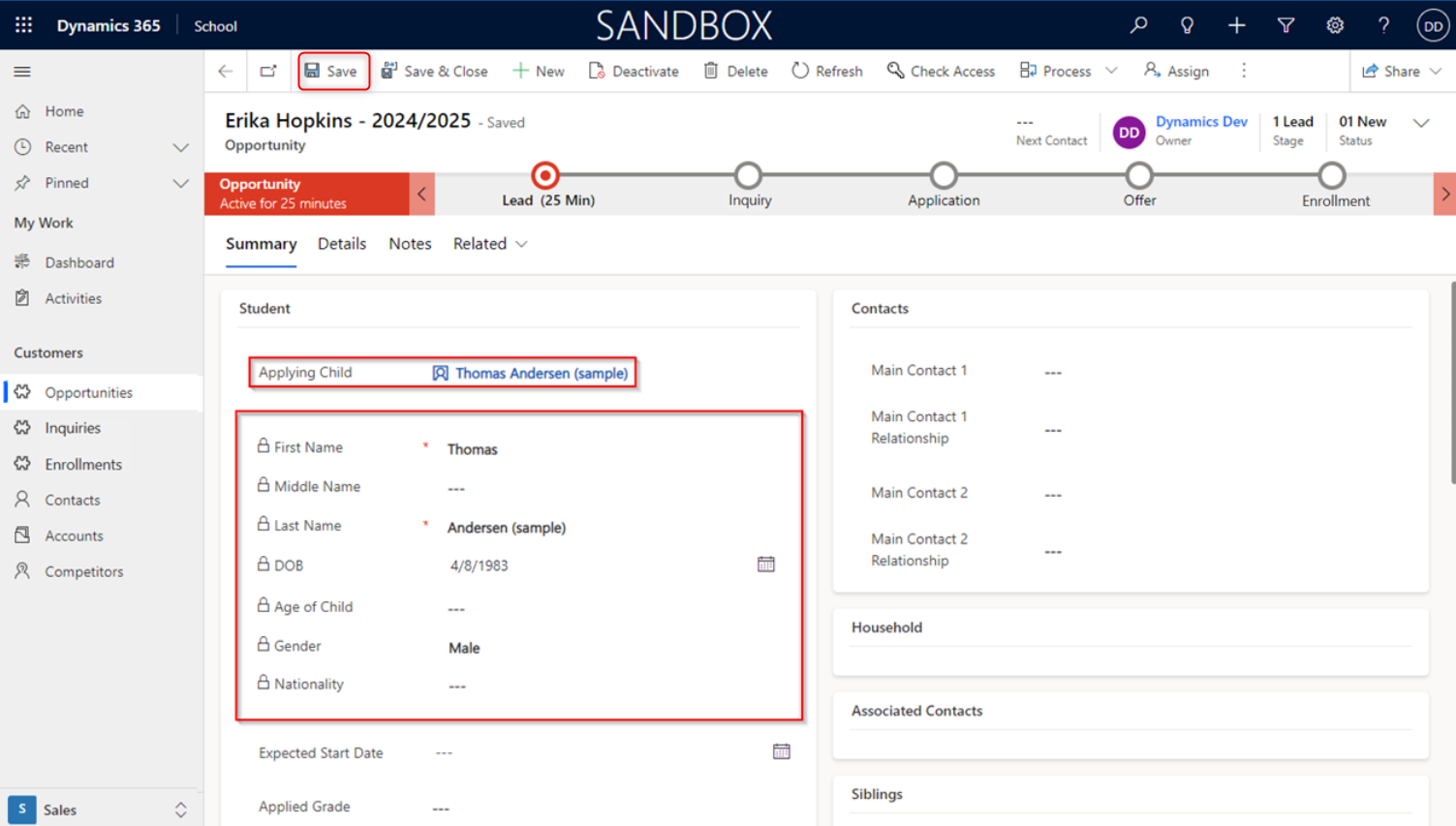
You begin the process with the Lead Stage as part of the Opportunity Business Process Flow. This is a customized workflow for managing potential students from the initial lead to enrollment. This is taken from a point of contact with a potential interest in enrolling. The primary goal here is to determine if there is enough interest to warrant a more focused interaction (an Inquiry).
7.2. Business Process Flow
Let us begin with a tailored process that streamlines and standardizes the steps involved in converting inquiries into enrolled students. We start with the Lead Stage.
Lead Stage: Click on the Lead stage to populate required fields.
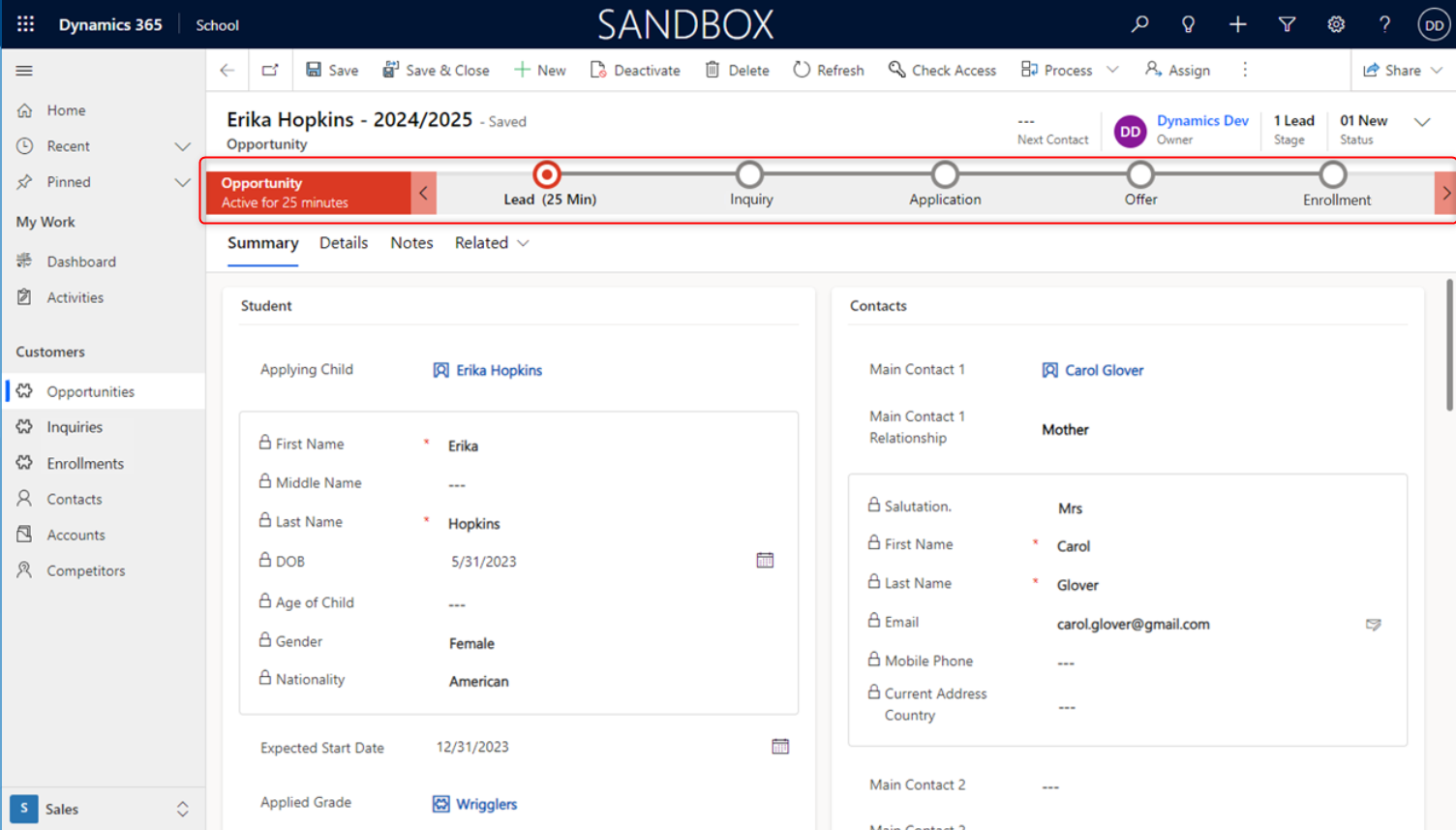
Under the Summary tab, you will see the fields for a lead.
The lead contains basic information about an individual, like Name, DOB, Gender, and Nationality. The source of the lead is also recorded in order to identify the source (e.g. events, website tracking, etc.). This data gathering stage creates a profile that will be provided to the workflow for the next stages.
A green tick next to the field name indicates a populated field.
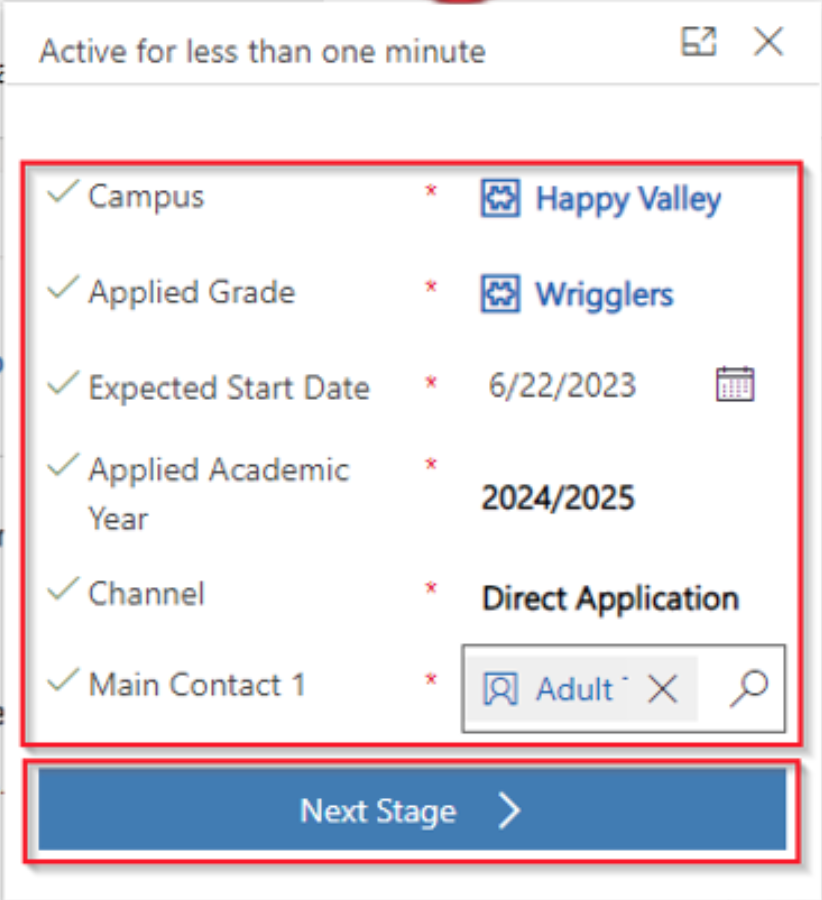
Click Next Stage to move to Inquiry.
The Opportunity name automatically updates to {Applicant Child} — {Applied Academic Year}”. For example, you will see appear in the Opportunity name above the Summary tab as the following:
Thomas Anderson — 2024/2025
Inquiry Stage: Click on the Inquiry stage and populate required fields.
The Application Started field must be Yes to proceed.
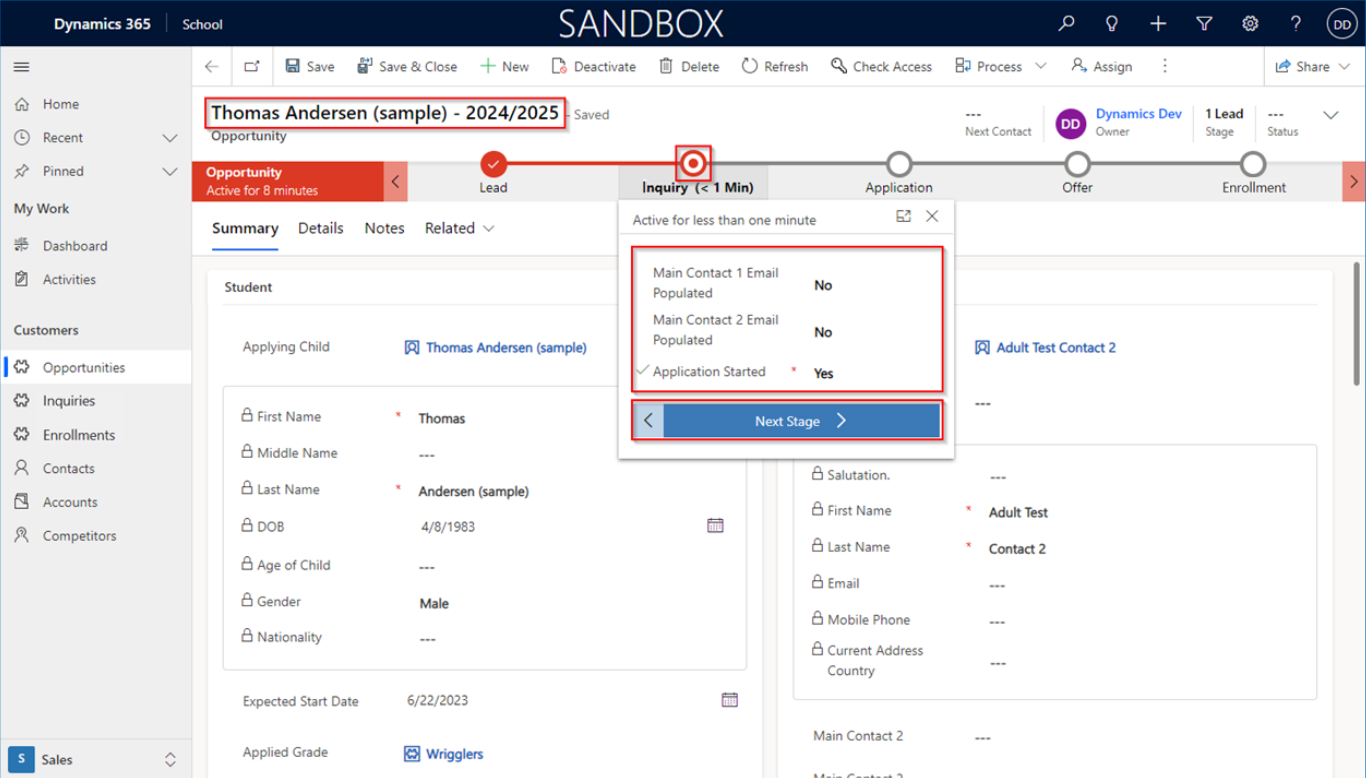
This is the critical first step in engaging with a prospective student or constituent. This identifies the interest of a potential student, parent, or other constituent. It represents the very top of the admissions or engagement funnel. At this point, the individual is exploring options and is in the process of applying.
An Inquiry is typically a record that is a custom entity or sometimes an early-stage lead record. It was created in Dynamics 365 to document that someone has reached out or shown initial interest in the institution, a specific program, or an event.
Inquiries can originate from various sources from which Dynamics 365 helps consolidate. They include:
- Website Forms: A prospective student fills out a “Request Information” or “Contact Us” form on the institution’s website. This is often integrated directly with Dynamics 365.
- Admissions Fairs/Events: A student expresses interest at a college fair, and their details are captured (e.g., via a mobile app, manual entry, or scanner).
- Phone Calls/Emails: A direct call or email to the admissions office.
- Referrals: An existing student, alumnus, or faculty member refers someone.
- Third-Party Lead Lists: Though less common for initial inquiries, sometimes lists are purchased.
- Social Media: Direct messages or form submissions via social platforms.
If you need to return to the previous stage, click < to go back to Lead.
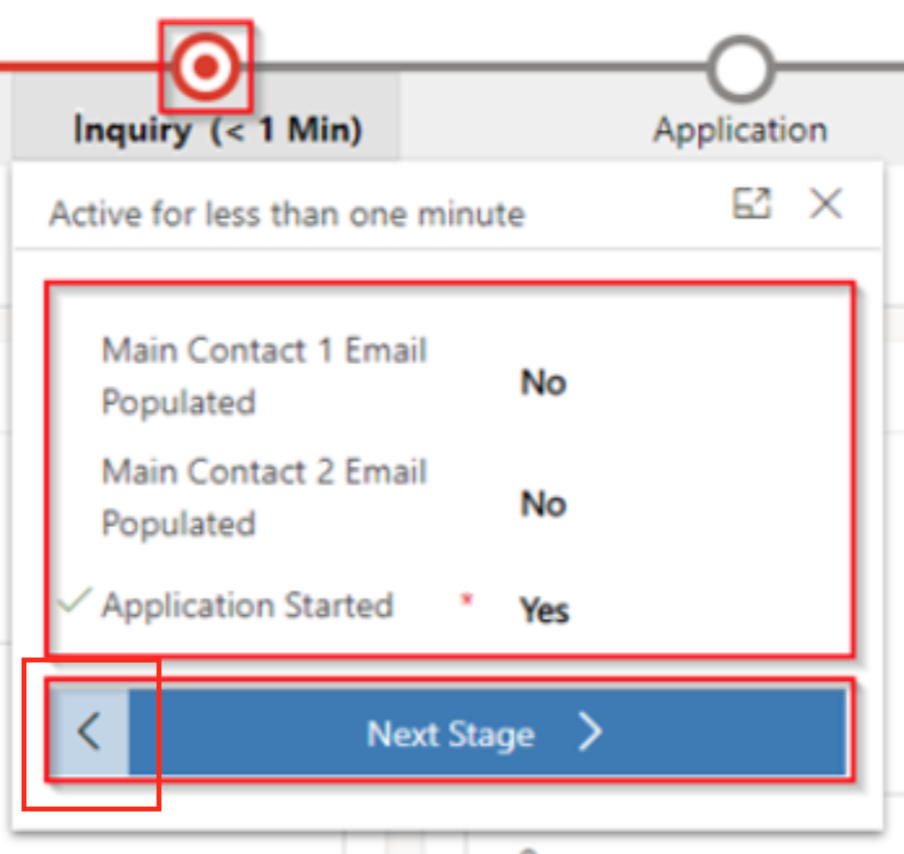
Click Next Stage to move to the Application Stage.
Application Stage: Click on the Application stage and populate required fields.
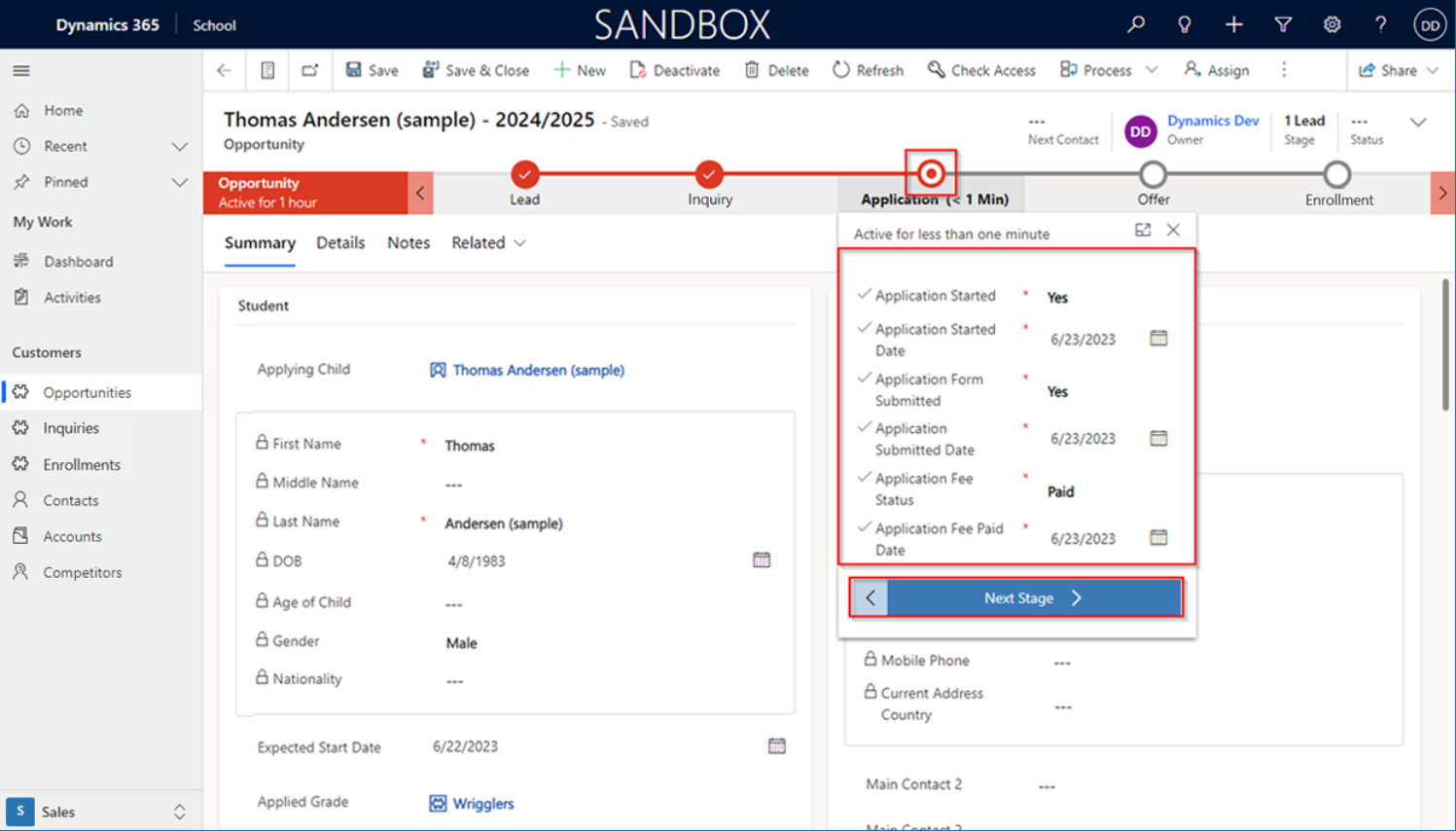
The Opportunity record, represents a pivotal moment in the prospective student’s journey. This is the point where an interested individual now becomes an applicant (who was previously an Inquiry). This is the applicant’s commitment to seek admission.
This is a formal application form that must be submitted complete with a submission date, application fee, and date of application payment. This signals that the prospect is ready to move to the next stage.
The successful completion of the Application Stage includes a review leading to the Offer Stage within the Opportunity’s Business Process Flow. This transition occurs when:
-
The application is complete with all required documents.
-
The application has passed an initial screening and is ready for deeper assessment.
If you need to return to the previous stage, click < to go back to Inquiry.
Click Next Stage to move to the Offer Stage.
Offer Stage: Click on the Offer stage and populate required fields.
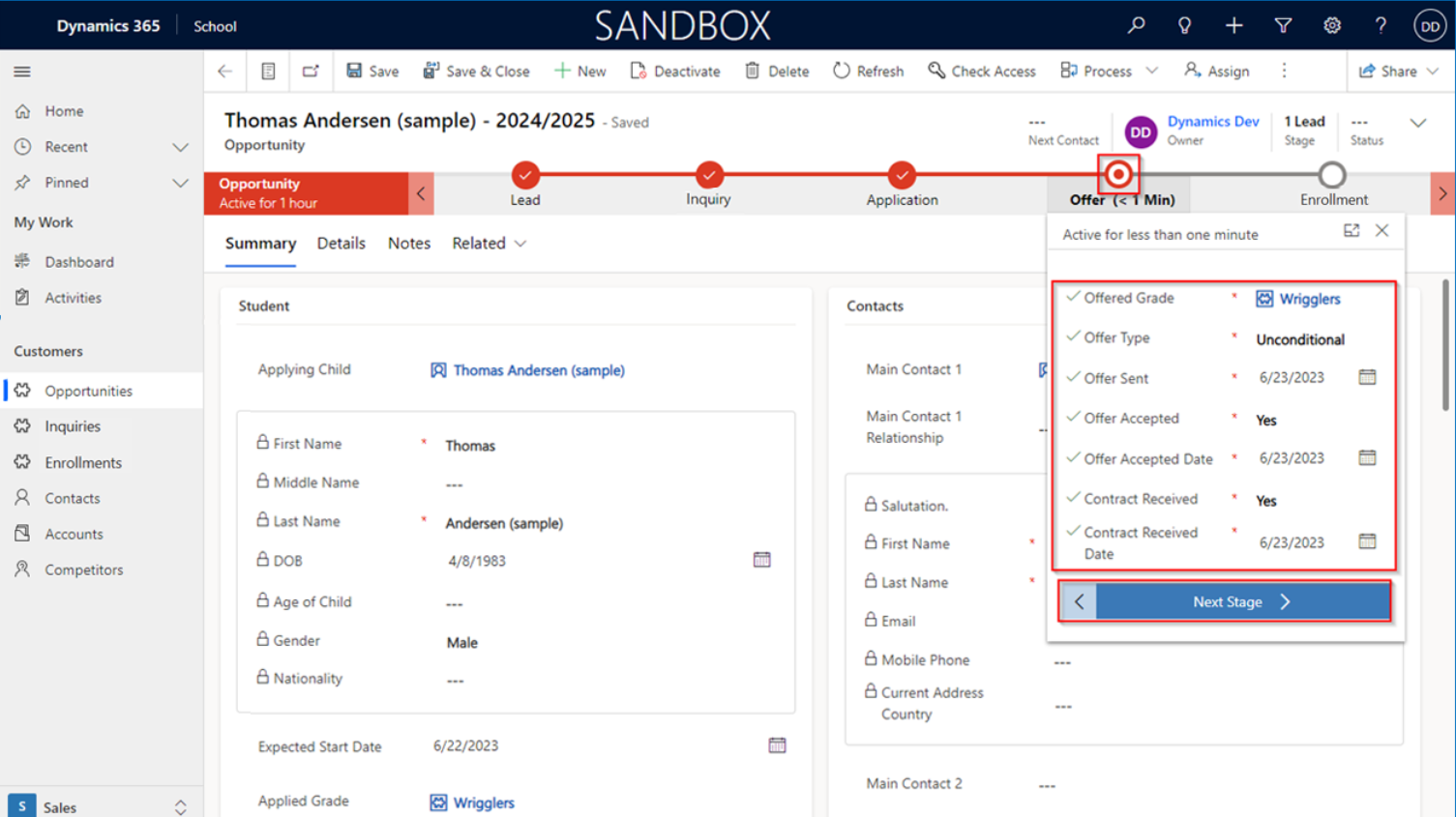
The Offer Stage is reached when an applicant’s submitted application has been thoroughly reviewed, and the admissions committee (or relevant decision-makers) has decided to extend an offer of admission to a specific program or course. This is where the institution has reached a decision to accept the individual to enroll in a program course.
The offer signifies that a decision has been made for the applicant to join the institution. This is formal official communication between the institution and the applicant, and the expectation is for the applicant to accept the offer.
The acceptance of an offer is tracked with a timestamp along with the status of the offer. When the offer is accepted, this is what leads to the final stage, which is enrollment.
The Offer Stage concludes with a definitive response from the applicant, leading to one of two primary outcomes for the Opportunity:
“Won” (Accepted): If the applicant accepts the offer, the Opportunity’s status is set to “Won,” and it then transitions to the Enrollment Stage in your lifecycle, where the focus shifts to onboarding and formal registration.
“Lost” (Declined/No Response): If the applicant declines the offer, misses the deadline without response, or withdraws, the Opportunity’s status is set to “Lost,” with a specific reason recorded (e.g., “Declined - Chose Another University,” “No Response”).
Before completing, check the Summary and Details tabs for additional information.
If you need to return to the previous stage, click < to go back to Application.
Click Next Stage to proceed to the Enrollment Stage.
Enrollment Stage: Click on the Enrollment stage and populate the required fields.
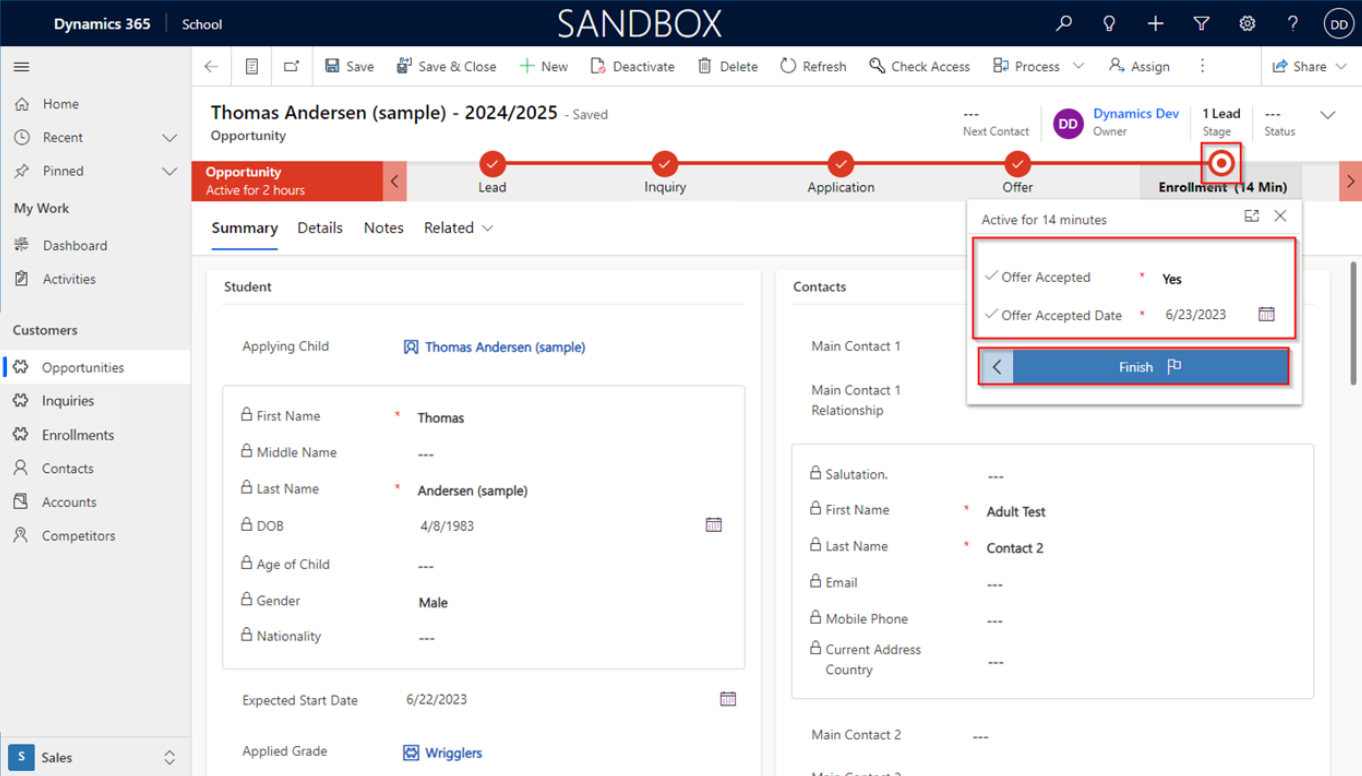
Enrollment is the successful culmination of all previous efforts — Lead nurturing, Inquiry processing, Application review, and Offer acceptance. The lead became an applicant and is now an enrolled student
If you need to return to the previous stage, click < to go back to Offer.
If the offer is accepted with a timestamp date (with green check marks), Click Finish.
Upon completion, a corresponding Enrollment record will be generated, preserving Opportunity information.
7.3. Edit Related Enrollment
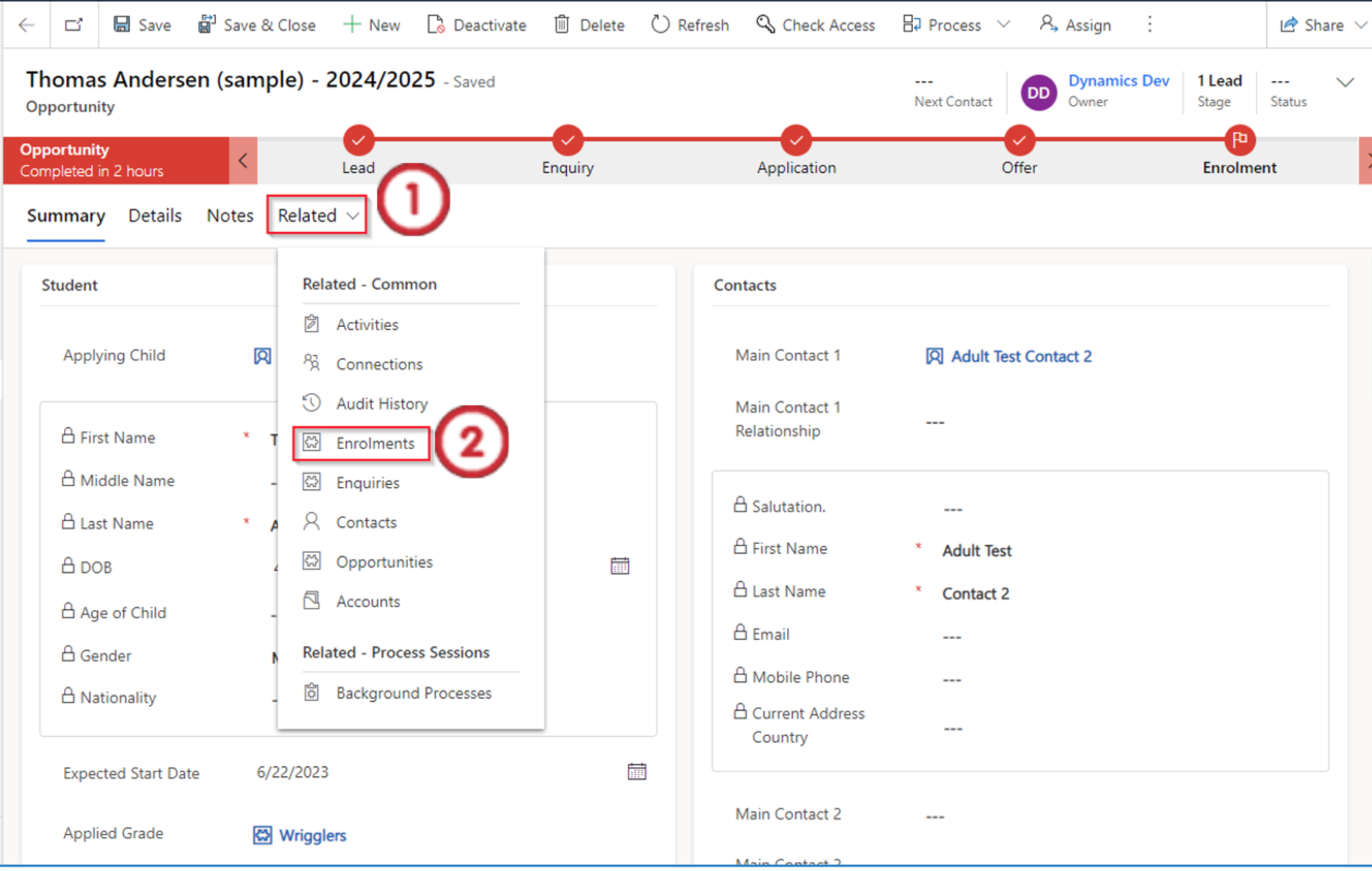
To open related Enrollment records from the Opportunity form:
- On the grid menu, click the arrow icon to expand the Related tab.
- Click on Enrollments.
- A list of related Enrollments will be displayed under Enrollment Associated View. Select the record you wish to open by clicking the blue checkbox.
- Click Edit.
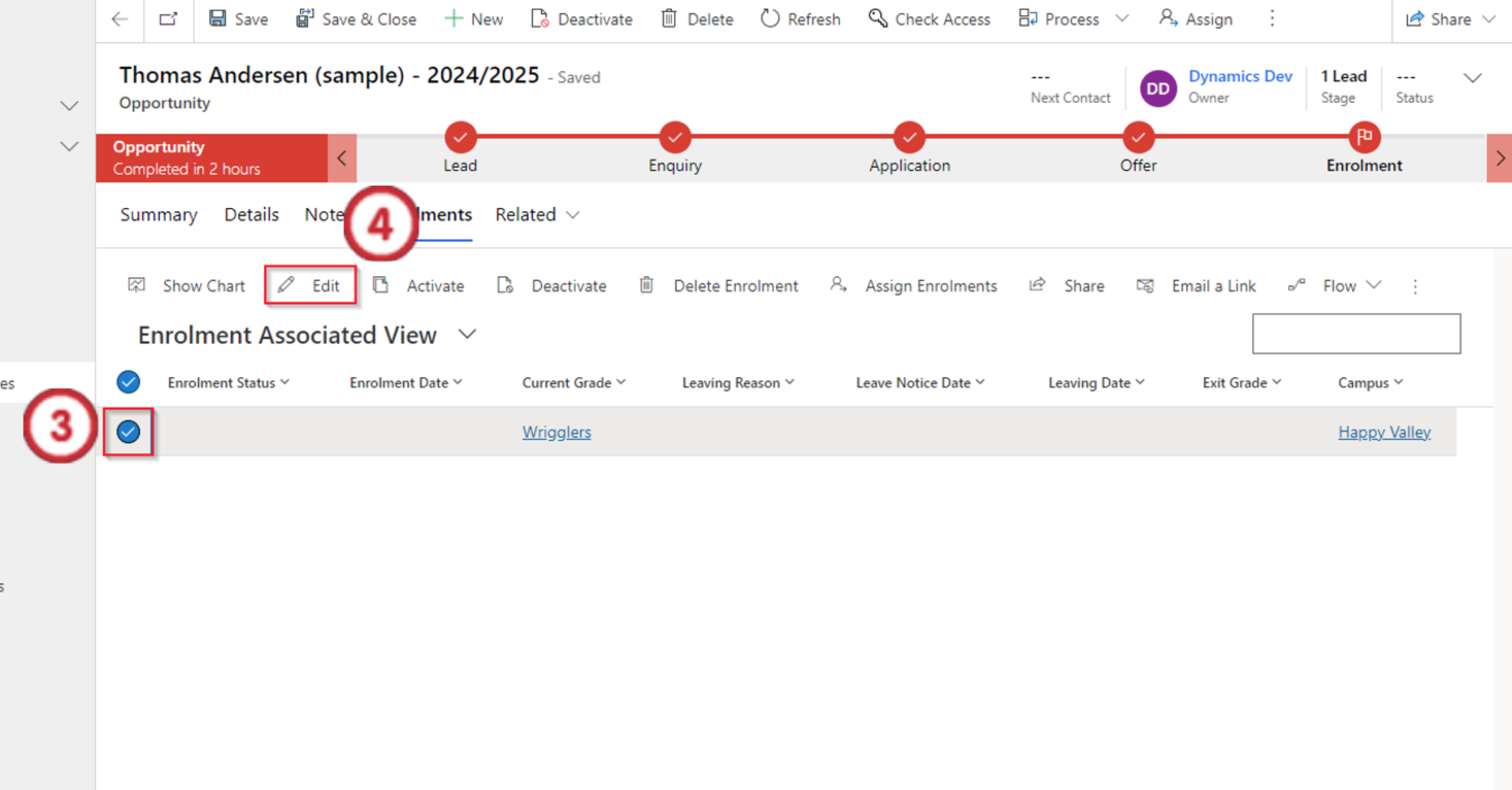
After you have made any changes, click Save or Save & Close.
Related Enrollments refer to multiple Enrollment records that are linked to a single student (Contact record) or to a single academic program (Program record).
The most common scenario where you encounter Related Enrollments is when a student has a history of participation in various academic offerings.