Dynamics 365 Business Central Force Close Orders
Introduction to Force Close
This document status applies to both Purchase Order and Sales Order. It provides an easy way of closing off the order when the balance in ordered quantities would not materialise. It is a useful feature that allows you to archive partially received or shipped orders while maintaining a record of the original ordered quantities.
If you use the demand planning function in Business Central, you would be aware of the impact of ordered quantities on both demand and supply in the planning cycle. Unrealised quantities become a ‘false positive’ in demand planning because these are quantities ordered but would not be fulfilled. For accurate demand planning, the ordered quantities are usually adjusted according to the quantities received or quantities shipped.
Visit Microsoft AppSource Force Close Orders
TIP: The pre-requisite is that this function works when your items are not linked to a “Warehouse” enabled location.
Purchase Order Usage
This guide will show you force close with purchase order usage.
Force Close - PO Line Level
If you have a PO with several lines, and some of the lines have quantity balances yet to be received and you would like to close off and archive the PO, you can use the Force Close function from the PO line.
For example:
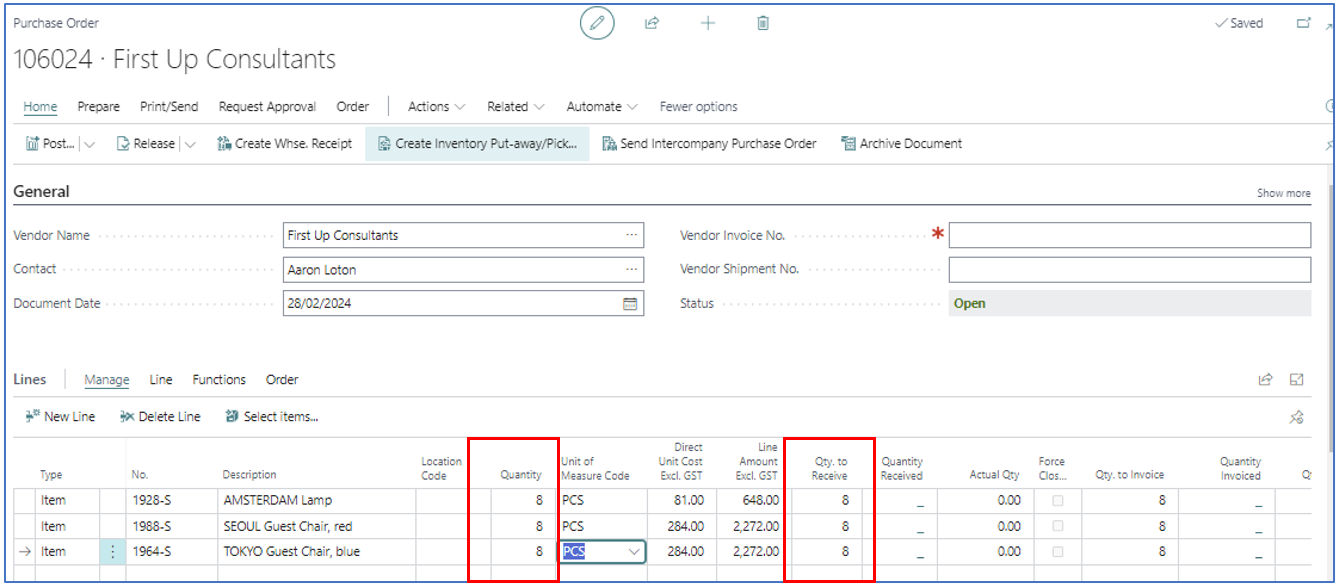
By default, the Qty to Receive always starts off as the Quantity entered per line. If you receive any lower amount, you need to first update the Qty to Receive to acknowledge the unmet ordered quantity.
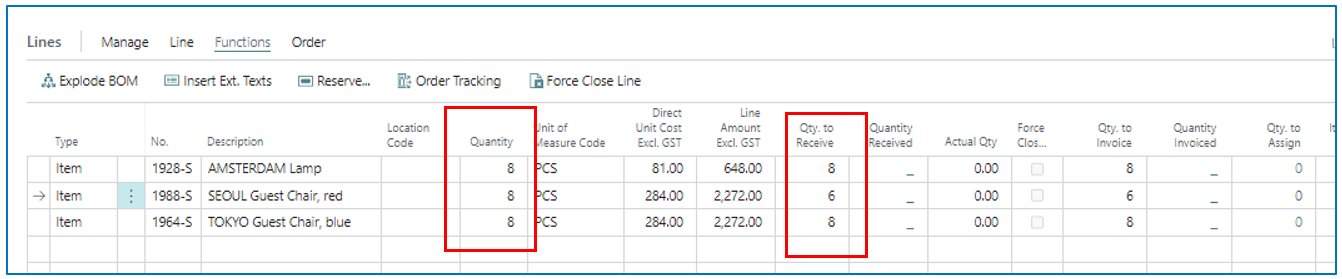
In this example, the 2nd PO line has only received 6 pcs instead of the ordered 8 pcs. The PO is Receive posted to show the unmet quantity.

Once the “ordered but unreceived” quantities are no longer expected from your supplier, the PO line can be “Force Closed”.
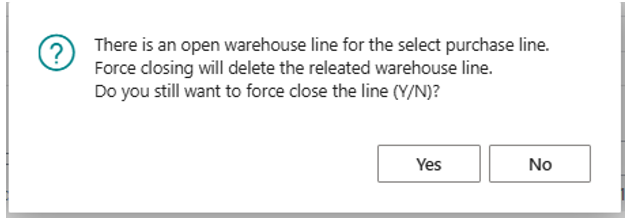
If the location is warehouse enabled without pick and put-away, user needs to confirm on the pending warehouse document to be deleted.
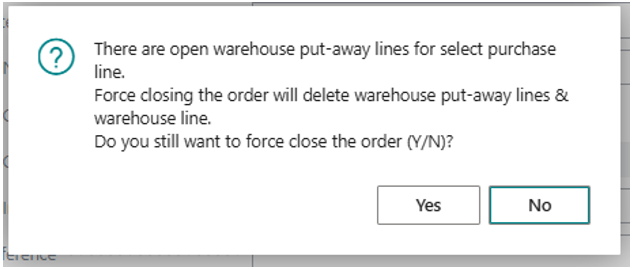
If location is enabled with warehouse, including pick and put-away, then pending pick document and warehouse document to be deleted.
After confirmation the selected lines are force closed.
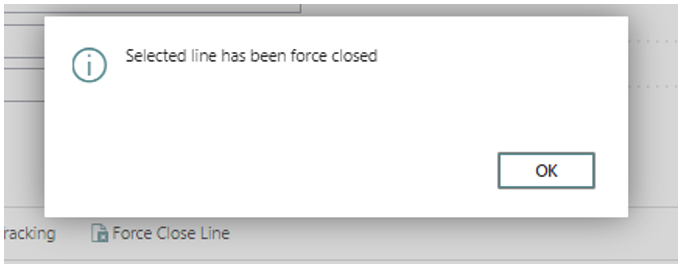
When this is done, you notice the following changes:

- Quantity and Quantity Received for the line are updated.
- Actual Qty is a new field that tracks the original ordered quantity for the line.
The supplier invoice can now be matched with the Quantity Received for each line, and the Purchase Invoice posted.
On [invoice] posting the “Force Close” PO, is automatically archived.
Force Close – PO header level
If you have a Purchase Order with incomplete receipt lines i.e. some lines are not fully received, you can also set the PO to be “Force Closed” status and have it archived.
For example:
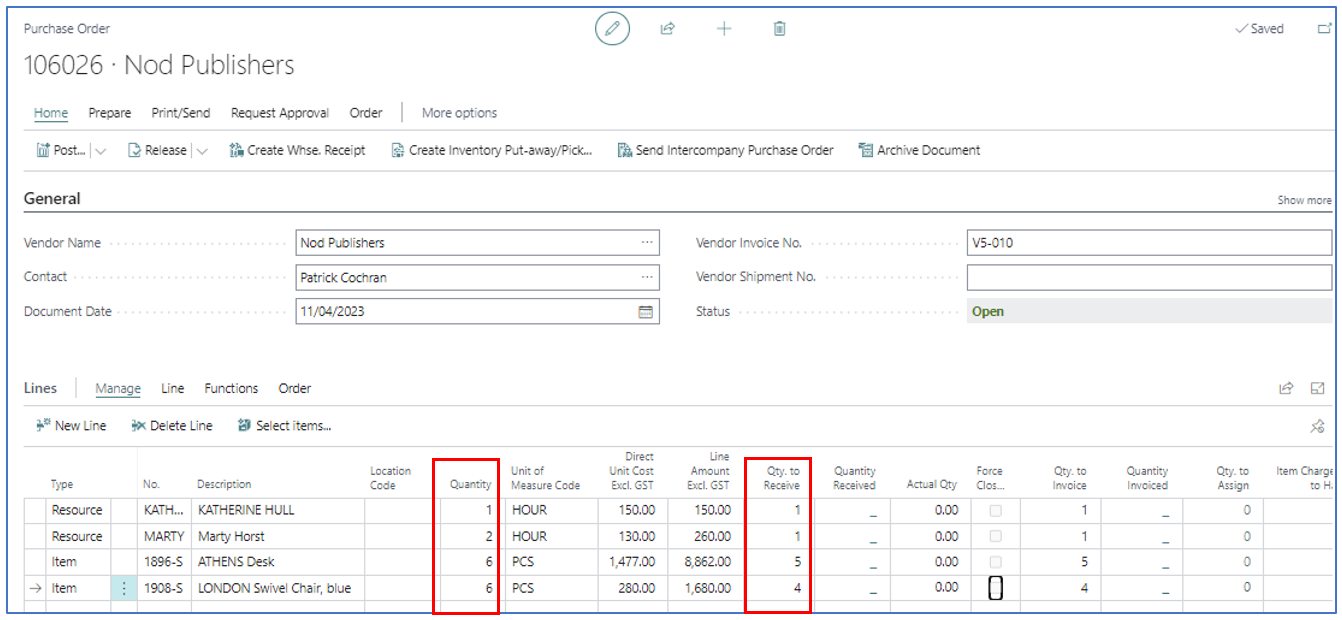
After updating the Qty to Receive accordingly, Receive post the PO to confirm quantities received. The outcome will be a Released purchase order with the balance to receive for each PO line.

At this point, when the supplier invoice is received showing the same items and quantities, you can use Force Close status to archive the PO.
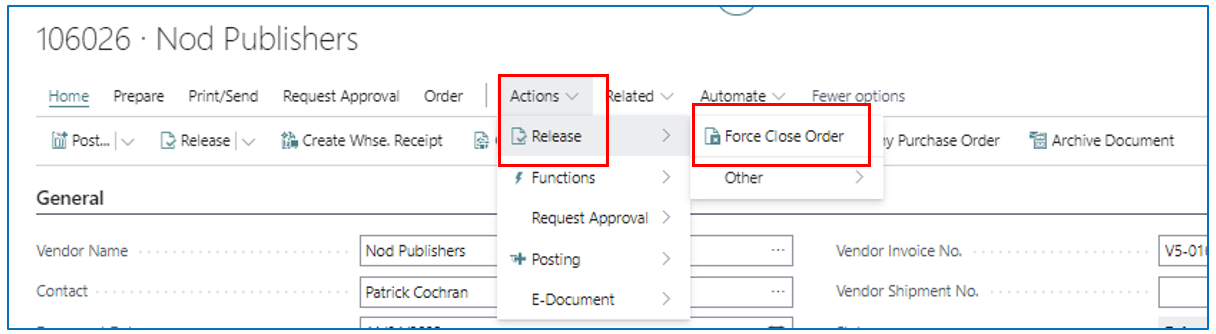
The system will prompt you that there are pending unreceived quantities, if without warehouse enabled.
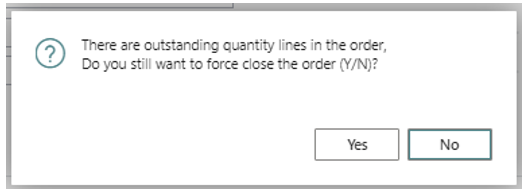
If the location is warehouse enabled without pick and put-away.
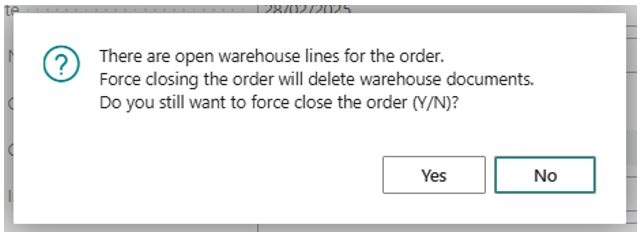
If location is enabled with warehouse, including pick and put-away.
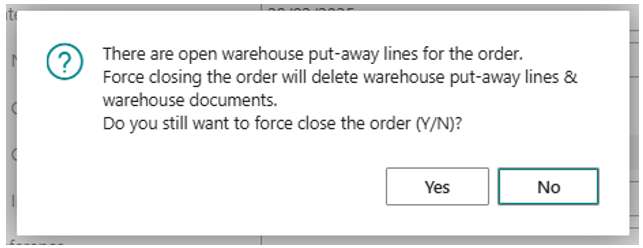
These confirmation works as intimation to user on the actions performed by user.
Invoice Posting after Force Close
Once accepted (YES), the un-invoiced Purchase Order with “Force Closed” status will be moved to the new page “Force Closed Orders”.
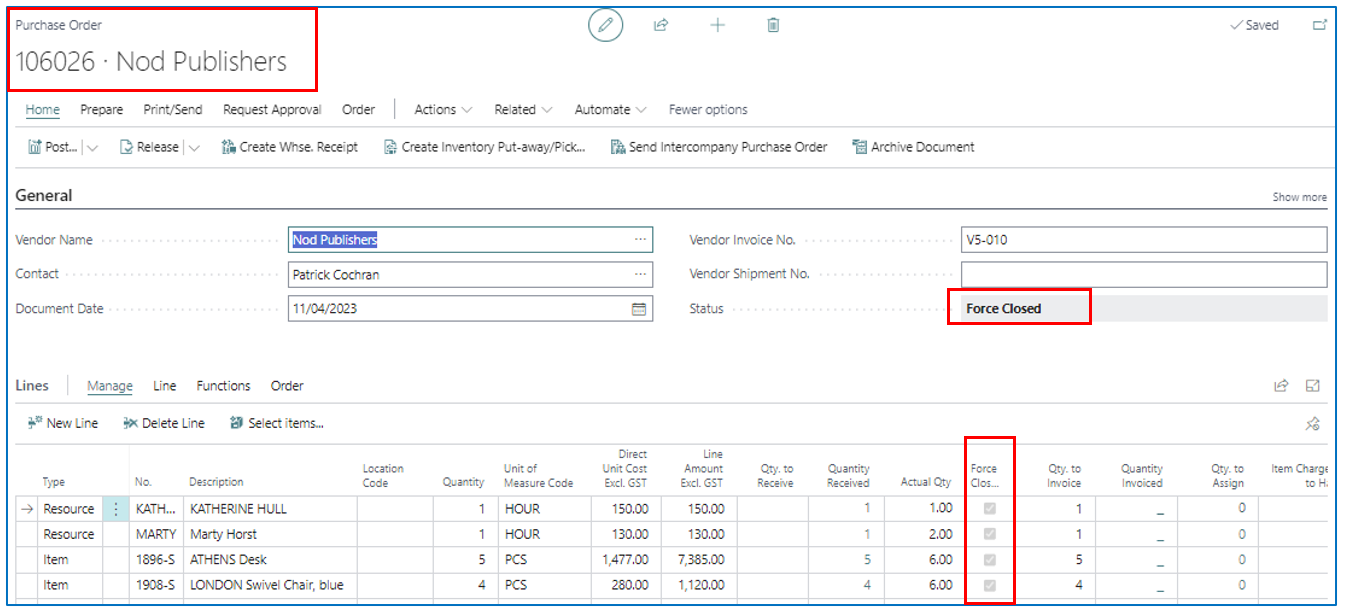

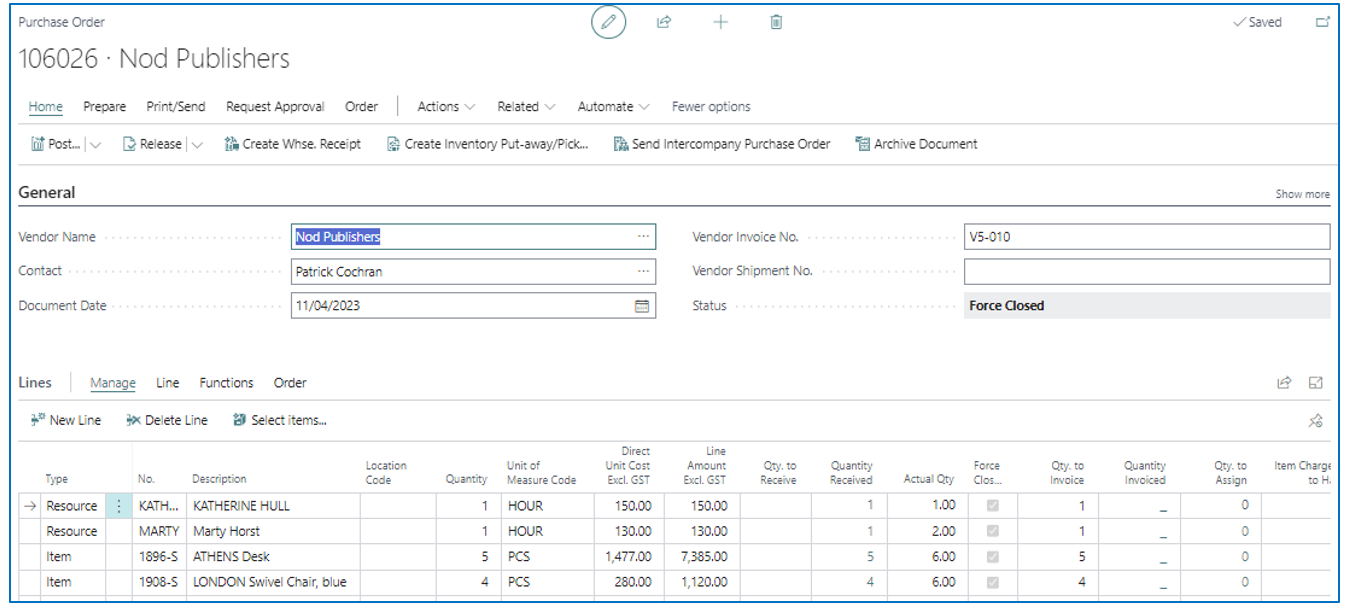
From here, the Purchase Order can be “Invoice” posted. The Qty to Invoice would have been updated by the “Force Closed” process.
Sales Order Usage
Like the Purchase Order usage, Sales Order with incomplete shipment can also be “Force Closed” and archived.
Force Close – SO Line level
Shipment of sales order line quantities may be subjected to insufficient stock and the order fulfillment becomes incomplete. When this happens and the customer does not wish to wait for order fulfillment, the correct quantities can be invoiced if unfulfilled order lines are “Force Closed”.
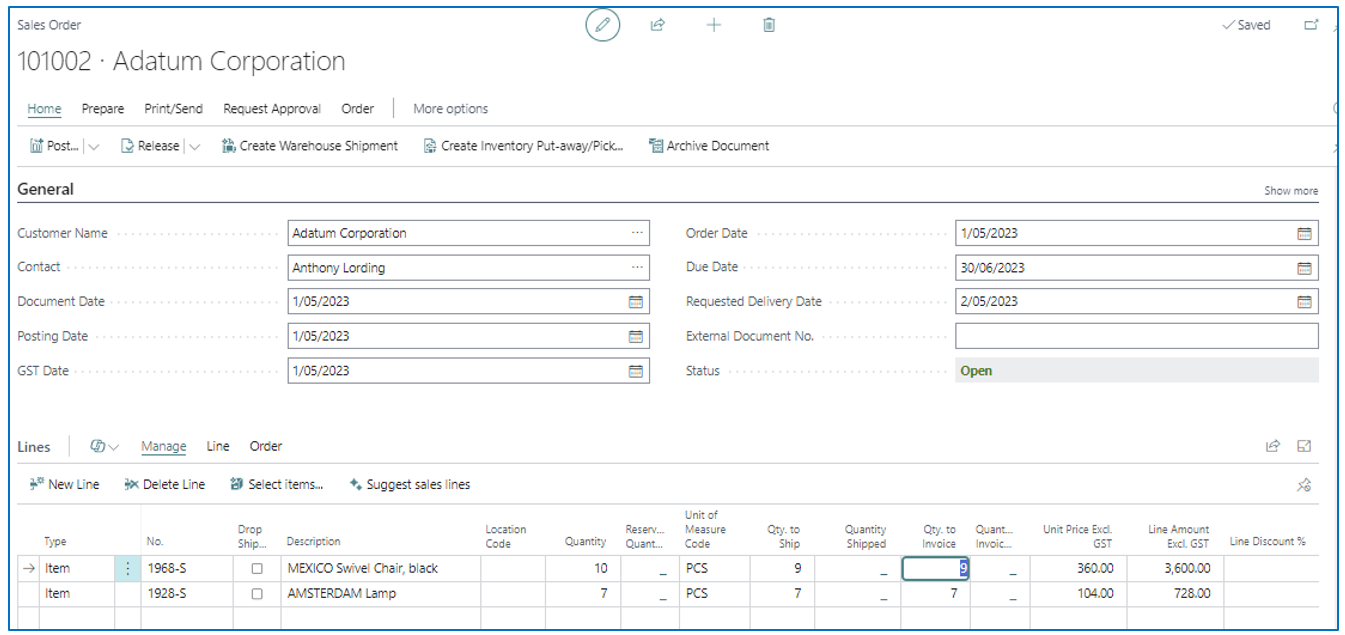
Navigate to the line with insufficient stock. After confirming the stock quantity to be shipped in Qty. to Ship, post “Ship” the order.
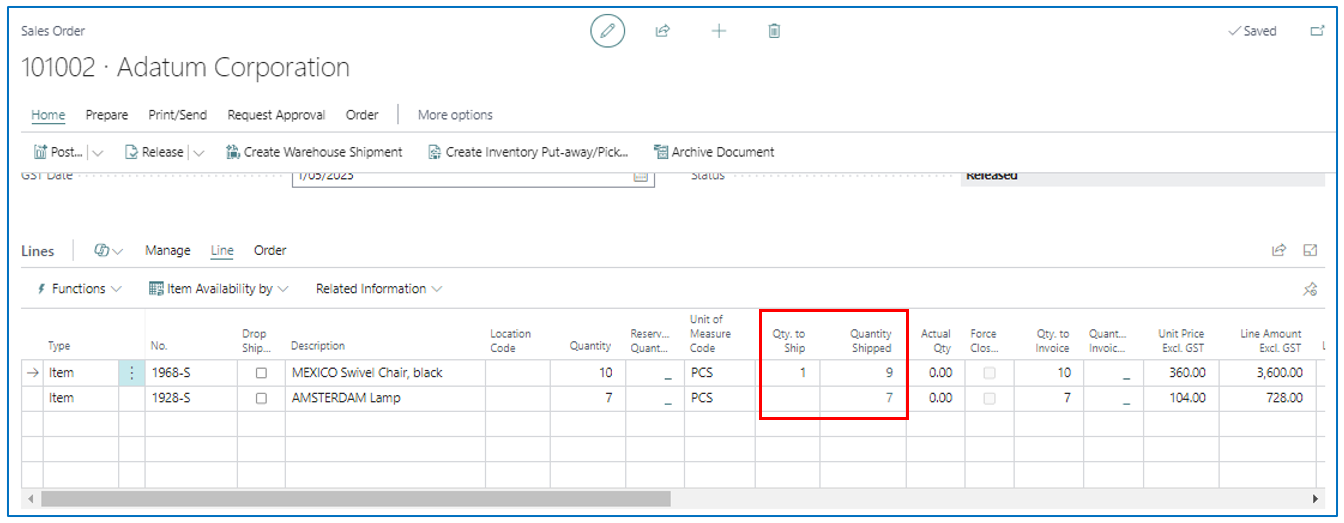
The unfulfilled sales order will be the balance of line quantities that will not be shipped. Force Close the order line that will not be fulfilled.
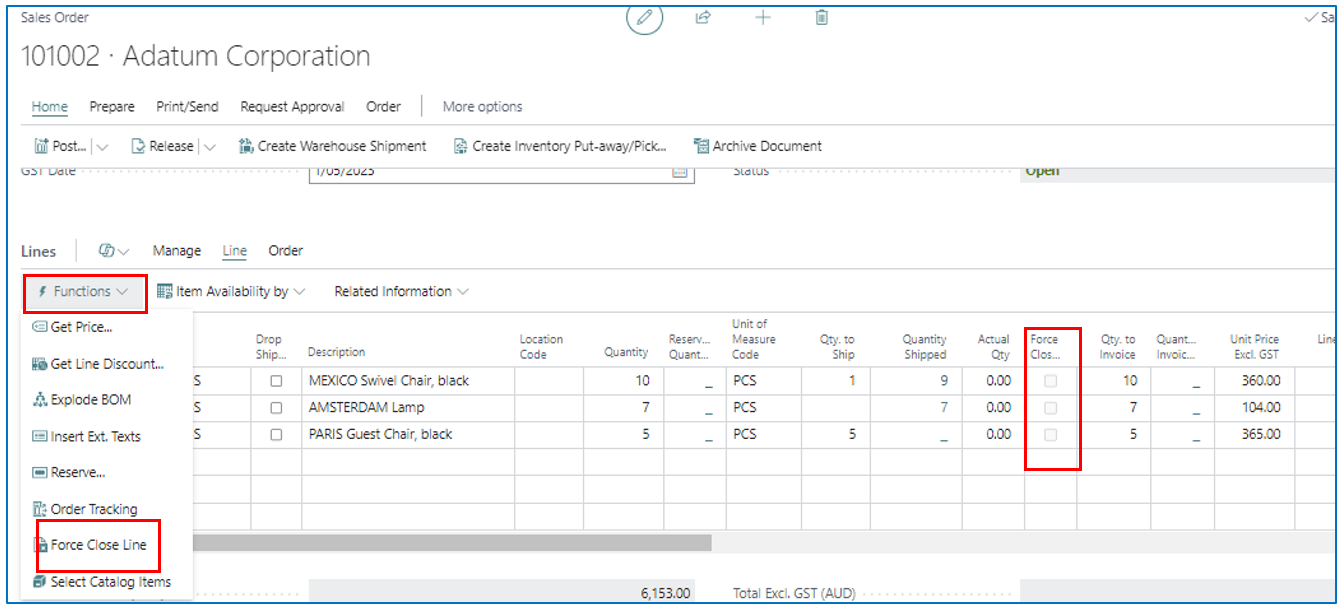
The system will prompt you that there are pending unreceived quantities, if without warehouse enabled.
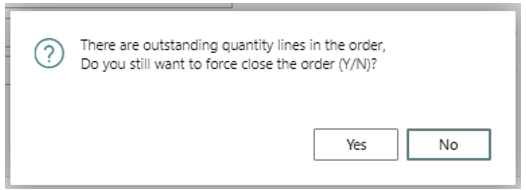
If the location is warehouse enabled without pick and put-away.
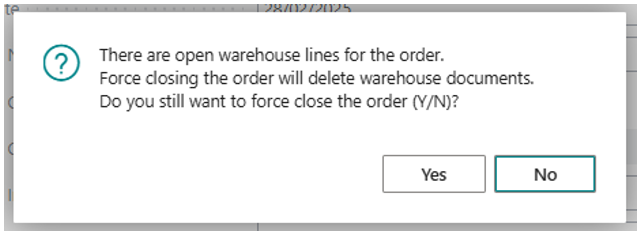
If location is enabled with warehouse, including pick and put-away.
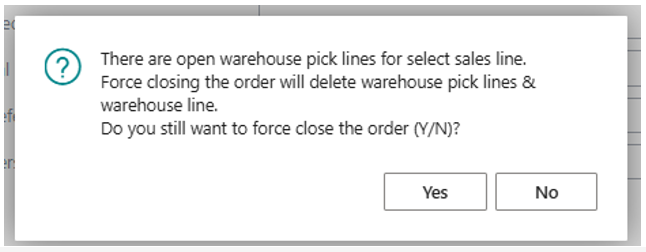
These confirmation works as intimation to user on the actions performed.
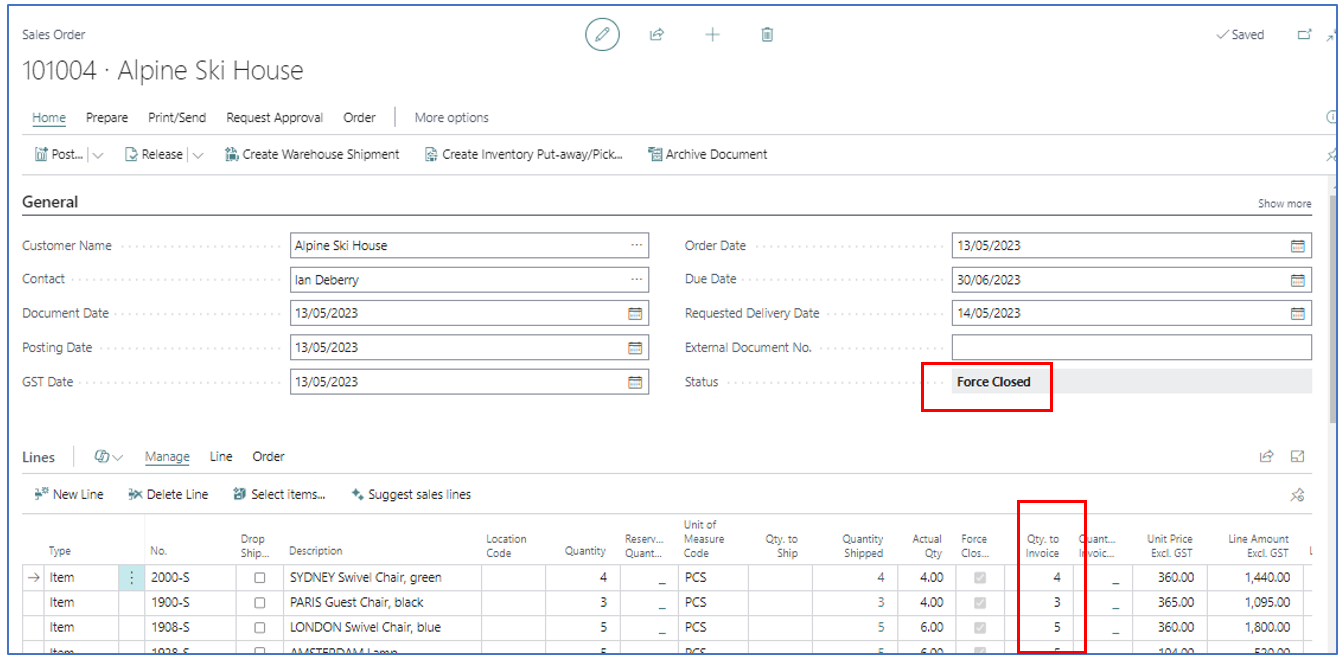
When the line(s) is Force Closed,
- Qty to Ship – will be blank/zero since no other quantities are expected to be shipped.
- Actual Qty – this is a new field that holds the original sold quantity for the line.
- Force Close status – the status will be enabled.
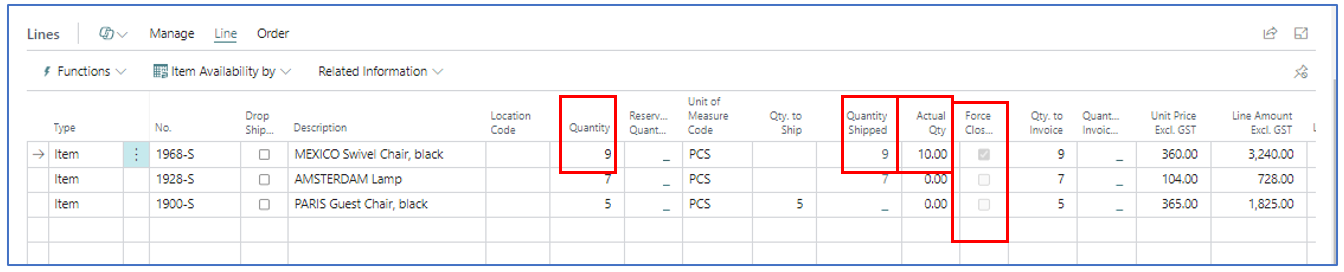
Now when you “Ship” post the Sales Order with any Force Closed line(s), the Quantities Shipped are updated.
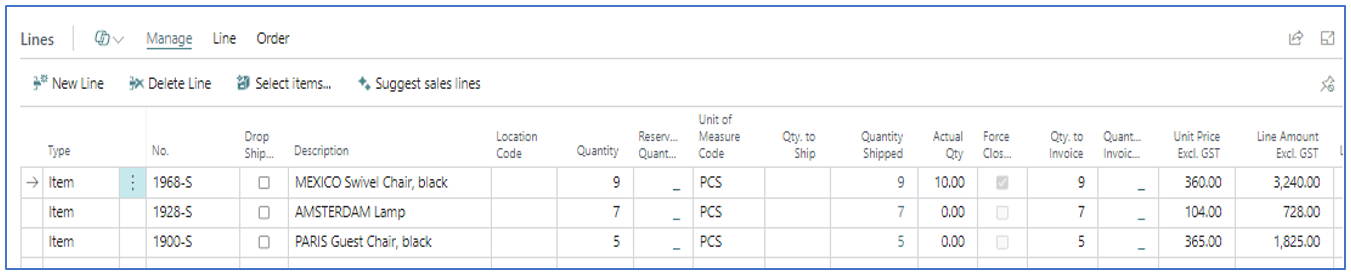
This ensures that the correct quantities are invoiced when the order is “invoice” posted.
Force Close – SO Header level
For a multi-line sales order that has unfulfilled lines, a faster way to archive the order would be to use “Force Close” at the header level.
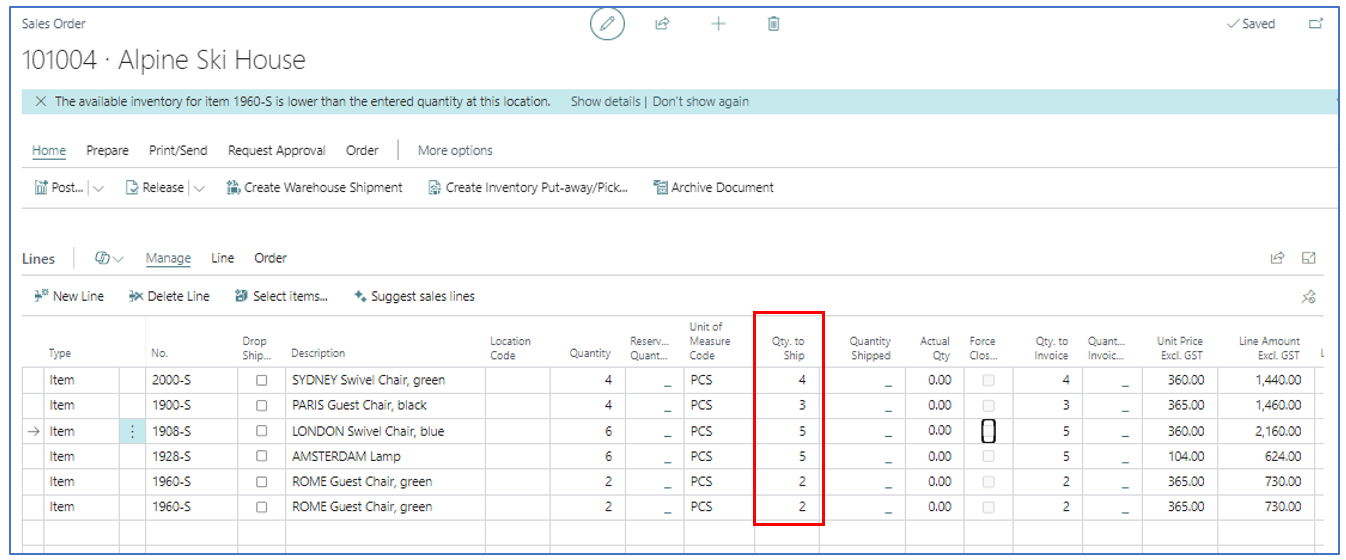
After identifying the quantities that are available for fulfillment (Qty to Ship), “Ship” post the sales order.
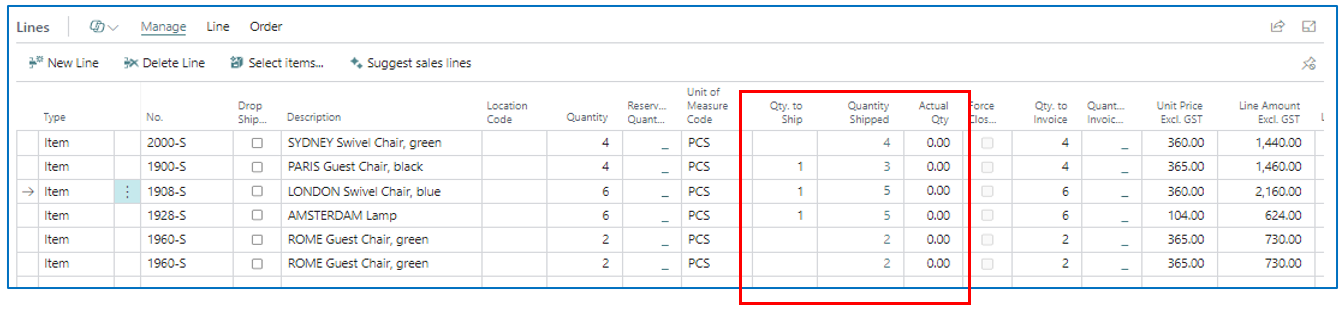
The Quantity Shipped is updated.
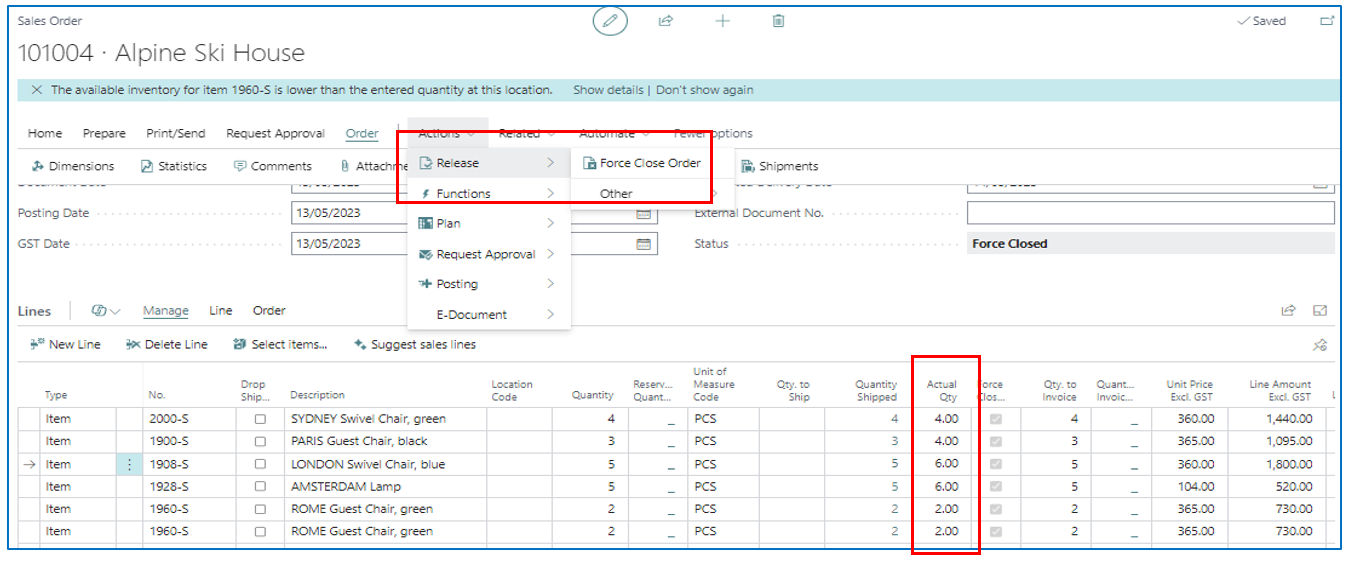
To retain the original quantities while invoicing the shipped quantities, Force Close the sales order to update the Actual Qty with the original order quantities.
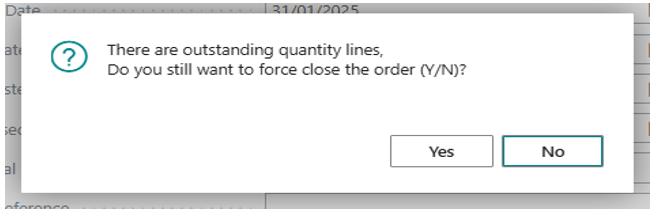
The system prompts that there are pending unreceived quantities, if without warehouse enabled.
If the location is warehouse enabled without pick and put-away.
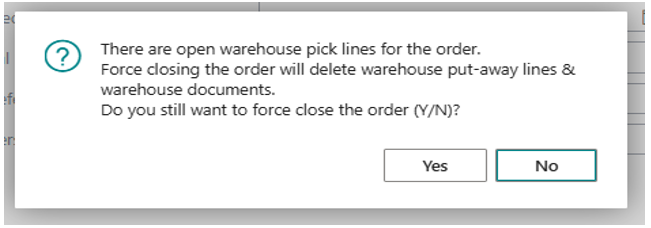
If location is enabled with warehouse, including pick and put-away.
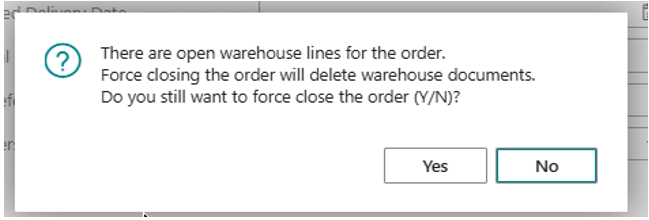
These confirmation works as intimation to user on the actions performed.
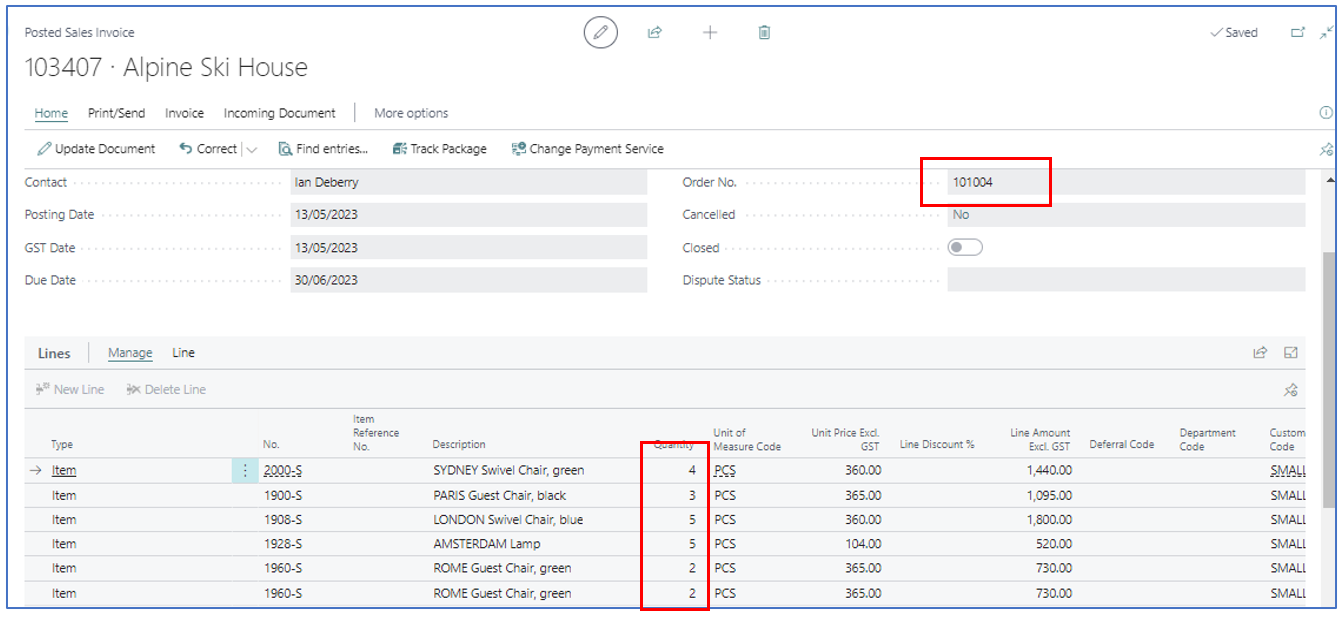
Invoice Posting after SO Force Close
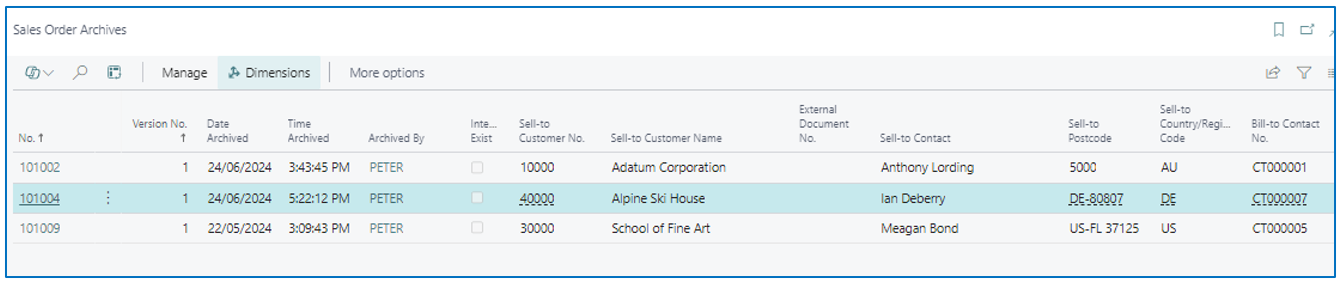
After the sales order has been Force Closed, the shipped quantities are confirmed, and the order can be invoice posted to send the correct sales invoice to the customer. The Sales Order is also archived.