Microsoft Dynamics 365 Business Central Correcting Posted Invoices
How To Correct Posted Invoices in Business Central
You can correct or cancel a posted sales invoice. This is useful if you make a mistake or if the customer requests a change.
Note: After a posted sales invoice has been partially or fully paid, you cannot correct or cancel it from the posted sales invoice itself. Instead, you must manually create a sales credit memo to void the sale and reimburse the customer, optionally managed with a sales return order.
Correct a Sales Invoice
To correct a posted sales invoice:
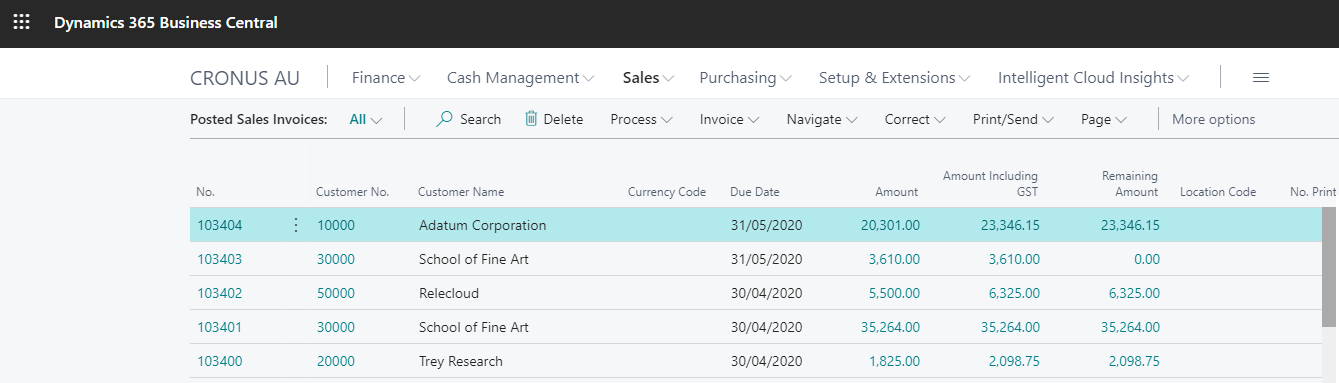
- Click on the Search button, enter “Posted Sales Invoices”, and then click the related link.
- Select the posted sales invoice that you want to correct.
Note: If the Cancelled check box is selected, then you cannot correct the posted sales invoice because it has already been corrected or cancelled.
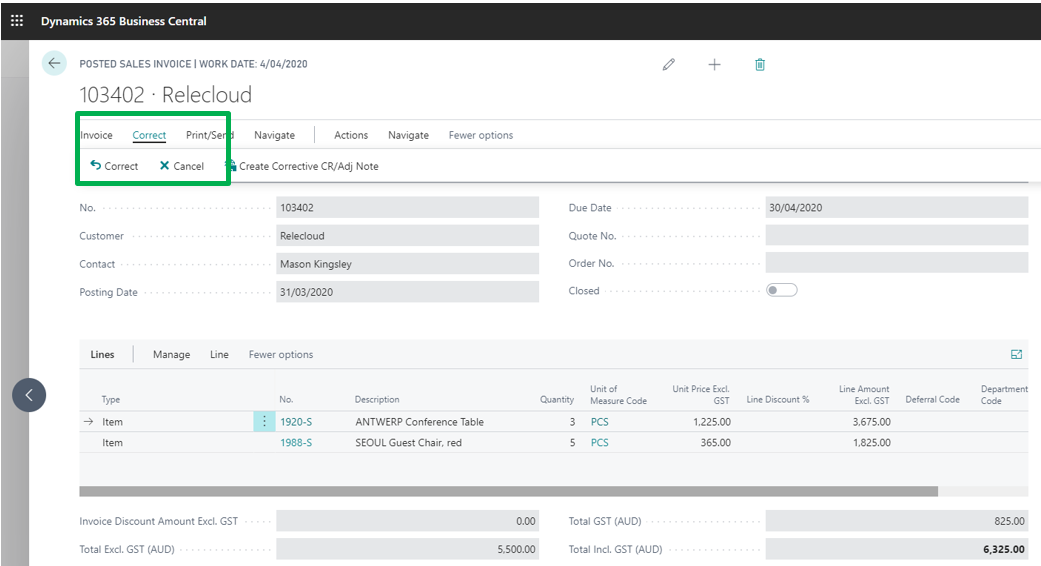
- On the Posted Sales Invoice page, choose the Correct action.
- A new sales invoice with the same information is created where you can make the correction. The Cancelled field on the initial posted sales invoice is changed to Yes. A sales credit memo is automatically created and posted to void the initial posted sales invoice.
- Click the Show Corrective Credit Memo action to view the posted sales credit memo that voids the initial posted sales invoice.
Canceling an Invoice
To cancel a posted sales invoice:
- Select the posted sales invoice that you want to cancel.
- On the Posted Sales Invoice page, choose the Cancel action.
- A sales credit memo is automatically created and posted to void the initial posted sales invoice. The Cancelled field on the initial posted sales invoice is changed to Yes.
- Click Show Corrective Credit Memo to view the posted sales credit memo that voids the initial posted sales invoice.
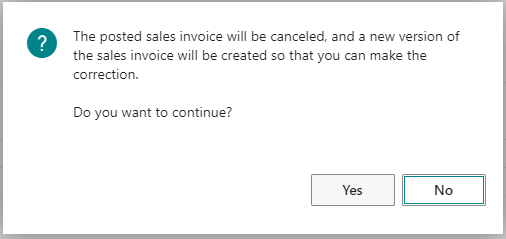
You will see the following dialogue box appear.
Last updated on