Microsoft Dynamics 365 Business Central Maintaining Charts
How To Maintain Your Charts in Business Central
Introduction to Charts
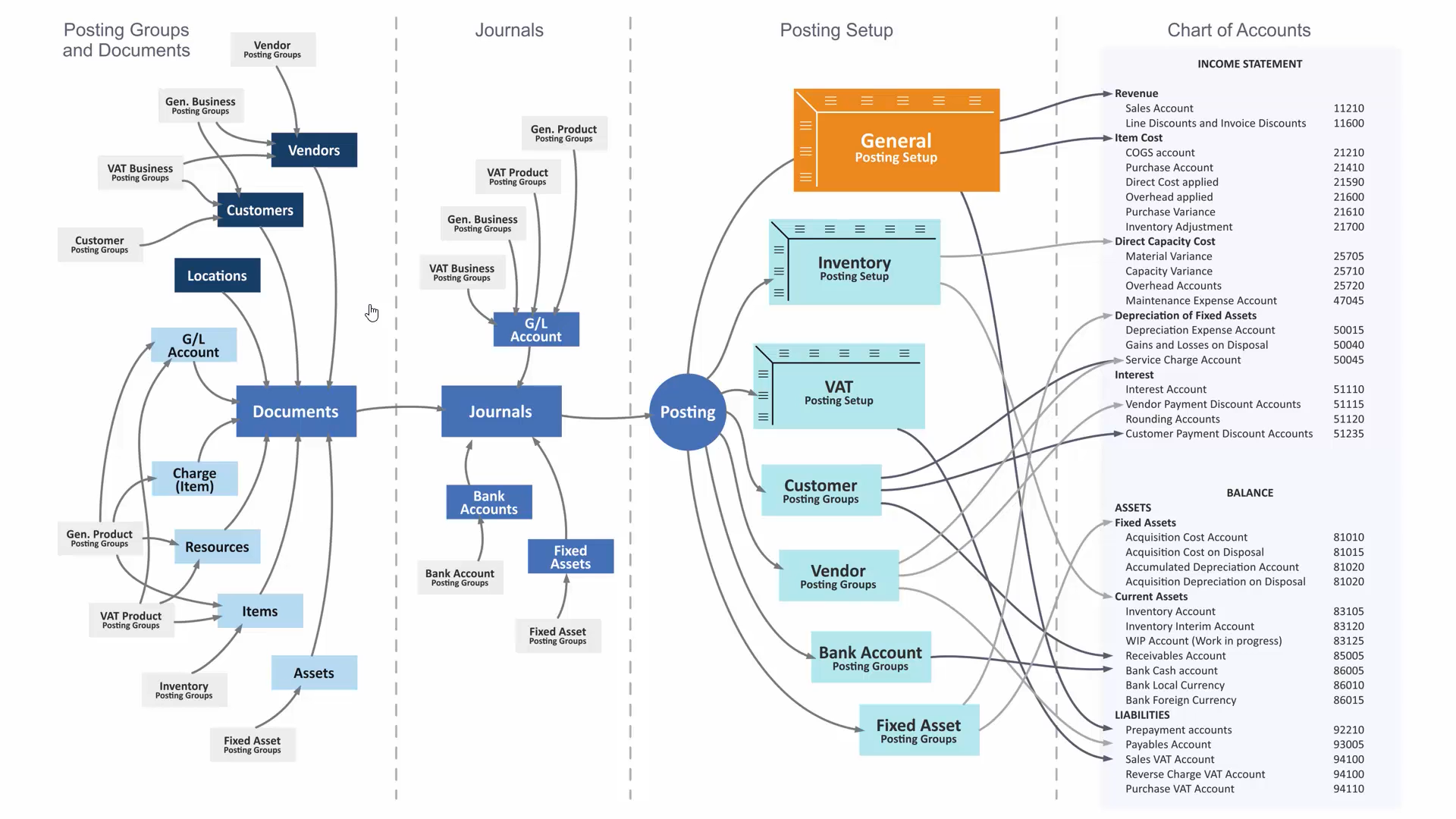
The income statement and balance sheet are two important company reports. An account in the income statement and the balance sheet is called a G/L account, and all the G/L accounts make up the Chart of Accounts list. You use G/L account cards to create and edit G/L accounts.
In the Chart of Accounts list, all G/L accounts are available and can be viewed at one time. However, there is also a G/L Account Card for each account, and this can be accessed from the Chart of Accounts list. Once G/L accounts are created, you can then use them in sales and purchase documents, in general journals to post transactions to the general ledger. You can set up and use dimensions to add text to entries for reporting purposes.
TIP: Before adding a new G/L account, check the settings of a similar account.
Here is a Chart of Accounts List in Business Central:

The Chart of Accounts
The chart of accounts shows all general ledger accounts. From the chart of accounts, you can do things like:
- View reports that show general ledger entries and balances.
- Close your income statement.
- Open the G/L account card to add or change settings.
- See a list of posting groups that post to that account.
- View separate debit and credit balances for a single account
You can add, change, or delete general ledger accounts. However, to prevent discrepancies, you can’t delete a general ledger account if it’s data is used in the chart of accounts.
Account Categories
You can personalise the structure of your financial statements by mapping general ledger accounts to account categories. The G/L Account Categories page shows your categories and subcategories, and the G/L accounts that are assigned to them. You can create new subcategories and assign those categories to existing accounts. Note: You can delete a general ledger account. However, before you delete it, the following must be true: The balance on the account must be zero; The Allow G/L Acc. Deletion Before field must be set on the General Ledger Setup page, and the account must not have ledger entries on or after that date; If the Check G/L Account Usage field on the General Ledger Setup page is selected, then the account must not be used in any posting groups or posting setup.
Here is an example oof a G/L Account Card:

Working with Dimensions
To make it simpler to perform analysis on documents such as sales orders or purchase invoices, you can use dimensions. Dimensions are attributes and values that categorise entries so you can track and analyse them. For example, dimensions can indicate the project or department an entry came from, without creating a complicated chart of accounts. A single sales entry can include multiple dimension information, such as:
- The account the item sale was posted to
- Where the item was sold
- Who sold it
- The kind of customer who bought it

Create a Budget
Let’s create a budget in Business Central.
- Type GL Budgets in the Dynamics 365 Business Central Search bar.
- Click New.
- Enter Name, Description and any dimensions that are applicable.
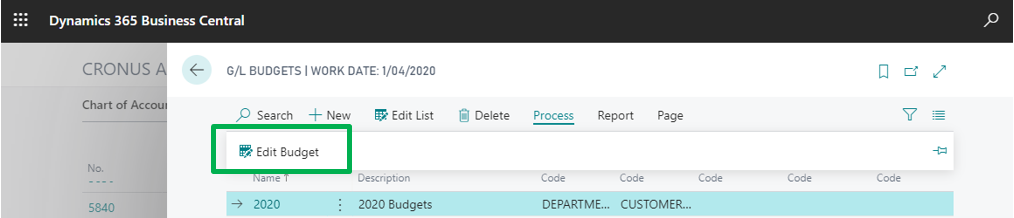
- Click Process, then Edit Budget.
- Enter the budget amounts for the appropriate GL accounts.
The top part of the page dictates how the Budget Matrix is displayed. In the Filters tab, you can enter the filters necessary, such as the Dimension. If you had a budget called Department, for example, you would filter on that department, enter the budget and then repeat for other departments.

Export Budget to Excel
Here is how to export to Excel.
- Type GL Budgets in the Search bar.
- On the GL Budget list page, double click on the budget you want to export to open the Budget Window.
- On the GL Budget window, click Process, then Export to Excel.
- Fill in the appropriate options for the export, then click OK.
Import Budget from Excel
This is how to import a budget from Excel.
- Type GL Budgets in the search bar.
- On the GL Budget list page, double click on the budget you want to import.
- On the GL Budget window, click Process, then Import from Excel.
- Enter the Options information and click OK.
Once budgets are entered you can use them in your account schedules to show budget versus actual.