Microsoft Dynamics 365 Business Central Managing Projects
How To Manage Projects in Business Central
In Business Central, you can perform common project management tasks, such as configuring a job and scheduling a resource, as well as providing the information needed to manage budgets and monitor progress. You can track equipment and employee hours on the project by using time sheets. As a project manager, you have an overview, not only of individual jobs, but also of the allocation of employees, machinery and other resources being used in all projects. Before you can use Business Central to manage projects, you must set up resources, time sheets, and jobs.

Jobs
The jobs functionality will help you to keep track of usage on jobs and provides the data for invoicing the customer. You can manage both fixed-price jobs and time and-materials jobs. The jobs area supports common project management tasks such as configuring a job and scheduling a resource as well as providing the information needed to manage budgets and monitor progress.
With the jobs features, you can manage long-term projects that involve the use of man hours, equipment hours, inventory items, and other types of usage that you want to keep track of. Using the jobs functionality provides a good overview, not only of individual jobs but also of the allocation of employees, equipment, and other resources being used in all projects.
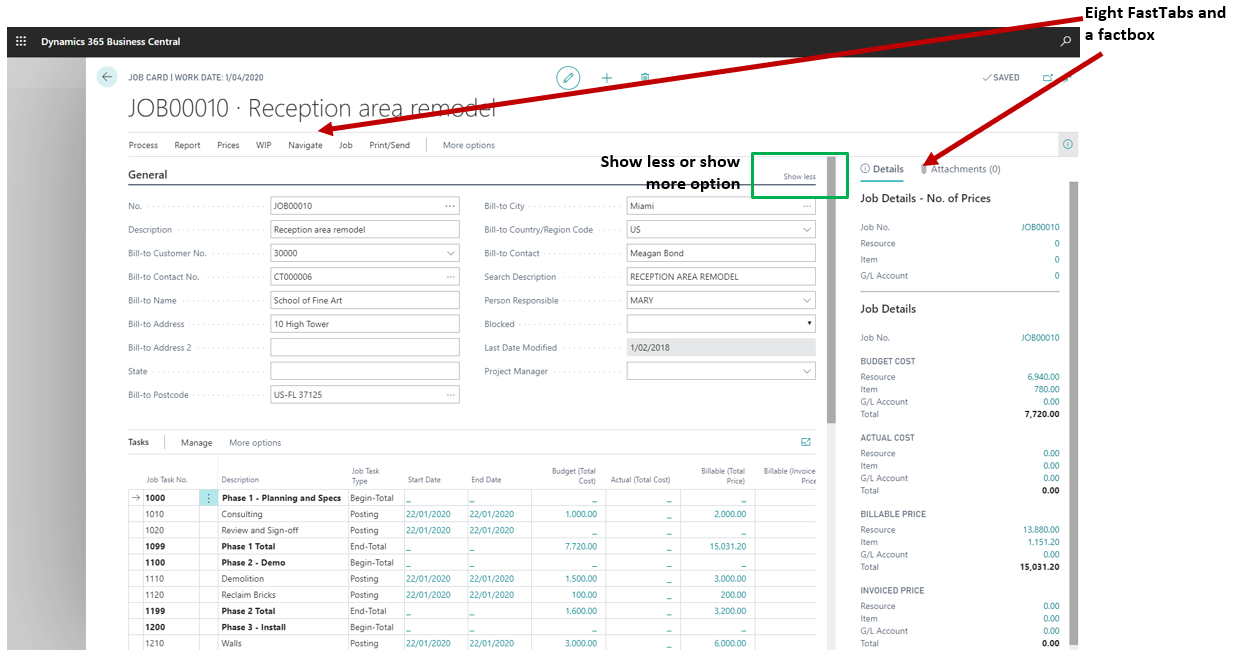
You can set up a job for a project you will perform for a customer or perform internally. On the job card, you can enter all the data you need to manage the job from an administration and financial perspective. By entering tasks for your job, you can specify everything that has to be done to complete the job. For each task, you can plan capacity and sales for resources and items. Based on the item cost and price and the resource cost and price, your task and planning lines will create your job budgets, giving you the ability to manage the profitability of a job. Once you start working on a job, you can post usage to a job when, for example, purchasing items. You can do this by assigning the job number and the job task number on the purchase line, on the purchase order, or a purchase invoice.
With job journals, you can use items of stock for a job or post resource usage. Periodically, you can invoice jobs to your customers and use job statistics to follow up on your job budget. You can also use the job functionality for many types of services and consultancy tasks.
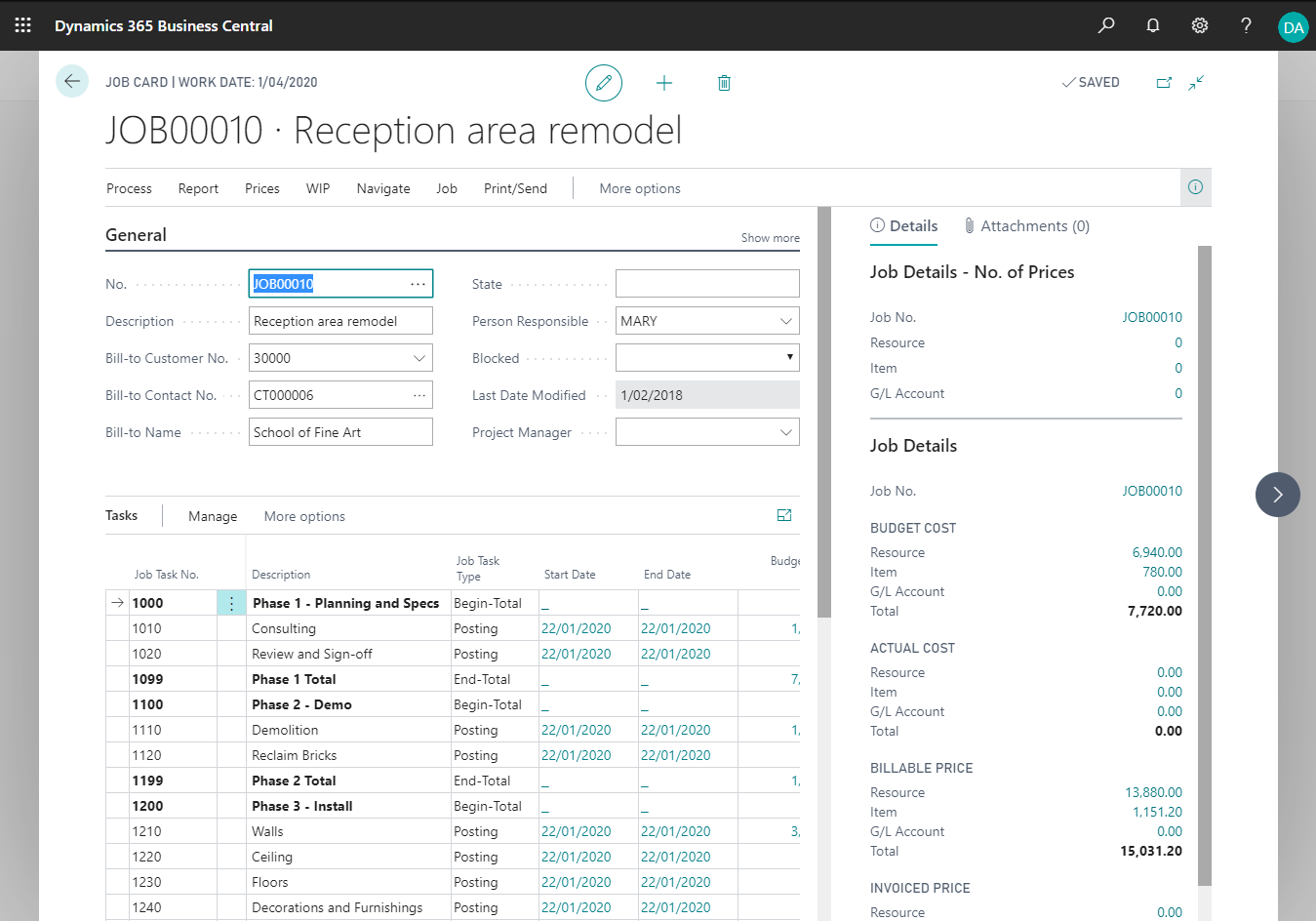
Tabs Description
- Process – Copy Job Tasks
- Report – Job Actual to Budget, Job Analysis, Job – Planning Lines, Job – Suggested Billing
- Prices – G/L Account, Resource, Item
- WIP – Calculate WIP, Post WIP to G/L, WIP Entries, WIP G/L Entries
- Navigate – Job Planning Lines
- Job – Dimensions, Statistics, Ledger Entries
- Print/Send – Preview Job Quote, Send Job Quote