Microsoft Dynamics 365 Business Central Processing Sales
How To Process Sales in Business Central
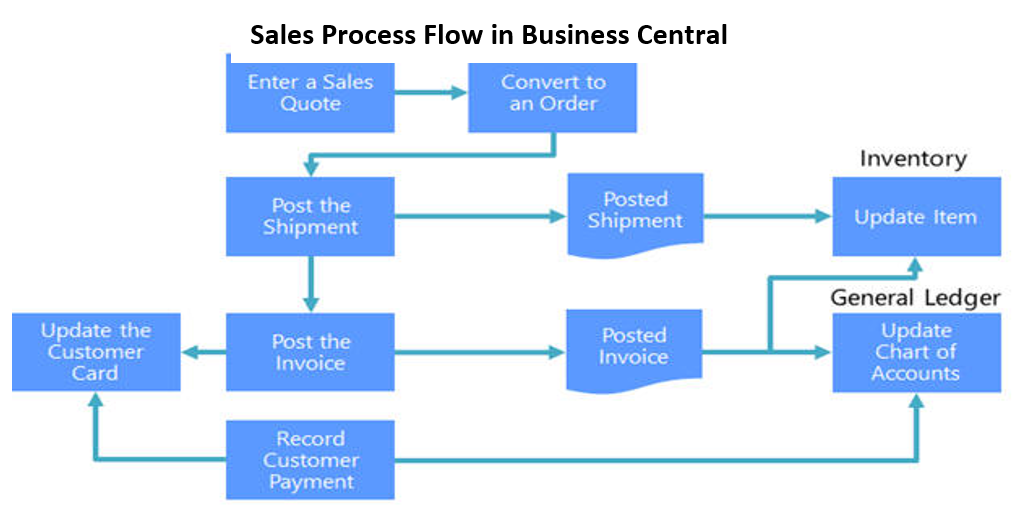
Business Central supports all typical tasks and information that you need to manage sales and receivables. When you want to sell your product and service items, you typically start the sales process with a sales quote. The Sales Process Flow shows the effect on Inventory and G/L and the steps performed in typical sales and receivables tasks and the impact they have on other application areas. A sales process will often start with a sales quote. If our prospects or customers agree with the quotation and decide to purchase, we can convert the quote to an order. Once you have a sales order you can start shipping the items from the order. You will post the shipments which will result in a posted shipment, resulting in updating the inventory and the item. You will also invoice the customer by posting the invoice, which will result in a posted invoice. The posted invoice will update the chart of accounts and the item. The last step is recording the payment. The customer payment will update the chart of accounts and will update the customer card.
Creating a Sales Quote
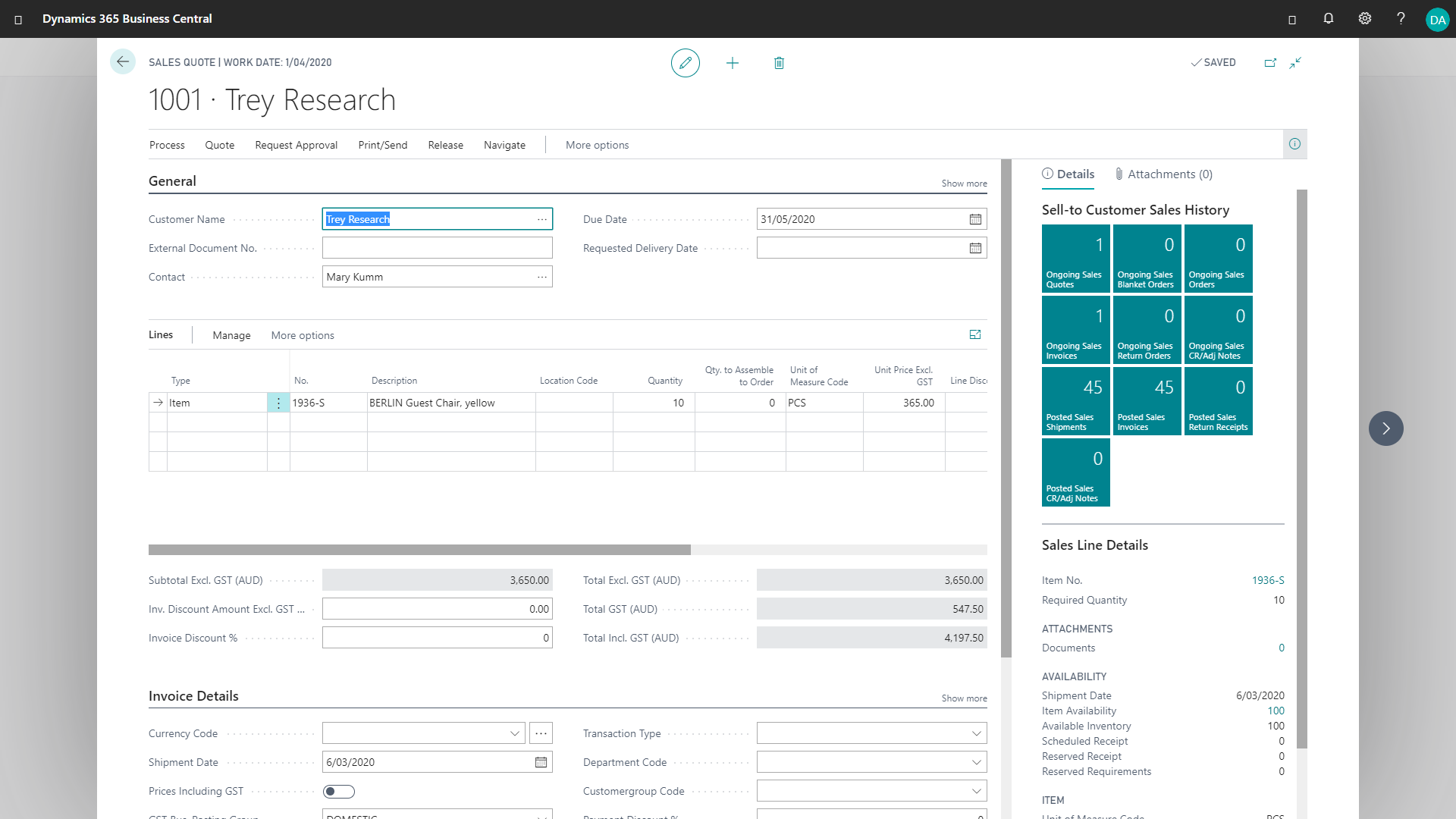
A sales quote is a document that you send to a customer to propose a sale. It includes information about the products or services you are offering, the price, and any terms and conditions. To create a sales quote in Business Central, follow these steps:
- From the Sales menu in the navigation bar, select Sales Quotes.
- In the Customer field, enter the name of a customer.
- Other fields on the Sales Quote page contain standard information of the selected customer.
- Several fields on the sales quote are now filled with information that you specified on the new customer card.
- Fill in the remaining fields on the Sales Quote page as necessary. Hover over a field to read a short description.
- You can now fill in the sales order lines for products that you are selling to the customer or for any transaction with the customer that you want to record in a G/L account.
- On the Lines FastTab, in the Type field, select what type of product, charge, or transaction that you will post for the customer with the sales line.
- When the sales quote lines are completed, choose the Send by Email action.
- On the Send Emai page, fill in any remaining fields and review the embedded sales quote.
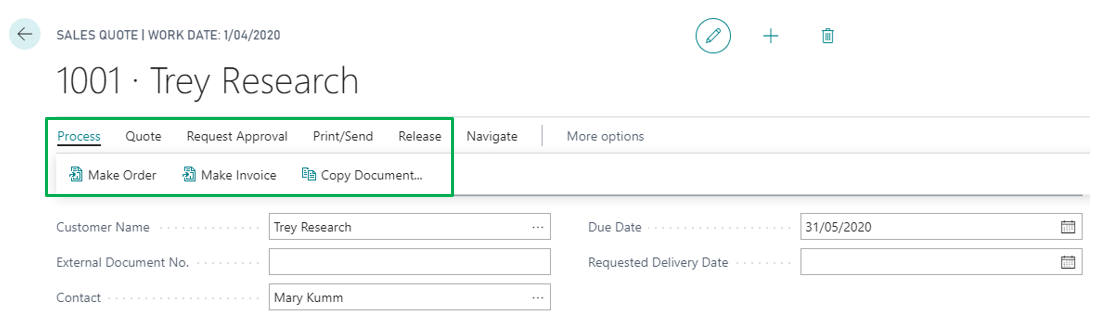
- If the customer accepts the quote, choose the Make Invoice or the Make Order action.
Invoice Sales
You create a sales invoice or sales order to record your agreement with a customer to sell certain products or services on certain delivery and payment terms.
There are a couple of scenarios where you must use a sales order instead of a sales invoice:
- If you need to ship only part of an order quantity, for example, because the full quantity is not on hand.
- If you sell items that your vendor delivers directly to your customer, known as drop shipment.
In all other aspects, sales orders and sales invoices work in the same way.
You can negotiate with the customer by first creating a sales quote, which you can convert to a sales invoice when you agree on the sale. If the customer decides to buy, you post the sales invoice to create the related quantity and value entries. When you post the sales invoice, you can also email the document as a PDF attachment.
You can have the email body prefilled with a summary of the invoice and payment information, such as a link to PayPal. When the customer then pays the invoice, you can register that payment in different ways, depending on the size and preferred workflows of your organisation.
You can easily correct or cancel a posted sales invoice before it is paid. For example, this is useful if you want to correct a typing mistake or if the customer requests a change early in the order process. If the posted sales invoice is paid, then you must create a sales credit memo to reverse the sale.
The item card can be of type Inventory, Service, and Non-Inventory to specify if the item is a physical inventory unit, a labour time unit, or a physical unit that is not kept on inventory. The sales invoice process is the same for all three item types.
Registering Payments
Depending on your business needs, you can get paid and register that payment in different ways: manually, automatically, and through payment services.
You can process the payments straight from the customer card. Use the Register Customer Payments action to get an overview of unpaid invoices for that customer. Then, mark the invoice as paid partially or in full. This payment reconciliation processes your customer payments by matching amounts received on your bank account with the related unpaid sales invoices, and then posts the payments.