Microsoft Dynamics 365 Business Central Processing Purchases
How to Process Purchases in Business Central
Business Central supports all typical tasks and information that you need to manage purchases and payables. When you want to purchase a product and service, you typically start the purchase process with a purchase order.
Purchasing Process Flow
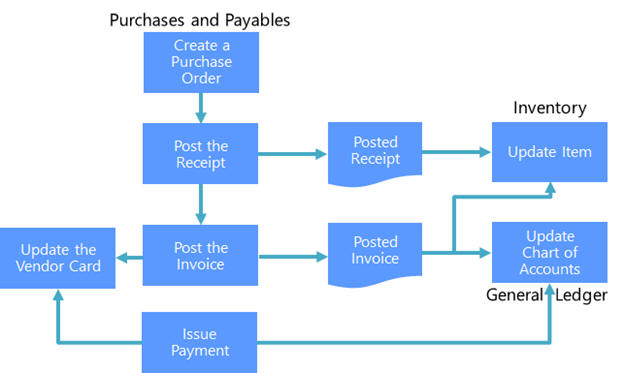
The Purchasing Process Flow shows the effect on Inventory and G/L and the steps performed in typical purchase and payables tasks and the impact they have on other application areas. For the purchase process, the central purchasing document is a purchase order.
If you purchase items, you will receive items resulting in a posted receipt that will update the inventory for the purchased item. You will also receive the invoice from the vendor. If you register and post the purchase invoice, a posted invoice is created that will update the general ledger by updating the chart of accounts and it will also update the item.
The vendor card will also be updated and based on that update the final step in a typical purchase process is the issuing of the payment and that will also update the vendor card and the chart of accounts.
How to Create a Purchase Invoice
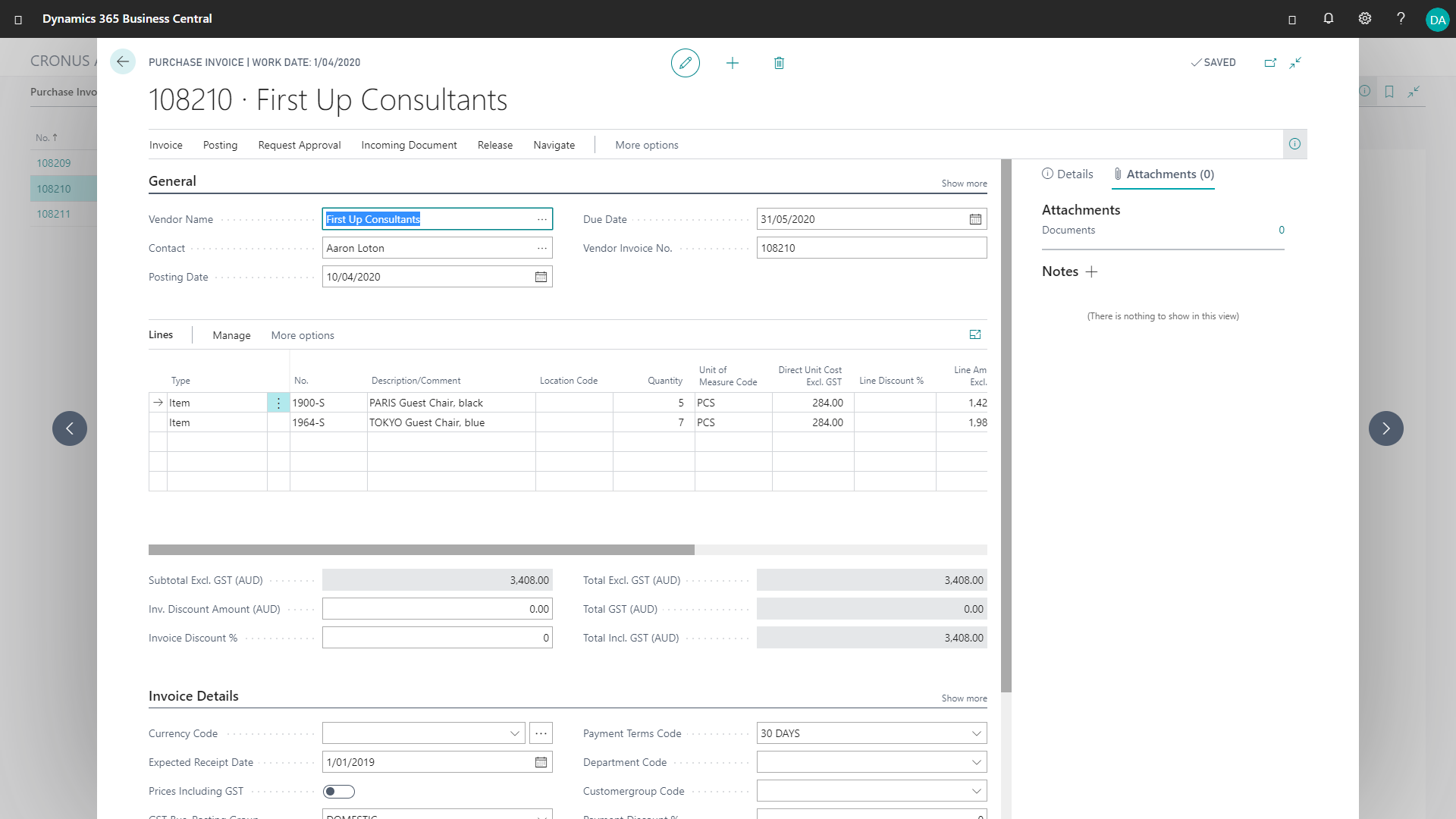
The following describes how to create a purchase invoice. The steps are similar for a purchase order. The main difference is that purchase orders have additional fields and actions for physical handling of items.
- From the Purchasing menu in the navigation bar, select Purchase Invoices.
- In the Vendor field, enter the name of an existing vendor.
- Other fields on the Purchase Invoice page are now filled with the standard information of the selected vendor.
- Fill in the remaining fields on the Purchase Invoice page as necessary. Hover over a field to read a short description.
- You are now ready to fill in the purchase invoice lines with items or resources that you have purchased from the vendor. The totals fields under the lines are automatically updated as you create or modify lines to display the amounts that will be posted to the ledgers.
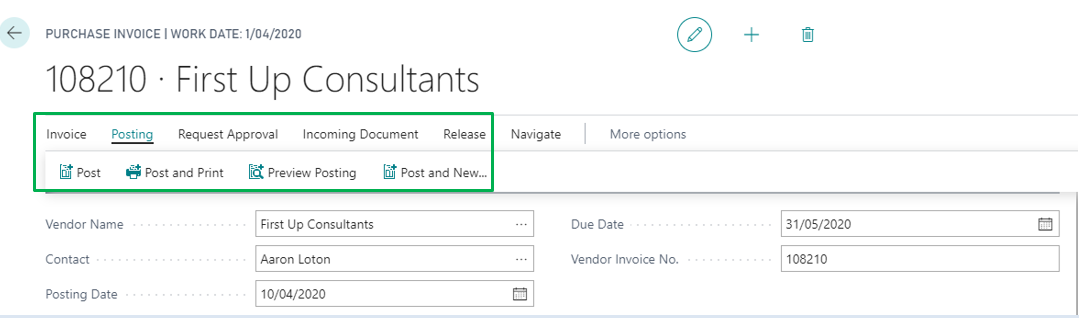
- When you receive the purchased items or services, choose Post.
The purchase is now reflected in inventory, resource ledgers, and financial records, and the vendor payment is activated. The purchase invoice is removed from the list of purchase invoices and replaced with a new document in the list of posted purchase invoices.
Request Quotes
A purchase quote can be used as a preliminary draft for a purchase order, and the order can then be converted to a purchase invoice or an order.
To create a purchase quote:
- From the Purchasing menu, select Purchase Quotes.
- Create a new document, in the same way as you make a purchase order.
To convert a purchase quote to a purchase order:
- When you have accepted the vOpen a purchase quote is ready to convert, then choose the Make Order action.
- The purchase quote is removed from the database. A purchase invoice or a purchase order is created based on the information in the purchase quote in which you can process the purchase. In the Quote No. field on the purchase vendor’s quote, you can convert it to a purchase invoice or order to process the purchase.
- Whether it is an invoice or purchase order, you can see the number of the purchase quote that it was made from.
Making Payments
When you make payments to vendors or customers, or reimburse your employees, you post the related payment lines on the Payment Journal page. The payment journal is a general journal that is optimised for making payments and includes a number of powerful functions such as the Suggest Vendor Payments function that finds vendor payments that are due, and the Vendor - Summary Aging report that shows an overview of due vendor payments.
You can start the process of making the payment from the lists, cards, and ledger entries for vendors, customers, and employees. Each of these pages has a button that starts the payment flow and helps you fill in the payment journal. From the payment journal, you can print computer checks or record when checks are written. If you select Computer Check in the Bank Payment Type field, then any lines representing checks must be printed before the payment journal can be posted. When the payments are posted, you can export them to a bank file for upload to your bank for processing.