Microsoft Dynamics 365 Business Central Notes, Links, Attachments, Comments
Working With Factbox Cards
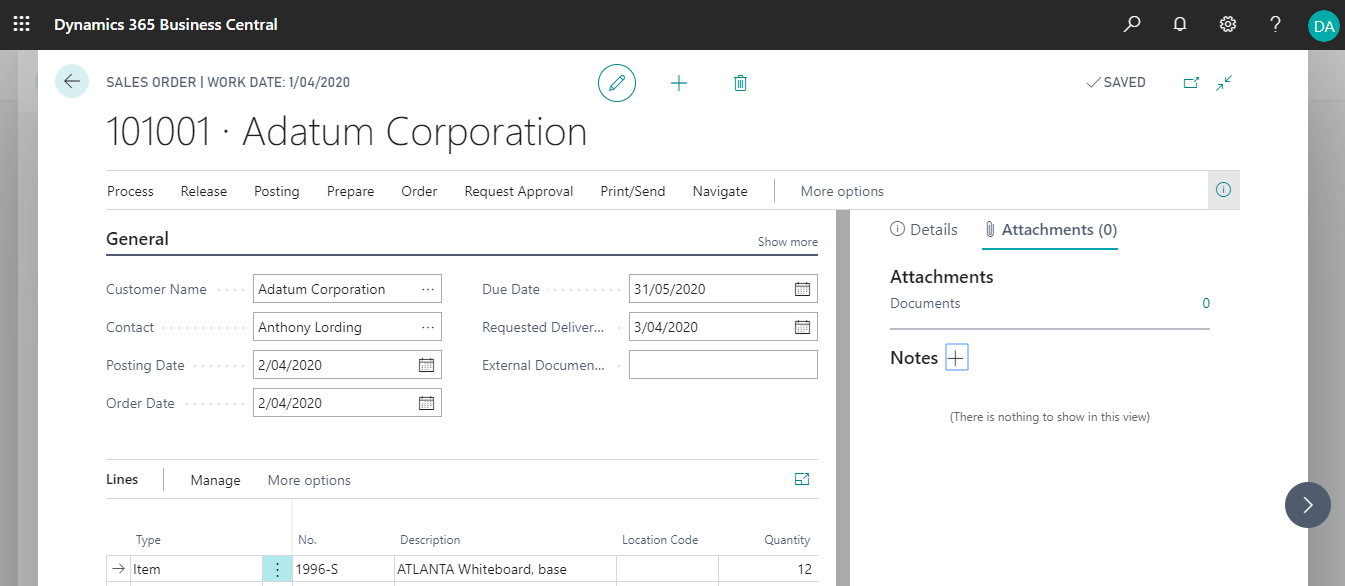
In the FactBox on most cards and documents, you can attach files, add links, and write notes. For links and notes, you can also do this on the list page by first selecting the related line. To view or change any of these attached information types, you must first open the Attachments tab in the FactBox. The number behind the tab title indicates how many attached files, links, or notes exist for the card or document. Attachments, links, and notes stay attached as the card or document is processed into other states, such as from an ongoing sales order to a posted sales invoice. However, none of the attachment types are output from the system, for example, when printing or when saving to a file.
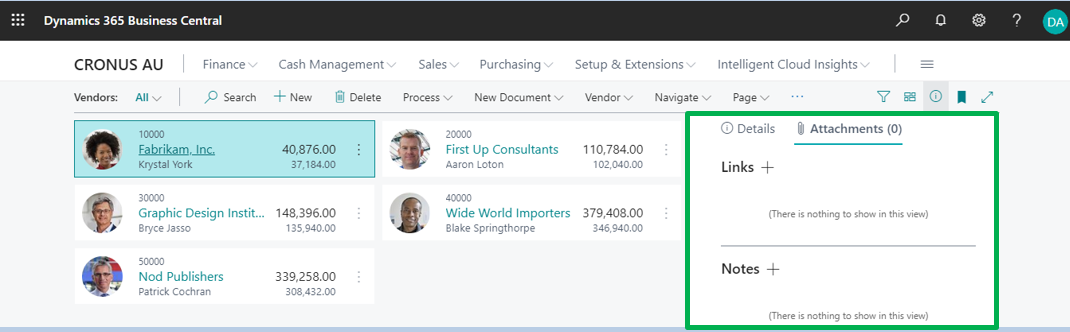
To Attach a File to a Purchase Invoice
You can attach any type of file, containing text, image, or video, to a card or document. This is useful, for example, when you want to store a vendor’s invoice as a PDF file on the related purchase invoice in Business Central.
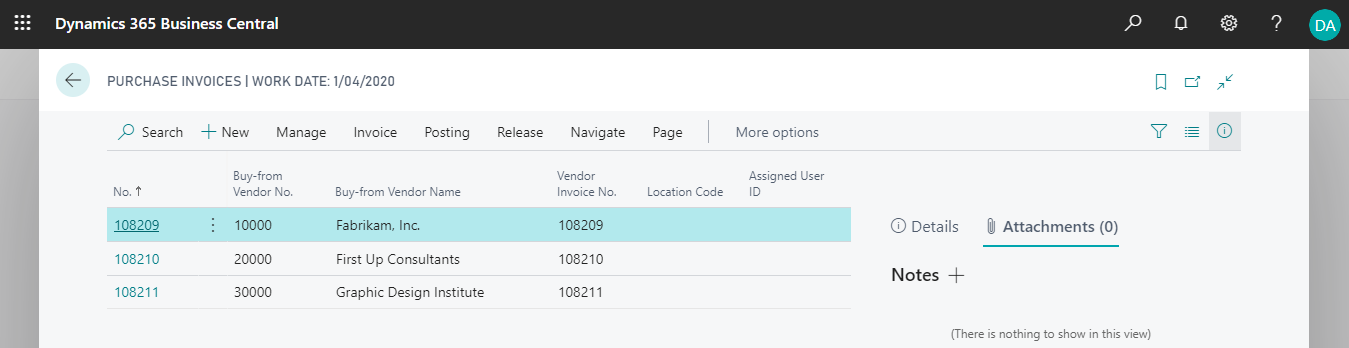
The following procedure is based on a purchase invoice. The steps are similar for all other supported documents and cards.
- Click the Search icon, enter Purchase Invoices, and then choose the related list.
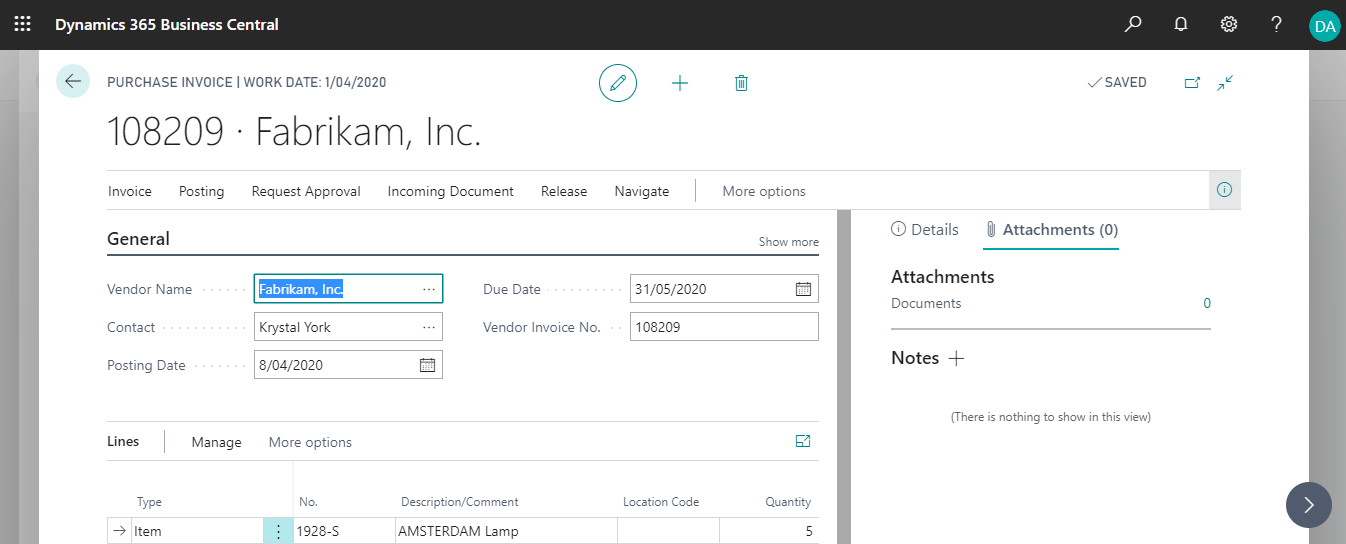
- Open the purchase invoice that you want to attach a file to.
- In the FactBox, open the Attachments tab.
- Choose the value behind the Documents field, such as “0”.
- On the Attached Documents page, in the Attachment field, choose the Select File button.
- Select a file from any location, and then choose the Open button.
The file is now attached to the purchase invoice.

To Write a Note on a Sales Order
You can write a note on a document or card, for example, to communicate special instructions to other users of the document or card. You can include file links and URLs in notes.
The following procedure is based on a sales order. The steps are similar for all other supported documents and cards.
- Click the Search icon, enter Sales Order, and then choose the related list.
- Select the sales order that you want to write a note on, and then choose the Attachments tab in the FactBox.
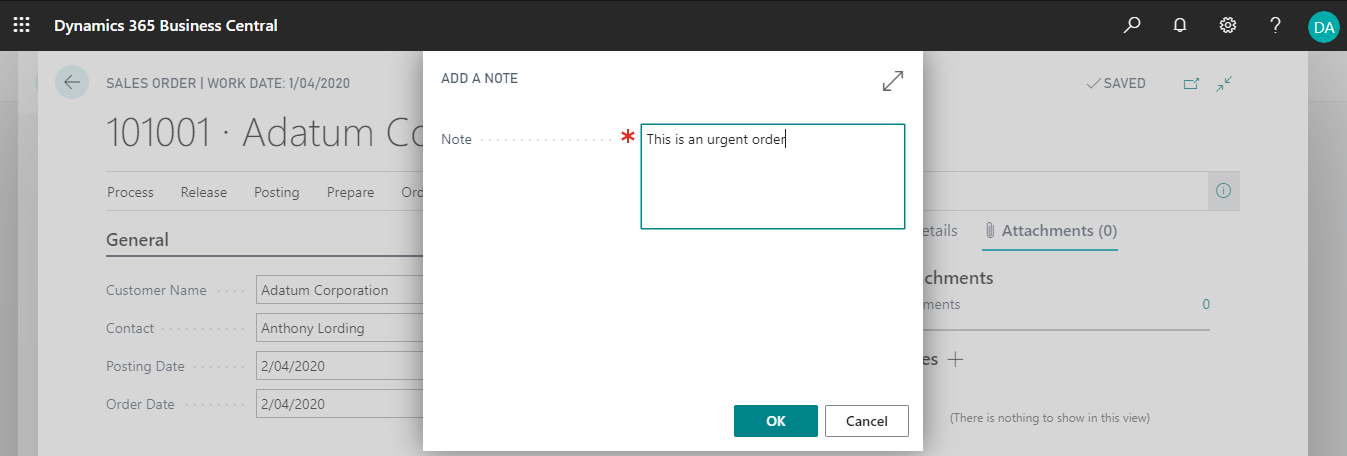
- In the Notes section, choose the + icon.
- In the Note field, write any text, such as “This is an urgent order.”.
- Click the OK button.
The note is now attached to the sales order.
Use Add A Note to add a note to the item card.
Items are itemized in a list.
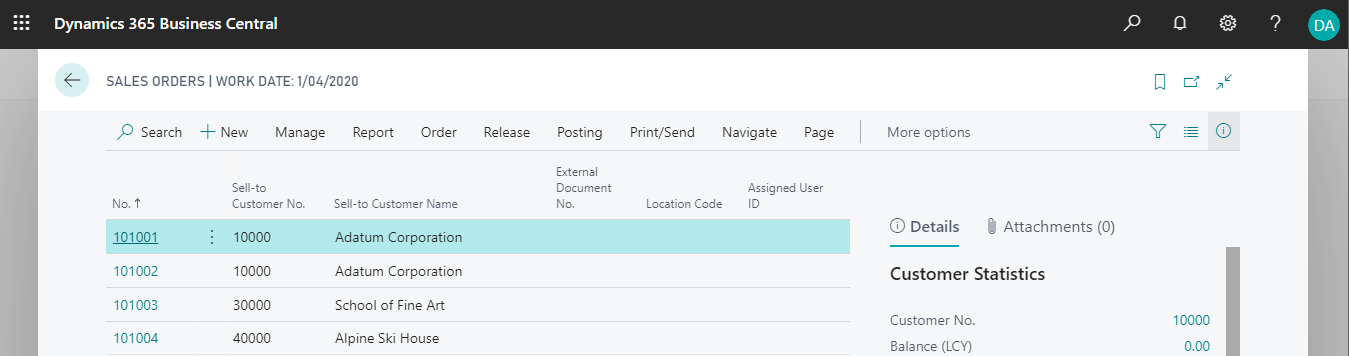
This is a typical sales order.
To Add a Link from an Item Card
You can add a link from a card or document to any URL or path. This is useful, for example, when you want to link an item card with the supplier’s item catalog.
The following procedure is based on an item card. The steps are similar for all other supported cards and documents.
- Click the Search icon, enter Item, and then choose the related list.
- Select the item that you want to add a link from, and then choose the Attachments tab in the FactBox.
- In the Links, choose the + icon.
- In the Link Address field, enter the link. The link must be a valid internet or intranet URL.
- In the Description field, enter any information about the link.
- Click the OK button.
The link is now attached to the item card.