Microsoft Dynamics 365 Business Central Bank Reconciliation
How to Reconcile Bank Transactions in Business Central
You perform bank reconciliation to make sure that your various business transactions and expenses are reflected correctly in the company books. You do this by comparing and matching entries in your internal bank accounts with bank transactions at your bank, and then posting the balances to your internal bank accounts to make totals available to finance managers. Bank reconciliation is also a practical way to discover and resolve missing payments and bookkeeping errors.
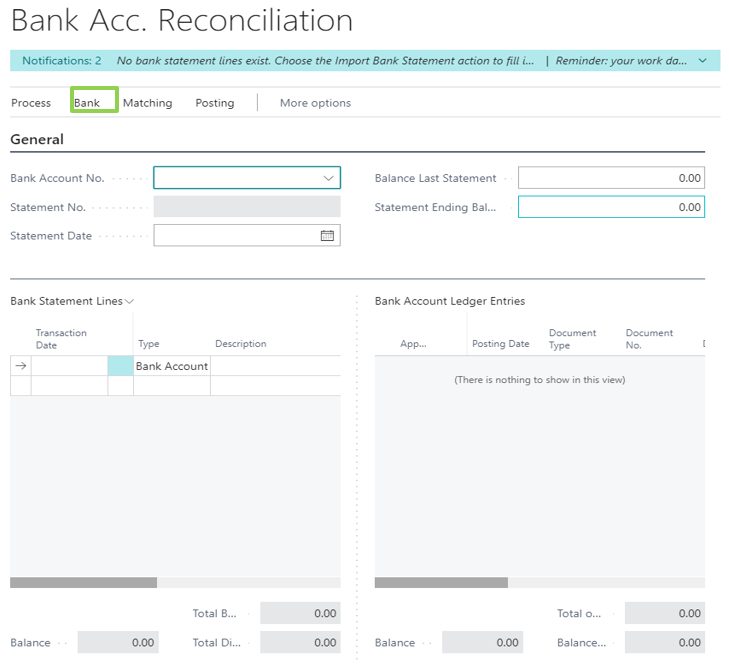
The lines on the Bank Acc. Reconciliation page are divided into two panes. The Bank Statement Lines pane shows either imported bank transactions or ledger entries with outstanding payments. The Bank Account Ledger Entries pane shows the ledger entries in the internal bank account.
Fill Bank Reconciliation Lines by Importing a Bank Statement
The Bank Statement Lines pane will be filled with bank transactions according to an imported file or stream provided by the bank.
- Choose the “search glass” icon, enter Bank Account Reconciliation, and then choose the related link.
- Choose the New action.
- In the Bank Account No. field, select the relevant bank account. The bank account ledger entries that exist on the bank account appear in the Bank Account Ledger Entries pane.
- In the Statement Date field, enter the date of the statement from the bank.
- In the Statement Ending Balance field, enter the balance of the statement from the bank.
- If you have a bank statement file, choose the Import Bank Statement action by clicking the Bank button.
- Locate the file, and then choose the Open button to import the bank transactions into the Bank Statement Lines pane on the Bank Acc. Reconciliation page.

Matching Bank Statement Lines with Bank Account Ledger Entries Manually
The Bank Statement Lines pane will be filled according to invoices in Business Central that have outstanding payments.
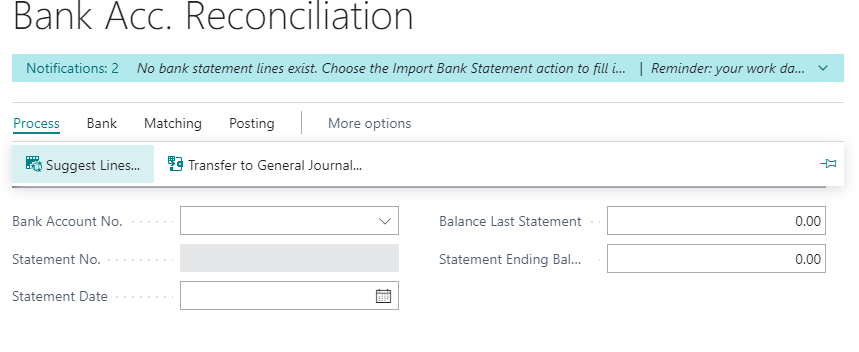
- On the Bank Acc. Reconciliation page, choose the Suggest Lines action.
- In the Starting Date field, enter the earliest posting date for the ledger entries to be reconciled.
- In the Ending Date field, enter the latest posting date for the ledger entries to be reconciled.
- Select the Include Cheques check box to suggest cheque ledger entries instead of the corresponding bank account ledger entries.
- Choose the OK button.
Matching Bank Statement Lines with Bank Account Ledger Entries Automatically
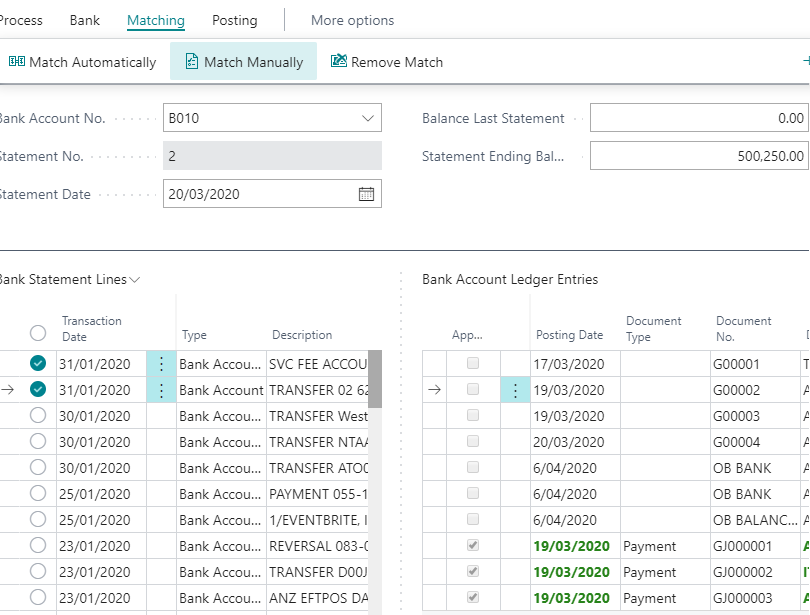
The Bank Acc. Reconciliation page offers automatic matching functionality based on a matching of text on a bank statement line (left pane) with text on one or more bank account ledger entries (right pane). Note that you can overwrite the suggested automatic matching, and you can choose to not use automatic matching at all.
- On the Bank Acc. Reconciliation page, choose the Match Automatically. The Match Bank Entries page opens.
- In the Transaction Date Tolerance (Days) field, specify the span of days before and after the bank account ledger entry posting date within which the function will search for matching transaction dates in the bank statement.
Note: If you enter 0 or leave the field blank, then the Match Automatically function will only search for matching transaction dates on the bank account ledger entry posting date.
- Choose the OK button.
Note: All bank statement lines and bank account ledger entries that can be matched change to green font, and the Applied check box is selected.
- To remove a match, select the bank statement line, and then choose the Remove Match action.

Matching Bank Statement Lines with Bank Account Ledger Entries Manually
To match bank statement lines with bank account ledger entries manually:
- On the Bank Acc. Reconciliation page, select a non-applied line in the Bank Statement Lines pane.
- In the Bank Account Ledger Entries pane, select one or more banks account ledger entries that can be matched with the selected bank statement line. To choose multiple lines, press and hold the Ctrl key.
- Choose the Match Manually action.
- The selected bank statement line and the selected bank account ledger entries change to green font, and the Applied check box in the right pane is selected.
Repeat steps 1 through 3 for all bank statement lines that are not matched. To remove a match, select the bank statement line, and then choose the Remove Match action.
Creating Missing Ledger Entries
Sometimes a bank statement contains amounts for interest or fees charged. Such bank statement lines cannot be matched because no related ledger entries exist in Business Central. You must then post a journal line for each transaction to create a related ledger entry that it can be matched with.
To create missing ledger entries to match bank statement lines with, follow these steps:
- On the Bank Acc. Reconciliation page, choose the Transfer to General Journal action.
- On the Trans. Bank Rec. to Gen. Jnl. page, specify which general journal to use, and then choose the OK button. The General Journal page opens containing new journal lines for any banks statement lines with missing ledger entries.
- Complete the journal line with relevant information, such as the balancing account.
- To review the result of posting before you post, choose the Test Report action. The Bank Account Statement report opens and shows the same fields as at the header of the Bank Acc. Reconciliation page.
- Choose the Post action.
When the entry is posted, proceed to match the bank statement line to it.
- Refresh or reopen the Bank Acc. Reconciliation page. The new ledger entry will appear in the Bank Account Ledger Entries pane.
- Match the bank statement line with the bank account ledger entry, either manually or automatically.
Workaround for Incorrectly Posted Bank Reconciled Journals
So far, Business Central does not allow to reopen / redo the bank reconciliation once posted.
If there is a transaction that is reconciled but shouldn’t be, usually because the incorrect transaction for the same amount was matched, you’ll have to enter a journal and reconcile those transactions against each other so there is zero effect on the Bank Statement but the transactions are now all marked as closed.
Case Example
Two transactions for $40 are recorded in the Bank Account with Posting Date 04/10/2019. One was a cheque and the other was a bank charge.
When the Bank Reconciliation was performed on 31/10/2019 the cheque transaction on the Bank Account Entries was matched to the Bank Statement Entry for the cheque that was issued. This reconciliation was subsequently posted.
Now on 2 November you discover the cheque is damaged and needs to be replaced. This means that the cheque needs to be reversed but can’t be because the Bank Account Ledger Entry is closed.
Solution
- Post a normal entry to reverse the original Cheque entry, (Dr Bank and Cr the relevant Vendor or G/L).
- Post a new entry for the re-issued cheque.
- On the next Bank Reconciliation capture a Bank Statement Entry with a Statement Amount of zero.
- Match the Bank Charge entry to this line to get it closed.
- Match the Reversal entry posted above to the same Bank Statement Line.
- This has the effect of leaving an Applied Amount of Zero on the Bank Statement Line. This is a valid option.
- You may generate a Bank Reconciliation just for this purpose, using the Ending Date of the Statement that had the incorrect allocation, just to ensure that the dates of outstanding transactions is correct.
- Post the Bank Reconciliation and you will have the one cheque entry remaining as an outstanding item and the necessary transactions closed off.