Microsoft Dynamics 365 Business Central Sales Returns or Cancelations
How to Process Sales Returns or Cancelations
If a customer wants to return items or be reimbursed for items or services that you have sold and received payment for, you must create and post a sales credit memo that specifies the requested change. To include the correct sales invoice information, you can create the sales credit memo directly from the posted sales invoice or you can create a new sales credit memo with copied invoice information.
If you need more control of the sales return process, such as warehouse documents for the item handling or better overview when receiving items from multiple sales documents with one sales return, then you can create sales return orders. A sales return order automatically issues the related sales credit memo and other return-related documents, such as a replacement sales order, if needed.
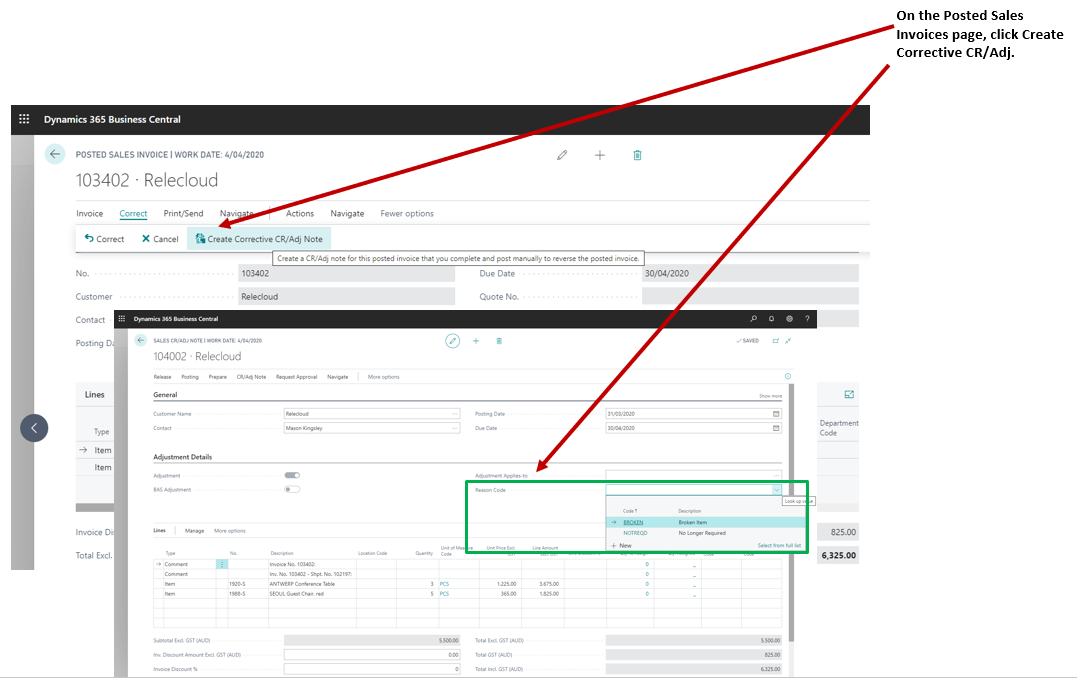
Create a Sales Credit Memo from a Posted Sales Invoice
Here are the steps to create a sales credit memo from a posted sales invoice:
- On the Posted Sales Invoices page, click Create Corrective CR/Adj.
The sales credit memo header contains some information from the posted sales invoice. You can edit this. Edit information on the lines according to the agreement, such as the number of returned items or the amount to reimburse.
- Click the Apply Entries action.
- On the Apply Customer Entries page, select the line with the posted sales document that you want to apply the sales credit memo to, and then choose the Applies-to ID action.
- In the Amount to Apply field, enter the amount that you want to apply if it’s smaller than the original amount.
- Click the OK button.
When you post the sales credit memo, it is applied to the posted sales documents. You can then post the sales credit memo.
- Click the Post and Send action.