User Access and Permission Sets Guide
Configuring User Access and Permission Sets
When a User is added from M365 (Microsoft 365), the default user profile (Business Manager Evaluation) and sets of permissions allow general access to all Business Central functions.
In the User Settings list page, you can re-define the default User Profile to update the UI look-and-feel for the user access so that the user’s role displays common functions used.
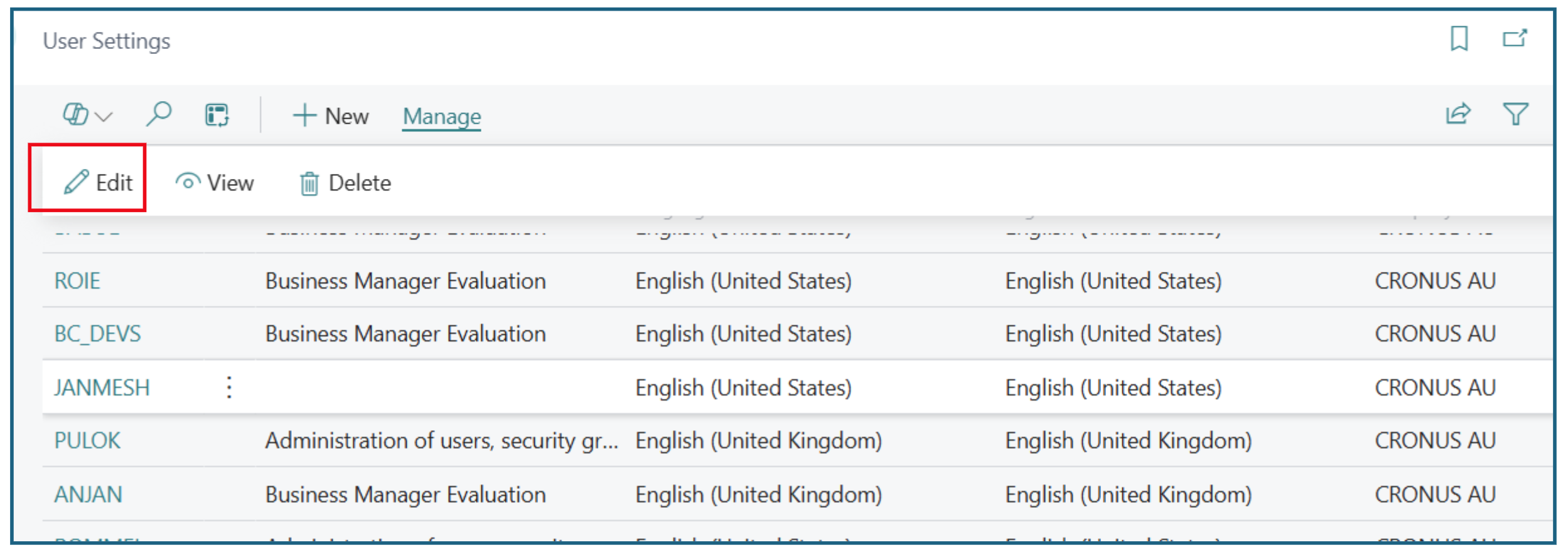
In the User Settings page for the user,
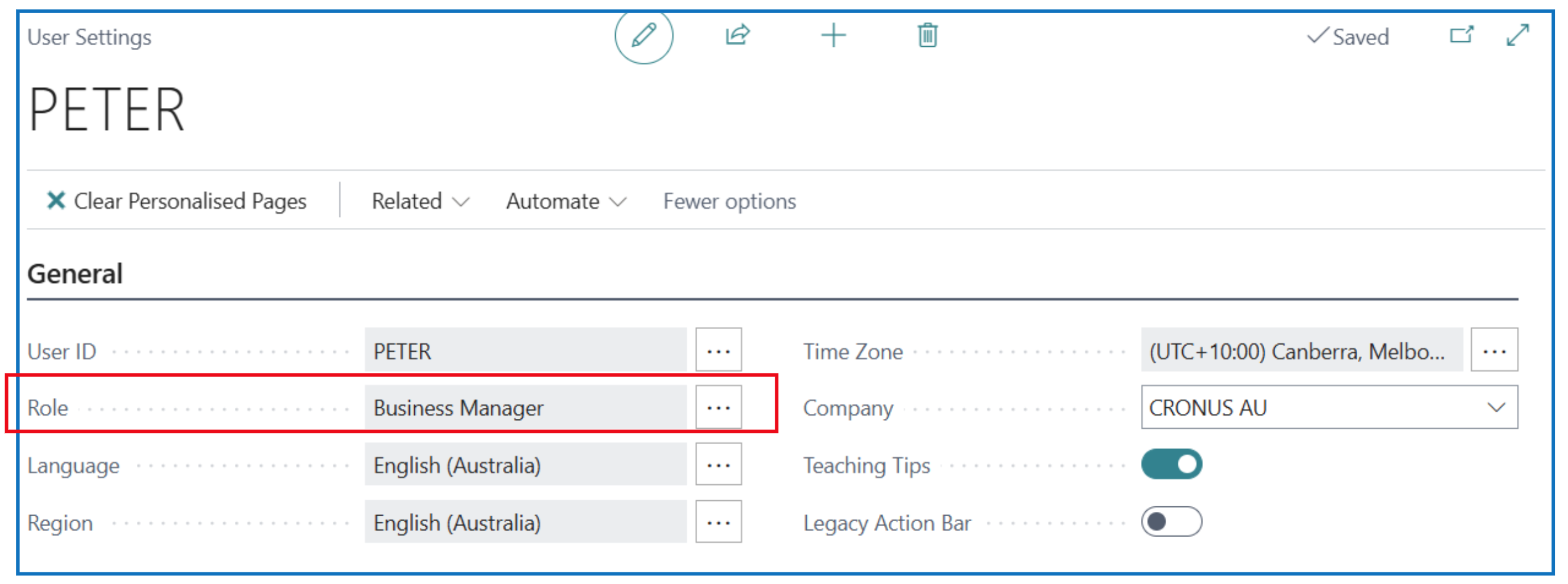
- Update the Role by selecting from the drop-down list
- Change the Company field to specify the company for access. If this field is left blank, the user can access all available companies in the same environment.
To further limit user access at the functional and data levels, the user’s permission sets must be changed. Navigate to the Users list page:
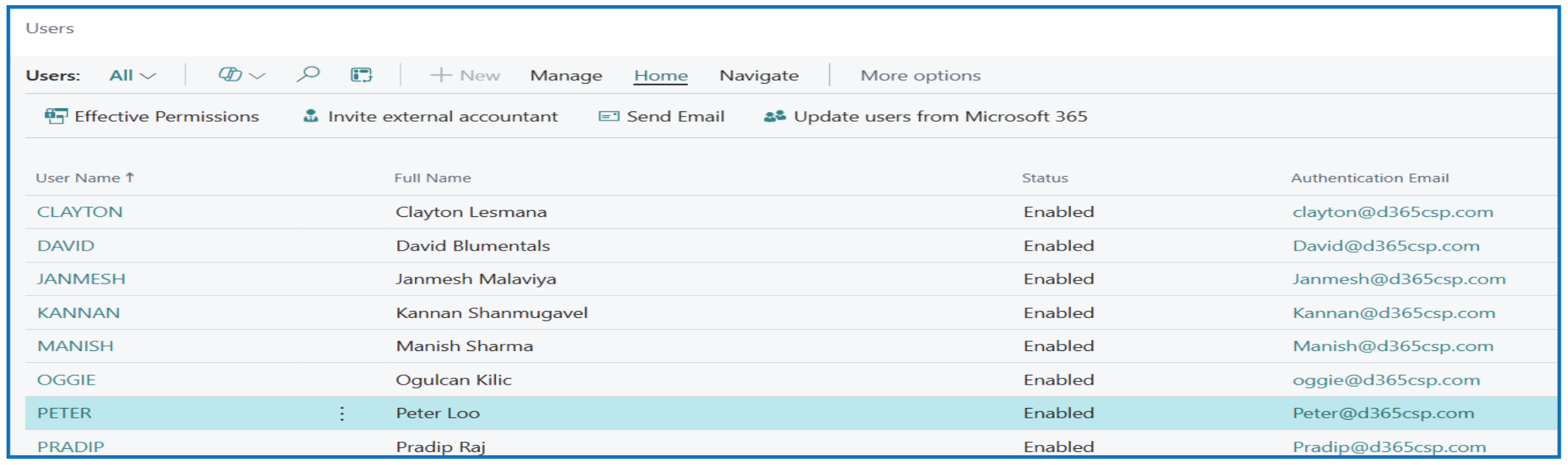
Click to open the selected User card,
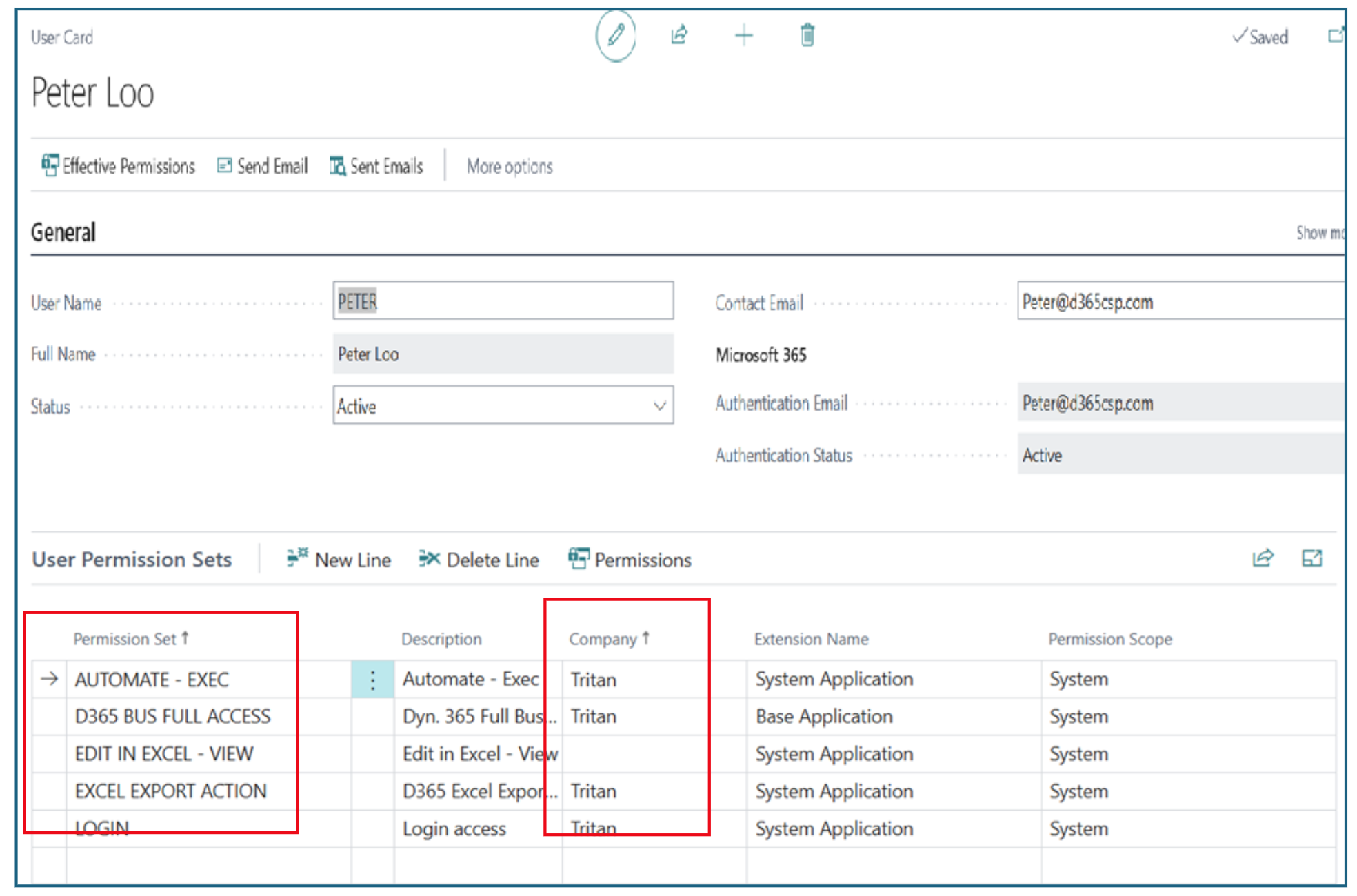
Permission Set:
- Remove D365 BUS FULL ACCESS
- Ensure that the following Permission Sets are selected for basic access to Business Central:
- AUTOMATE – EXEC
- EXCEL EXPORT ACTION
- LOGIN
- LOCAL
- BUS. FOUND. – EDIT
- SYSTEM APP. – BASIC
- D365 BASIC
- EDIT IN EXCEL – VIEW
- EXPORT REPORT EXCEL
- In the Company field, select the default company for user access. If this field is left blank, the user can select any of the companies in the environment.
There are different pre-defined Permission Sets to select for each user role. Select the relevant Permission Set(s) to add to the user. These permissions determine the data access (read, insert, modify, delete, execute) to the underlying tables and objects.
To further restrict access provided by the pre-defined standard Permission Sets, you should make a copy of the standard Permission Set to edit.
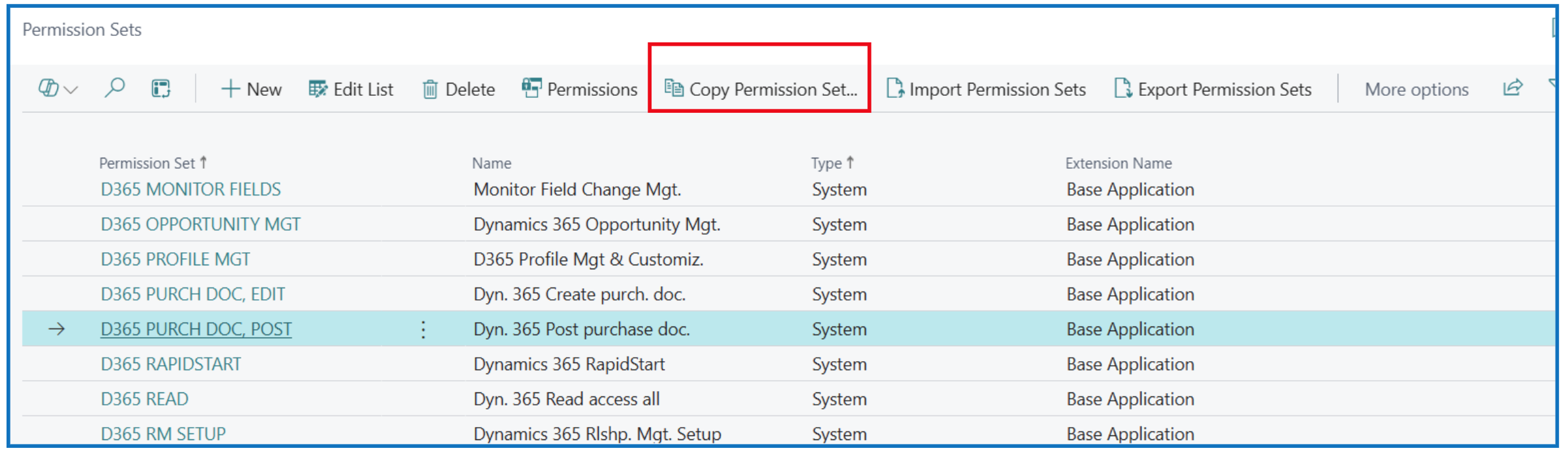
Highlight the standard Permission Set and click on Copy Permission Set. This opens a prompt to enter a new name for the Permission Set, and to select the Copy Operation.
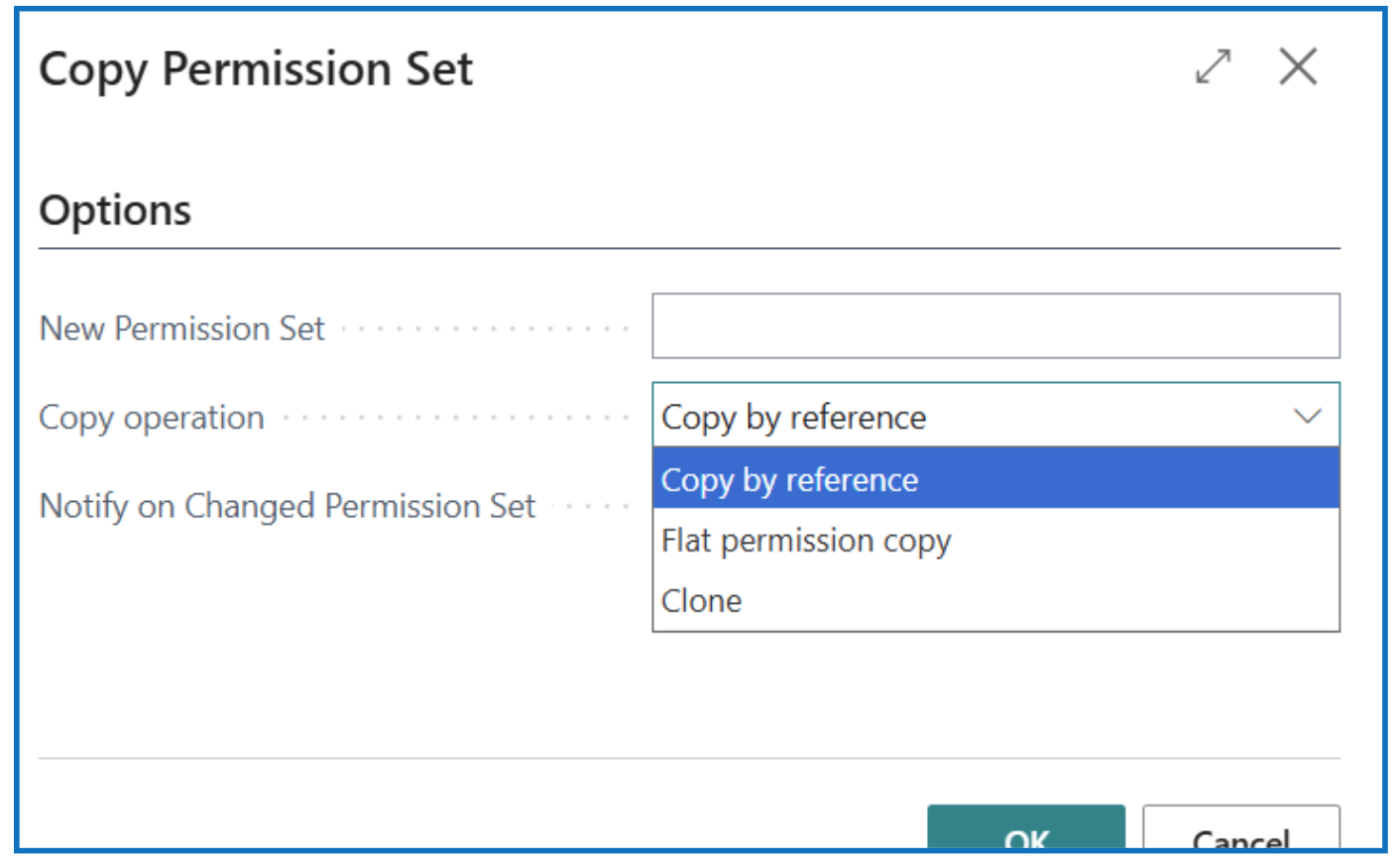
Copy Operation
Copy by reference
This creates a new permission set that references the original one. Any changes made to the original permission set will automatically apply to the copied set because they share the same underlying permissions.
Use Case
You want to create a new permission set for a different user group but keep it synchronized with the original. Example: You have a permission set called AP Supervisor and you need a similar set for AP Manager, but you want both to stay aligned when updates occur.
Flat Permission Copy
Copies the permissions as they are at the time of copying, creating a completely independent set. Future changes to the original will not affect the copied set.
Use Case
You need a snapshot of the current permissions for a role that will diverge later. Example: You copy Accountant permissions to create External Auditor, then remove posting rights from the new set without impacting the original.
Clone
Creates an exact duplicate of the permission set, including metadata like descriptions, and links it as a new object. It’s similar to Flat Copy but intended for quick duplication without manual adjustments.
Use Case
You want to create a new permission set that is identical to the original but with a different name for organizational purposes. Example: Clone Sales Manager to Sales Manager Backup for contingency planning
Summary
By assigning Role/Profile to the user to limit the user interface and provide relevant useful functions, it helps to facilitate and orientate the user to common functions for the role. The user can still search for other functions using the Find/Tell me search.
The Role/Profile only changes the UI experience. It does not limit access to data or functions. To further restrict access to certain data and functions, the user’s assigned Permission Sets need to be reviewed and changed.