Microsoft Dynamics 365 NDIS Incorrect Agreement Booking
Incorrect Agreement Booking Setup Created
The system creates the Agreement Booking Date records first when the Agreement Booking Setup is done. It takes about 30 minutes or so to create the Work Order & Bookings. This is the time window that we should be using to verify whether what we have entered in the Agreement Booking Setup & Booking Recurrence is correct or not. If not, make the changes instantly.
Agreement Booking Dates are generated based on the recurrence Pattern defined on the Booking Recurrence and other data like start time / resource / services to be billed is sitting on the Agreement Booking Setup record.
Agreement Booking Status
The Agreement Booking Date Status is explained below:
-
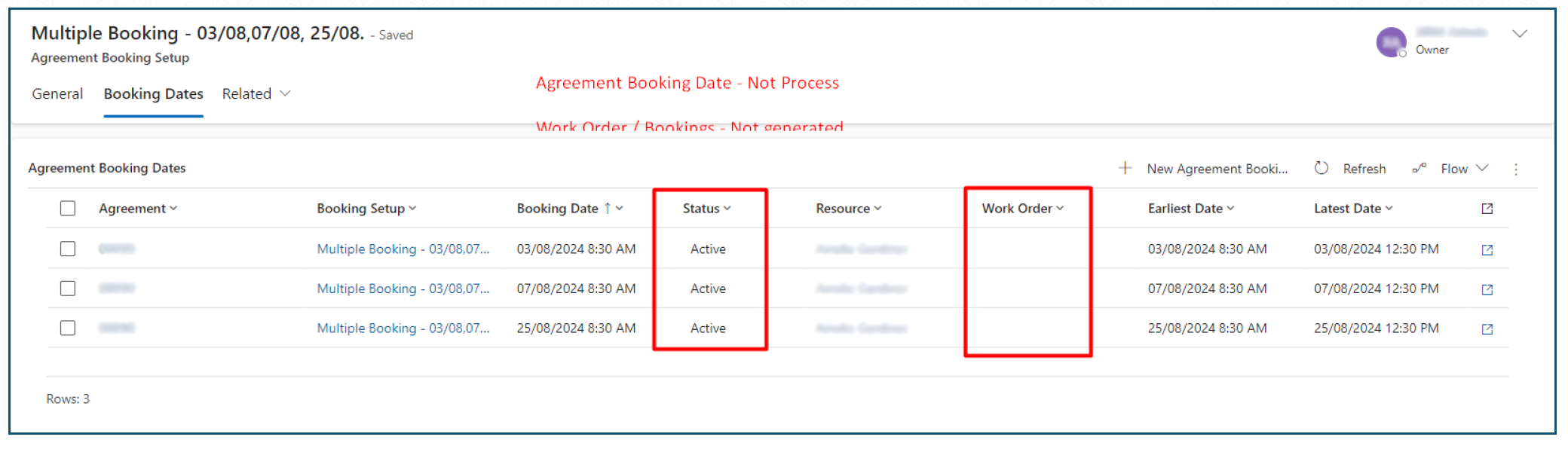
Active — The Work Order / Booking has not been generated yet. So, if you find an issue with the Agreement Booking Setup, you will update it right away. Whenever the Work Order / Booking will generate — it will account for new Data.
-
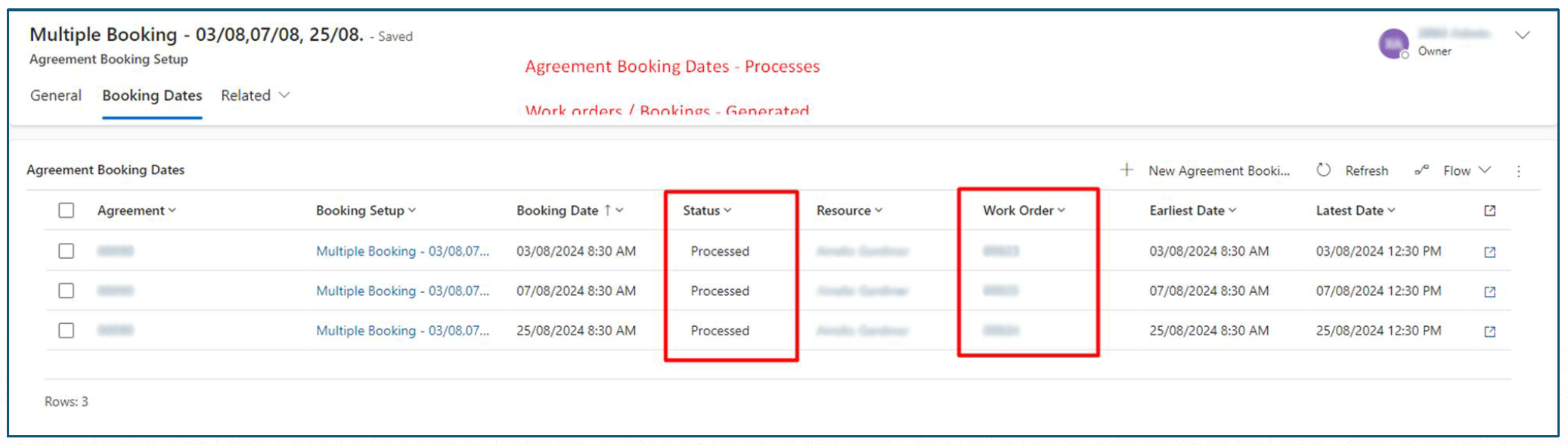
Processed — The Work Order / Booking has been generated. Any change to the Agreement Booking Setup including the Booking Recurrence will not impact on this Agreement Booking Date / WO / Booking record. So, in case you want to make a change, you will have to update the Work Order / Booking separately as well.
Ideally this is to be segregated in to a two-part process:
-
Updating the Agreement Booking Setup — Will only effect those Work Order / Booking records which have not been created yet.
-
Work Order / Booking Which have been created — For those we would have to individually go through those records and make the necessary update as required.
Updating Work Orders is an individual task based on each Work Order. Users can simply open an individual WO on which they want to make a change and update the same record with the new data.
If they want to update a couple of records with the same data, they can select the required records in a view and use the BULK EDIT option to update the data.