Finance Lease Management in Dynamics 365 Business Central User Guide
Introduction
This app is an extension to standard Business Central addressing the need for tracking assets that are leased through a financing arrangement that is considered “Finance Lease” (which is different from an Operating Lease).
The distinction follows the IFRS 16 (ASC 842) and the design of the app complies with this standard.
The app is designed to operate for both the lessor and the lessee, according to the setup.
Visit Microsoft AppSource d365 Financial Lease Management for Business Central
Finance Leasing Standard (IFRS 16)
Under IFRS 16, the core difference lies in lessor accounting, not lessee accounting, as the standard requires lessees to capitalize most leases on the balance sheet, effectively eliminating the operating lease classification for them. For lessors, a lease is classified as a finance lease if it transfers substantially all the risks and rewards of ownership to the lessee.
Finance Lease (Lessor) key points:
- Risks & Rewards: The lessor transfers substantially all the risks and rewards of ownership to the lessee.
- Balance Sheet: The lessor derecognises the asset and recognises a receivable equal to the net investment in the lease.
- Income: Lease income is recognised based on a return on the net investment.
Finance Lease (Lessee) key points:
- Recognition of ROU Asset and Lease Liability: For most leases, lessees must recognise a lease liability and a corresponding ROU asset on their balance sheet.
- Initial Measurement:
- Lease Liability: Measured at the present value of lease payments not yet paid at the commencement date.
- ROU Asset: Measured at the amount of the initial lease liability plus any initial direct costs and costs to dismantle or restore the asset.
- Subsequent Measurement:
- The ROU asset is depreciated.
- The lease liability is adjusted for interest, and lease payments are applied to reduce the liability.
- Exemptions:
- Short-Term Leases: Lessees can elect to treat leases with a term of 12 months or less as an expense, rather than capitalizing them.
- Low-Value Assets: There is also an exemption for leases of low-value assets, where the lease payments can be expensed.
Finance Lease Configuration
User Role - Finance Lease Manager
A new User Role “Finance Lease Manager” has been created to provide a dashboard for users.

Finance Lease Setup
Using the Finance Lease Manager profile:
- Select menu option [Lease Management] > [Lease Setup] (or search for Lease Setup)
- The Lease Setup page opens
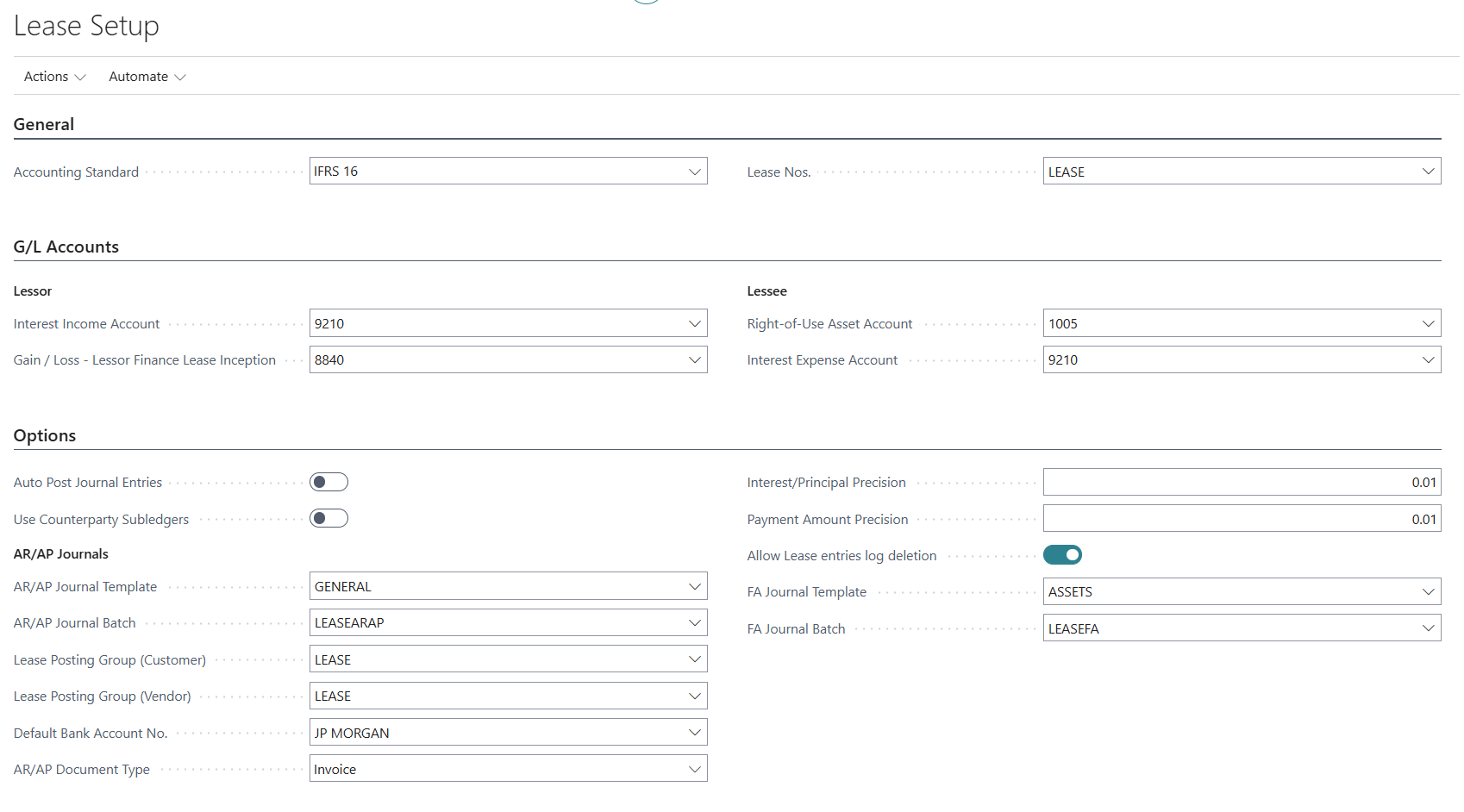
Under the General FastTab section
- Accounting Standard – this is an information field where you select the accounting standard chosen for your finance/capital lease treatment
- Lease Nos. – this field defines the serial numbering of Leases. The numbering is defined under Serial No. page
Under G/L Accounts FastTab section
- Lessor Interest Income Account – for each monthly lease payment, the amortisation will breakdown the amount of interest income and principal (lease receivable) deduction. Gain / Loss – Lessor Finance Lease Income – if the present value of lease payments (PV) is greater than or less than the asset book value, the difference will be posted to this account.
- Lessee Right-of-Use Asset Account – this is the default account for recognising the asset value (PV of the lease payments) Interest Expense Account – for each periodic lease payment, the amortisation will post interest expense in this account while the principal portion of the payment will be posted to the lease liability account.
Under Options FastTab section
- Auto Post Journal Entries – Enable this to allow posting of journal entries from the Lease card
- Use Counterparty Subledgers – Enable this if you are tracking your Lease Receivable (Lessor’s perspective) or Lease Payable (Lessee’s perspective) using the sub-ledger account.
AR/AP Journals - AR/AP Journal Template – select the default template to use for the sub-ledger journal entries
- AR/AP Journal Batch – select the default batch to use for the sub-ledger journal entries.
- Lease Posting Group (Customer) – (for Lessor) select the default Customer Posting Group code to use for the sub-ledger entries. Your Leasing customers should belong to this Customer Posting Group
- Lease Posting Group (Vendor) – (for Lessee) select the default Vendor Posting Group code to use for the sub-ledger entries. Your Leasing Vendor should belong to this Customer Posting Group.
- Default Bank Account No. – select the default bank account for posting of Lease payments (cash inflow/outflow)
- AR/AP Document Type – select the “Invoice” default document type to use when posting Lease entries into sub-ledgers.
- Interest/Principal Precision – enter the currency rounding precision in calculating the PV values
- Payment Amount Precision – enter the currency rounding precision in computing the monthly payment
- Allow Lease Journal Log Deletion – this is always enabled to allow deletion of unposted monthly amortisation journal entries (if there is a need to re-run the amortisation calculation)
- FA Journal Template – select the default journal template to use for generated lease entries
- FA Journal Batch – create a journal batch as the default for system-generated leased asset journal entries.
Finance Lease for Lessor
Asset to be Leased
- The asset must be defined under Fixed Assets. It can be a new asset or an existing asset.
- Asset value (acquisition less depreciation) will be used as the measure of profit/loss from leasing out the asset.
- Asset depreciation will be defined in Fixed Asset module – this manages the periodic asset depreciation during the lease period.
Lease Card
Each lease (contract) will be associated with a Lease Card. To create a new lease card, select [Lease Management] > [New Lease], or search for Lease List.
To view existing lease, the list page is [Lease List]

The lease card must be completed for each new finance lease.

In the General FastTab section
- No. – this is the auto-sequence numbering of the Lease
- Lease Role – This is an important field. It determines if the lease calculation and posting entries are for the lessor or lessee, according to IFRS 16.
- Initial Entries Posted – this field indicates if the initial accounting entries for the lease have been posted. Once posted (enabled), the lease cannot be edited.
- Lease Description – enter a 100-char description for the lease
- Asset No. – use this flow field to select the linked asset from Fixed Asset master. By linking to an asset, the lease can be associated with the asset.
- ROU Asset No. – only used for the Lessee role.
- Asset Description – this field defaults from the linked Asset No.
- Status – this is a displayed (non-editable) field displaying the status of the lease:
- Draft – this is when the lease details are entered
- Active – when the lease is activated for calculation of amortisation
- Terminated – using the menu option [Actions] > [Lease] > [Terminate] to terminate the lease when the lease contract/agreement is no longer valid/enforced.
In the Counterparty FastTab section
- Customer/Vendor No. – use the flow field to select either a customer (for Lessor) or a vendor (for Lessee)
- Customer/Vendor Name – this field displays the selected customer/vendor.
In the Lease Terms FastTab section
- Lease Start Date – enter the start date of the lease
- Number of Years – enter the number of years for the lease contract
- Lease End Date – this field is computed based on Lease Start Date and Number of Years
- Interest Rate % - this is the interest rate used in amortisation calculation. For the Lessor, it is the interest rate charged on the lease contract. For the lessee, it is either the implicit interest rate for the PV of monthly payments or the InterBank Rate.
- Ownership Transfer – this field is for classification purposes only
- Purchase Option – this field is for classification purposes only
In the Financial Information FastTab section
- Payment Mode – select either Arrears or Advance. This important distinction determines the way the monthly payments are calculated.
- Arrears – payment is at the end of the lease month, and interest is earned for the month (including the first month)
- Advance – payment is at the beginning of the lease and interest is not earned for the first month but on subsequent payment months.
- Total Lease Amount – computed as the sum of all monthly lease payments for the duration of the lease
- Current Lease Liability – this field only applies to the Lessee
- Current Lease Receivable – the amount is the present value of all monthly payments at the interest rate indicated in Lease Terms
- Asset Value – this is defaulted from the Fixed Asset (book) value of the linked asset
- Fair Value – this is initially calculated as the PV of lease payments over the lease term, which is also equal to the Lease Receivable value. However, if the lessor has a higher or lower fair market value of the asset, this value can be entered in Fair Value field. Entry of a new value will prompt re-generation of the lease amortisation calculation.
- Residual Value – if the Lessor estimates that there is a residual value of the leased asset, it can be entered here to be included in computing the asset’s net leased value.
Calculating Leasing Schedule
Once the lease details are confirmed on the lease card, select [Actions] > [Functions] > [Generate Lease Lines] to compute the monthly amortisation based on the interest rate %, the Start and End Dates of the least, and the asset value.
This would generate an initial value for the lease receivable and generate an amortisation schedule that would reduce the lease receivable in the monthly payments.
Depending on the “Payment Mode” field (either Arrear or Advance), the lease schedule will be adjusted. For Arrear payment mode, the initial payment includes the split for interest income of the initial period. For Advance payment mode, the initial payment excludes interest for the initial month, so the full payment is applied to reduce the Lease Receivable.
The Lease Lines FastTab section provides the monthly lease payment and amortisation for the entire lease term, according to the Payment Mode.

NB: The lease lines can be re-generated whenever the following fields are updated:
- Payment Mode – Arrears or Advance
- Fair Value – if this is different from the initial asset book value
- Residual Value – if there is a residual value to be included in the PV calculation Generation of Lease Lines can also be done by selecting [Actions] > [Functions] > [Generate Lease Lines].
Posting Entries
After the Lease Lines (amortisation schedule) are generated, the next step is to Activate the Lease to lock it down for posting journal entries.
Select [Actions] > [Lease] > [Activate] to update the lease status to Active.

NB: the Active status can be (Reopen) reverted to Draft if there are no lease journals posted.
Leased Asset Acquisition - Initial Entries
The first entries when a lease is created for the asset are to recognise the lease receivable (Net Investment in Lease or Fair Value) and asset cost reduction (derecognising the asset that is now leased).
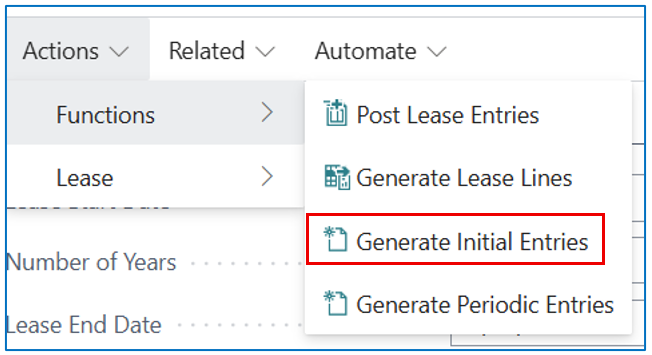
The initial entries for lease recognition will then be created in a Fixed Asset G/L Journal to derecognise the asset.
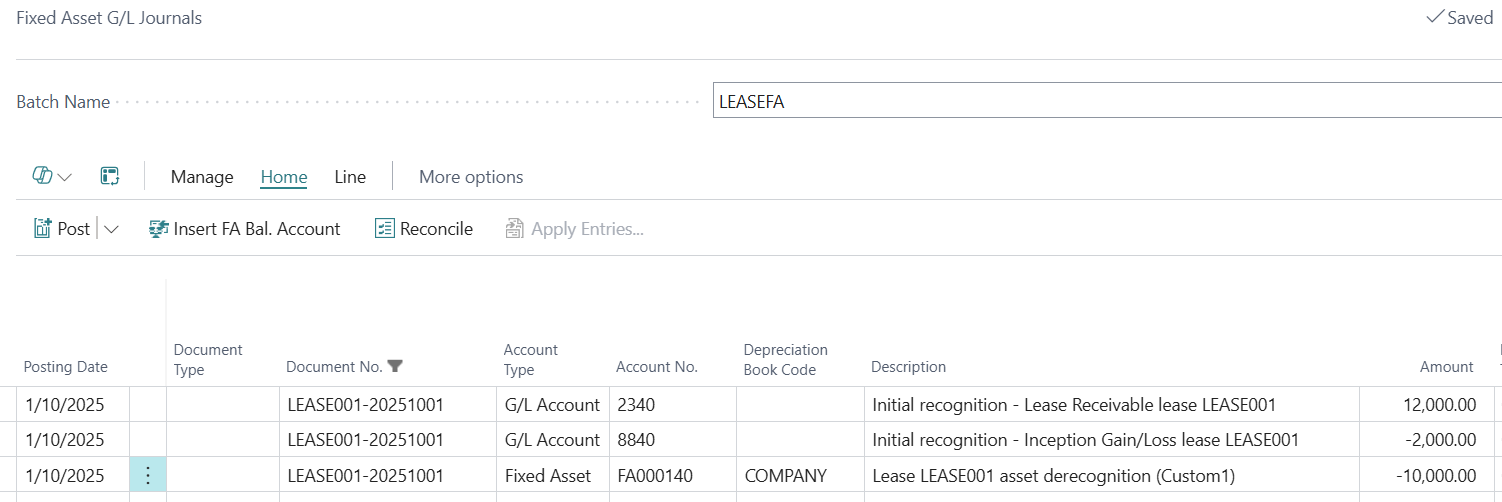
Posting date for the entry will be the Lease Start Date. The journal line description references the Lease No.
Lease Receivable is created with the posting of this journal. If Fair Value is higher than the asset book value, the gain is recognised and posted to the GL account defined in the Lease Setup.
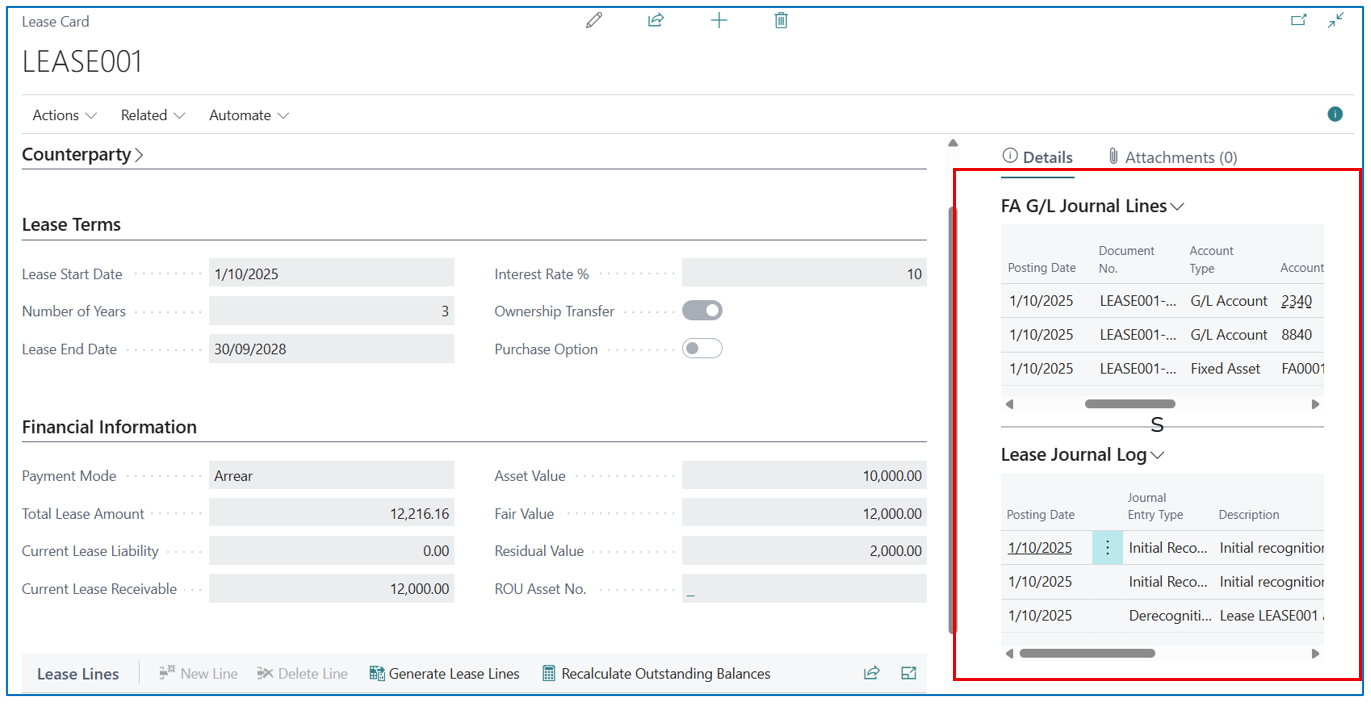
The journal entries (and Journal Log entries) can also be viewed in the FactBox from the Lease Card.
Lease Amortisation and Income Recognition
Lease amortisation entries begin from the first lease payment date (a month in arrear from Lease Start Date or same date as Lease Start Date if advance payment) and the monthly amortisation entries are created until the Lease End Date.
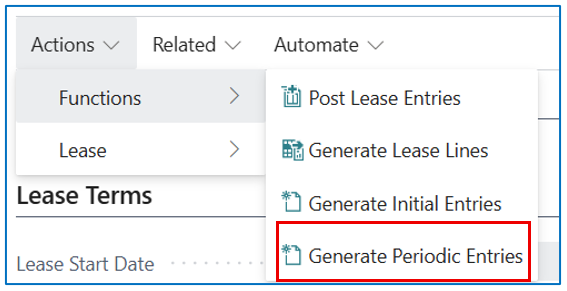
The number of monthly journal entries created depends on the Work Date in relation to the Lease Start Date. The auto-generation of Periodic Entries will create monthly entries until the Work Date period (month).
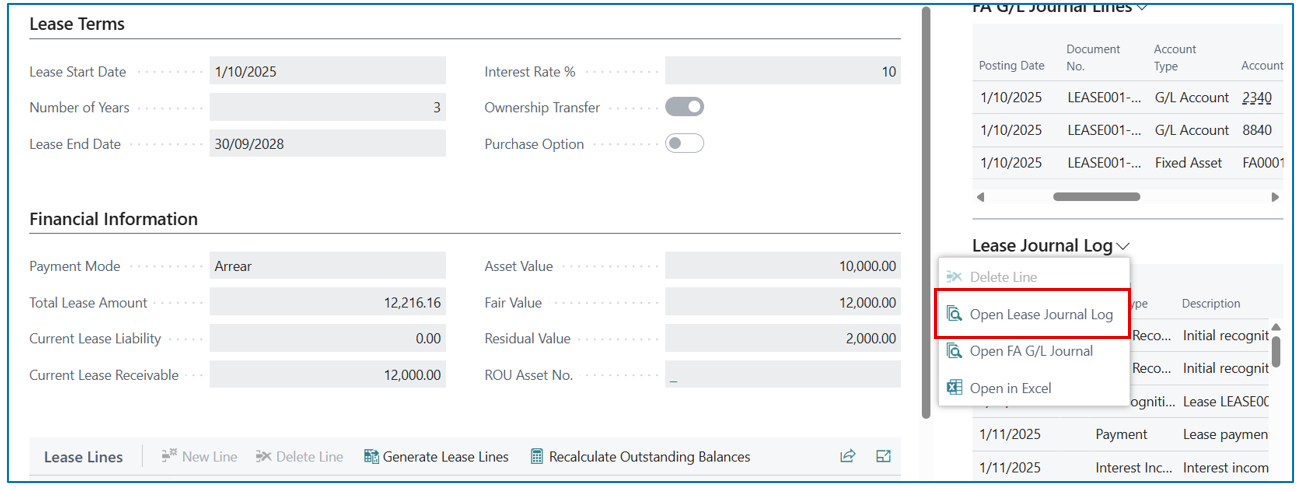
These periodic journal entries remain in Lease Journal Log (General Journal Batch) until posted. To view these entries, select the [Open Lease Journal Log] from the Lease Journal Log FactBox, or search “Lease Journal Log” page)
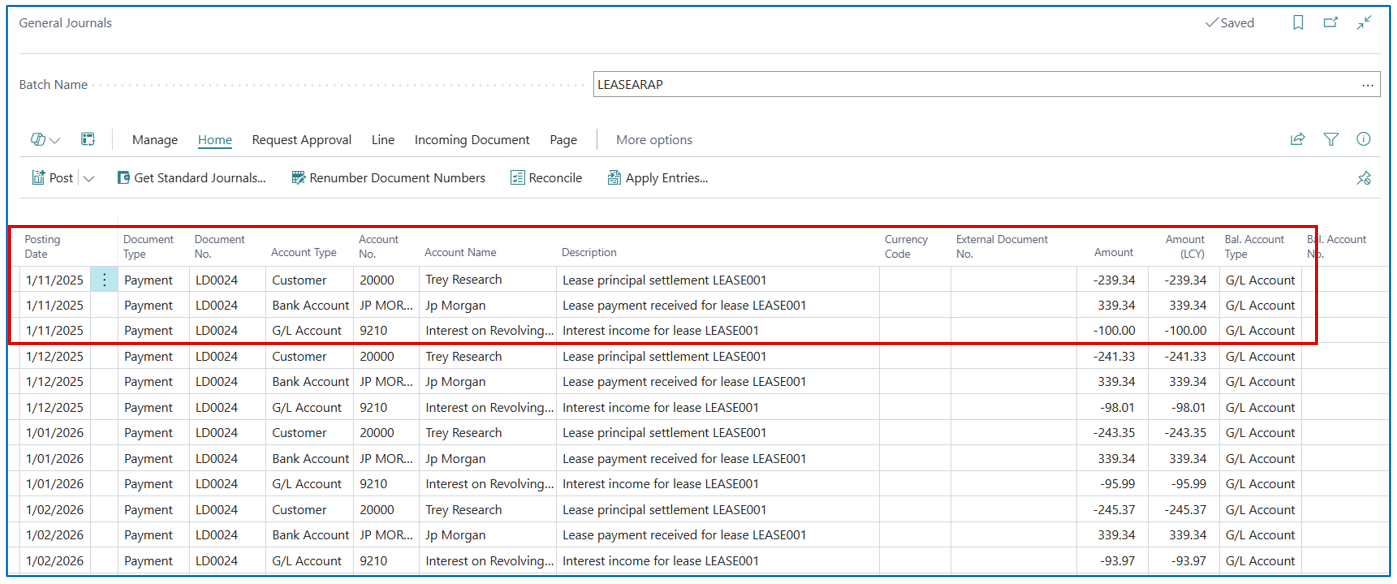
All monthly entries are grouped by posting date (date of expected monthly lease payment from the Lease Start Date).
NB: when your Work Date is updated daily and there are no lease amortisation entries for the month, the [Generate Periodic Entries] will create new monthly amortisation entries. If the entries are already created, it will not create a duplicate set of entries for the month.
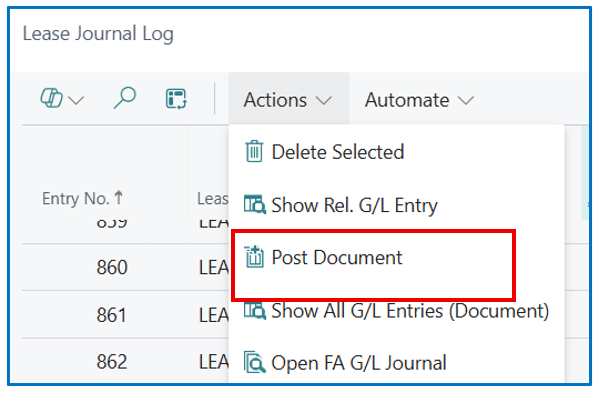
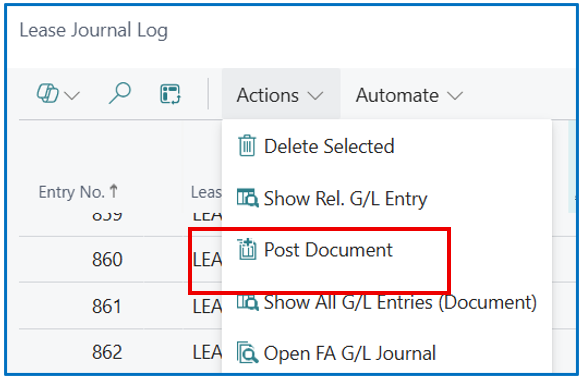
From the Lease Journal Log list, select (or multi-select) the journal lines to be posted and select [Actions] > [Post Document] to post the GL journal lines.
Finance Lease for Lessee
Leased Asset – Right-of-Use
For the lessee, an asset acquired through finance lease will be a Right-of-Use asset. Ownership is usually transferred from the lessor, and the lessee must depreciate the lease asset as well as amortise the finance lease.
Lease Card
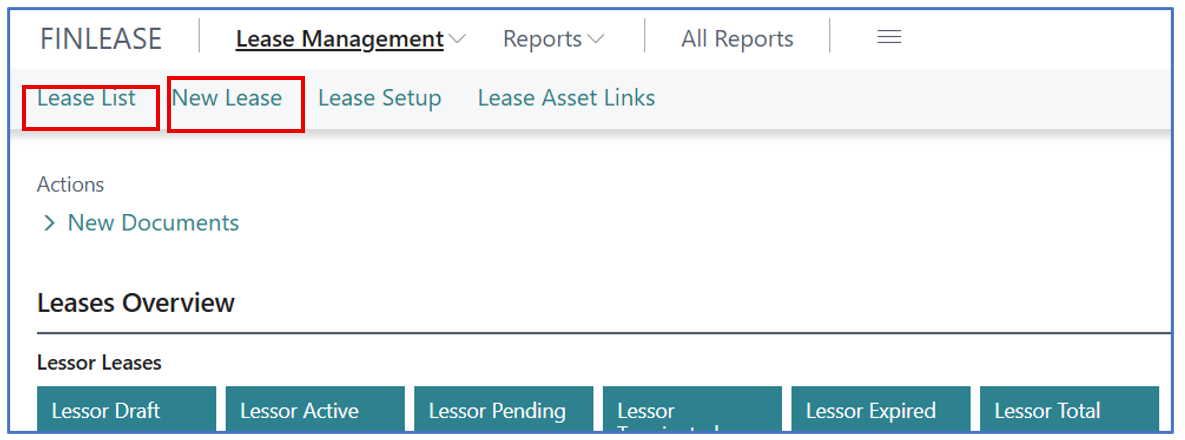
Each lease (contract) will be associated with a Lease Card. To create a new lease card, select [Lease Management] > [New Lease], or search for Lease List.
To view existing lease, the list page is [Lease List]
The lease card must be completed for each new finance lease.
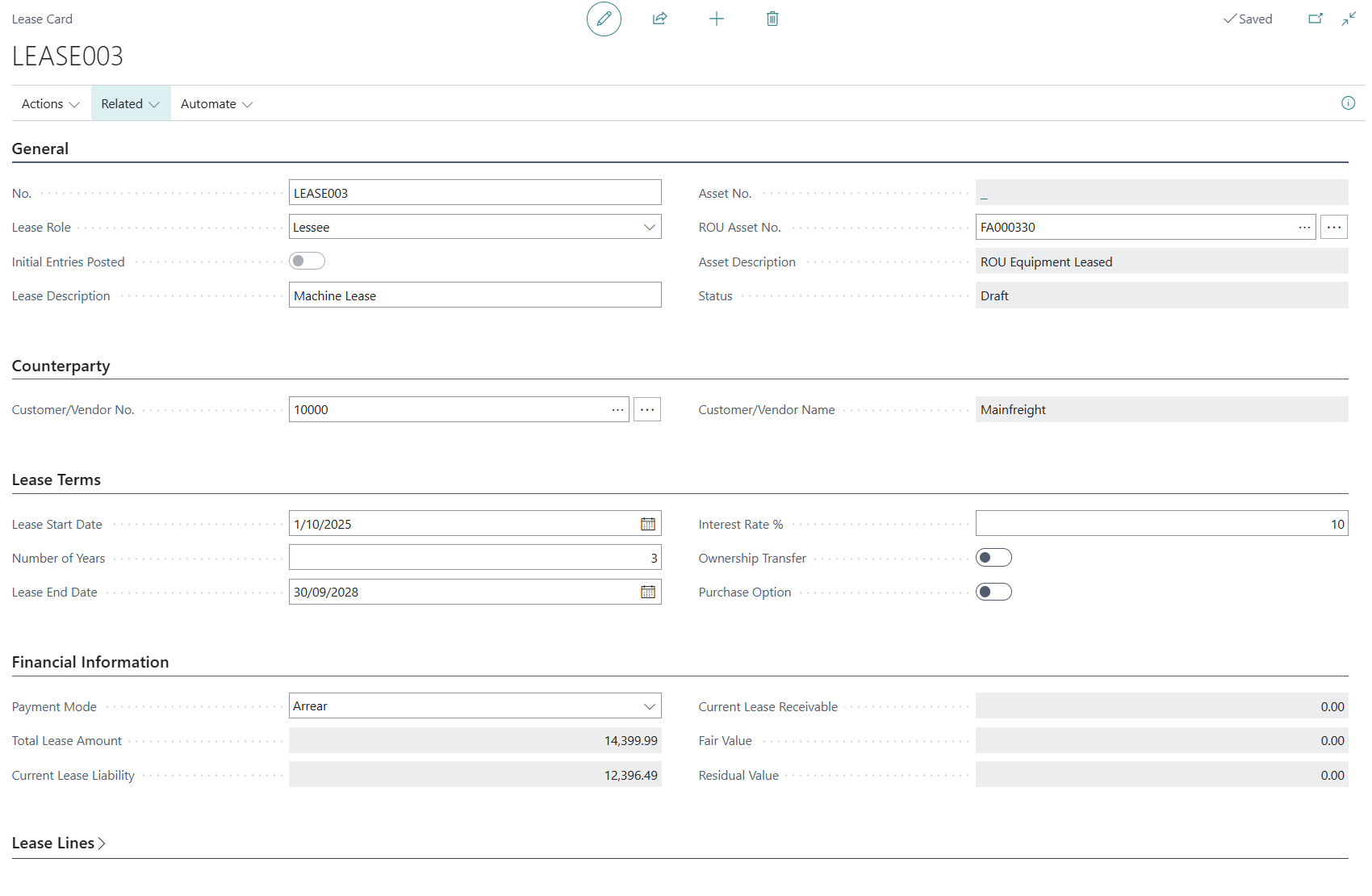
In the General FastTab section
- No. – this is the auto-sequence numbering of the Lease
- Lease Role – Select “Lessee”. (This important field determines if lease calculation and posting entries are for the lessor or lessee, according to IFRS 16)
- Initial Entries Posted – this field indicates if the initial accounting entries for the lease have been posted. Once posted (enabled), the lease cannot be edited.
- Lease Description – enter a 100-char description for the lease
- Asset No. – this is greyed out (only applicable for the Lessor role).
- ROU Asset No. – use this flow field to select an asset code that is defined for the new Leased Asset. (a new asset code can also be created)
- Asset Description – The asset description will update from the description in the Fixed Asset master.
- Status – this is a displayed (non-editable) field displaying the status of the lease:
- Draft – this is when the lease details are entered
- Active – when the lease is activated for calculation of amortisation
- Terminated – using the menu option [Actions] > [Lease] > [Terminate] to terminate the lease when the lease contract/agreement is no longer valid/enforced.
In the Counterparty FastTab section
- Customer/Vendor No. – use the flow field to select a vendor (supplier of the leased asset).
- Customer/Vendor Name – this field displays the selected vendor.
In the Lease Terms FastTab section
- Lease Start Date – enter the start date of the lease
- Number of Years – enter the number of years for the lease contract
- Lease End Date – this field is computed based on Lease Start Date and Number of Years
- Interest Rate % - this is the interest rate used in amortisation calculation. For the lessee, it is either the implicit interest rate for the PV of monthly payments or the InterBank Rate.
- Ownership Transfer – this field is for classification purposes only
- Purchase Option – this field is for classification purposes only
In the Financial Information FastTab section
- Payment Mode – select either Arrears or Advance. This important distinction determines the way the monthly payments are calculated.
- Arrears – payment is at the end of the lease month, and interest (lease interest expense) is split from principal (lease capital reduction) for each monthly payment (including the first month)
- Advance – payment is at the beginning of the lease month, and interest is not charged for the first month of the lease but on subsequent payment months.
The following fields are greyed out and are updated when the lease amortisation schedule is generated.
- Total Lease Amount – computed as the sum of all monthly lease payments for the duration of the lease
- Current Lease Liability – the amount is the present value (PV) of all monthly payments computed using the interest rate indicated in Lease Terms.
- Current Lease Receivable – this field is for Lessor (Lease Role)
- Fair Value – this field is for Lessor (Lease Role)
- Residual Value – this field is for Lessor (Lease Role)
Calculating Leasing Schedule
Once the lease details are confirmed on the lease card, select [Actions] > [Functions] > [Generate Lease Lines] to compute the monthly amortisation based on the interest rate %, the lease term and the monthly lease payment.

For the Generate Lease Lines prompt,
• the number of periods default from the lease term.
• Frequency is defaulted to Monthly but can be updated to Quarterly, Semi-Annual, and Annual – depending on the lease contract.
• Periodic Payment (Lessee) – enter the expected monthly lease payment (on contract)
This would generate an initial value for the lease liability and an amortisation schedule that would reduce the lease liability and recognise lease interest expense in the monthly payments.
Depending on the “Payment Mode” field (either Arrear or Advance), the lease schedule will be adjusted. For Arrear payment mode, the initial payment includes the split between interest expense and lease liability reduction for the initial period. For Advance payment mode, the initial payment excludes interest expense for the initial month, so that the full payment is applied to reduce the Lease Liability.
The Lease Lines FastTab section provides the monthly lease payment amortisations and interest expense per period for the entire lease term, according to the Payment Mode.
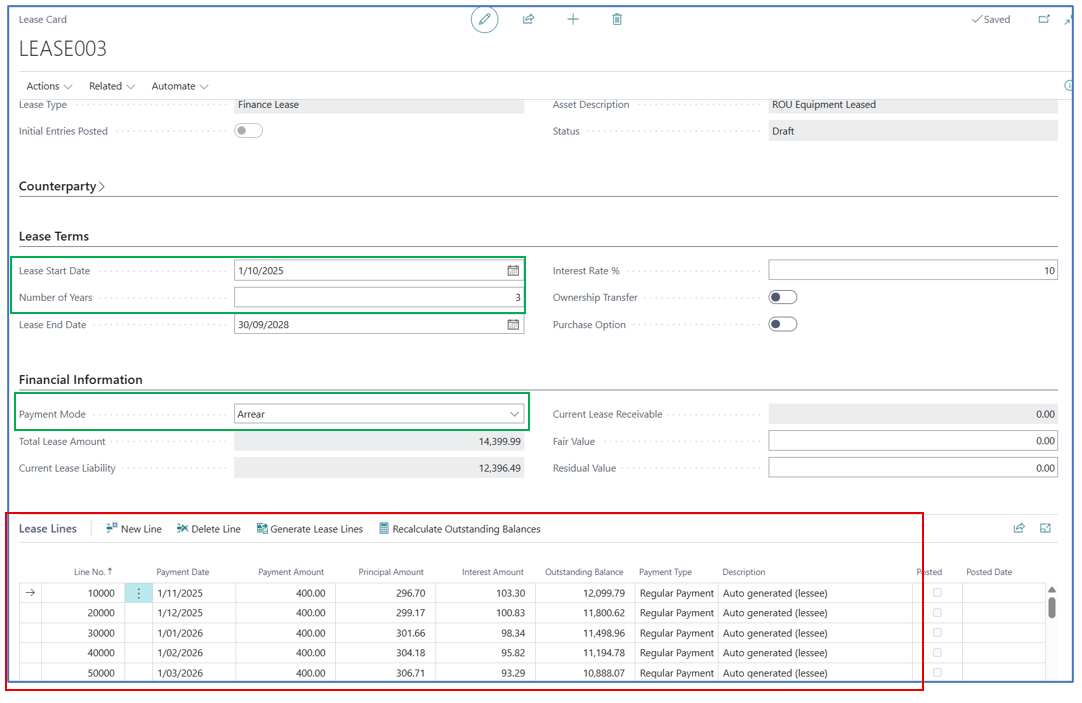
Generation of Lease Lines can also be done by selecting [Actions] > [Functions] > [Generate Lease Lines].
Posting Entries
After the Lease Lines (amortisation schedule) are generated, the next step is to Activate the Lease to lock it down for posting journal entries.
Select [Actions] > [Lease] > [Activate] to update the lease status to Active.
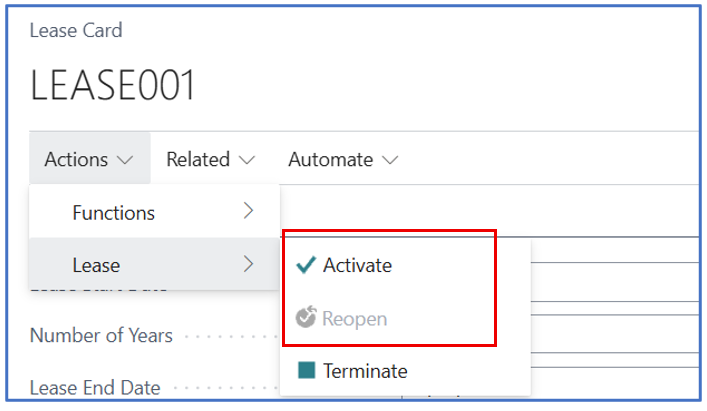
NB: the Active status can be (Reopen) reverted to Draft if there are no lease journals posted.
Leased Asset Acquisition – Initial Entries
The first entries when a lease is created for the asset are to recognise the lease liability (Net Investment in Lease) and the asset acquisition book value which will be depreciated.
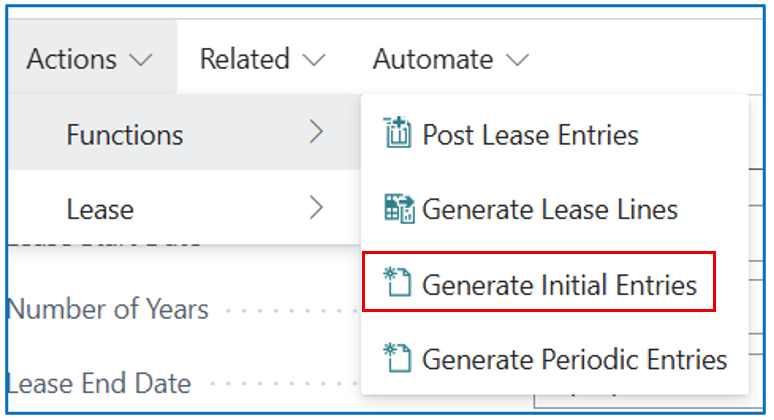
The initial entries for lease recognition will then be created in a Fixed Asset G/L Journal to add book value to the asset through “acquisition”.

Posting date for the entry will be the Lease Start Date. The journal line description references the Lease No.
Lease Liability is created with the posting of this journal. This is posted to the sub-ledger of the vendor defined in the Lease card.
The journal entries (and Journal Log entries) can also be viewed in the FactBox from the Lease Card.

Lease Amortisation and Interest Expense
Lease amortisation entries begin from the first lease payment date (a month in arrear from Lease Start Date or same date as Lease Start Date if advance payment) and the monthly amortisation entries are created until the Lease End Date.

The number of monthly journal entries created depends on the Work Date in relation to the Lease Start Date. The auto-generation of Periodic Entries will create monthly entries until the Work Date period (month).
These periodic journal entries remain in Lease Journal Log (General Journal Batch) until posted. To view these entries, select the [Open Lease Journal Log] from the Lease Journal Log FactBox, or search “Lease Journal Log” page.

All monthly entries are grouped by posting date (date of expected monthly lease payment from the Lease Start Date).
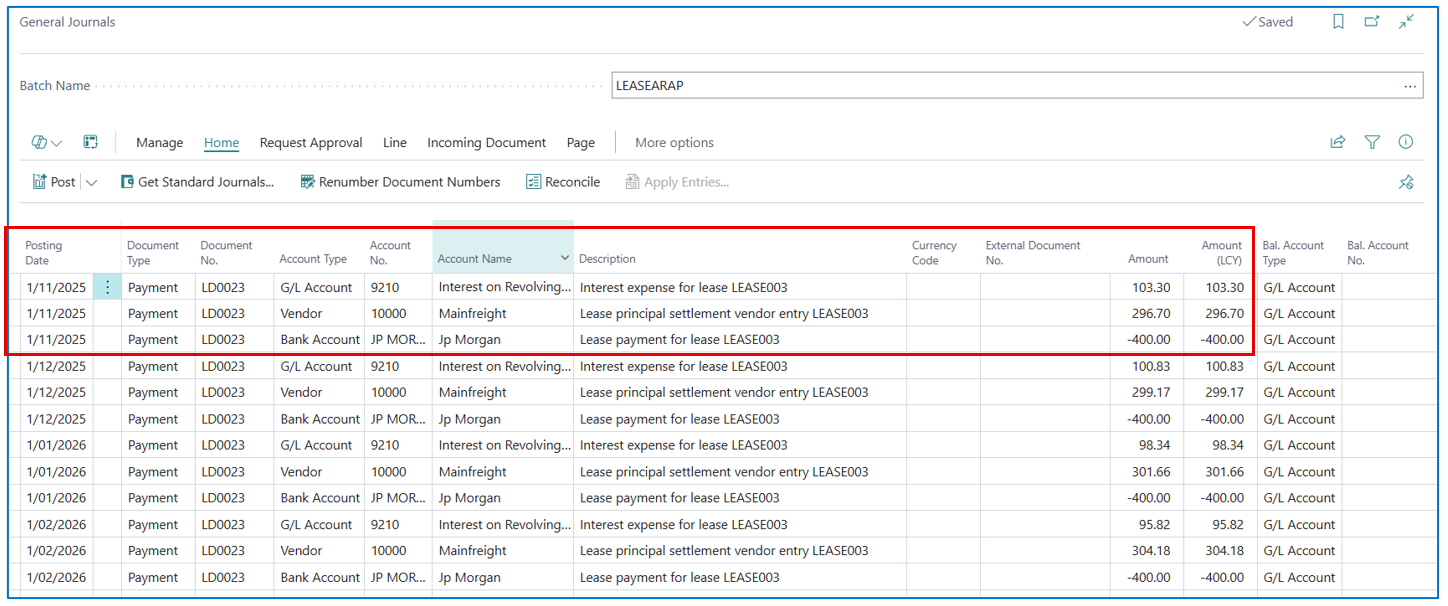
NB: when your Work Date is updated daily and there are no lease amortisation entries for the month, the [Generate Periodic Entries] will create new monthly amortisation entries. If the entries are already created, it will not create a duplicate set of entries for the month.
From the Lease Journal Log list, select (or multi-select) the journal lines to be posted and select [Actions] > [Post Document] to post the GL journal lines.