Microsoft Dynamics 365 NDIS Publishing Roster
Publishing Roster
As mentioned earlier, the bookings are created in DRAFT state originally. Before each Fortnight start, we need to ensure that we review the upcoming Fortnight Bookings. Update the Booking for any change in respect to the Times, Duration or Resource.
Once the review is completed and we are confident that the Bookings planned for the upcoming Fortnight are all correct. We will then update those Bookings from DRAFT to SCHEDULED.
Upon updating them as SCHEDULED, the bookings are then released to the Support Workers. We can do this process in two ways:
-
Update the Bookings on the SCHEDULE Board for any change and then mark them as SCHEDULED.
-
Update the bookings from the view for the resource / time / duration aspects. And then update them to SCHEDULED.
Using View allows you to bulk edit the records if the data you want to update is the same.
Navigate to the DRAFT booking View.
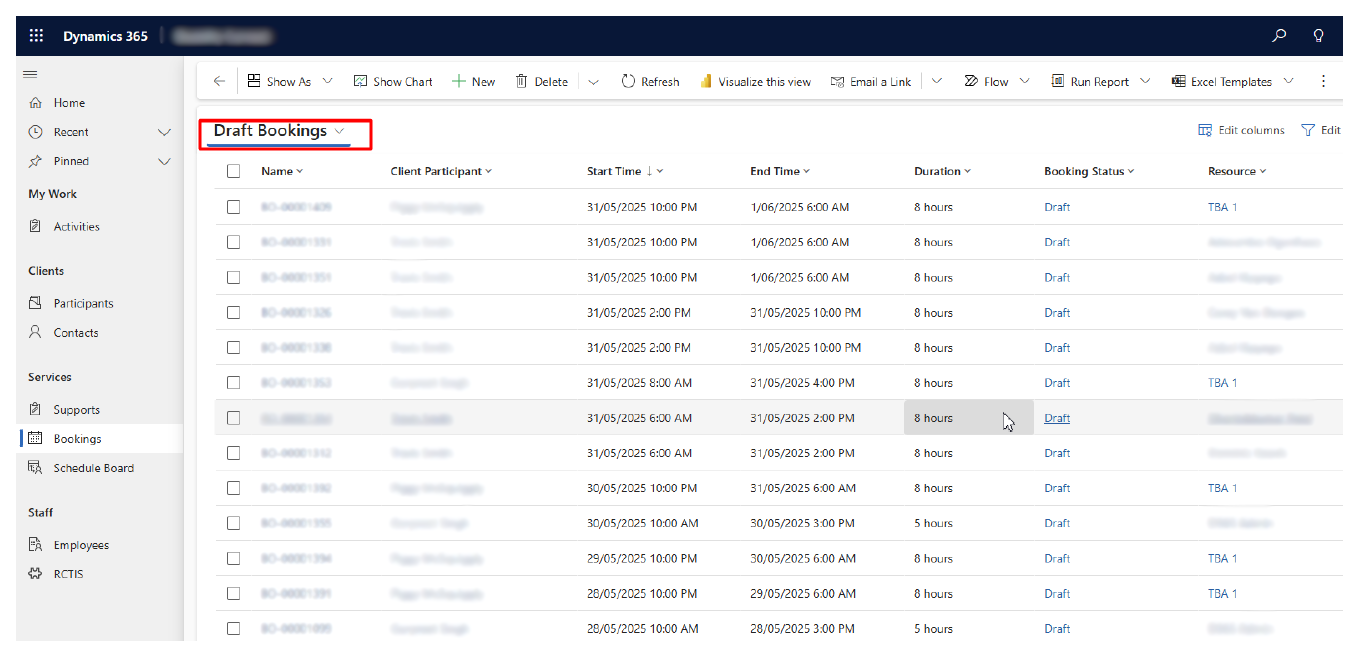
Select the records you want to update.
Click on EDIT. Quick edit form opens up.
Update the data and update the status to SCHEDULED.
Upon successful editing of these records, they will now be scheduled for Bookings and will be available to Resources.

Exception 1 — Creating Single Bookings Using Agreement Booking Setup
Please refer to the steps below to create a single Booking. For example, we simply need to create one booking for the said Participant on 3 August.
-
Open the required Group record.
-
Create a new Agreement Booking Setup.
-
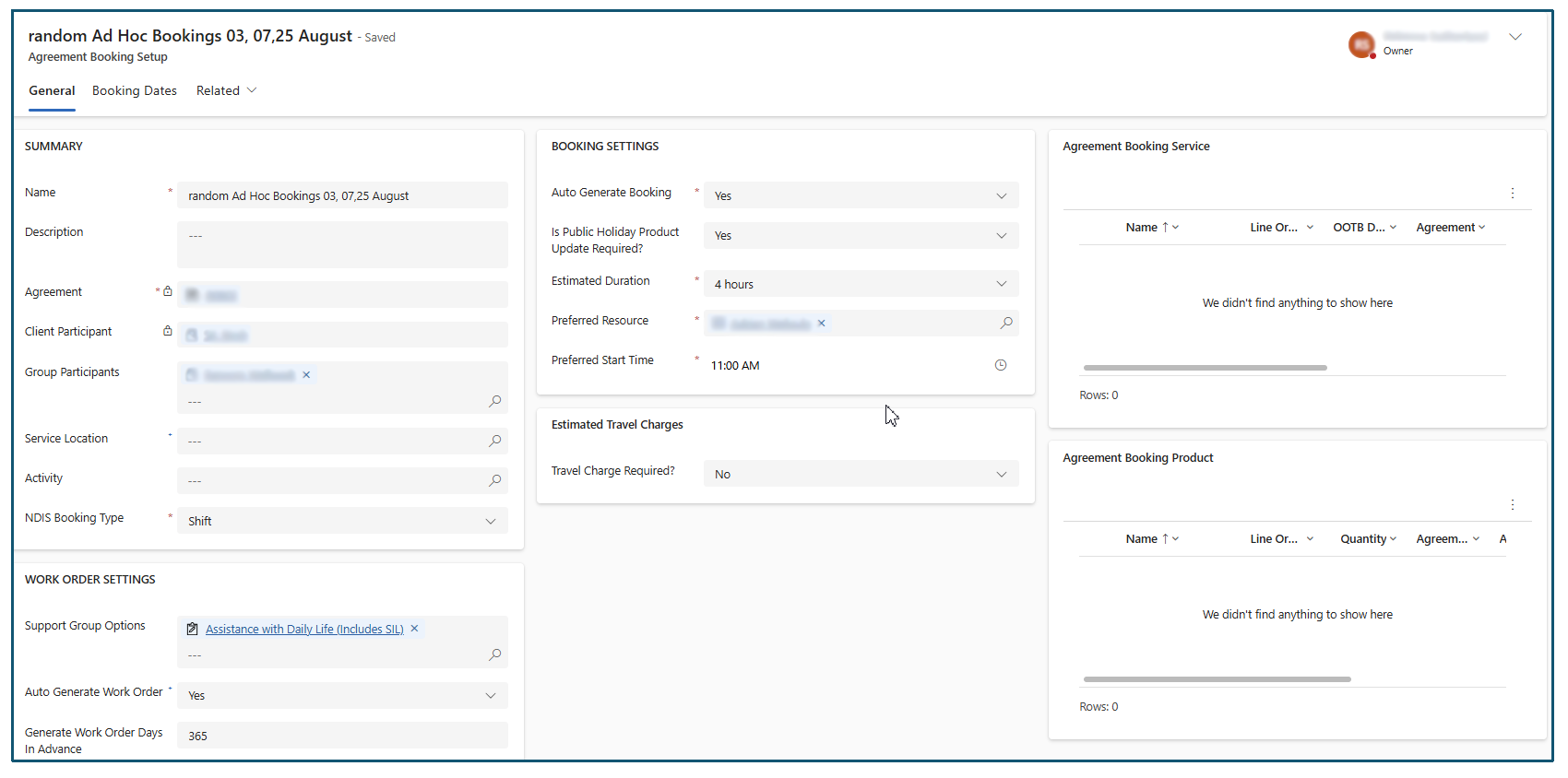
Fill out the Agreement Booking Setup in the required manner as you do for others.
-
The only change here would be how we set the Booking Recurrence values.
Note — As this record is for Group Service, we leave the Booking Service / Product blank. If it was Single, we would have updated it.

-
Navigate to the Booking Recurrence settings.
-
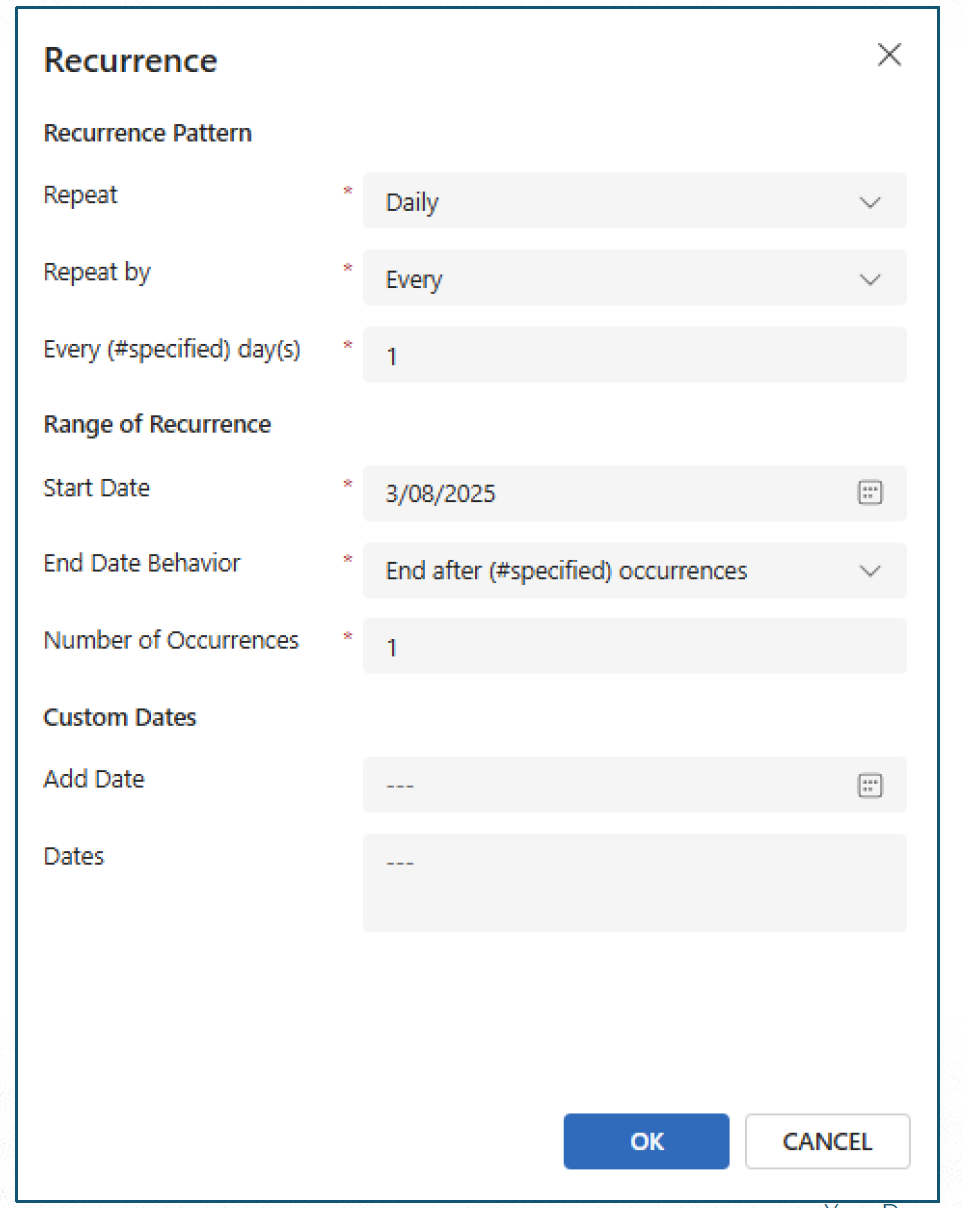
Now here we intend to generate only Single Booking, so we will do the following settings:
Repeat — Daily
Repeat By — Every
Every (#specified days) - 1
Start Date — Date on which you need the Booking.
End Date Behavior — End After Specified Occurrence.
Number of Occurrence — 1 -
Once it is done, save the Agreement Booking record. The above settings would only generate a Booking for the Date that has been mentioned in the Start Date field.
- For verification of the settings, we can cross-check the Number of Agreement Booking Records generated. In our scenario, only 1 record is generated based on the settings which meet our requirements.

With the setup so far, we would have generated one GROUP Booking record for the said date. Regarding the Billing data, we will visit the Billing Agreement for the said Participant. We will set up the Invoice to generate 1 off invoice or we will simply create a Booking setup which would include the products / service and generate the Work Order from there. This one should not generate BOOKING as it is only for Billing.
Exception 2 — Creating Multiple Bookings with no Recurrence Pattern (Agreement Booking Setup)
In this scenario, we will be creating multiple Bookings (more than one booking). Here there might not be any recurrence patterns. There will be some ad hoc dates on which we need the bookings to be generated. For illustration purposes we are creating Bookings for 03, 07,25 of August.
This is very much the same case as we have done previously. It’s a continuation of Exception 1.
-
We do the standard process — Navigate to the Agreement, Create Agreement Booking Setup record.
-
Navigate to the Booking Recurrence settings. This is what controls the generation of Bookings.
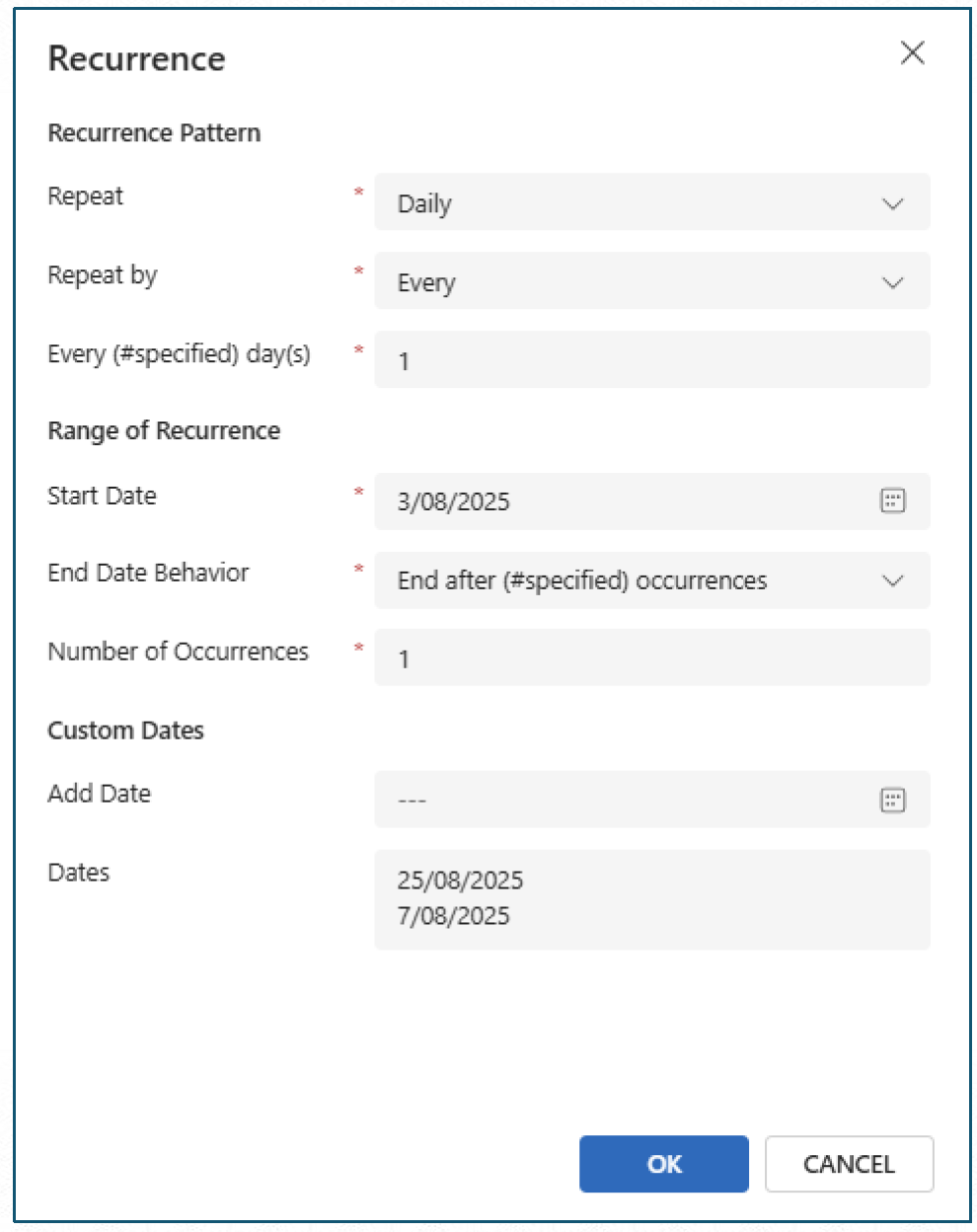
- We do the same settings as we did in the previous exception along with some more additions. Repeat — Daily
Repeat By — Every
Every (#specified days) - 1
Start Date — Date on which you need the Booking.
End Date Behavior — End After Specified Occurrence.
Number of Occurrence — 1
-
The above setting will only generate a booking for 03/08 as seen earlier.
-
Now we want a booking on 07 & 25. We add these dates to the Custom Date field.
-
Once done, Save the Agreement Booking Setup record.
We can verify the setup by checking the Agreement booking Dates of the related Agreement Booking Setup record. Simply navigate to the Agreement Booking Dates tab. Here we will see 3 Booking Date records for the dates mentioned.
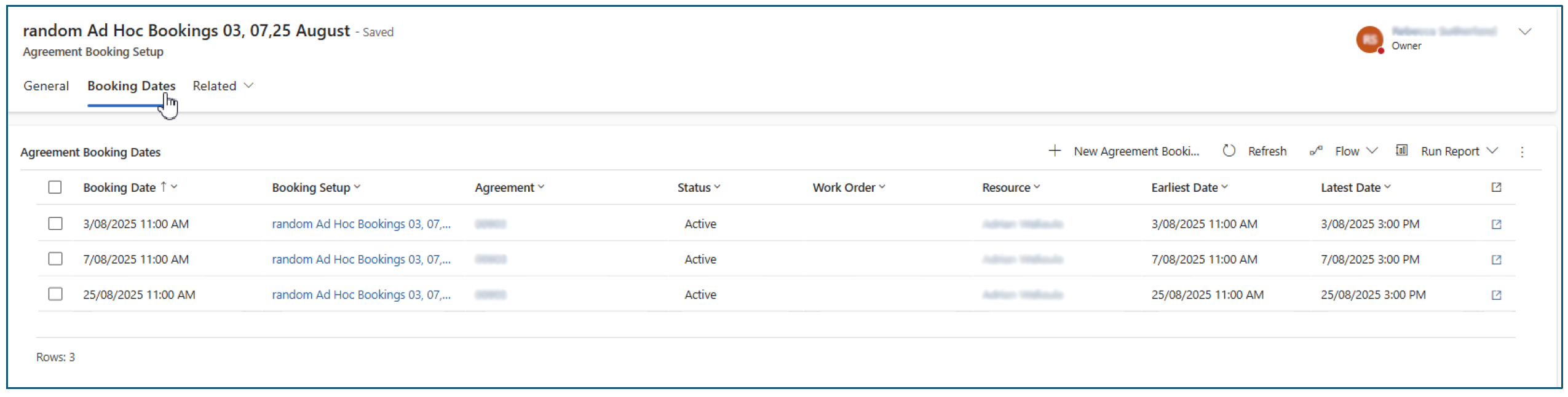
Similar to Exception 1, here we have only created the Bookings as we were doing for the Group Service. The next step would be to update the Billing Agreement for the required Participant with the Billing information. If it was the case for the Single Service, we would have added the Agreement Booking Service / Product to the same Agreement Booking Setup, so that the Billing will also be driven from here.