Microsoft Dynamics 365 NDIS Service Agreement Setup
An Agreement record in Dynamics has a variety of Status values. These values define at what stage the Service Agreement is in. Please refer to the description to understand these statuses.
Status Values
-
Estimate: This refers to a draft stage of Agreement. Basically, a stage where a User is still setting up an Agreement for the Participant.
-
Active: Upon setting up the Agreement, it is set as Active. This means now the Agreement can be used to deliver the services defined in that Agreement to the Participants.
-
Expired: System auto updates the Agreement status to Expired, when the Agreement has reached its end based on the End Date defined on the Agreement.
-
Cancelled: When a participant is leaving between the tenure of the service, the Agreement is put in a cancelled state.
Understanding Agreement Structure (SIL, Community Paricipation, Daily Living)
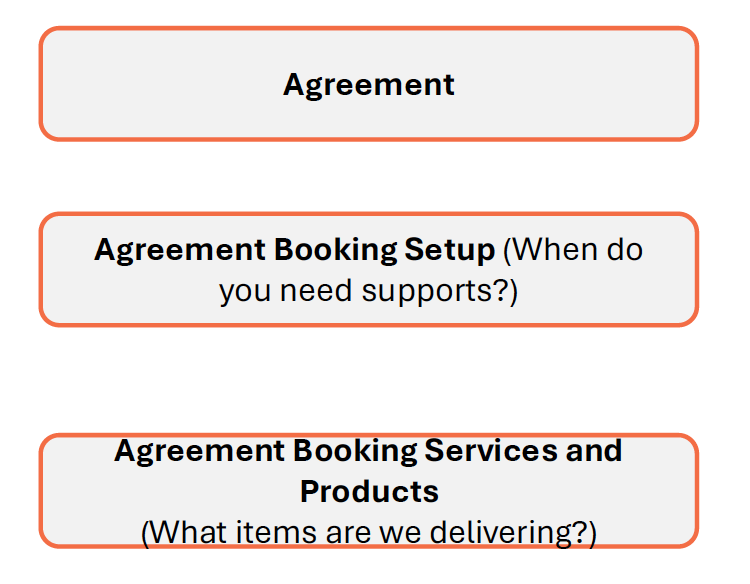
Agreement is the main record which will be driving the Bookings & also generate the RCTI invoice for the Contractors. An Agreement also act as a record that ties what services are to be delivered to the Participant and in which pattern of recurrence for the Roster aspect. We can classify the Agreement into 3 parts.
Three Parts of an Agreement
-
Agreement — This will be the high-level details of an Agreement. Things like — Participant, Billing Account(Plan manager etc.), Funding Source, Funding Type, Agreement Dates, Service etc. •
-
Agreement Booking Setup — Once we can create an Agreement, we will create related Agreement booking Setups. These records each individual pattern of Recurring Bookings. We identify the Duration of Booking, Resource for the Booking, Start Time of the Booking. And we also set a recurrence pattern, so system creates all these Bookings. For example, refer to the below Bookings:
- Booking 1 : 4 hours on Monday 10 Am from Resource A for Participant A
- Booking 2 : 4 hours on Tuesday 10 AM from Resource A for Participant A
- Booking 3 : 4 Hours on Wednesday 06 AM from Resource A for Participant A
- Booking 4 : 4 Hours on Saturday 10 AM from Resource A for Participant A
In this scenario, we have identified 3 Patterns:
- Pattern 1 : 4 Hours at 10 AM Repeat Mon & Tuesday. This is because all details like Time, Resource, Participant, NDIS Line item will be same.
- Pattern 2 : Booking on Wednesday will be a separate patternbecause the Start Time is different.
- Pattern 3 : Booking on Saturday will be separate as the NDIS line item for Sat is different than the Weekday.
-
Agreement Booking Service & Products — For each Agreement Booking Setup, we will create these Booking Service & Booking Product records which will hold which NDIS line item is charged to the participant and for what duration. Same will be used for RCTI.
Creating an Agreement
To create an Agreement from the Participant, navigate to the required Participant record and perform the actions below:
-
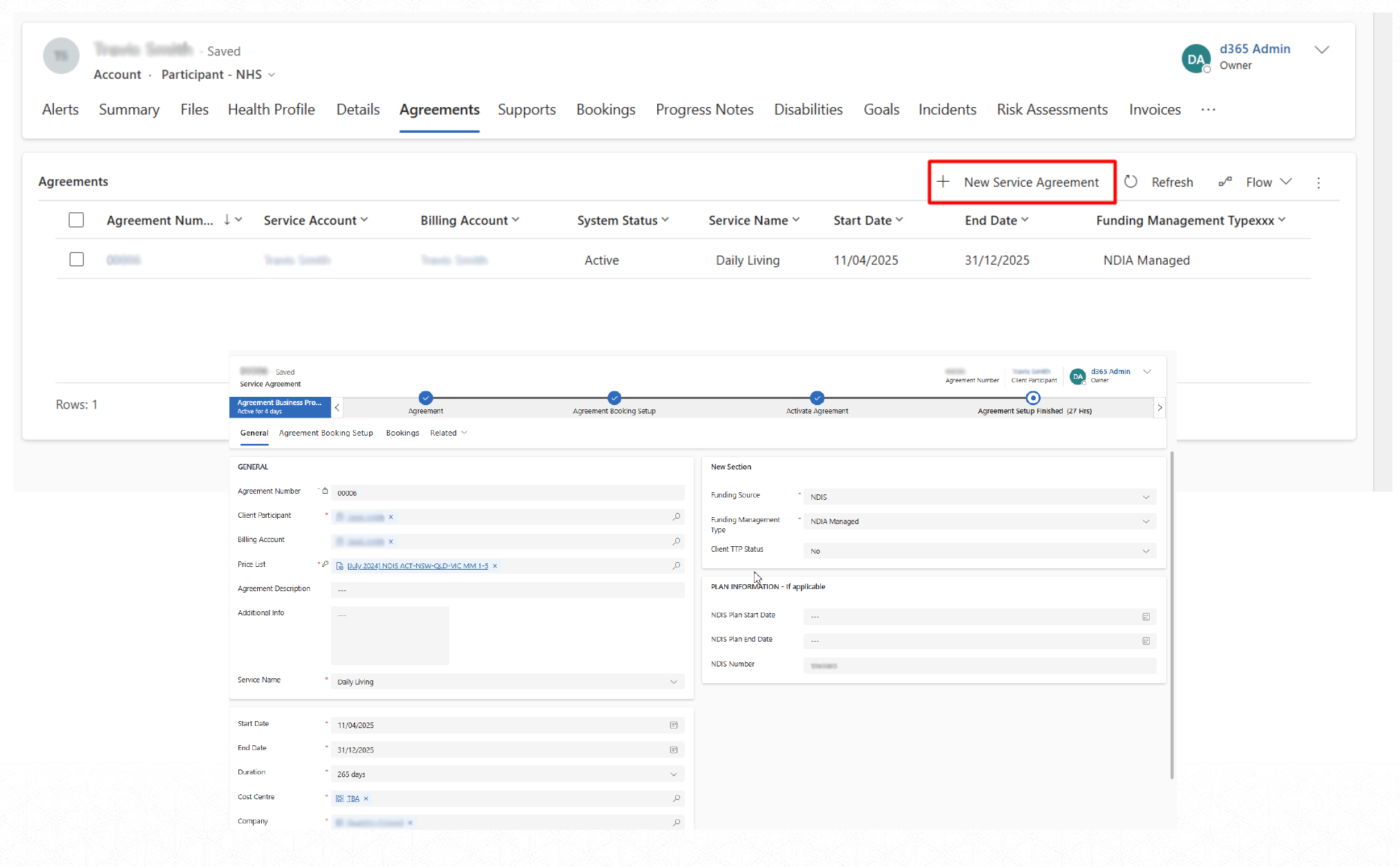
Click + New Agreement.
-
Fill in the required fields (marked with an asterisk)
-
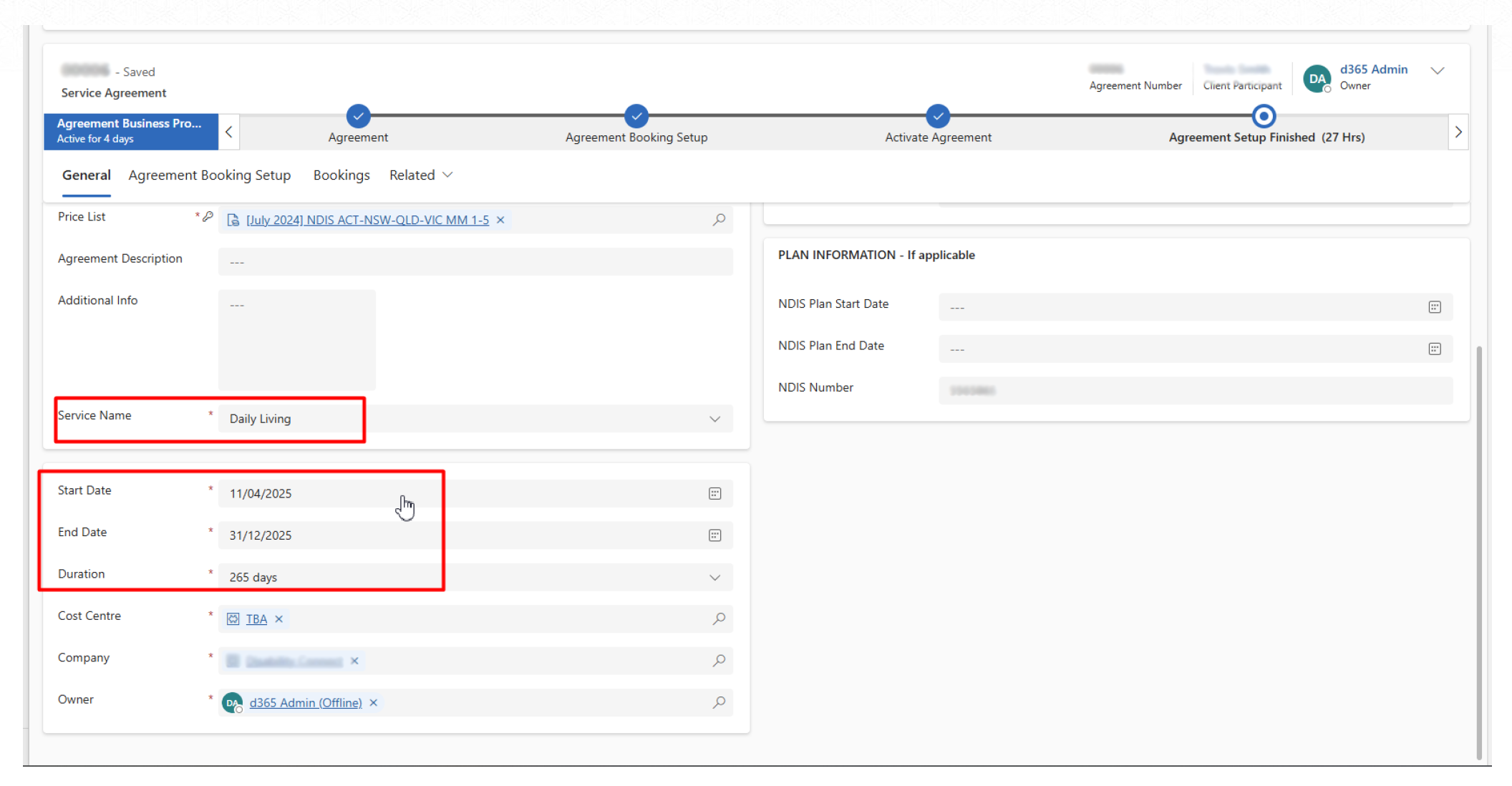
Set the start and end dates. System automatically sets the duration based on the values of the above fields.
-
Also need to populate the Service Name — for this instance we take either Community participation, Daily Living or Supported Independent Living.
-
Click Save.
-
Upon opening the required Agreement record, navigate to Agreement Booking Setup on the top section.
-
Click on 3 dots and select ”+ New Agreement Booking Setup”.
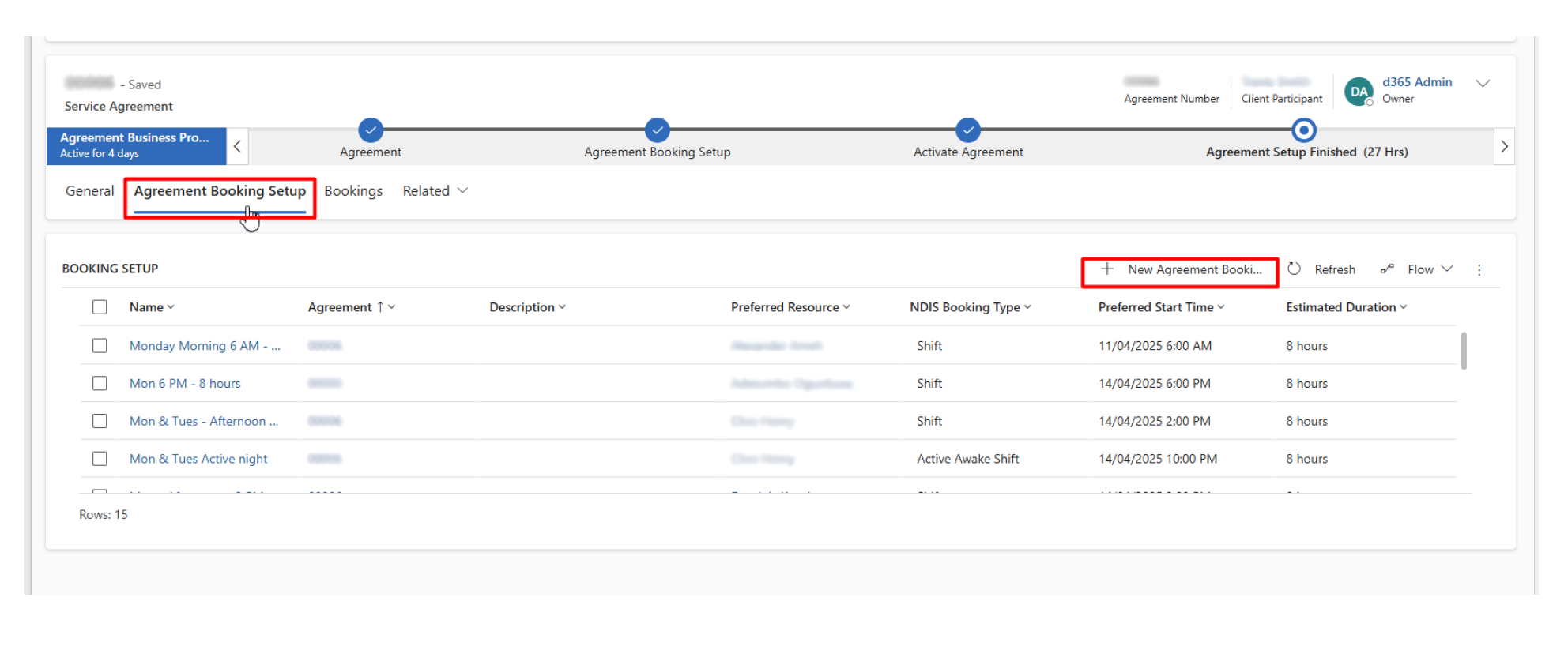
Note: Agreement Booking Setup is required for the Services like Community Participation, Daily Living, Supported Independent Living where it is 1-1 Support per hour. These Booking Setups / Agreement will drive billing and Booking together and it will also generate RCTI.
- Fill in the required fields (marked with an asterisk).
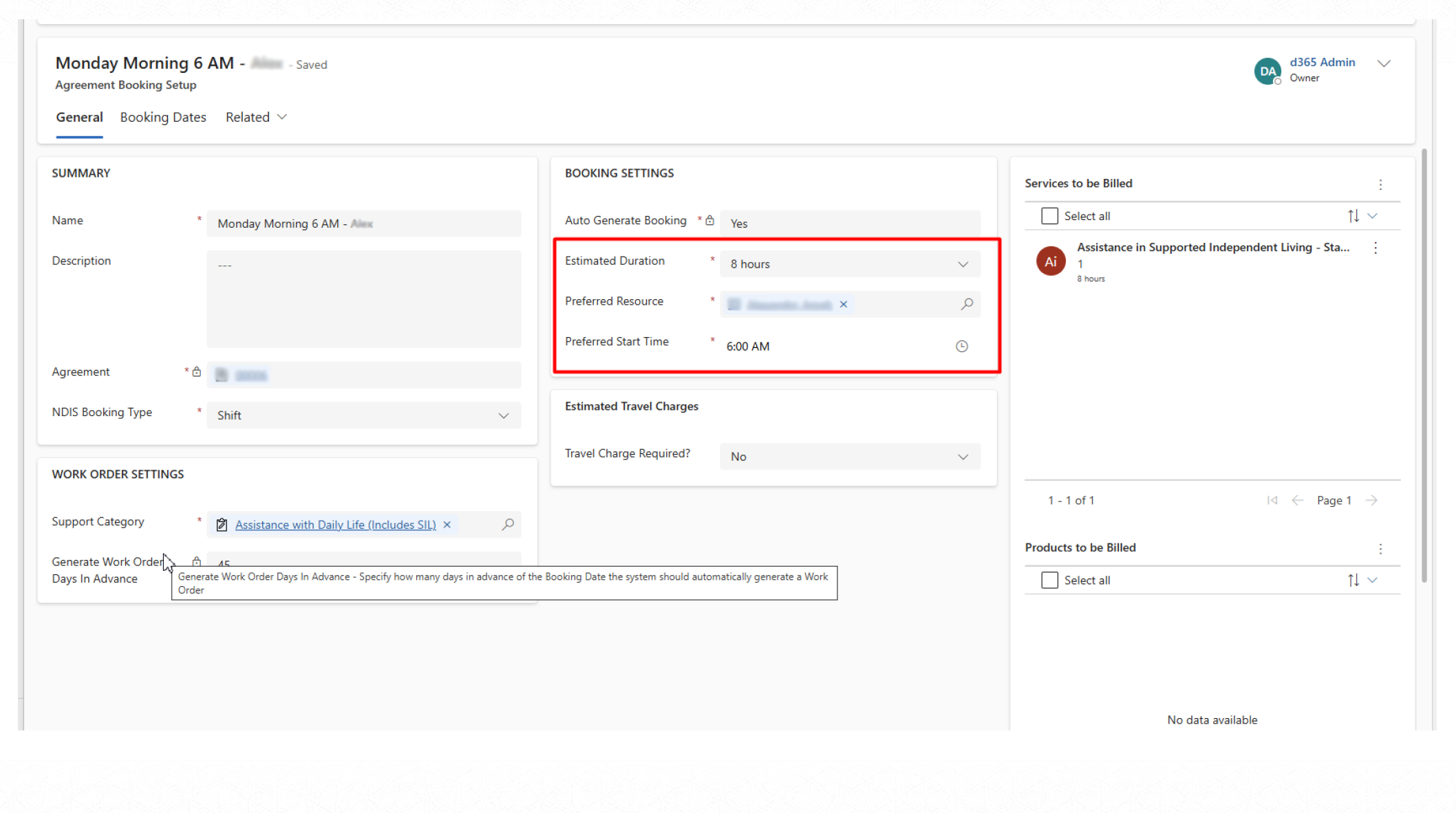
Note: We agreed to Generate the Bookings Automatically. So, we have set “Auto Generate Work Order & Booking” as YES. Adding a “Preferred Resource” here is mandatory, as discussed if we are aware who can do these Bookings, we add an actual User or else we can add a TBA user.
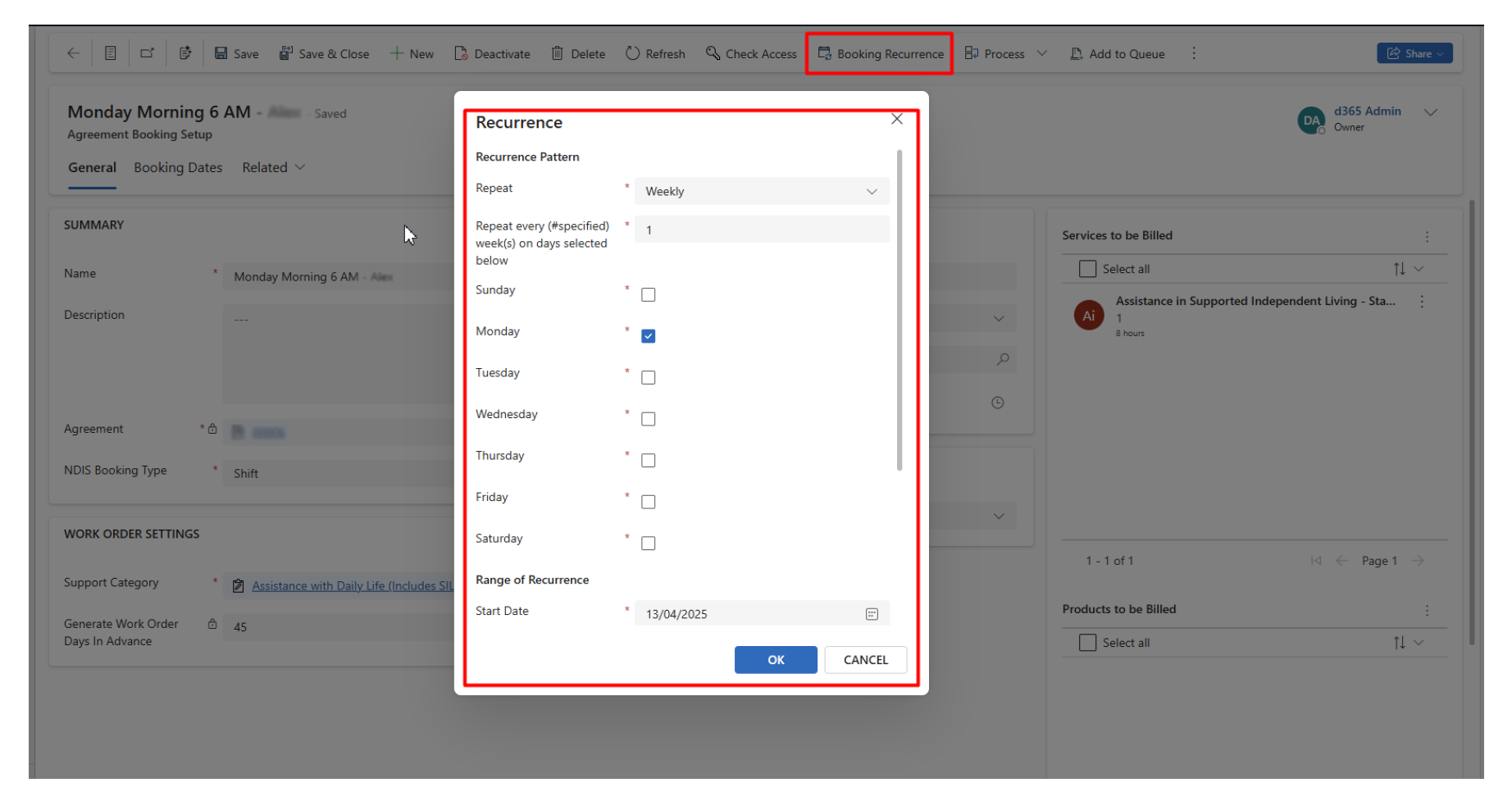
- For each of the Agreement Booking Setup, we will define the Booking Recurrence. Which will define when these Bookings are to be delivered to the participants. This in turn will create the Booking records.
-
Navigate to the Services to be Billed / Products to be Billed section as required.
-
Select 3 dots, and then select the option ”+ New Agreement Booking Service or +New Agreement Booking Product”.
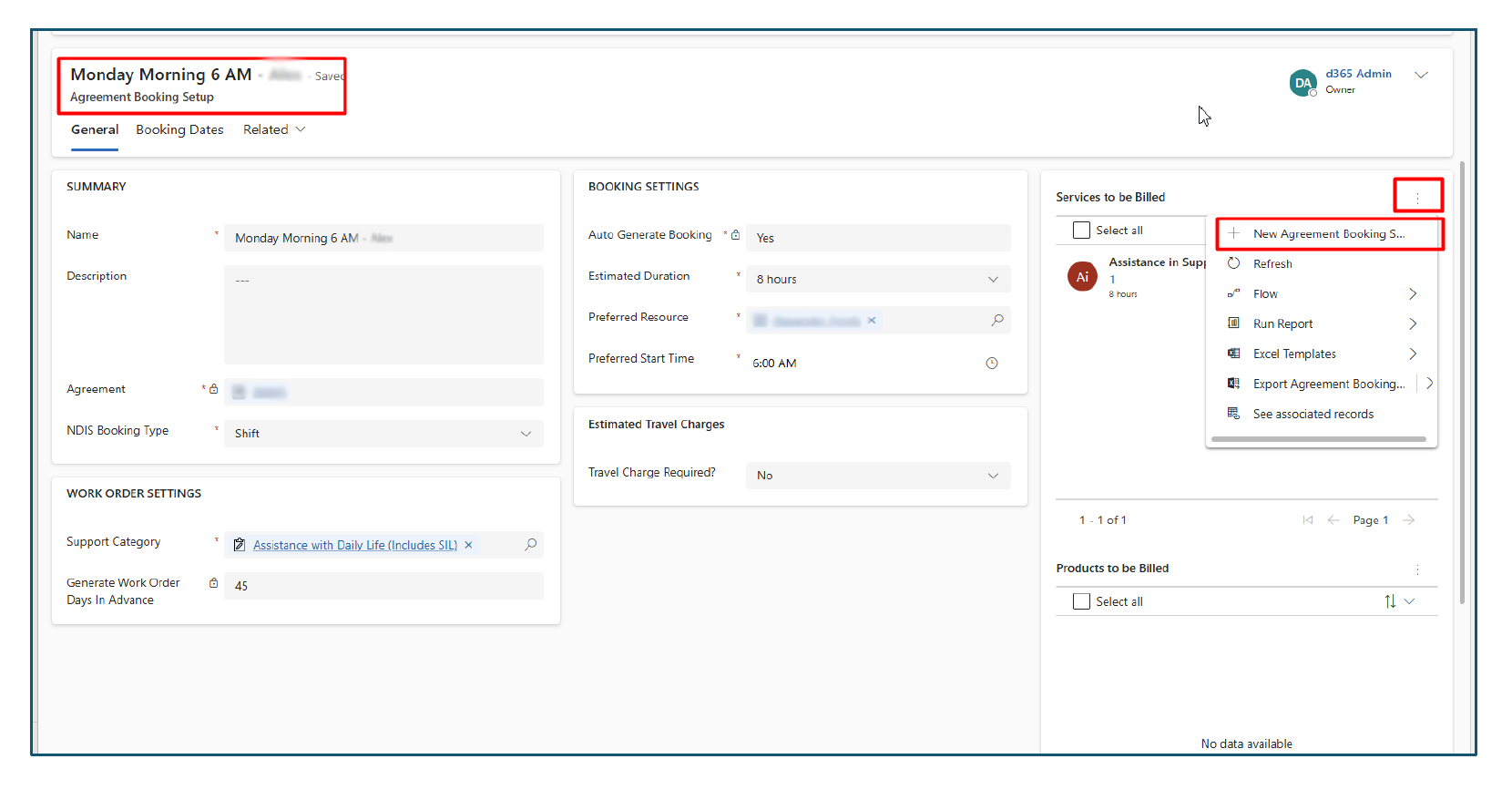
Note: Any item that is delivered with an HOURLY rate is considered as Service and anything else is considered as PRODUCT.
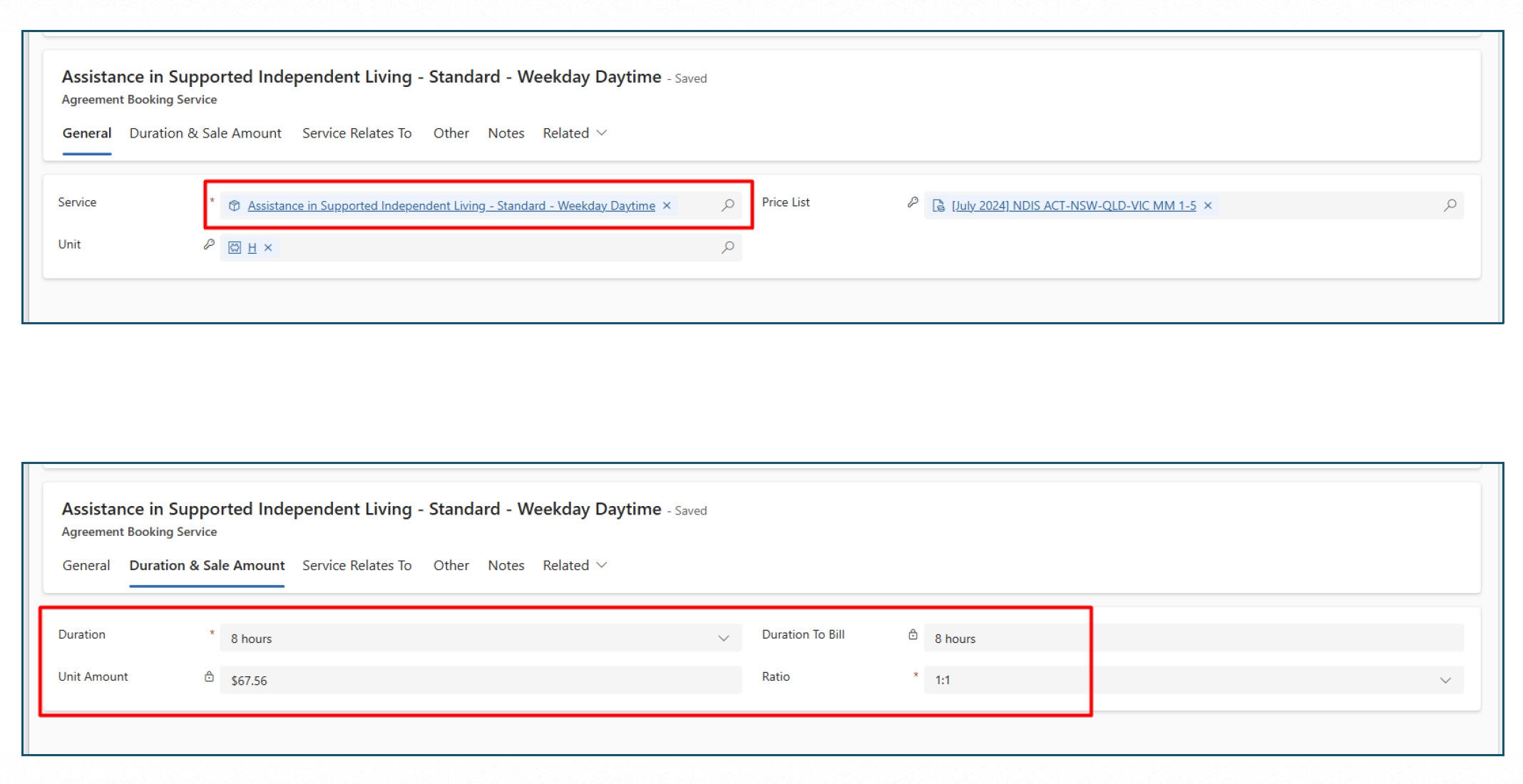
- Choose the service and click Save.
Also ensure Duration / Duration to bill are coming correct along with the Unit Price. If required, we can even update the Ratio of Support. That will further update the DURATION TO BILL.
-
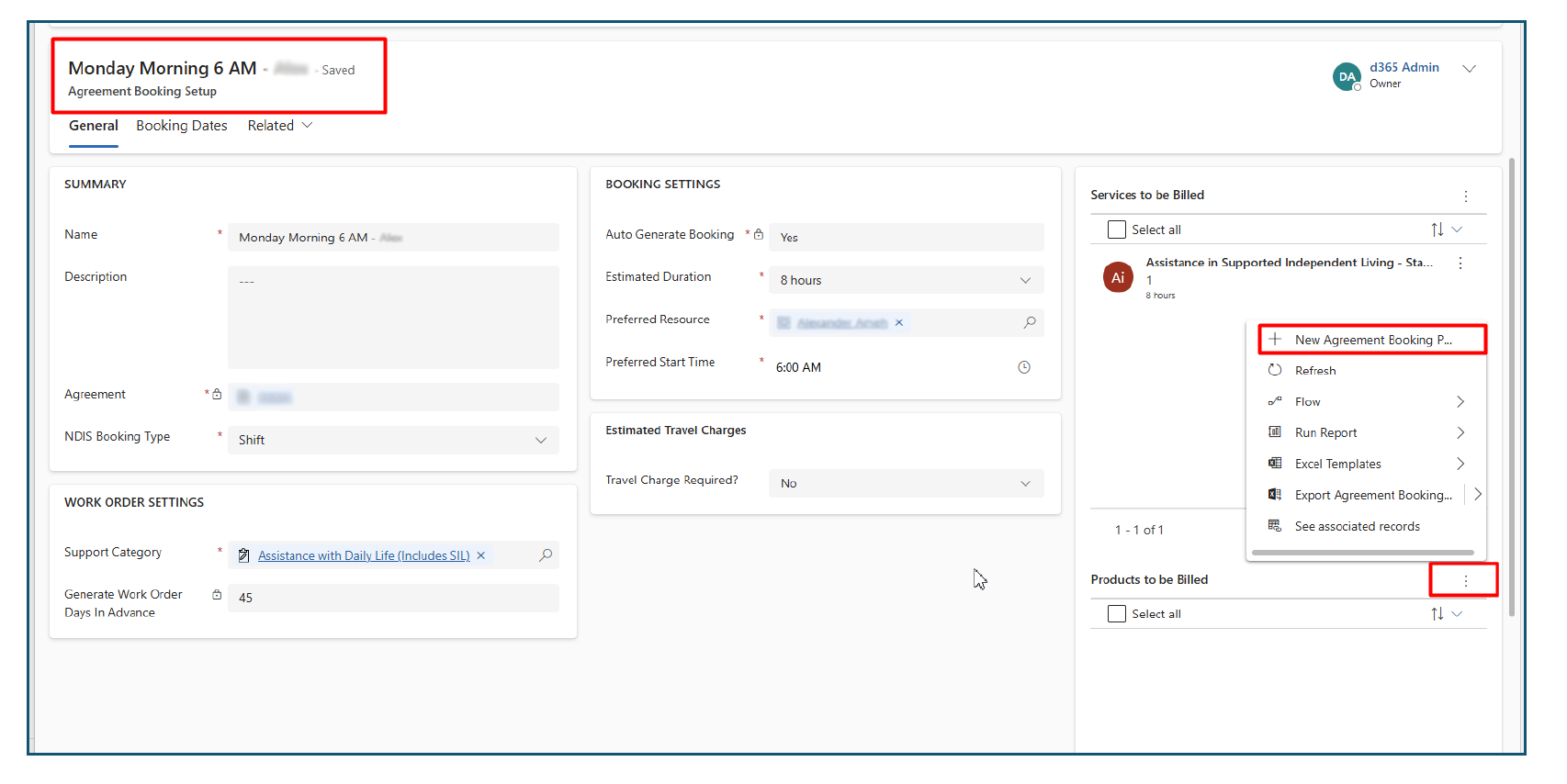
Navigate to the Product to be Billed section on Agreement Booking Setup.
-
Select 3 dots, and then select the option ”+ New Agreement Booking Product”.
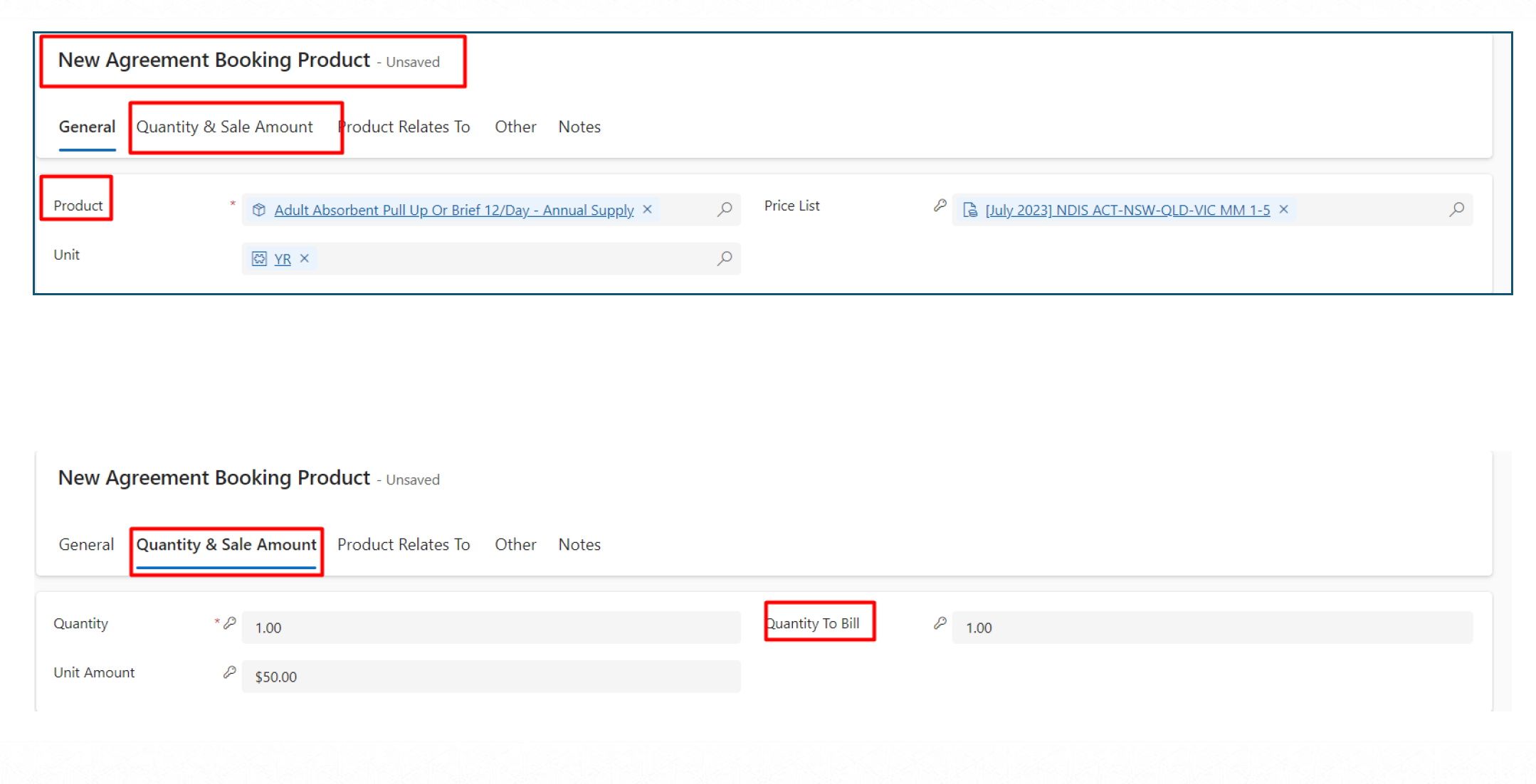
- Choose the Product and its quantity. And then click Save.
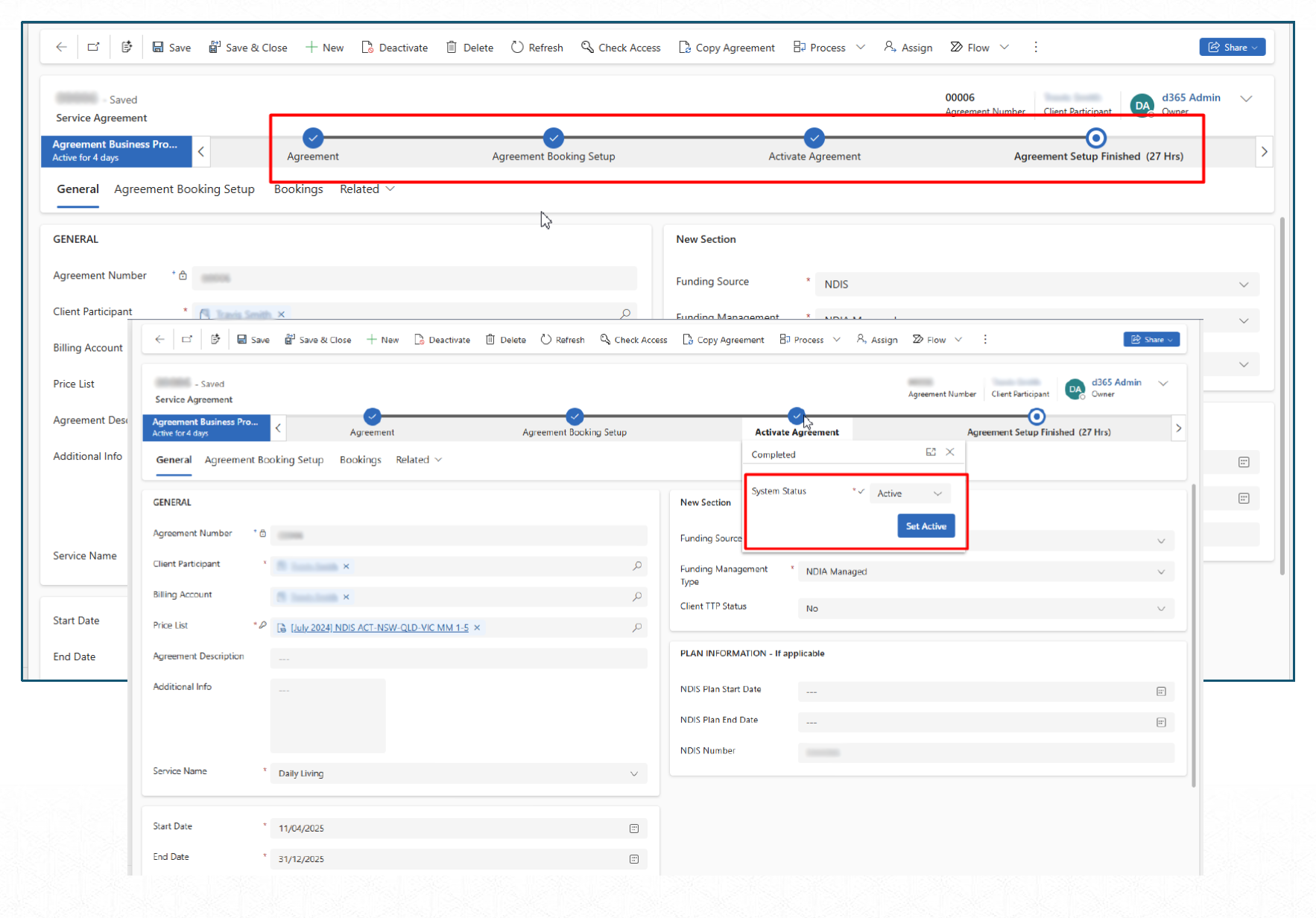
Now that we have configured an Agreement. All we need to do is to Set the Agreement as ACTIVE. We will be doing this using the Business Process Flow on the Agreement record. This helps users to ensure they have taken the necessary steps to properly configure the Agreement before Activating it.
If all the validations are met in the Business Process flow, it will allow us to ACTIVATE the Agreement.
As an output of this Agreement, we will get Bookings (Draft State) along with Work order to each of the Booking.
Creating an Agreement (Support Coordination)
To create an Agreement from the Participant, navigate to the required Participant record and perform the actions below:
-
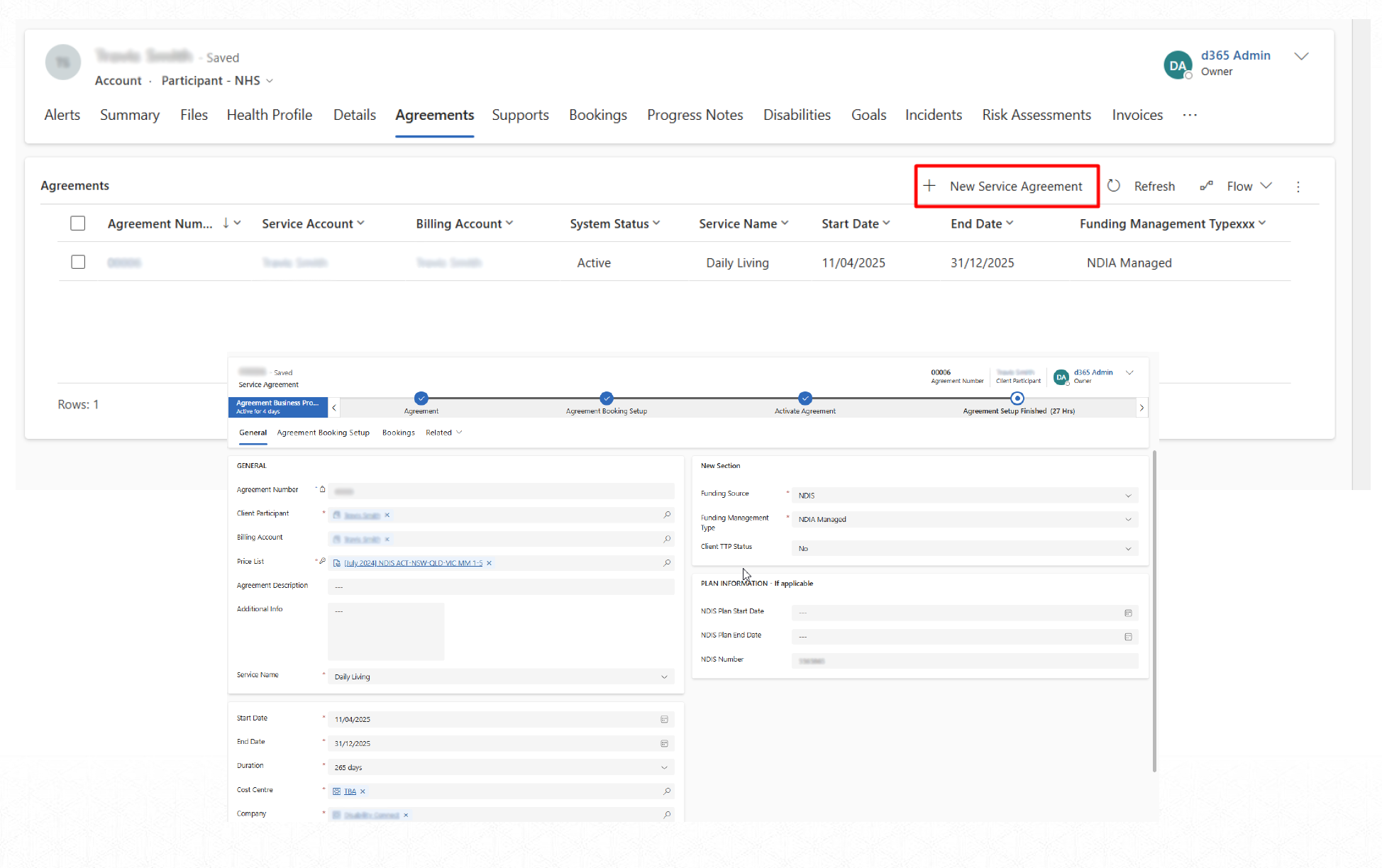
Click + New Agreement.
-
Fill in the required fields (marked with an asterisk).
-
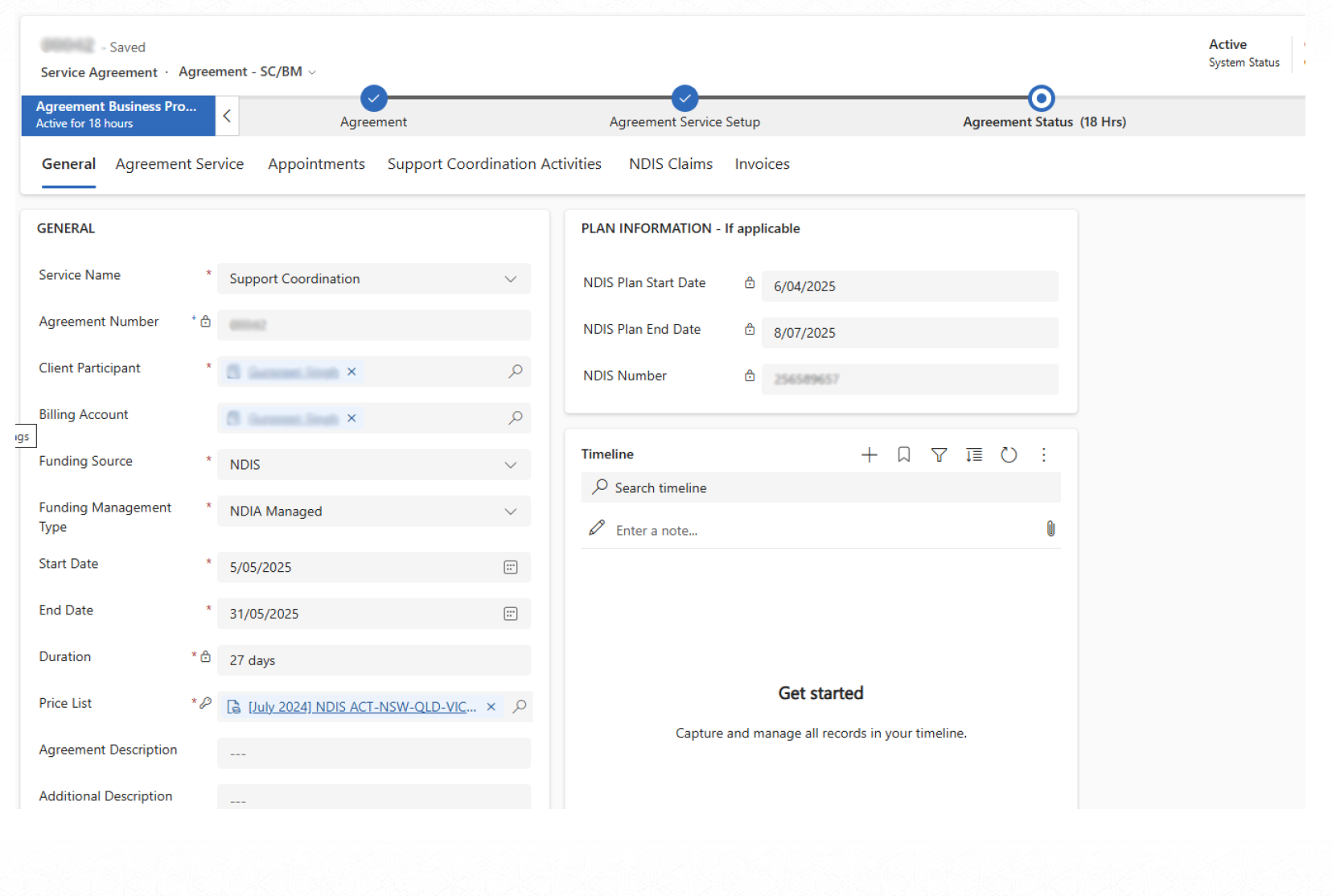
Set the start and end dates. System automatically sets the duration based on the values of the above fields.
-
Also need to populate the Service Name — Support Coordination.
-
Click Save
-
Upon opening the required Agreement record, navigate to Agreement Service on the top section.
-
Click on 3 dots and select ”+ New Agreement Service”.
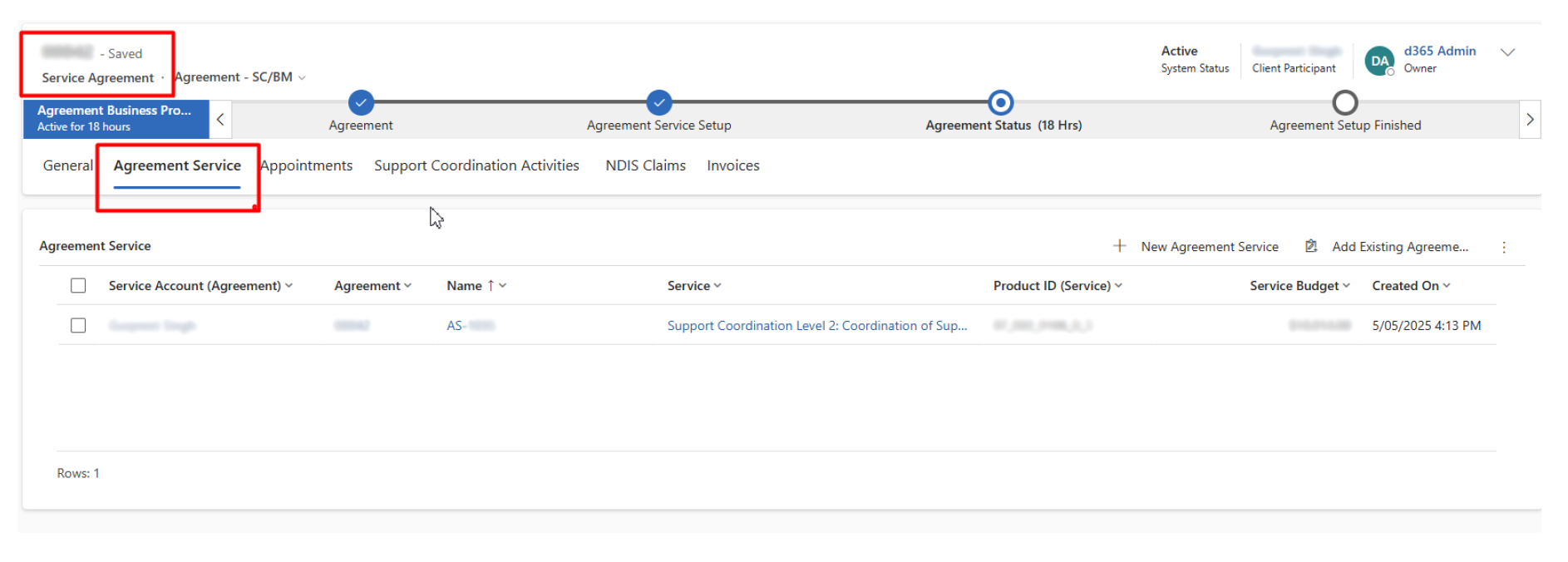
Note: Agreement Serviceis is required for assigning which Support Coordination line item to be used and what funding amount has been allocated to this Agreement.
-
Upon opening the required Agreement Service record, select the required Service you have for this Agreement. For instance — Level 2 Support Coordination. Also assign the available funding in Hours (setup hours). This act as a starting value.
-
Based on the Setup hours — the system sets up the Service hours & Service Budget and also rolls up the other fields.
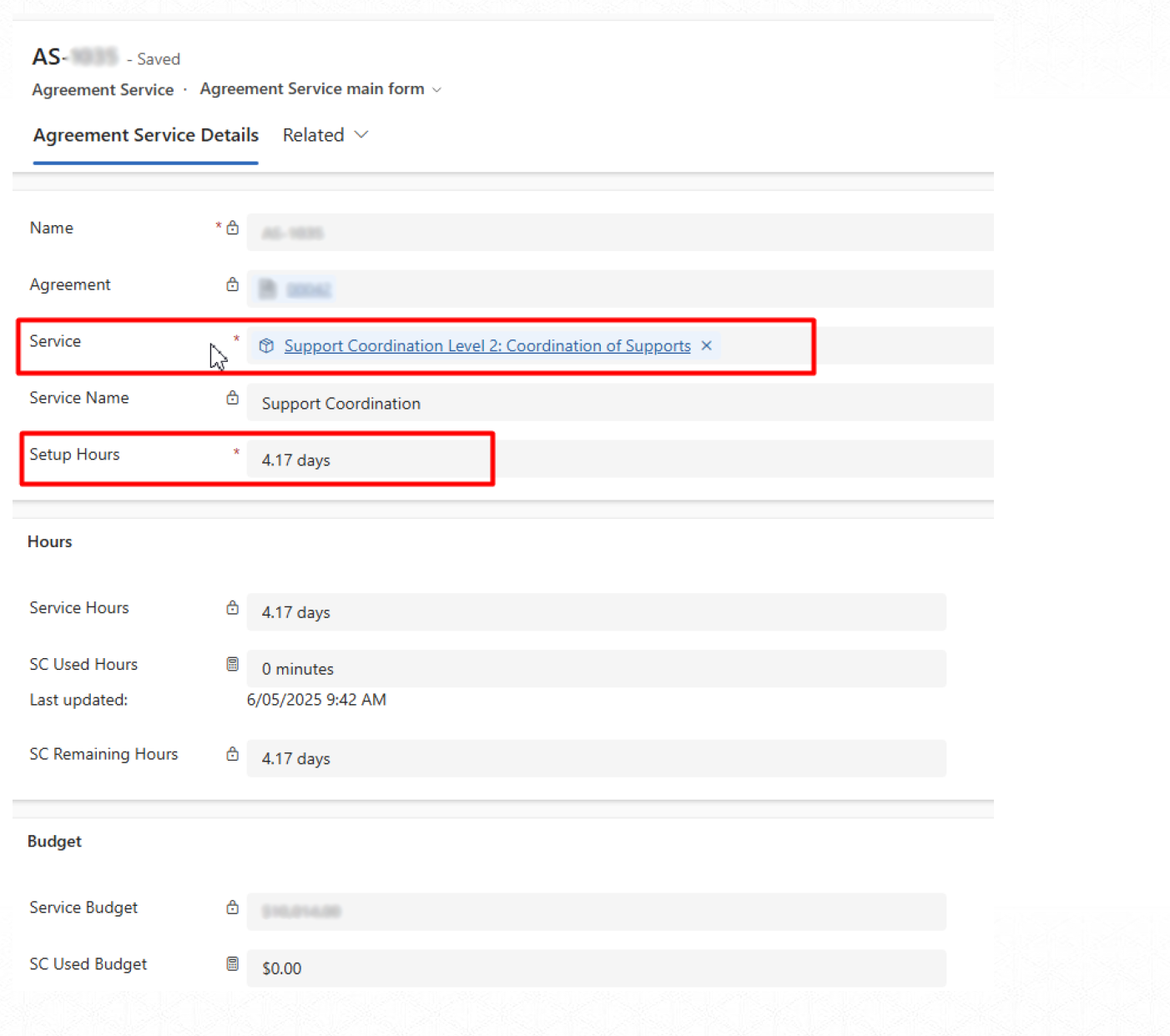
Note: If needed, you may similarly create more Agreement Service records. If a participant has funding for more than one line item.
- Navigate back to the main Agreement Record and proceed forward with the Business Process Flow in order to Activate the Agreement.
Ensure to update the required field as YES and move to the next stage and then Set the Agreement Status as ACTIVE.
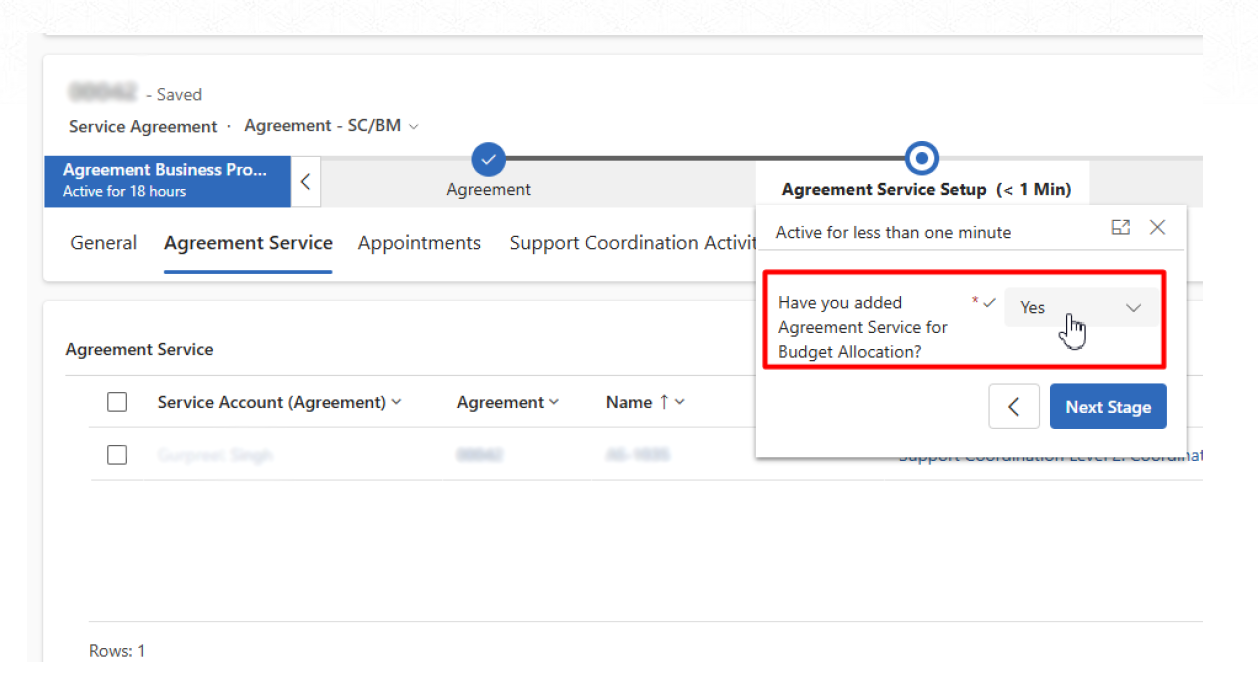
Note: At any given point of time, only 1 Active Support Coordination Service Agreement can exist for each Participant.
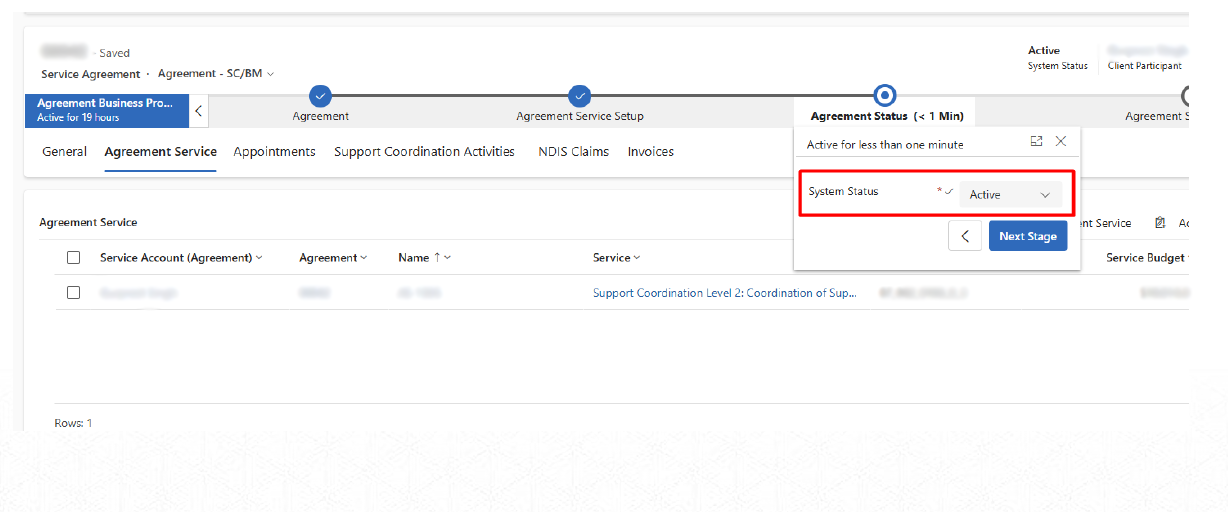
Agreement Document Generation
Now that we have successfully created Agreements, we would be required to create an Agreement document that can be shared with the Participants. To do so, please follow these steps:
-
Navigate to the Agreement record, for which you need to have a Document.
-
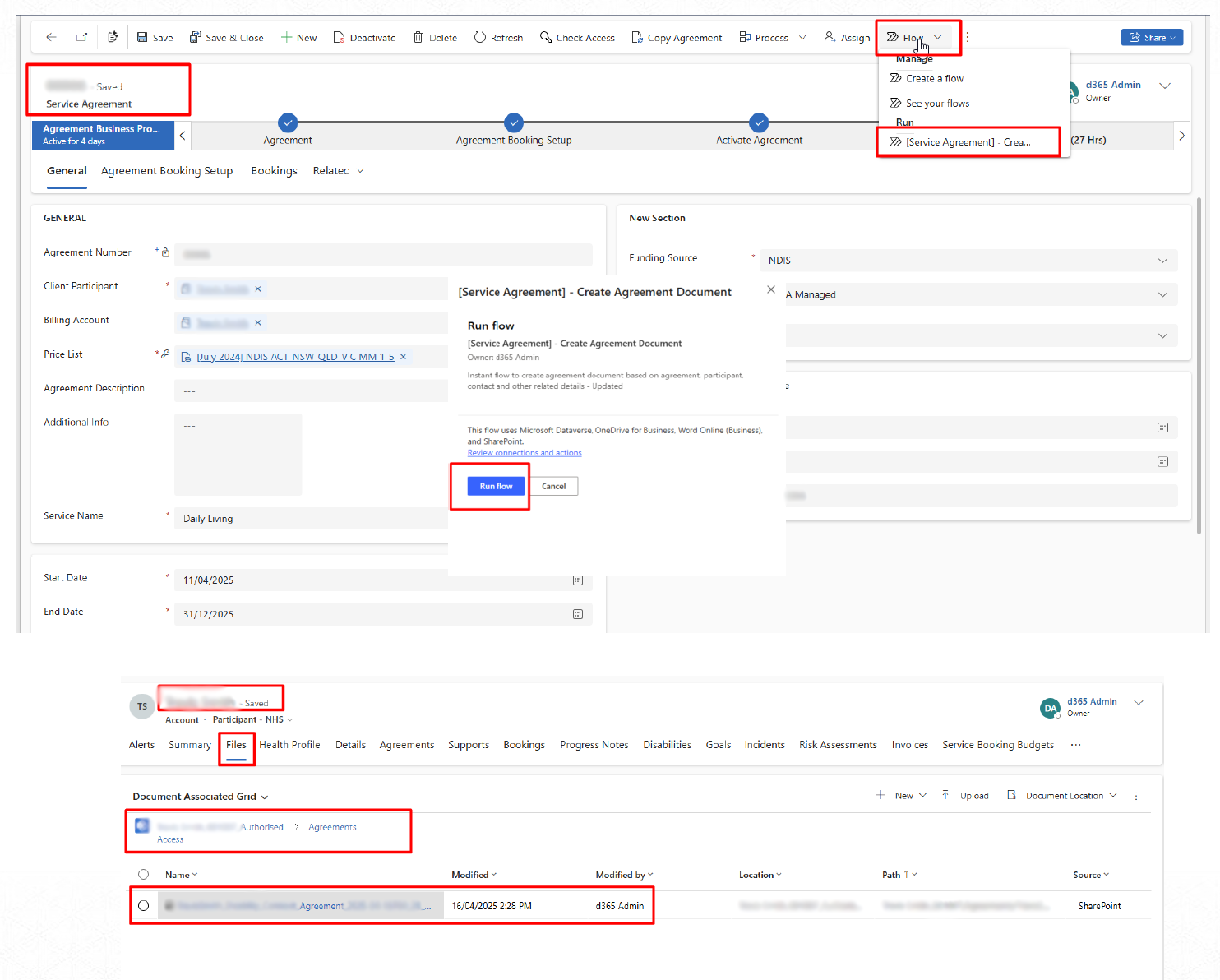
Go to the Flows button on the top ribbon and select the flow — Service Agreement — Create Agreement Document.
-
A pop up will appear — click on the RUN FLOW button. This will trigger the background operation to create the Agreement document and store the SharePoint location of the Participant record.
-
You can then navigate to the Participant SharePoint location; the document will be available under the Agreement folder located under the Authorized access section.