Microsoft Dynamics 365 NDIS Service Delivery
Service Delivery Support Coordination
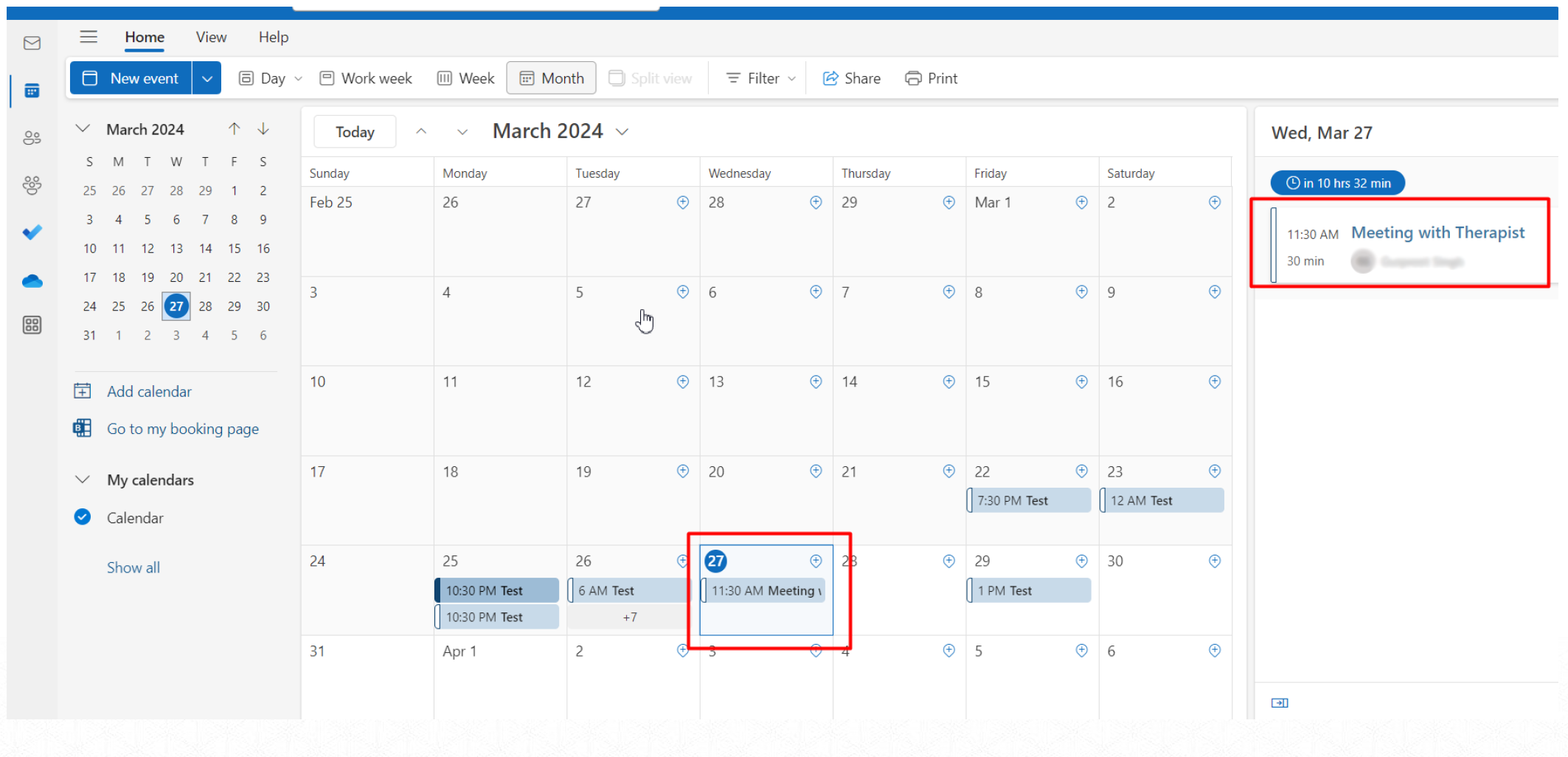
This part of the solution will be driven by timeline Activities (Appointments). Appointments can be created ad hoc and in the future. Once the appointment records are created, these will also be visible in the Outlook & Teams calendar of the user.
These appointments will be then linked to the Participant Agreement and Agreement Service. And then the activity cost will be used to invoice the Participant.
To create Appointments, we navigate to the Participant record. From there we access the Timeline feature and select the Appointments option.
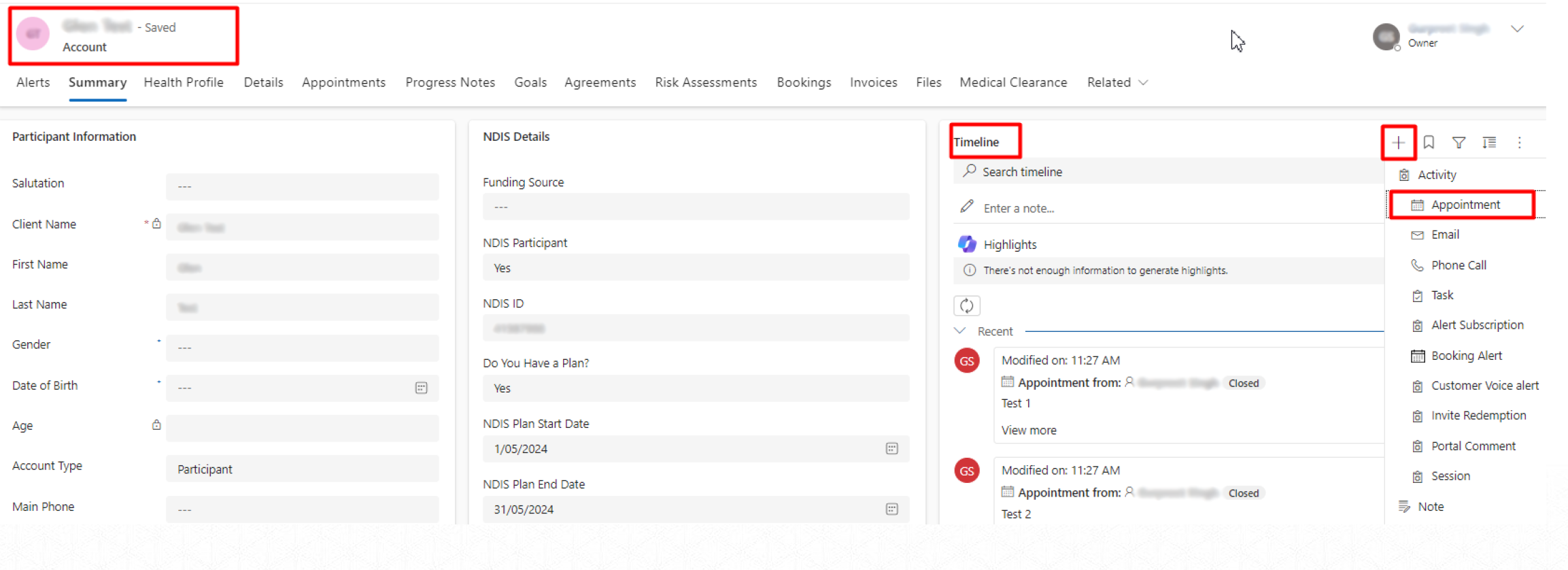
Creating Appointments
Here is how to create an appointment.
-
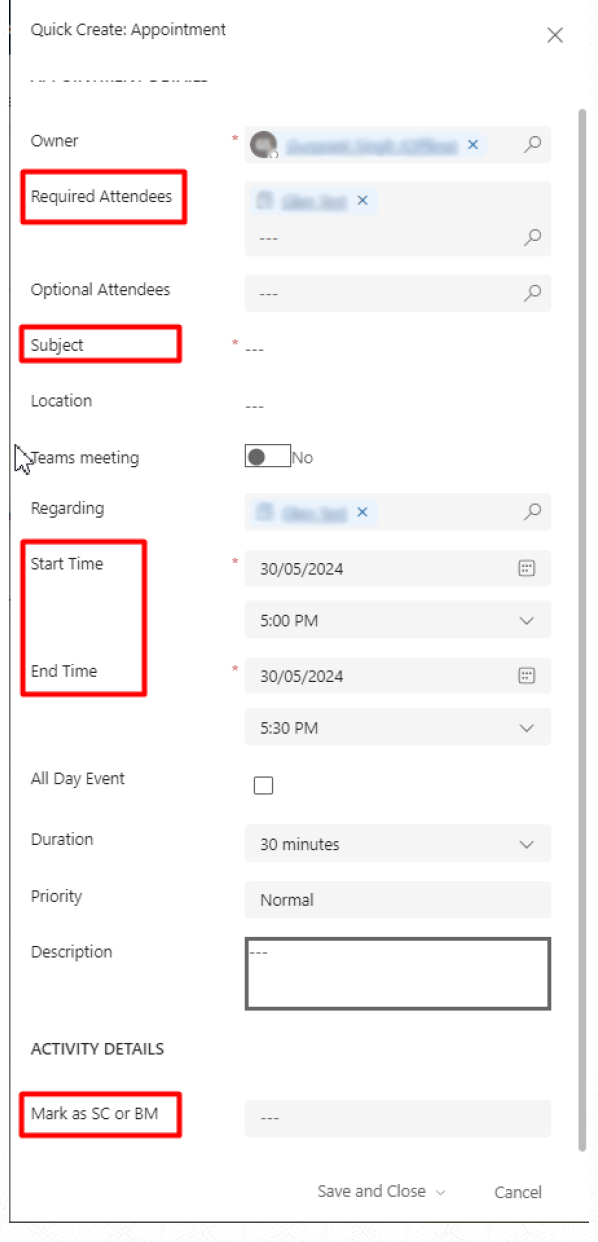
As we are creating appointments from the Participant timeline, the Participant will be auto populated.
-
We then enter the Subject of the Appointment.
-
Ensure the Start / End Date time of Appointment is correct.
-
We then need to select the service this Appointment is for Support Coordination.
Note: Based on the selection of Service, the system will automatically populate the Agreement of that Participant for that service. If no Agreement is populated, then that means, the said Participant does not have an Agreement for that service.
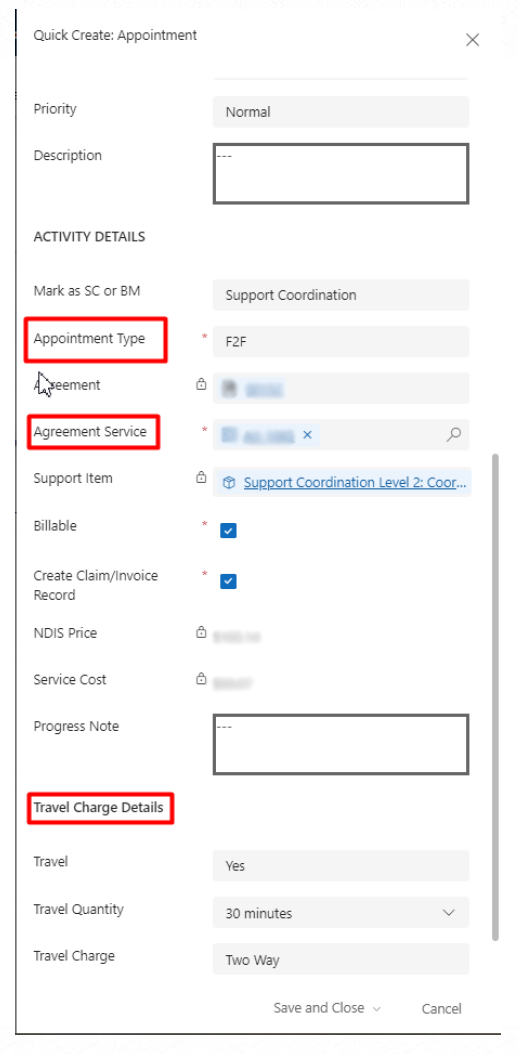
-
Upon selecting the Service, the other fields get visible. Similarly, the Travel charge section is only visible in case of F2F appointment type.
-
User is supposed to select the Appointment type, Agreement Service for that Appointment.
-
Based on the Agreement Service, the system will calculate the Activity cost.
-
If we need to charge for the Travel, then we select Yes, for Travel. This further gives us, option to select the Travel Duration and whether it was One Way/Two Way travel.
-
Once all the data is recorded, we simply SAVE the record.
So far, we have seen how to setup a Support Coordination Agreement & deliver the services. In the later section, we will see how these Appointments will now drive the Participant Invoice & RCTI Invoice for the Users/Contractors.
Appointments are linked back from Dynamics to the Outlook & Teams Calendar.
Note: To modify the Appointments, it is always recommended that we update the Dynamics record as a single source of truth. Which in turn will update the schedule board and the calendar.
Service Delivery — Support Coordination Travel Appointments
As mentioned earlier, the system allows the user to select the type of travel charge that needs to be put in place, One way / Two way. Upon selection, the system creates Appointment record as well to be displayed on the Board / calendar. These records are needed to enable resources to have clear visibility of their and others work schedule.
These appointments are created in the below manner:
-
One Way — Only 1 travel appointment is created, which is TRAVEL TO.
-
Two Way — 2 travel appointments are created, which are TRAVEL TO & TRAVEL FROM.
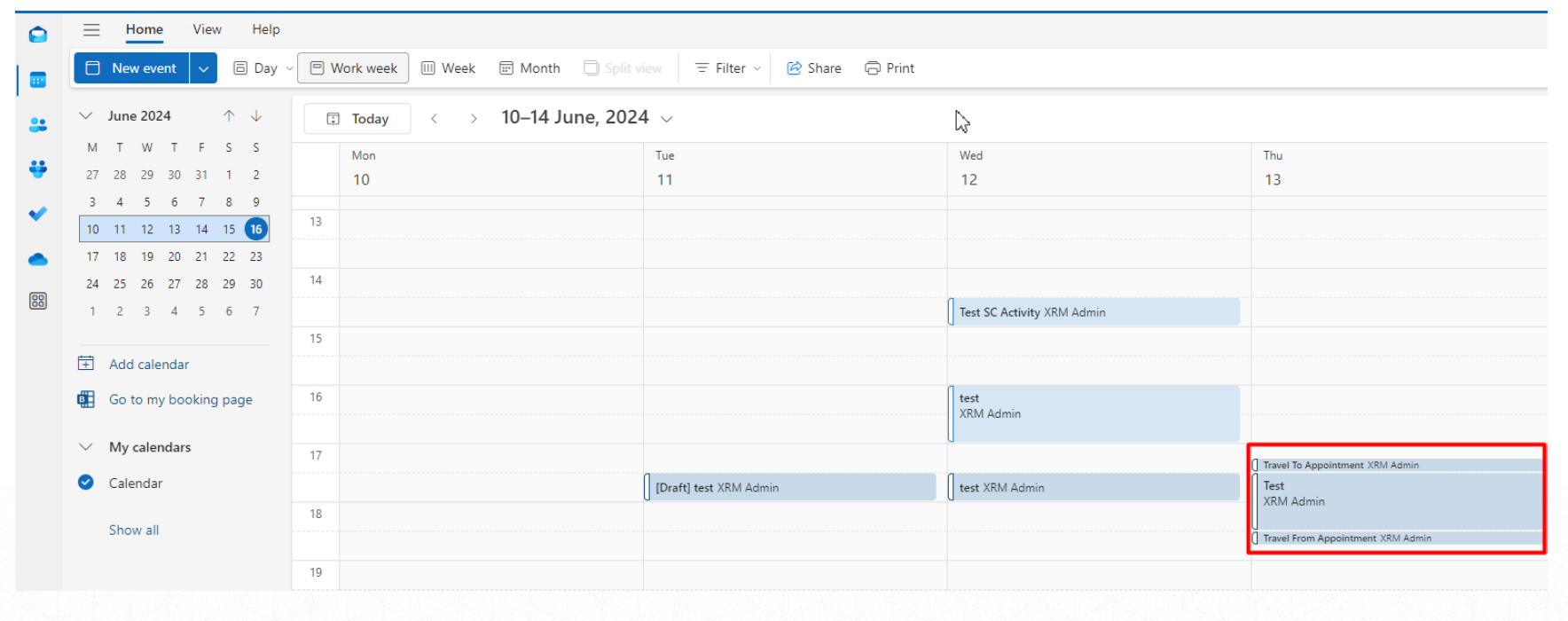
Completing Appointments
When the user has conducted the Appointment with the Participant, they need to COMPLETE the appointment in Dynamics as well. This is to be done by clicking on the “Tick” icon highlighted on the Appointment record. Then click CLOSE APPOINTMENT button on the pop-up window.
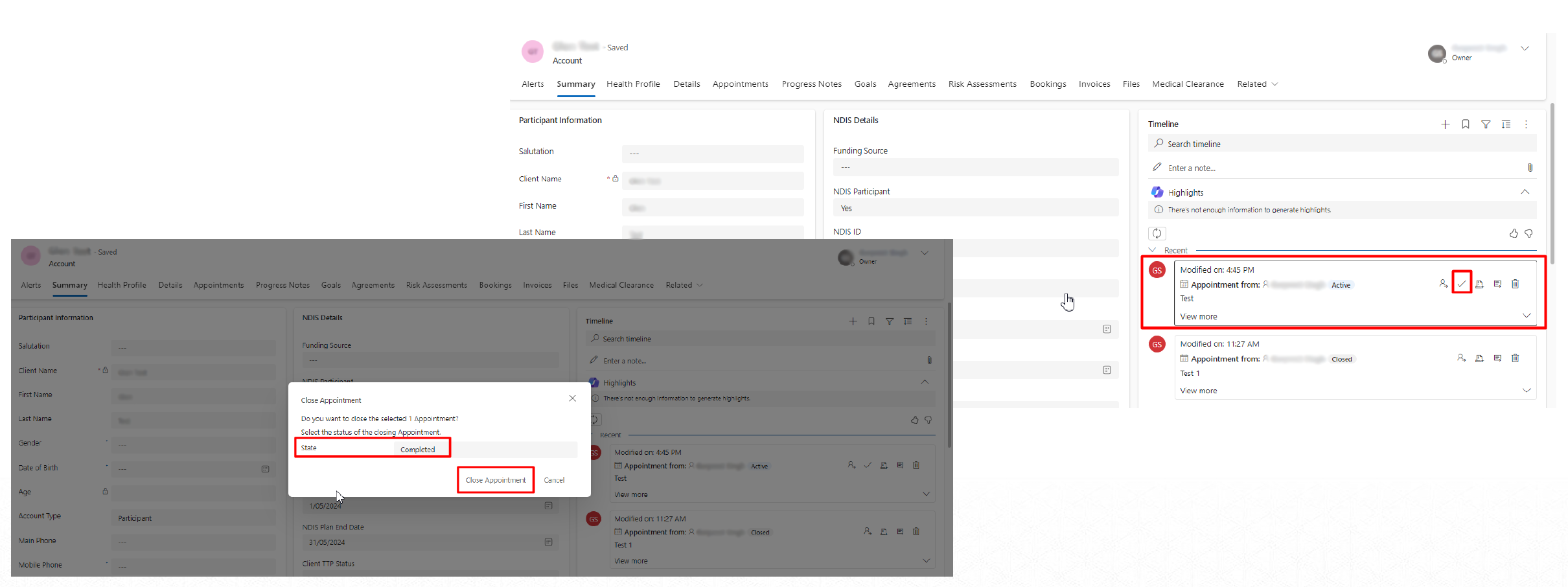
Completing the Appointment does the following things:
-
Creates the Transaction records against the Appointment. One transaction each for — Actual Appointment service, and one for each side of Travel if that was available.
-
Pushes the Appointments for the Billing Participant Invoice.
-
Billing data will be sitting on the transaction records, so we can leverage those records for any analysis or reports.
-
Updates the Balances on the Agreement Service record, in what has been used and what is left out.
-
We also plot the graphs for those Agreement Service records that depict a pattern of service consumption.