Legal User Guide for Microsoft Dynamics 365
Legal Case Management Section
Matter Command Bar (Top Actions)
Matter Action Buttons
At the top of each Matter record, the command bar provides operational controls that allow users to save updates, create related records, perform compliance checks, and progress the Matter through its lifecycle.
The available buttons may vary depending on user permissions,Matter status, and system configuration.
The common Matter command bar actions include:
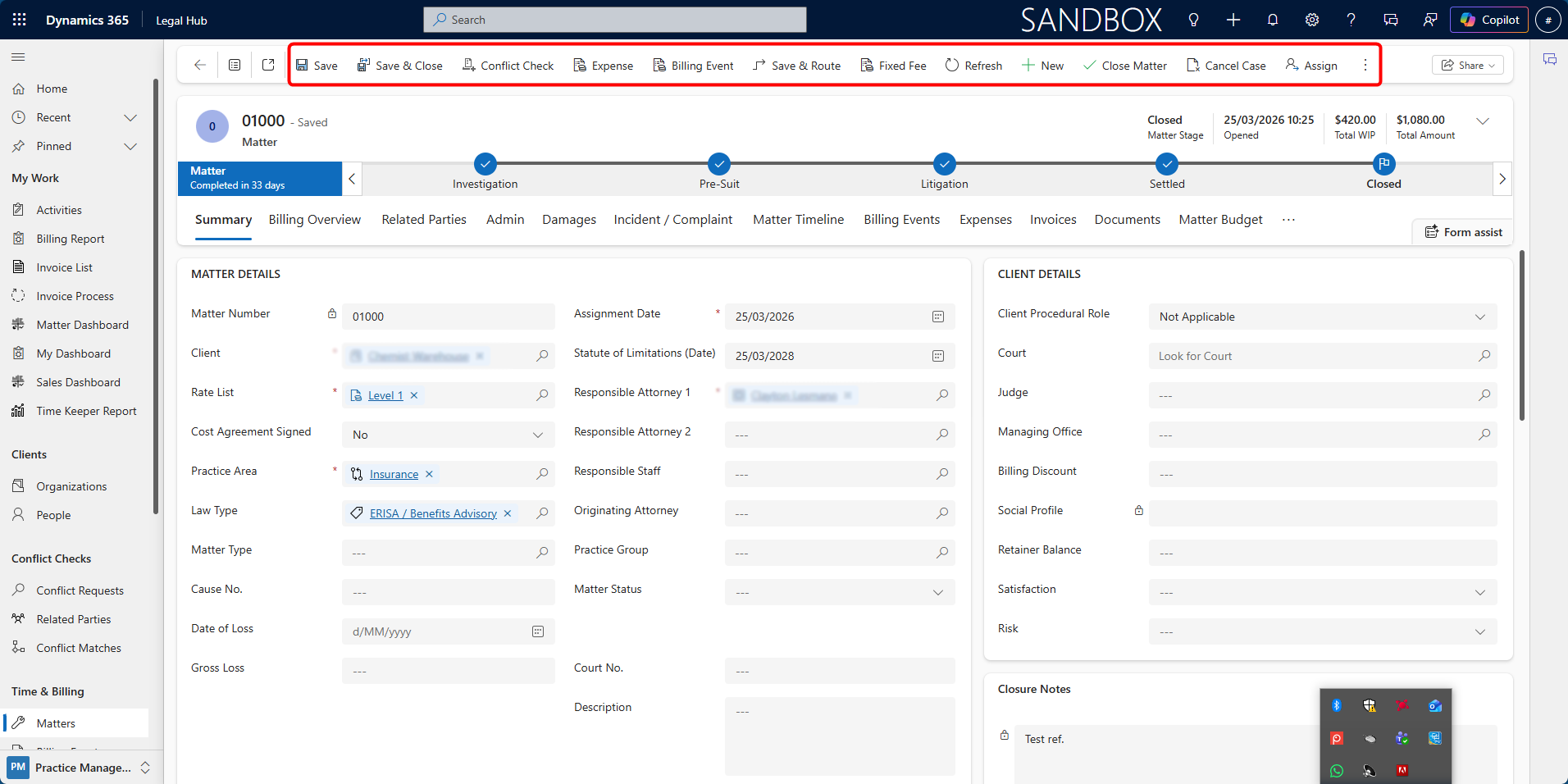
- Save / Save & Close: Used to save changes made to the Matter record.
Save keeps the user on the current Matter record, while Save & Close saves the updates and returns the user to the previous view or Matter list.
- Conflict Check: Used to run or review a conflict check for the Matter. This opens the Conflict Check panel, where users can review possible matches, run the conflict check, export the result, or open the related Conflict Request record. Conflict checking is an important compliance step and is covered in more detail in the next section.
-
Expense: Used to quickly create an expense or disbursement directly against the Matter. When selected, the system opens an Expense form where the user can record the expense details, amount, and supporting information.
-
Billing Event: Used to create a billing event directly against the Matter. Billing events represent billable amounts that can later be reviewed and included in the invoice process. This replaces the previous idea of generating invoices directly from the Matter command bar. Invoices are generated through the Invoice Process after eligible billing events and expenses are available.
-
Save & Route: Used to save the Matter and route it through the relevant process, depending on the configured workflow or business process requirements.
-
Fixed Fee: Used for Fixed Fee Matters. This button opens the Fixed Fee billing panel and allows users to generate billing events for fixed fee instalments that are due. This button is mainly relevant when the Matter Billing Type is set to Fixed Fee.
-
Refresh: Reloads the Matter record and updates the information displayed on the form.
-
+ New: Used to create a new record from the current area, depending on the available Dynamics 365 command options.
-
Close Matter: Used when the legal work is complete and the Matter is ready to be closed. When selected, the system checks whether the Matter has any pending items that must be resolved before closure. If there are no pending items, the Matter can be closed. If pending billing, fixed fee, contingent fee, or other required items exist, the system will prevent closure or display a warning.
-
Cancel Case: Used when the Matter needs to be cancelled before normal completion. This is different from closing a completed Matter. Cancel Case should be used when the Matter is no longer proceeding or has been terminated before completion.
-
Assign: Used to transfer ownership of the Matter to another user or team. Ownership can affect responsibility, visibility, reporting, and follow-up actions.
-
Delete: Used to delete the Matter record, subject to user permissions and system rules. This should only be used when the record was created in error and is not required for audit or operational purposes.
-
Process: Provides access to available business process or workflow-related actions for the Matter.
-
Convert To → Knowledge Article: Allows the Matter to be converted into a Knowledge Base article. This supports institutional knowledge growth and future case efficiency.