Legal User Guide for Microsoft Dynamics 365
Legal Case Management Section
Fixed Fee Matters
A Fixed Fee Matter is used when the firm and client agree to a fixed amount for the legal work, rather than billing purely by time recorded.
In Fixed Fee Matters, time may still be recorded for internal tracking and profitability analysis, but the invoice is driven by the Fixed Fee Schedule rather than hourly time entries.
Fixed Fee billing is managed through planned installments. Each installment represents an amount that is expected to be billed at a specific milestone or due date.
Setting Up a Fixed Fee Matter
To set up a Fixed Fee Matter:
-
Open the required Matter.
-
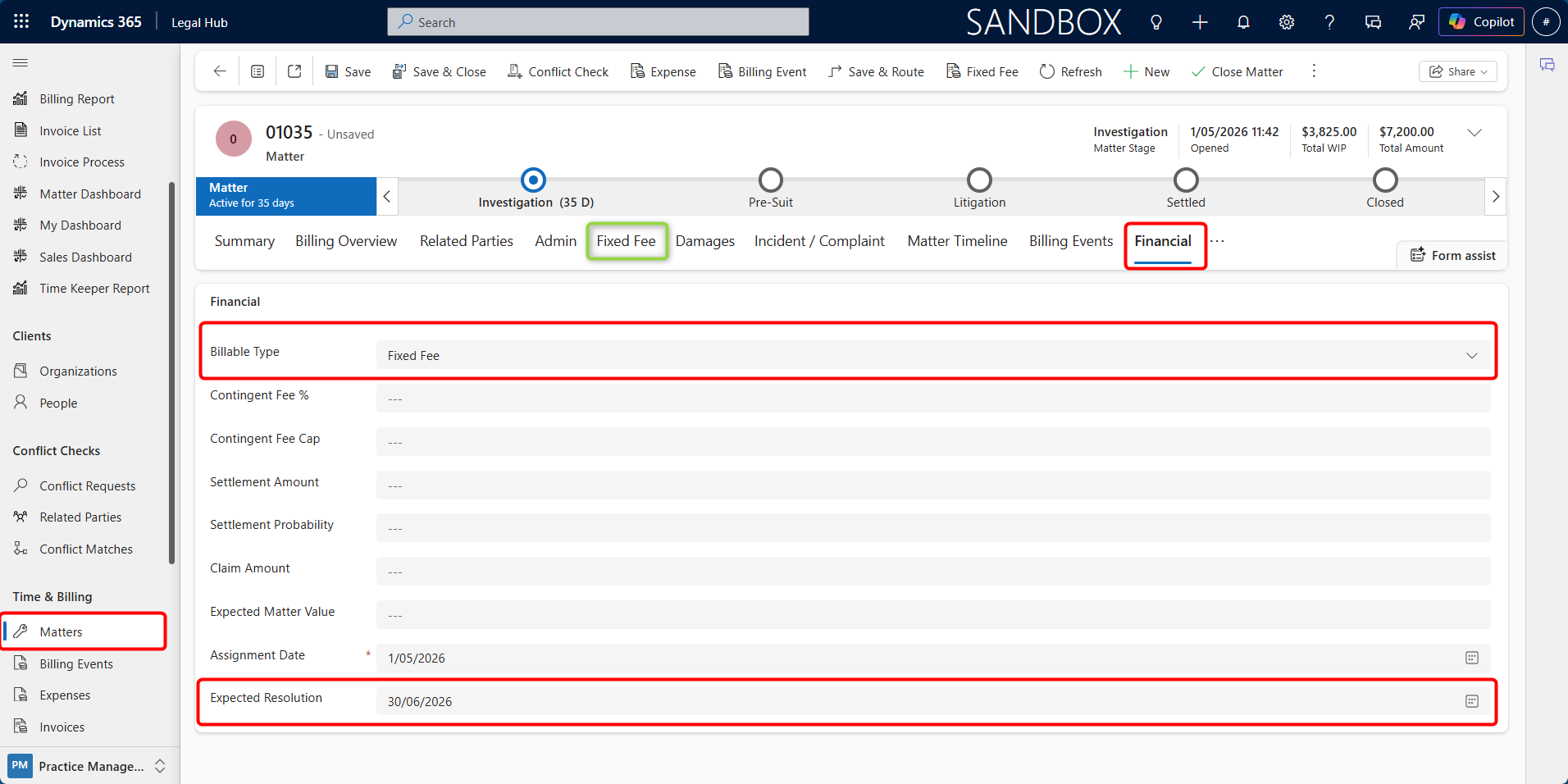
Select the Financial tab.
-
Set Billable Type to Fixed Fee.
-
Add Expected Resolution date.
-
Click Save.
-
The Fixed Fee tab will now be available.
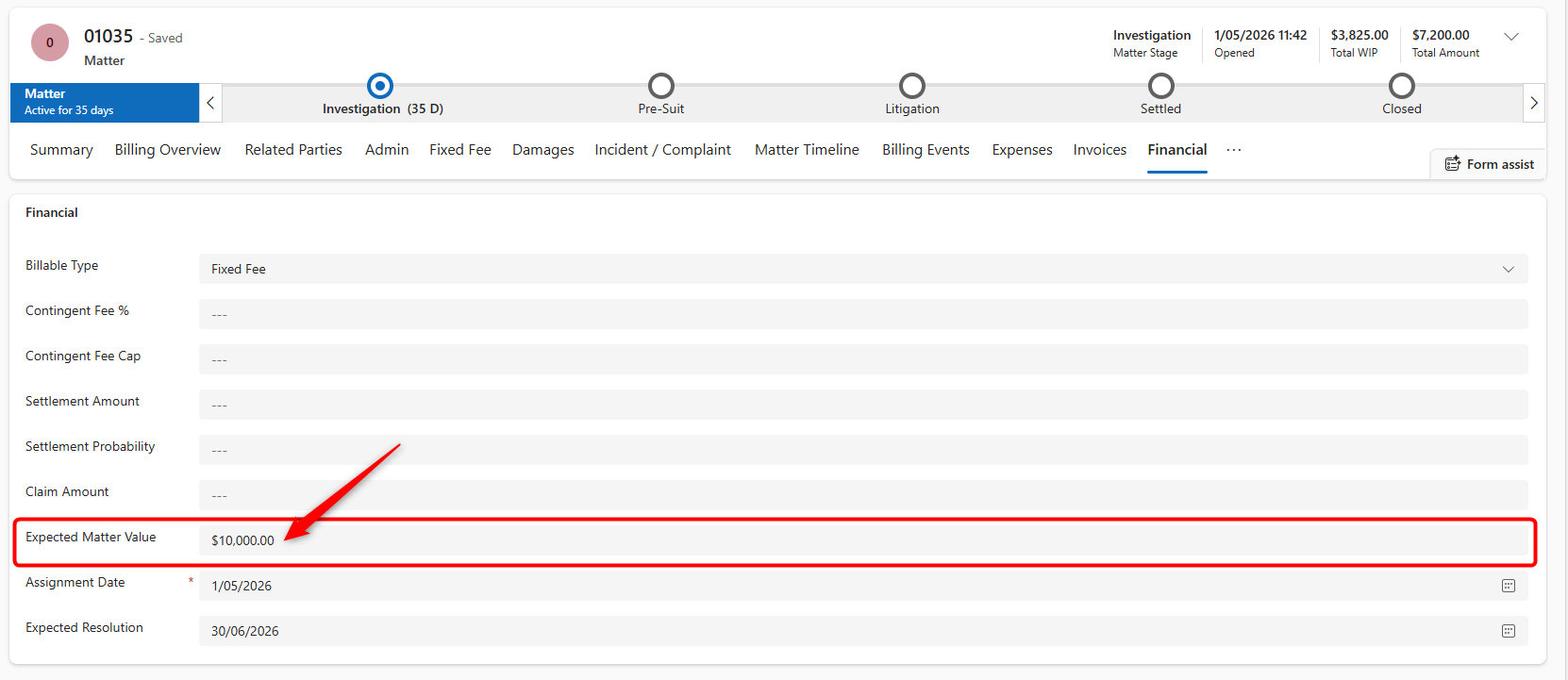
The Expected Matter Value is updated based on the total value of active fixed fee installments. Cancelled installments are excluded from this total.
Fixed Fee Schedule
The Fixed Fee Schedule tab shows all planned fixed fee installments for the Matter. Each schedule row represents a billing milestone or planned payment.
To add a fixed fee installment:
-
Open the required Matter.
-
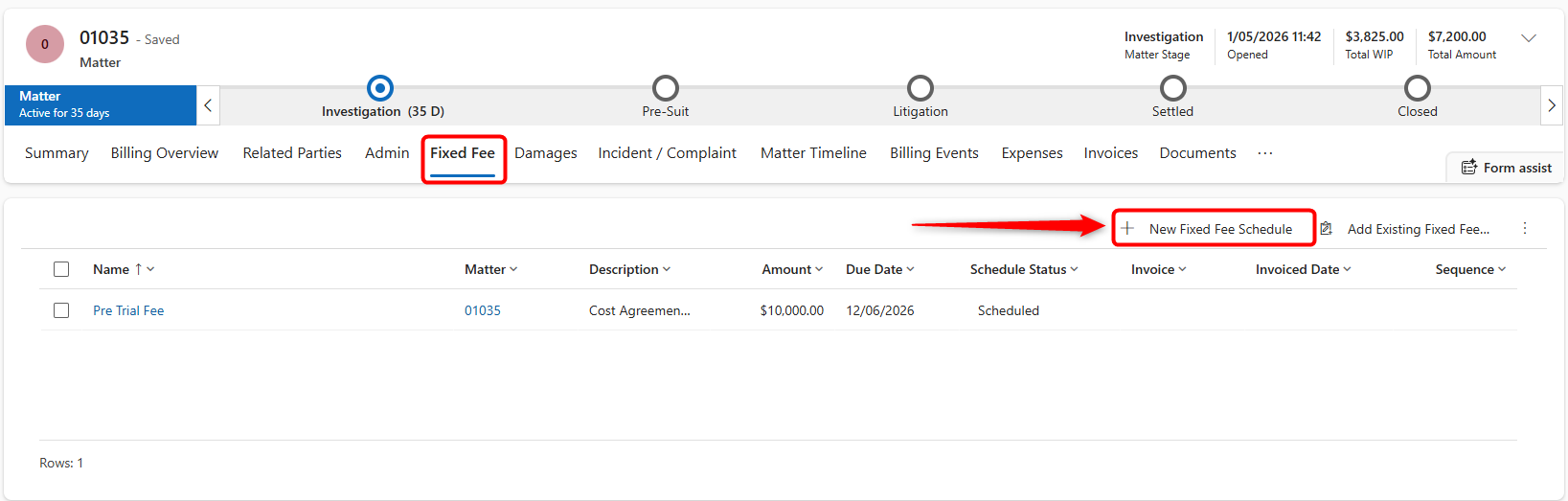
Select the Fixed Fee tab.
-
Click New Fixed Fee Schedule.
-
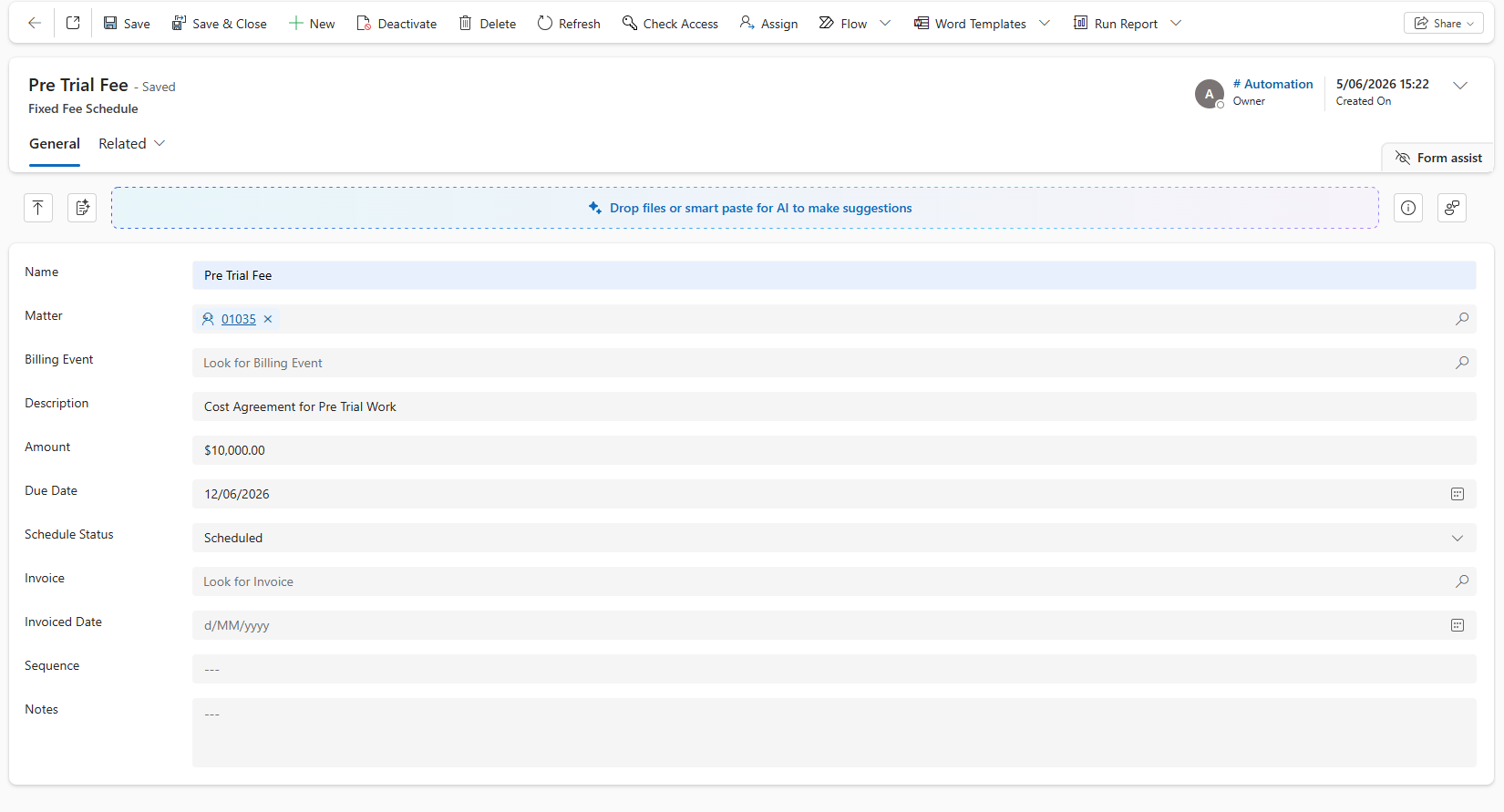
Complete the required fields.
-
Click Save.
Common fields include:
| Field | Description |
|---|---|
| Name | A short label for the instalment, such as Engagement Fee or Completion Fee |
| Amount | The value of the instalment |
| Due Date | The date the instalment is expected to be invoiced |
| Description | Optional details about what the instalment covers |
| Sequence | The order the instalments should appear |
| Schedule Status | The current status of the instalment |
Fixed Fee Schedule Statuses
Each fixed fee schedule row has a status that controls whether it can be raised and invoiced.
| Status | Meaning |
|---|---|
| Scheduled | Instalment is due and waiting for billing event generation |
| Raised | A billing event has been created and is ready for invoicing |
| Invoiced | The instalment has been invoiced and linked to an invoice |
| On Hold | The instalment is paused and will not be raised until the status is changed |
| Cancelled | The instalment has been cancelled and is excluded from totals and invoice runs |
Generating Billing Events for Fixed Fee Installments
Before a Fixed Fee Installment can be invoiced, it must be converted into a Billing Event. This can happen automatically or manually.
Automatic Generation
A scheduled process runs overnight and converts due Scheduled installments into Billing Events. This applies to installments with a due date on or before the current date.
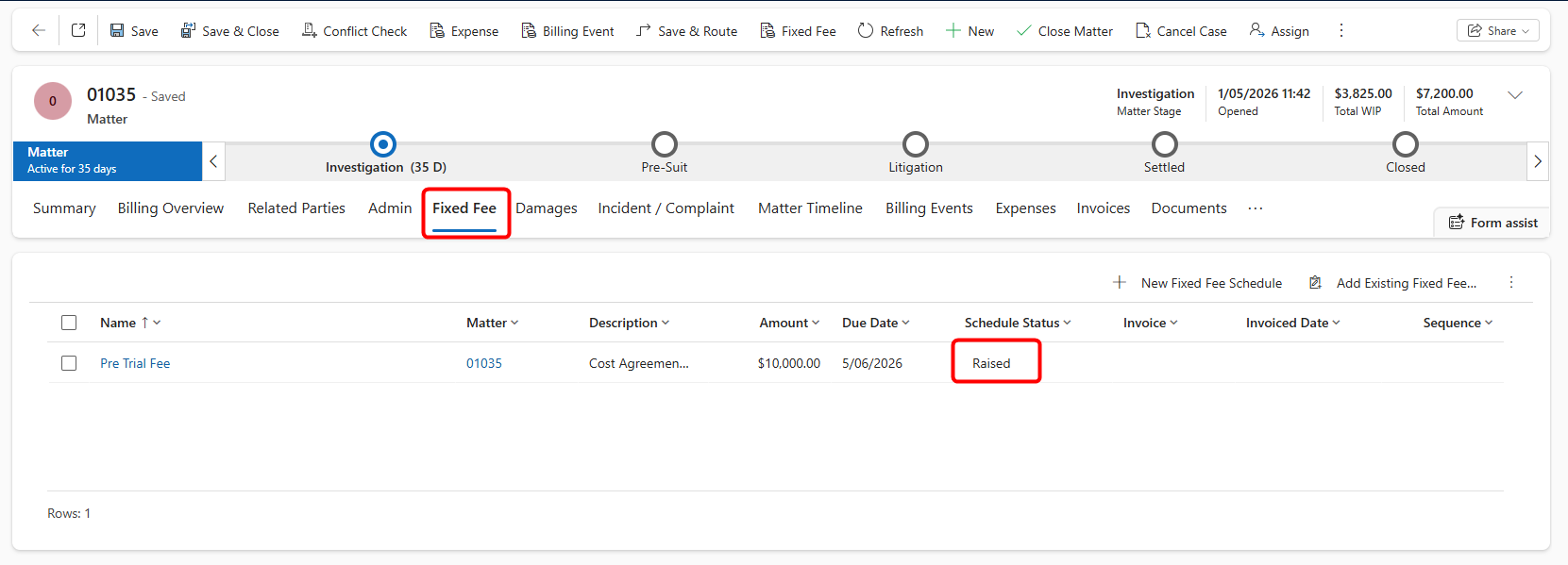
When the Billing Event is created, the schedule status changes to Raised.
Manual Generation
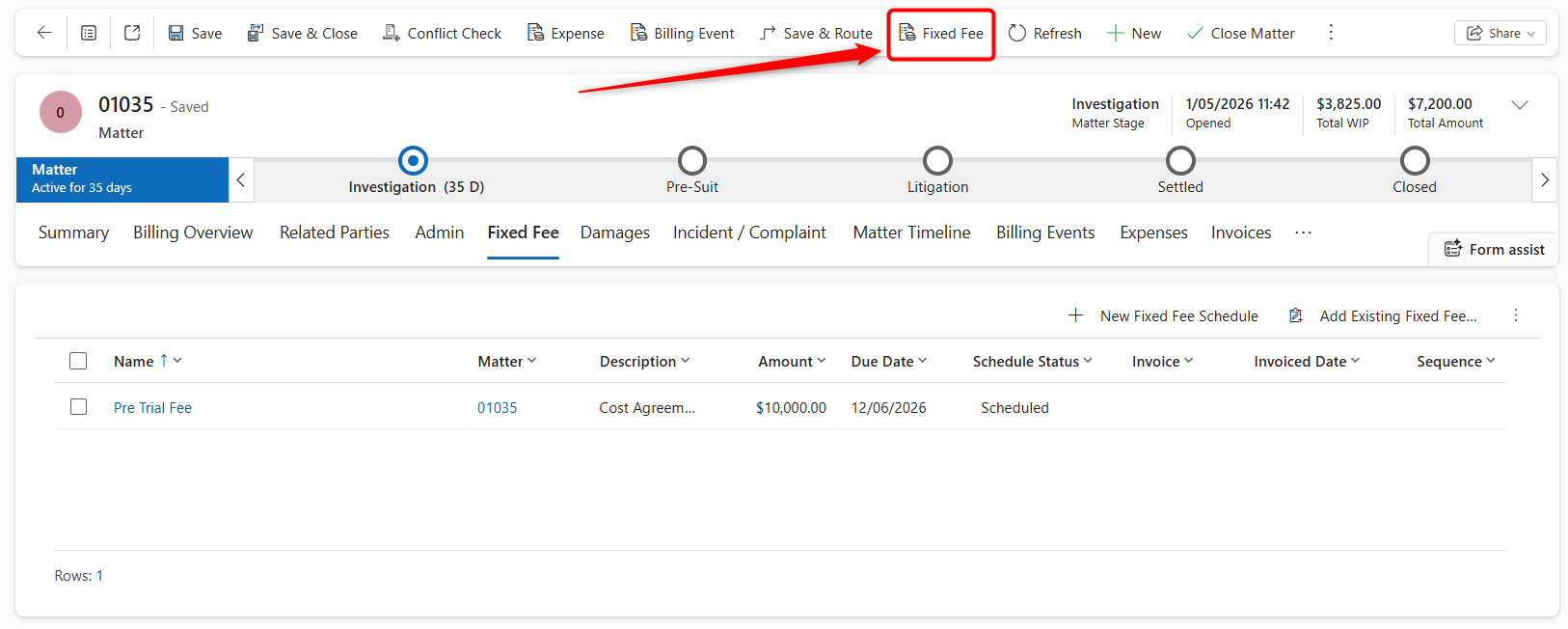
Users can also generate Billing Events manually from the Matter command bar.
To manually generate fixed fee Billing Events:
-
Open the required Fixed Fee Matter.
-
Click Fixed Fee in the Matter command bar.
-
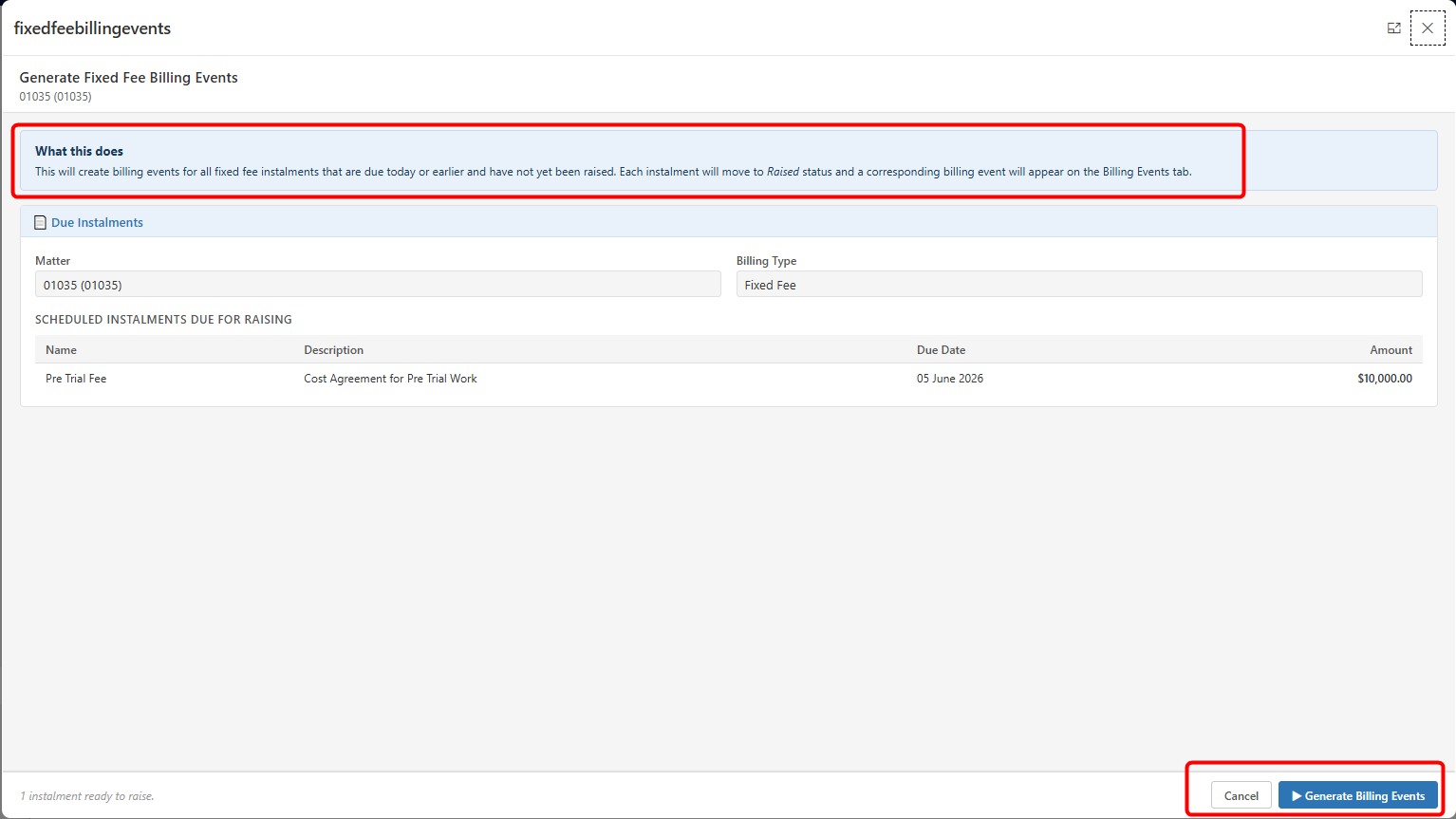
Review the installments that are due today or earlier.
-
Click Generate Billing Events.
- Confirm that the related schedule rows have changed to Raised.
The Fixed Fee button is only relevant for Matters where the Billable Type is set to Fixed Fee.
Note: Use the manual button on the day you want to invoice rather than waiting for the overnight process.
Invoicing a Fixed Fee Matter
Once Fixed Fee Installments have been raised into Billing Events, the Matter becomes eligible for invoicing.
To invoice a Fixed Fee Matter:
-
Open the Matter.
-
Select the Fixed Fee tab.
-
Confirm the required installments have status Raised.
-
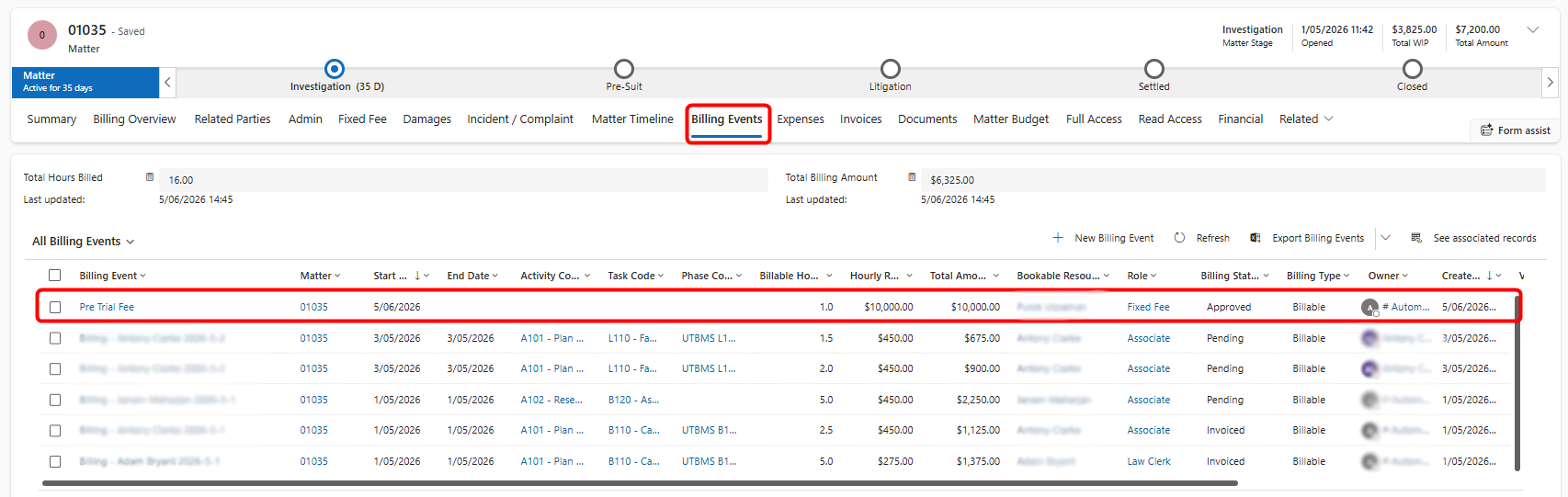
Open the Billing Events tab and confirm the related Billing Events exist.
-
Go to My Work > Invoice Process.
-
Generate the invoice using the normal invoice process.
-
Review the generated invoice.
After the invoice is generated:
-
The Billing Event status changes to Invoiced.
-
The Fixed Fee Schedule row changes to Invoiced.
-
The Invoice field on the schedule row is populated with a link to the invoice.
Closing a Fixed Fee Matter
A Fixed Fee Matter cannot be closed while any Fixed Fee Installments remain in Scheduled status.
Before closing a Fixed Fee Matter:
-
Open the Matter.
-
Review the Fixed Fee tab.
-
Check for installments with status Scheduled.
-
For installments that should be billed, generate Billing Events and invoice them.
-
For installments that will not be billed, change the status to Cancelled.
-
Click Close Matter from the Matter command bar.
If outstanding scheduled instalments remain, the system may display a warning and prevent the Matter from being closed.