Legal User Guide for Microsoft Dynamics 365
Legal Case Management Section
Tasks Management
Tasks are automatically generated to guide users through the required activities at each stage of a Matter. This ensures consistency, reduces manual tracking, and helps legal teams follow a structured workflow.
When Are Tasks Created
Tasks are triggered automatically when:
-
A new Matter is created, or
-
A Matter moves from one Stage to another (e.g., Investigation → Pre-Suit → Litigation)
These events act as checkpoints in the Matter lifecycle, ensuring that required actions are not missed.
How the System Generates Tasks
When a trigger occurs, the system performs the following steps:
- Identify Matching Task Templates
The system checks all active Task Templates and filters them based on:
-
Practice Area (must match the Matter exactly)
-
Stage Name (current stage of the Matter)
Only templates that meet both conditions are considered.
- Create Task Records Automatically
For each matching template, the system creates a Task with:
-
Task Subject (Task Name)
-
Description (if configured)
-
Assigned Owner
-
Due Date
-
Related Matter (link back to the Matter)
Multiple tasks may be created at once depending on how many templates match.
- Assign Task Ownership
Tasks are automatically assigned based on the following logic:
-
If Responsible Attorney 1 is populated → Tasks are assigned to that user.
-
If Responsible Attorney 1 is blank → Tasks are assigned to the Matter Owner.
This ensures accountability without requiring manual assignment.
- Calculate Due Dates
Each Task Template includes a Due In Days value. The system calculates the due date using:
- Due Date = Assignment Date + Due In Days
Where:
-
Assignment Date is taken from the Matter
-
Due In Days is defined in the template
This ensures deadlines are dynamically calculated for each Matter.
Important Condition
Tasks are generated only if a Practice Area is set on the Matter.
If the Practice Area is missing:
-
No Task Templates will match.
-
No Tasks will be created.
What Happens on Stage Changes
Each time a Matter moves to a new stage:
-
The system re-evaluates Task Templates.
-
New tasks are created for that stage.
-
Existing tasks remain unchanged unless manually updated.
This allows each stage to have its own set of required actions.
Viewing Tasks
Tasks can be viewed from multiple areas within the system, depending on whether users want to focus on a specific Matter or get a broader view across all assigned work.
Viewing Tasks from a Matter
This is the most common way to view tasks when working on a specific case.
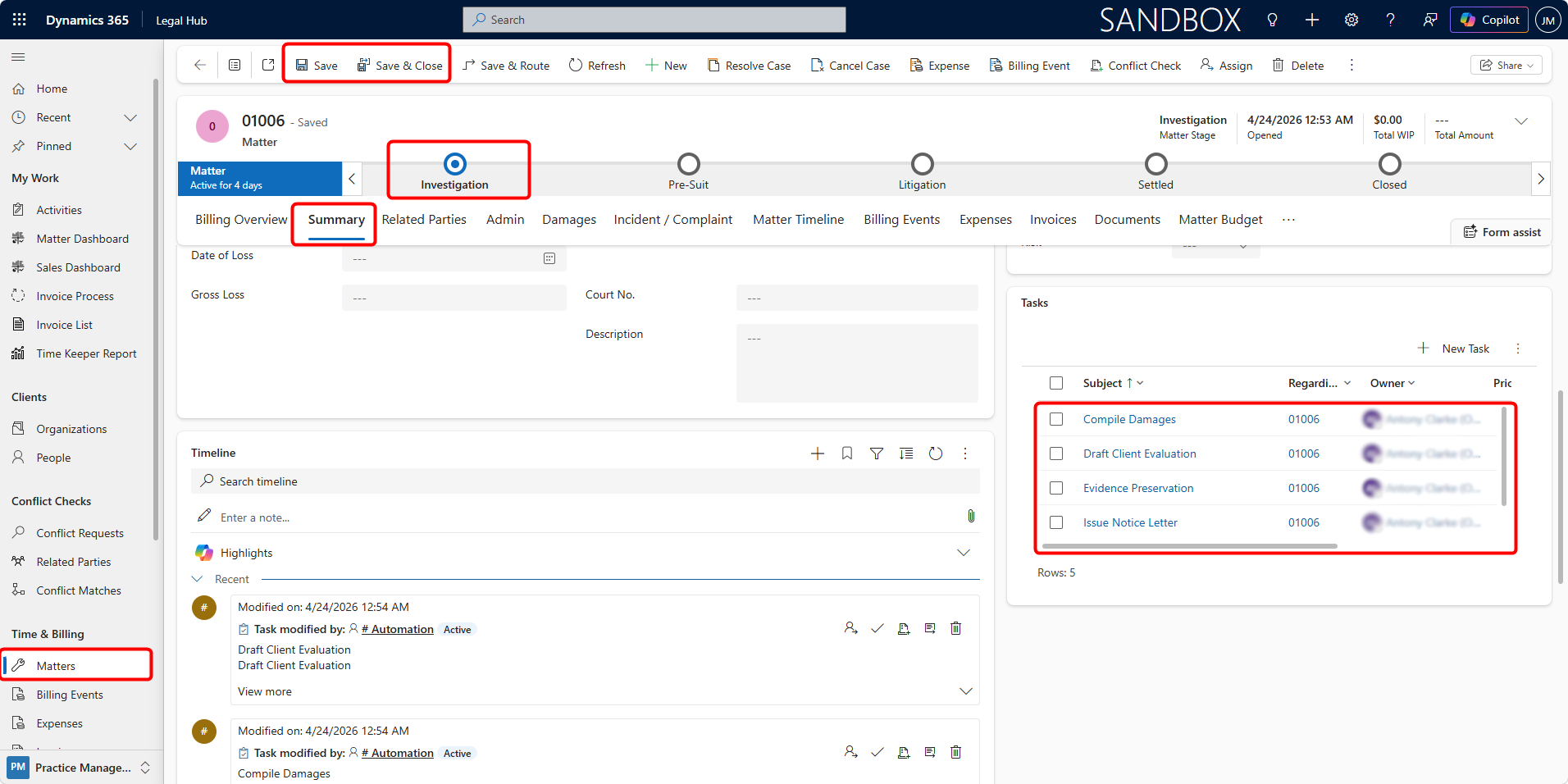
Follow these steps for viewing tasks from a Matter:
-
Open the required Matter.
-
Navigate to the Summary tab.
-
Locate the Tasks section / panel.
What You Can See
Within the Matter, the Tasks panel typically displays:
-
Task Subject (Name)
-
Owner (Assigned User)
-
Status (Open / Completed)
-
Due Date
-
Priority (if configured)
This provides a quick snapshot of all activities related to that Matter.
Viewing Tasks from Activities (All Tasks View)
This view allows users to see all tasks assigned to them across multiple Matters.
Follow these steps for viewing tasks from activities:
-
Navigate to My Work > Activities.
-
Open the All Activities or My Activities view.
-
Filter by Task if required.
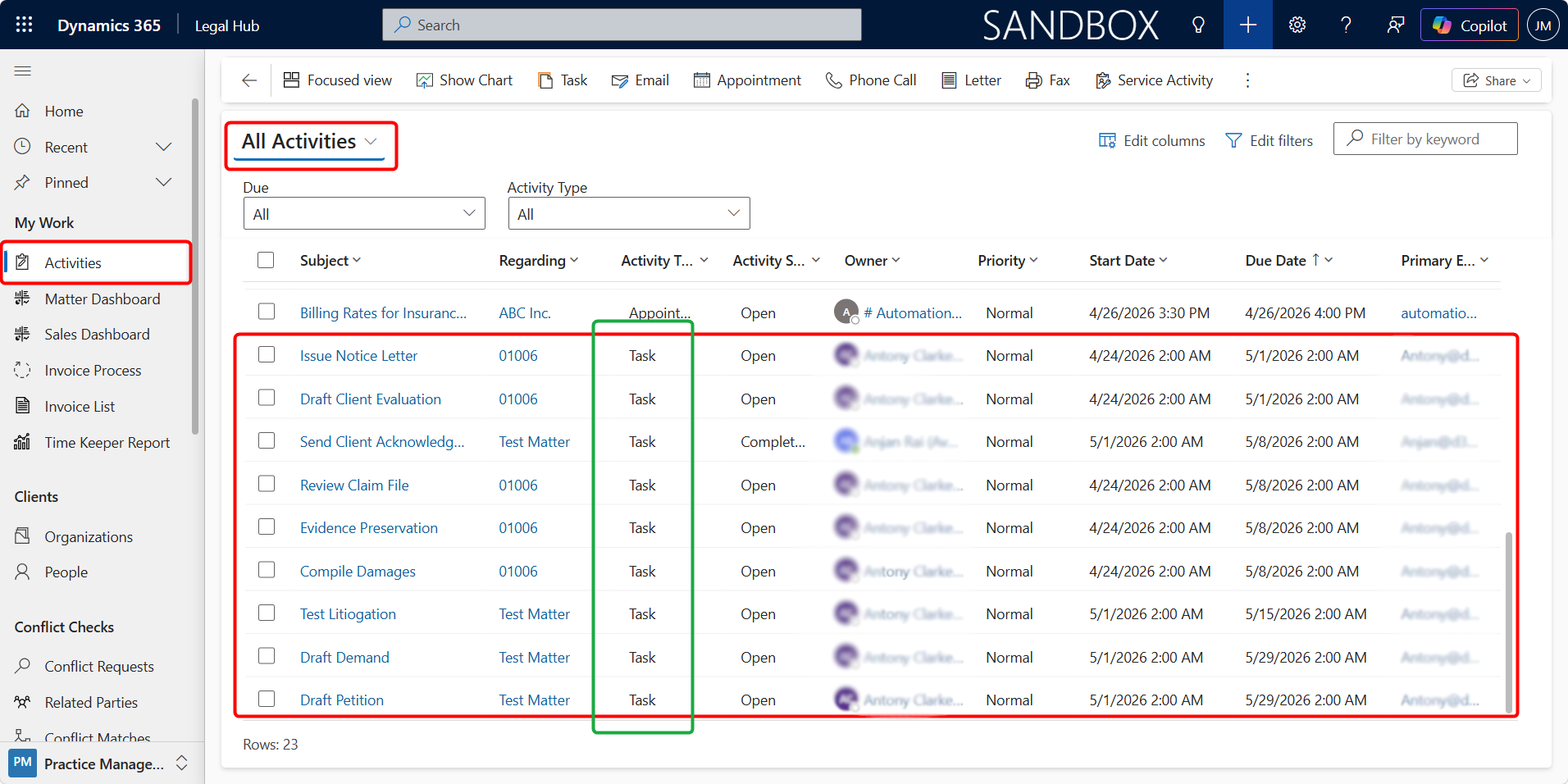
In this view, users can see:
-
Tasks from multiple Matters in one place.
-
Identify overdue or upcoming tasks.
-
Sort and filter based on:
-
Due Date
-
Status
-
Owner
-
Related Matter
-
Filtering and Searching Tasks
Users can refine task lists by:
-
Status (Open, Completed)
-
Due Date (Overdue, Today, Upcoming)
-
Matter (specific case)
-
Owner (assigned user)
This helps in quickly locating relevant tasks.
Refreshing Task Data
If newly created tasks are not visible:
-
Click Refresh on the page.
-
Or reopen the Matter.
This ensures the latest tasks are displayed.
Completing Tasks
Tasks must be marked as completed once the required activity is finished.
This helps maintain accurate tracking of work progress and ensures that Matters move forward as expected.
Tasks can be completed directly from the Activities area or from within the Task record itself.
Method 1 — From Activities (Recommended)
This is the fastest and most commonly used method.
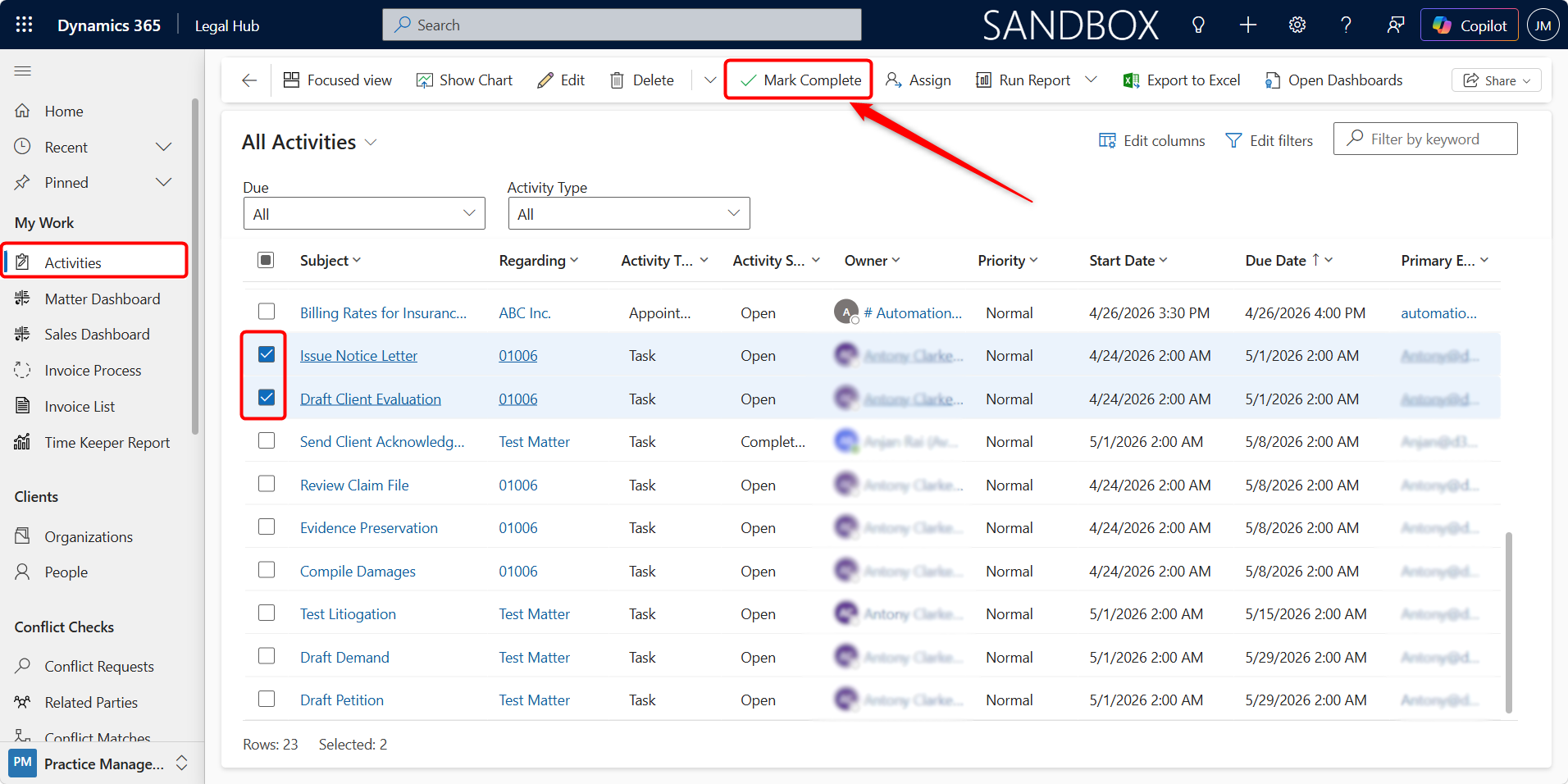
Follow these steps to complete a task from activities:
-
Navigate to My Work > Activities.
-
Open the All Activities or My Activities view.
-
Locate the required Task(s).
-
Select one or more tasks using the checkboxes.
-
Click Mark Complete from the command bar.
What Happens Next
-
Task status is updated to Completed.
-
The task is removed from active task lists.
-
Completion is logged in the system.
Method 2 — From the Task Record
Use this method when you want to review or update task details before completing it.
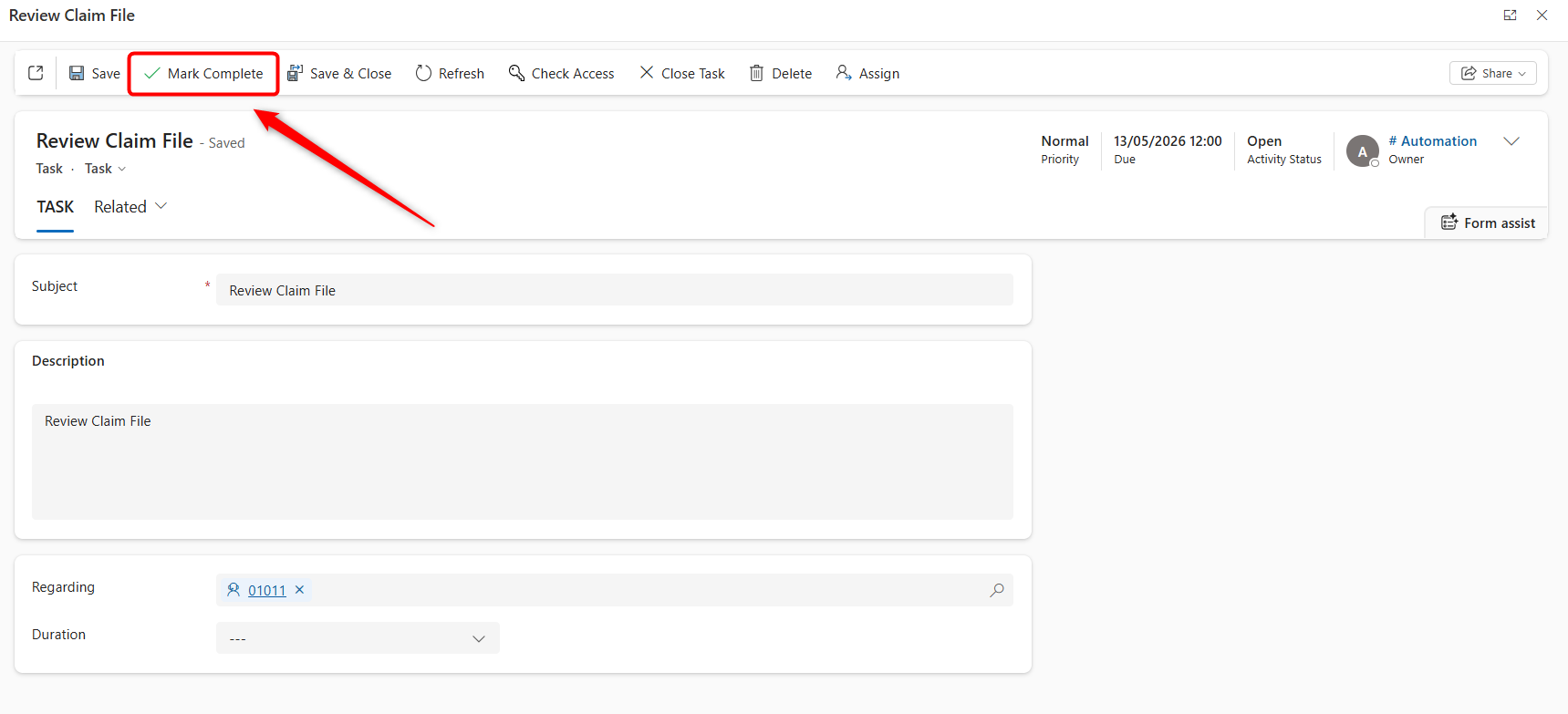
Follow these steps to complete a task from a record:
-
Open the required Task (from Matter or Activities).
-
Review or update details if needed (e.g., notes, description).
-
Click Mark Complete.
Key Fields That Control Tasks
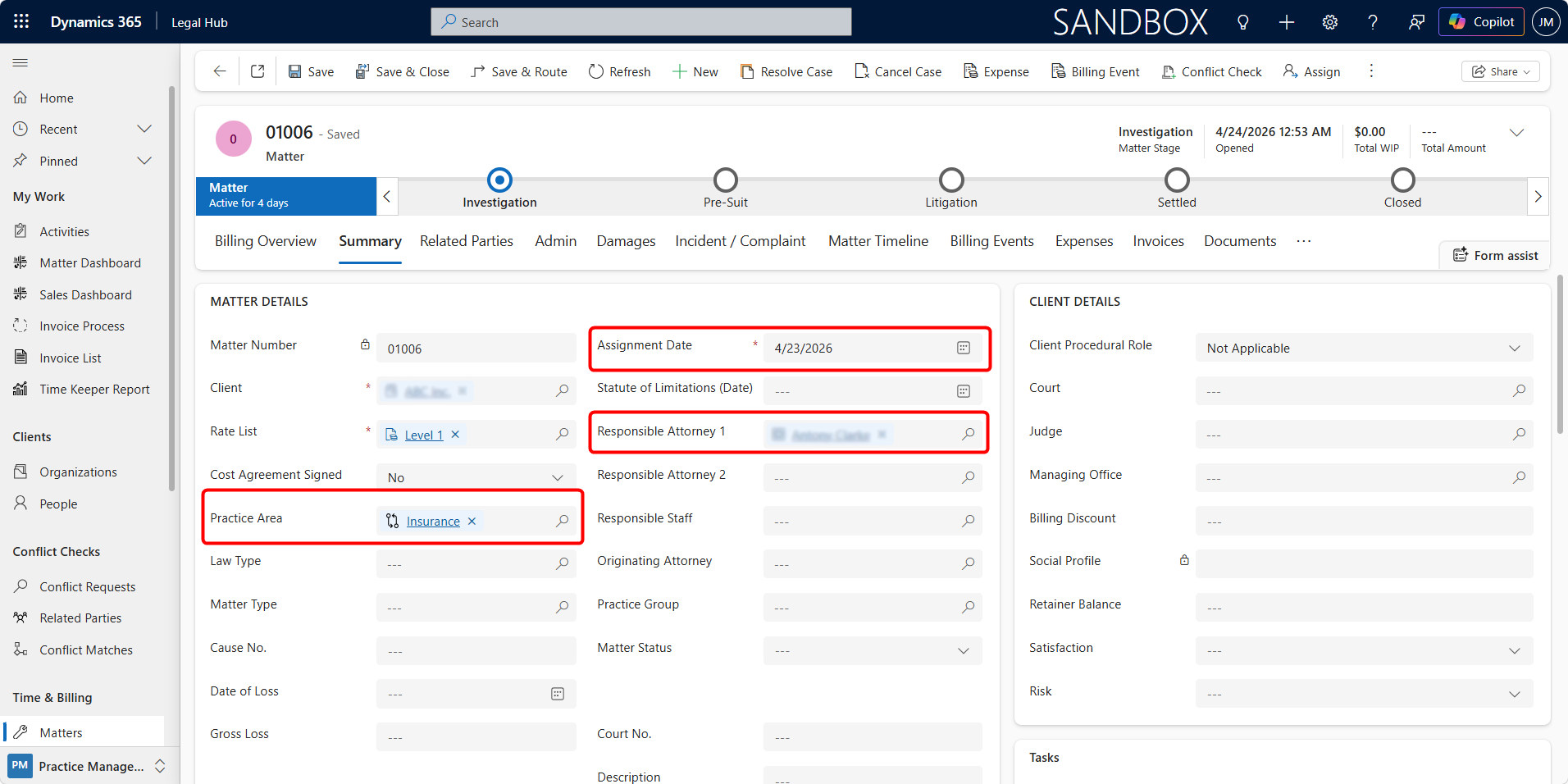
The creation, assignment, and scheduling of Tasks are controlled by specific fields on the Matter record.
Keeping these fields accurate is essential for ensuring tasks are generated correctly.
Overview
Three key fields determine how tasks are created and managed:
-
Practice Area
-
Assignment Date
-
Responsible Attorney 1
Each of these plays a specific role in task automation.
1. Practice Area
The Practice Area determines which Task Templates apply to a Matter.
How It Works
-
Each Task Template is linked to a specific Practice Area
-
When a Matter is created or updated, the system:
-
Matches the Matter’s Practice Area with Task Templates.
-
Generates tasks only for matching templates.
-
Important Rules
-
Practice Area must exactly match the template configuration
-
If Practice Area is not set:
- No tasks will be generated
2. Assignment Date
The Assignment Date is used to calculate task due dates.
How It Works
-
Each Task Template includes a field called Due In Days.
-
The system calculates the Due Date using: Due Date = Assignment Date + Due In Days.
Important Notes
-
If Assignment Date is missing or incorrect:
- Task due dates may be incorrect.
-
Changing the Assignment Date:
-
May affect newly created tasks.
-
Does not automatically update existing tasks.
-
3. Responsible Attorney 1
This field determines who tasks are assigned to.
How It Works
-
If Responsible Attorney 1 is filled:
- Tasks are assigned to that user.
-
If left blank:
- Tasks are assigned to the Matter Owner.
Reassignment Logic
-
If Responsible Attorney 1 is updated:
- All open tasks are reassigned to the new user.
-
If the field is cleared:
-
Existing tasks remain assigned to the previous user.
-
Until a new Responsible Attorney is set.
-
Important Notes
-
Completed tasks are not affected by reassignment.
-
Only open tasks are reassigned.
Task Templates
Task Templates define what tasks are created, when they are triggered, and how they are assigned.
They are the core configuration that drives automatic task creation for each Matter.
What is a Task Template?
A Task Template is a predefined rule that tells the system:
-
When to create a task (based on Stage)
-
Which Matter type it applies to (Practice Area)
-
What task should be created
-
When it is due
-
Who it should be assigned to
How Task Templates Work
When a Matter is created or changes stage:
-
The system checks all active Task Templates
-
Filters templates based on:
a. Practice Area
b. Stage Name
-
Creates tasks for all matching templates.
-
Assigns and schedules them automatically.
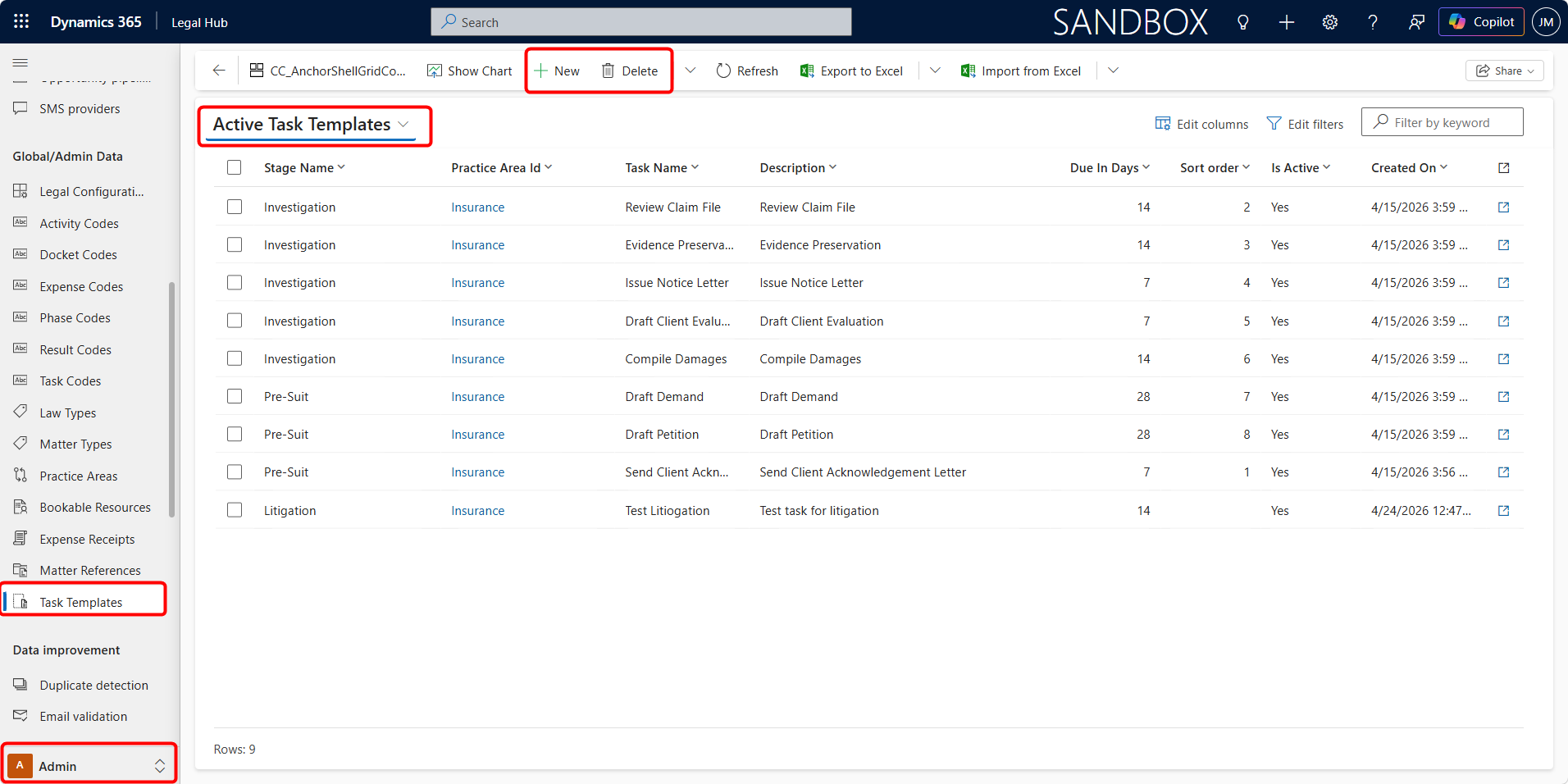
Navigating to Task Templates
Follow these steps to navigate Task Templates:
-
Go to Admin (bottom-left navigation).
-
Under Global/Admin Data, select Task Templates.
Creating a Task Template
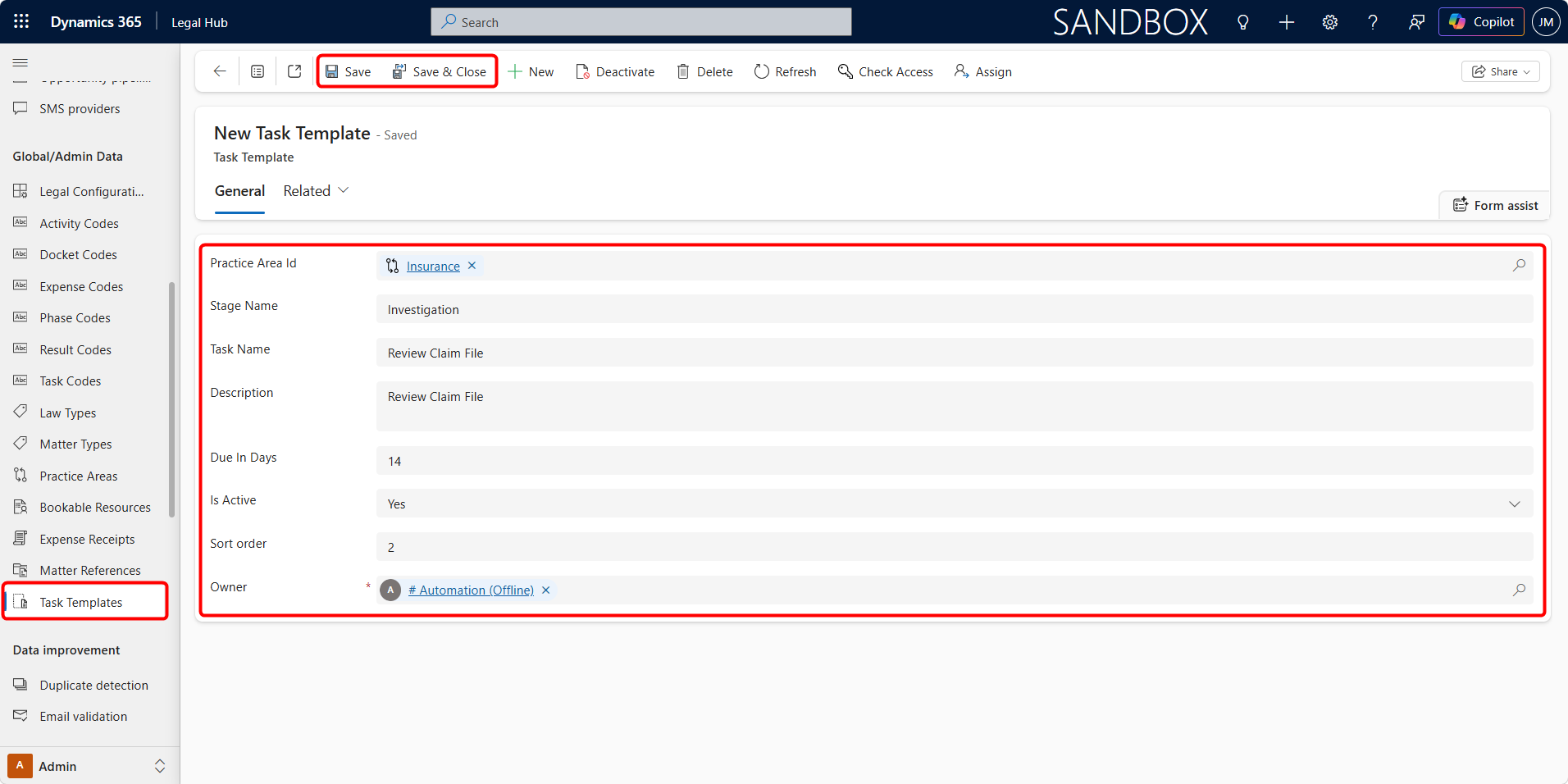
Follow these steps to create a Task Template.
-
Click + New.
-
Fill in the required fields and Click Save & Close.
Key Fields Explained
-
Practice Area
a. Defines which Matters the template applies to.
b. Must match the Matter’s Practice Area exactly.
-
Stage Name
a. Defines when the task should be triggered.
b. Tasks are created when the Matter enters this stage.
-
Task Name (Subject)
a. The name of the task (e.g., “Initial Review”, “Client Follow-up”).
-
Description (optional but recommended)
a. Provides instructions or context for the task.
-
Due In Days
a. Number of days from Assignment Date to Due Date.
-
Is Active
a. Must be set to Yes for the template to be used.
b. Inactive templates are ignored.
How Assignment Works
Task ownership is not directly set in the template.
Instead, it follows system logic:
-
If Responsible Attorney 1 is filled → Assigned to that user.
-
If not → Assigned to Matter Owner.
What Happens After Creation
Once saved and active:
-
The template will be used automatically
-
Tasks will be generated whenever:
-
A Matter is created, or
-
A Matter enters the specified stage
-