Legal User Guide for Microsoft Dynamics 365
Legal Case Management Section
Matter Budget
The Matter Budget tab allows users to define and track budget allocations for a Matter. This feature helps legal teams monitor spending against predefined financial limits and maintain better cost control throughout the lifecycle of the Matter.
Budgets can be defined for the overall Matter or for specific resources and phase codes, allowing firms to track how much work has been completed against planned financial limits.
The system automatically calculates values such as Budget Used and Budget Remaining based on billing events and other financial records linked to the Matter.
What You See in the Matter Budget Tab
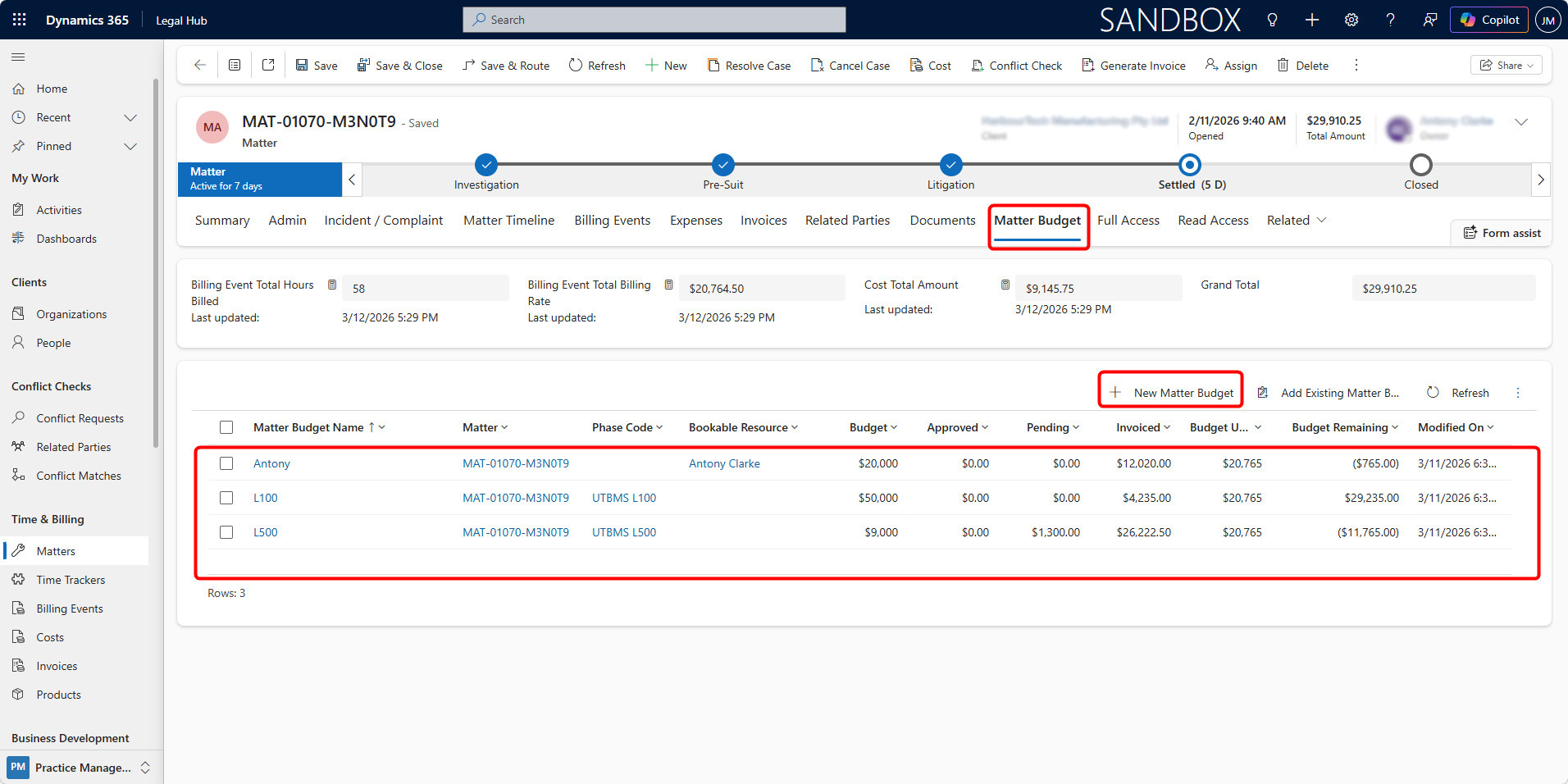
The Matter Budget tab displays a grid containing all budget records associated with the Matter. The grid includes key information such as:
-
Matter Budget Name — Name assigned to the budget record.
-
Matter — The Matter associated with the budget.
-
Phase Code — The billing phase the budget applies to (if applicable).
-
Bookable Resource — The lawyer or staff member associated with the budget.
-
Budget — The total allocated budget amount.
-
Approved — Amount approved for billing.
-
Pending — Amount currently pending approval.
-
Invoiced — Amount already invoiced to the client.
-
Budget Used — Total value of billable work recorded against the budget.
-
Budget Remaining — Remaining budget available before the limit is exceeded.
This section provides clear visibility into how much of the allocated budget has been used and how much remains, helping firms manage matter profitability and prevent budget overruns.
Creating a Matter Budget
Users can create a budget directly from the Matter Budget tab within a Matter.
Here are the steps to create a new Matter Budget:
-
Open the required Matter record.
-
Navigate to the Matter Budget tab.
-
Click + New Matter Budget.
-
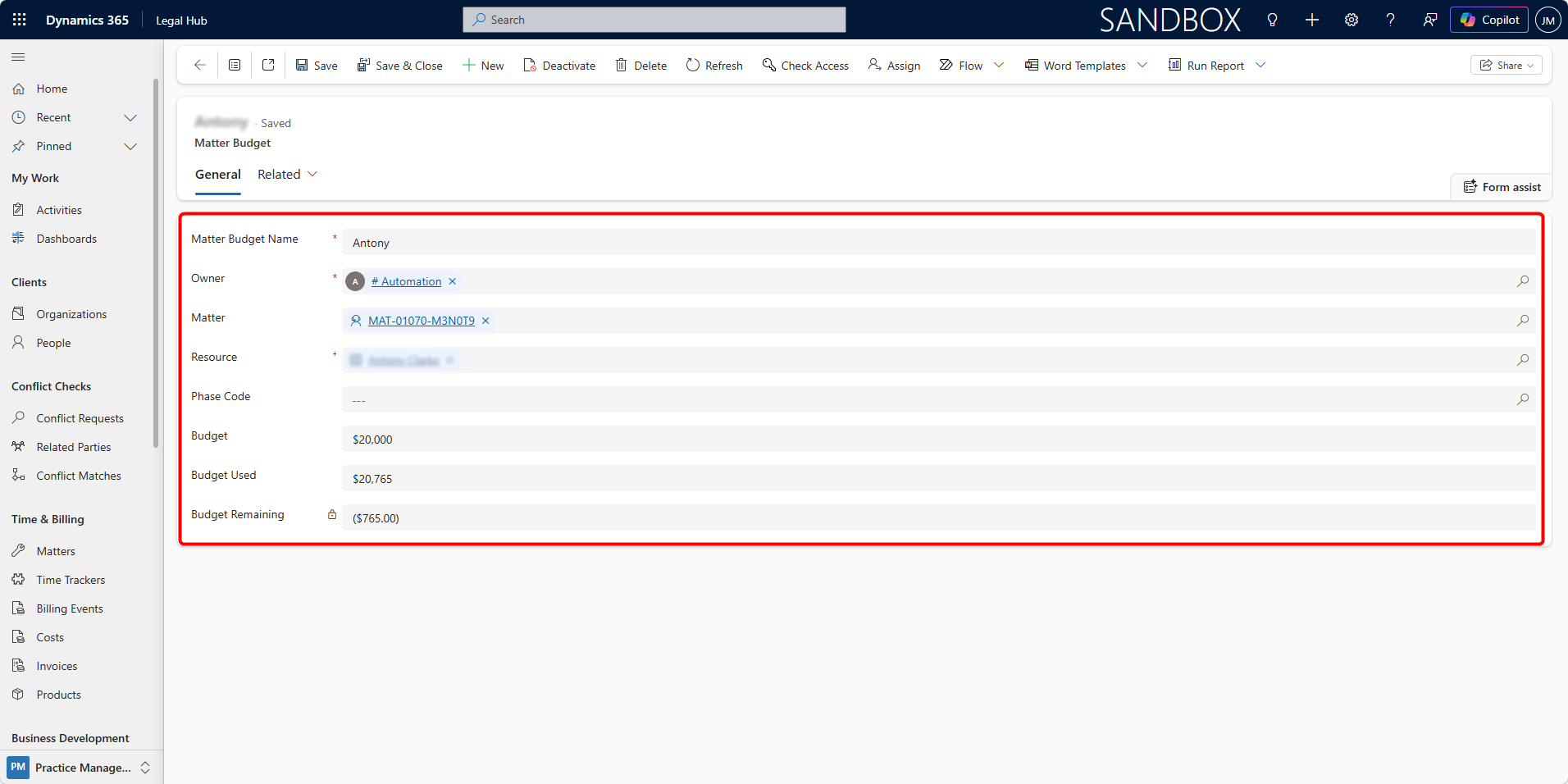
The Matter Budget form will open.
-
Enter the required information:
a. Matter Budget Name — A descriptive name for the budget record.
b. Owner — The user responsible for the budget entry.
c. Matter — The Matter the budget applies to.
d. Resource — The bookable resource (lawyer or staff member) associated with the budget.
e. Phase Code — Optional billing phase associated with the budget.
f. Budget — The total allocated budget amount. -
Click Save to create the Matter Budget record.
Once saved, the budget will appear in the Matter Budget grid, and the system will automatically track Budget Used and Budget Remaining as billing events are recorded against the Matter.