Legal User Guide for Microsoft Dynamics 365
Legal Case Management Section
Conflict Check
Conflict checking is a compliance process used to identify whether the firm may have a conflict of interest before continuing work on a Matter.
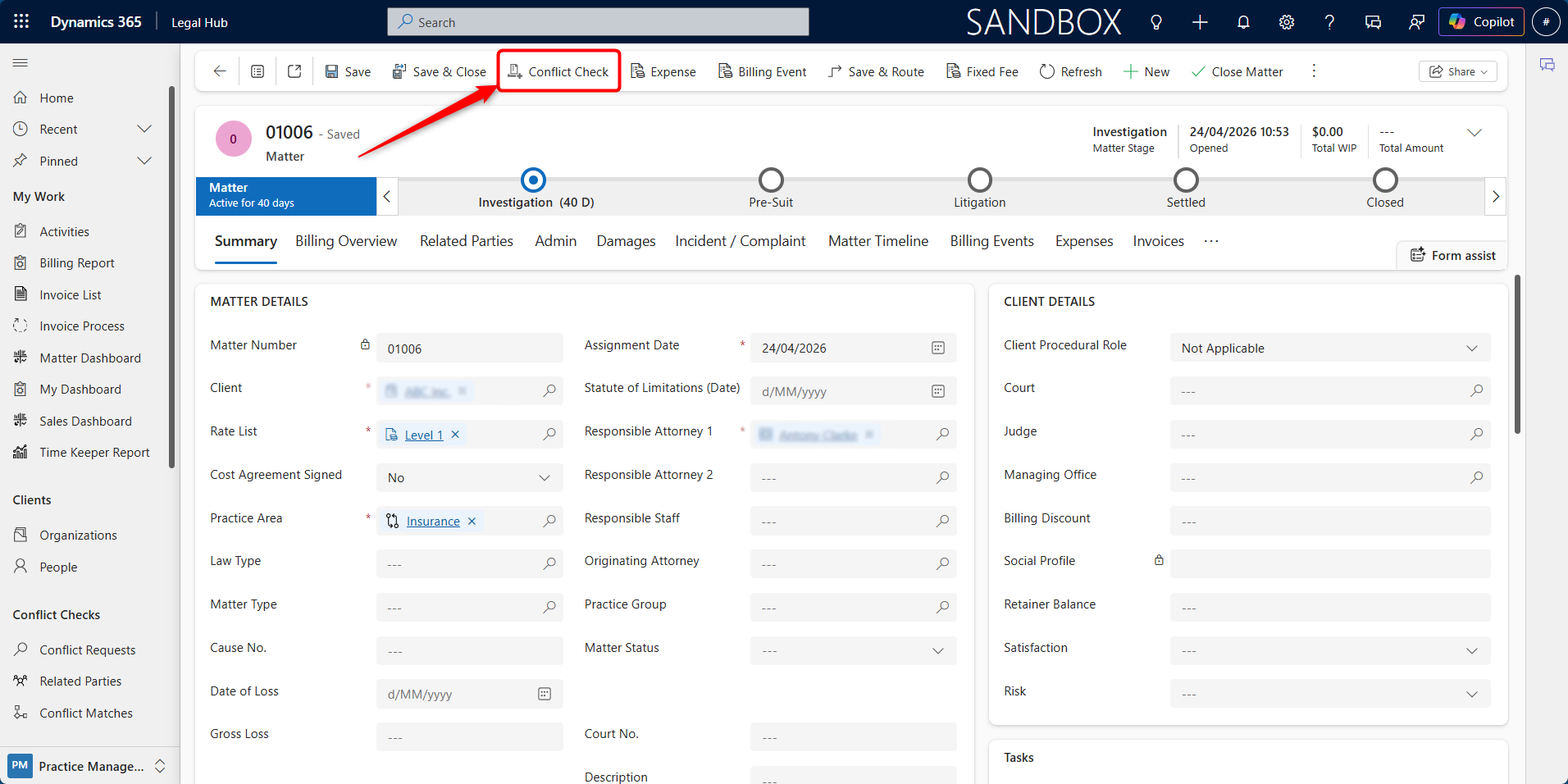
The Conflict Check action is available directly from the Matter command bar. When selected, the system opens a Conflict Check panel for the current Matter. The panel allows users to review potential matches, run the conflict check, export the result, and open the related Conflict Request record.
No substantive legal work should proceed until the conflict check has been reviewed and cleared according to the firm’s policy.
Opening the Conflict Check Panel
To open the Conflict Check panel from a Matter:
-
Open the required Matter.
-
Click Conflict Check in the Matter command bar.
-
The Conflict Check panel opens on top of the Matter record.
-
Review the displayed conflict check results.
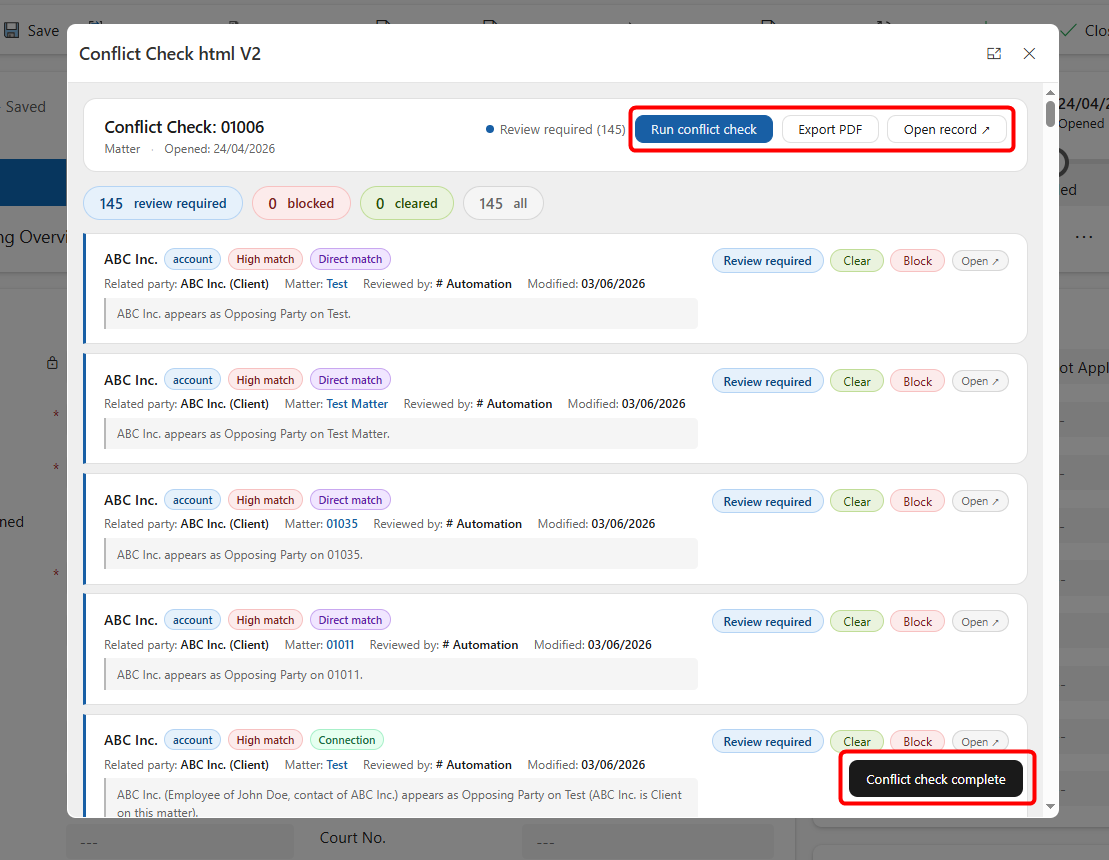
The panel displays a summary of the conflict check for the selected Matter, including the Matter number, opened date, review status, and any possible matches.
Running a Conflict Check
To run a conflict check:
-
Open the Matter.
-
Click Conflict Check from the command bar.
-
In the Conflict Check panel, click Run conflict check.
-
Wait for the system to check against existing records.
-
Review the returned matches and status indicators.
The system may compare the Matter and related parties against existing clients, accounts, contacts, related parties, and historical matters.
Reviewing Conflict Check Results
The Conflict Check panel groups results using status indicators such as:
-
Review required
-
Blocked
-
Cleared
-
All
Each result may show information such as:
-
Related party name
-
Record type, such as account or contact
-
Match type, such as low match or direct match
-
Related Matter
-
Reviewer
-
Modified date
-
Notes or match explanation
-
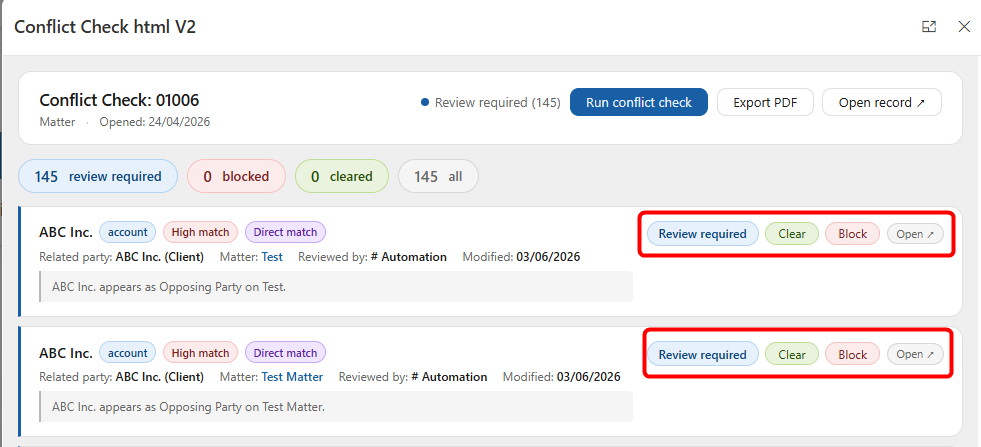
Available actions such as Clear, Block, or Open
Users should review each result carefully to determine whether it represents a real conflict or only an incidental match.
Clearing or Blocking a Conflict Match
After reviewing a match, the reviewer can choose the appropriate action.
To Clear a Match
-
Open the Conflict Check panel.
-
Review the match details.
-
If the match does not represent a real conflict, click Clear.
-
Add any required notes if prompted.
-
Confirm the action.
To Block a Match
-
Open the Conflict Check panel.
-
Review the match details.
-
If the match represents a potential or confirmed conflict, click Block.
-
Add the required review notes.
-
Confirm the action.
Blocked matches should be escalated or reviewed according to the firm’s internal conflict management process.
Opening the Related Conflict Request Record
The Conflict Check panel also provides an Open record option.
To open the related Conflict Request:
-
Open the Matter.
-
Click Conflict Check.
-
Click Open record from the Conflict Check panel.
-
The related Conflict Request record opens in Dynamics 365.
The Conflict Request record can be used for deeper review, audit history, and formal conflict management.
Exporting the Conflict Check Result
Users can export the conflict check result as a PDF for record keeping or review.
To export the result:
-
Open the Matter.
-
Click Conflict Check.
-
Review the results in the Conflict Check panel.
-
Click Export PDF.
-
Save or share the exported file according to firm policy.
Conflict Check Governance
Conflict checking supports:
-
Ethical and regulatory compliance
-
Risk mitigation
-
Identification of related or opposing parties
-
Formal audit documentation
-
Consistent review before legal work proceeds
The final conflict check outcome should be reviewed and updated before the Matter progresses further.