Legal User Guide for Microsoft Dynamics 365
Legal Case Management Section
Contingent Fee Matters
A Contingent Fee Matter is used when the firm’s fee is based on the outcome of the Matter, usually as a percentage of the settlement or judgment amount.
In Contingent Fee Matters, time may still be recorded for internal tracking and profitability analysis, but time entries do not usually drive the invoice. The invoice is driven by the settlement-based contingent fee billing event.
Setting Up a Contingent Fee Matter
To set up a Contingent Fee Matter:
-
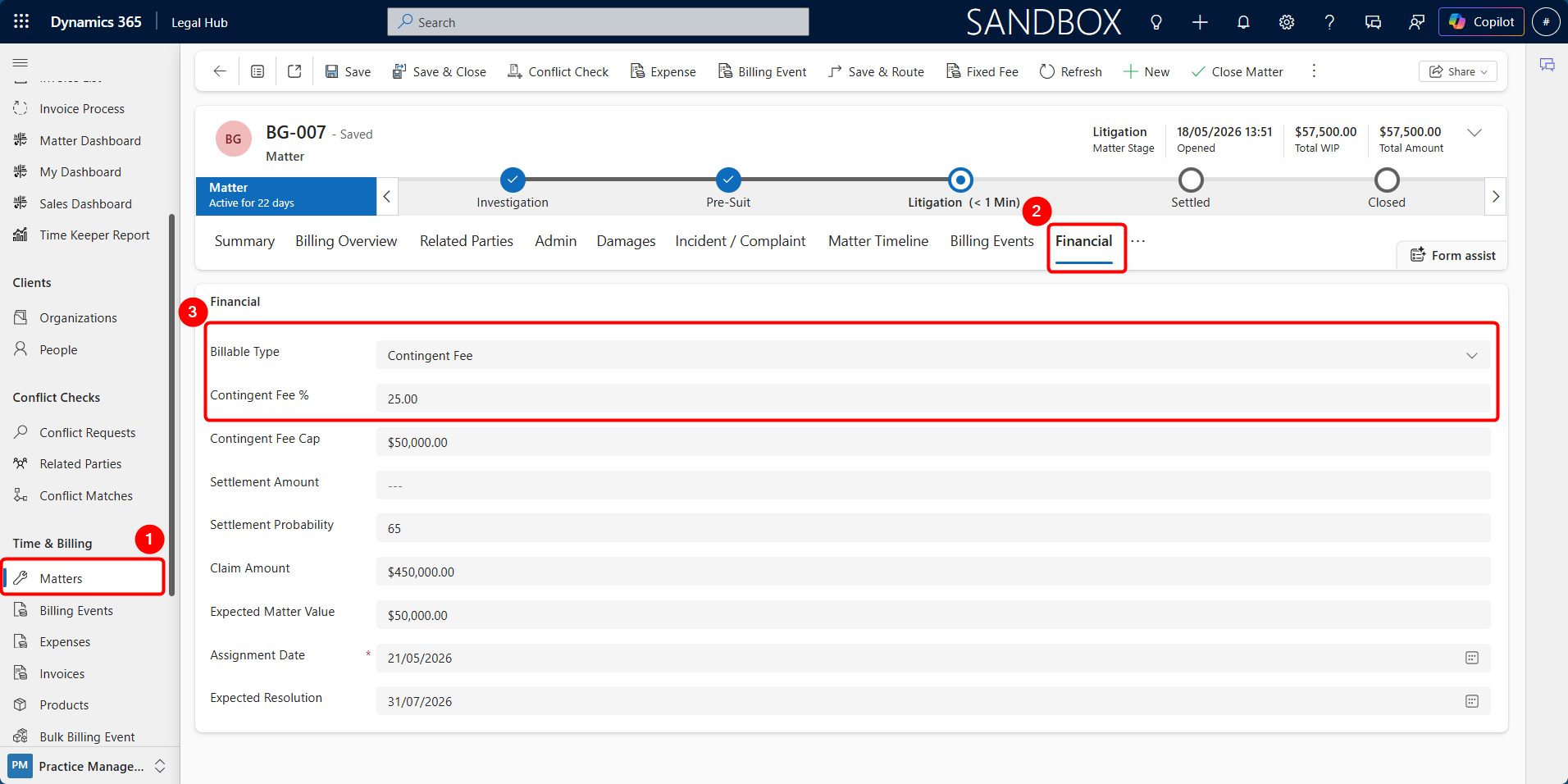
Open the required Matter.
-
Select the Financial tab.
-
Set Billable Type to Contingent Fee.
-
Complete the relevant contingent fee fields.
-
Click Save.
Common Contingent Fee fields include:
| Field | Description |
|---|---|
| Claim Amount | The amount being claimed. Used to estimate the fee before settlement. |
| Contingent Fee % | The agreed success fee percentage, such as 25%. |
| Contingent Fee Cap | Optional maximum fee. Leave blank if no cap applies. |
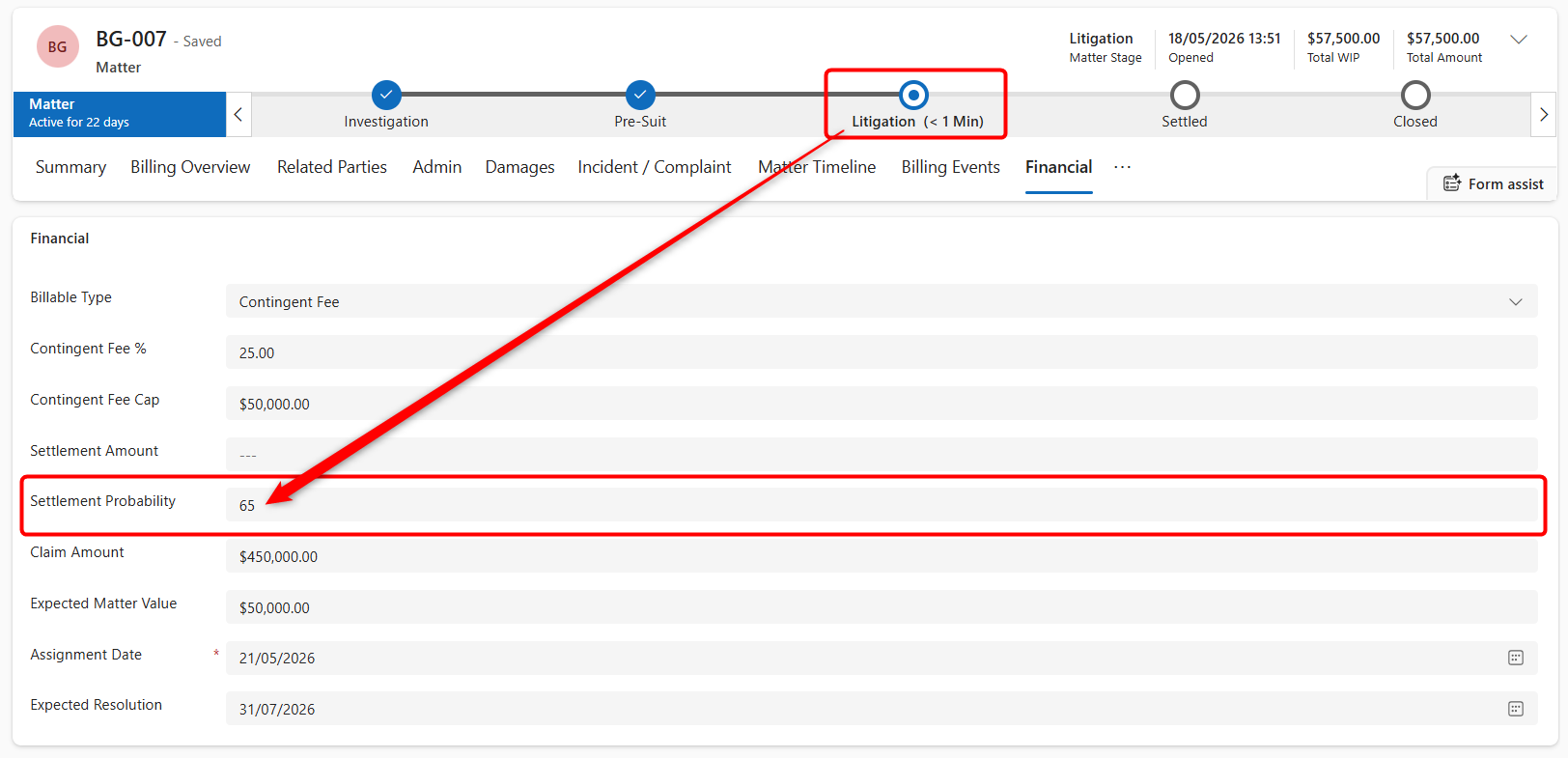
| Settlement Probability | The assessed likelihood of successful outcome. Used for forecasting. |
| Settlement Amount | The actual settlement or judgment amount. Completed when the outcome is known. |
| Expected Resolution | Estimated date the Matter is expected to conclude. Used in pipeline forecasting. |
The Expected Matter Value and forecast values may be calculated automatically based on the claim amount, contingent fee percentage, cap, and settlement probability.
Settlement Probability Defaults
When a Contingent Fee Matter moves through the Matter lifecycle stages, the system may automatically set the Settlement Probability based on the current stage.
| Stage | Default Probability |
|---|---|
| Investigation | 30% |
| Pre-Suit | 55% |
| Litigation | 65% |
| Settled | 100% |
| Closed | 100% |
Users can manually override the Settlement Probability on the Financial tab where required. If a manual probability is entered, it should be reviewed carefully before changing the Matter stage.
Settling a Contingent Fee Matter
When the Matter reaches settlement or judgment, the settlement details should be recorded on the Financial tab.
To settle a Contingent Fee Matter:
-
Open the required Matter.
-
Select the Financial tab.
-
Enter the Settlement Amount.
-
Review the Contingent Fee % and Contingent Fee Cap, if applicable.
-
Advance the Matter Business Process Flow stage to Settled.
-
Save the Matter.
When the Matter is advanced to Settled, the system automatically:
-
Calculates the contingent fee
-
Applies the Contingent Fee Cap, if one is set
-
Creates a Billing Event for the calculated fee
-
Sets the Billing Event role/type to Contingent Fee
-
Updates the Settlement Probability to 100%
If the Settlement Amount is not known when the Matter is moved to Settled, the system may estimate the fee from the Expected Matter Value. The Settlement Amount can be updated later if required.
Invoicing a Contingent Fee Matter
Once the Contingent Fee Billing Event has been created, the Matter becomes eligible for invoicing.
To invoice a Contingent Fee Matter:
-
Open the required Matter.
-
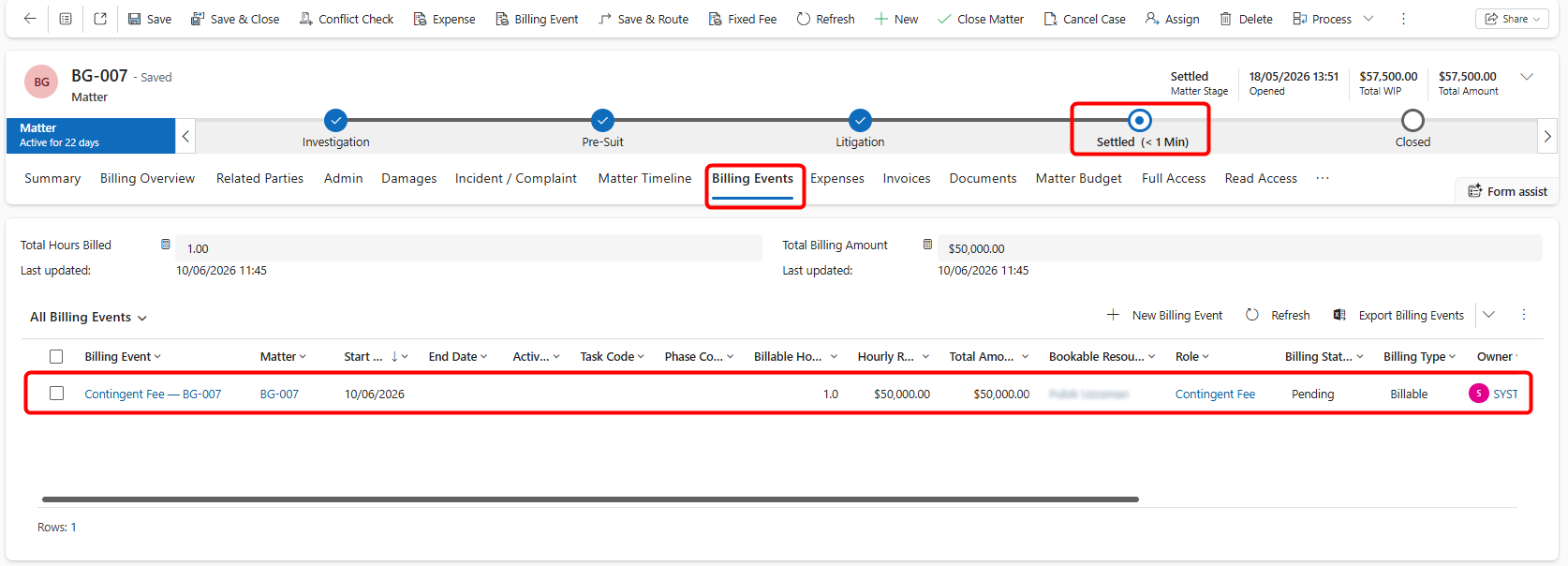
Select the Billing Events tab.
-
Confirm that the Contingent Fee Billing Event has been created.
-
Review the amount and status of the Billing Event.
-
Go to My Work > Invoice Process.
-
Generate the invoice using the normal invoice process.
-
Review the generated invoice from the Invoices tab.
The invoice process is the same as other Matters once the Contingent Fee Billing Event exists.
Closing a Contingent Fee Matter
A Contingent Fee Matter with a recorded Settlement Amount cannot be closed unless a related Contingent Fee Billing Event exists. This prevents a settled Matter from being closed before the contingent fee has been generated for invoicing.
Before closing a Contingent Fee Matter:
-
Open the required Matter.
-
Select the Financial tab.
-
Confirm whether a Settlement Amount has been entered.
-
Open the Billing Events tab.
-
Confirm that the Contingent Fee Billing Event exists, if a settlement has been recorded.
-
Invoice the Billing Event if required.
-
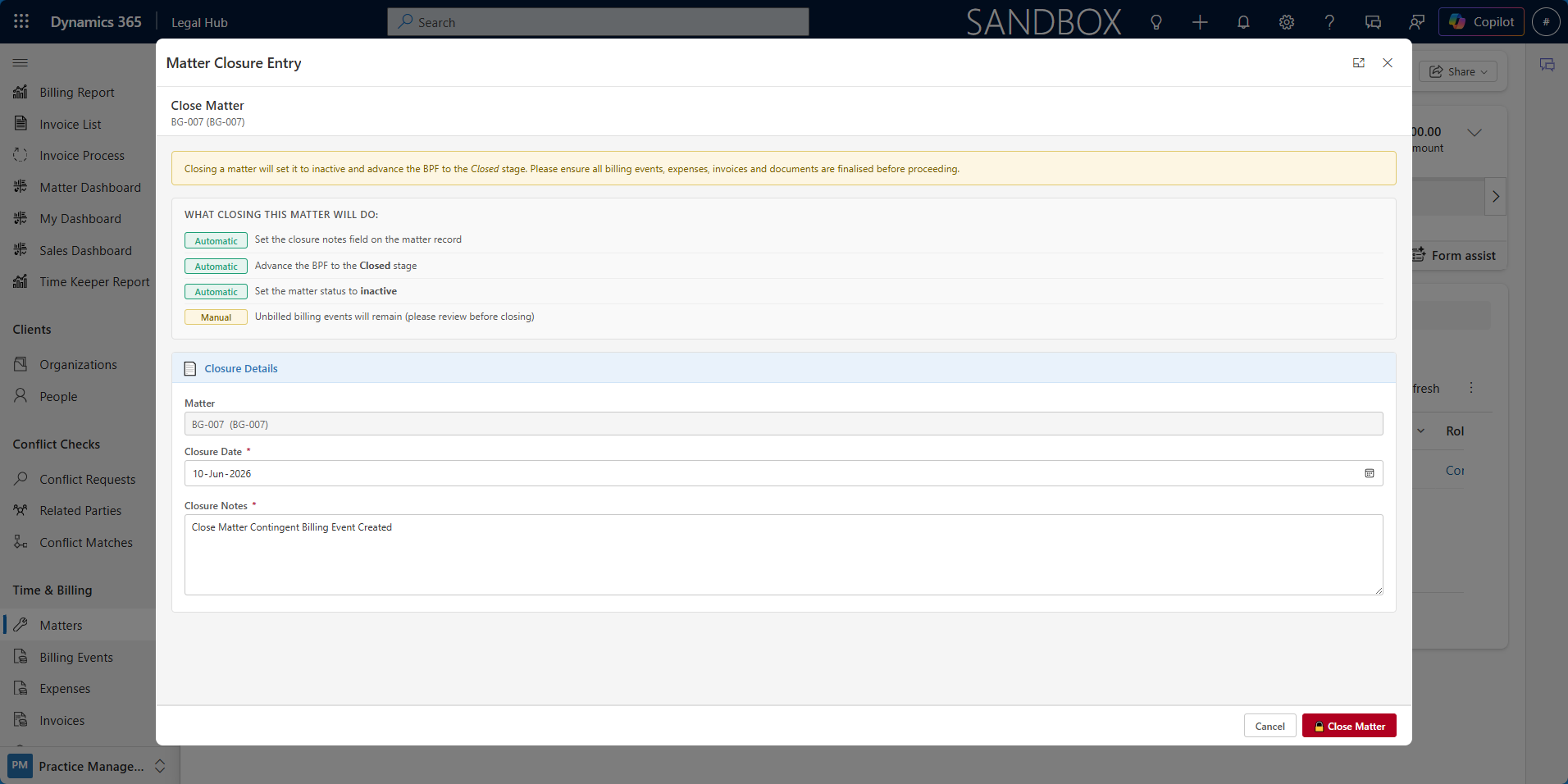
Click Close Matter from the Matter command bar.
If the Matter should be closed without a fee, for example if the claim was unsuccessful or withdrawn, the user should either:
-
Clear the Settlement Amount, or
-
Move the Matter to the appropriate non-settled stage before closing, where applicable.