Legal User Guide for Microsoft Dynamics 365
Legal Case Management Section
Full Access & Read Access
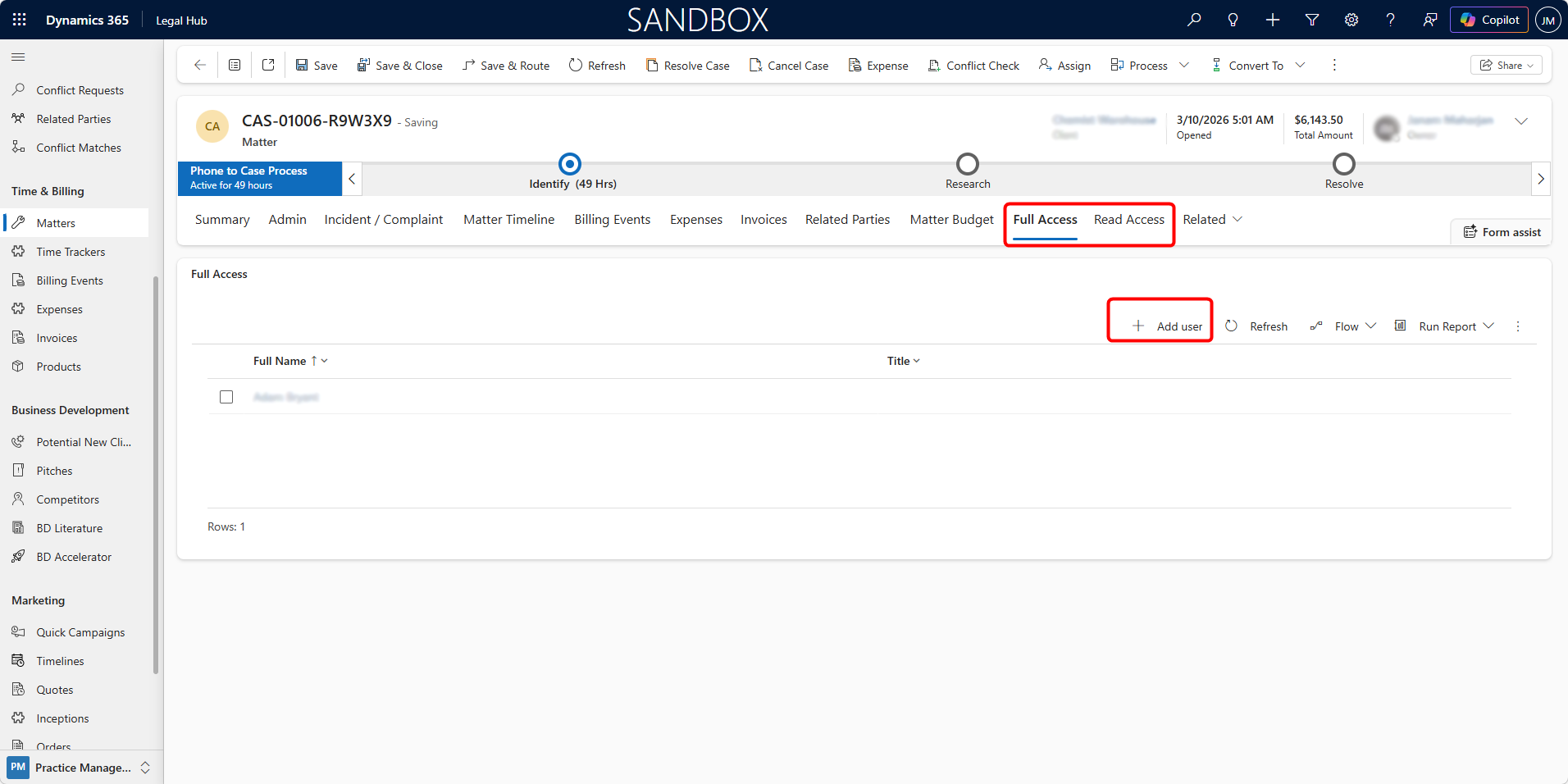
The Full Access and Read Access tabs allow administrators to control which internal users can access a Matter.
These tabs help ensure that the correct team members can view or work on the Matter, while maintaining appropriate access control.
-
Full Access — Users listed here have complete access to the Matter, including the ability to view, edit, and manage Matter records.
-
Read Access — Users listed here can only view the Matter information but cannot make changes.
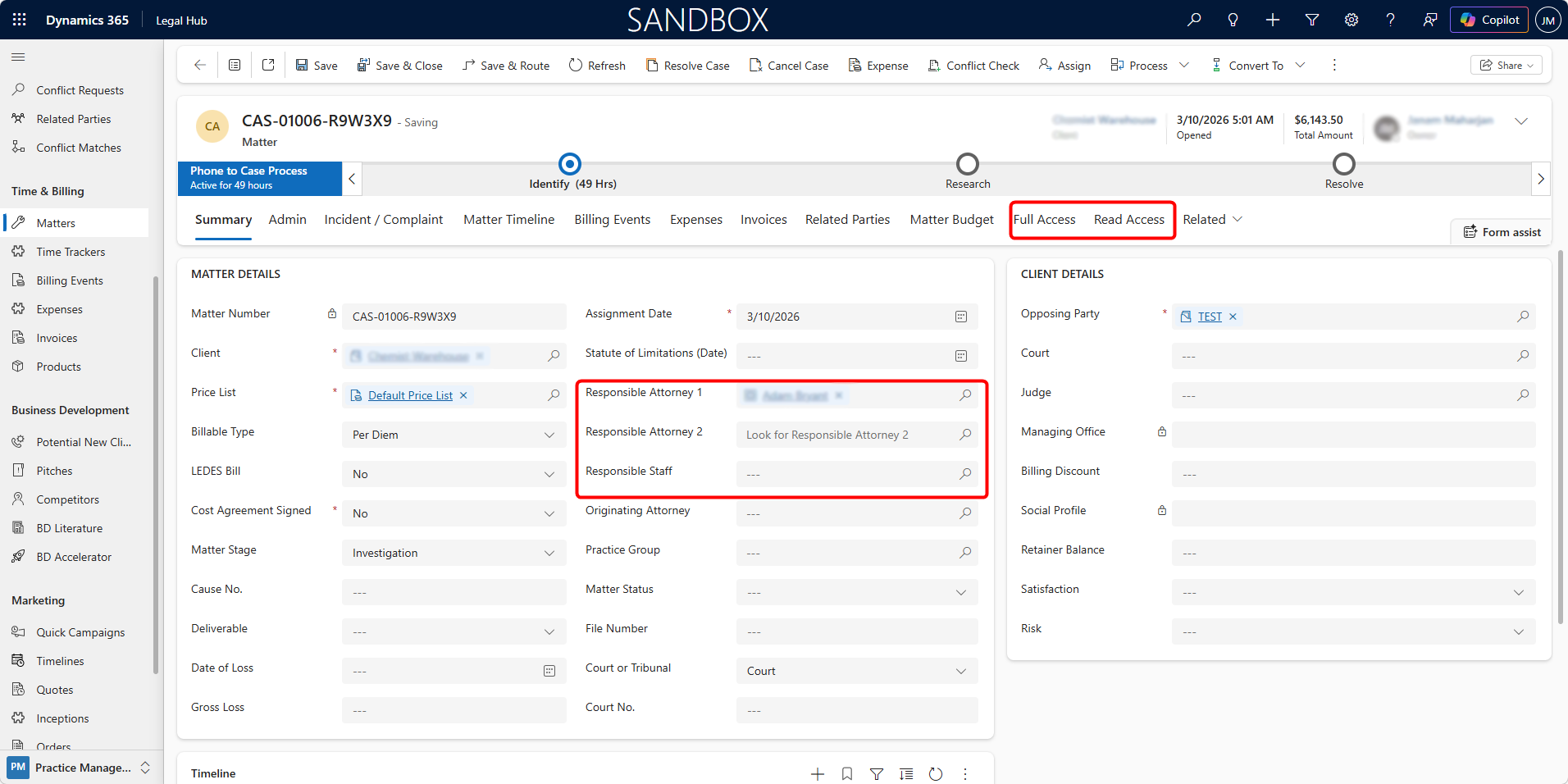
Note: Users added to the following fields on the Matter record are automatically granted Full Access to the Matter:
-
Responsible Attorney 1
-
Responsible Attorney 2
-
Responsible Staff
Adding a User to Full Access or Read Access
Users can be manually granted full or read access to a Matter when they need to actively work on or view the case.
Follow these steps to add a user to the Full Access or Read Access list:
-
Open the required Matter record.
-
Navigate to the Full Access/Read Access tab.
-
Click + Add user.
-
Select the user who should have full access to the Matter.
-
Confirm the selection.
The selected user will now appear in the Read/Full Access list and will have permission to only view or/and edit the Matter.
If a user no longer requires access to the Matter, they can be removed from the Full Access list.