Legal Solution Getting Started User Guide for Microsoft Dynamics 365
Getting Started with the Legal Solution
This guide is designed to help you explore the Dynamics 365 Legal Solution using the sample records already available in the demonstration environment.
The solution brings together CRM and Legal Practice Management, supporting the journey from initial client enquiry and business development through to active matter management, billing, and invoicing.
In this guide, we will explore the following:
CRM
-
Potential New Clients
-
Referrals
-
Pitches
-
Organisations and People
-
Client relationships and connections
Practice Management
-
Matters
-
Conflict Checks
-
Related Parties
-
Activities and Timeline
-
Documents
-
Billing Events and Expenses
-
Invoices
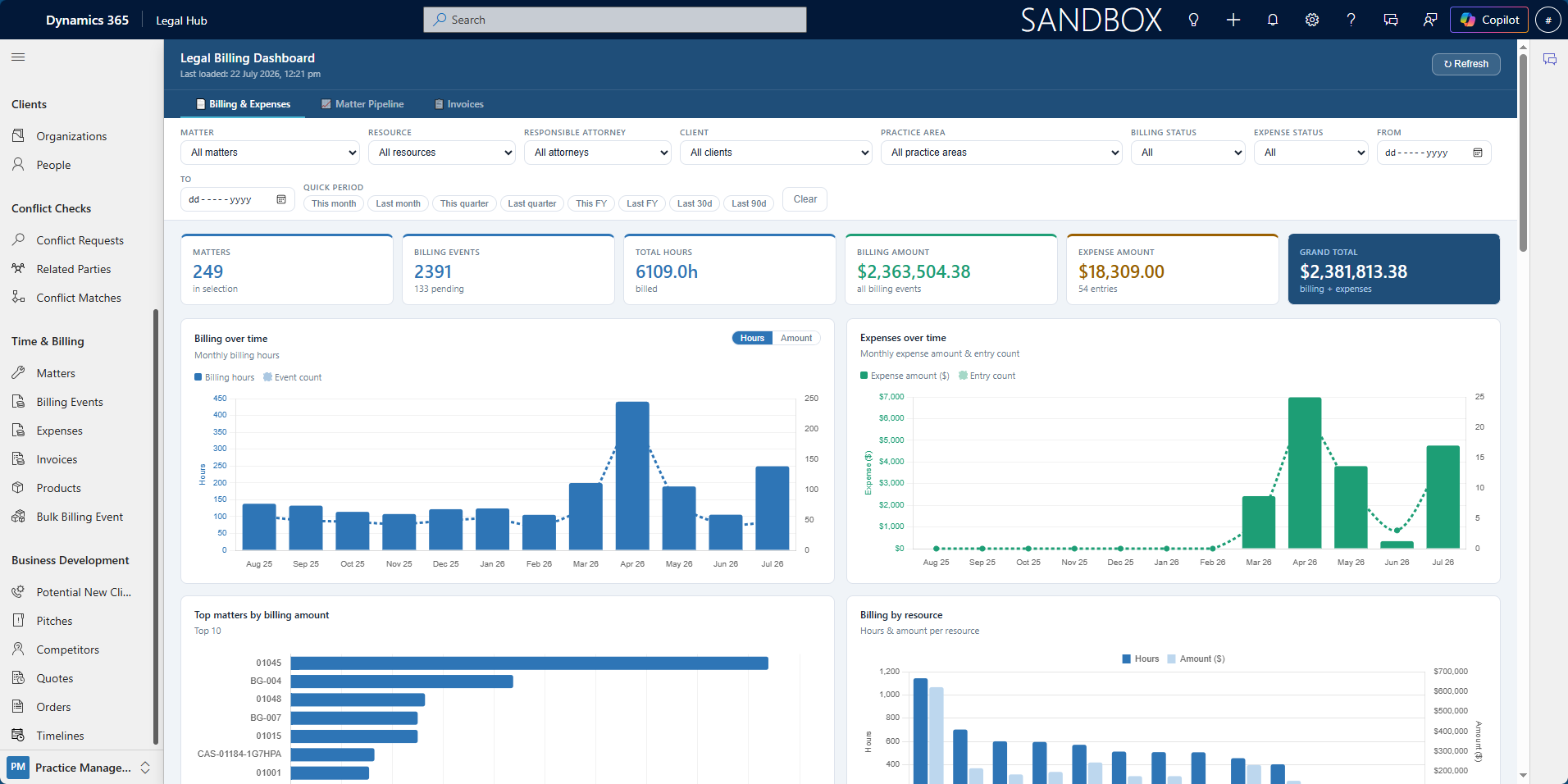
The existing solution is designed around the full legal work lifecycle, including client enquiries, pitches, matters, conflict checks, documents, billing, and invoicing.
Navigating the Legal Hub
The Legal Hub provides access to the main CRM and practice management areas within the solution.
Getting Around
-
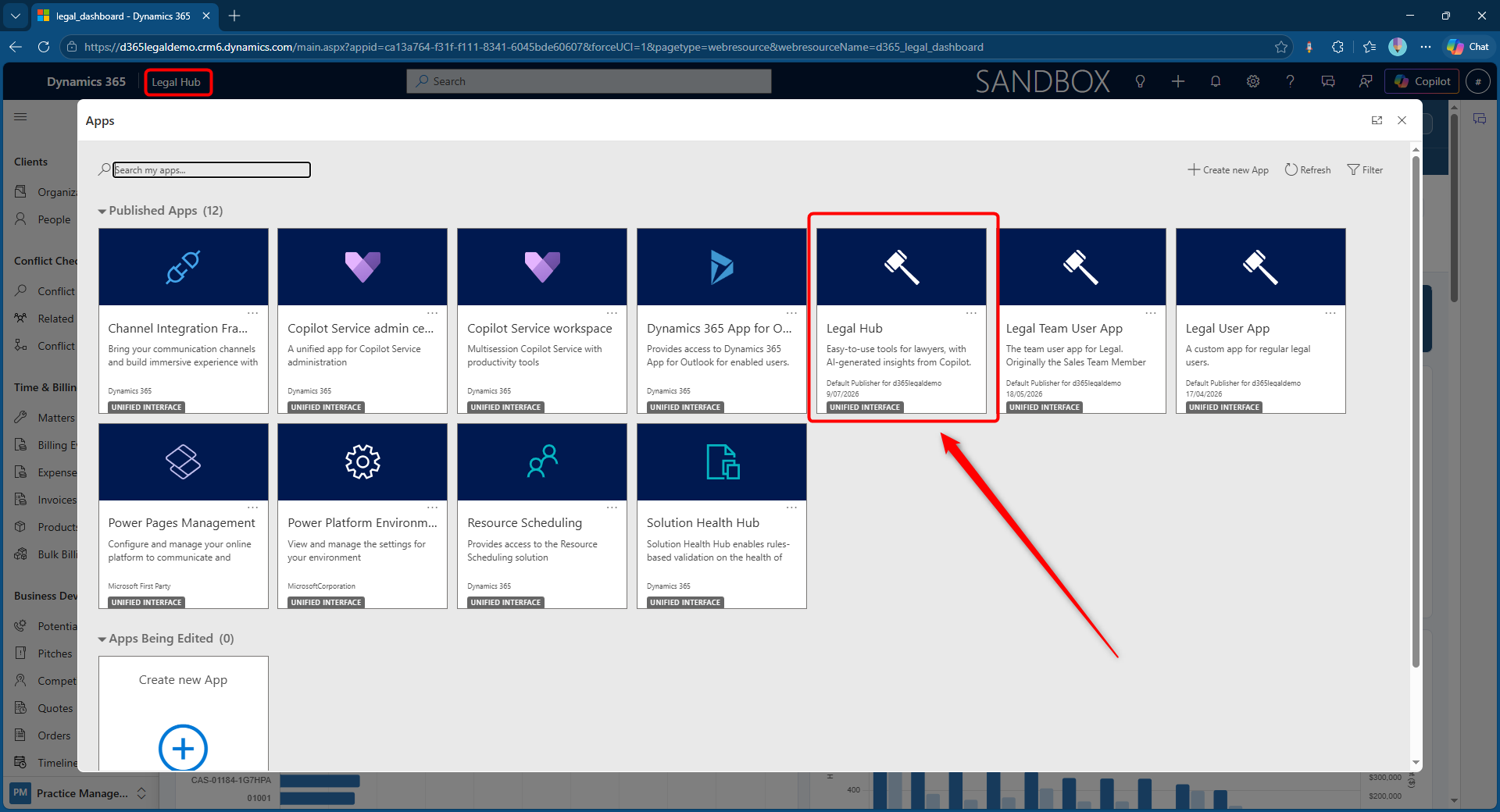
Sign in to the provided Dynamics 365 environment.
-
Open the Legal Hub application.
-
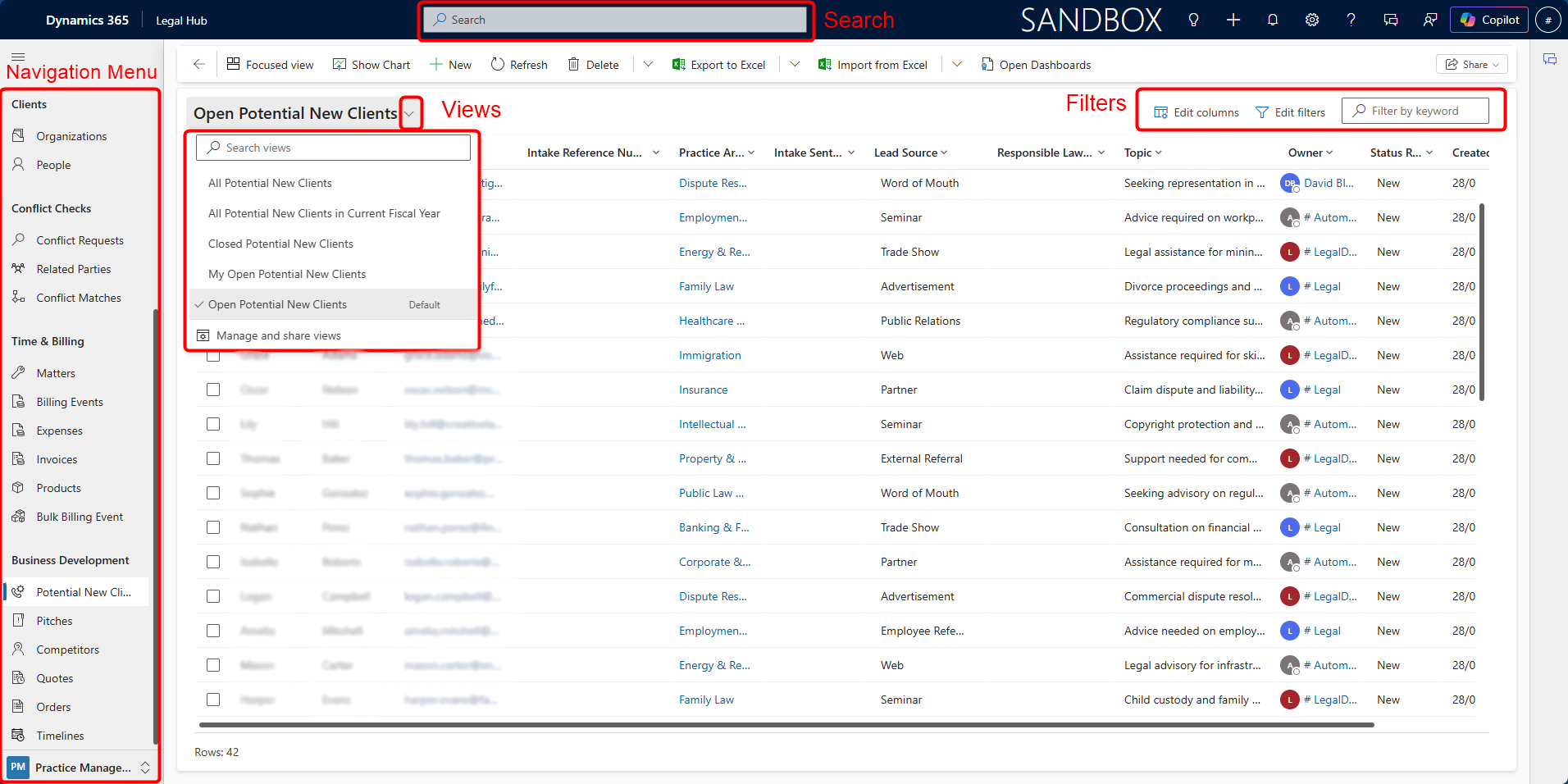
Use the left-hand navigation menu to move between the different areas of the system.
-
Select an area to open the available records.
-
Click a record name to open and explore it.
Useful Navigation Features
-
Search — Use the search bar at the top of the screen to quickly find records such as clients, organisations, matters, or other records.
-
Views — Use the view selector above a list to switch between different sets of records.
-
Filtering and Sorting — Use column filters or select column headings to narrow down or sort the records displayed.
Potential New Clients
A Potential New Client represents an initial client enquiry or prospective piece of legal work. It is the starting point of the CRM process before the opportunity progresses further.
Explore a Potential New Client
-
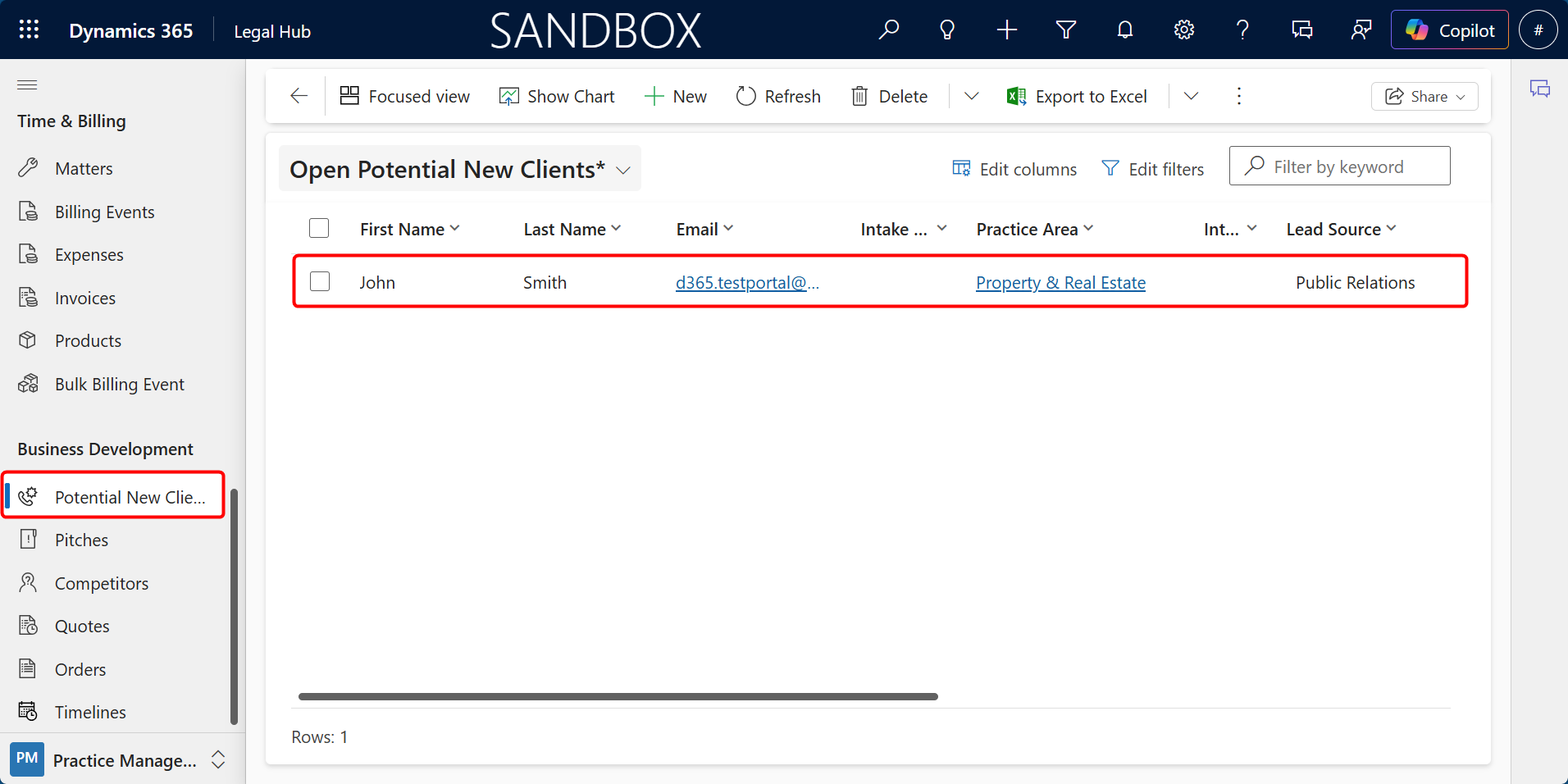
From the left-hand navigation, go to Business Development → Potential New Clients.
-
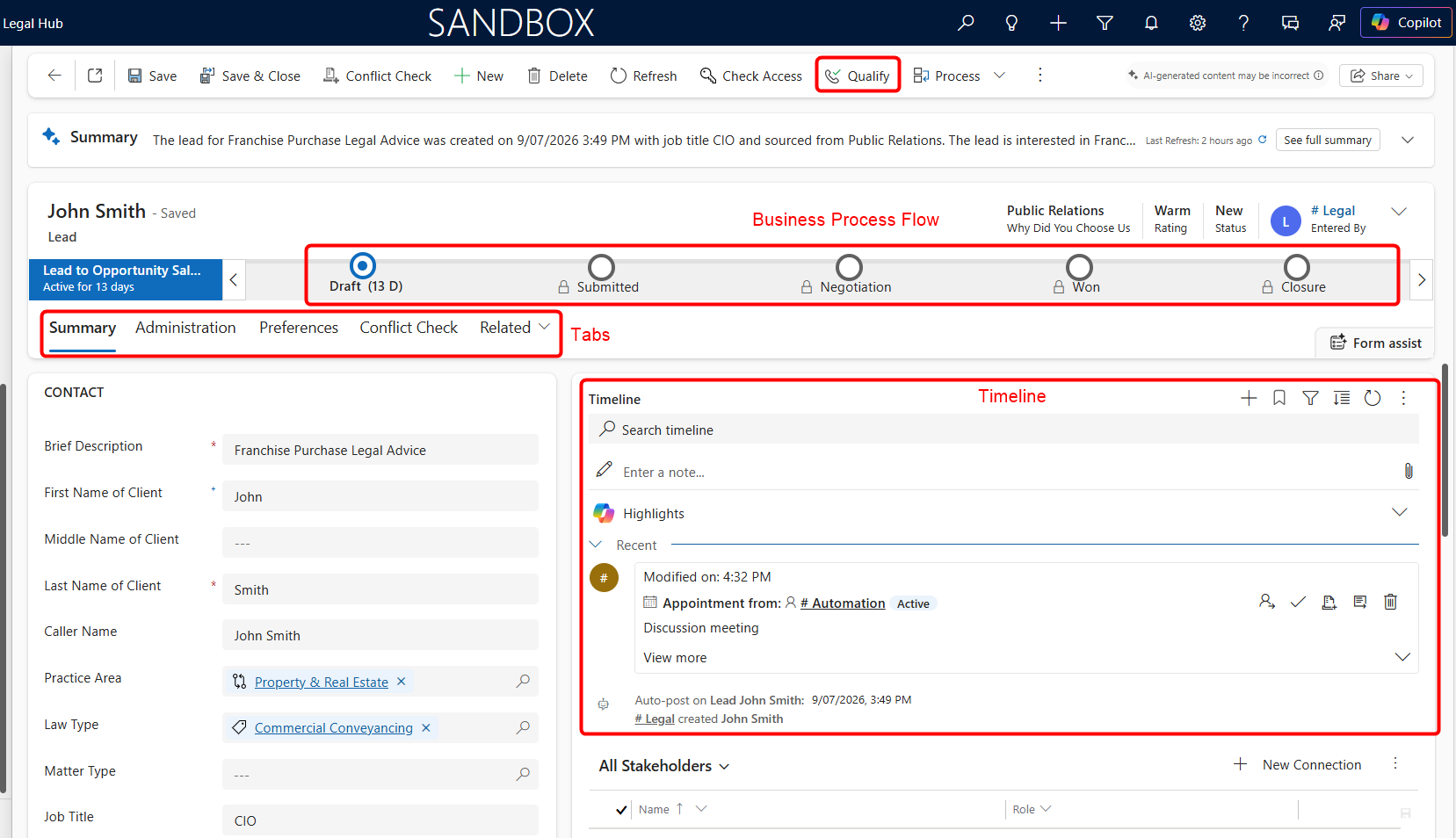
Open one of the records by double clicking that record. Example: John Smith
-
Review the client and enquiry information.
-
Explore the available tabs and the Timeline.
Things to Explore
-
Business Process Flow — View the current stage of the enquiry.
-
Summary — Review the main client and enquiry details.
-
Stakeholders — See the people and organisations involved in the enquiry.
-
Timeline — Review notes, emails, calls, meetings, and other activities linked to the record.
-
Qualify — When the enquiry is ready to progress, the Qualify action can be used to create a Pitch.
Referrals
Referrals are used to track incoming and outgoing referrals, including who referred the work, who it was referred to, the related client, and any referral fee details.
Explore Referrals
-
From the bottom-left area selector, select CRM.
-
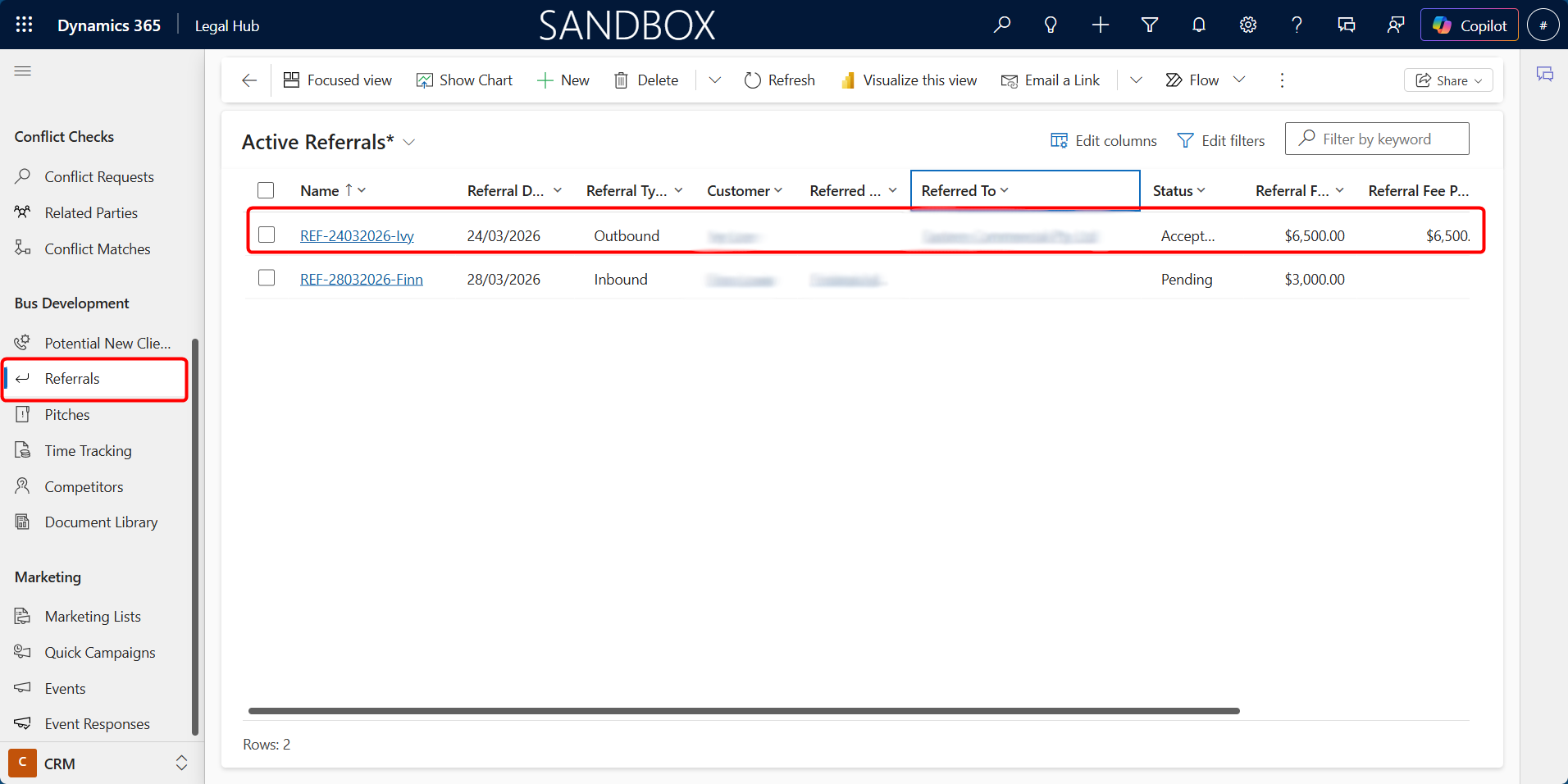
Go to Business Development > Referrals.
-
Open an existing referral by either:
a. selecting the record and clicking Edit, or
b. double-clicking the record.
-
Review the referral details on the General tab.
Things to Explore
-
Customer — View the client associated with the referral.
-
Referral Type — See whether the referral is Inbound or Outbound.
-
Referred By / Referred To — View the person or organisation involved in the referral.
-
Related Lead, Matter or Opportunity — See any related CRM or legal work records where applicable.
-
Status and Referral Fee — Review the current referral status, fee amount, and whether the referral fee has been paid.
Pitches
A Pitch represents a qualified legal opportunity where the proposed work, client details, scope, and commercial information can be reviewed before progressing to a Matter.
Explore a Pitch
-
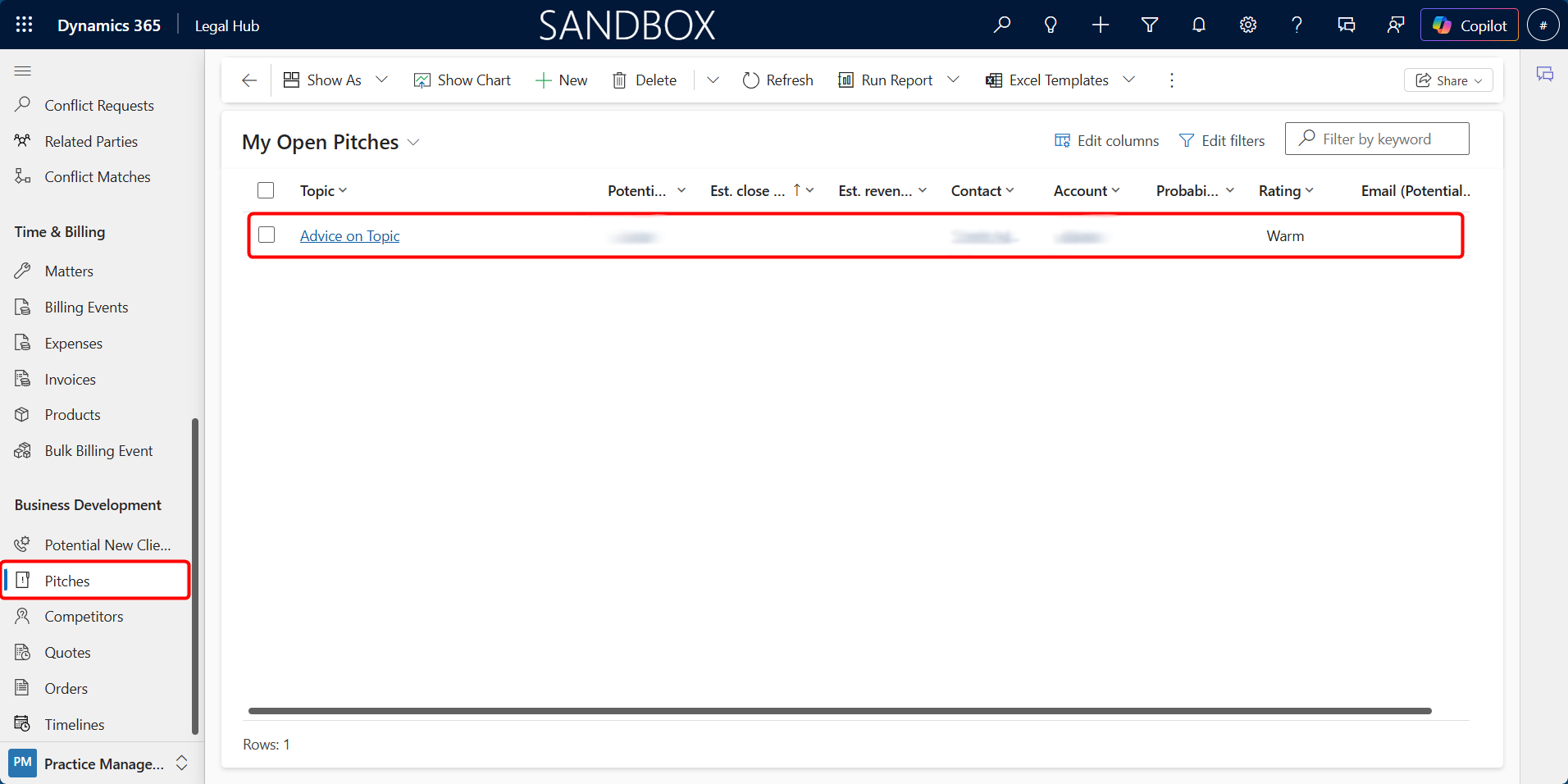
Go to Business Development > Pitches.
-
Open one of the Pitch records. Example: Advice on Topic
-
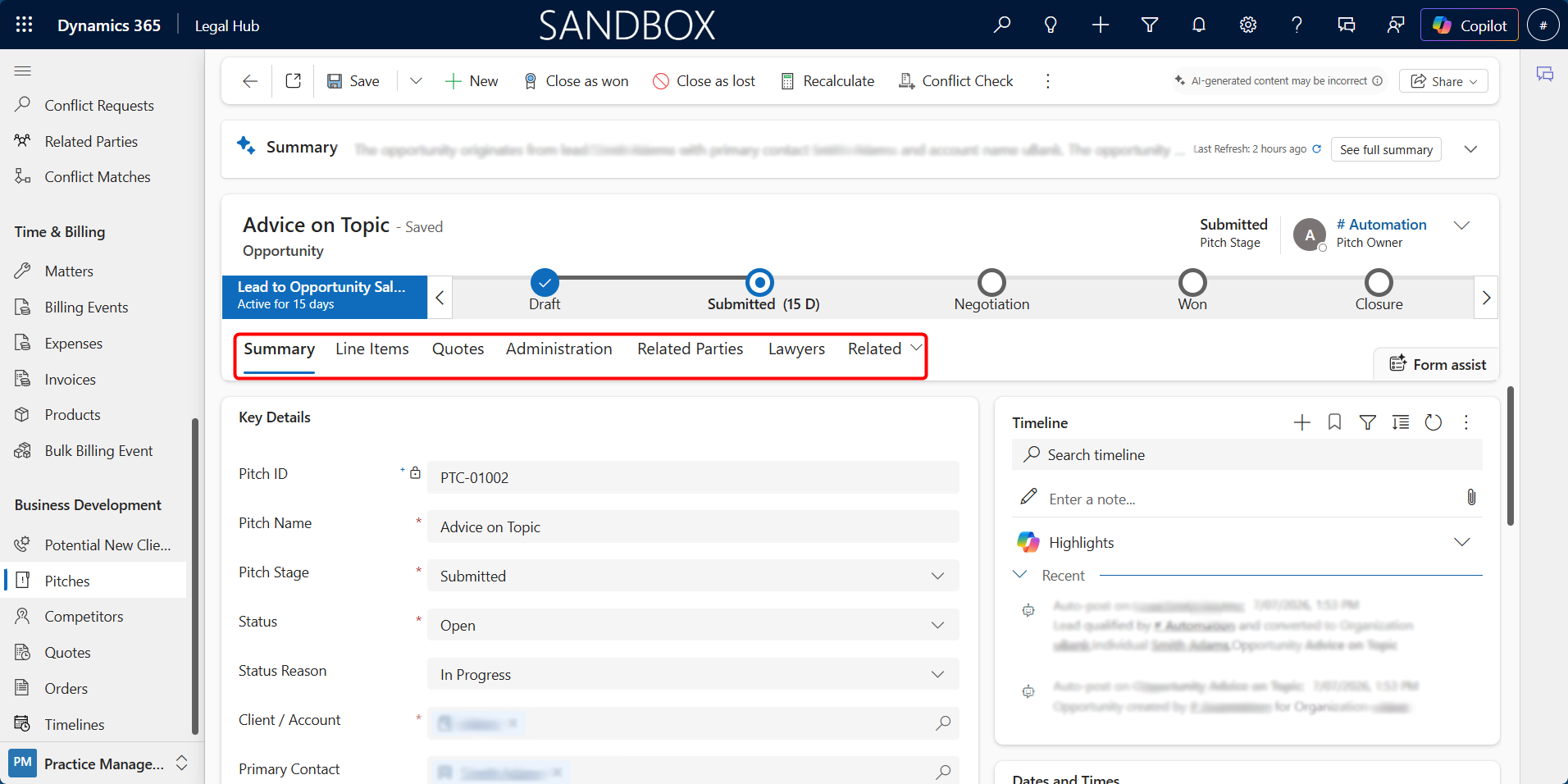
Review the main details and explore the available tabs.
-
Follow the progress of the Pitch using the stage bar at the top of the record.
Things to Explore
-
Pitch Stage — See the current stage of the Pitch and how it progresses through the process.
-
Summary — Review key details such as the client, primary contact, responsible lawyer, originating lead, estimated hours, and estimated revenue.
-
Line Items — View the proposed services and fees linked to the Pitch.
-
Quotes — Review any quotes created for the proposed legal work.
-
Related Parties and Lawyers — See the people, organisations, and legal team connected to the Pitch.
-
Close as Won / Close as Lost — A Pitch can be closed based on the outcome. When successfully won, it can progress into a Matter.
Organisations and Individuals
Organisations and Individuals store the client and contact information used across Potential New Clients, Referrals, Pitches, and Matters.
Explore Client Records
-
Make sure you are in the CRM area.
-
Go to Clients > Organisations or Clients > Individuals.
-
Open one of the prepared records. Example: ABC Teachers Inc. for Organisations
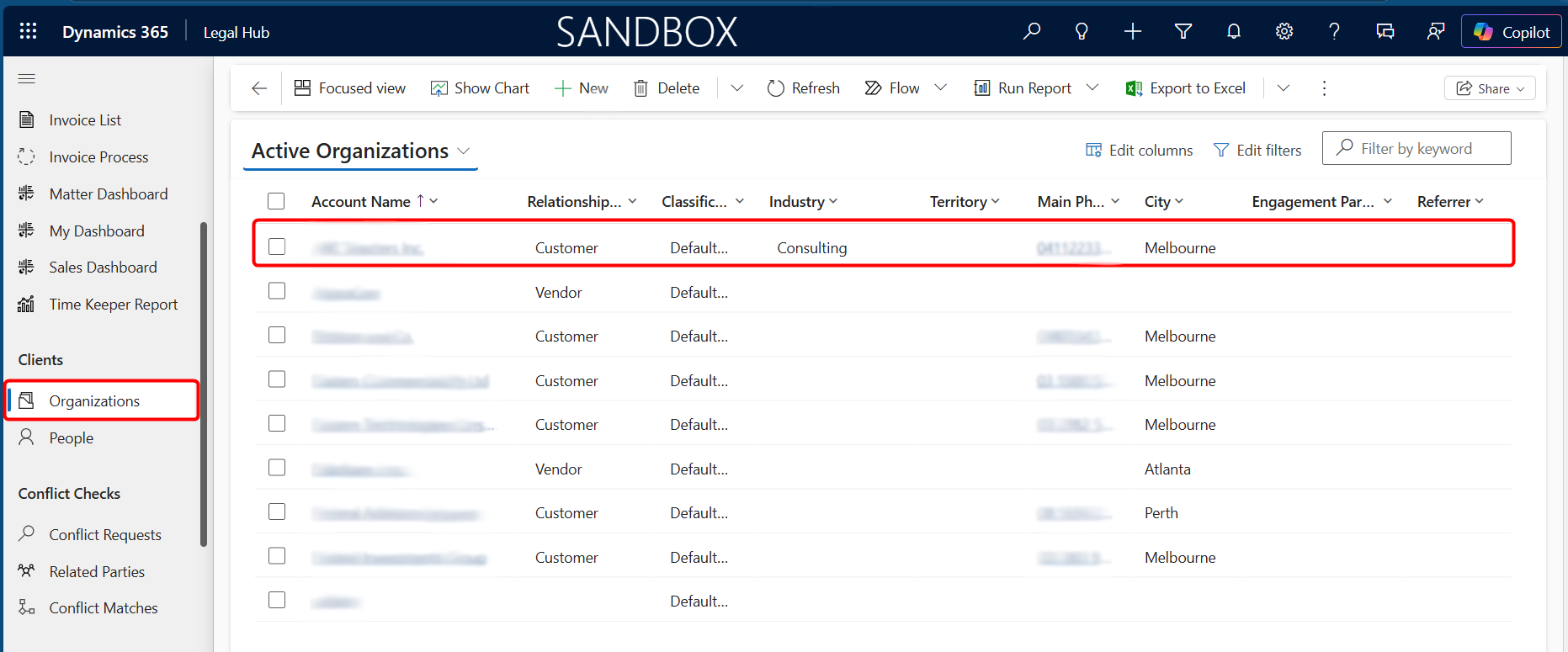
-
Review the main details and explore the related information available on the record.
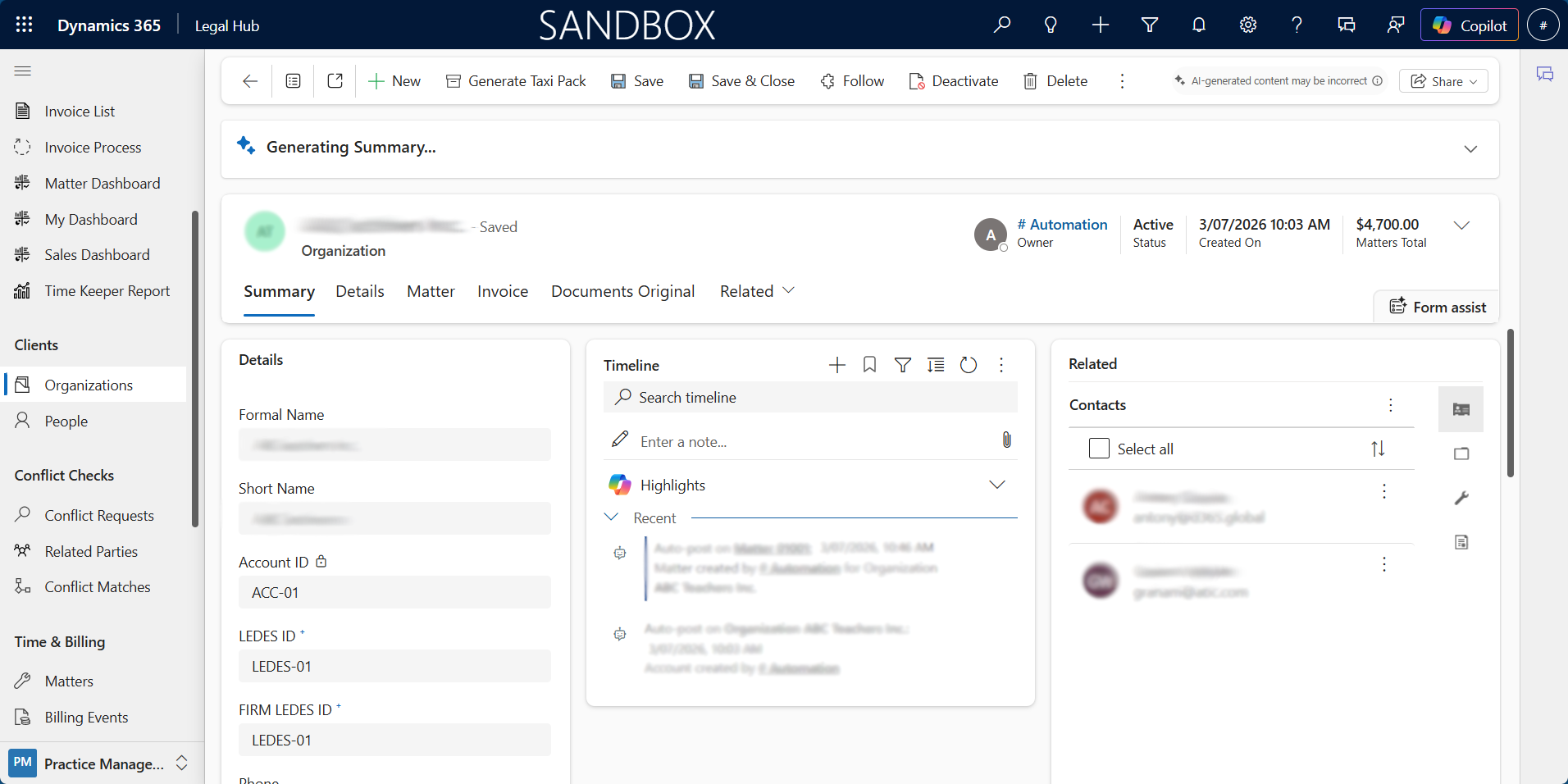
Things to Explore
-
Contact Details — Review the main contact and organisation information.
-
Related Records — See related Pitches, Matters, activities, and other connected records where available.
-
Timeline — View notes, emails, calls, meetings, and other interactions linked to the client.
-
Connections — Explore relationships between people and organisations recorded in the system.
Matters
A Matter is the main record used to manage active legal work. It brings together key matter details, related parties, activities, documents, billing, and other practice management information.
Explore a Matter
-
Switch to the Practice Management area using the bottom-left area selector.
-
Go to Matters.
-
Open one of the Matter records, such as 01001 or 01003.
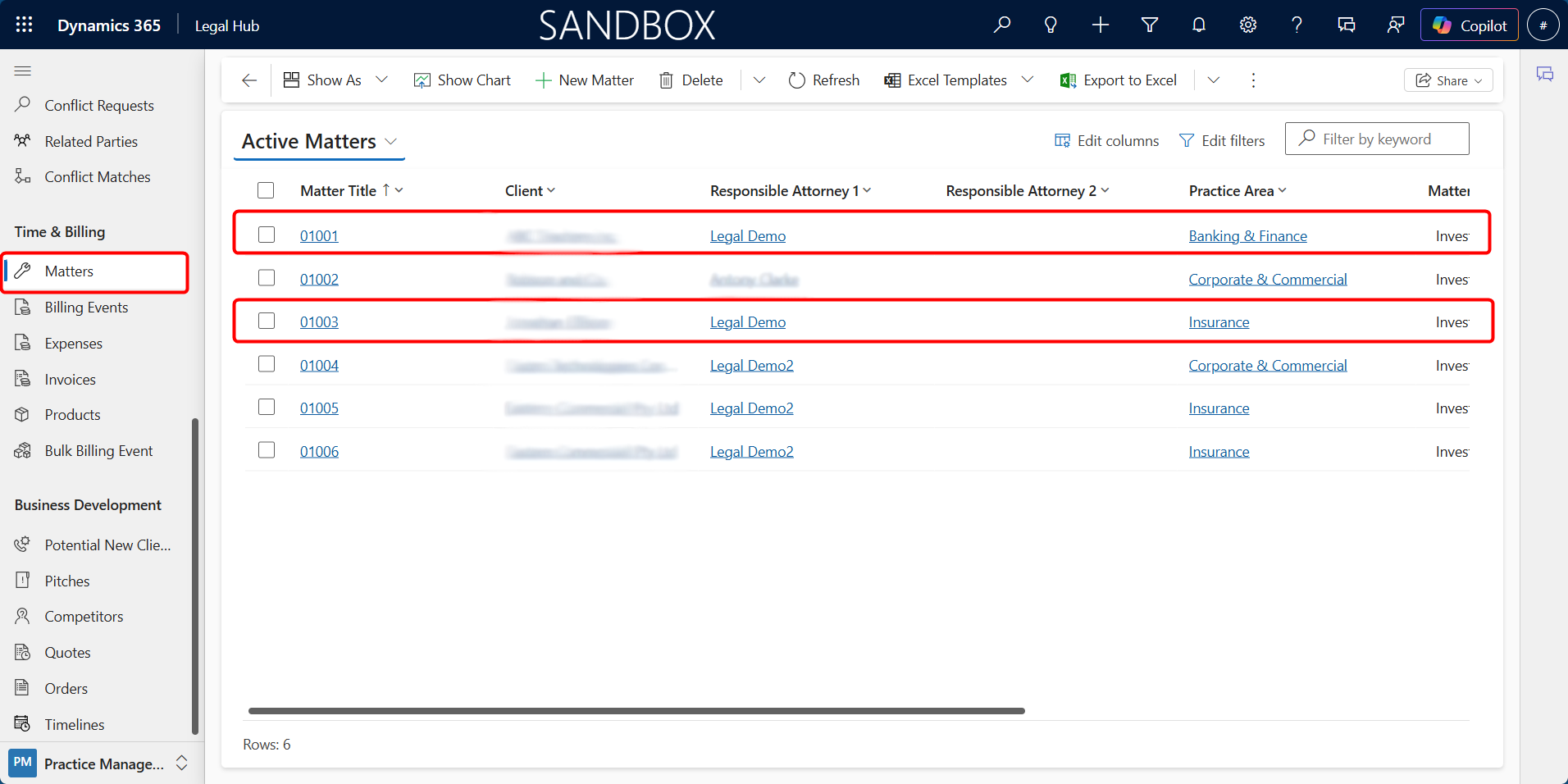
-
Review the main matter details and explore the available tabs.
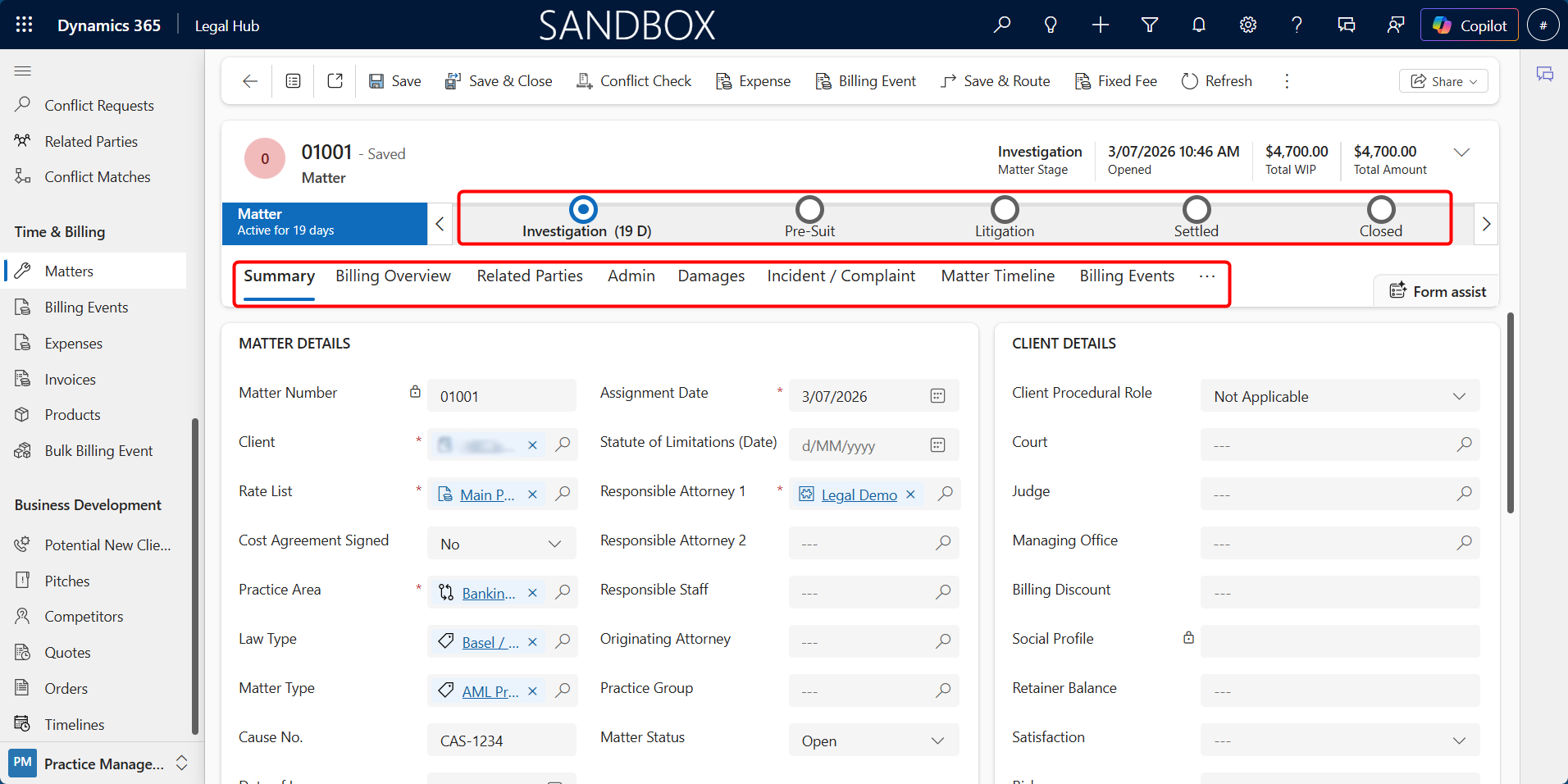
Things to Explore
-
Summary — Review the main matter details, client, responsible lawyer, status, and other key information.
-
Related Parties — See the people and organisations connected to the Matter.
-
Matter Timeline — Review notes, emails, activities, and other updates linked to the Matter.
-
Billing Events — Review billable time and other billing entries.
-
Expenses — View costs and disbursements recorded against the Matter.
-
Invoices — Review invoices linked to the Matter.
-
Matter Budget — View the Matter budget and related financial information.
-
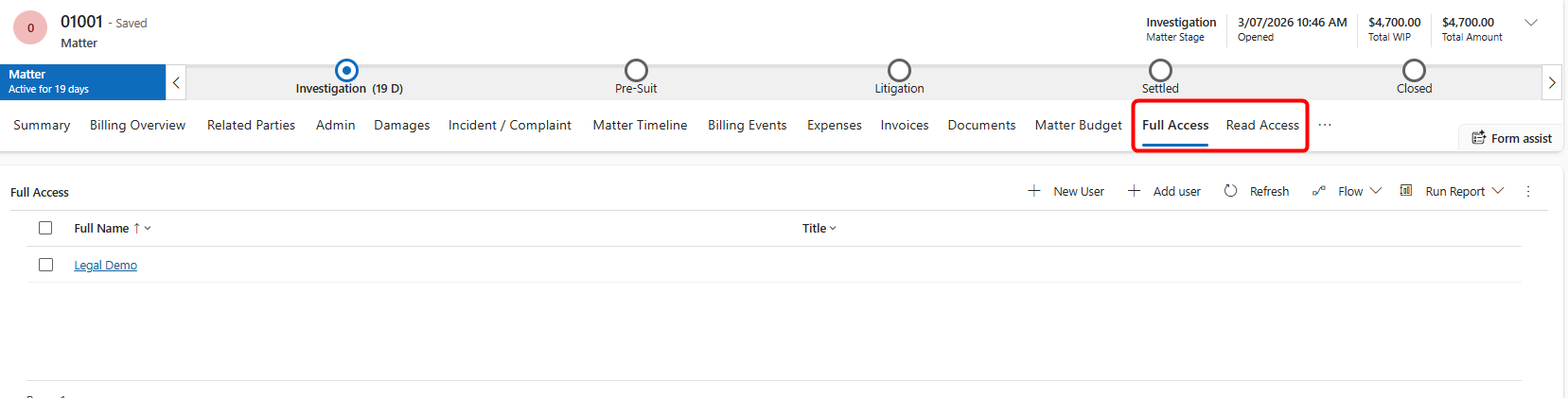
Full Access / Read Access — See which users have access to the Matter.
-
Documents — Access and manage documents related to the Matter.
Conflict Check
A Conflict Check helps identify potential conflicts involving the client, related parties, and other connected Matters.
Explore a Conflict Check
-
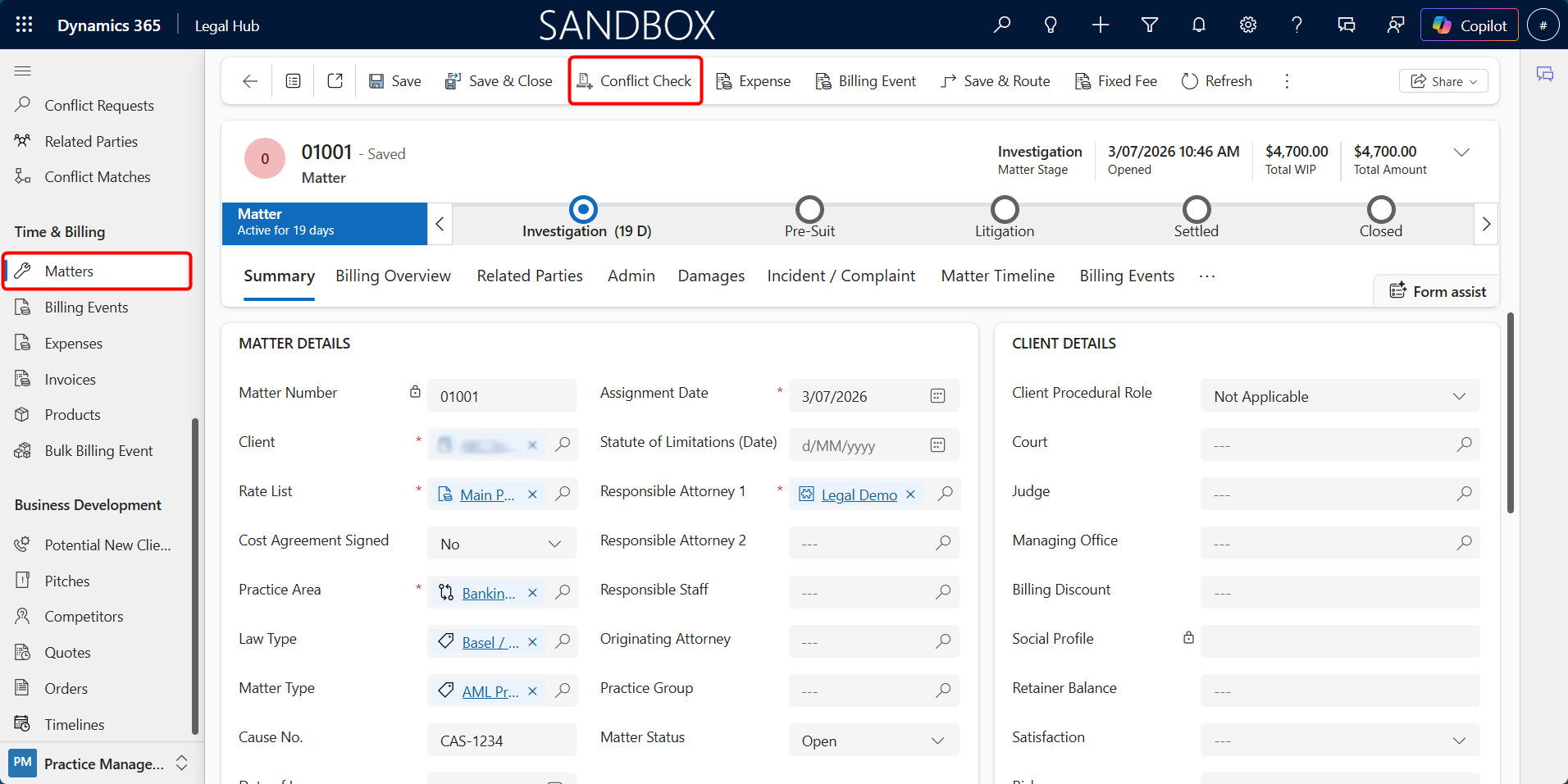
Open Matter 01001.
-
Click Conflict Check from the top command bar.
-
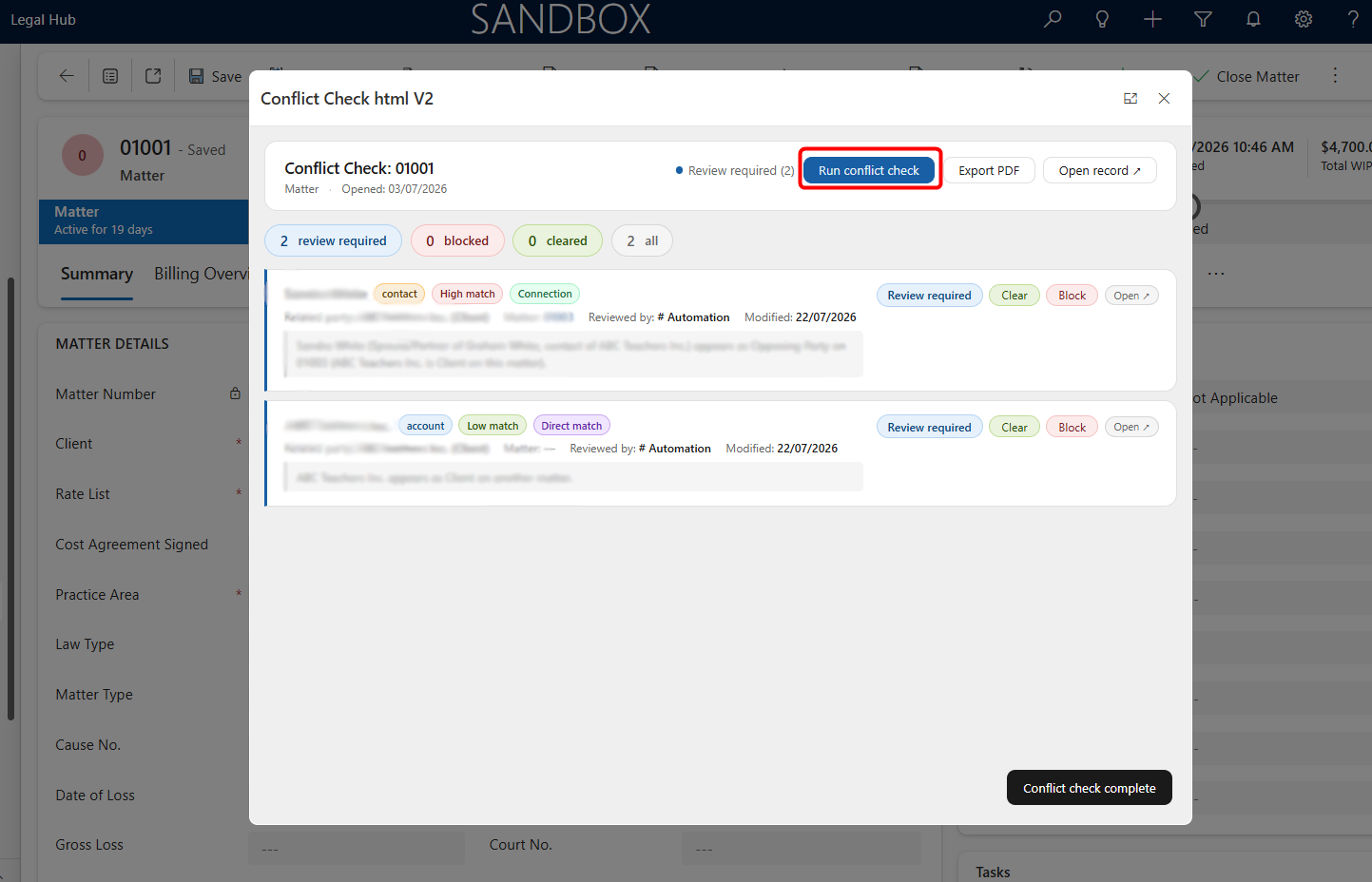
In the Conflict Check panel, click Run conflict check.
-
Review the matches identified by the system.
-
Use Open to review the related record, or review the related Matter number shown in the result.
Example in the Prepared Environment
The conflict check for Matter 01001 identifies a connection involving Sandra White, who is linked to the client and also appears as an opposing party on Matter 01003.
This demonstrates how the system can use existing relationships and related Matter information to surface potential conflicts for review.
Available Actions
-
Clear — Mark the match as reviewed and cleared.
-
Block — Mark the match as a confirmed conflict.
-
Open — Open the related record for further review.
-
Export PDF — Export the conflict check results when required.
Billing Events
Billing Events are used to record billable time and other chargeable work against a Matter.
Explore Billing Events
-
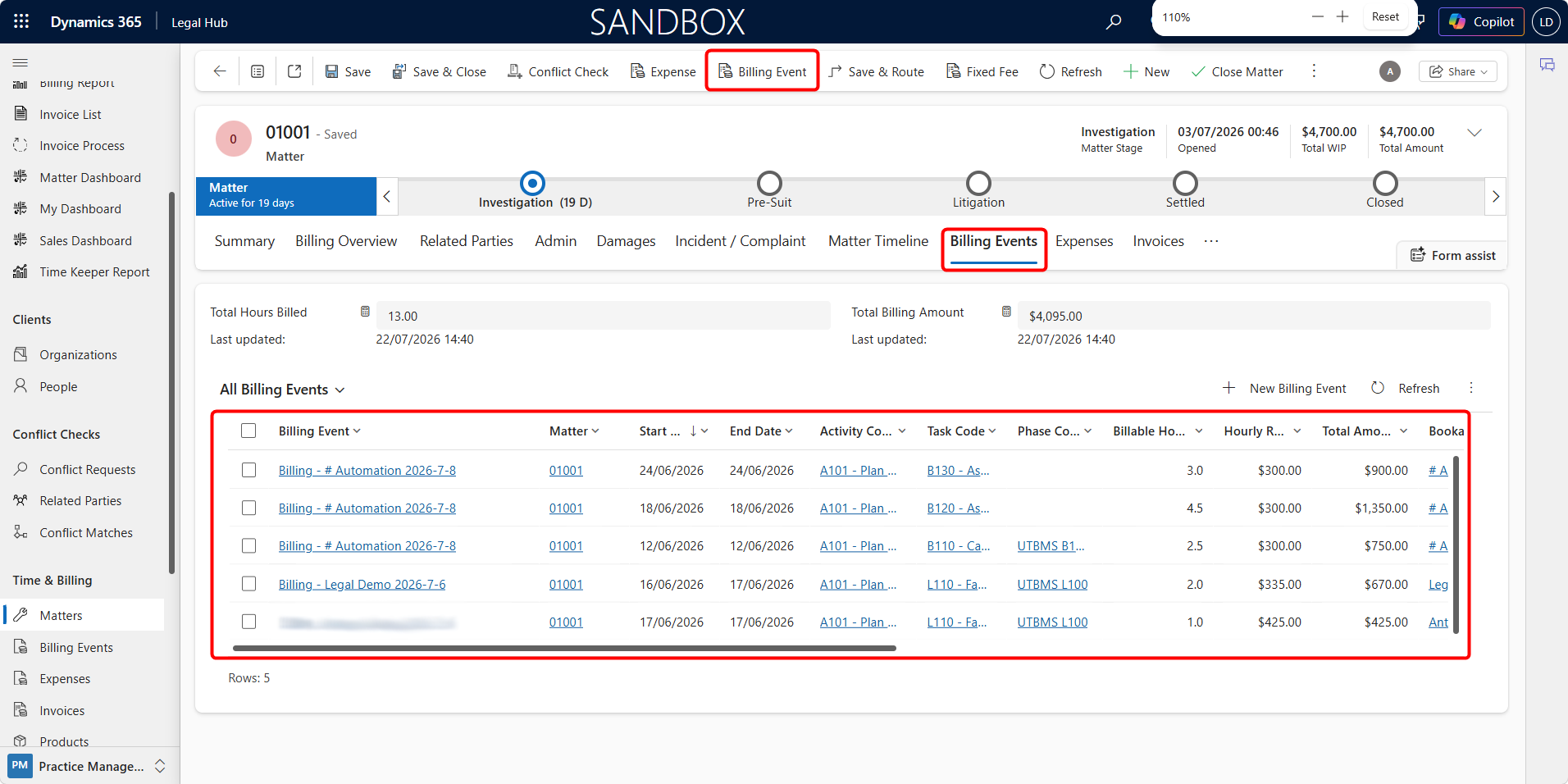
Open Matter 01001 or 01003.
-
Select the Billing Events tab.
-
Review the existing billing entries linked to the Matter.
-
Open a billing event to view more details.
Add a Billing Event
-
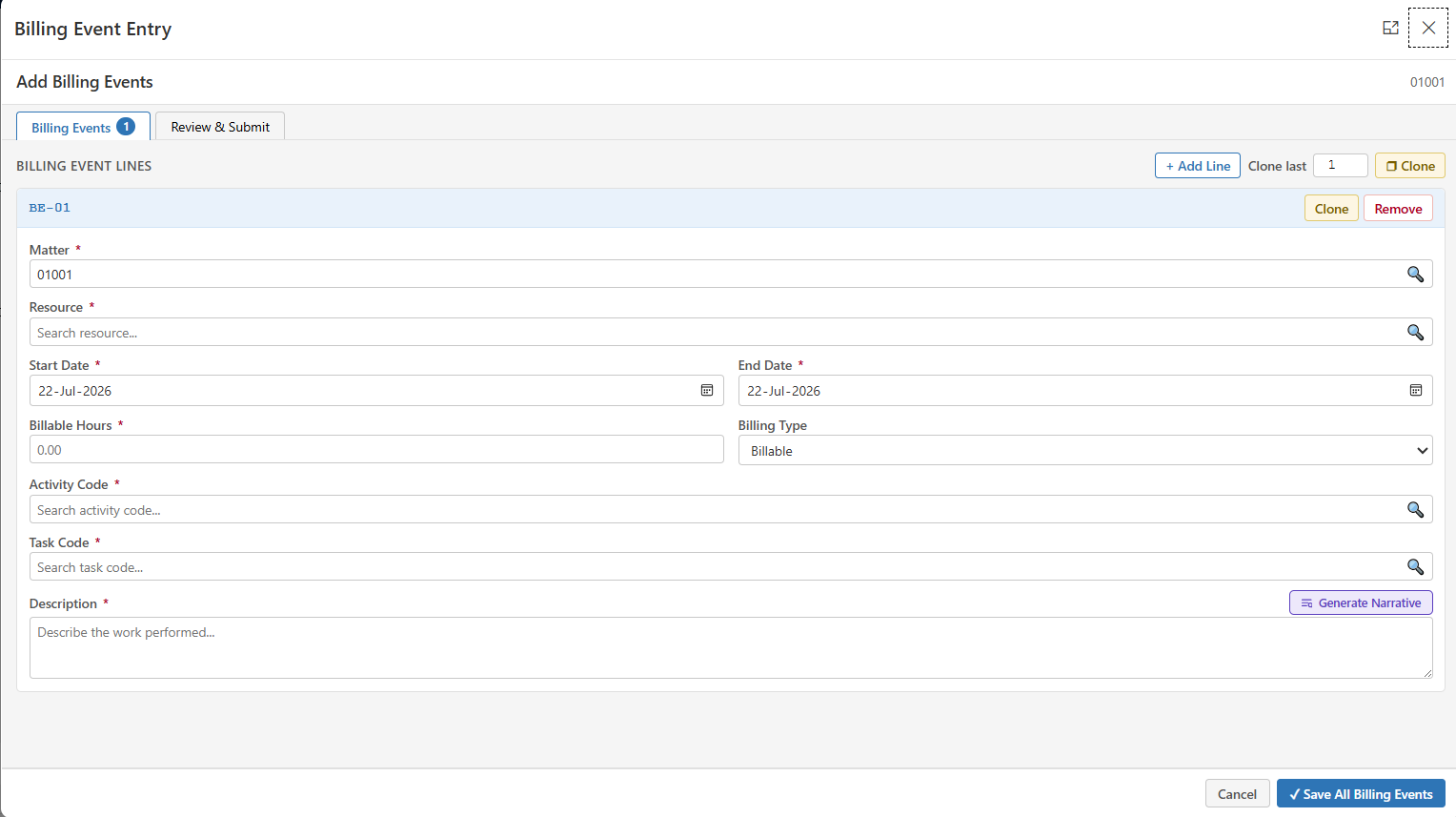
From Matter 01001 or 01003, click Billing Event from the top command bar.
-
Enter the billing details in the Billing Event Entry screen.
-
Add additional lines if required.
-
Select Review & Submit, then save the billing events.
Things to Explore
-
Billing Details — Review the date, description, resource, hours, rate, and amount.
-
Billing Status — See the current status of each billing entry.
-
Matter Link — Each billing event remains linked to Matter 01001 or 01003 for later invoicing.
Expenses and Receipts
Expenses are used to record matter-related costs and disbursements, with supporting receipts attached where required.
Explore Expenses
-
Open Matter 01001 or 01003.
-
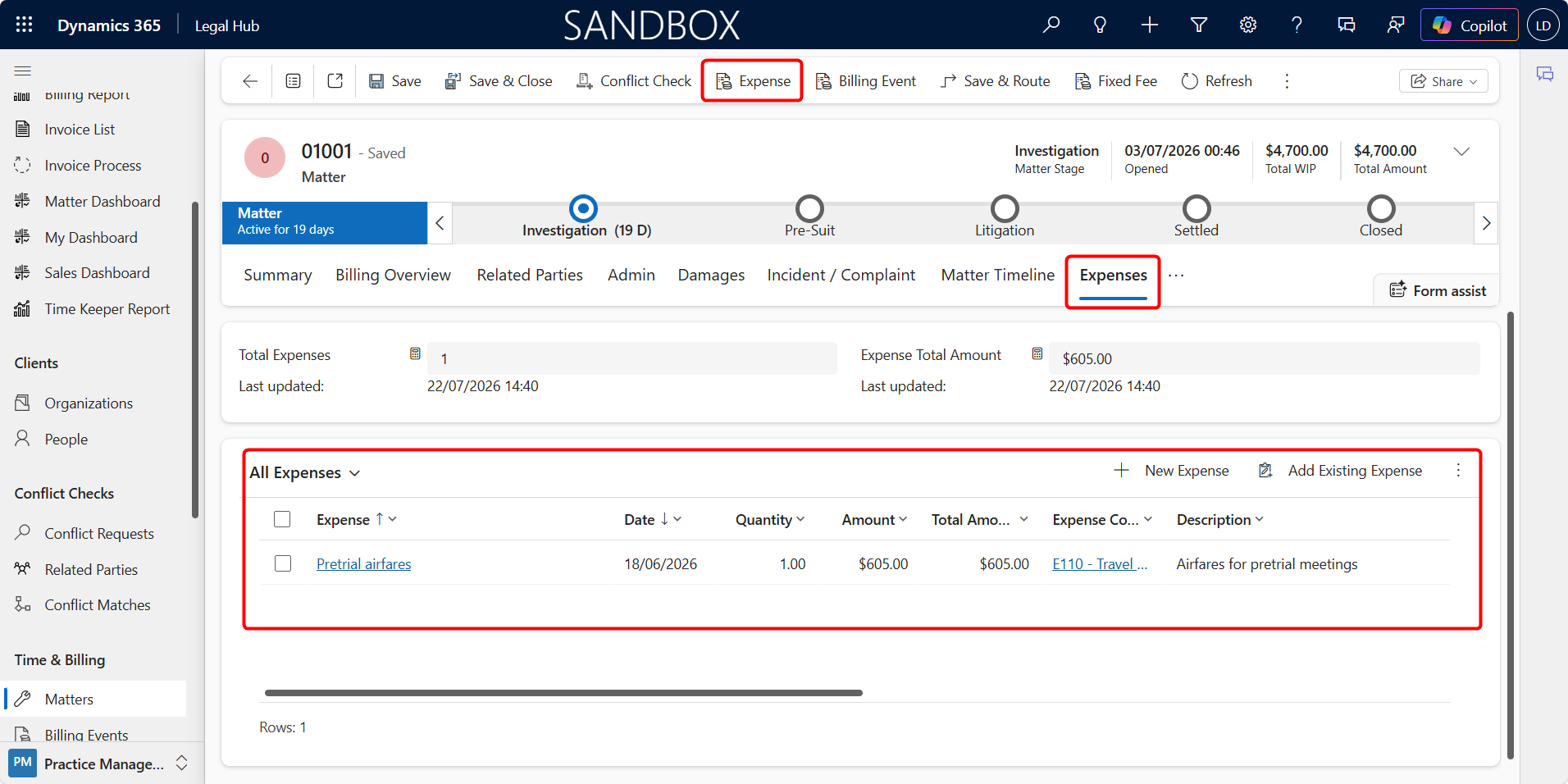
Select the Expenses tab.
-
Review the existing expense records linked to the Matter.
Add an Expense and Upload a Receipt
-
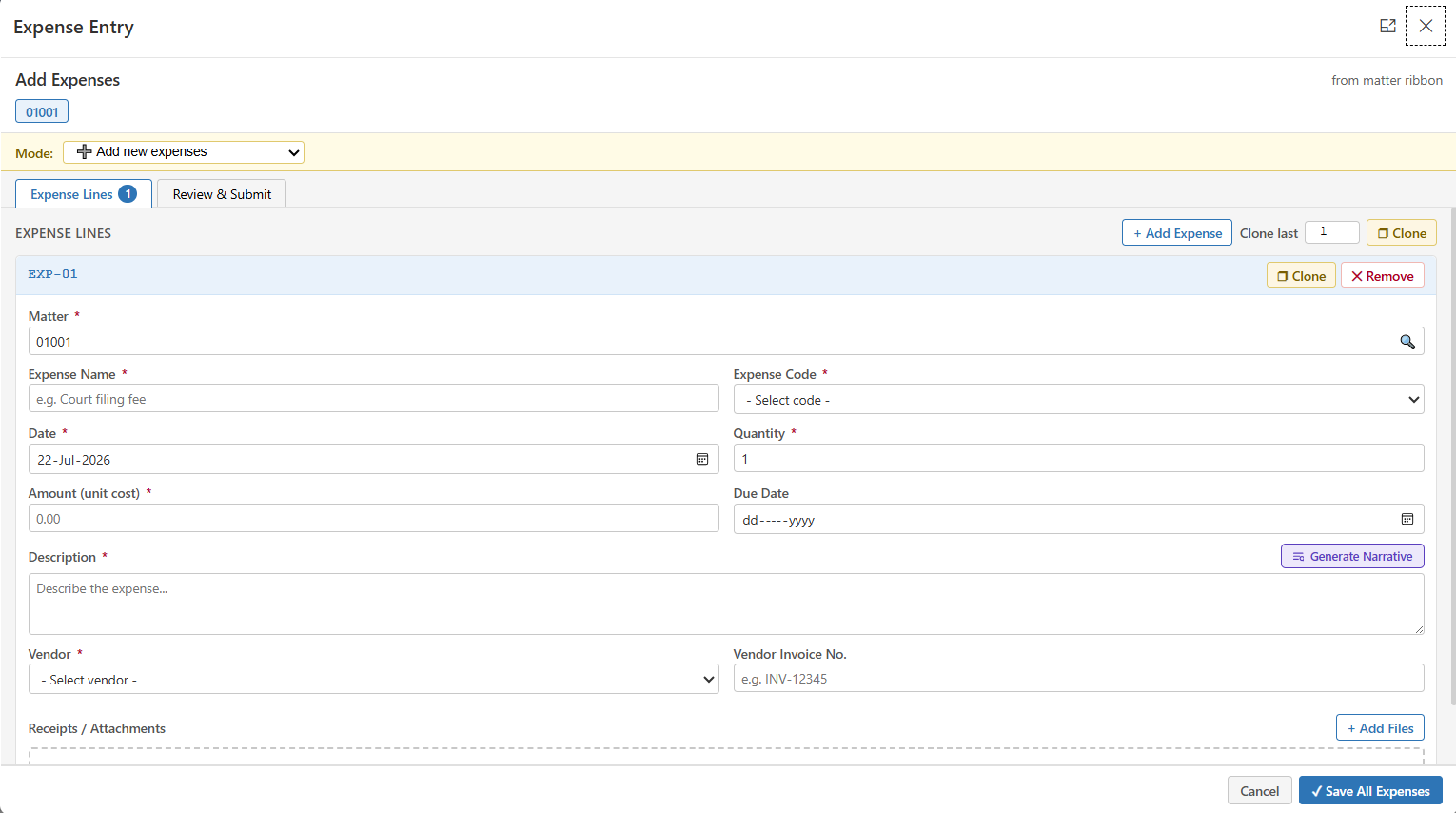
From Matter 01001 or 01003, click Expense from the top command bar.
-
Enter the expense details.
-
In the Attachments section, upload the supporting receipt if required.
-
Select Review & Submit, then save the expense.
Things to Explore
-
Expense Details — Review the date, description, category, amount, and related Matter.
-
Attachments — View or upload receipts and other supporting documents.
-
Expense Status — See the current status of each expense before it is included in billing.
Billing Types
The Billable Type determines how a Matter is billed. Different billing types can provide different billing options and related Matter tabs.
Fixed Fee
Fixed Fee Matters are used where legal work is billed using an agreed fixed amount rather than standard time-based billing.
Matter 01003 has been prepared as a Fixed Fee Matter for exploration.
Review the Fixed Fee Setup
-
Open Matter 01003.
-
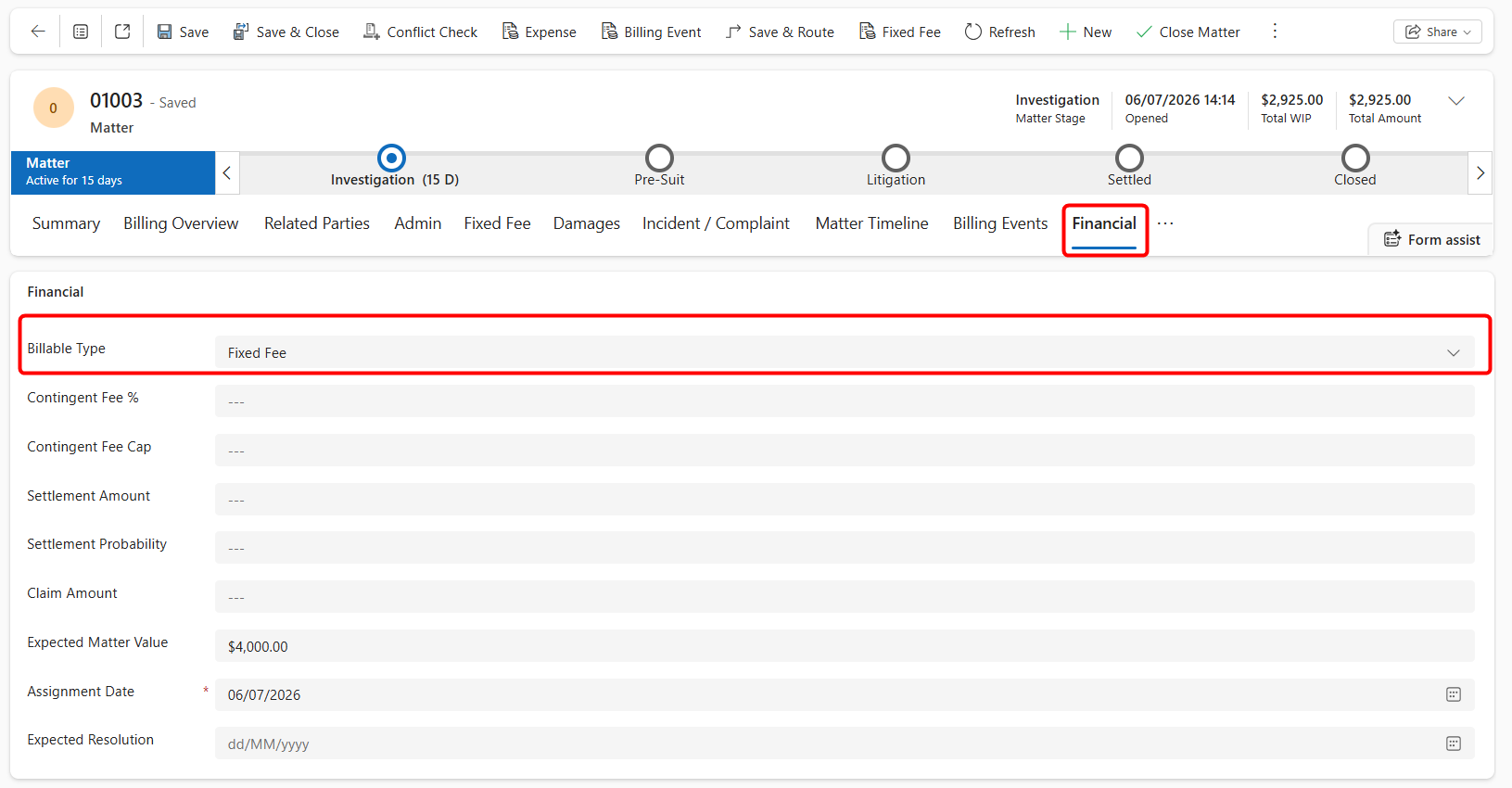
Go to the Financial tab.
-
Review the Billable Type field, which is set to Fixed Fee.
-
When Fixed Fee is selected as the Billable Type, the Fixed Fee tab becomes available on the Matter.
Explore the Fixed Fee Schedule
-
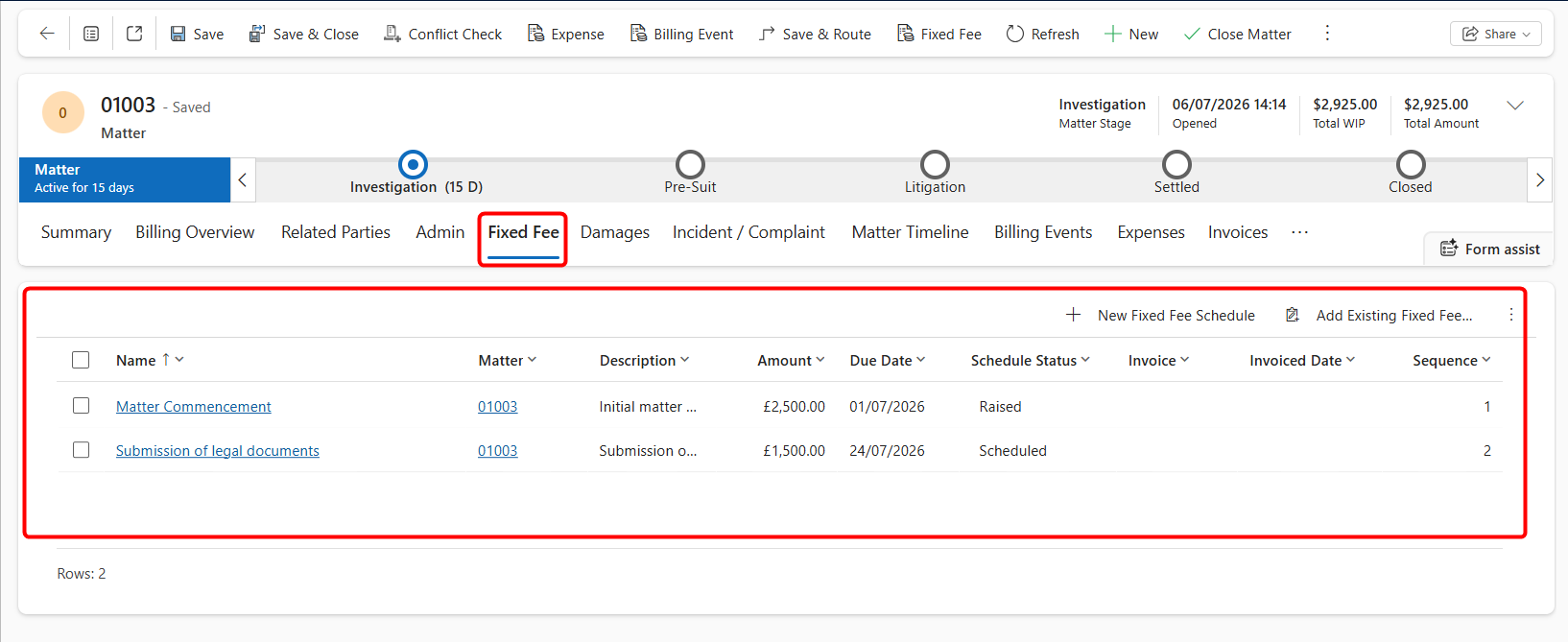
Select the Fixed Fee tab.
-
Review the existing fixed fee schedule records.
-
Open a schedule item to view its details.
Things to Explore
-
Fixed Fee Schedule — View the agreed billing milestones or instalments for the Matter.
-
Amount and Due Date — Review the value and scheduled date of each fixed fee item.
-
Schedule Status — See whether each item is scheduled, raised, or progressed further in the billing process.
-
Invoice Information — Review whether a fixed fee schedule item has been linked to an invoice.
Per Diem
Per Diem billing is used where legal work is charged based on an agreed daily rate, rather than billing each individual time entry separately.
Matter 01004 has been prepared as a Per Diem Matter.
Review the Per Diem Setup
-
Open Matter 01004.
-
Go to the Financial tab.
-
Review the Billable Type, which is set to Per Diem.
-
Explore the Per Diem billing details and related billing records.
Things to Explore
-
Daily Rate — Review the agreed rate used for each billable day.
-
Billing Period / Days — Review the number of days or billing periods used to calculate the charge.
-
Billing Events — See how Per Diem charges are recorded against the Matter.
-
Invoices — Review how the Per Diem billing items progress through the invoice process.
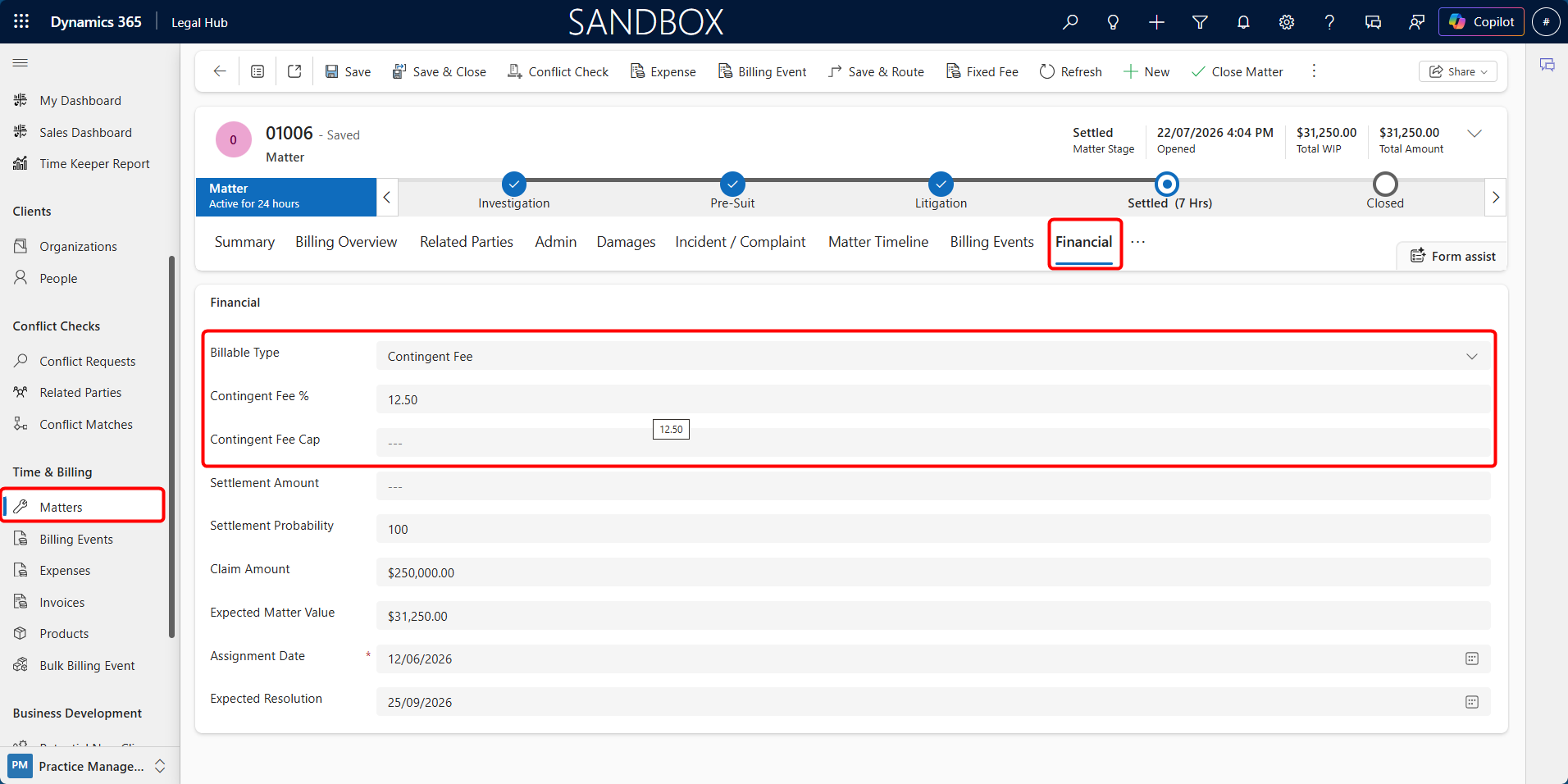
Contingent Fee
Contingent Fee billing is used where the firm’s fee depends on the outcome of the Matter, usually as an agreed percentage of the settlement or judgment amount. Time can still be recorded for internal tracking, but the final fee is driven by the settlement-based billing event.
Matter 01006 has been prepared as a Contingent Fee Matter.
Review the Contingent Fee Setup
-
Open Matter 01006.
-
Go to the Financial tab.
-
Review the Billable Type, which is set to Contingent Fee.
-
Explore the Contingent Fee fields configured for the Matter.
Things to Explore
-
Contingent Fee % — The agreed percentage used to calculate the fee when the Matter is successfully settled.
-
Contingent Fee Cap — An optional maximum amount that can be charged as the contingent fee.
-
Claim Amount — The amount being claimed, which can be used when estimating the potential fee.
-
Settlement Probability — The estimated likelihood of a successful outcome, used for forecasting.
-
Expected Matter Value — Provides an estimated value for the Matter based on the available financial information.
When the Matter Is Settled
Once a settlement or judgment is reached:
-
Enter the Settlement Amount on the Financial tab.
-
Review the Contingent Fee % and any applicable Contingent Fee Cap.
-
Progress the Matter to the Settled stage and save the record.
The system then calculates the contingent fee, applies any configured cap, and creates the corresponding Billing Event for invoicing.
Generate and Manage Invoices
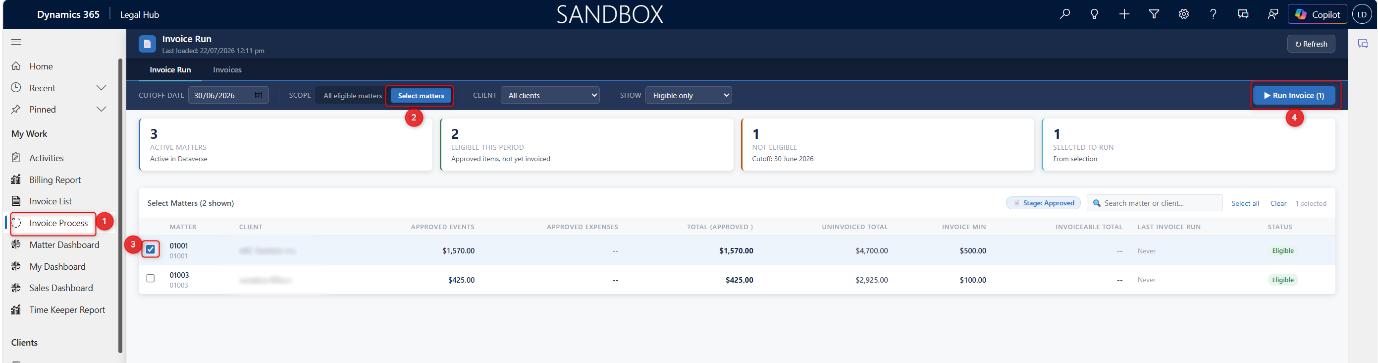
Invoices are generated through the Invoice Process using approved billing items that are ready to be invoiced.
Generate an Invoice
-
Go to My Work > Invoice Process.
-
Review the Cutoff Date and update it if required, then click Select matters.
-
Select Matter 01001 or 01003.
-
Click Run Invoice.
-
Once the process completes, the generated invoice will appear in My Work > Invoice List.
Manage an Invoice
-
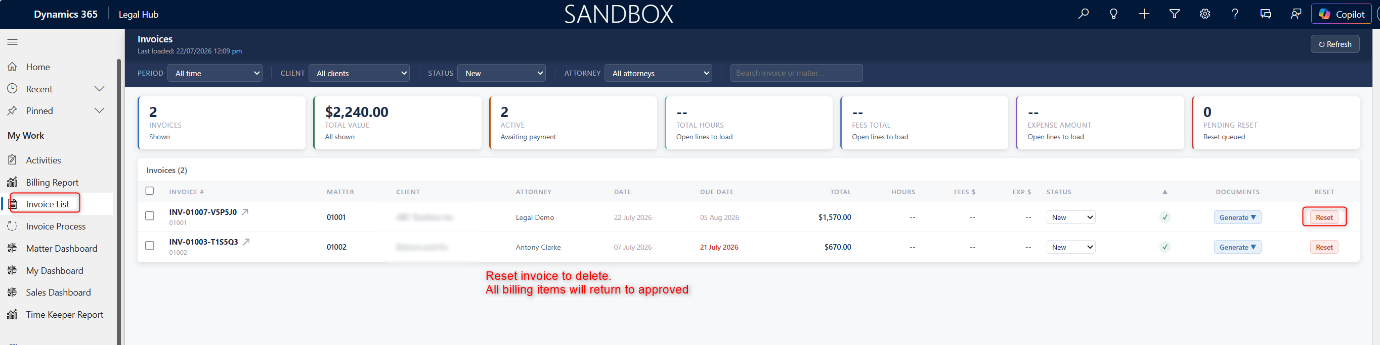
Go to My Work > Invoice List.
-
Click an invoice to expand and review its invoice lines.
-
Review the billing events and expenses included in the invoice.
Things to Explore
-
Invoice Status — Update the invoice status as it progresses through the billing process.
-
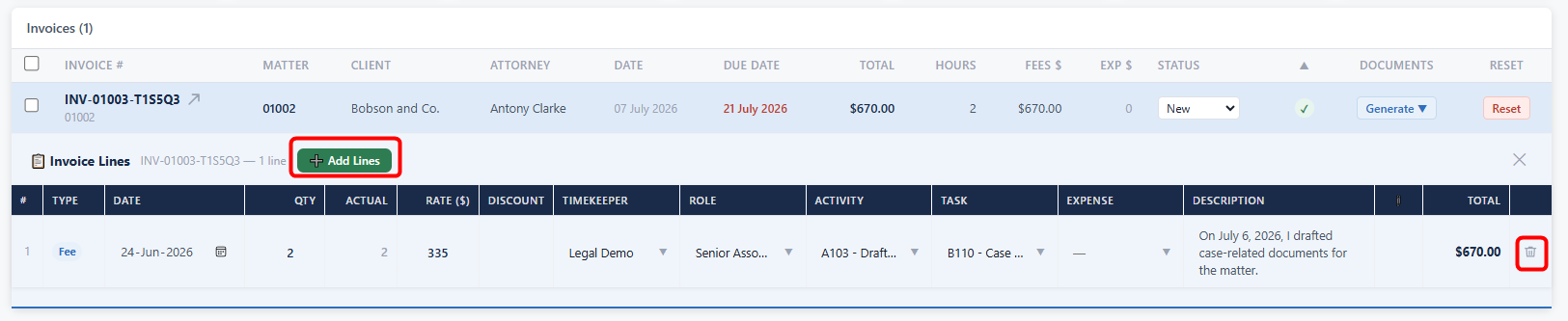
Invoice Lines — View the billing events and expenses included in the invoice.
-
Add or Remove Lines — While the invoice is still in the Draft/New stage, use Add Lines to add additional eligible items or remove an invoice line if required.
-
Receipts — Where expenses are included, supporting receipts can also be uploaded or reviewed from the invoice area.
-
Generate Documents — Use the Generate option to create the required invoice document.
-
Reset Invoice — Click Reset to remove the generated invoice and return the related billing items to Approved status so they can be reviewed and invoiced again.

Documents
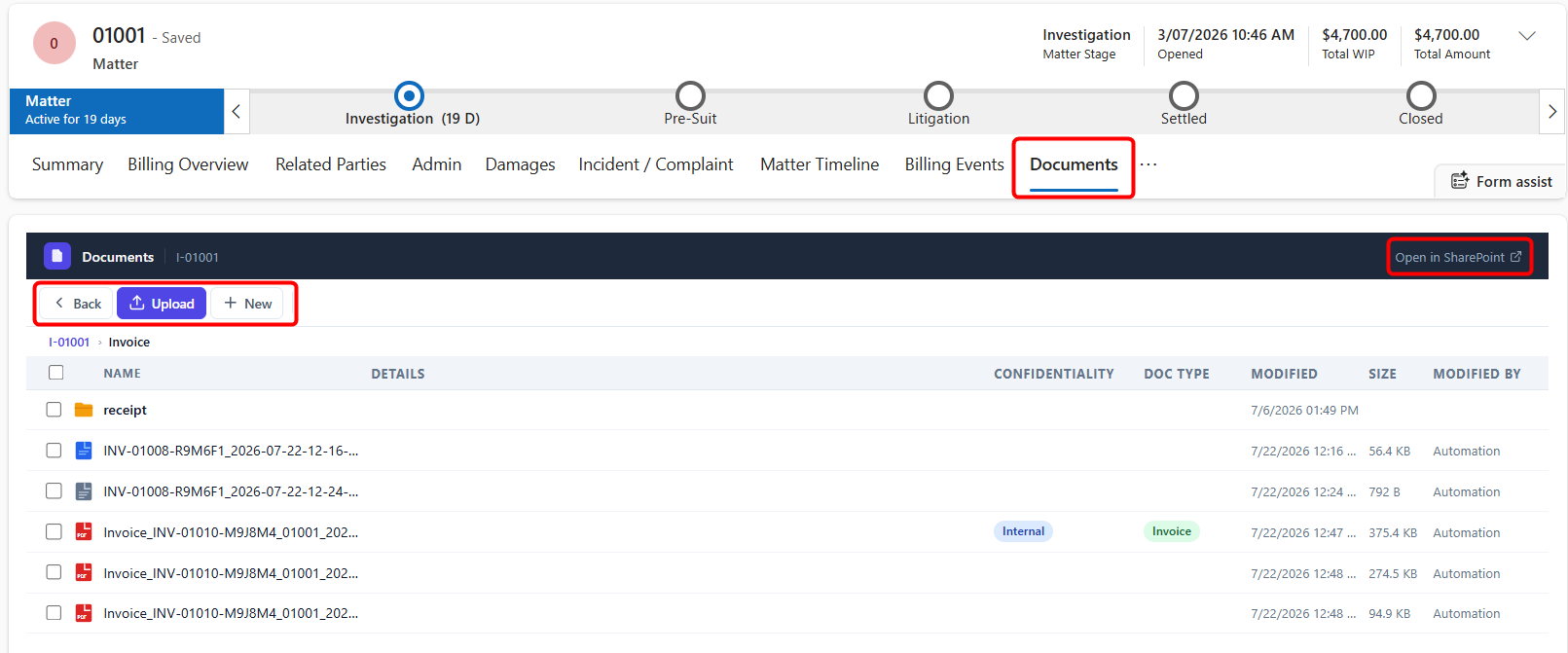
The Documents area provides access to files related to a Matter and allows users to upload and manage supporting documents directly from the Legal Solution.
Explore Matter Documents
-
Open Matter 01001 or 01003.
-
Select the Documents tab.
-
Review the existing files linked to the Matter.
-
Open a document to view it or review the available document details.
Upload a Document
-
Open Matter 01001 or 01003 and go to the Documents tab.
-
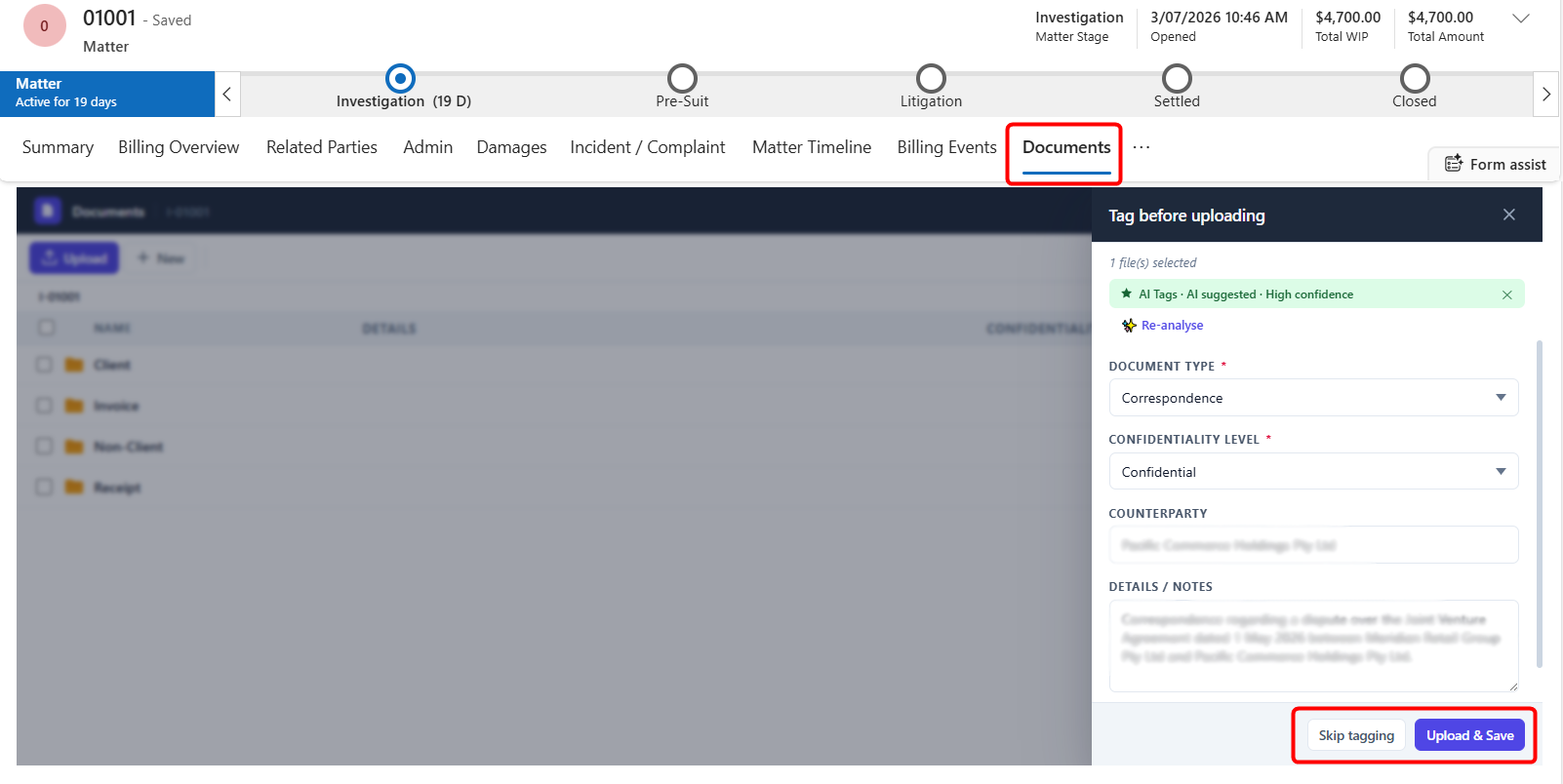
Click Upload and select the document you want to add.
-
The system uses AI to analyse the document and suggest relevant tags and metadata.
-
Review the suggested information and update or correct any suggested values if required.
-
Click Upload & Save to upload the document with the selected metadata.
Things to Explore
-
Matter Documents — View all documents stored against the Matter.
-
Upload Documents — Add new files directly from the Matter.
-
AI Document Functionality — After a document is uploaded, explore the AI-generated information available for the document, such as extracted details, classification, or tags.
-
Document Details — Review and update the document metadata where required.
-
Open in SharePoint — Access the underlying SharePoint document location where available.
Matter Access
Matter access controls who can view or work with a Matter.
Explore Matter Access
-
Open Matter 01001 or 01003.
-
Go to the Full Access or Read Access tab.
-
Review the users who currently have access to the Matter.
-
Open an access record to review the assigned user and access level.
Access Levels
-
Full Access — Users can work with and update the Matter based on their permissions.
-
Read Access — Users can view the Matter but have more limited access to make changes.
Dashboards
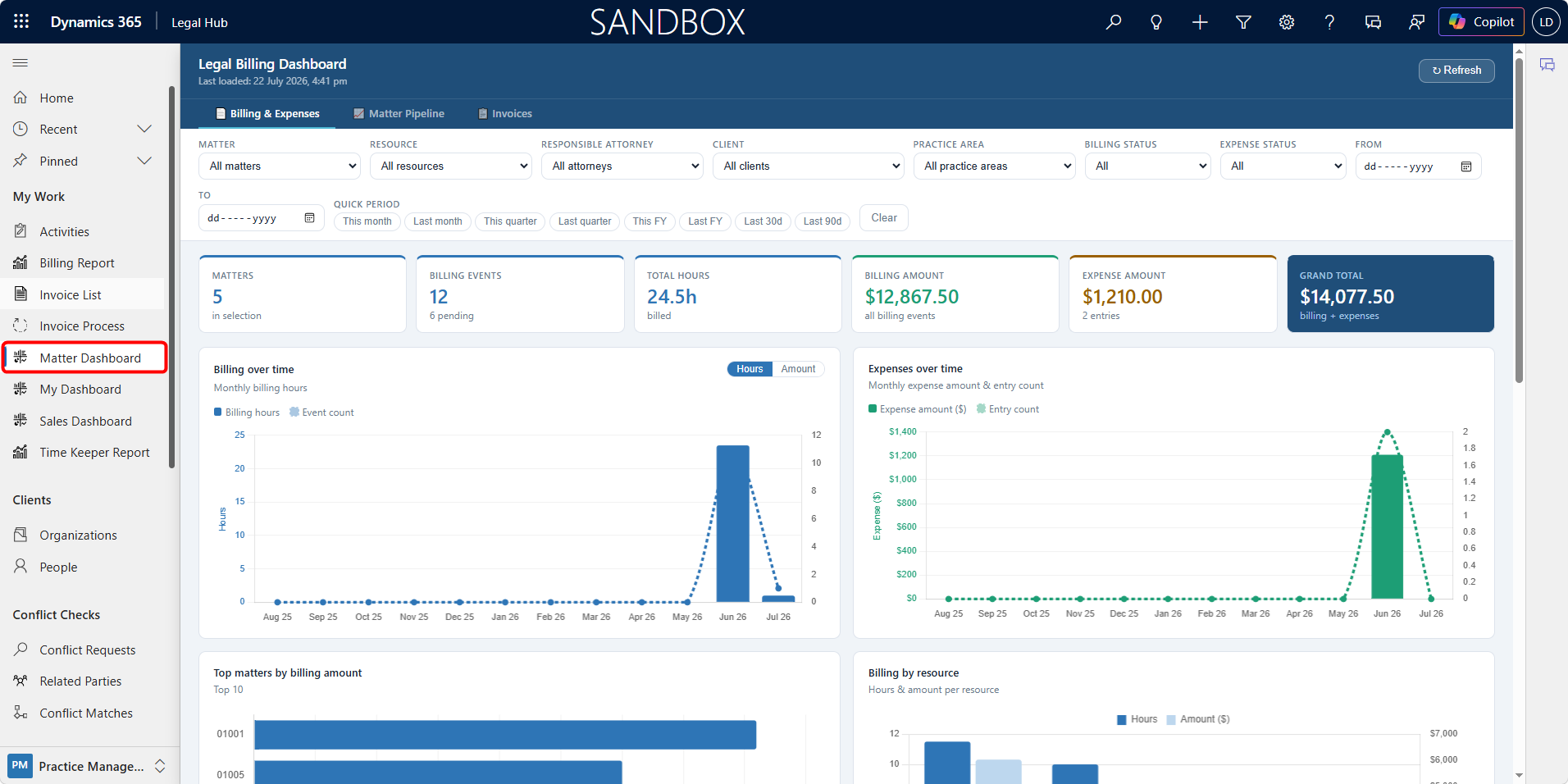
Dashboards provide a visual overview of key information across Matters, billing, and business development.
Explore the Dashboards**
-
Go to My Work.
-
Open the available dashboard, such as the Matter Dashboard or Sales Dashboard.
-
Review the charts, totals, and summary information displayed.
-
Use the available filters to explore different data.
Things to Explore
-
Matter Overview — Review summaries of active Matters and related activity.
-
Billing and Expenses — View financial information across Matters.
-
Invoice Information — Review invoice totals and billing trends.
-
Matter Pipeline — See the distribution and progress of Matters.
-
Sales Performance — Explore business development information, including Potential New Clients and Pitches.