Sell-Thru Commission & Rebates Management for Dynamics 365 Business Central User Guide
Introduction
The Sell-Thru Commission & Rebates Management App is a Microsoft Dynamics 365 Business Central extension that helps distributors, wholesalers, device resellers, electronics suppliers and channel organisations manage supplier-funded sell-thru promotions directly inside Business Central.
It replaces spreadsheet-based rebate tracking with controlled promotion setup, automatic sales eligibility, capped-unit enforcement, rebate accrual at posting, claim preparation, settlement tracking and adjusted-margin visibility.
The app preserves the integrity of Business Central inventory costing — rebate impacts are presented as a reporting and accounting view (a rebate receivable and rebate income) rather than by changing actual inventory cost or weighted-average cost.
To get the app, visit Microsoft Marketplace at Sell-Thru Commission and Rebates Management for Microsoft Dynamics 365 Business Central .
Who Should Use This Guide
-
Sales and commercial users who need to see which sales qualify for supplier promotions and how adjusted promotional margins are reported.
-
Finance users who manage rebate accruals, claims, GL posting, settlement and reconciliation.
-
Operations users who support promotion setup, eligible item lists, customer groups and territory rules.
-
Business Central administrators who configure rebate accounts, number series, promotion fields and permissions.
Key Concepts
| Concept | Description |
|---|---|
| Sell-Thru Promotion | A supplier-funded campaign that provides a rebate for eligible units sold during a defined period, by model, market, customer or reseller group. Held as a Sell-Thru Promotion record. |
| Promotion Cap (Target Units) | The maximum approved units that can accrue rebate under a promotion model. It is a single shared pool across all eligible resellers. Once the cap is reached, additional sales accrue nothing further. |
| Eligible Sale | A posted sales invoice line that matches the promotion rules: item model, customer eligibility, territory and date range. |
| Rebate Accrual | A Sell-Thru Rebate Ledger Entry created at invoice posting for the eligible quantity, before supplier settlement is received. |
| Claim | A collection of eligible rebate lines (a Sell-Thru Claim) submitted to the supplier with supporting transaction evidence. |
| Adjusted Margin | A commercial margin view reflecting rebate impact without changing actual Business Central inventory cost. |
App Process Overview
-
Configure rebate accounts, number series, customer/market groups and item model hierarchy.
-
Create sell-thru promotions from supplier bulletin details (reference, dates, market, eligible resellers, models, rebate per unit, capped units) and release them.
-
Process sales orders and invoices as normal; the net-after-promo price is shown on the order line while a promotion is live.
-
Rebate accrues automatically at invoice posting, up to the approved cap.
-
Review rebate entries by promotion, customer, item and amount.
-
Generate supplier claims, export supporting sales evidence, and post the rebate to GL on validation.
-
Settle claims when supplier funds are received and reconcile against the rebate receivable.
-
Review adjusted-margin reporting for promotional profitability.
Initial Configuration
Configure Rebate Accounts & Number Series
Open the Sell-Thru Rebate Setup page and set the rebate Receivable, Rebate Income (Contra-COGS) and Settlement / Clearing G/L accounts, the Claim Nos. number series, and the Default Combineable behaviour for new promotions. Rebate activity posts to these accounts and never to cost of goods sold.
Configure Customer, Territory & Market Groups
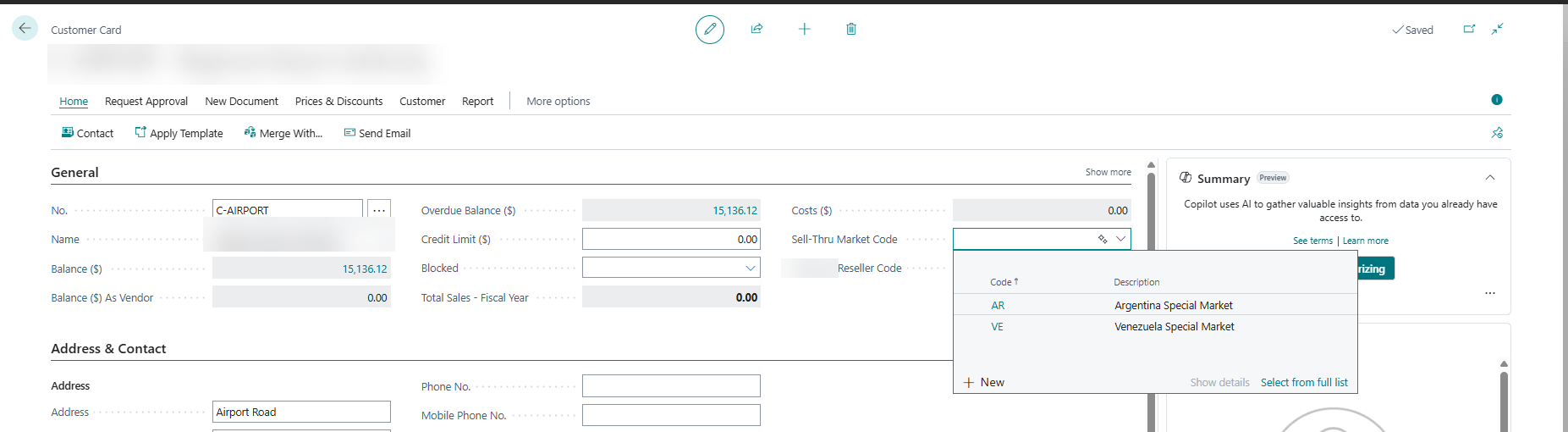
Create market groups in Sell-Thru Market Groups and assign each customer to a group using the Sell-Thru Market Group Code field on the Customer Card. Selecting a group on a promotion then auto-includes the matching customers and lets you verify the eligible list against the bulletin.
Configure Item & Model Groupings
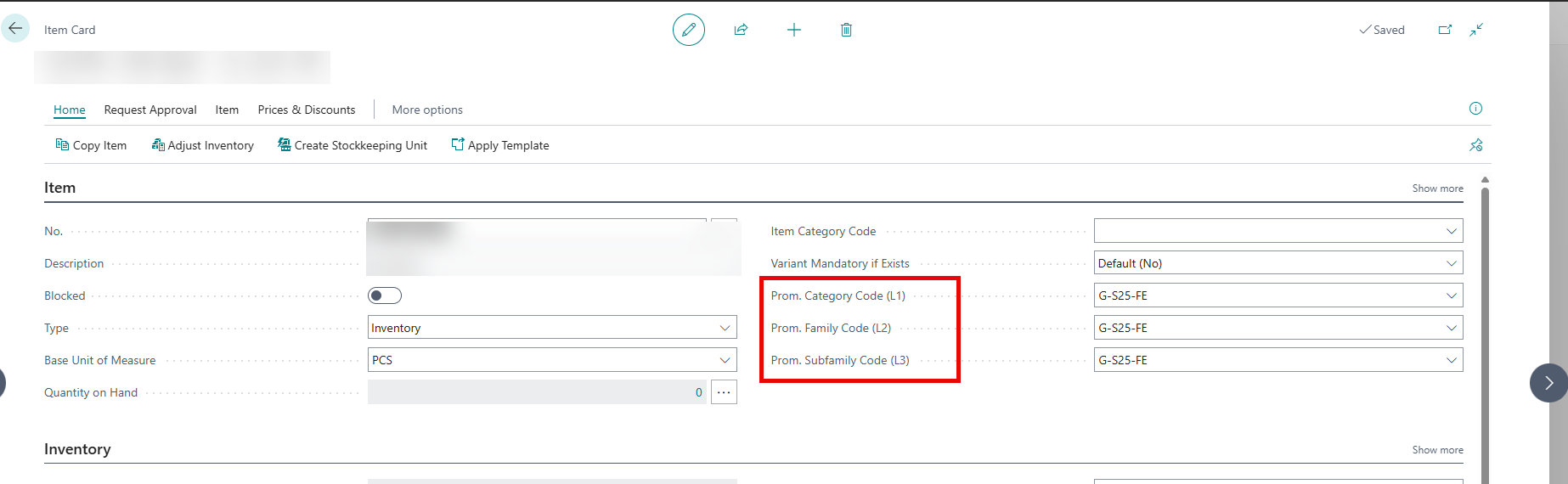
Assign items to the model, SKU or promotion category hierarchy used by supplier bulletins. This may include item category levels such as product family, model series and individual SKU. Accurate item grouping is essential because eligibility is normally determined by the item sold, date range, customer or territory, and promotion configuration.
Creating a Sell-Thru Promotion
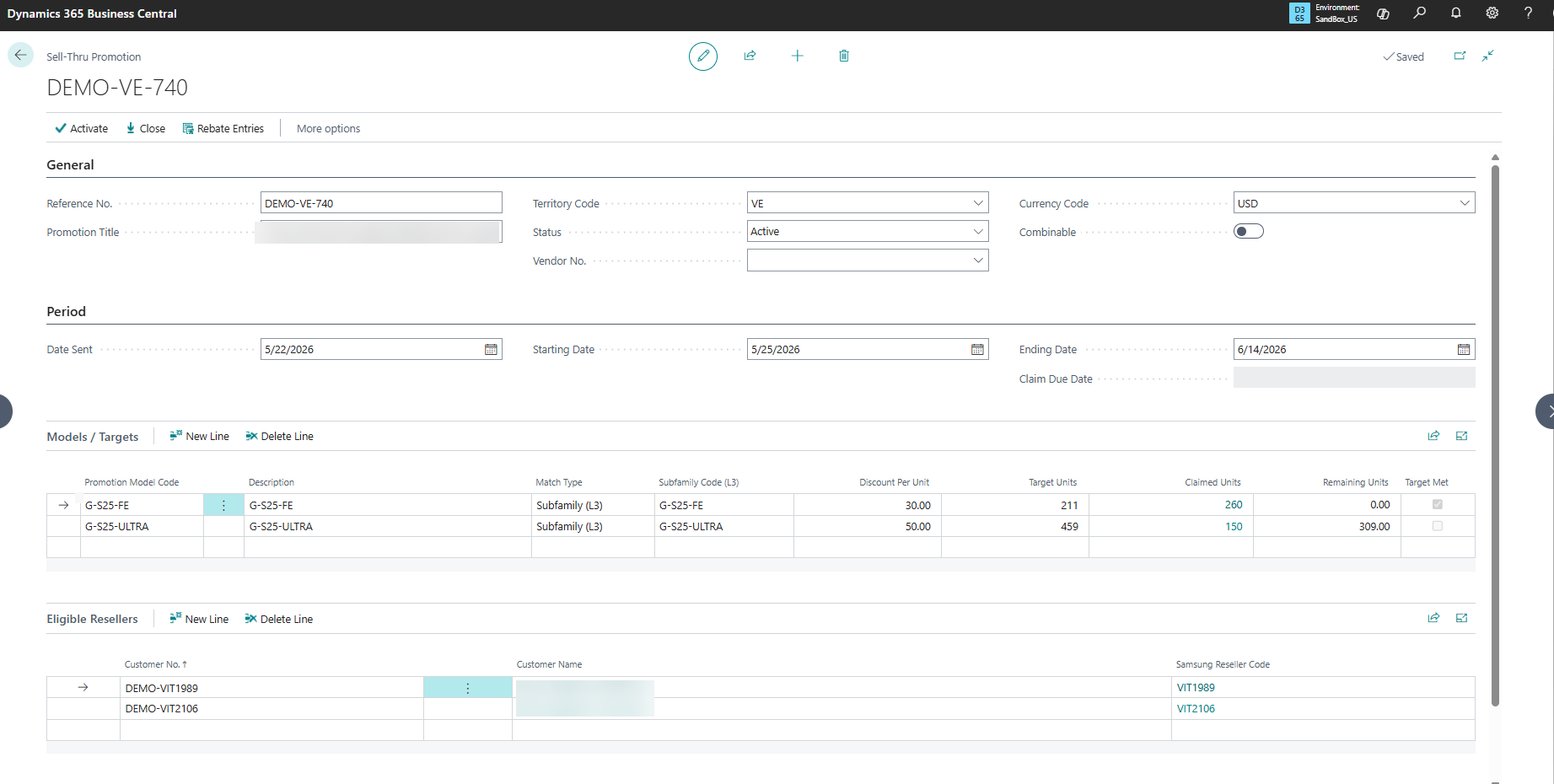
Use the Sell-Thru Promotion Card to capture a supplier bulletin. Create the promotion before or during the campaign period so qualifying sales are matched.
-
Open Sell-Thru Promotions and create a new record.
-
Enter the bulletin reference number and promotion title, and select the rebate vendor (the supplier).
-
Enter the starting and ending dates.
-
Set Combineable if multiple promotions may apply to the same item and date range (for example a general channel discount plus a market-specific rebate).
-
Select the Market Group Code, then run Add Resellers from Market Group to populate the eligible reseller list. Add or remove individual resellers as needed and verify the list against the bulletin.
-
In the Models subform, add each model by Item Group with its Discount per Unit and Target Units (the approved cap).
-
Confirm the rebate receivable and settlement accounts (defaulted from setup, overridable per promotion).
-
Run Release to activate the promotion. Only Released promotions accrue rebate; use Reopen to edit again.
Processing Eligible Sales & Rebate Accruals
Sales orders and invoices are processed using standard Business Central workflows. The app evaluates each item line against active promotions by model (L3), customer eligibility, territory and date range.
-
Net price on the order line. — While a promotion is live, the sales order line shows Sell-Thru Rebate per Unit, Net Price After Promo and Active Promotion No. These are display-only and never change the actual unit price, price list or cost. Combineable promotions are netted together (for example 1,000 − 20 − 30 = 950).
-
Accrual at posting. — When the sales invoice posts, the app creates rebate ledger entries for the eligible quantity. Accrual applies for units sold up to the approved cap, with no minimum-purchase threshold --- a single eligible unit still accrues.
-
Shared cap. — The cap is a single pool across all eligible resellers; once total accrued units reach Target Units, further sales accrue nothing.
-
No match. — If a line does not match any active promotion, no accrual is created.
Reviewing Rebate Entries
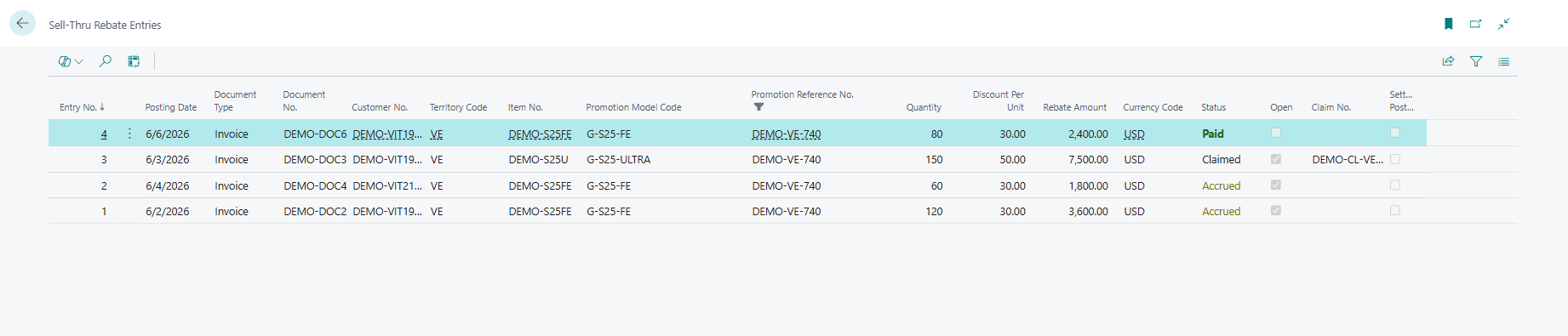
Open Sell-Thru Rebate Ledger Entries to see the audit trail from promotion to qualifying sale: promotion, model , customer, item, source document, eligible quantity, discount per unit, rebate amount and claim status. On the promotion’s Models subform, Claimed Units and Remaining Units show live consumption of the cap.
Before creating a claim, confirm eligible sales are complete, quantities do not exceed supplier-approved caps, customer eligibility is correct, and any returns or credits have been considered per your rebate policy.
Creating and Managing Claims
Claims move through four statuses:
Open → Submitted → Validated → Settled
-
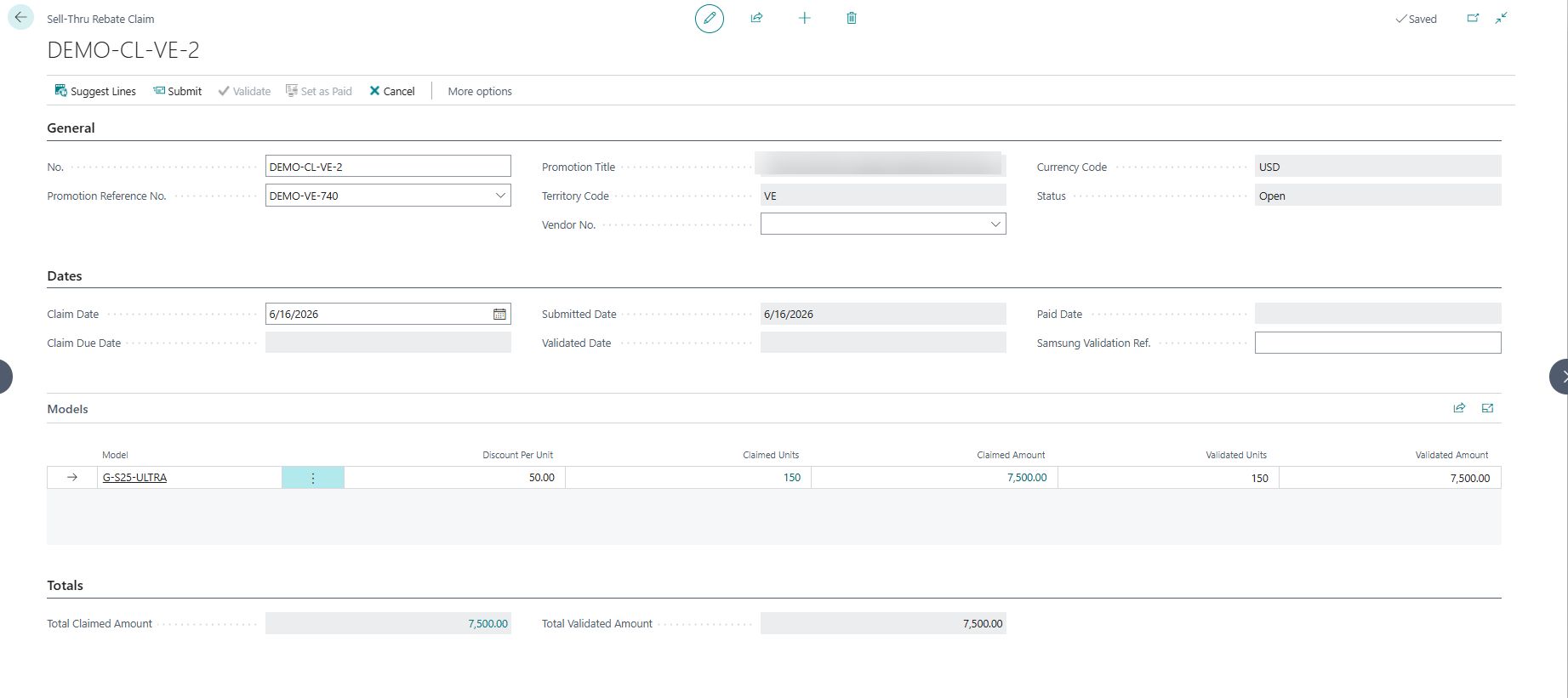
Open Sell-Thru Claims and create a claim; select the promotion (the vendor defaults from it).
-
Run Suggest Lines — The app aggregates all unclaimed eligible units up to the cap. There is no minimum --- a claim can be raised for any number of units actually sold (for example 4 of 50).
-
Review each claim line against the bulletin and the underlying sales evidence; remove or hold lines needing further validation.
-
Use Export to Excel to produce supporting evidence (model, quantity, discount and amount).
-
Run Submit to mark the claim as sent to the supplier.
-
Run Validate & Post to post the rebate to the general ledger and stamp the underlying entries as claimed.
Settling Rebate Claims & Accounting Treatment
On Validate & Post, the app posts a balanced entry: Debit Rebate Receivable and Credit Rebate Income (contra-COGS). It never debits cost of goods sold, so actual and weighted-average inventory cost are unaffected and the promotion is reflected as income rather than a cost reduction.
When supplier funds are received, run Settle on the claim and apply the cash receipt against the rebate receivable in the cash-receipt journal. Reconcile the amount received to the validated claim value; keep any short-paid, rejected or disputed amounts visible for follow-up.
Adjusted-Margin Reporting
Adjusted-Margin Reporting shows original sales value, original cost, original margin, rebate value, adjusted net cost, adjusted margin and adjusted margin percentage.
Adjusted Net Cost is Unit Cost less the Per-Unit Rebate, applied for reporting only. This is a management view; it does not alter Business Central actual cost or inventory valuation.

Controls and Auditability
-
Maintain a clear supplier bulletin reference on every promotion.
-
Use approved customer, territory and item groupings to avoid manual selection errors.
-
Review capped-unit usage (Claimed / Remaining Units) before submitting claims.
-
Export and retain supporting transaction evidence for supplier audits.
-
Separate promotion setup, claim validation and settlement responsibilities where segregation of duties is required.
-
Reconcile the rebate receivable regularly to submitted, validated and settled claims.
Troubleshooting
| Issue | Likely cause | Recommended action |
|---|---|---|
| Expected sales do not accrue rebate | The line may not match the promotion: item L3, customer eligibility, territory, date, or the promotion is not Released. | Check the promotion status and period, the item’s Prom. Subfamily Code L3, and that the customer is an eligible reseller. |
| Accrual stops before all sales are included | The shared cap (Target Units) has been reached. | Review Claimed / Remaining Units on the promotion model. |
| Net price not shown on the order line | No active promotion matches, or item L3 / customer group is not set. | Confirm the promotion is Released and in period, and that item and customer are configured. |
| Claim amount differs from supplier expectation | Returns, credits, excluded customers or capped quantities affect the calculation. | Review claim lines and export supporting evidence for comparison. |
| GL does not post on validation | Rebate accounts are not configured on the promotion or setup. | Set the receivable and rebate-income accounts in Sell-Thru Rebate Setup or on the promotion. |
| Settlement cannot be reconciled | The supplier short-paid, rejected lines or paid multiple claims together. | Compare received funds to validated claims and keep disputed balances for follow-up. |
Best-Practice Checklist
-
Set up and release promotions as soon as supplier bulletins are received.
-
Use structured customer/market groups and item L1/L2/L3 codes instead of manual rules.
-
Review eligibility and capped-unit consumption before claim submission.
-
Export evidence for every submitted supplier claim.
-
Reconcile the receivable to open, submitted, validated and settled claims.
-
Use adjusted-margin reporting to assess promotional profitability without changing actual cost.
Appendix: Pages, Fields and Actions Reference
Quick reference to the main pages delivered by the app and the actions available on each.
| Page | Purpose | Key fields / actions |
|---|---|---|
| Sell-Thru Rebate Setup | Global configuration. | Receivable / Rebate income / Settlement accounts; Default Combineable; Claim Nos. |
| Sell-Thru Market Groups | Territory / market master | Code, Description, Members drill-down. |
| Sell-Thru Promotions / Promotion Card | Create and release promotions. | Reference, Title, Vendor, Period, Combineable, Market Group; Models & Resellers subforms; actions: Add Resellers from Market Group, Release, Reopen. |
| Sell-Thru Rebate Ledger Entries | Accrual audit trail. | Promotion, Model, Customer, Item, Document, Quantity, Rebate Amount, Claimed, Claim No. |
| Sell-Thru Claims / Claim Card | Claim lifecycle and posting. | Status (Open→Submitted→Validated→Settled), Total Units/Amount; actions: Suggest Lines, Submit, Validate & Post, Settle, Export to Excel. |
| Sales Order (line) | Live net-price visibility (CR-02). | Sell-Thru Rebate per Unit, Net Price After Promo, Active Promotion No. (display only). |
| Customer Card / Item Card | Grouping and model coding. | Sell-Thru Market Group Code; Prom. Category L1 / Family L2 / Subfamily L3. |