Legal User Guide for Microsoft Dynamics 365
Clients - Organizations & People
The Organizations and People records form the core client database of the system.
Automatic Creation from Potential New Client
When a Potential New Client is created and later qualified, the system automatically creates:
-
An Organization record (for company clients), and/or
-
A Person record (for individual clients)
This ensures seamless progression from lead → pitch → matter without re-entering client data.
Organizations
Organizations represent company or corporate clients.
Managing Organizations
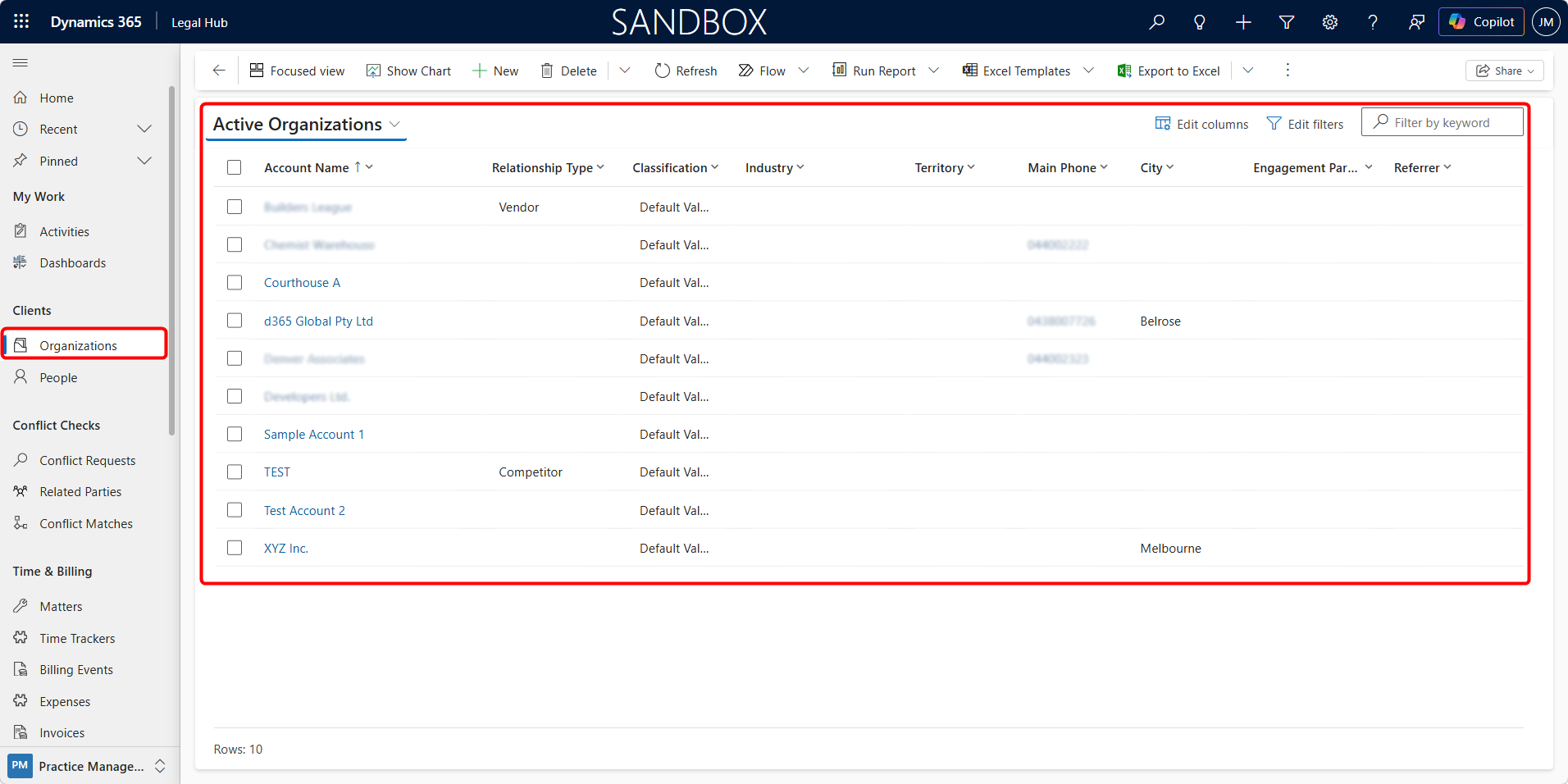
From the Organizations menu, you can:
-
Create a new organization using + New
-
Edit existing details (contact information, classification, industry, etc.)
-
Deactivate/Delete (based on permissions)
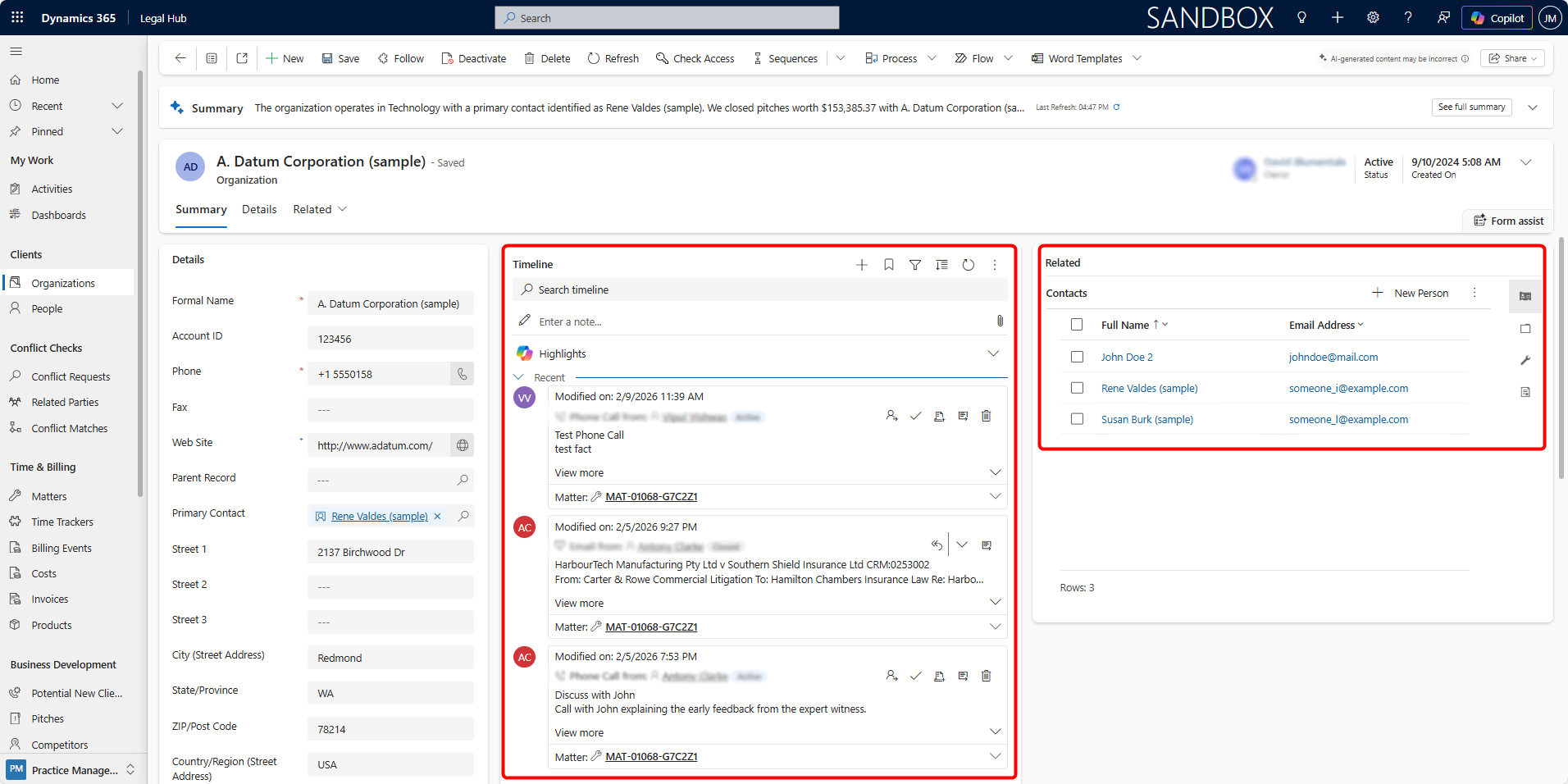
Key Capabilities within an Organization
Related Contacts
-
Add multiple contacts associated with the organization.
-
Set a Primary Contact for main correspondence.
-
Helps manage structured communication with corporate clients.
Timeline
-
Displays all activities related to the organization:
-
Emails
-
Phone calls
-
Notes
-
Meetings
-
-
You can also create activities directly from the Timeline, including sending an email from within the record.
This provides a complete interaction history with the client.
Taxi Pack
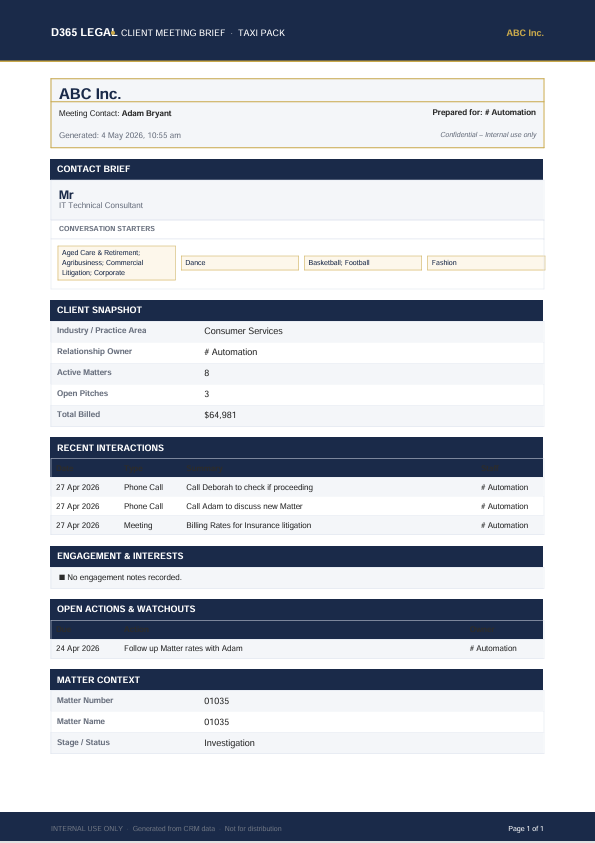
The Taxi Pack feature generates a one-page A4 PDF briefing document for a client, prospect, or pitch meeting.
It pulls live information directly from CRM and provides a quick summary of the Organization and the selected Contact. The document opens as a PDF in the browser and can be printed or saved as required.
The Taxi Pack is generated fresh each time from current CRM data, so there is no separate document to maintain manually.
When to Use Taxi Pack:
Use Taxi Pack when preparing for:
| Situation | What the Taxi Pack helps with |
|---|---|
| Existing client meeting | Matter summary, billing history, recent interactions, open actions, and contact interests |
| Pitch meeting | Pitch details, scope, estimated value, submission dates, and lead partner |
| Potential new client meeting | Lead enquiry details, practice area, contact profile, and conversation starters |
This is especially useful before client meetings, calls, pitch meetings, or relationship reviews.
Steps to Generate Taxi Pack
-
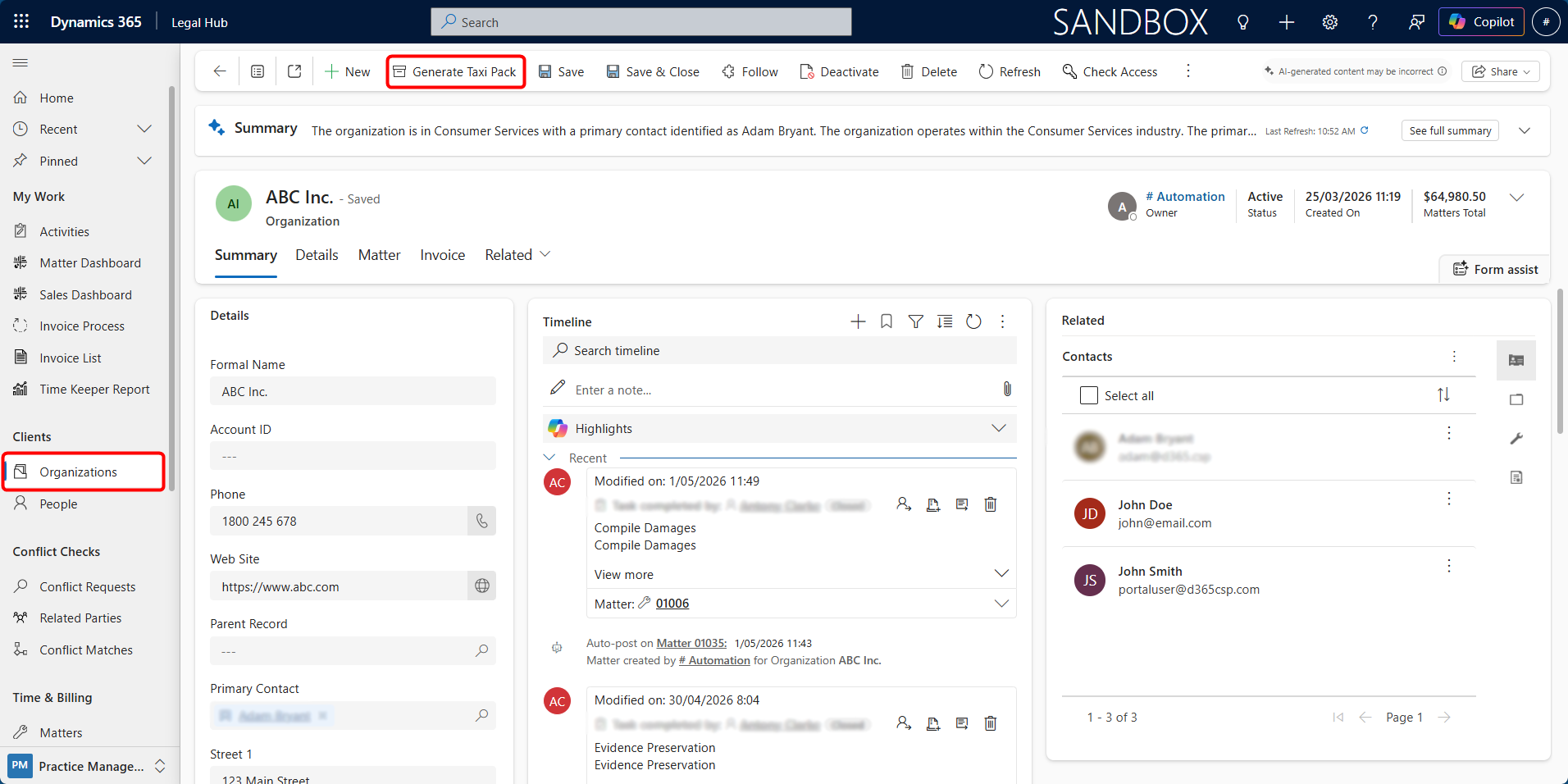
Navigate to Clients → Organizations.
-
Open the required Organization record.
-
From the top command bar, click Generate Taxi Pack.
-
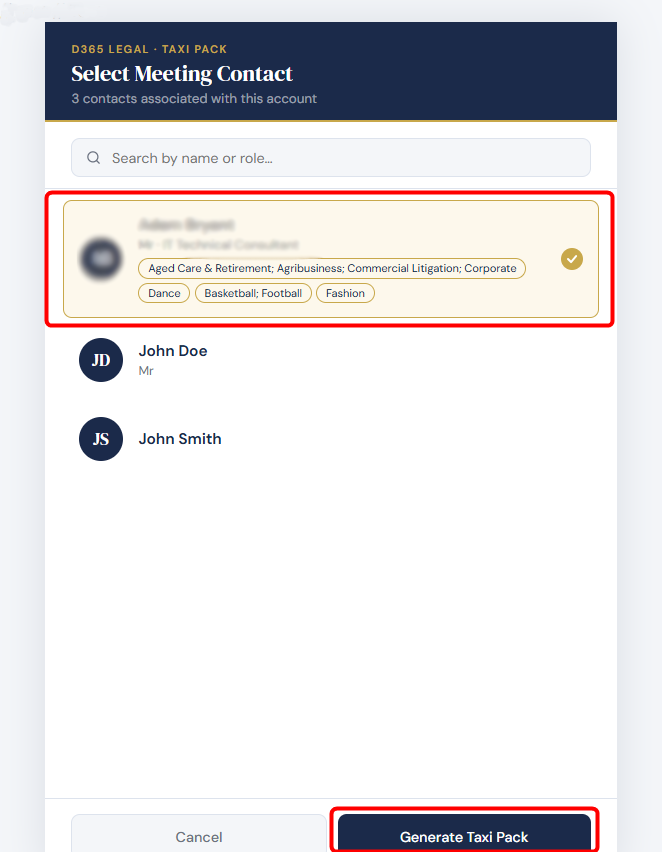
If the Organization has multiple Contacts, a contact selection window will appear.
-
Select the most relevant Contact, usually the person you are meeting.
-
Click Generate Taxi Pack.
-
Wait a few seconds while the pack is generated.
-
The Taxi Pack PDF opens in a new browser tab or will automatically download it to your system.
-
Print or save the document as required.
Selecting a Contact
If the Organization has more than one associated Contact, the system displays a contact picker before generating the PDF.
From this window, users can:
-
Search contacts by name or role.
-
Review the Contact name and role.
-
View any recorded interest tags.
-
Select the relevant Contact for the meeting.
-
Click Generate Taxi Pack.
Interest tags are pulled from the Contact record, such as Areas of Interest, Arts, Sports, and Lifestyle. Keeping these fields updated improves the quality of conversation starters shown in the Taxi Pack.
Understanding Taxi Pack Types
The Taxi Pack type is automatically determined by the system based on the Organization’s available data. Users do not need to manually select the pack type.
| Pack Type | When Generated | Key Sections |
|---|---|---|
| Client Meeting Brief | Organization has active Matters | Contact Brief, Client Snapshot, Interactions, Engagement Notes, Actions, Matter Context |
| Pitch Brief | Organization has no active Matters but has open Pitches / Opportunities | Contact Brief, Pitch Snapshot, Scope, Deliverables, Interactions, Follow-up Actions |
| New Business Brief | Organization has no active Matters and no open Pitches | Contact Brief, Company Snapshot, Lead Context, Enquiry Notes, Interactions, Actions |
What the Taxi Pack Includes
The generated document may include the following sections, depending on the available CRM data and pack type.
- Contact Brief
Shows who you are meeting, including the Contact’s name, title, role, and relevant profile details.
- Conversation Starters
Displays recorded interests and topics that may help during the meeting, such as sports, arts, lifestyle, or other interest areas.
- Client Snapshot
Provides a quick summary of the client relationship, including:
-
Industry or practice area
-
Relationship owner
-
Active Matters
-
Open Pitches
-
Total billed amount
- Recent Interactions
Shows recent completed activities such as:
-
Phone calls
-
Emails
-
Meetings
-
Letters
-
Other logged activities
Upcoming appointments may also appear where available.
- Engagement & Interests
Displays relationship notes, preferences, sensitivities, or engagement context recorded against the client.
- Open Actions & Watchouts
Shows open tasks or follow-up actions that may require attention before or after the meeting.
- Matter Context
Shows relevant Matter information, such as:
-
Matter number
-
Matter name
-
Current stage or status
-
Responsible attorney
- Pitch Snapshot
Appears for Pitch Briefs and may include pitch details such as:
-
Pitch name
-
Practice area
-
Estimated value
-
Sales stage
-
Submission date
-
Expected decision date
-
Lead partner
- Lead Context
Appears for New Business Briefs and may include:
-
Enquiry subject
-
Practice area
-
Lead source
-
Responsible attorney
Tips for Better Taxi Packs
To ensure the Taxi Pack contains useful and accurate information:
-
Keep Contact interests up to date.
-
Log client interactions as activities in CRM.
-
Add Client Engagement notes for important relationship context.
-
Ensure the Responsible Attorney is set on the Matter.
-
For prospects, ensure the Lead is linked to the Organization where applicable.
Important Notes
-
Taxi Pack is generated based on available CRM data.
-
The PDF is generated fresh each time.
-
Accuracy depends on how up to date the CRM records are.
-
The document is intended for internal use only.
-
If the PDF does not open, the browser may have blocked the popup. Check the browser address bar and allow popups for the CRM site.
Troubleshooting
| Issue | What to Check |
|---|---|
| Generate Taxi Pack button is not visible | Confirm you are on an Organization / Account record. If still missing, contact the system administrator. |
| Contact is not shown in the picker | Confirm the Contact is active and linked to the Organization. |
| Interest tags are missing | Update the Contact interest fields such as Areas of Interest, Arts, Sports, and Lifestyle. |
| Recent interactions are missing | Ensure activities are logged against the Organization, Contact, Lead, or Pitch as applicable. |
| PDF does not open | Check whether the browser blocked the popup and allow popups for the CRM site. |
People
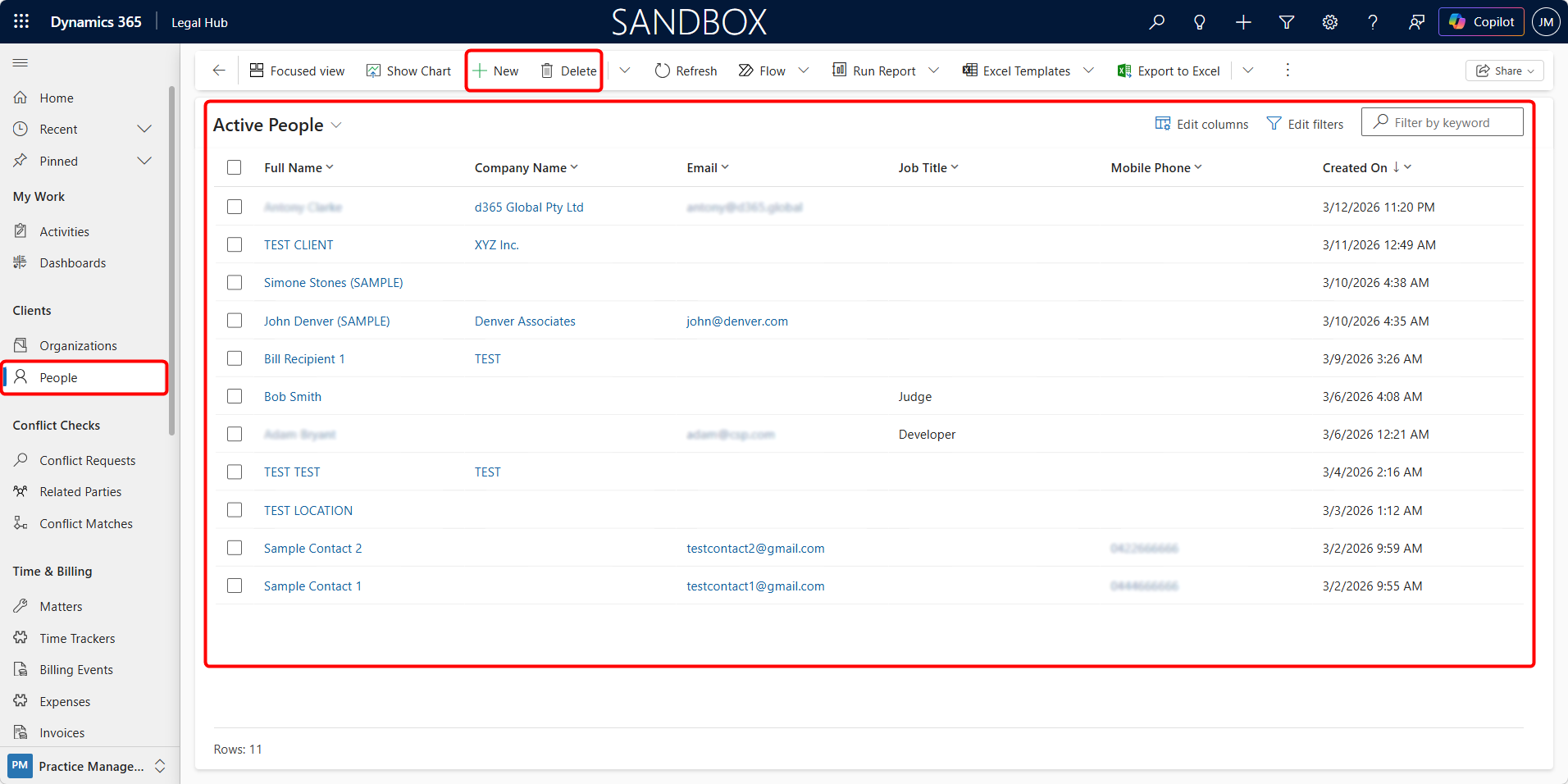
People represent individual contacts or individual clients.
From the People section, you can:
-
Create new person records.
-
Edit contact details.
-
Associate them with an Organization.
-
Deactivate/Delete (with proper permissions)
What You Can See in a People Record
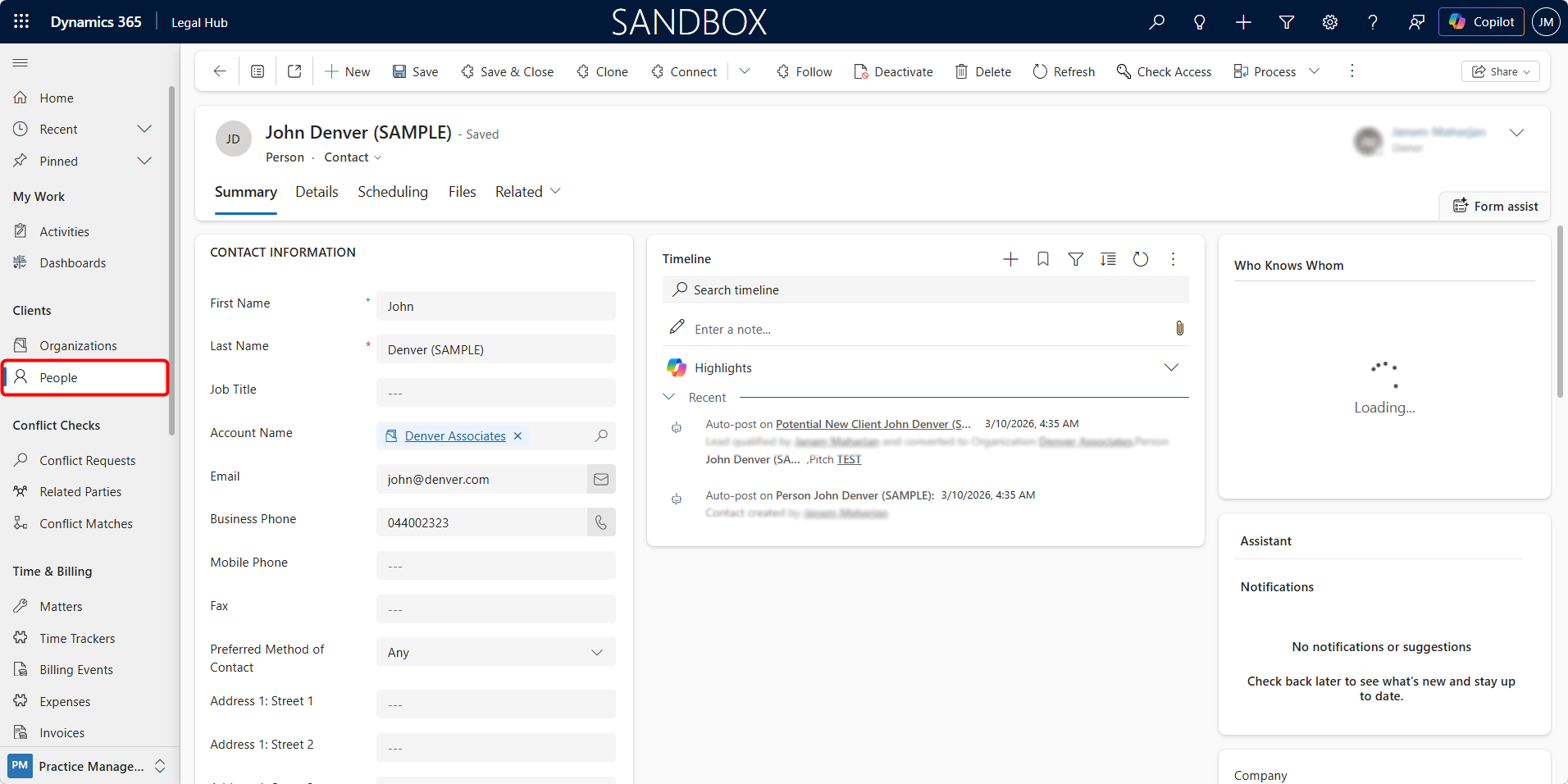
-
Personal details (Name, Email, Phone, Job Title)
-
Linked Organization (if applicable)
-
Address details
-
Related Matters or Pitches
-
Full activity history via Timeline
This ensures every individual client or contact has a structured, trackable record within the system.
Documents Tab
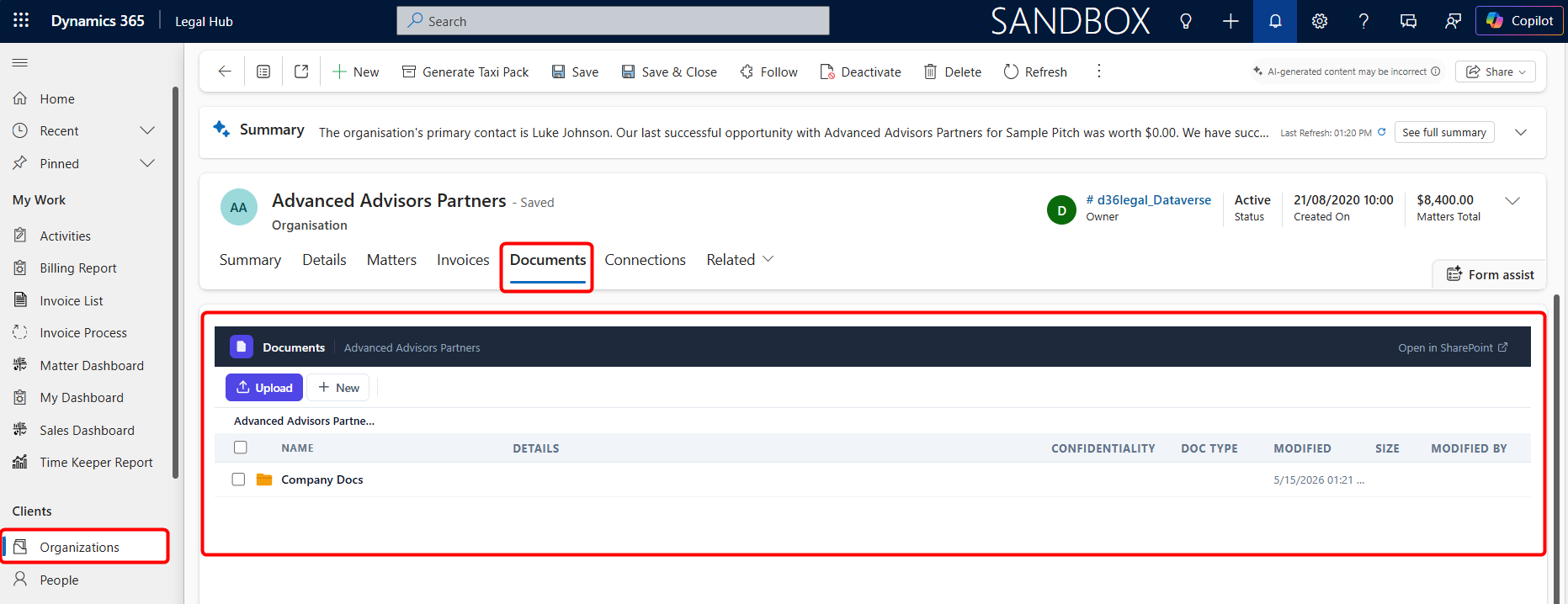
Both Organization and People records include their own Documents tab.
This allows users to upload, view, and manage documents directly against the client record, without linking them to a specific Matter.
Documents uploaded from these records are stored in their own connected SharePoint folder locations.
This means:
-
Organization records store documents in the Organization’s own SharePoint folder.
-
People records store documents in the Person’s own SharePoint folder.
-
Matter, Pitch, and Potential New Client documents continue to be stored through the Matter Reference structure.
This separation ensures that:
-
Client-level documents can be managed independently of legal files.
-
Matter-related documents remain linked to the relevant legal engagement.
-
Users can store both general client documents and matter-specific documents in the correct location.
Accessing the Documents Tab
To access documents for an Organization or People:
-
Navigate to Clients > Organizations or Clients > People.
-
Open the required record.
-
Select the Documents tab.
-
Upload, view, or manage documents as required.
Documents added from this tab remain linked to that specific Organization or Person record.