Utilities Billing System for Dynamics 365 Business Central User Guide
Running Monthly Billing Cycle
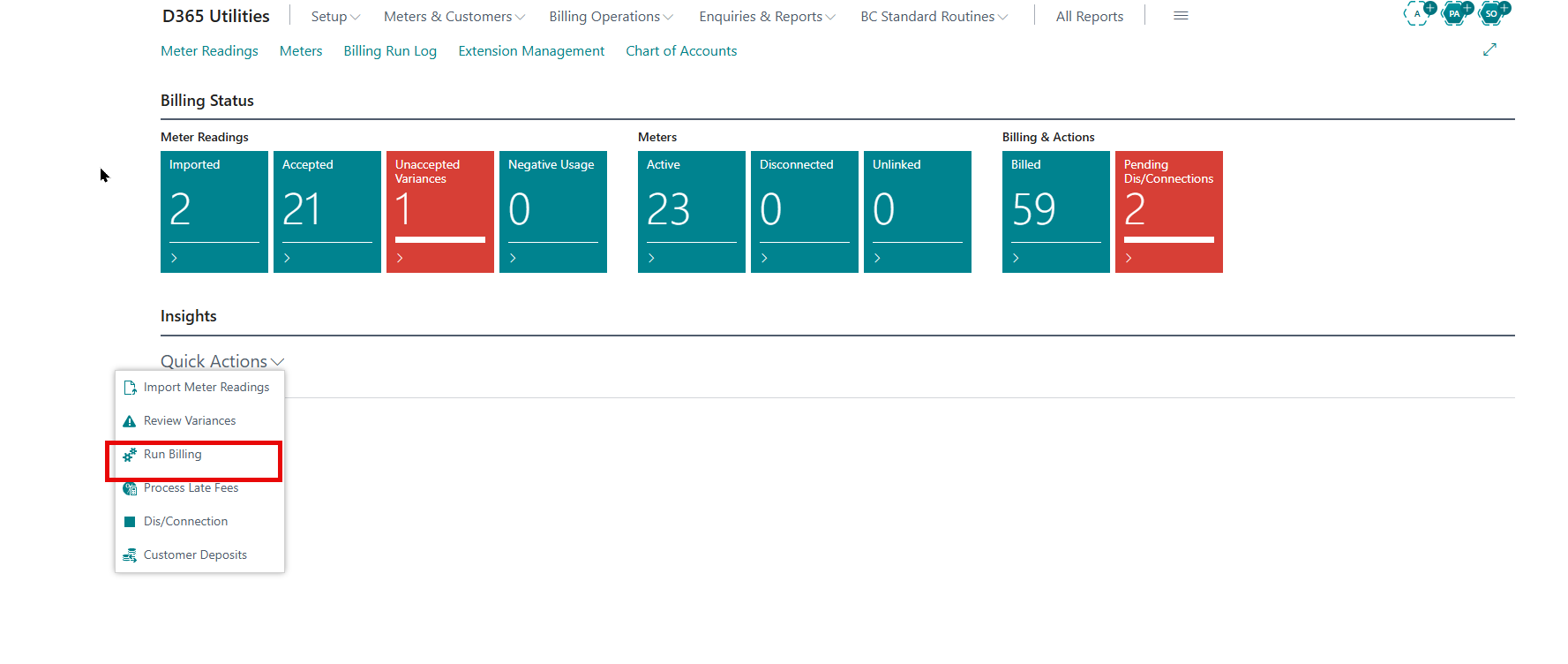
Once setup is complete, this is the recurring cycle each billing period. The Billing Activities page (Role Center) gives one-click access to every step below.
Important Meter Readings
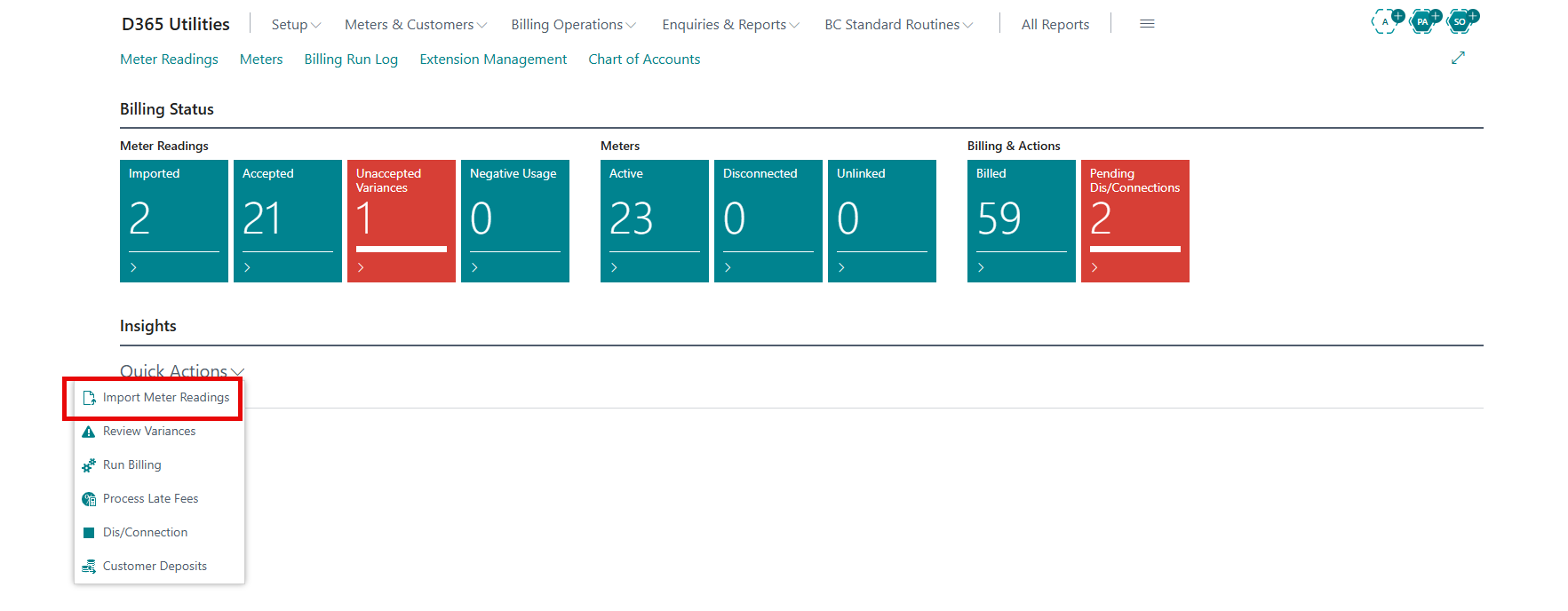
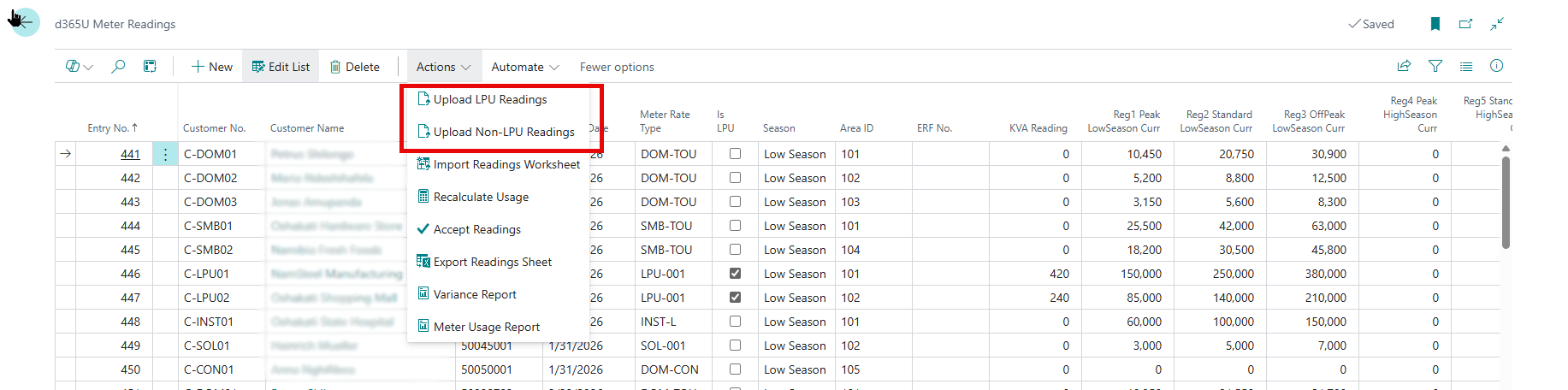
Open d365U Meter Readings and import the period’s meter file. Each reading captures current and previous register values; consumption is the delta between them. TOU meters populate six current and six previous registers (Peak/Standard/Off-Peak × High/Low season).
-
On d365U Meter Readings, choose the import action and select the period’s meter file.
-
The system creates readings with status Imported, matching each to its meter, customer, area and season.
-
Confirm every expected meter is present before moving on.
Baseline Readings Matter: A meter’s first-ever import needs a previous (baseline) reading already on file with status Billed. Without it, the full cumulative register total is billed instead of the period’s delta. Pre-load baselines before the first live import.
Reviewing Variance & Accepting Readings
Readings move through a status flow --- Imported → Validated → Accepted → Billed (or Error). Any reading whose consumption swings more than the Variance Threshold % (Section 3.8), or shows negative usage, is held for review and cannot be billed until accepted.
-
Open d365U Meter Variance to see flagged readings.
-
Investigate each --- a negative delta often means a meter rollover or a swapped previous reading.
-
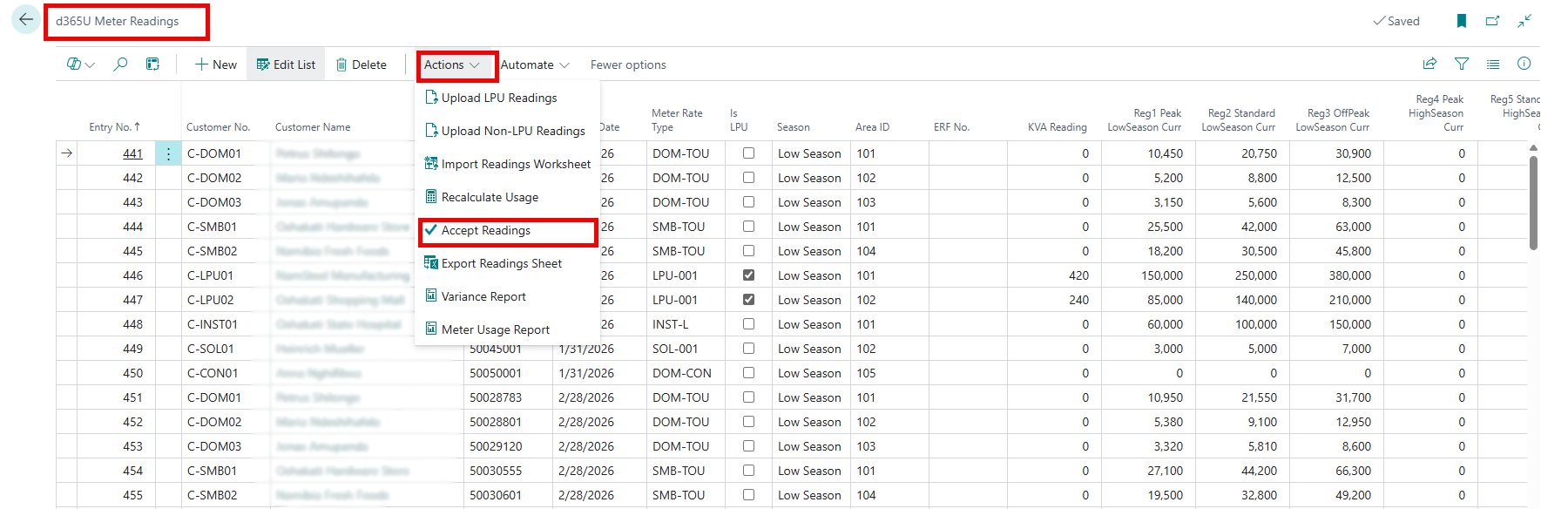
Correct or Accept each reading. Accepted readings become eligible for billing.
-
Readings left in Error or unaccepted are excluded from the run.
Pre-Billing Processes
Run these before the main billing run. The Billing Run page lists them in order:
| Order | Process | Purpose |
|---|---|---|
| 1 | Dis/Connections | Post disconnection/reconnection transactions for qualifying accounts |
| 2 | Late Fees | Assess and post late fees on overdue balances (per Billing Setup rules) |
| 3 | Solar Credits | Calculate net-metering buy-back and post solar credits |
| 4 | Customer Aging | Refresh customer aging ahead of statements |
Customer Deposits
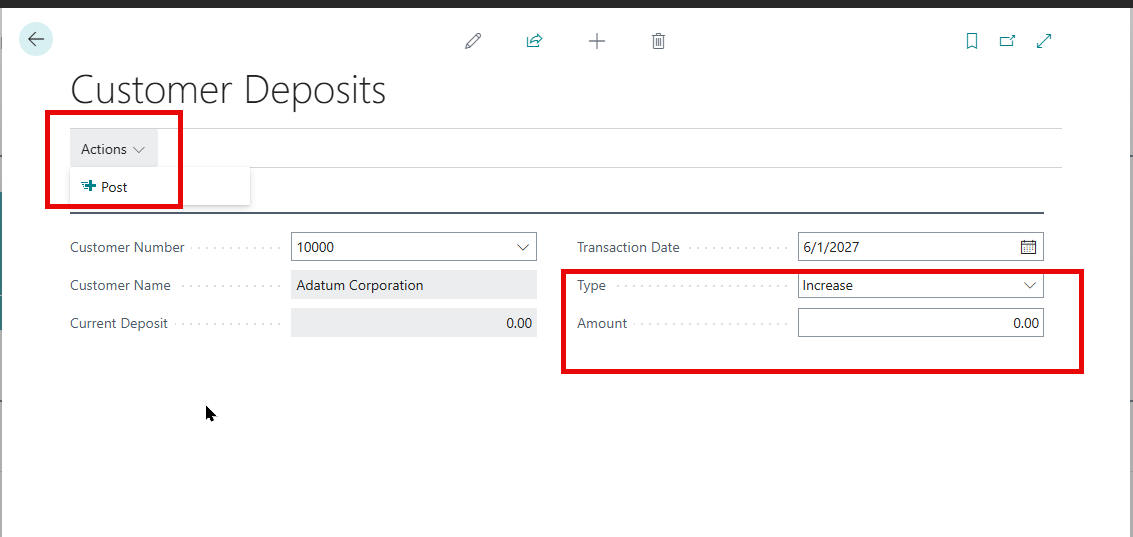
Use d365U Customer Deposit to raise or adjust deposits and guarantees. Increases and decreases/refunds post against the deposit liability account and update the customer’s Current Deposit Amount.
The Billing Run
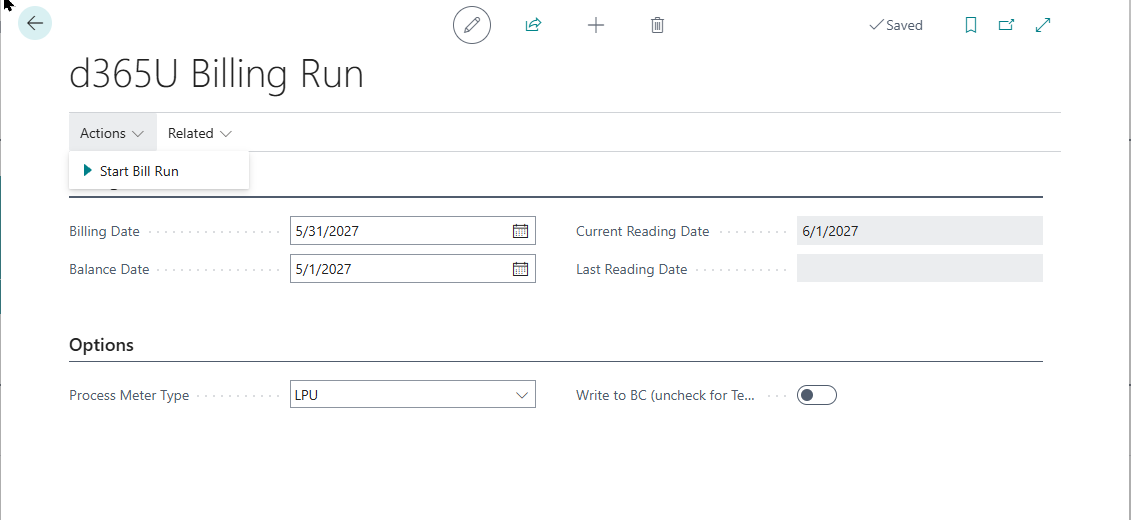
Open d365U Billing Run. Set the parameters, then always do a Test run first (leave Write to BC unticked) before committing a live run.
Parameters
| Field | What it does & how to set it |
|---|---|
| Billing Date | The invoice/document date for the run. |
| Balance Date | Date used for balance/aging calculations. |
| Current Reading Date | Date of the readings being billed. |
| Last Reading Date | Date of the prior readings (defines the consumption window). |
| Process Meter Type | Which cycle to bill: LPU or Non-LPU. |
| Write to BC (uncheck for Test Mode) | Unticked = Test run (calculates and reports, posts nothing). Ticked = Live run (posts invoices). |
Running It
-
Enter the dates and select the Process Meter Type.
-
Leave Write to BC unticked and choose Start Bill Run to produce a Test Run.
-
Review the results and the reports in 19.3 --- especially LPU/KVA and solar accounts.
-
When satisfied, tick Write to BC and run again to post. Status moves to Posted and sales invoices are created.
-
Each run is recorded in the Billing Run Log with its status (Not Started, Test Run, Completed, Posted, Error).
Test Before You Post: A Test run is the safety net. Posting creates the sales invoices that feed the bill documents and the ledger, so confirm the numbers in test mode first --- it can be re-run freely.
Billing Reports
Run these from the Billing Run page to check and distribute results:
| Report | Use |
|---|---|
| Bill Statement | The customer-facing bill (d365U Bill Document) |
| Variance Report | Consumption exceptions for the period |
| KVA Exceptions | LPU accounts where demand behaviour needs review |
| Customer Deposits | Deposit balances |
| Cut Off List | Accounts flagged for disconnection |

Managing Disconnections
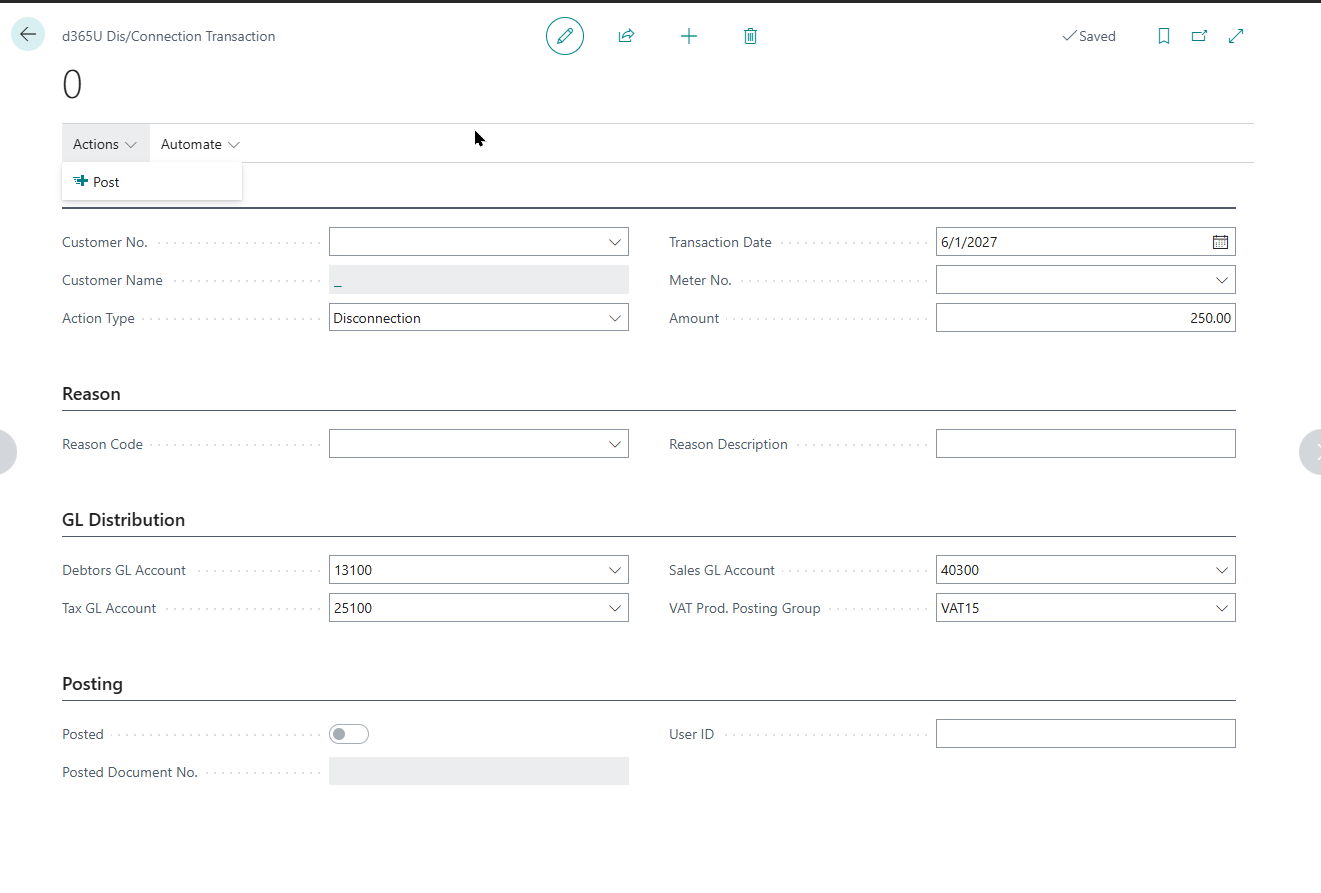
Open d365U Disconnection Trans to raise and track disconnections and reconnections. Select the account, choose a Reason Code (Disconnection Reasons), and the default disconnection amount from Billing Setup is proposed. Post to charge the fee and record the action.