Sales Commission User Guide in Dynamics 365 Business Central
Are you ready to try the solution or have questions?

Introduction
Purpose
The Sales Commission for Dynamics 365 Business Central app enhances the standard sales commission feature in Business Central. It provides a tool for defining commissions % (percentage) and commission period per salesperson and produces a sales commission ledger instead of the standard sales commission report.
Feature Overview
The app enhances sales commission calculation for the sales team:
-
Allows definition of sales commission for each salesperson for a pre-defined commission qualification period
-
Calculates the sales commission based on sales invoices assigned to the salesperson and posted in the commission qualifying period. Sales invoice lines where unit sales price meets the minimum profit % margin as defined in the Sales Commission Setup.
-
Produces a sales commission ledger for reporting and payment
To get the app visit in Microsoft Marketplace - Sales Commission
Setup and Configuration
To use this app for calculation of sales commissions to the sales team, there are a few setup and configuration steps.
Employee Assigned as Salesperson
The app validates that the salesperson (code) is associated with an employee record for payment purposes.
Search and navigate to Salespeople/Purchasers to view the list of salespersons in the team.
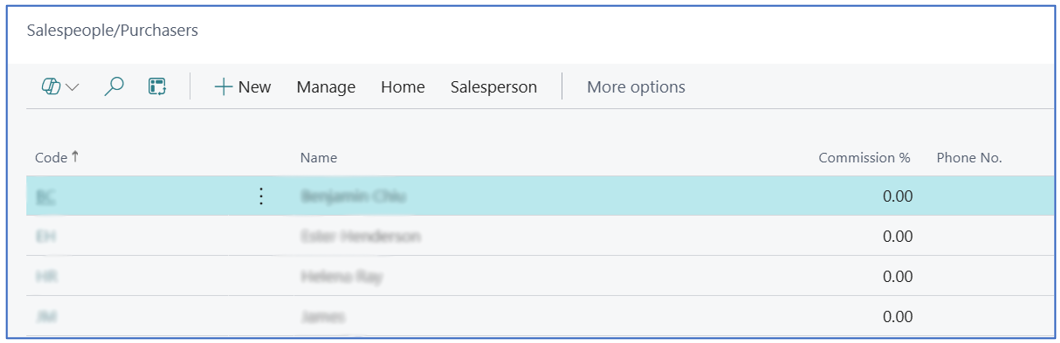
Select and open a salesperson card.
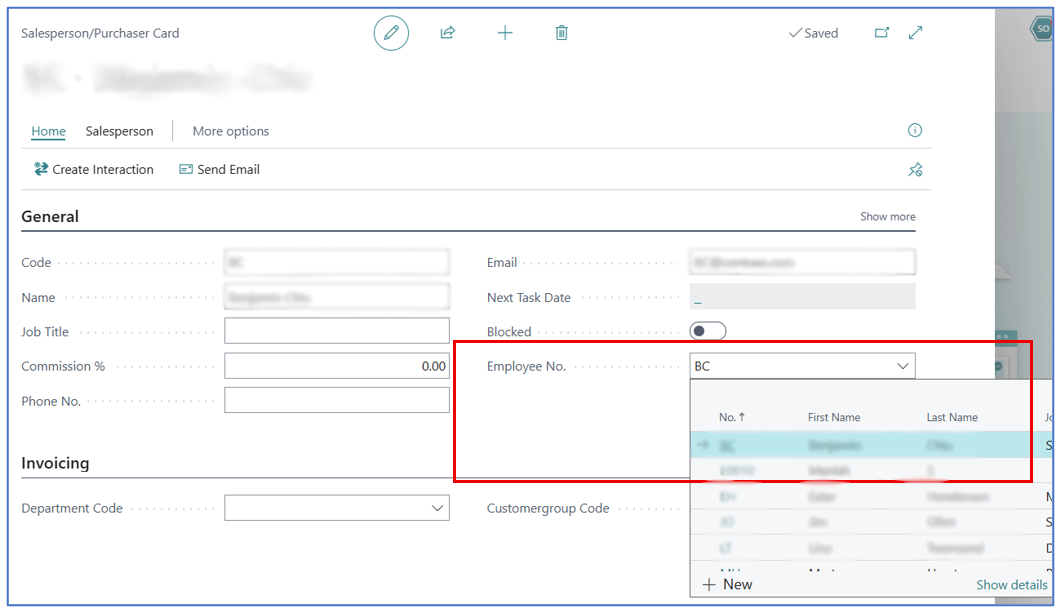
In the Employee No. field, select the employee associated with this salesperson code. Ignore the Commission % field as it will not be used.
Employee Posting Group
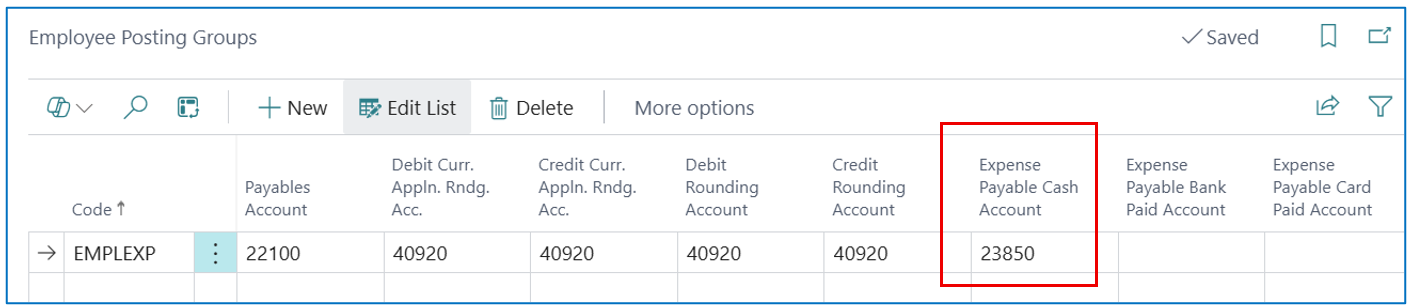
When the calculated sales commission lines are posted, the account used for credit entry is taken from the Expense Payable Cash Account in the Employee Posting Group setup. This indicates that the calculated commission is added to the employee ledger for payment.
Default Journal Template
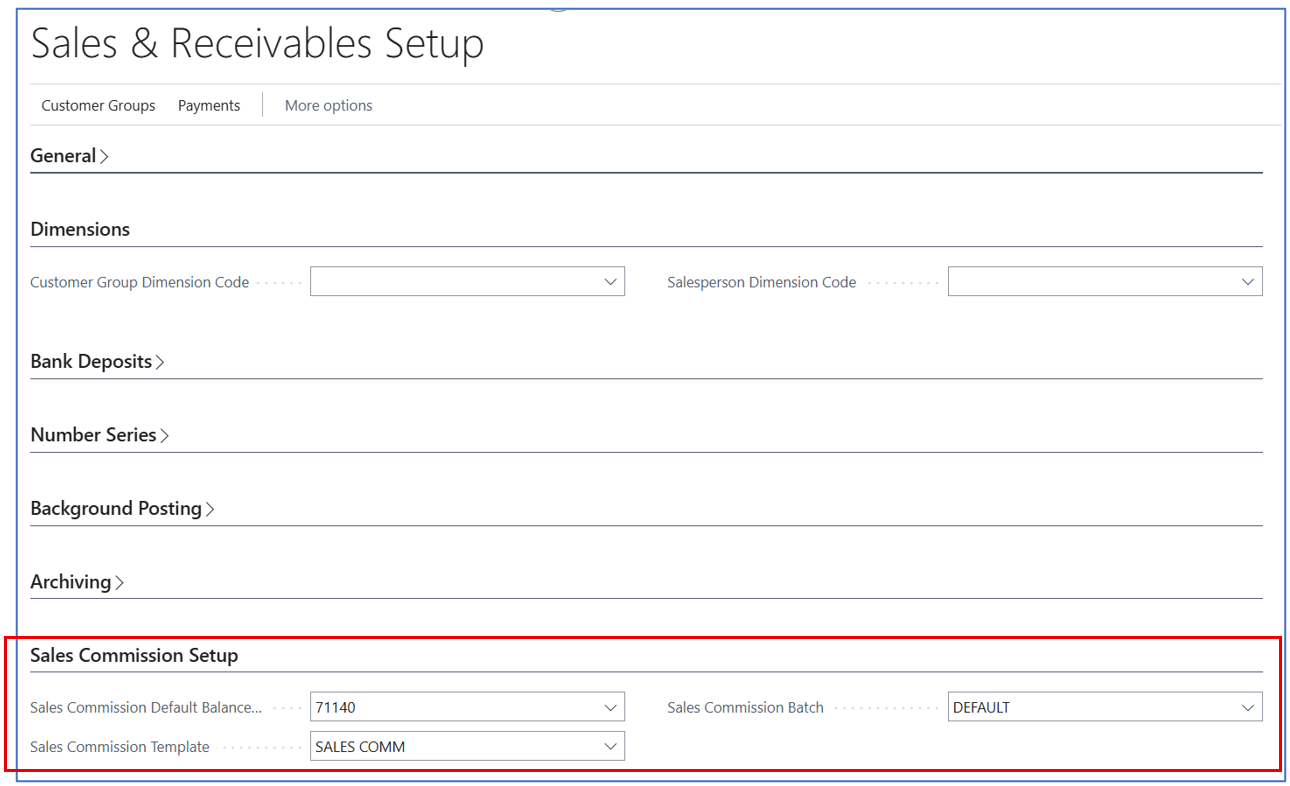
The posting of computed sales commissions uses a default journal template and default sales commission account. These are defined in the Sales and Receivables Setup page.
-
Sales Commission Default Balance Account — This is the default Sales Commission (expense/accrual) account used when posting the calculated commissions.
-
Sales Commission Template — This is the default General Journal Template. Create a template and select it in this field.
Tip: Template Type = “General” and Source Code = GENJNL
-
Sales Commission Batch — This is the default batch for the journal template.
Sales Commission Setup
This app provides a more detailed sales commission definition page. This is the heart of the sales commission structure used in computing commission for each salesperson.
Search and navigate to Sales Commission Setup page to view the list of salespersons and their commission setup.

To edit the list, click menu option Edit List.
To create a new commission structure, use menu option +New.
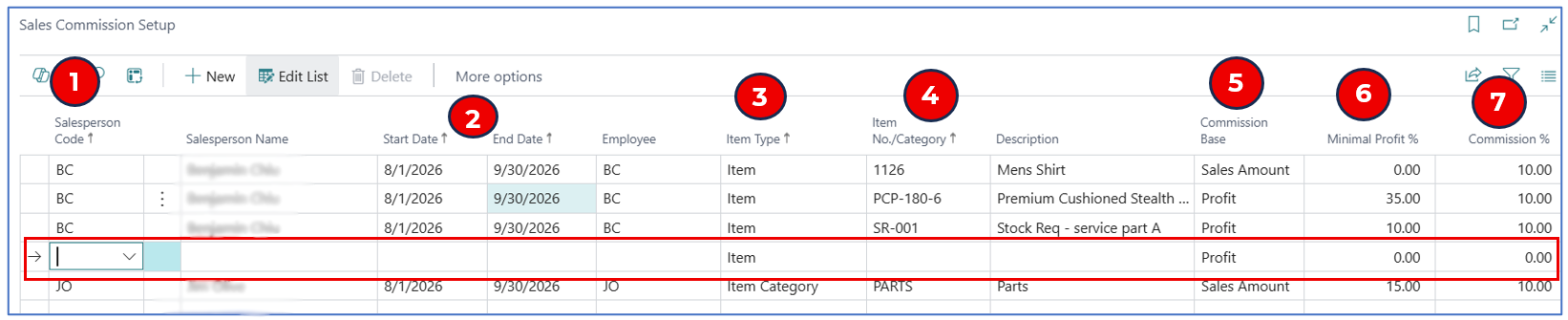
For the new record, define the following fields:
-
Salesperson Code — Select the salesperson code for the commission scheme. The name appears by default.
-
Start Date and End Date — Select the dates for the commission qualifying period. Commission will be calculated from sales orders/invoices posted between these dates.
-
Item Type — Select either:
a. Item — If there is commission for selling specific item (for more items, either define a separate line for each item or use item category to group the items).
b. Item Category — If there is a group of items that qualifies for sales commission.
-
Item No/Category — Based on the selection of Item Type, select the specific commission-qualifying item or item category. The Description field auto-populates.
-
Commission Basis — Select the basis for calculating the commission:
a. Sales Amount — This is the usual commission calculated on total qualifying sales ($) volume.
b. Profit — This allows the commission calculated on profit amount (total sales less total cost).
-
Minimal Profit % — Enter the minimum profit % (unit sales price — unit sales cost)/unit sales price x 100 for the posted sales invoice line to be qualified for commission.
-
Commission % - This is the % commission calculated on the sales volume ($) or total profit for sales lines meeting the item type and minimum profit %.
Calculating Sales Commission
The app automatically calculates sales commission based on posted sales invoices where posting dates are between the qualifying dates in the Sales Commission setup.
Calculation is taken from the posted sales invoice lines where the item or item category falls into the qualifying commission line defined in Sales Commission Setup.
Qualifying Item or Item Category
For an item defined in the Sales Commission Setup, the Unit Sales Price and Unit Sales Cost are defaulted in the Sales Order line. The Profit % shown in the item card reflects the measure of profit based on the unit sales price and unit cost price. If line discount is provided, the lower sales price will result in lower profit %.
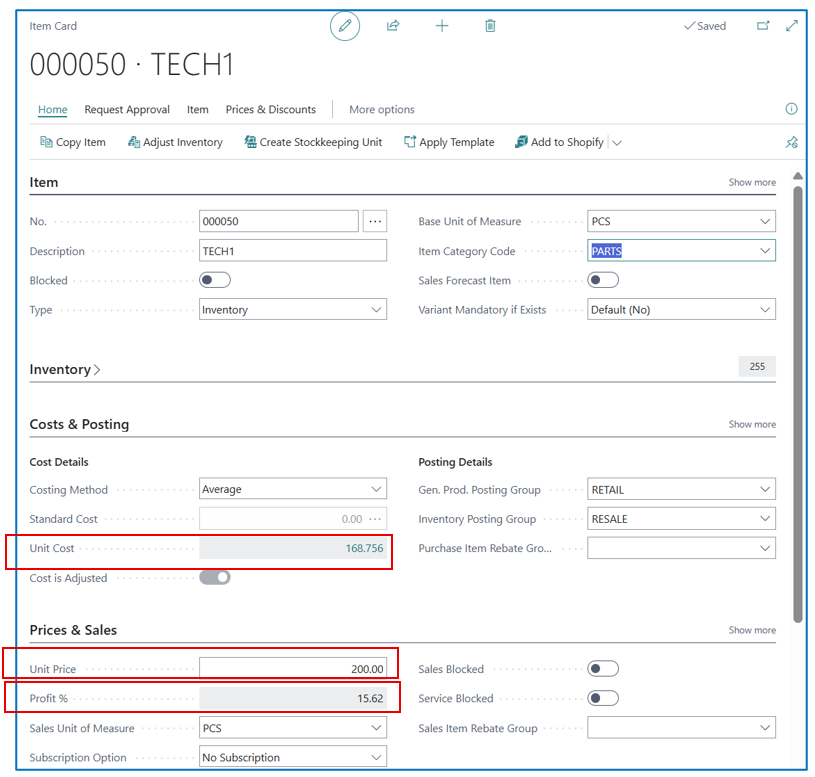
To qualify commission on a group of items, each of these items must have the Unit Cost and Unit Price defined and associated with an Item Category.
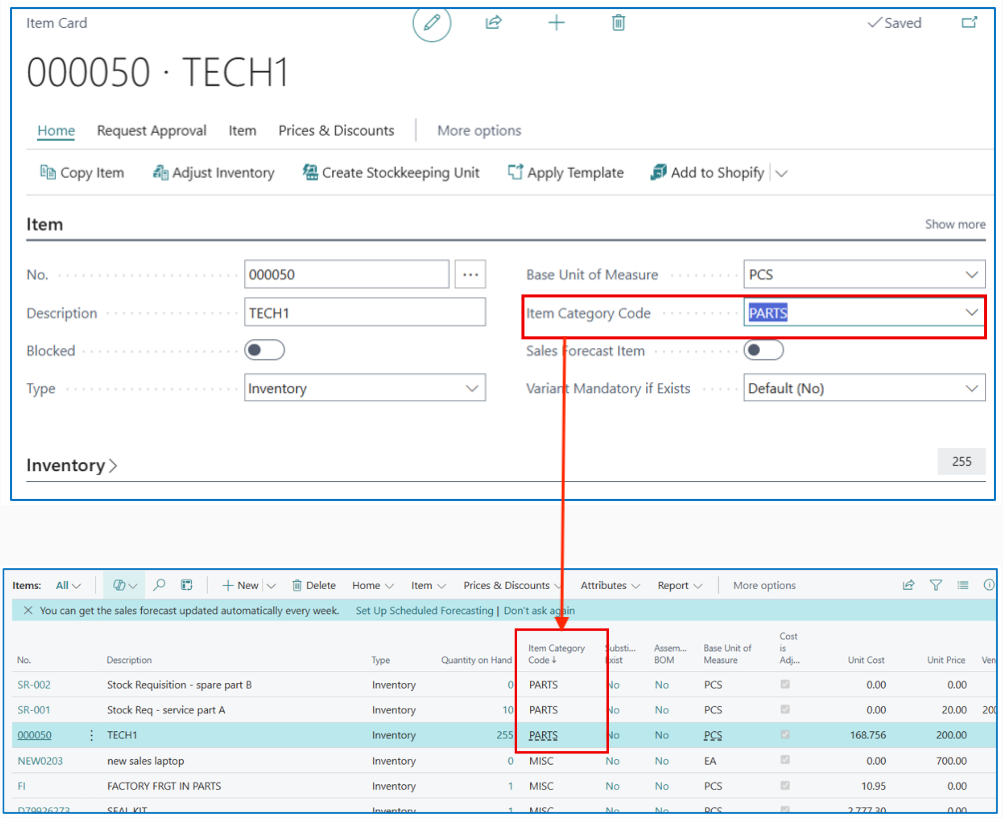
Such an Item Category will then be selected in the Sales Commission Setup line for the salesperson.
Sales Commission Calculation
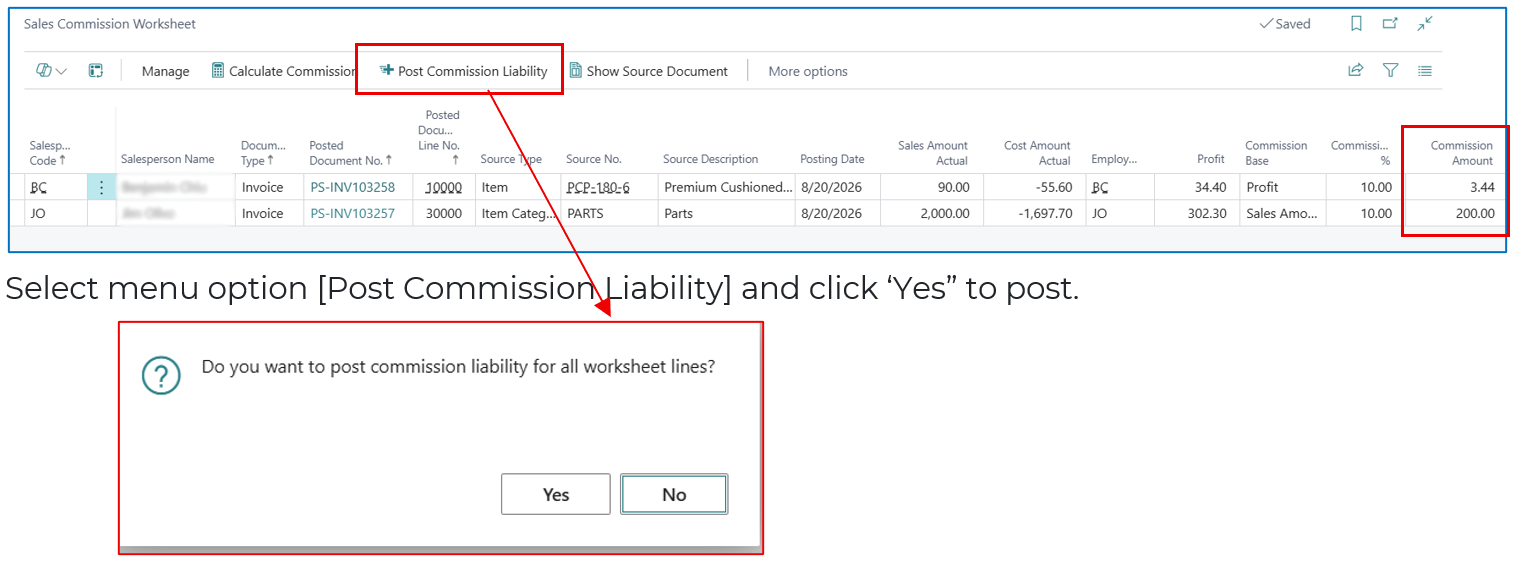
The sales commission is calculated in the Sales Commission Worksheet.
Search and navigate to Sales Commission Worksheet > Calculate Commission.

The calculate process will verify and qualify posted sales invoice lines against the sales commission setup — qualifying period, qualifying profit %, and qualifying item/item category — for each salesperson associated with the sales.
The calculated sales commission lines are displayed for every qualifying posted sales invoice line.

After reviewing the final sales commission calculation, the sales commission setup can be updated to re-calculate the final commission.

-
Select/multi-select the calculated sales commission lines.
-
Select menu option Manage > Delete to remove the selected sales commission lines.
Posting Sales Commission
When Sales Commissions have been calculated and reviewed, these lines are posted into the Employee Ledger (for payment) and the default commission expense account.
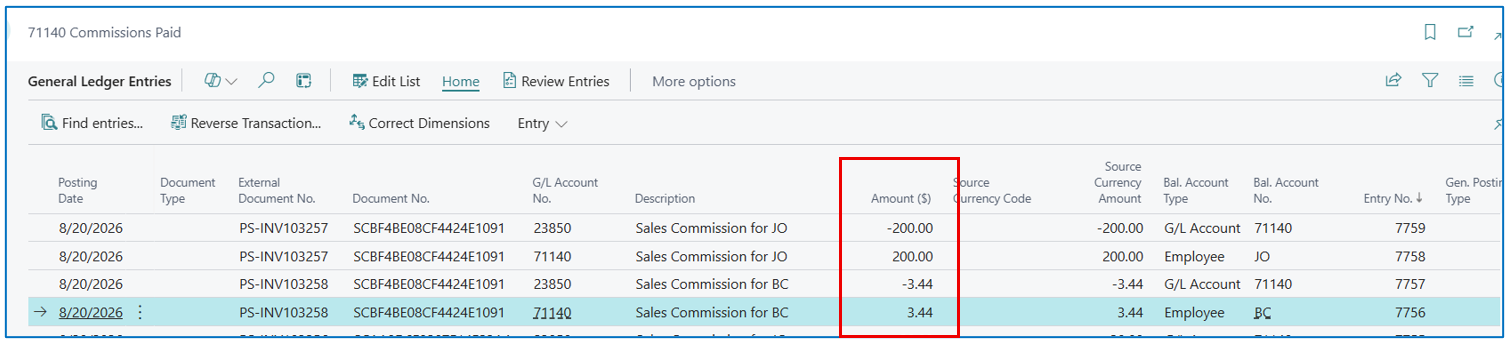
Posted Sales Commission Entries
Seach and navigate to General Ledger Entries to find the posted sales commission lines from the calculated Sales Commission Worksheet.
Sales Commission Reporting
Once sales commissions are posted, the posted entries can be used for reporting.
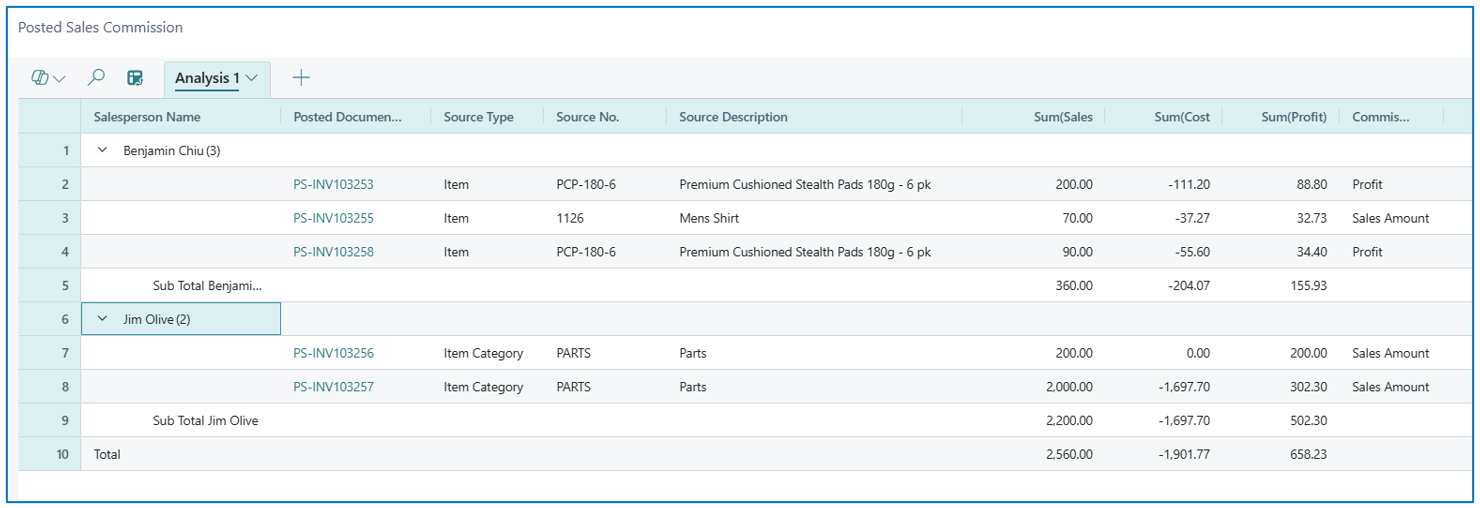
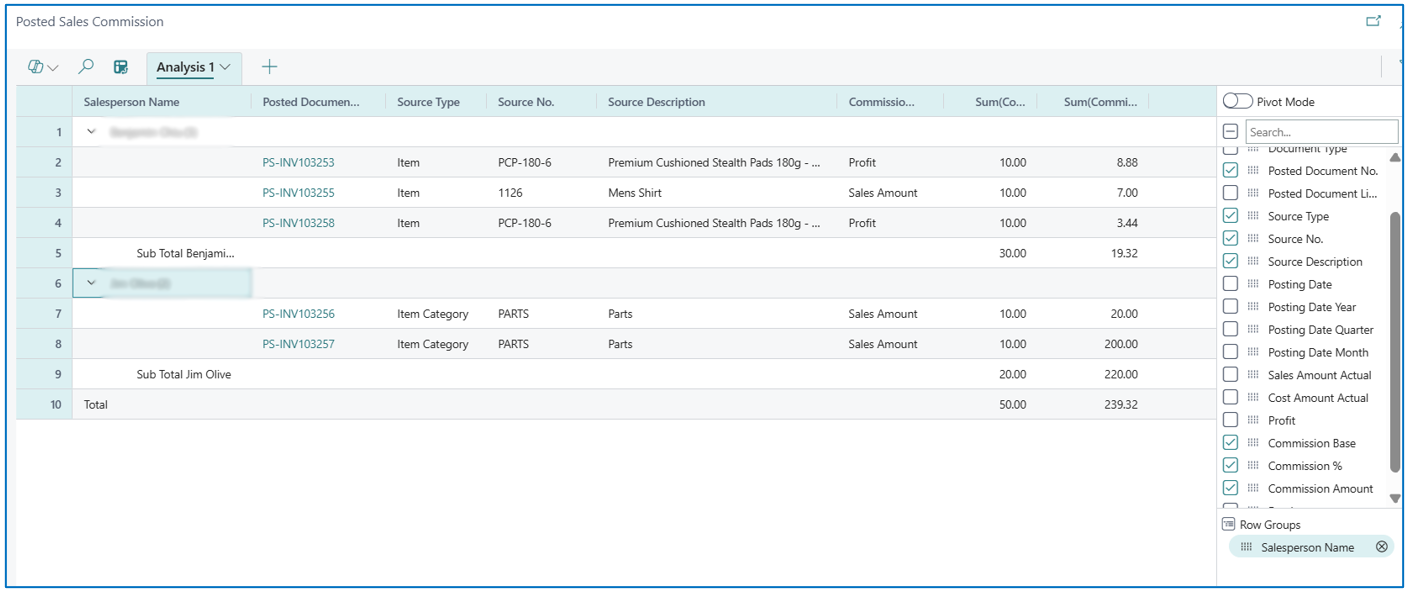
Search and navigate to Posted Sales Commission to view the list of commission entries posted.
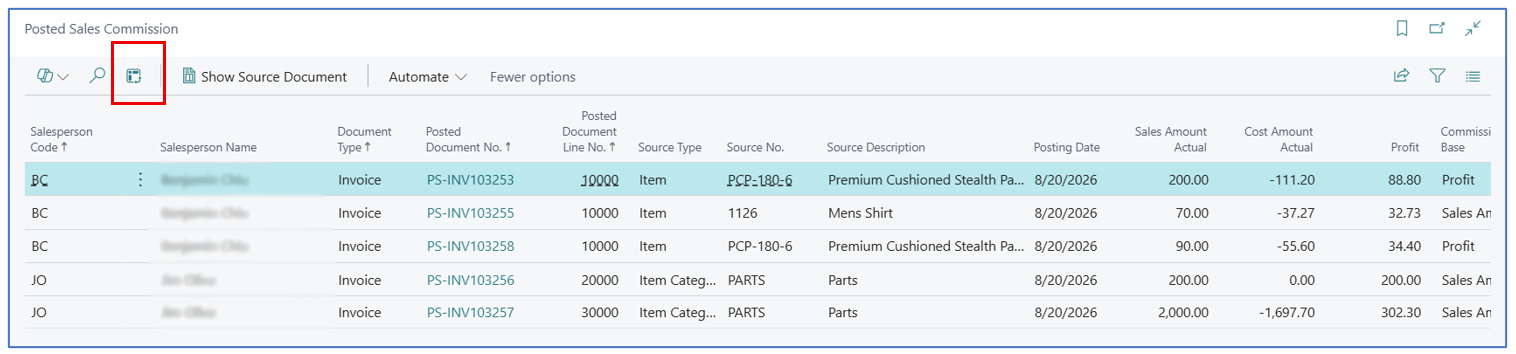
Use the Analysis mode to format the data for different reports.
The following are examples:
Quarterly Sales & Commission
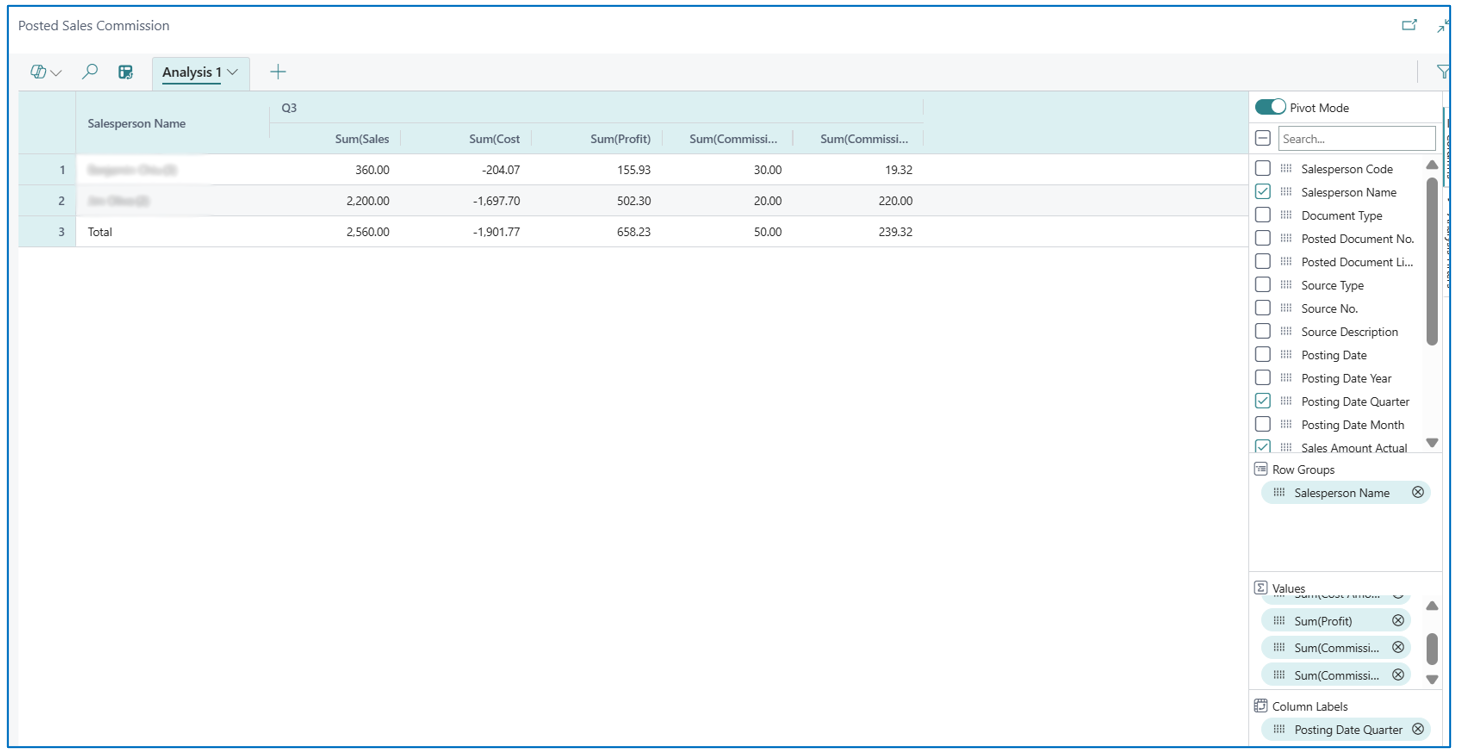
Sales Commission Analysis by Salesperson
Sales & Profitability Analysis by Salesperson & Products