G/L Budget Control with Approval in Microsoft Dynamics 365 Business Central User Guide
Are you ready to try the solution or have questions?

Introduction
Budget Control in Microsoft Dynamics 365 Business Central is normally handled through G/L Budgets. You compare actual revenue and expenses against planned figures by period and dimension after the fact, as budget reporting.
Our G/L Budget Control with Approval app takes a more proactive approach. Each purchase line (Purchase Order or Purchase Invoice) is checked directly against the approved G/L budget for its account in the month of the posting date, both while the line is entered and again when the document is posted.
If a line would push the account over budget, the system raises a Budget OverFlow that stops the document from being posted until the overspend is approved or released by an authorised user. General Journal lines posted to a G/L account can be checked in the same way.
To get the app, visit us at Microsoft Marketplace: G/L Budget Control .
Capabilities
The app adds three things to Business Central:
| Capability | What it does |
|---|---|
| Budget Approval | A G/L budget gets a Budget Status (Open, Pending Approval, Released). Only a Released budget can be used for control, and budget amounts are locked while the budget is not Open. |
| Purchase Budget Check | Purchase Order and Purchase Invoice lines are checked against the budget. Overflows are flagged on the line and the header and routed to a Budget OverFlow approval. |
| General Journal Check | General Journal lines posted to a G/L account are checked against the budget. A line that exceeds the budget cannot be posted. |
How Budget Check Works
-
Find the account. For a line of type G/L Account, the account is the line No. For every other line type (Item, Resource, Charge (Item), Fixed Asset) the app reads General Posting Setup for the line’s Gen. Bus. Posting Group and Gen. Prod. Posting Group and uses the Purch. Account.
-
Find the budget for the month. The app reads the G/L Budget Entries of the budget named on the document, for that account, dated in the calendar month of the Posting Date. If the line carries dimensions, an entry with the same dimension set is preferred. Unused budget from earlier months does not carry forward.
-
Add what is already spent. All G/L Entries posted to the account in the same month, from any source.
-
Add what is already committed. Lines on other Purchase Orders in the same month that use the same budget and the same account. At posting time only orders that have left the Open status are counted.
-
Compare. If Budget < Actual + Committed + this line’s Amount (excl. VAT/GST), the line is a Budget OverFlow.
The check runs each time a line amount or its dimensions change, and again when the document is posted. A document that was within budget when entered can still be stopped at posting if other spending has used up the month’s budget in the meantime.
Note: Every account used on a controlled document must have a budget entry for the month. If there is none, Business Central shows Please define Budget Amount for Account No. … and the line cannot be saved. A budget entry with a zero amount counts as missing.
Setup Requirement
Before budget control can work you need:
- An approval workflow for budgets.
- A G/L budget that has been approved and released, and that budget assigned in General Ledger Setup.
- For the approvers you also need the standard Approval User Setup.
IMPORTANT: The app does not ship with a permission set. Users who need the new pages, actions or the Export to Excel report must be given object permissions by an administrator (or belong to SUPER).
Define G/L Budget Approval Workflow
Budget control assumes there is a pre-approved G/L Budget for purchases, for example a budget approved for spending on Advertising. When the G/L Budget is defined, it is sent for approval and released before it can be used.
The app installs a ready-made workflow template named GLBudget (code MS-GLBUDGET) in the category GL Budget Approval Workflow. Go to Workflows, choose New > New Workflow from Template, pick GLBudget, set the approver, and enable it.
Example of workflow:
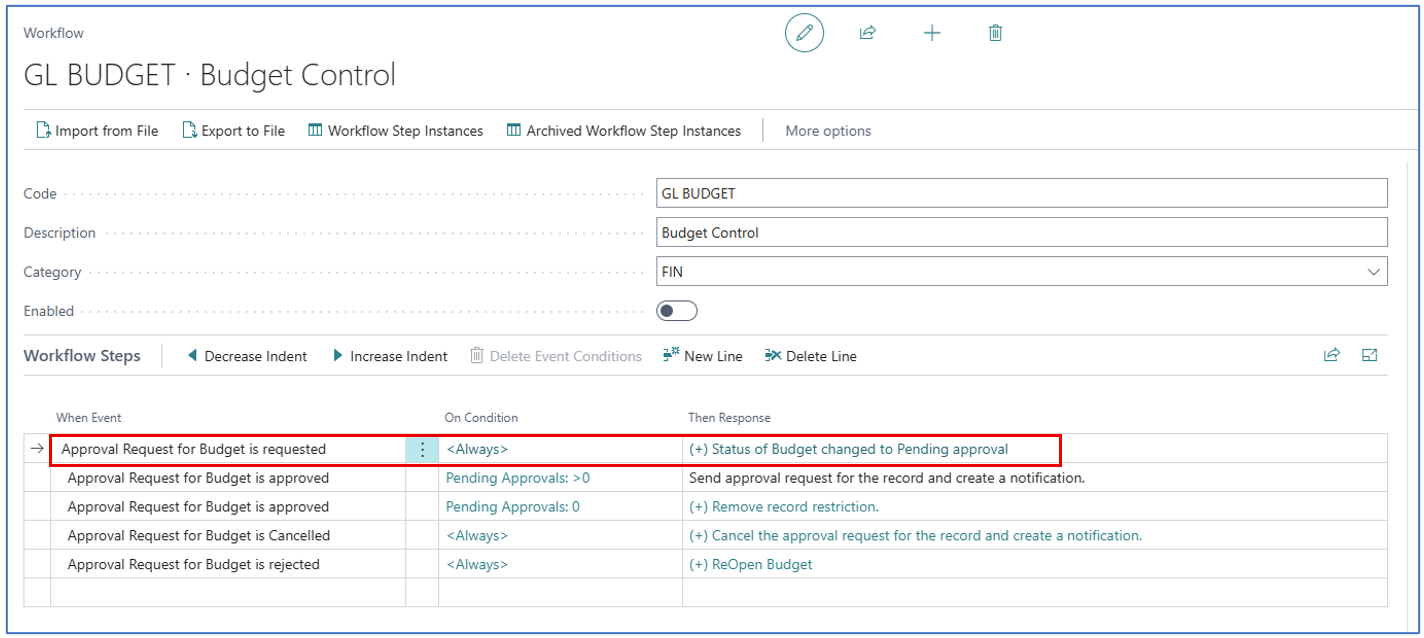
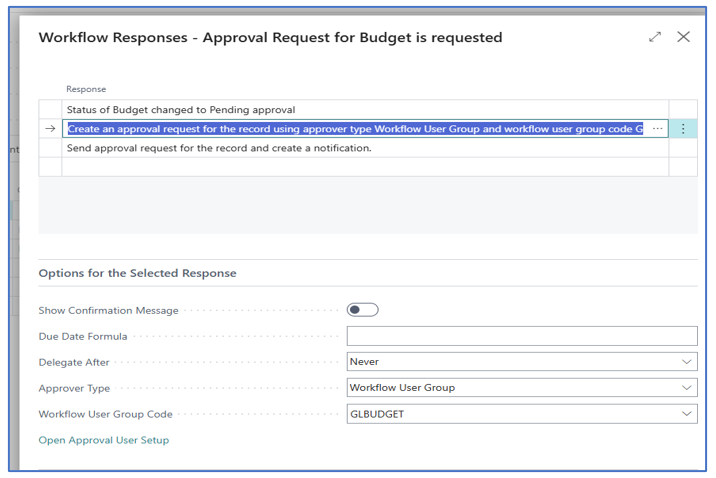
The template is built on two events that the app adds. You can see them when you select the event on a workflow step:
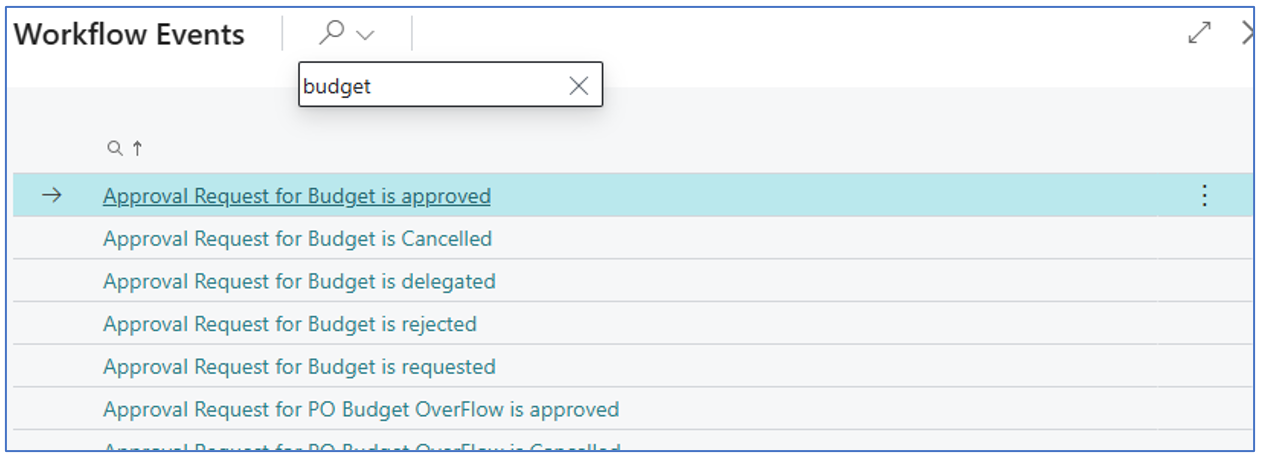
-
Approval Request for Budget is requested — Runs when a user chooses Send Approval Request on a budget whose Budget Status is Open.
-
Approval Request for Budget is Cancelled — Runs when the request is cancelled while the status is Pending Approval.
When a request is sent, the budget status changes to Pending Approval. Approval sets it to Released; rejection or cancellation sets it back to Open.
Create a G/L Budget for Approval
Navigate to Finance > G/L Budgets to open the G/L Budgets list and choose +New to create a new budget.
Key Fields
Here are the key fields to consider:
-
Show as Lines — Select G/L Account, since the budget is monitored by purchases against a G/L (expense) account.
-
Create budget amounts by period — Enter an amount for every account and month you want to control. Spend is monitored month by month, not cumulatively.
-
Send Approval Request — Send the budget for pre-approval.
-
Budget Status — Shown on the Budget page and the G/L Budgets list. The budget can only be edited while it is Open. If anyone tries to add or change a budget entry while it is Pending Approval or Released, Business Central shows Budget status should be open, current status ….
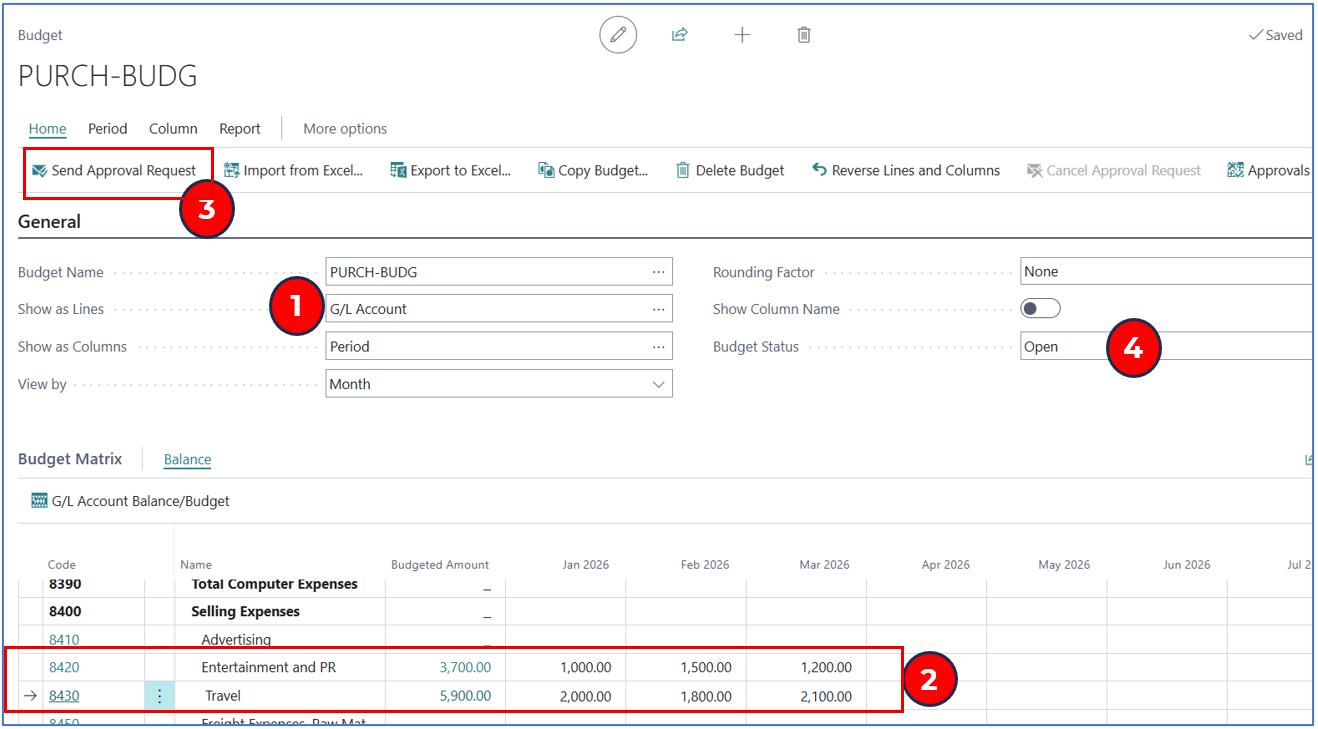
Tip: Use Export to Excel on the Budget page to send the budget to Excel, fill it in, and bring it back with Import from Excel. The app’s version of Export to Excel respects the Income/Balance filter on the Budget page, so you can export only income-statement accounts.
Once the G/L Budget is approved (status Released), spending against the budgeted G/L account is tracked for every Purchase Order or **Purchase Invoice line.
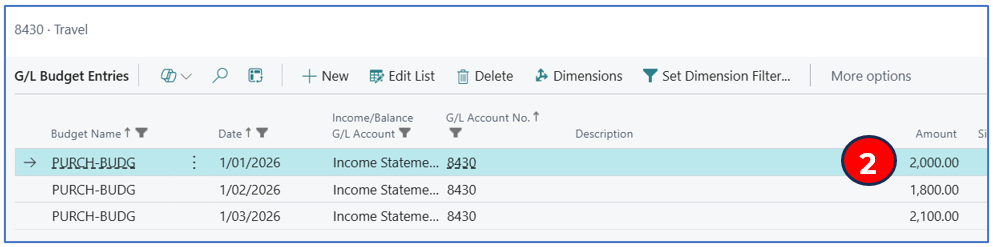
The G/L Budget account can also be associated with an item through General Posting Setup (under Purchase Account).
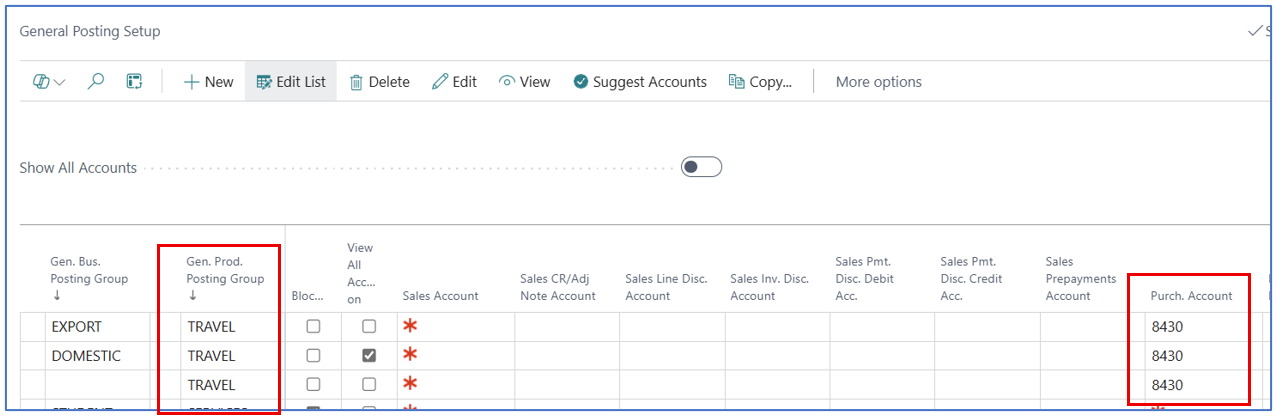
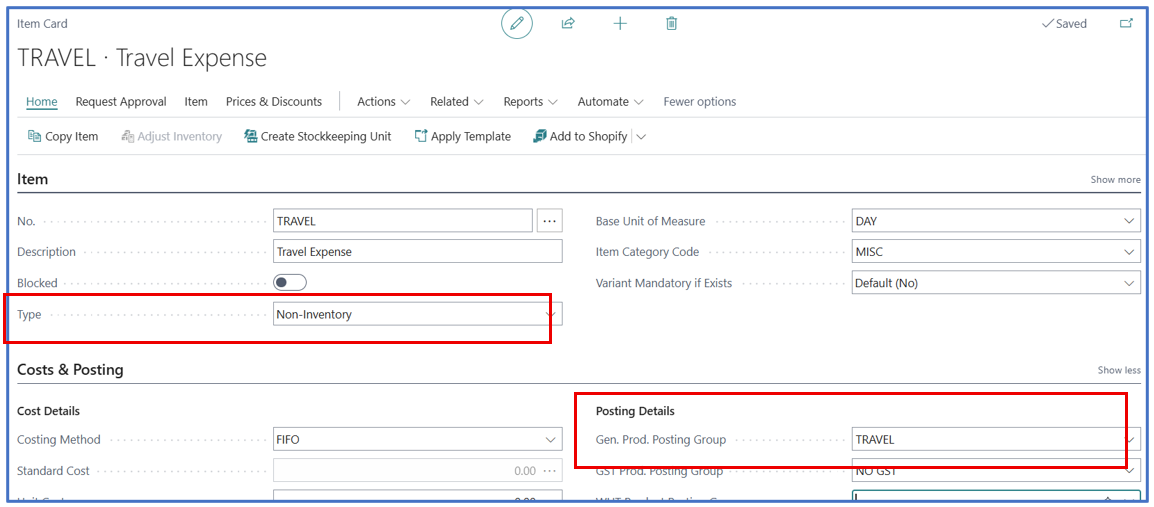
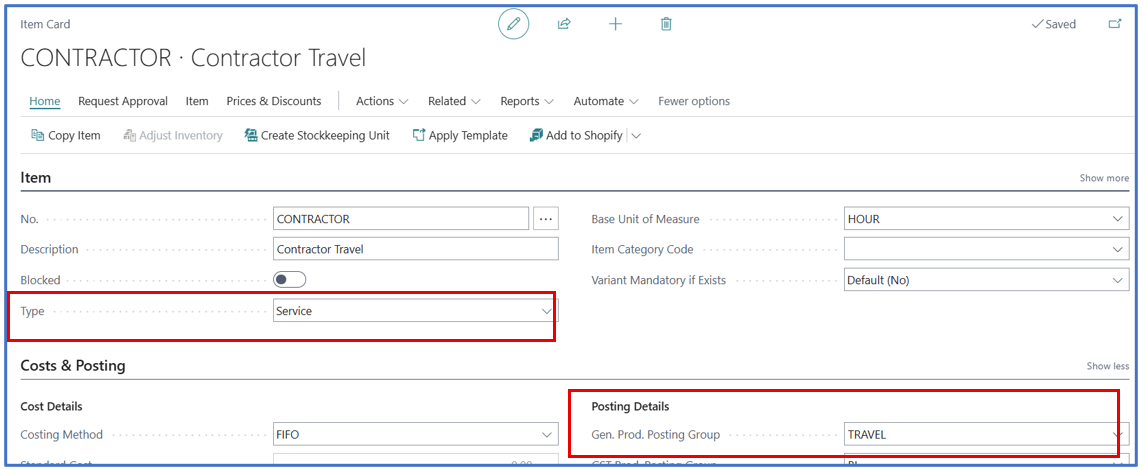
Assign the Gen. Prod. Posting Group to items.
Send the Budget for Approval and Release it
You can work from either the G/L Budgets list or the Budget page. Both have the same approval actions.
| Action | Where | What it does |
|---|---|---|
| Send Approval Request | G/L Budgets list, Budget page | Starts the GLBudget workflow. Status becomes Pending Approval. |
| Cancel Approval Request | G/L Budgets list, Budget page | Cancels open approval entries. Status returns to Open. |
| Approvals | G/L Budgets list, Budget page | Opens the approval entries for this budget. |
| Release | G/L Budgets list | Sets the status to Released without a workflow. Not allowed while an approval is pending. |
| Reopen | G/L Budgets list | Sets a Released budget back to Open so it can be edited. Not allowed while an approval is pending. |
The approver receives the normal approval notification. The e-mail shows the budget code and description.
Assign Pre-Approved Budget to G/L
Once the budget is approved and released, assign it for budget control in General Ledger Setup, on the General FastTab, field Budget Name. Only budgets that are Released and not Blocked are offered.
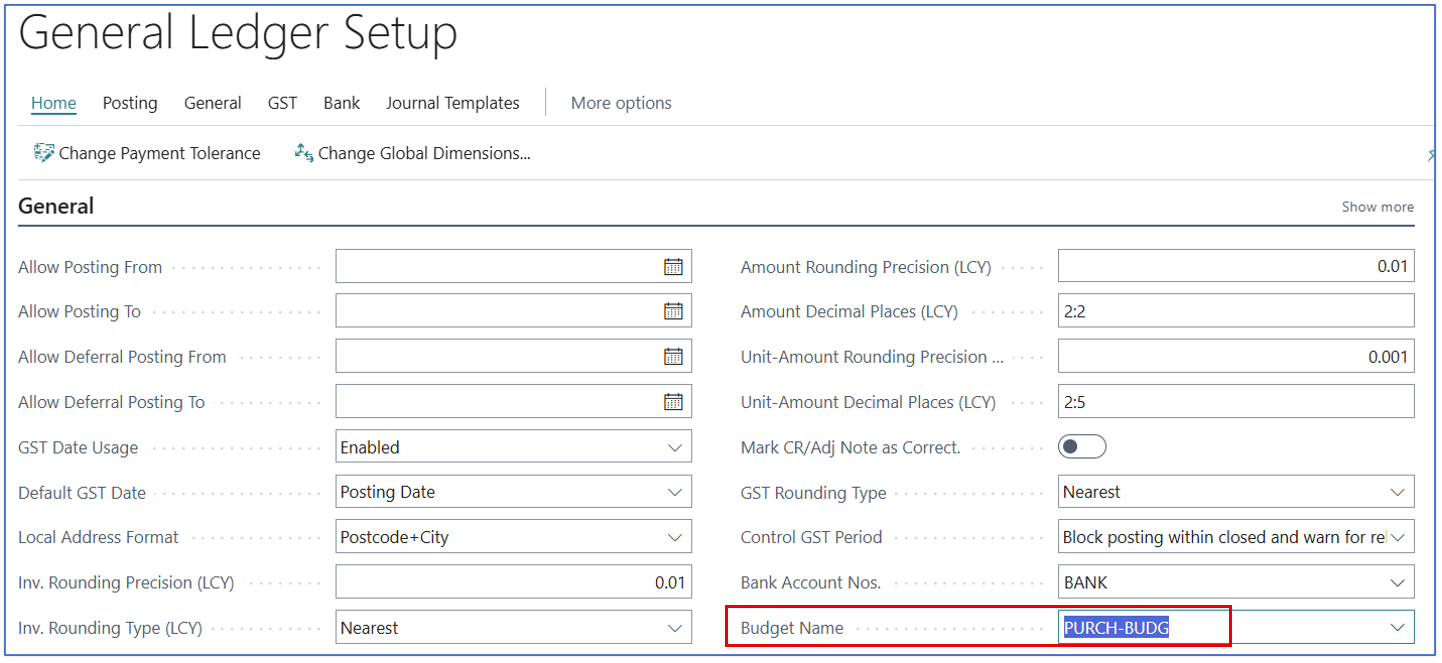
This is the single active control budget for the company. It is the only budget users can pick on purchase documents and journal lines, and it is filled in automatically on new Purchase Invoices and Purchase Credit Memos.
Budget Control on Purchases
The Budget OverFlow check applies to both Purchase Orders and Purchase Invoices. In the following sections, Purchase Order is used as the example.
Fields the app adds:
| Page | Field | Meaning |
|---|---|---|
| Purchase Order, Purchase Invoice (header) | Budget Name | The budget this document is checked against. The lookup shows only the budget set in General Ledger Setup. Leave blank to skip budget control for the document. |
| Purchase Order, Purchase Invoice (header) | Budget OverFlow | Turned on automatically when at least one line exceeds the budget. Not editable. |
| Purchase Order, Purchase Invoice (header) | Budget OverFlow status | Blank, Budget OverFlow Open, Budget OverFlow Pending or Budget Overflow Release. Not editable. |
| Purchase Order lines | Budget OverFlow | Turned on for each line that exceeds the budget. Not editable. |
| Blanket Purchase Order (header) | Budget Name | Allows a blanket order to carry the budget name to the orders created from it. |
New Purchase Invoices and Purchase Credit Memos get the Budget Name from General Ledger Setup automatically. Purchase Orders do not; choose the budget on the order if you want it controlled. The budget name is kept on the posted invoice and posted credit memo.
Purchase Order Budget
-
To control the expense recorded in a Purchase Order, it must be linked to the pre-approved budget. In the Purchase Order header (General FastTab), select the Budget Name.
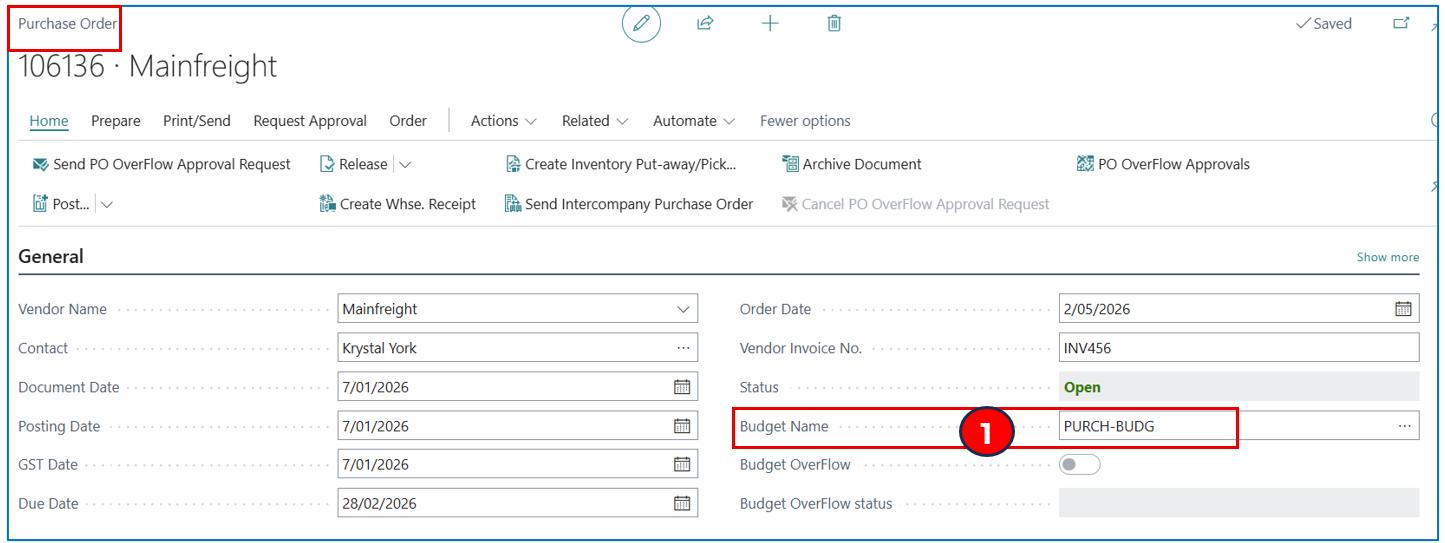
Purchase Budget Control
Once the Purchase Order is linked to the named budget, the PO lines are checked against the budget according to the G/L accounts in the lines.
Budget Checking by G/L Account (Line Type)
Example:
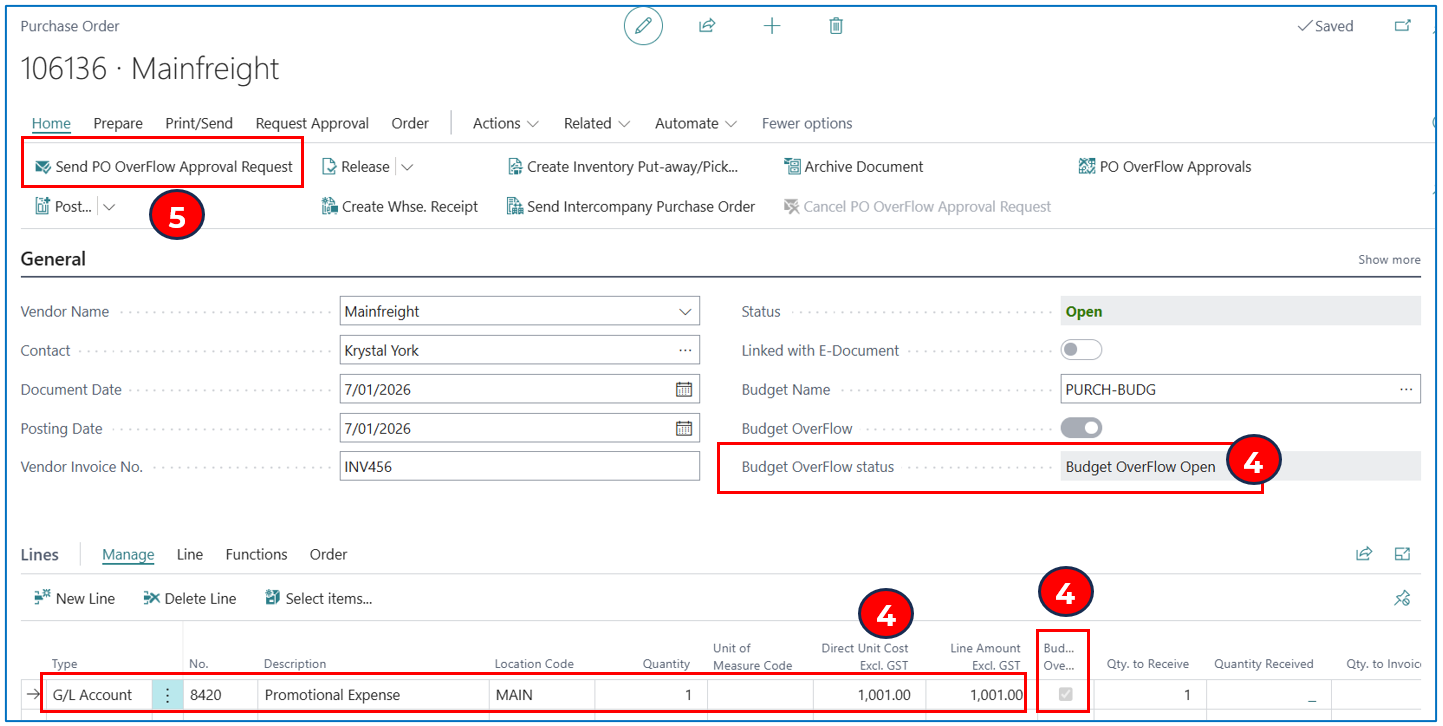
Budget for account 8420 in Jan-2026 is $1,000
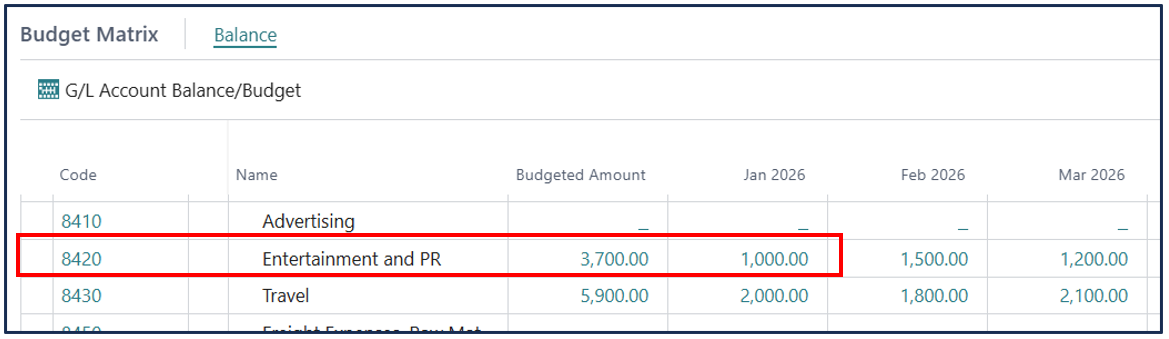
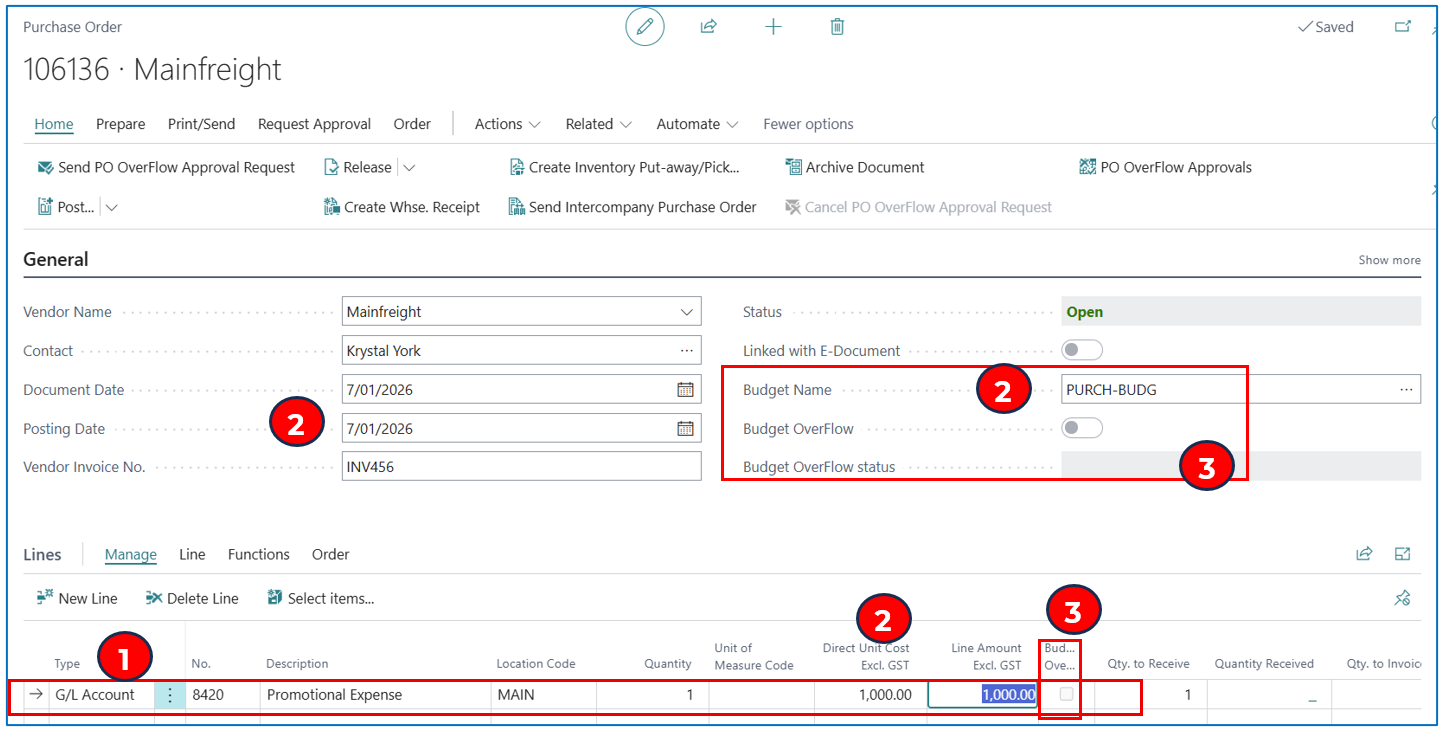
-
Enter the PO lines — use line type G/L Account.
-
The PO line amount in the posting month is checked against the G/L Budget for the relevant account in the same month. The check is not cumulative across periods, but it does include posted G/L entries for the same account in that month and lines on other Purchase Orders for the month.
-
If the line fits within the budget, the Budget OverFlow status field stays blank and the Budget OverFlow flag stays disabled, on the line and on the header.
-
If any PO line amount is greater than the remaining budget for the period, the line’s Budget OverFlow is turned on, the header Budget OverFlow is turned on and Budget OverFlow status becomes Budget OverFlow Open.
-
While the status is Budget OverFlow Open, the PO must be sent for Budget OverFlow approval (see Approving/Rejecting Purchase Budget Spend). If you delete the only overflowing line, the header flag and status are cleared again.
Budget checking by Item (line Type)
If the purchase is for items (service, non-inventory or inventory), the Item line type is also checked against the budget, using the G/L account defined as Purch. Account in General Posting Setup for the item’s Gen. Prod. Posting Group and the vendor’s Gen. Bus. Posting Group (see above).
The PO line budget check compares the Line Amount excl. GST with the G/L account budget for the same posting period.
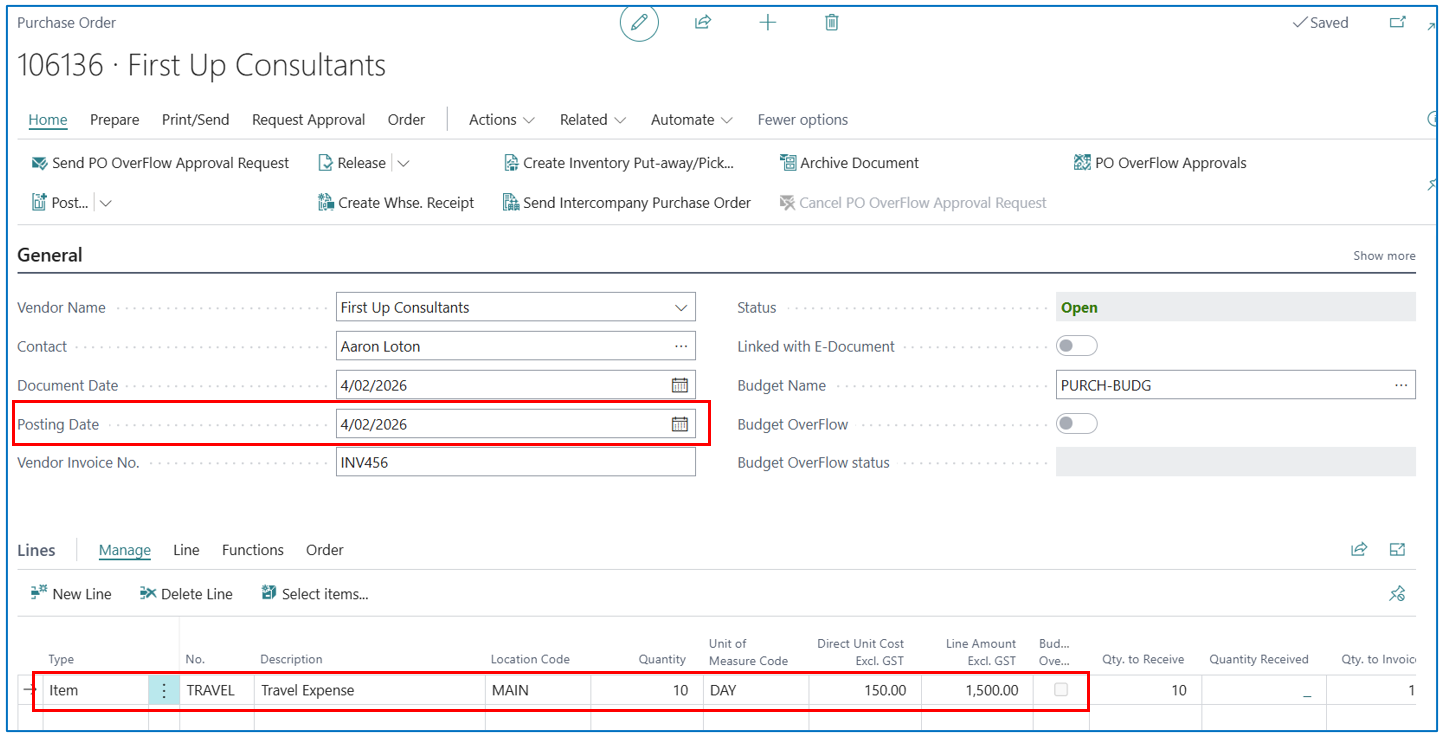
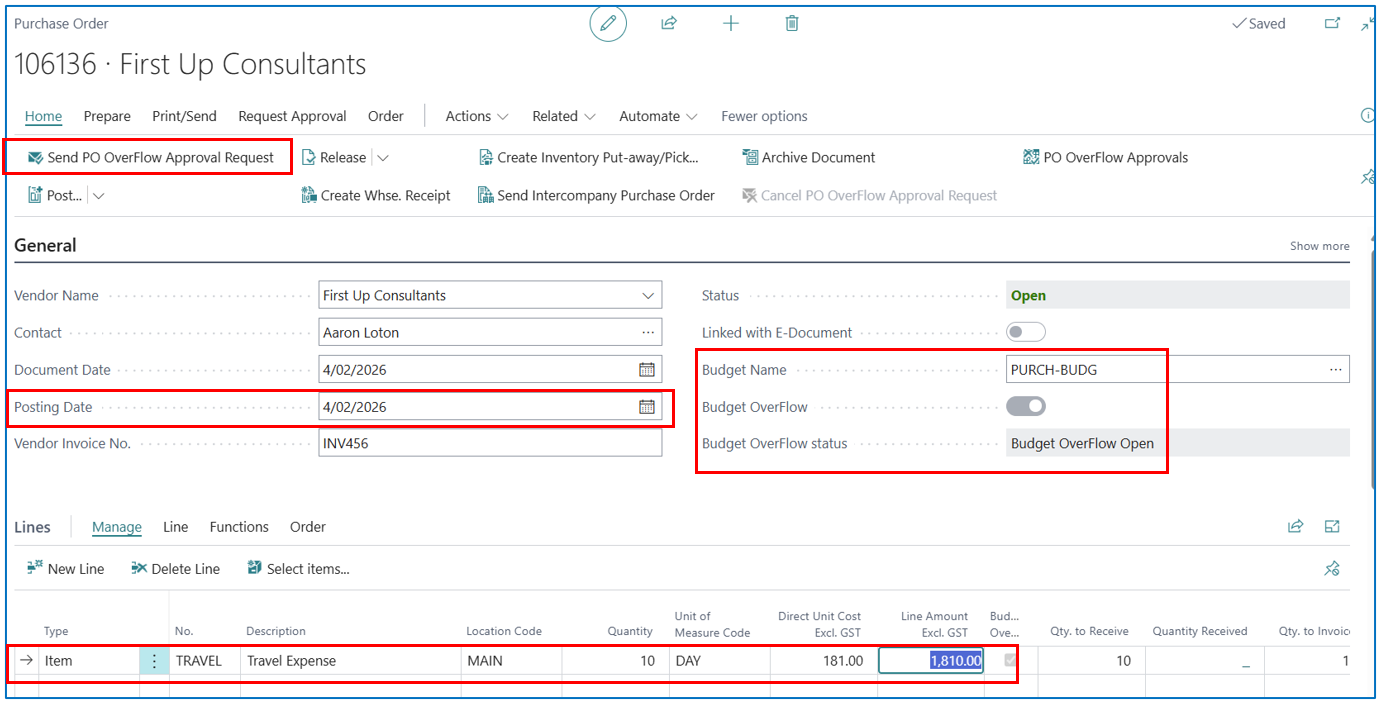
For example, the budget for account 8430 in February is $1,800
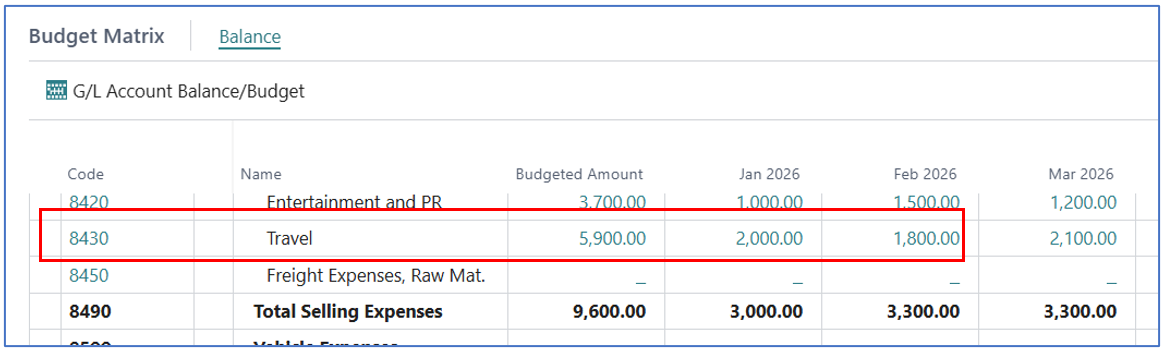
A Purchase Order line with a Line Amount below $1,800 does not trigger the budget overflow restriction.
When the line amount is higher than the budget, the budget overflow is triggered, and the Purchase Order must be sent for approval.
Approving/Rejecting Purchase Budget Spend
While Budget OverFlow status is Budget OverFlow Open:
-
The document cannot be posted. Posting shows “The budgeted amount (…) for Account No. … cannot be greater than the line amount (…)”
-
The standard Send Approval Request for the purchase document is blocked with “Budget is Overflow must be Budget OverFlow status is release”
Use the Budget OverFlow actions on the Purchase Order or Purchase Invoice instead:
| Action | What it does |
|---|---|
| Send PO OverFlow Approval Request | Starts the POBudget workflow. Status becomes Budget OverFlow Pending. |
| Cancel PO OverFlow Approval Request | Cancels the pending request. Status returns to Budget OverFlow Open. |
| PO OverFlow Approvals | Shows the approval entries for this document. |
| OverFlow Release | Sets the status to Budget Overflow Release directly, without a workflow. Not allowed while an overflow approval is pending. For authorised users who may approve their own overspend. |
| OverFlow Reopen | Sets a released overflow back to Budget OverFlow Open. Not allowed while an approval is pending. |
Budget Overflow Approval Workflow
The app installs a second workflow template, POBudget (code MS-POBUDGET), in the category Purchase Budget Approval Workflow. Create a workflow from it in the same way as the budget workflow. It uses the Approval Request for Purchase Budget OverFlow is requested event, as shown below:
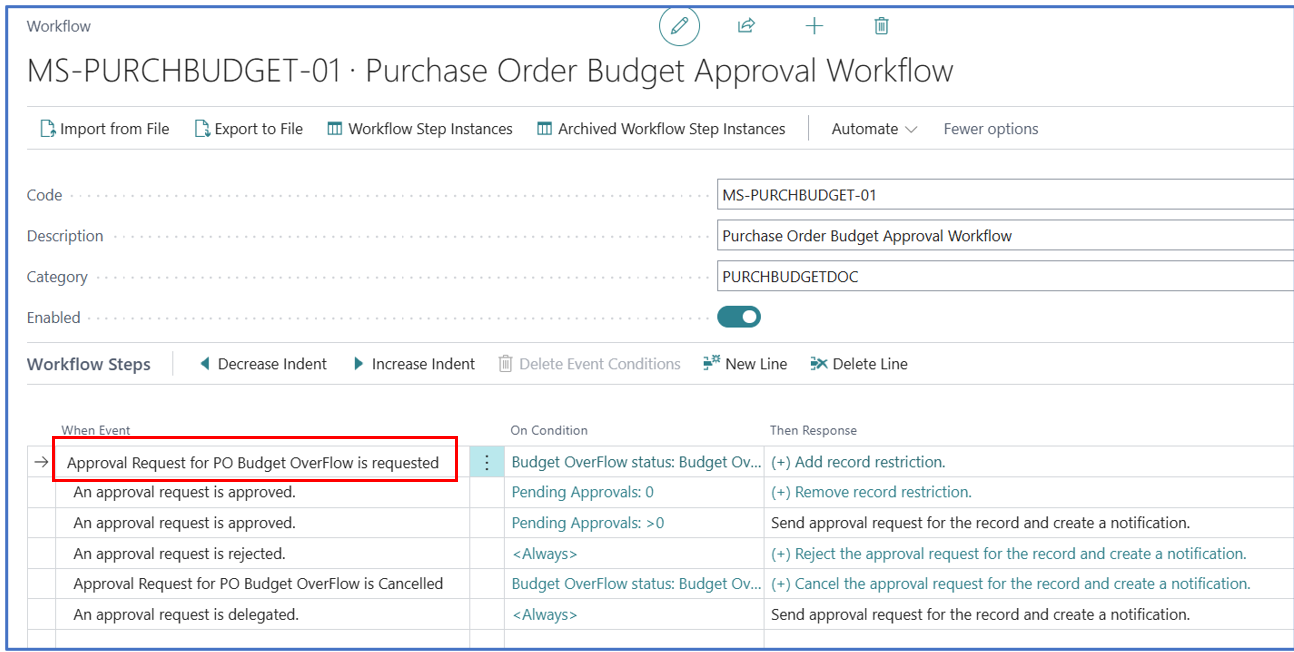
The workflow conditions filter on the Budget OverFlow status of the Purchase Header: Budget OverFlow Open for the request event and Budget OverFlow Pending for the cancel event.
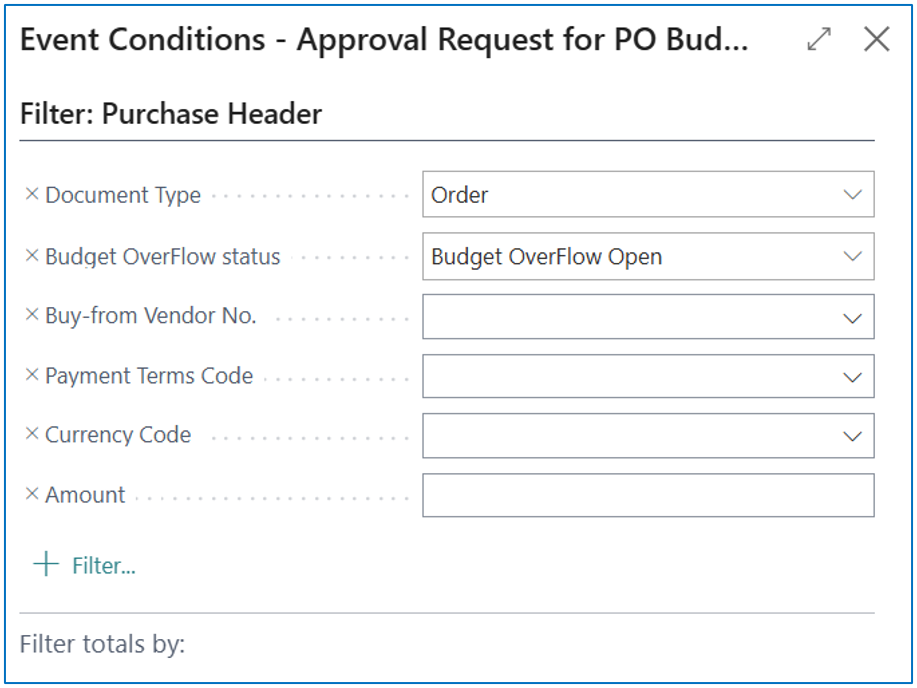
Key Responses for the Budget OverFlow Workflow
This is an approval request event.
Add Status of Purchase Budget Overflow changes to Pending approval together with the standard Create an approval request and Send approval request responses:
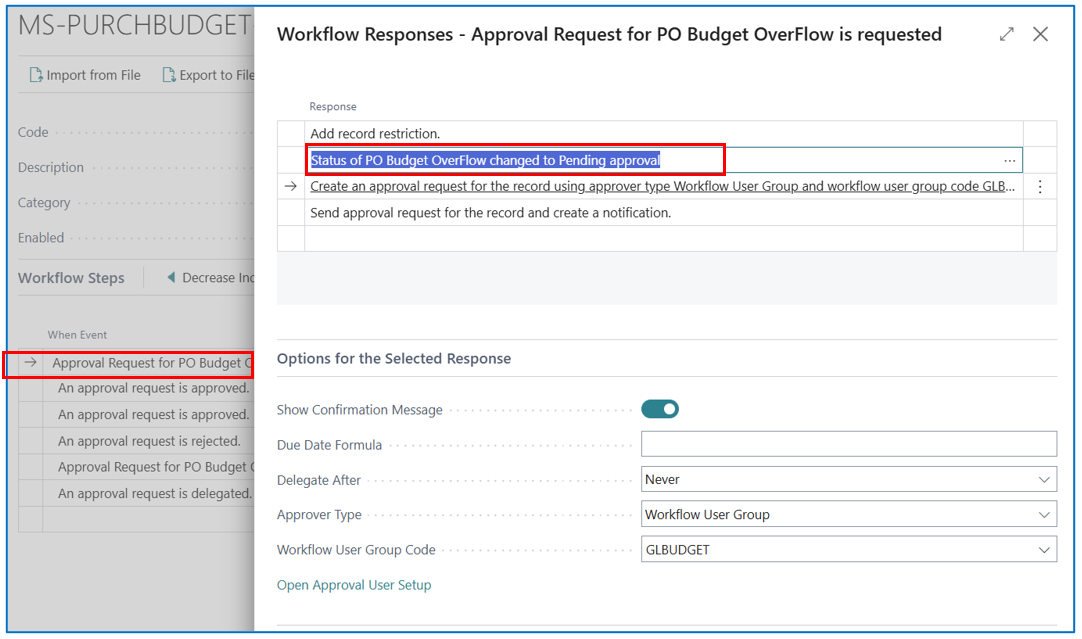
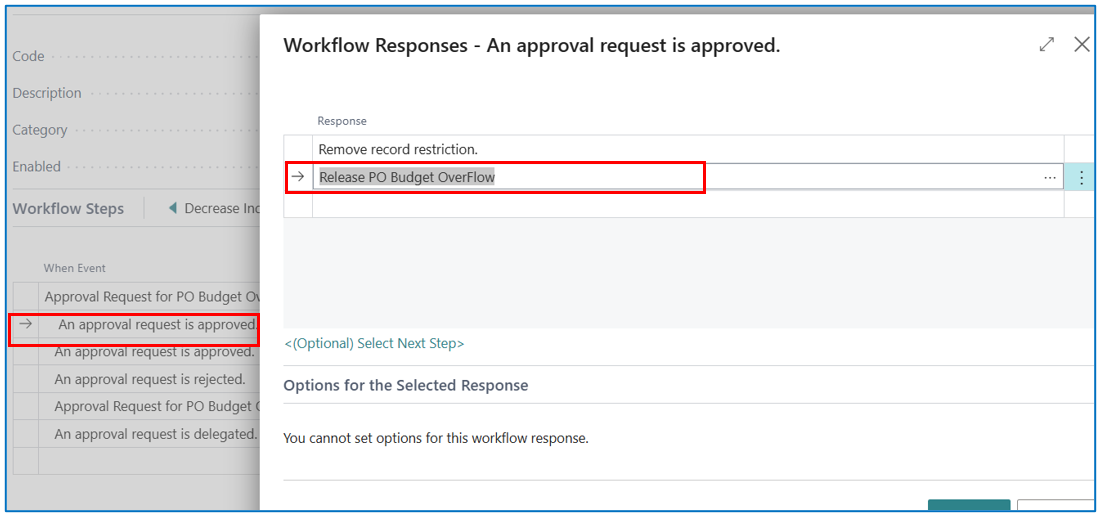
Key Responses when the Approval Request is Approved
Add Release Purchase Budget Overflow:
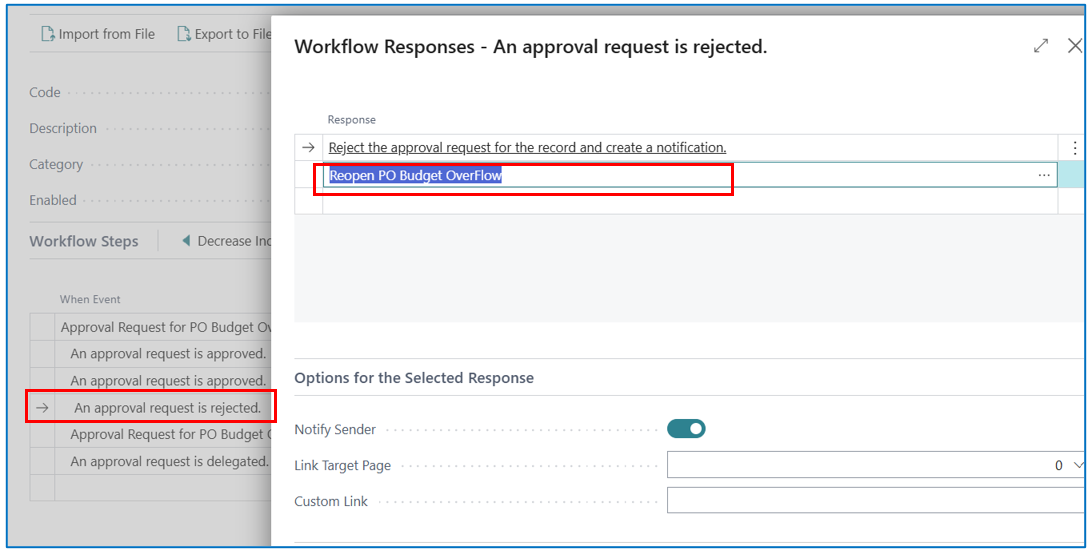
Key Responses when the Approval Request is Rejected
Add ReOpen Purchase Budget Overflow:
Key Responses when the Approval Request is Cancelled
Add ReOpen Purchase Budget Overflow:
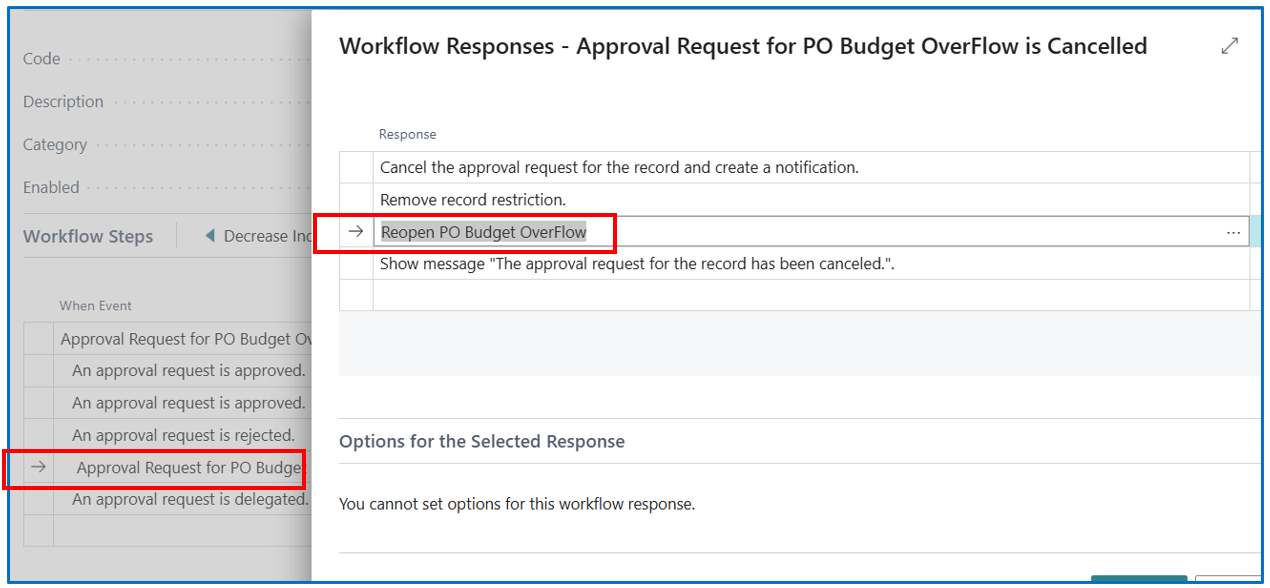
Note: The template as shipped is built on the standard “Set document status to Pending Approval” / “Release the document” / “Reopen the document” responses, which change the Purchase Order’s own Status. Add the three Budget Overflow responses above so that Budget OverFlow status is updated as well; otherwise, the document stays at Budget OverFlow Open after approval and posting is still blocked.
Business Central shows a message if posting is attempted while the Budget OverFlow is not released:

Approval Update
To approve a budget overrun for the period, the Purchase Order must be sent for Budget OverFlow Approval with Send PO OverFlow Approval Request.
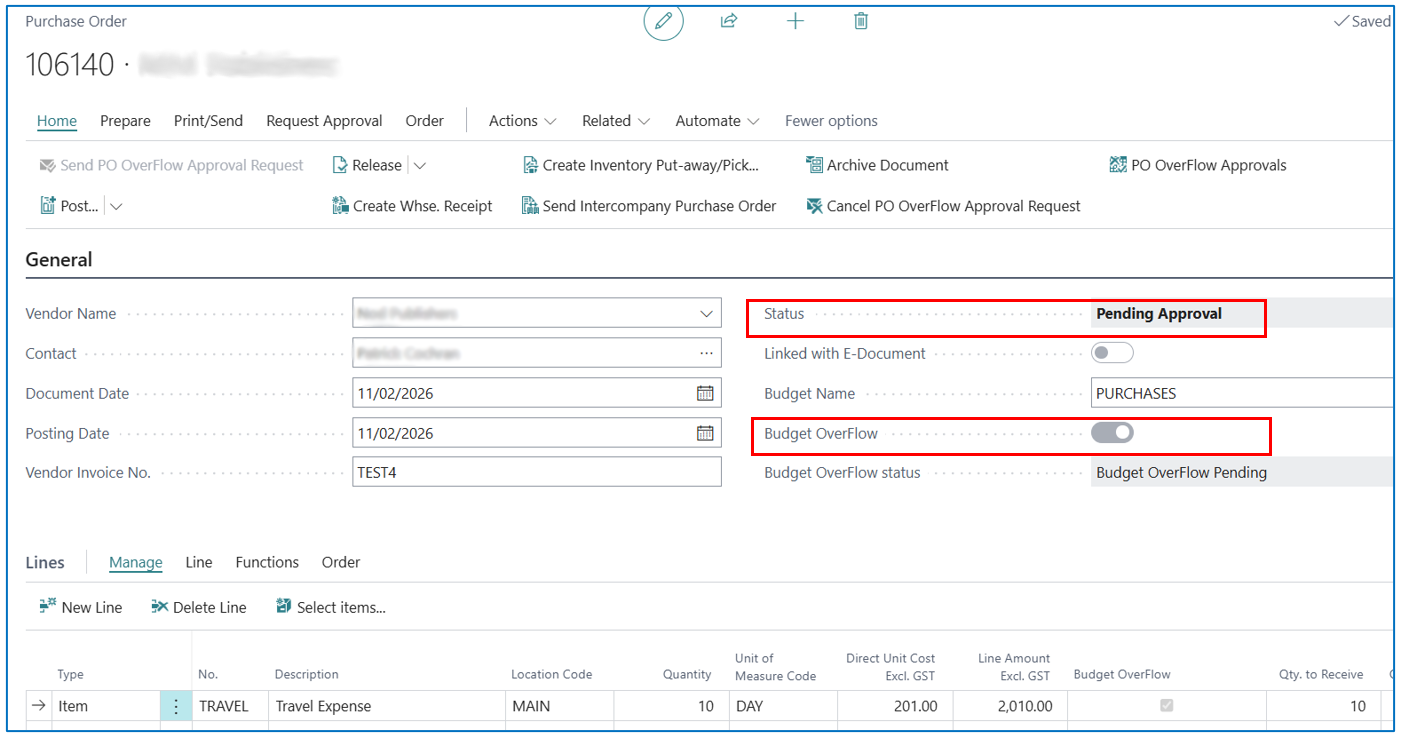
Once the budget overflow is approved, the status changes to “Budget Overflow Release” and the Purchase Order status becomes Released and can be posted.
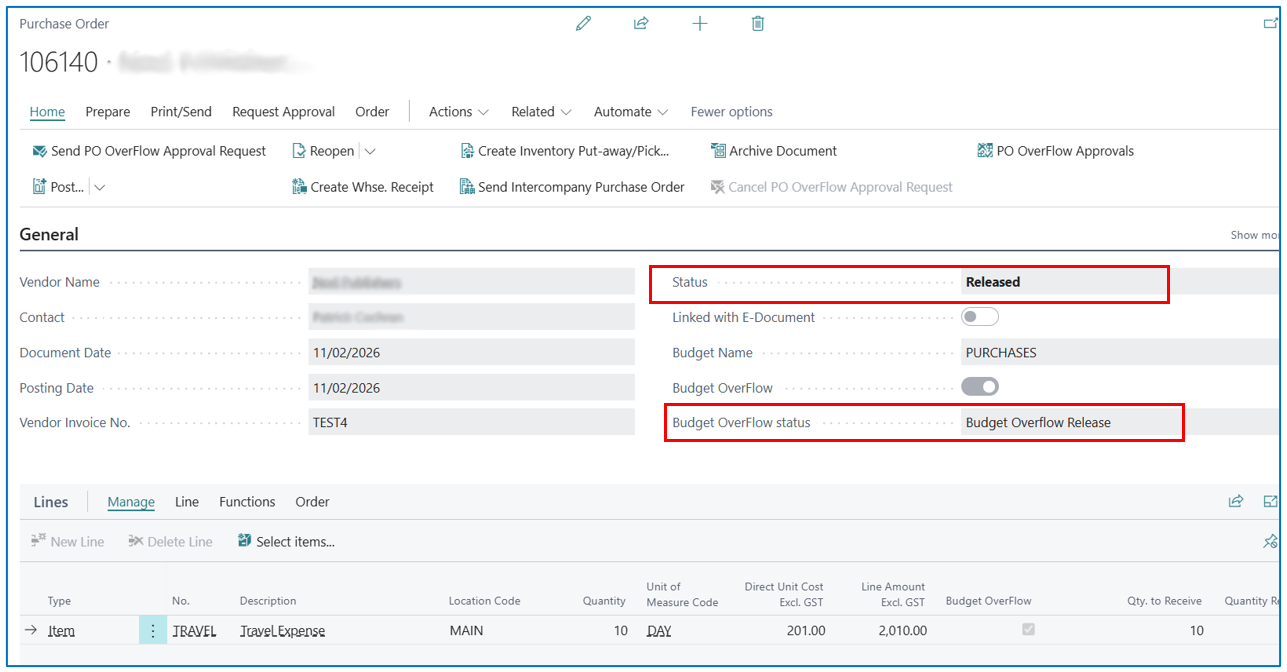
When the workflow sets the status to “Budget Overflow Release”, the app automatically stores a copy of the document in the Purchase Archive, so there is a record of what was approved(A manual OverFlow Release does not create an archive entry).
Note: The posting-time check recalculates the budget position. If the document is at Budget Overflow Release, posting proceeds even when the account is over budget. For any other status the line must still fit within the budget at posting time.
Budget Control on General Journals
-
Open the General Journal and, on the line, fill in Budget Name. The lookup shows only the budget set in General Ledger Setup.
-
Post as normal.
For each line whose Account Type is G/L Account and that has a Budget Name, the app compares the month’s budget for the account with the G/L entries already posted to that account in that month plus the line’s Amount (LCY). If the total exceeds the budget, posting stops with “The budgeted amount (…) cannot be greater than the line amount (…).”
There is no approval route for journals: reduce the amount, change the budget, or remove the Budget Name from the line.
Journal lines with a bank, customer, vendor or fixed-asset account type are not checked.
Status Reference
Here are the meanings of the Budget Status and Budget OverFlow Status fields for reference.
Budget Status (G/L budget)
| Status | Meaning |
|---|---|
| Open | Budget can be edited. Cannot be selected in General Ledger Setup. |
| Pending Approval | An approval request is open. Budget is locked. |
| Released | Approved. Budget is locked and can be used for control. |
Budget OverFlow Status (Purchase Order / Invoice)
| Status | Meaning |
|---|---|
| (blank) | No line exceeds the budget. |
| Budget OverFlow Open | At least one line exceeds the budget. Posting and standard approval are blocked. |
| Budget OverFlow Pending | A Budget OverFlow approval request is waiting. |
| Budget Overflow Release | Overflow approved or manually released. The document can be posted. |
Troubleshooting
Here are some important messages you may see when using the app, what they mean, and what to do when you encounter them.
| Message | Cause | What to do |
|---|---|---|
| Please define Budget Amount for Account No. X | No budget entry exists for account X in the posting month (or the amount is zero). | Add a budget line for that account and month, or clear Budget Name on the document. |
| Budget status should be open, current status Released | Someone tried to change budget entries on a Pending Approval or Released budget. | Reopen the budget from the G/L Budgets list, edit, then release or re-send for approval. |
| The budgeted amount (…) cannot be greater than the line amount (…) on posting | The document (or journal line) is over budget, and the overflow has not been released. | Get the overflow approved, use OverFlow Release, or reduce the amount. |
| Budget is Overflow must be Budget OverFlow status is release | The standard Send Approval Request was used while an overflow is open. | Use Send PO OverFlow Approval Request first. |
| Workflow not enabled | No enabled workflow matches the event and conditions. | Enable the GLBudget or POBudget workflow and check its conditions. |
| This document can only be released when the approval process is complete | Release / OverFlow Release used while an approval is pending. | Wait for the approval or cancel the request. |
| Budget Name lookup shows nothing | No budget is set in General Ledger Setup, or it is no longer Released or is Blocked. | Release the budget and set it in General Ledger Setup. |
| User cannot open budget pages | No permission set is shipped with the app. | Grant object permissions for the app’s pages, report and codeunits. |
Administrator Pages
For checking workflow configuration, the app adds three list pages you can open from Search: Workflow Step, Temp Workflow Event and Temp Notification Entries.
They show the raw workflow steps, the registered workflow events (including the four events added by this app) and queued notification entries with any error message. They are read-only diagnostic views and are not needed for day-to-day use.
App Information
Here is further information about the app:
| Item | Value |
|---|---|
| App name | GL Budget Control (extension name: Purchase Budget Control) |
| Publisher | d365.Global Pty Ltd |
| Version | 1.0.0.0 |
| Minimum Business Central version | 24.0 (Business Central online) |
| Workflow events added | Approval Request for Budget is requested / is Cancelled; Approval Request for Purchase Budget OverFlow is requested / is Cancelled |
| Workflow responses added | Status of Purchase Budget Overflow changes to Pending approval; Release Purchase Budget Overflow; ReOpen Purchase Budget Overflow |