Managing Master Data with MDS (V2) For Cross Environments in Dynamics 365 Business Central
Introduction
Overview
Master Data Sync or MDS (used in Managing Master Data) keeps master data consistent across Microsoft Dynamics 365 Business Central companies, environments, Azure regions and tenants. One company is the master — it issues numbers, keeps the registry of configurations, governs the data and distributes it. The other companies are subscribers — they can create and change master data, and they control which values stay local.
To get our solution, visit us on Microsoft Marketplace MDM Cross Environment
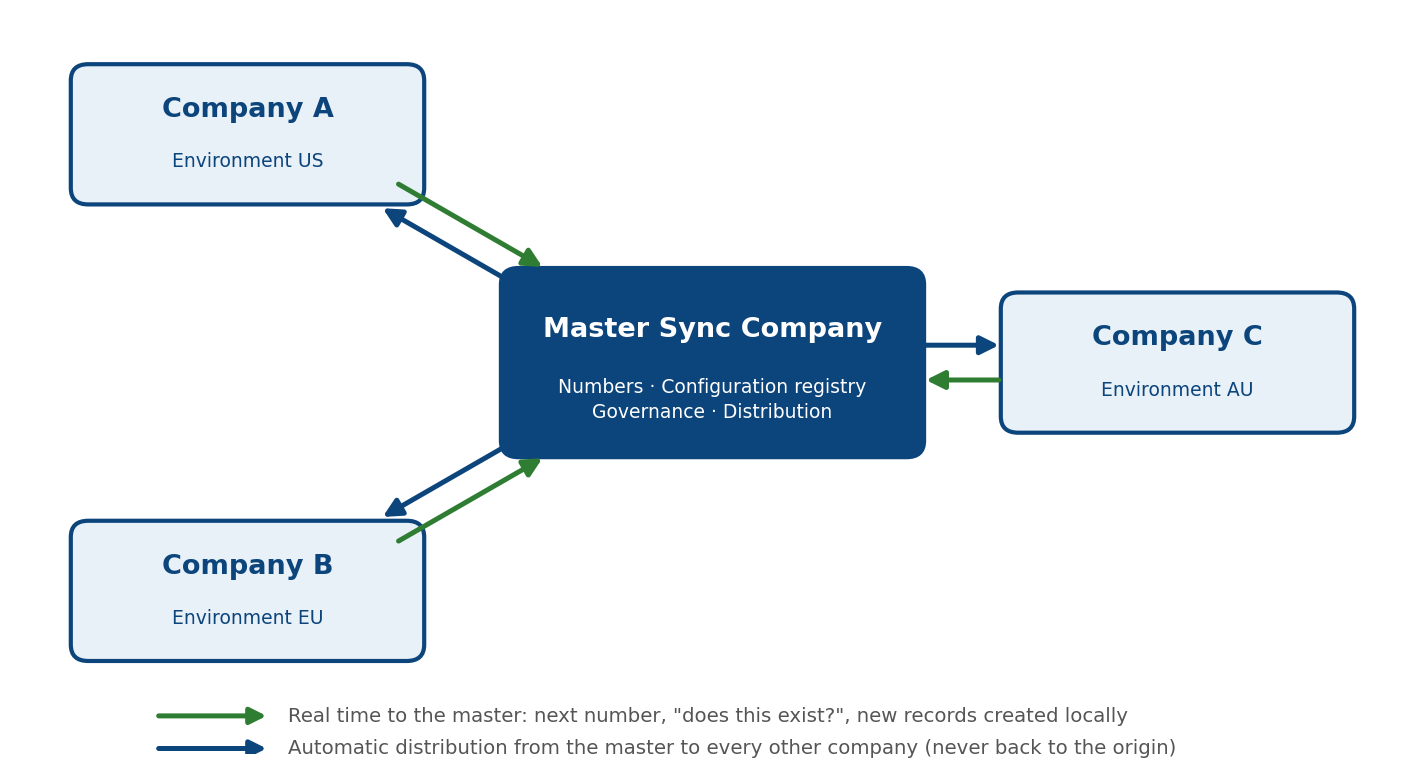
Key Concepts
| Concept | Meaning |
|---|---|
| Master | The one company that issues numbers, answers real-time questions and distributes changes to all subscribers. |
| Subscriber | A participating company. It sends its own changes to the master and receives changes from it. |
| Connection | How a company reaches another company: in the same environment, or through the Business Central API (other environment, region or tenant). |
| Sync Table | A table that is synchronized. Any table qualifies: standard, custom or from an ISV app. |
| Entity | A business object from the catalog (for example Customers): all its tables, processing order, field rules, numbering and dependencies, added in one step. |
| Field Mode | Per field and per company: Synced, Company-Specific, Master-Owned or Excluded. |
| Local Template | The item, customer or vendor template whose values fill a company’s company-specific fields when a record arrives. |
| Value Map | A translation of an incoming code into this company’s code, defined in the receiving company. |
| Outbox / Inbox | Changes waiting to be sent from this company / messages received by this company, with status and errors. |
| Master Numbering | New records with a blank number get their number from the master in real time. |
| Pull / Initial Load | A company asks the master to send specific records (one configured item) or all records of tables (onboarding) now. |
How a Change Travels
-
A user creates or changes a record in any company, on any page or through an API.
-
The change is captured automatically and written to the company’s Outbox. Several quick edits of the same record become one message.
-
A background task sends the message to the master (from a subscriber) or to all subscribers (from the master), never back to the company the change came from.
-
The receiving company stores the message in its Inbox and applies it: it matches the record by its key, applies value maps and field modes, and fills company-specific fields from its local template when the record is new.
-
Every step is logged in the Sync Log, with elapsed time and end-to-end latency.
Get Started
Prerequisites
Read the following prerequisites before you proceed:
-
Business Central online, version 28 or later, in every participating environment.
-
MDS Master Data Sync — MDM Cross Environment installed in every participating environment. For configured products, also the companion configurator app.
-
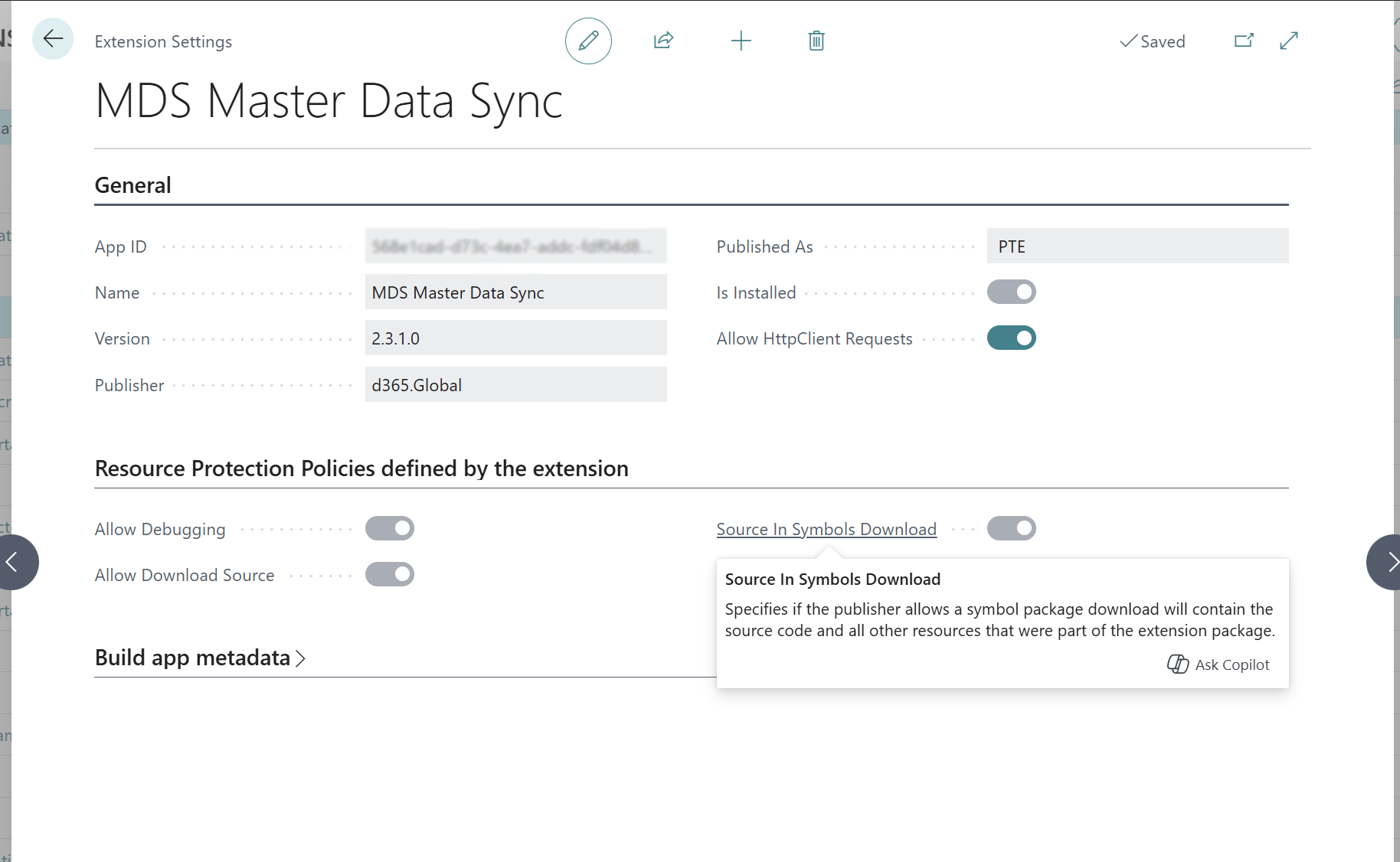
In sandbox environments — Allow HttpClient Requests turned on for each app (Extension Management → Configure).
-
For other environments, regions or tenants — A Microsoft Entra app registration with the API.ReadWrite.All application permission for Dynamics 365 Business Central, and admin consent.
Implementation Checklist
Here is a checklist of the steps to implement Managing Master Data:
| Step | Task | Page |
|---|---|---|
| 1 | Assign MDS ALL to administrators; assign MDS SYNC and D365 READ (and ISV sets such as CFG ALL) to the sync identity | Users, Microsoft Entra Applications |
| 2 | Set up the master: Role = Master, Master Numbering Enabled, Config Lookup Enabled | MDS Master Data Sync Setup |
| 3 | Create connections: from the master to each subscriber (Distribute Changes on), and from each subscriber to the master | MDS Connections |
| 4 | Add entities in every company | MDS Sync Tables → Add Entity |
| 5 | Review numbering series (master) and local templates (subscribers) | MDS Number Series, MDS Sync Tables |
| 6 | Review field modes | MDS Sync Fields |
| 7 | Add value maps where codes differ | MDS Value Maps |
| 8 | Set up subscribers: Role = Subscriber, Master Connection Code | MDS Master Data Sync Setup |
| 9 | Create the job queue fallback in every company | MDS Master Data Sync Setup |
| 10 | Sign out and in, test connections, run an initial load where needed | MDS Connections, MDS Sync Tables |
Tip: In a sandbox with two companies, Create Test Configuration on the setup page of the future master sets up both companies in one step (connections, Items, Configured Item Registry, Customers and Vendors, templates, value map, number series).
To Connect a Company in Another Environment
-
In the Azure portal, register an application in Microsoft Entra ID. Add Dynamics 365 Business Central → Application permissions → API.ReadWrite.All, grant admin consent, and create a client secret.
-
In each environment, open Microsoft Entra Applications, add the application by its client ID, set State to Enabled, and assign the permission sets MDS SYNC, D365 READ and any ISV set (for example CFG ALL), with Company left blank.
-
Open MDS Connections → New. Set Transport Type to BC API (OAuth) first.
-
Enter Environment Name, Client Id and Client Secret, then choose Select Target Company. The target environment’s companies are listed; selecting one fills Target Company Name, Company Id and, if blank, Tenant Id.
-
Choose Test Connection. The result starts with OK.
Role Center: Master Data Sync Administrator
Profile for MDS ADMINISTRATOR — Select it in My Settings > Role.
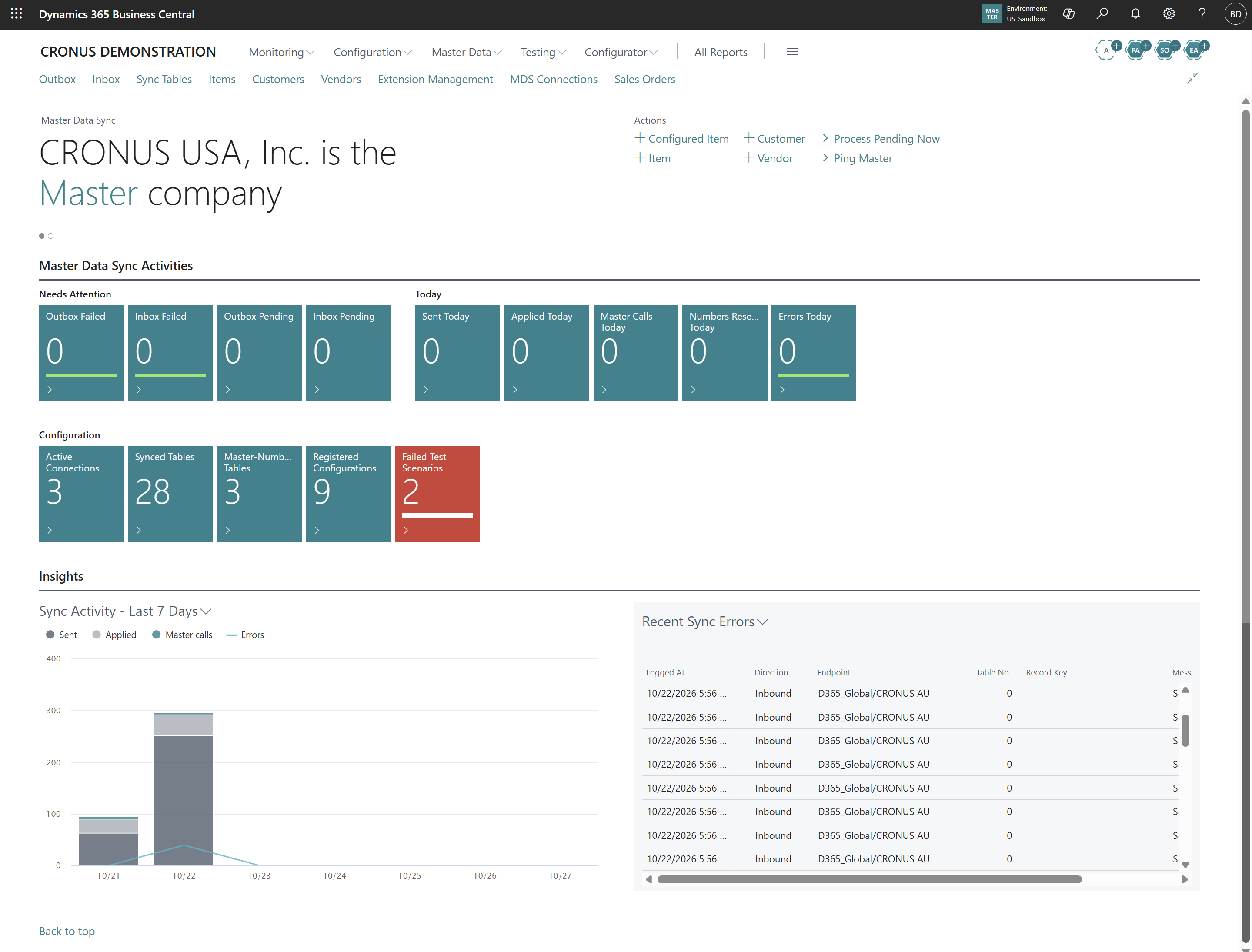
Parts
Here is a description of the parts of the Master Data Sync Administrator role center:
| Part | Shows |
|---|---|
| Headline | The company’s role (“CRONUS USA, Inc. is the Master company”) and today’s summary: changes synchronized and items needing attention. |
| Needs Attention tiles | Failures and backlog. Red when above zero, green at zero. Select a tile to open the filtered list. |
| Today tiles | Today’s activity. |
| Configuration tiles | The size of the setup. |
| Sync Activity — Last 7 Days | Stacked columns per day: Sent, Applied, Master calls; Errors as a line. Choose Refresh to update. |
| Recent Sync Errors | The latest failed sends, applies and calls, with buttons to open the Outbox and Inbox. |
Tiles
This section describes the tiles on the Master Data Sync Administrator role center.
| Tile | Counts | Opens |
|---|---|---|
| Outbox Failed | Changes that could not be delivered after the maximum attempts | MDS Outbox, Status = Failed |
| Inbox Failed | Received messages that could not be applied | MDS Inbox, Status = Failed |
| Outbox Pending | Changes waiting to be sent (Pending or Processing) | MDS Outbox |
| Inbox Pending | Messages waiting to be applied | MDS Inbox |
| Sent Today | Successful sends today | MDS Sync Log |
| Applied Today | Messages applied today | MDS Sync Log |
| Master Calls Today | Real-time calls today (number reservations, configuration checks, pings, pulls) | MDS Sync Log |
| Numbers Reserved Today | Master numbers issued today | MDS Number Reservations |
| Errors Today | Failed attempts today, including attempts that later succeeded on retry | MDS Sync Log |
| Active Connections | Enabled connections | MDS Connections |
| Synced Tables | Enabled sync tables | MDS Sync Tables |
| Master-Numbered Tables | Enabled tables with master numbering | MDS Sync Tables |
| Registered Configurations | Configured-item configurations in the registry | MDS Item Signatures |
| Failed Test Scenarios | Failed results of the built-in test scenarios | MDS Test Scenarios |
Actions
Here are the actions that can be taken.
| Action | What it does |
|---|---|
| Process Pending Now (tile action and Processing) | Applies pending inbox messages and sends pending outbox entries in this company immediately. |
| Ping Master | Sends a real-time request to the master and shows its answer: a quick health check. |
| New → Configured Item / Item / Customer / Vendor | Opens the configurator flow or a new card. Numbers come from the master when master numbering is on. |
MDS Master Data Sync Setup
This section will cover the MDS Master Data Sync Setup page, which is the main setup for each company.
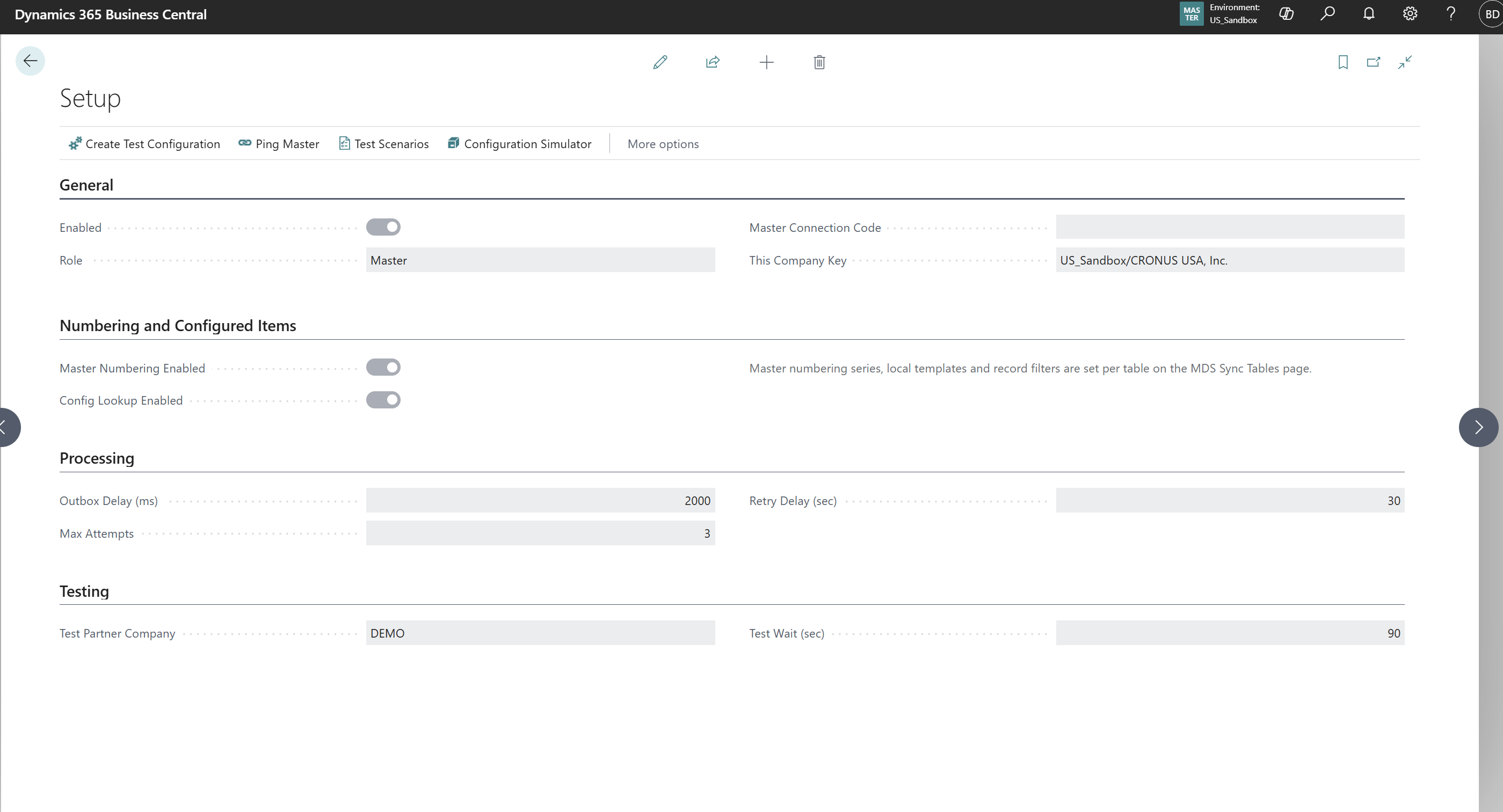
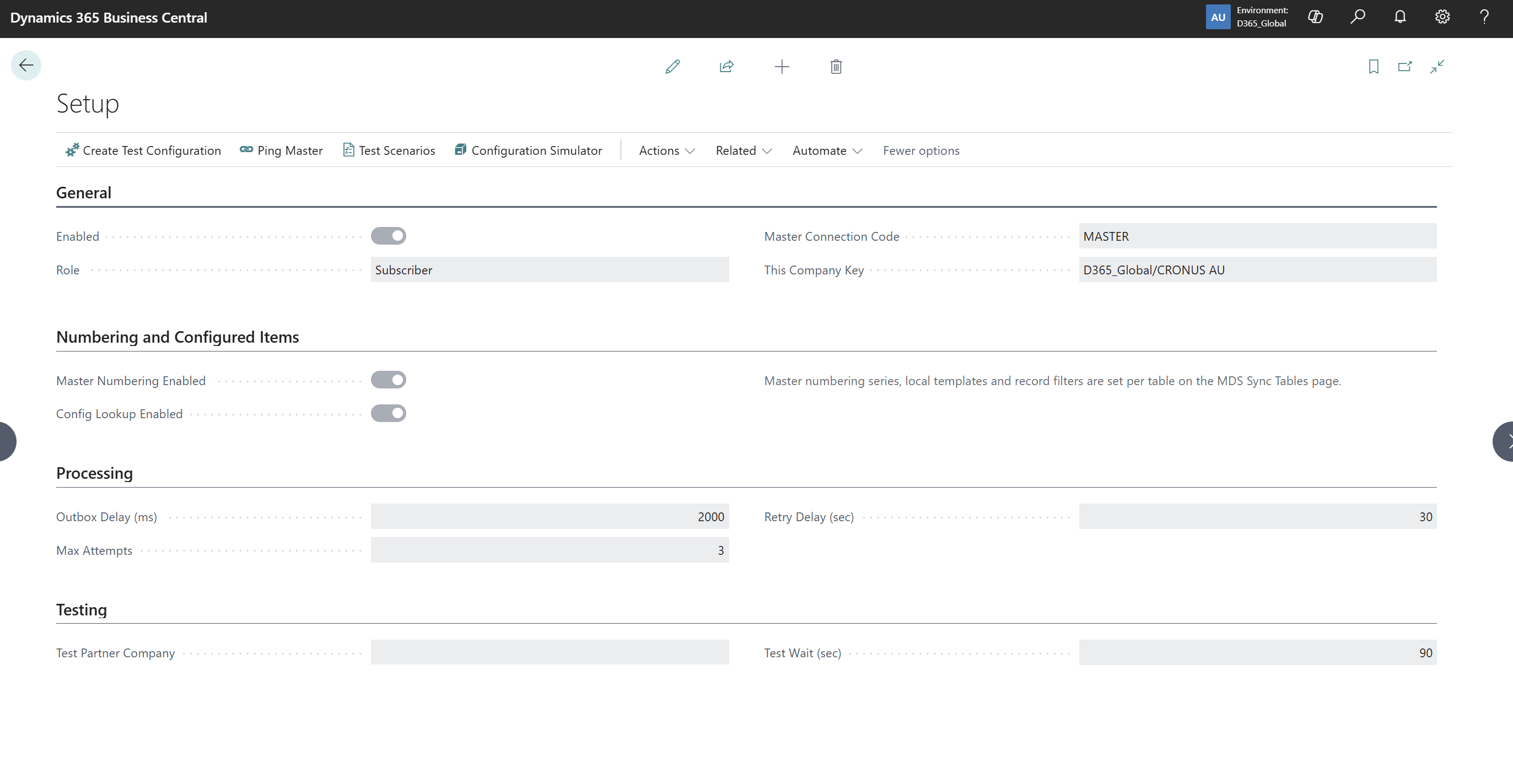
This defines this company’s role and how synchronization behaves in it. Settings that differ per table (numbering series, local templates, filters) are on MDS Sync Tables.
General
Here are the general fields:
| Field | Description | Example / values |
|---|---|---|
| Enabled | Turns synchronization on or off in this company. When off, nothing is captured, sent or applied. | On |
| Role | Master: issues numbers, answers real-time requests, distributes. Subscriber: participates. Exactly one master per group. | Master / Subscriber |
| Master Connection Code | Subscriber only: the connection used to reach the master. | MASTER |
| This Company Key | Read-only. How this company identifies itself to others: environment/company. Used to avoid sending a change back to its origin. | D365_Global/CRONUS AU |
Numbering & Configured Items
Here is a description of the fields that control numbering and configured items:
| Field | Description | Example / values |
|---|---|---|
| Master Numbering Enabled | Master switch for master numbering in this company. Which tables are numbered, and with which series, is set per table. | On |
| Config Lookup Enabled | Configurations are checked against the master in real time before a configured item is created. | On |
Processing
Here are the processing fields:
| Field | Description | Example / values |
|---|---|---|
| Outbox Delay (ms) | How long changes are collected before the background send starts. Several edits of the same record are sent once. | 2000 |
| Max Attempts | Attempts before a failed outbox entry or inbox message is marked Failed. | 3 |
| Retry Delay (sec) | Wait before failed messages are retried. | 30 |
Testing
This section describes the testing fields:
| Field | Description | Example / values |
|---|---|---|
| Test Partner Company | The other company used by Create Test Configuration and the built-in test scenarios. | DEMO |
| Test Wait (sec) | How long a test scenario waits for a change to arrive in the partner company. | 90 |
Actions
Here are actions that can be taken:
| Action | What it does |
|---|---|
| Create Test Configuration | Sets up this company as master and the Test Partner Company as subscriber (sandbox evaluation). |
| Create Job Queue Fallback | Creates a recurring job queue entry (every minute) that sends and applies anything still waiting. |
| Ping Master | Real-time request to the master; shows the answer. |
| Connections, Sync Tables, Value Maps, Number Series, Outbox, Inbox, Sync Log, Test Scenarios, Configuration Simulator | Navigation to the related pages. |
MDS Connections & MDS Connection Card
This section will discuss the MDS Connections and the MDS Connection Card.
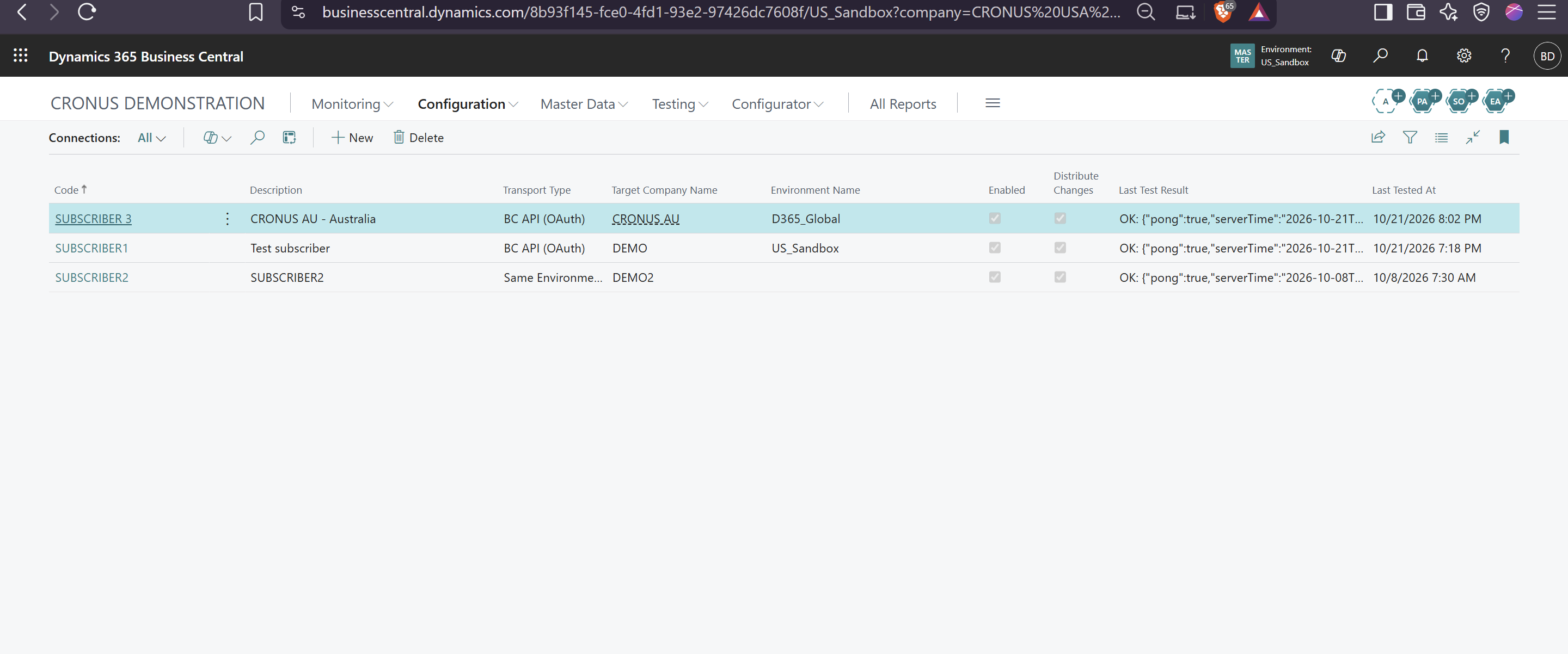
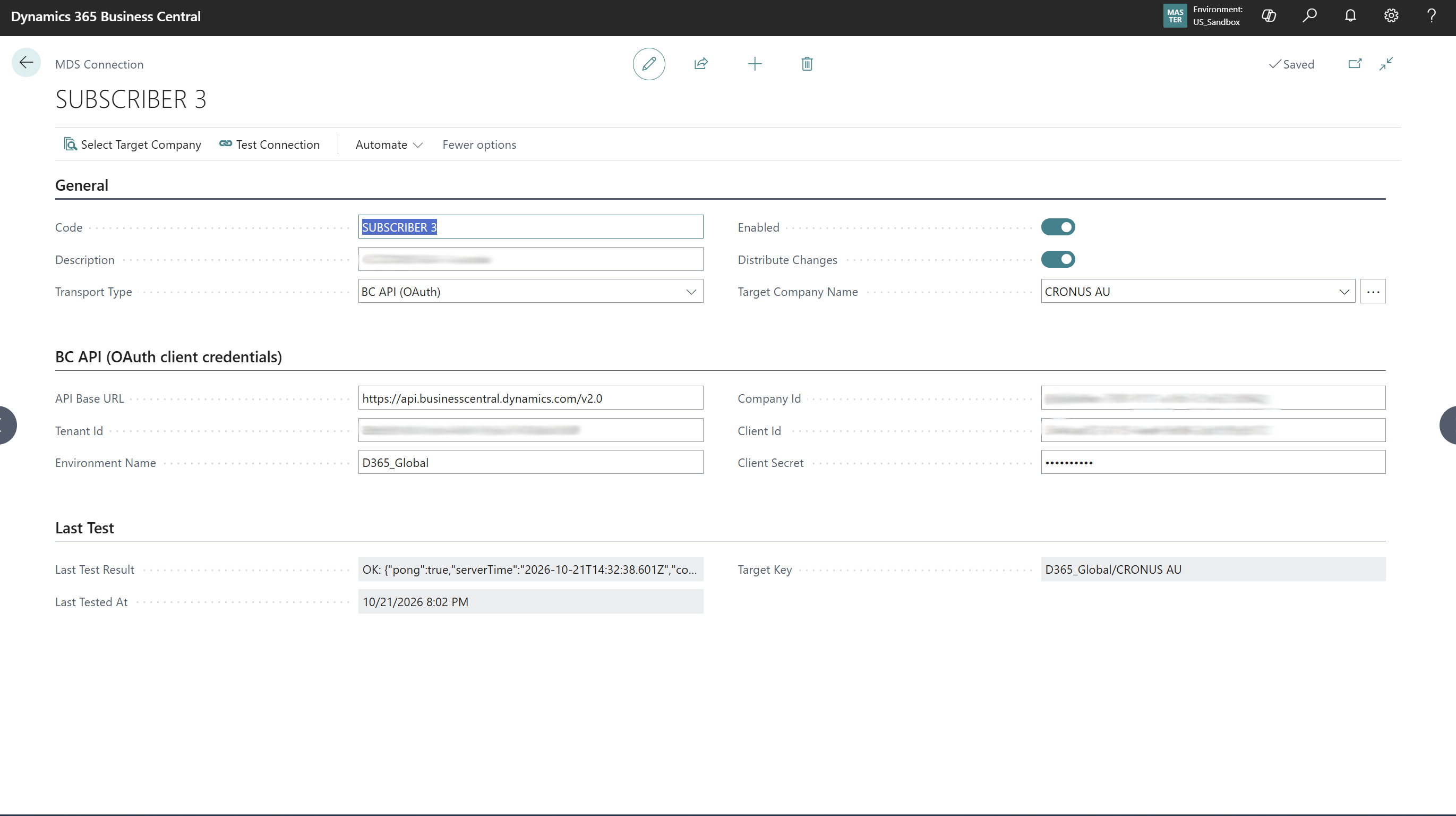
A connection tells this company how to reach another company. The master has one connection per subscriber; each subscriber has one connection to the master.
General
These are the general fields of the MDS Connection Card:
| Field | Description | Example / values |
|---|---|---|
| Code | Identifier of the connection. | SUBSCRIBER 3 |
| Description | Free text. | CRONUS AU - Australia |
| Transport Type | Same Environment (Company): the target company is in this environment. BC API (OAuth): another environment, region or tenant, through the Business Central API. Set this first. | BC API (OAuth) |
| Enabled | When off, nothing is sent through this connection and real-time calls through it fail. | On |
| Distribute Changes | Master only: the master sends changes to this subscriber. Turn off to stop distribution without disabling the connection (pulls still work). | On (master) |
| Target Company Name | Name of the target company. Use the assist button or Select Target Company to pick it from the target environment. | CRONUS AU |
BC API (OAuth Client Credentials)
Here are the fields for BC API (Business Central Application Programming Interface OAuth) connections:
| Field | Description | Example / values |
|---|---|---|
| API Base URL | Business Central API root. | https://api.businesscentral.dynamics.com/v2.0 |
| Tenant Id | Microsoft Entra tenant of the target. Filled automatically from the current tenant when blank. | GUID |
| Environment Name | Exact target environment name (case-sensitive). | D365_Global |
| Company Id | GUID of the target company, used in the API URL. Filled by Select Target Company. | GUID |
| Client Id | Application (client) ID of the Entra app registration. | GUID |
| Client Secret | Secret of the app registration. Stored in isolated storage, shown masked, never displayed again. | **** |
Last Test
Here are the fields for the last test of the connection:
| Field | Description | Example / values |
|---|---|---|
| Last Test Result | Result of the last Test Connection: OK with the target’s answer, or FAILED with the reason. | OK: {"pong":true,...} |
| Last Tested At | When the connection was last tested. | |
| Target Key | Read-only: environment/company of the target. Must match the target’s This Company Key. | D365_Global/CRONUS AU |
Actions
These are actions you can take on the MDS Connection Card:
| Action | What it does |
|---|---|
| Select Target Company | Lists the companies of the target (same environment, or the target environment through its standard API) and fills name, Company Id and Tenant Id. |
| Test Connection | Sends a PING to the target and records the result. HTTP 401: app not registered or disabled in the target. 403: missing permissions. 404: wrong environment or company. “Blocked by the runtime”: Allow HttpClient Requests is off. |
MDS Sync Tables
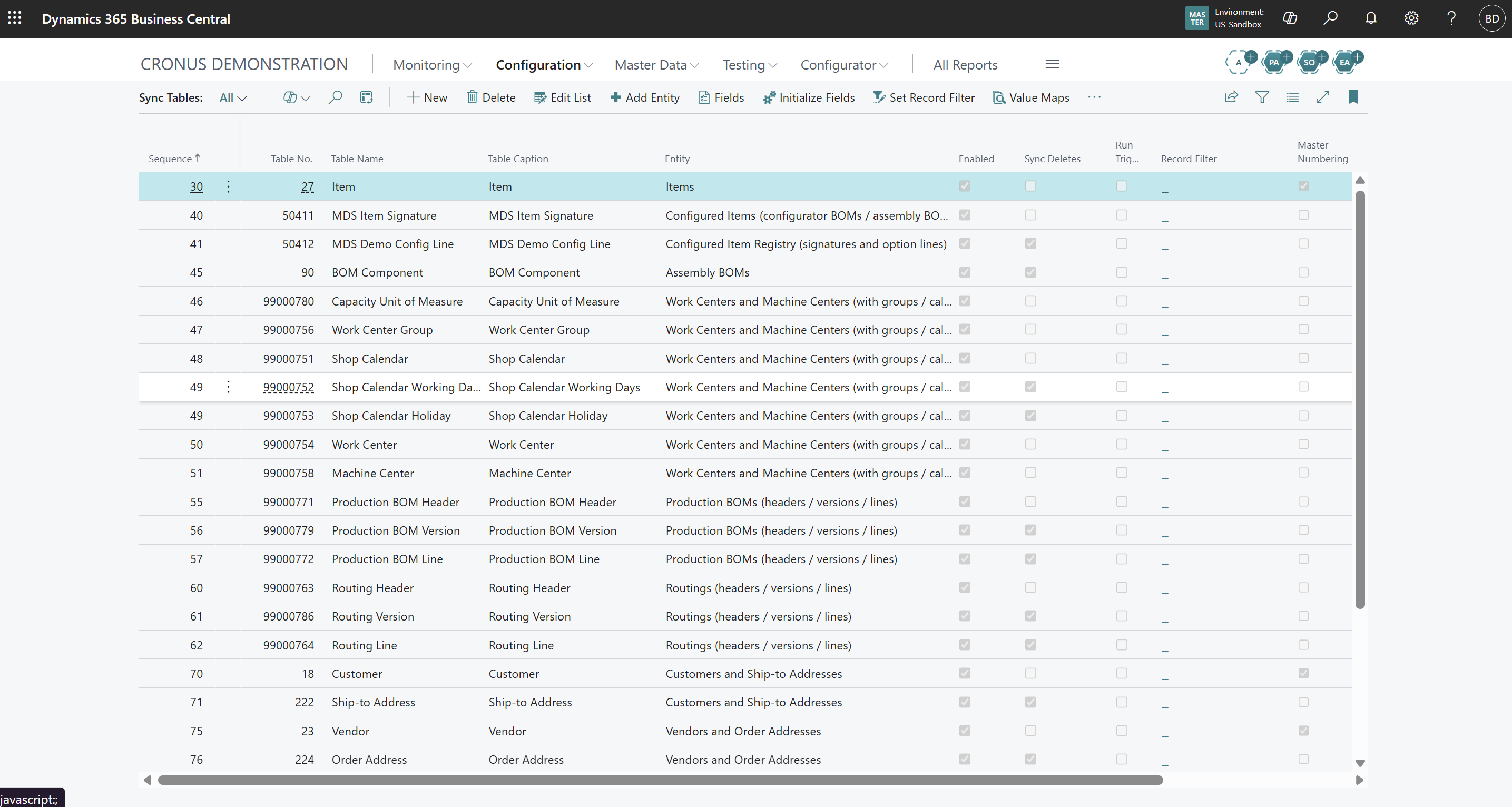
The tables this company synchronizes. A company only sends and accepts changes for tables listed and enabled here.
| Field | Description | Example / values |
|---|---|---|
| Sequence | Processing order: reference and parent tables first, children after. | Item 30, BOM 45 |
| Table No. | The table. Any table: standard, custom or ISV. | 27 |
| Table Name | Read-only. Technical name. | Item |
| Table Caption | Read-only. Display name. | Item |
| Entity | Read-only. The catalog entity that added the table. | Items |
| Enabled | Changes are captured and sent, and incoming changes are accepted. Off: neither. | On |
| Sync Deletes | Deleting a record also deletes it in the other companies. | On for BOM lines |
| Run Triggers | The table’s insert/modify/delete logic runs when an incoming change is applied. Off: values are written as received. | Off |
| Record Filter | Only matching records are sent and accepted. Checked when sending and again when receiving. Normal fields only. | Table ID = 18|23|27 |
| Master Numbering | New records with a blank number get their number from the master. Only for tables whose key is a single Code field. | On for Item |
| Number Series Code | Master only: the MDS number series for this table. Blank in subscribers. | MDS-ITEM |
| Override Local Nos. | Numbers assigned by a local number series (for example a template’s series) are replaced by a master number. | Off |
| Local Template Code | Item, customer or vendor template whose values fill company-specific fields when a record arrives. | MDS-AU-LOCAL |
| Template Table No. (hidden) | The template table for this table: Item → Item Templ., Customer → Customer Templ., Vendor → Vendor Templ. | 1382 |
| No. Field No. (hidden) | The number field used by master numbering. | 1 |
Actions
Here are actions you can take on the MDS Sync Tables:
| Action | What it does |
|---|---|
| Add Entity | Adds a catalog entity with all its tables, sequence, field rules and numbering. Entities it depends on are added first if missing; existing setup is never reset. |
| Fields | Opens MDS Sync Fields for the selected table. |
| Initialize Fields | Adds a line for every field of the selected table, so fields can be found and set by name. |
| Set Record Filter | Opens the standard filter dialog for the selected table. |
| Value Maps | Opens the value maps of the selected table. |
| Request Initial Load | Subscriber only: the master sends all records of the selected tables to this company now. Respects the record filter; safe to repeat. |
Important: After adding tables, users must sign out and in. New and changed records are then captured automatically. Records that already existed are not sent until they change or a subscriber requests an initial load.
Entity Catalog
In this section we will Add Entity on MDS Sync Tables.
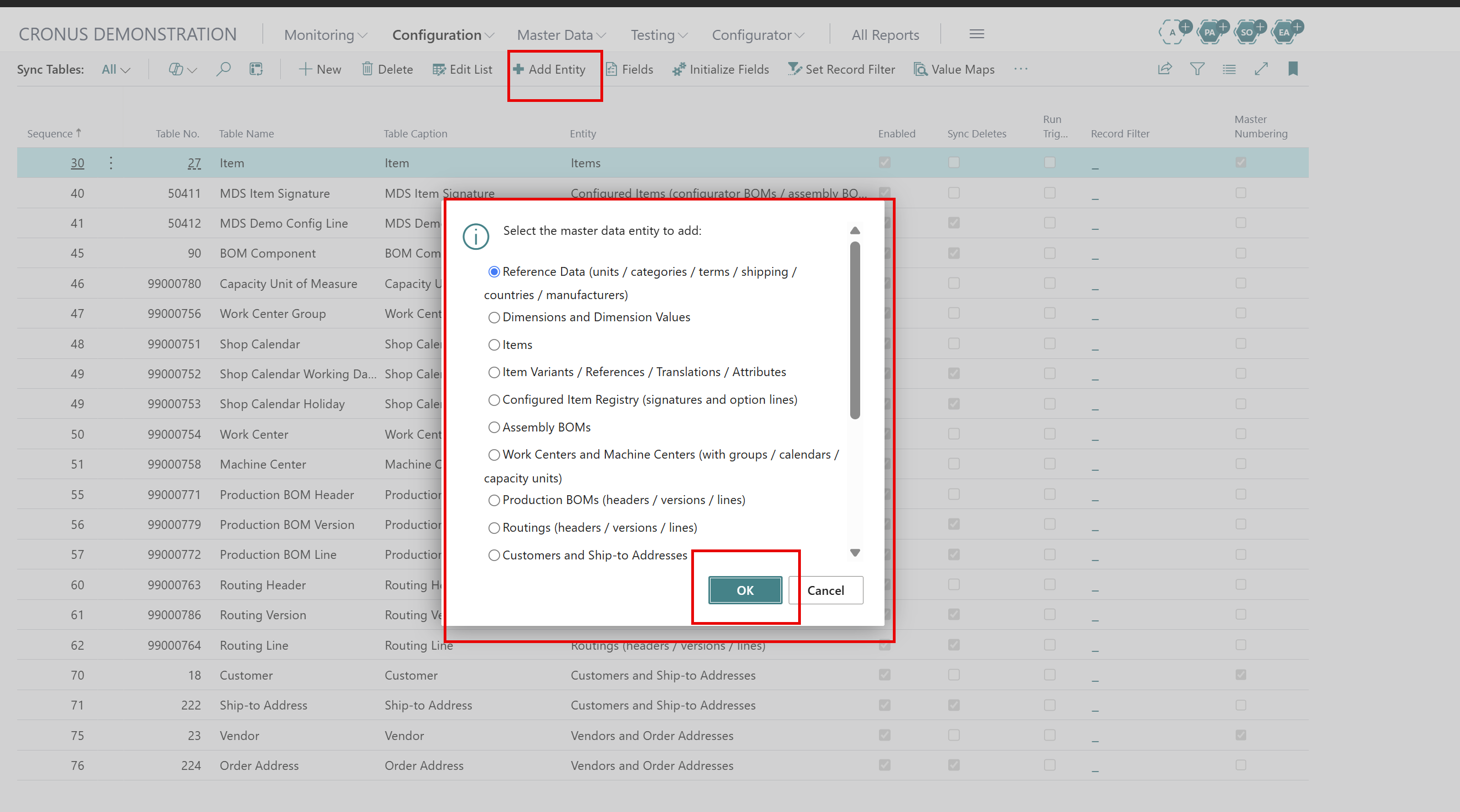
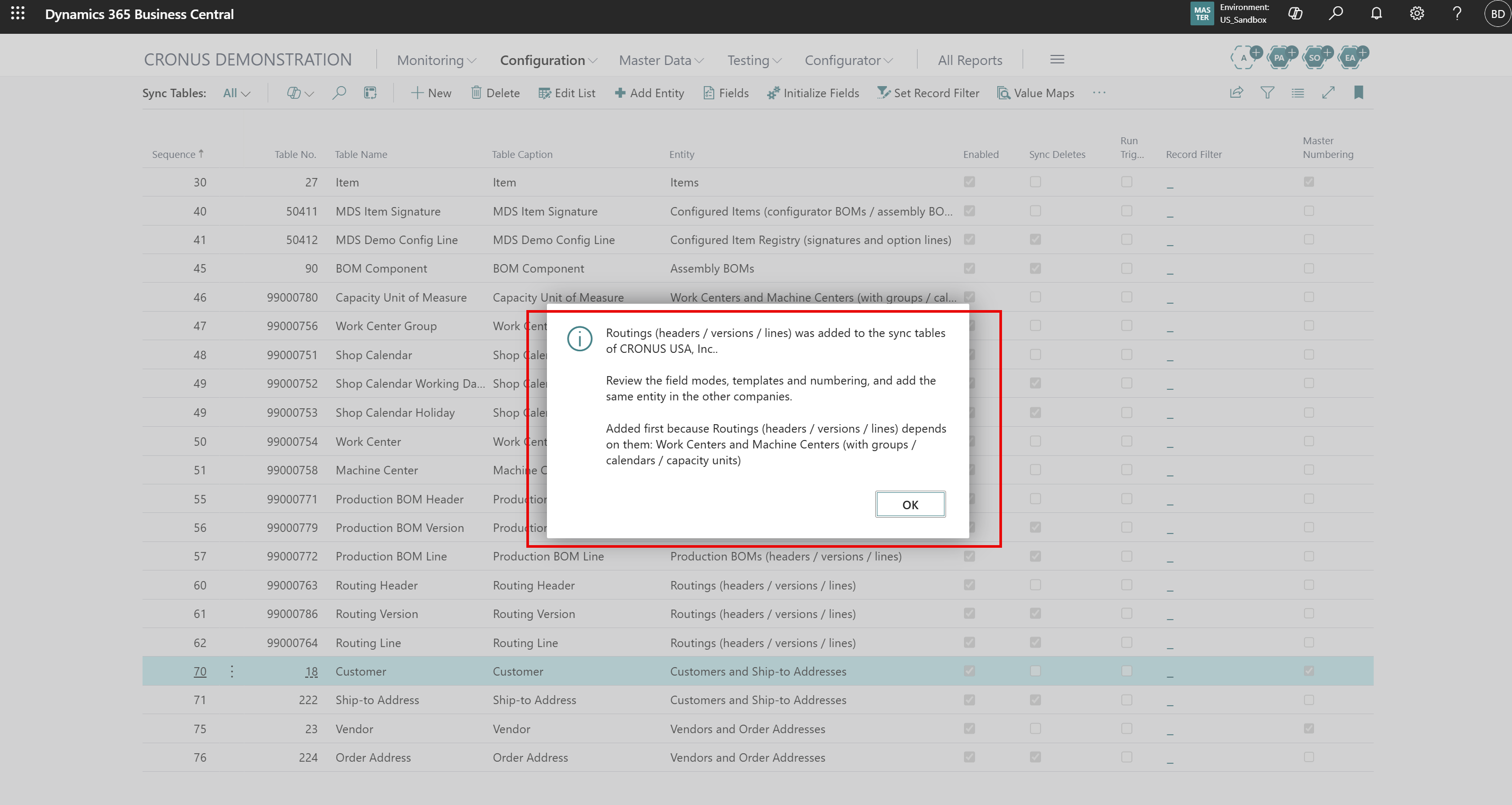
The following are the description of the entities:
| Entity | Tables | Master numbering | Requires |
|---|---|---|---|
| Reference Data | Unit of Measure, Item Category, Payment Terms, Shipment Method, Country/Region, Manufacturer | — | — |
| Dimensions and Dimension Values | Dimension, Dimension Value | — | — |
| Items | Item | On (ITM) | — |
| Item Variants / References / Translations / Attributes | Item Variant, Item Translation, Item Reference, Item Attribute, Item Attribute Value, Item Attribute Value Mapping | — | Items |
| Configured Item Registry | MDS Item Signature, MDS Demo Config Line | — | Items |
| Assembly BOMs | BOM Component | — | Items |
| Work Centers and Machine Centers | Capacity Unit of Measure, Work Center Group, Shop Calendar (+ working days, holidays), Work Center, Machine Center | Available | — |
| Production BOMs | Production BOM Header, Version, Line | Available | Items |
| Routings | Routing Header, Version, Line | Available | Work and Machine Centers |
| Customers and Ship-to Addresses | Customer, Ship-to Address | On (CUS) | — |
| Vendors and Order Addresses | Vendor, Order Address | On (VEN) | — |
| Fixed Assets | FA Class, FA Subclass, Fixed Asset | On (FA) | — |
| Resources | Resource Group, Resource, Resource Unit of Measure | On (RES) | — |
| Default Dimensions | Default Dimension, filtered to items, customers, vendors, resources, fixed assets | — | Dimensions |
Each entity also sets default field modes.
Excluded everywhere: Costs and modification stamps.
Company-Specific in subscribers: Posting groups, tax settings, units of measure, item type, costing method, local assignments (salesperson, purchaser, location, FA
location, responsible employee) and global dimensions.
Field defaults are matched by field name.
Note: Companion apps add their own entities to this list (for example Configurator Setup and Configured Items) and declare dependencies, without changes to the core app.
MDS Sync Fields
Open this page from MDS Sync Tables > Fields.
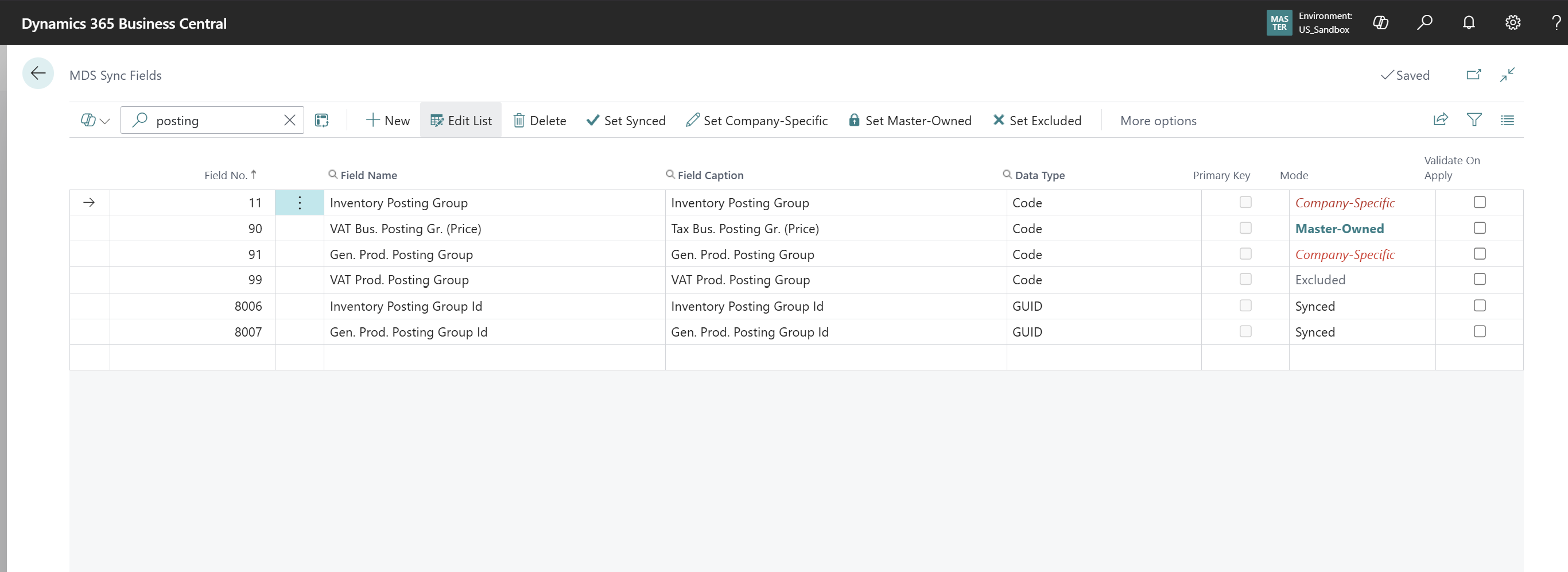
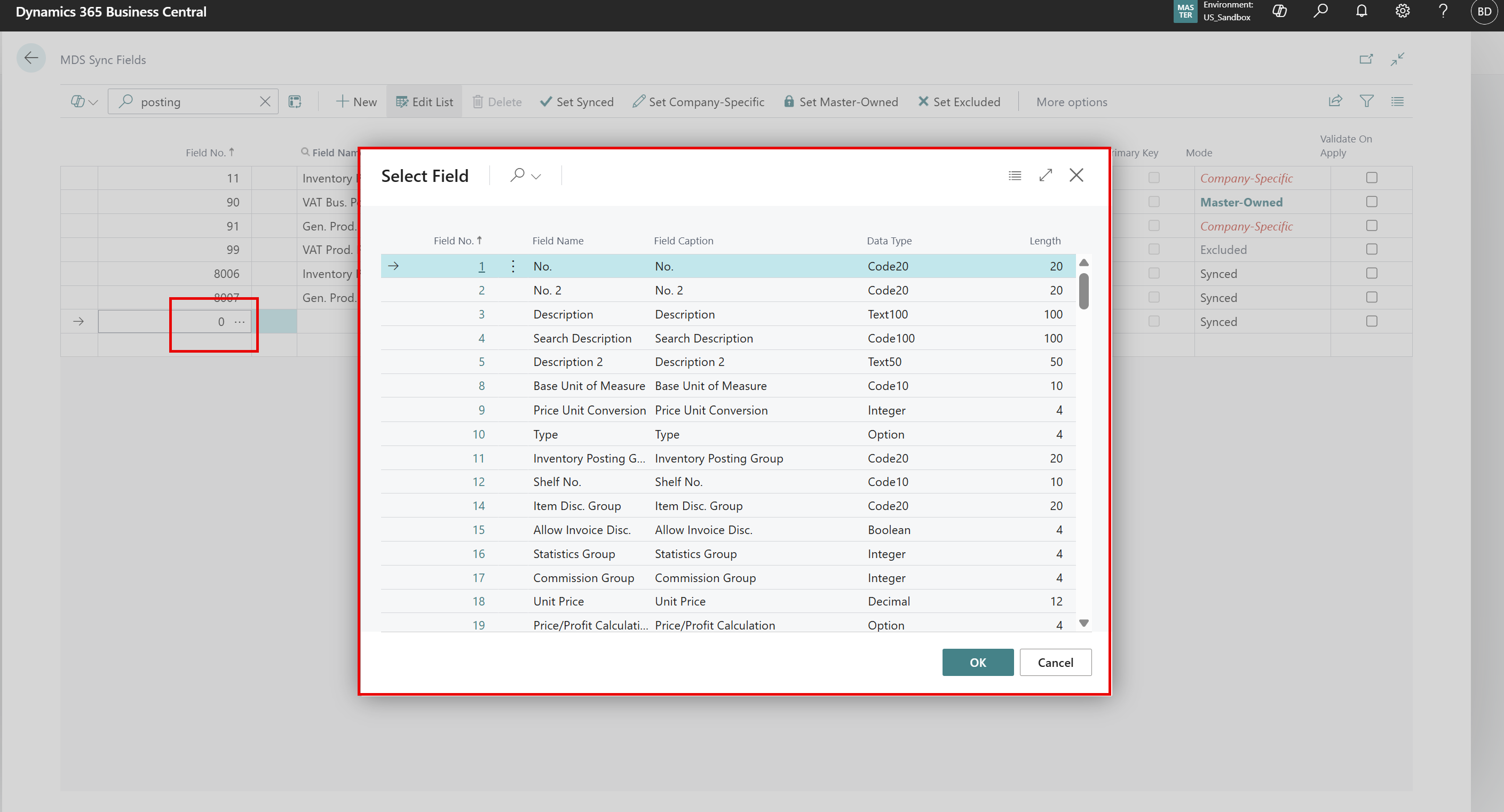
When you select a Field No.:
Here are the per-field exceptions for a table, in this company. A field without a line is synchronized. Listing a field as Synced is the same as not listing it.
| Field | Description | Example / values |
|---|---|---|
| Field No. | The field. The lookup shows number, name, caption, data type and length, and can be searched. | 91 |
| Field Name | Read-only. Technical name; can be filtered and searched. | Gen. Prod. Posting Group |
| Field Caption | Read-only. Display name. | Gen. Prod. Posting Group |
| Data Type | Read-only. Code, Text, Decimal, Option, Date and so on. | Code |
| Primary Key | Read-only. Key fields are always synchronized, whatever the mode. | No |
| Mode | The rule (see below). Shown in orange for Company-Specific, blue for Master-Owned, grey for Excluded. | Company-Specific |
| Validate On Apply | Runs the field’s validation logic when an incoming value is applied. Off: the value is written as received. | Off |
Field Modes
Here are the Field Modes:
| Mode | Sending company | Receiving company | Typical fields |
|---|---|---|---|
| Synced (default) | Sends the value | Applies it, after value maps | Description, category, blocked |
| Company-Specific | Sends it, marked as local to the sender | Uses it only when creating the record (the local template wins when it has the field); never overwrites it afterwards. Local edits are never sent on. | Posting groups, units, item type, costing method |
| Master-Owned | In a subscriber, its edits are not imposed on the master | Always applies the master’s value | Centrally governed fields |
| Excluded | Not sent | Not applied | Costs, modification dates |
These are never synchronized, whatever the mode:
- Calculated Fields (FlowFields)
- BLOB/Media Fields (such as pictures)
Actions
Here are the actions you can take:
| Action | What it does |
|---|---|
| Set Synced / Set Company-Specific / Set Master-Owned / Set Excluded | Sets the mode of all selected lines. |
| Refresh Field Names | Re-reads names, captions and data types from the table definition. |
| New / Delete | Add a rule for a field, or remove it (the field becomes Synced again). |
Tip To share only a few fields: Initialize Fields → select all → Set Excluded → select the fields to share → Set Synced.
MDS Value Maps
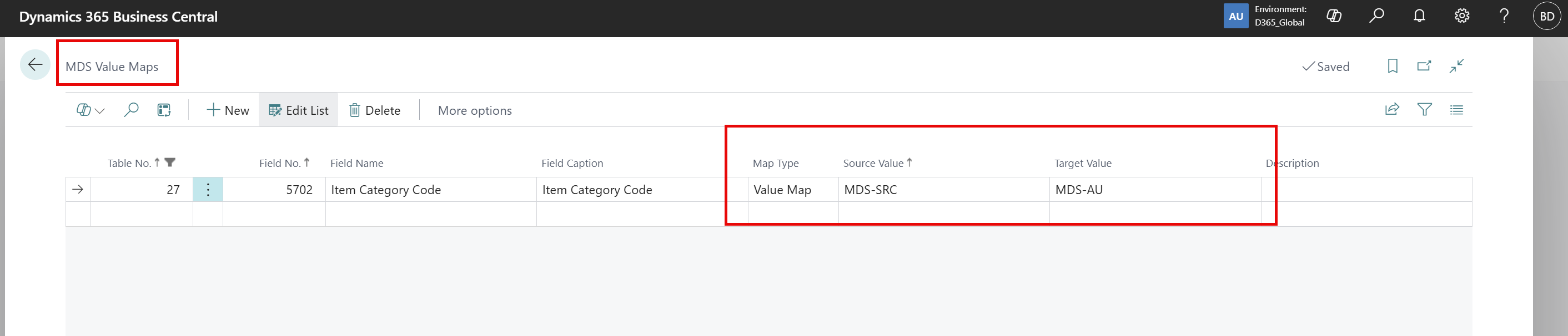
Translates an incoming value into this company’s value. Because maps are defined in the receiving company, every company can translate the same value differently. A two-step translation (subscriber → master code → other subscriber code) is set up with a map in the master and a map in each subscriber.
| Field | Description | Example / values |
|---|---|---|
| Table No. | The synchronized table. | 27 |
| Field No. | The field to translate. The lookup shows field names. | 5702 |
| Field Name / Field Caption | Read-only. Fills in when the field number is entered. | Item Category Code |
| Map Type | Value Map: one source value to one target value. Constant: every incoming value becomes the target value (Source Value = *). | Value Map |
| Source Value | The incoming value, or * for a constant. | MDS-SRC |
| Target Value | The value stored in this company. It must exist here when the field refers to a setup table. | MDS-AU |
| Description | Free text. | Master category → AU category |
Note: For logic that a value map cannot express, developers subscribe to the OnAfterMapValue event.
MDS Number Series & MDS Number Reservations
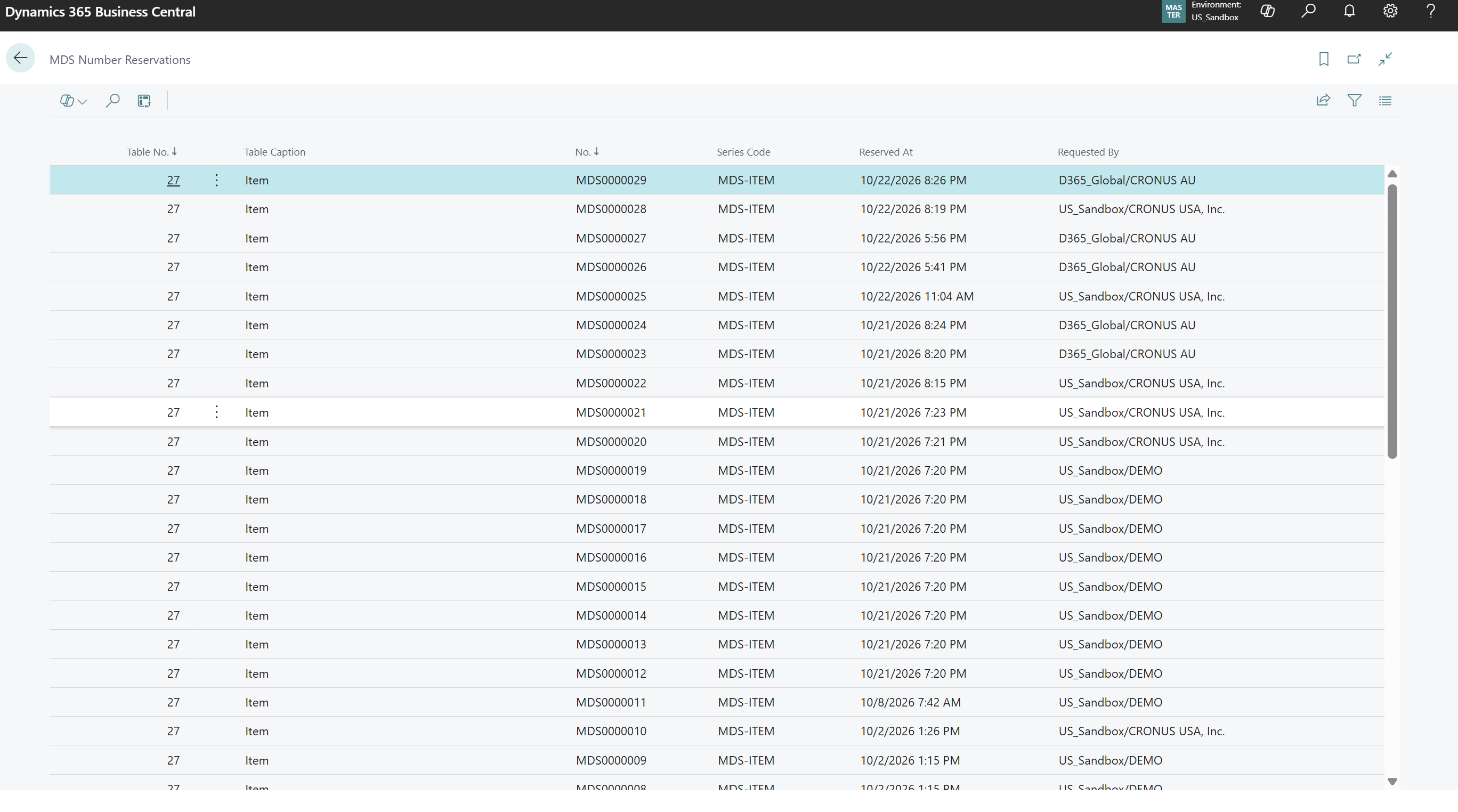
This shows the MDS Number Reservations:
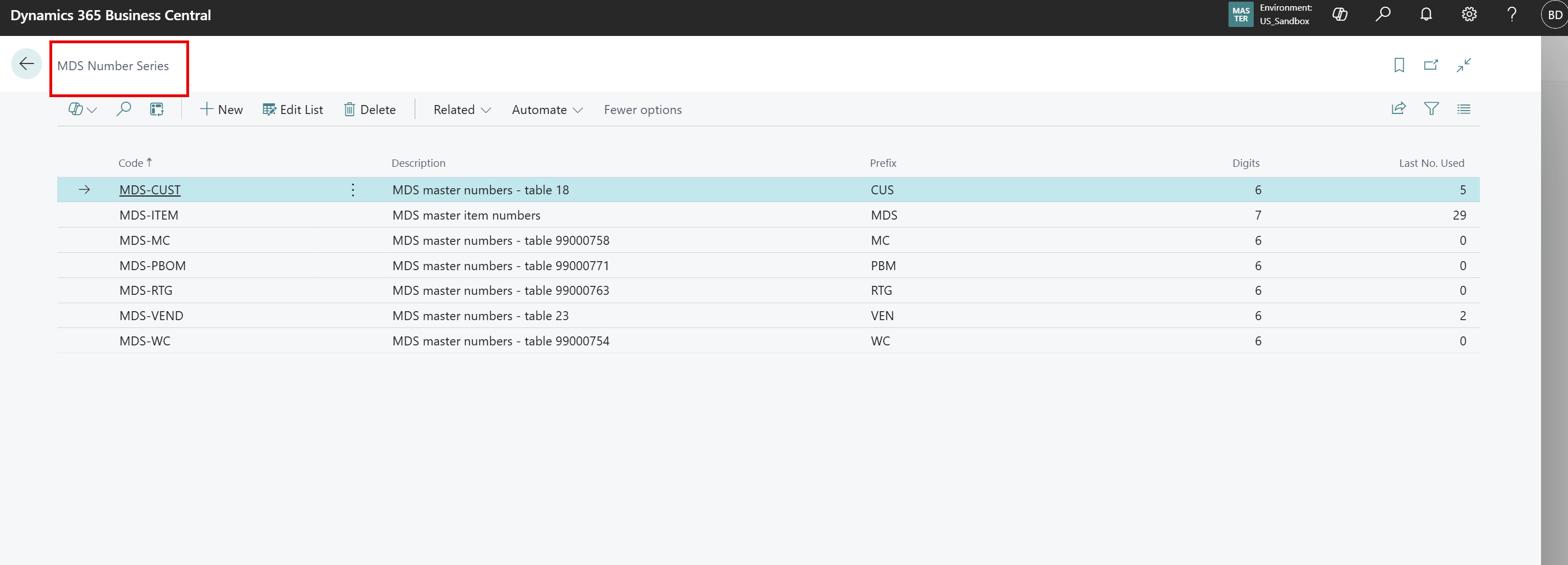
MDS Number Series (Master)
This is the MDS Number Series page, which defines the series used for master numbering.
| Field | Description | Example / values |
|---|---|---|
| Code | Identifier of the series, selected per table on MDS Sync Tables. | MDS-CUST |
| Description | Free text. | MDS master numbers - table 18 |
| Prefix | Fixed start of each number. | CUS |
| Digits | Length of the numeric part (zero-padded). Prefix + digits must fit 20 characters. | 6 → CUS000001 |
| Last No. Used | Numeric part of the last number issued. Set it to continue an existing numbering. | 12 |
The master locks the series while issuing a number, skips numbers that already exist as records or reservations, and records every number issued.
MDS Number Reservations
Here are the fields of the MDS Number Reservations page:
| Field | Description | Example / values |
|---|---|---|
| Table No. / Table Caption | The table the number was reserved for. | 27 Item |
| No. | The reserved number. | MDS0000027 |
| Series Code | The series it came from (master). | MDS-ITEM |
| Reserved At | When the number was issued. | |
| Requested By | Environment/company that requested it. | D365_Global/CRONUS AU |
Important: For guaranteed unique numbers, turn off Manual Nos. on the local number series of master-numbered tables, so users cannot type numbers that bypass the master.
Monitoring Pages
This section will discuss Monitoring.
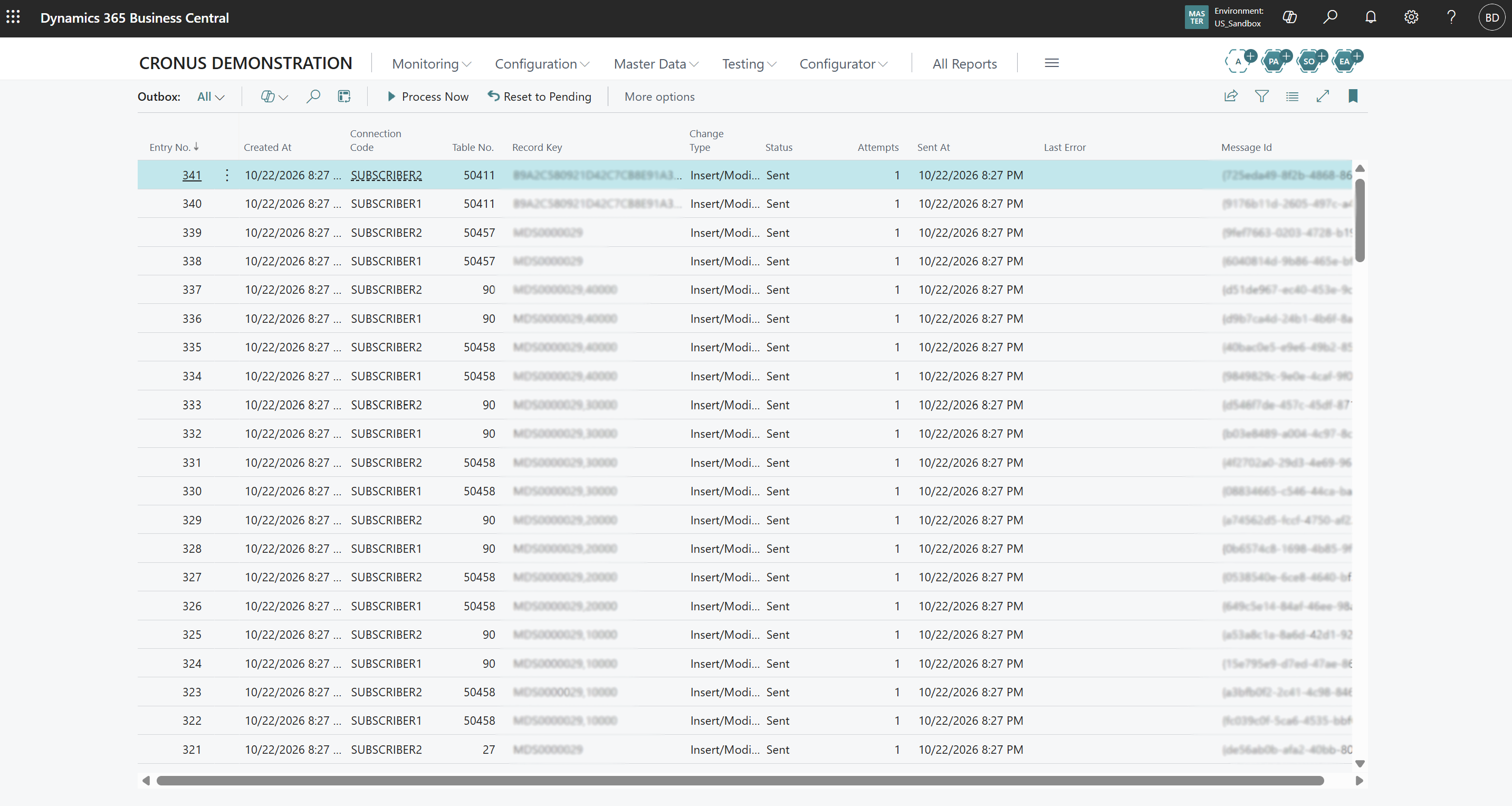
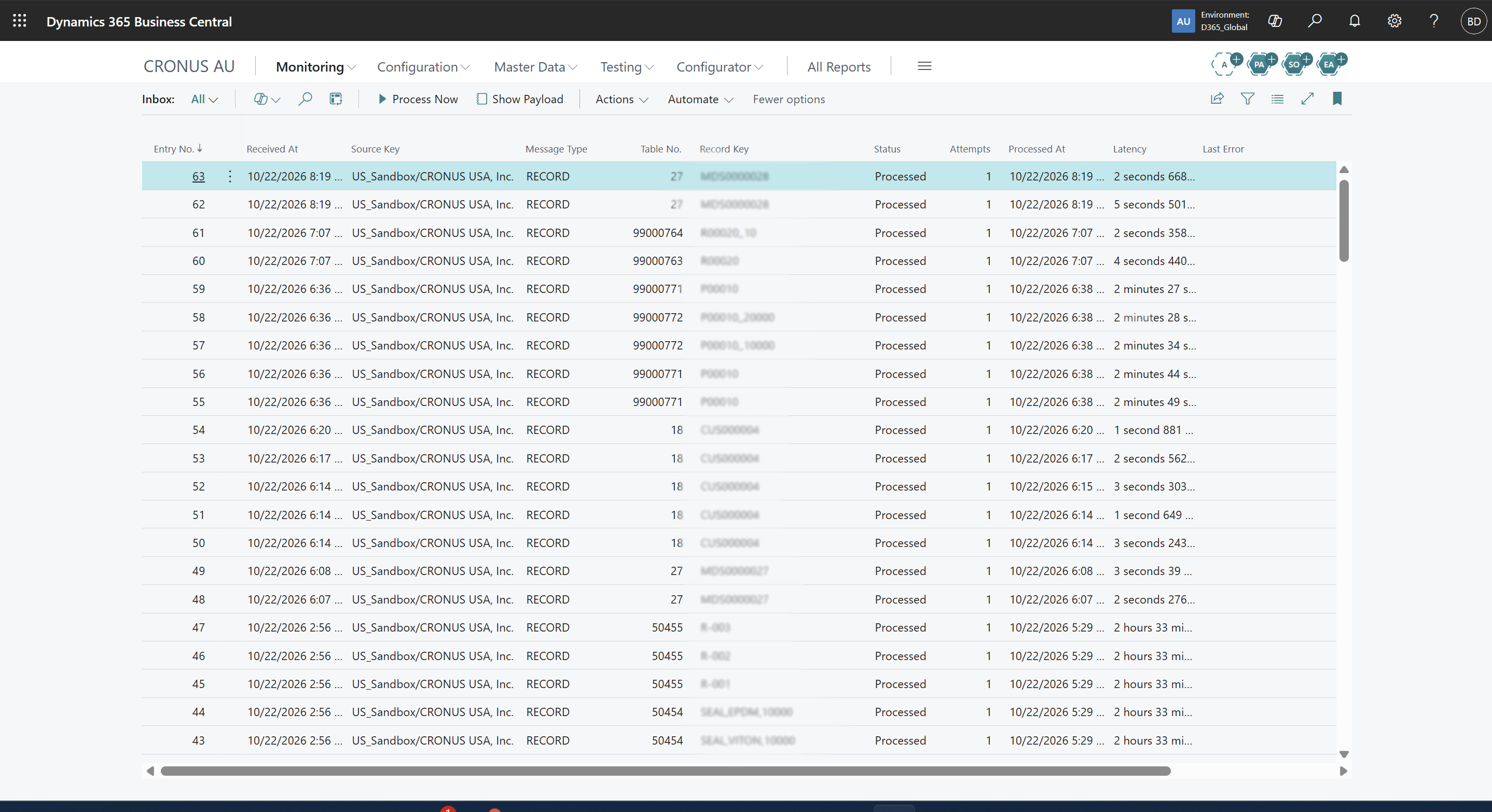
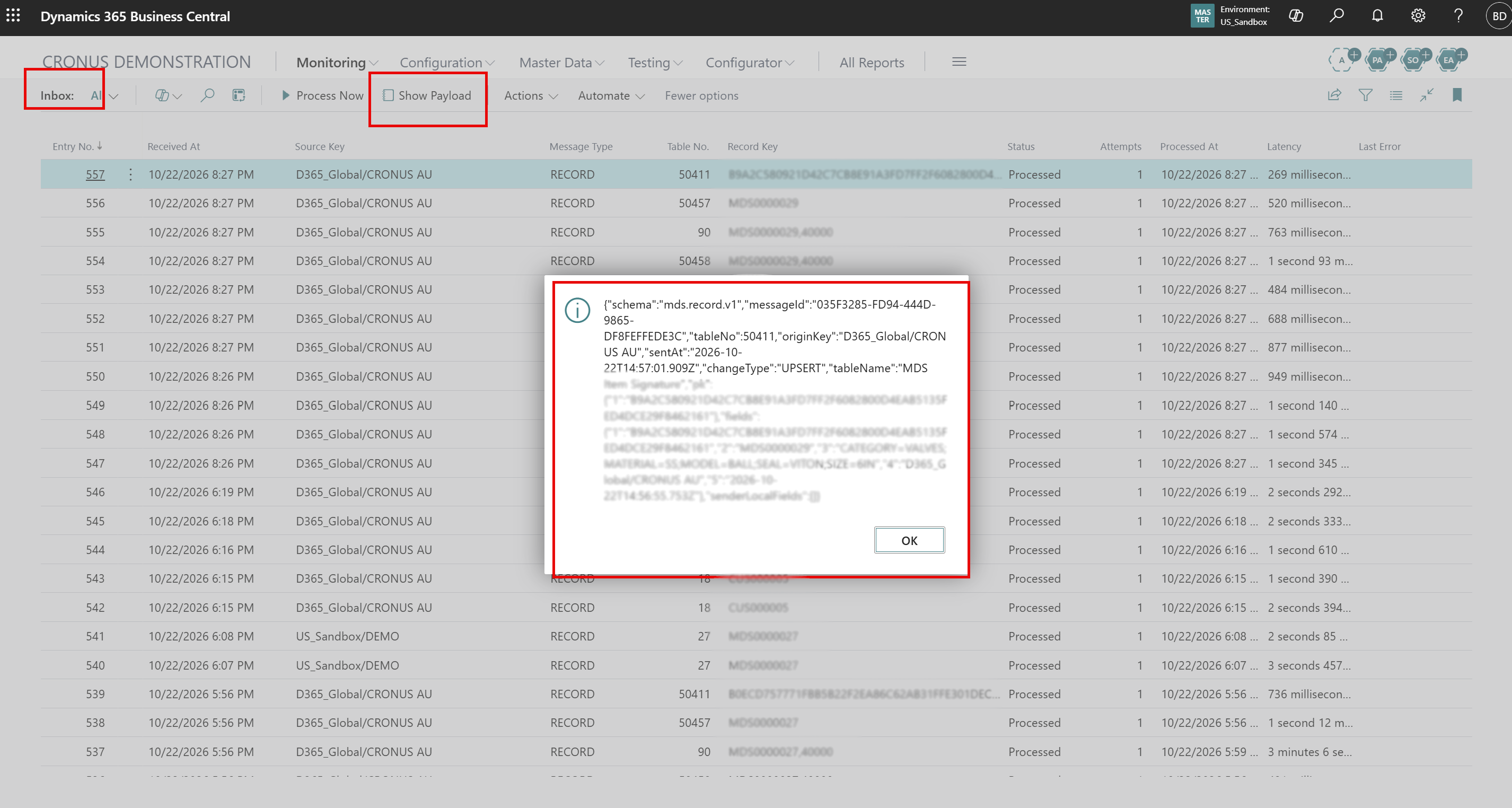
From the Inbox, you can select Show Payload to get more details.
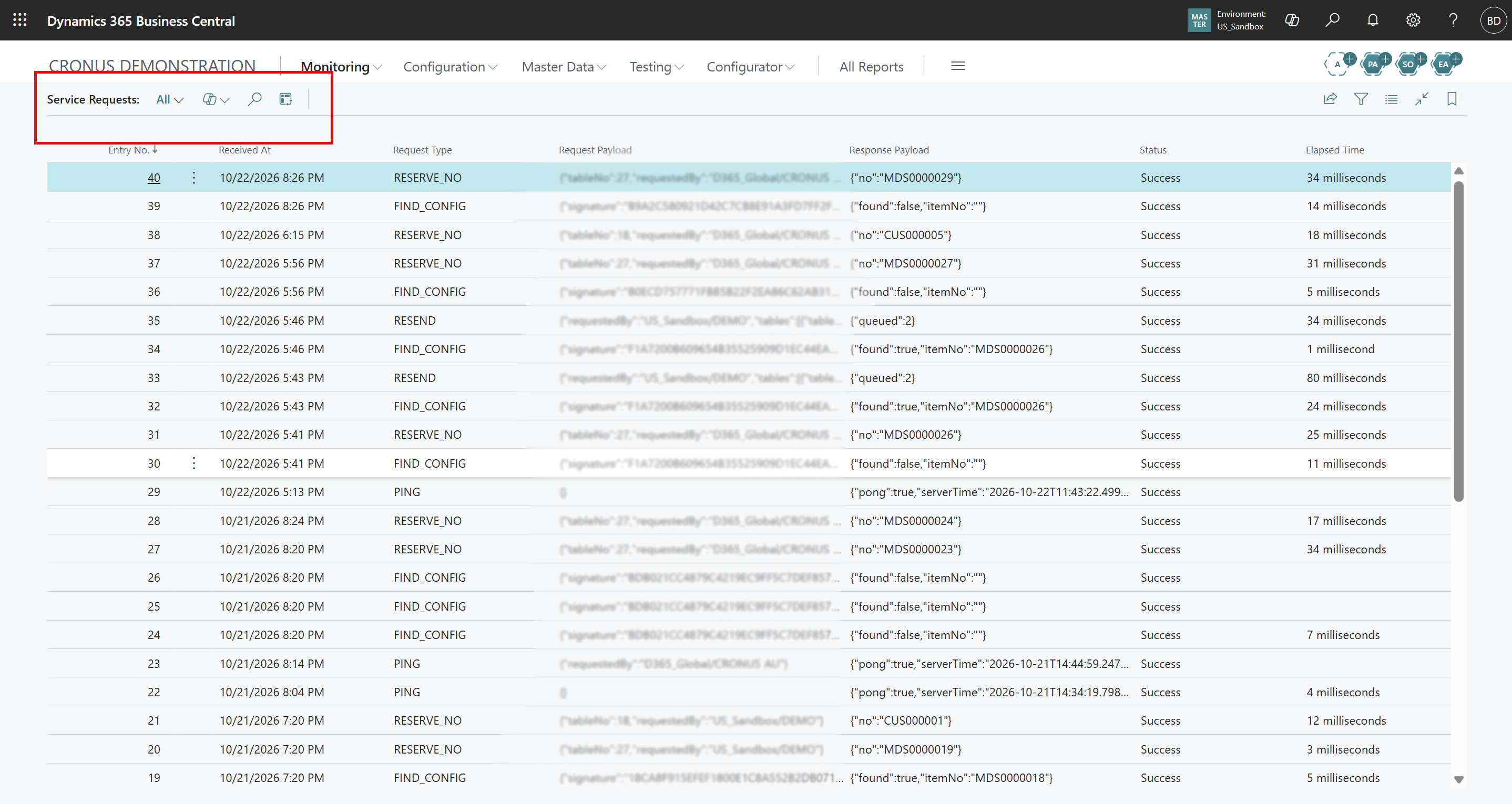
Here is an example of monitoring service requests.
MDS Outbox (Sending Company)
Here is a description of the fields for the MDS Outbox page:
| Field | Description | Example / values |
|---|---|---|
| Entry No. | Sequence of capture. | 1201 |
| Created At | When the change was captured. | |
| Connection Code | Where it is sent. | SUBSCRIBER1 |
| Table No. / Record Key | The record changed. | 27 / MDS0000027 |
| Change Type | Insert/Modify or Delete. | Insert/Modify |
| Status | Pending, Processing, Sent, Failed, Skipped (record deleted before it was sent; a later entry carries its state). | Sent |
| Attempts / Last Error | Delivery attempts and the last error. | |
| Sent At | When it was delivered. | |
| Message Id | Unique ID; the receiver ignores an ID it has already received. | GUID |
Actions
| Action | What it does |
|---|---|
| Process Now | Sends all pending entries now. |
| Reset to Pending | Sets selected Failed or stuck entries back to Pending, with attempts reset. |
MDS Inbox (Receiving Company)
Here is a description of the fields for the MDS Inbox page:
| Field | Description | Example / values |
|---|---|---|
| Entry No. / Received At | Order and time of receipt. | |
| Source Key | Environment/company that sent it. Subscribers only receive from the master. | US_Sandbox/CRONUS USA, Inc. |
| Message Type | RECORD (data) or PING. | RECORD |
| Table No. / Record Key | The record applied. | 50457 / MDS0000027 |
| Status | Pending, Processing, Processed, Failed. | Processed |
| Attempts / Last Error | Processing attempts and the last error. | |
| Processed At | When it was applied. | |
| Latency | End-to-end time from the sender building the message to this company applying it. Includes waiting time for reprocessed messages. | 1 second 981 ms |
| Message Id | Unique ID of the message. | GUID |
Actions
| Action | What it does |
|---|---|
| Process Now | Applies all pending messages now. |
| Reset to Pending | Sets selected Failed or stuck messages back to Pending. |
| Show Payload | Shows the JSON message: table, key, field values and the sender’s local fields. |
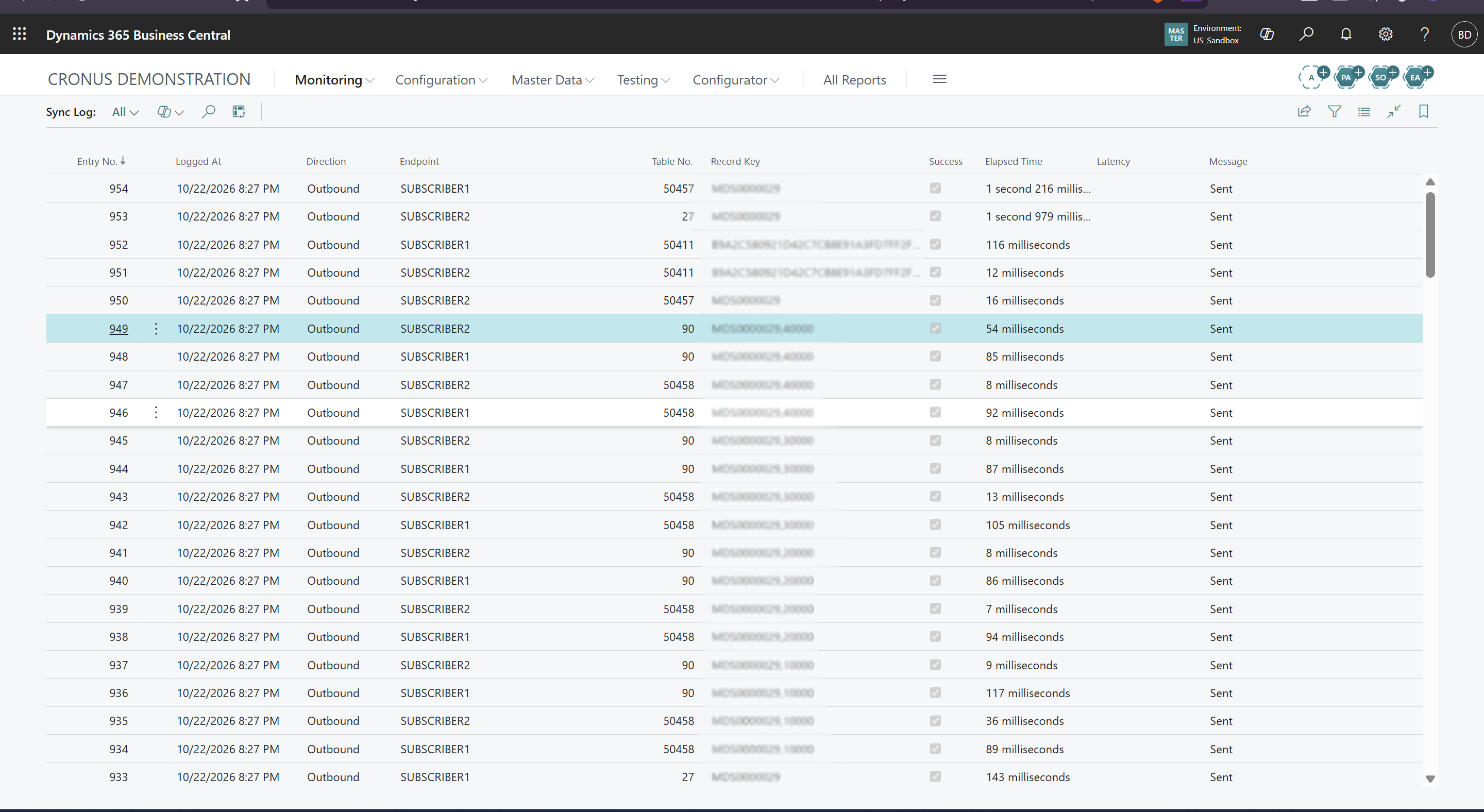
MDS Sync Log
| Field | Description | Example / values |
|---|---|---|
| Logged At / Direction | Time and type: Outbound (send), Inbound (apply), Service Call (real-time request). | Service Call |
| Endpoint | Connection or source. | MASTER |
| Table No. / Record Key | Record involved; for service calls, the request type. | RESERVE_NO |
| Success / Message | Result and details or the error. | |
| Elapsed Time | Duration of the operation. | 312 ms |
| Latency | Inbound: end-to-end latency. |
MDS Service Requests (Master Side of Real-time Calls)
| Field | Description | Example / values |
|---|---|---|
| Request Type | PING, RESERVE_NO, RESERVE_ITEM_NO, FIND_CONFIG, RESEND. | RESERVE_NO |
| Request Payload / Response Payload | The JSON request and answer. | {"no":"CUS000013"} |
| Status / Received At / Elapsed Time | Result, time of receipt and processing time. |
Resolving a Failed Entry
To resolve a failed entry, follow these steps:
-
Open MDS Outbox (Sending Company) or MDS Inbox (Receiving Company), filter Status = Failed.
-
Read Last Error and fix the cause.
-
Select the entries → Reset to Pending → Process Now. Records are matched on their key, so reprocessing never creates duplicates.
Configuration Registry & Testing Pages
Here are the MDS Item Signatures.
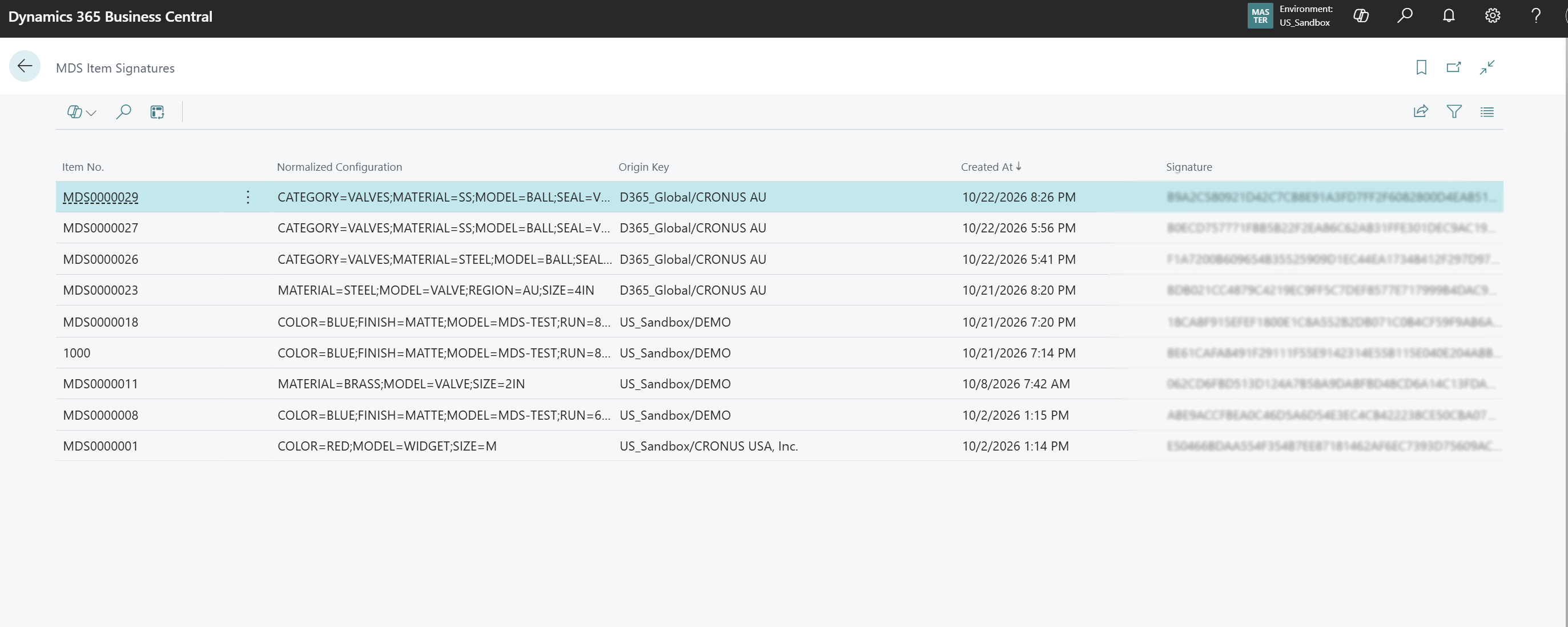
MDS Item Signatures (Configuration Registry)
| Field | Description | Example / values |
|---|---|---|
| Item No. | The item that represents the configuration. | MDS0000027 |
| Normalized Configuration | The configuration in sorted, upper-case form. Order and case of the options do not matter. | CATEGORY=VALVES;MATERIAL=SS;… |
| Origin Key | Where the configuration was created first. | D365_Global/CRONUS AU |
| Created At | When it was registered. | |
| Signature | SHA-256 identity of the normalized configuration; the key used for real-time lookups. | B0EC… |
Open Check Master and view Result.
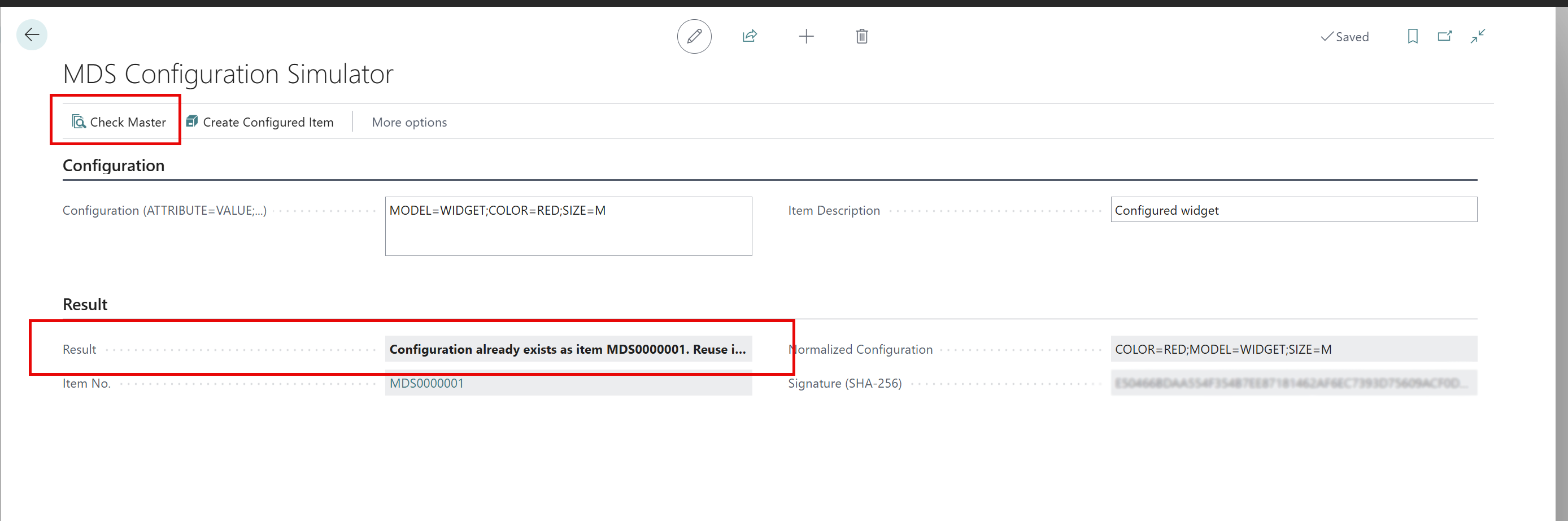
MDS Configuration Simulator
| Field | Description | Example / values |
|---|---|---|
| Configuration | ATTRIBUTE=VALUE pairs separated by semicolons. | MODEL=PUMP;FLOW=50 |
| Item Description | Description of a new configured item. | UAT pump 50 |
| Result / Item No. | Outcome and the existing or new item (choose the number to open the card). | |
| Normalized Configuration / Signature | The normalized form and its signature. |
Actions
| Action | What it does |
|---|---|
| Check Master | Checks this company, then the master, in real time. |
| Create Configured Item | Reserves a master number, creates the item with local values and registers the configuration. |
| Open Item | Opens the item card. |
MDS Test Scenarios
Here are scenerios for MDS testing.
| Field | Description | Example / values |
|---|---|---|
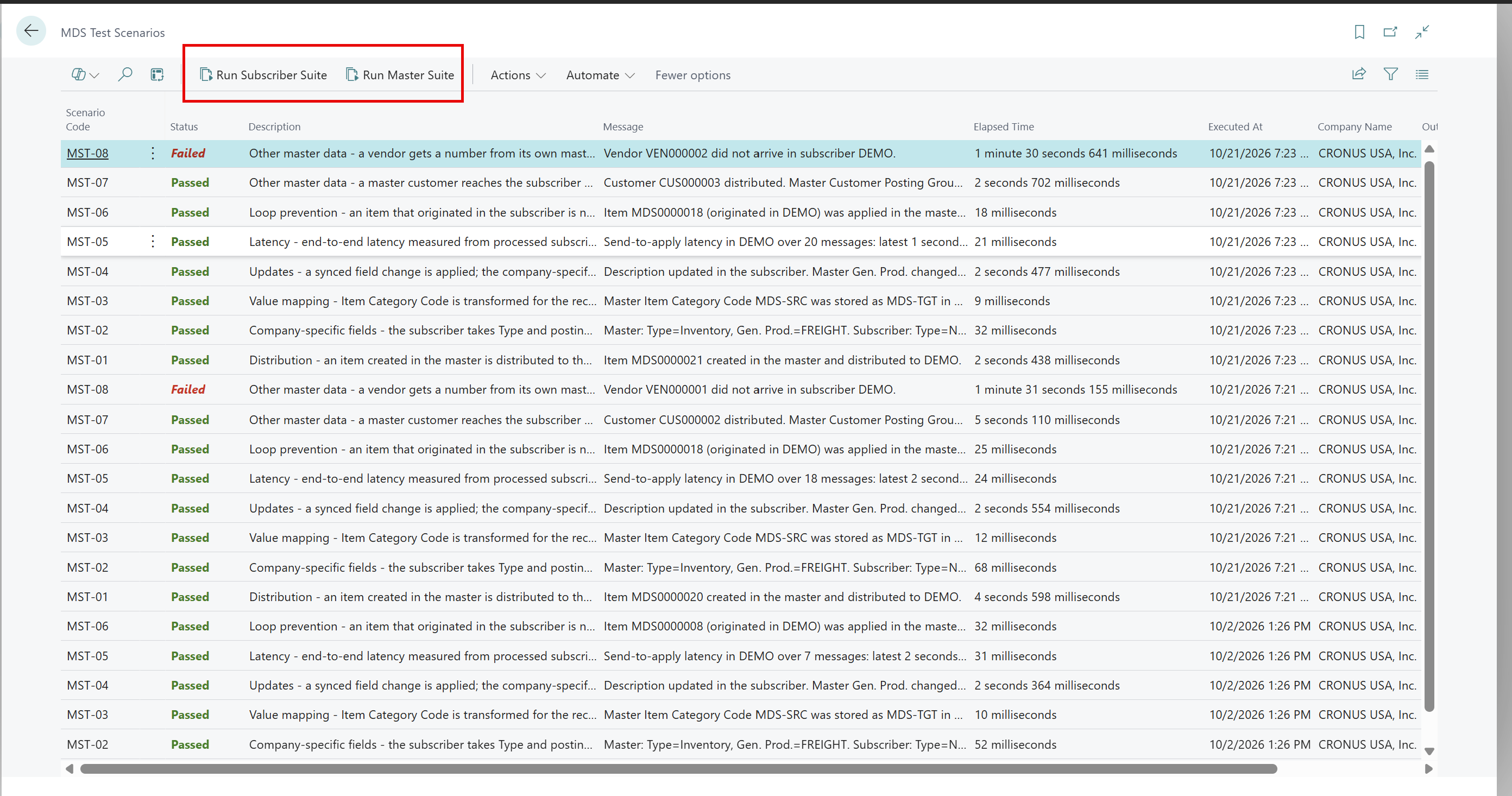
| Scenario Code / Description | SUB-01 to SUB-09 (subscriber suite), MST-01 to MST-08 (master suite), and what each proves. | MST-07 |
| Status | Running, Passed, Failed, Skipped (prerequisite missing or wrong company). | Passed |
| Message | Evidence or failure reason. | |
| Elapsed Time / Executed At / Company Name | Duration, time and company of the run. | |
| Output Value | Value produced and reused by later scenarios. | CUS000003 |
Actions
| Action | What it does |
|---|---|
| Run Subscriber Suite | Run in the subscriber first. |
| Run Master Suite | Run in the master afterwards. |
| Delete Results | Removes test results (test data is kept). |
You have the options to Run Subscriber Suite and Run Master Suite.
Security & Permissions
In this section we will cover the security of the system, including permissions.
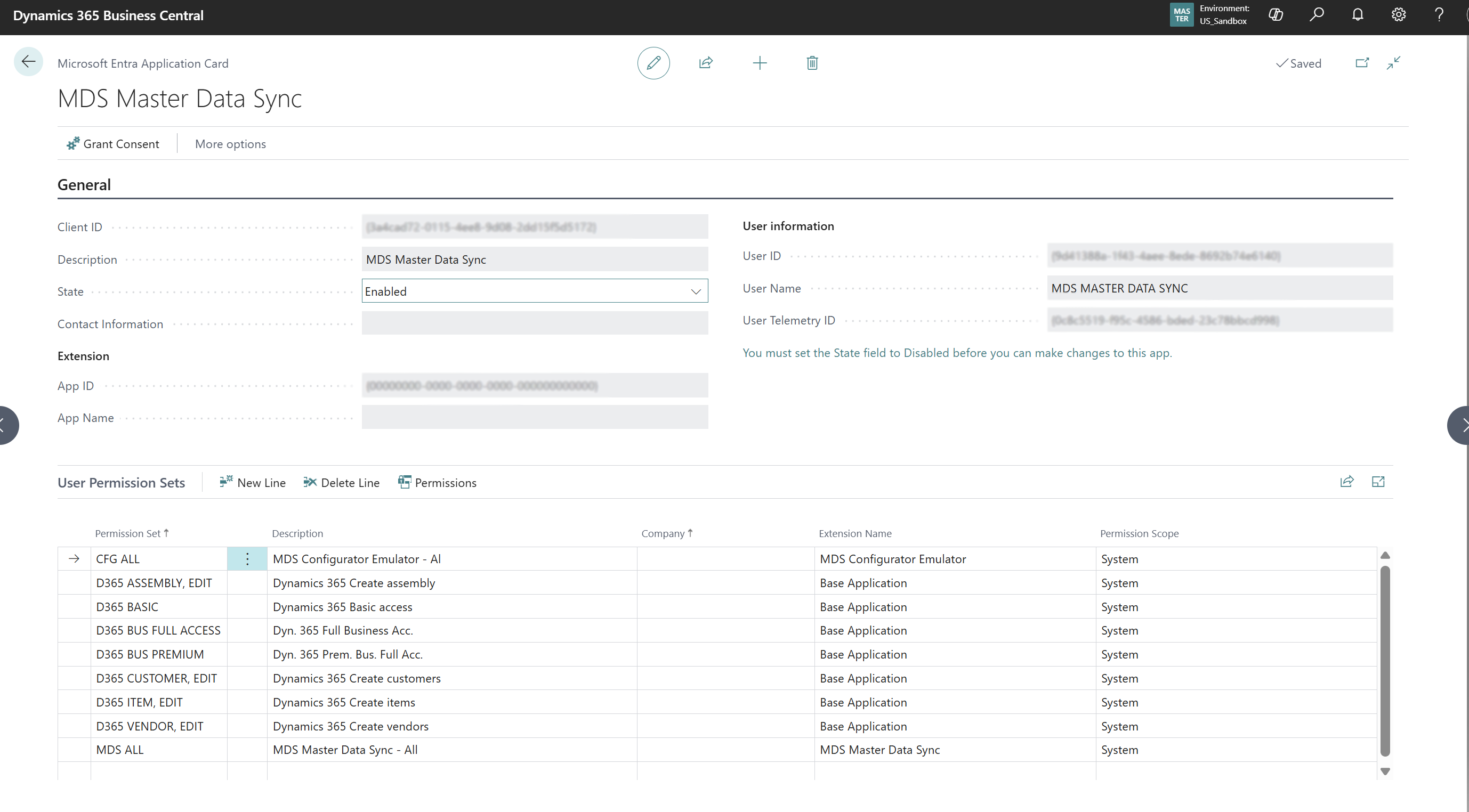
This table describes the Permission Set.
| Permission Set | Assign to | Covers |
|---|---|---|
| MDS ALL | Administrators | All Master Data Sync pages and tables. |
| MDS SYNC | The sync identity (Microsoft Entra application) in every environment | MDS ALL plus read/write on every table of the entity catalog. |
| D365 READ | The sync identity | Read access used by validation lookups. |
| CFG ALL (and other ISV sets) | The sync identity and configurator users | Tables of the companion or ISV app that are synchronized. |
-
Messages received through the API are applied by the Microsoft Entra application; messages within one environment are applied by a background task running as the user who caused them. Both identities need permission for the synchronized tables.
-
Users who only create or change master data do not need MDS ALL; capture and numbering run with the app’s own permissions.
-
Authentication between environments uses OAuth 2.0 client credentials. Secrets are kept in isolated storage. Every message and number reservation is logged.
Troubleshooting
In this section we will discuss how to troubleshoot known errors based on symptom or message. You can select Actions to resolve the issue from the menu bar (e.g. Process Now).
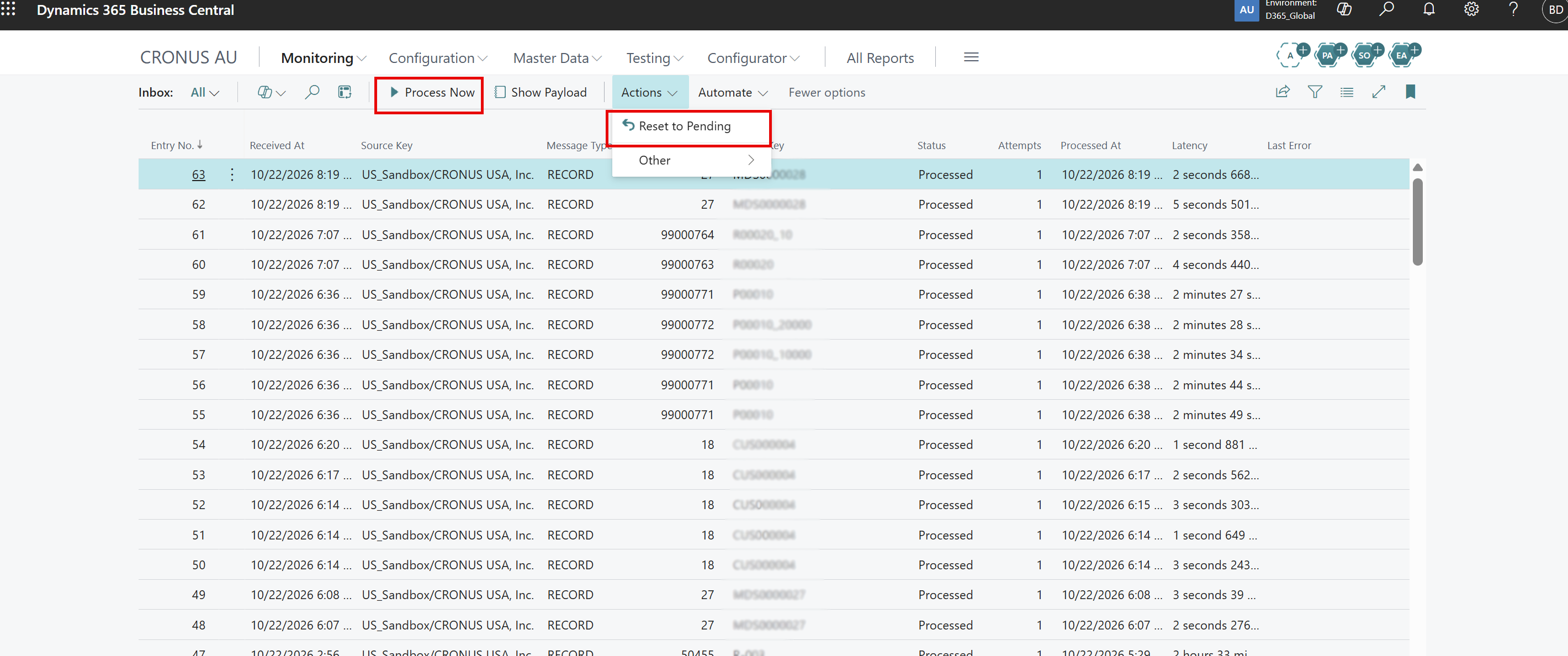
Here is a table of items for troubleshooting and the recommended fix:
| Symptom or Message | Cause | Fix |
|---|---|---|
"The current permissions prevented the action (TableData ... : MDS Master Data Sync)" | The identity applying the message has no permission for that table (often ISV or manufacturing tables). | Assign MDS SYNC, D365 READ and the ISV set to the Entra application (and users); Reset to Pending → Process Now. |
"Your license does not grant you ... Execute" | Outdated app version without inherent permissions. | Install the current version. |
Test Connection: "blocked by the runtime" | Sandbox blocks outbound calls. | Extension Management → Configure → Allow HttpClient Requests (check again after each publish). |
Test Connection: HTTP 401 / 403 / 404 | App not registered or disabled / missing permissions / wrong environment or company. | Microsoft Entra Applications; permission sets; Select Target environment or Company. |
"Table ... is not enabled for synchronization in company ..." | The receiving company has not enabled the table. | Add or enable it on MDS Sync Tables, then reprocess. |
Nothing in the Outbox after a change | The table is not in Sync Tables, or the user session started before it was added. | Add the table or entity; sign out and in; change the record again. |
Existing records not in other companies | Only new and changed records travel automatically. | Request Initial Load in the subscriber. |
Routing or BOM lines missing references | Prerequisite data not synchronized. | Add the entity again (prerequisites are added automatically), then initial load in sequence order. |
"Type must be equal to Inventory" on an item with an assembly BOM | The local template sets Non-Inventory. | Set the local template and configurator category to Inventory; correct the existing item locally; reprocess. |
Configure Item: "...the master does not have the item... nothing to pull" | The originating company’s item or BOM was not applied in the master. | Fix the failed messages in the master’s Inbox, then configure again. |
Number not from the master on a new record | The template has its own number series, or master numbering is off for the table. | Turn on Override Local Nos. or Master Numbering on MDS Sync Tables. |