App for Outlook Admin Guide for Immigration in Legal Solution for Microsoft Dynamics 365
Are you ready to try the solution or have questions?

Introduction
The Dynamics 365 App for Outlook allows users to track emails and link them to Matters, Contacts, and Accounts in a legal environment. This guide explains the administrator steps required to prepare a new user in a production environment.
Setup
This guide explains the administrator steps required to prepare a new user for the Dynamics 365 App for Outlook for legal production environments.
Purpose
The existing App for Outlook User Guide explains how users track emails and link them to Matters, Contacts and Accounts. This Admin Setup Guide covers the setup that must happen before the app appears in Outlook.
At a Glance
-
Assign the user a valid Dynamics 365 licence and security access.
-
Confirm the user mailbox exists in Dynamics and uses Server-Side Synchronization.
-
Approve, Test & Enable the mailbox.
-
Assign the Dynamics 365 App for Outlook User security role directly to the user.
-
Deploy the App for Outlook to the eligible user from legal environment.
-
Ask the user to open Outlook and confirm Dynamics 365 appears under Apps.
Confirm the User Is Ready
Before configuring Outlook, confirm that the user is already set up for the legal environment.
-
A valid Dynamics 365 licence has been assigned.
-
The user has been added to your legal environment.
-
The correct Legal security role/team has been assigned.
-
The user has an Exchange Online mailbox.
Important: The user may have a Dynamics license and still not be eligible for App for Outlook until the mailbox and Outlook security privileges are configured.
Check the Mailbox and Server-Side Synchronization
The Dynamics 365 App for Outlook relies on Server-Side Synchronization. The user mailbox must exist in Dynamics 365 and be configured correctly before the app is deployed.
-
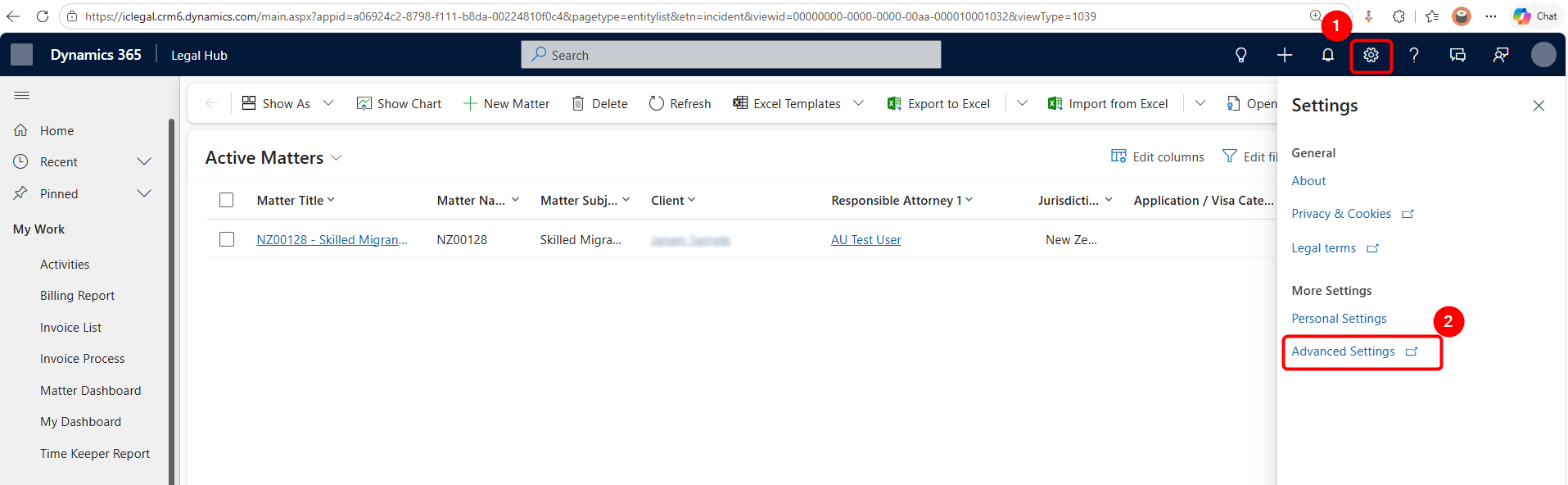
Open the Legal app as an administrator.
-
Go to Settings > Advanced Settings.
-
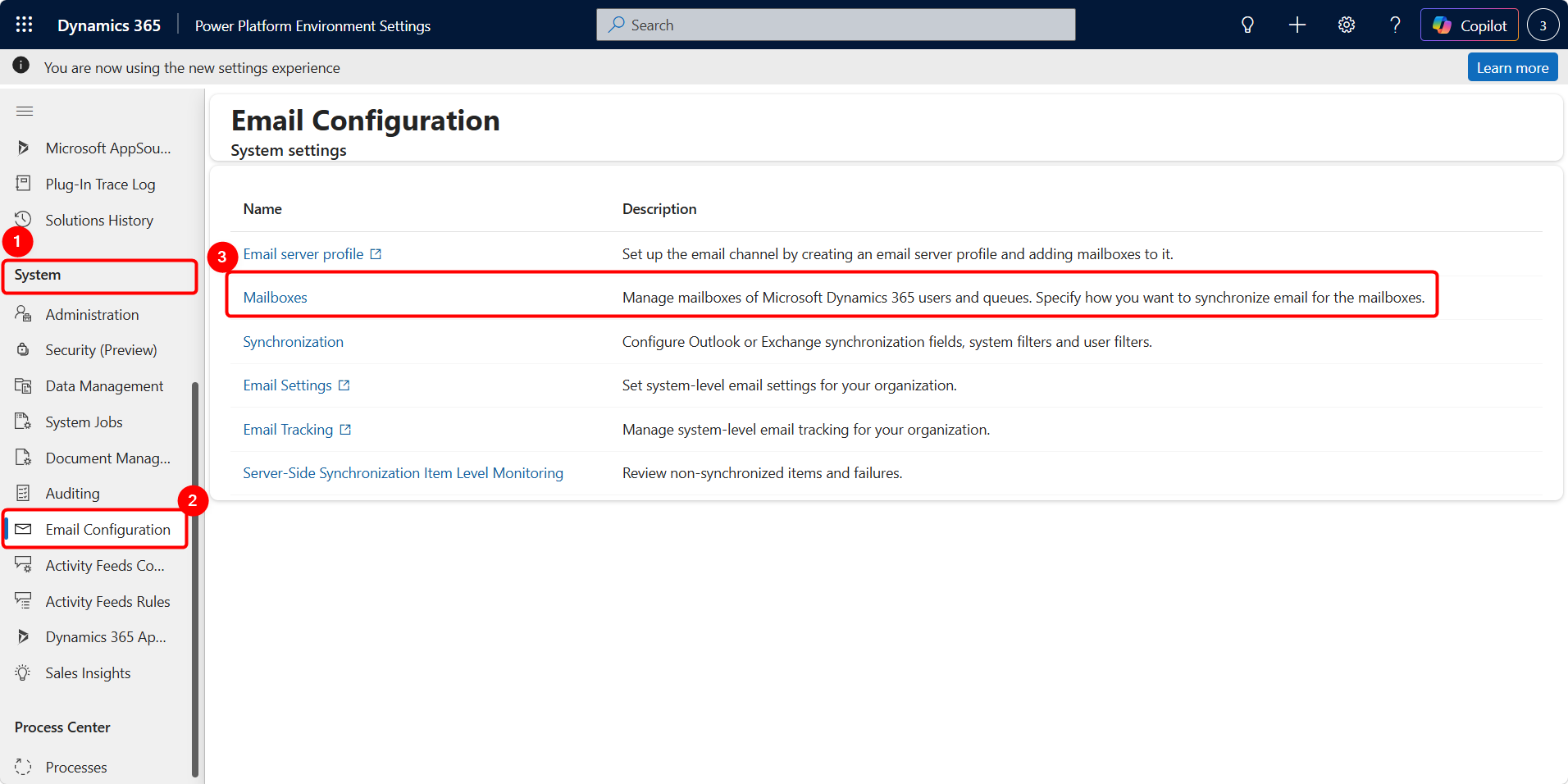
Open System > Email Configuration > Mailboxes.
-
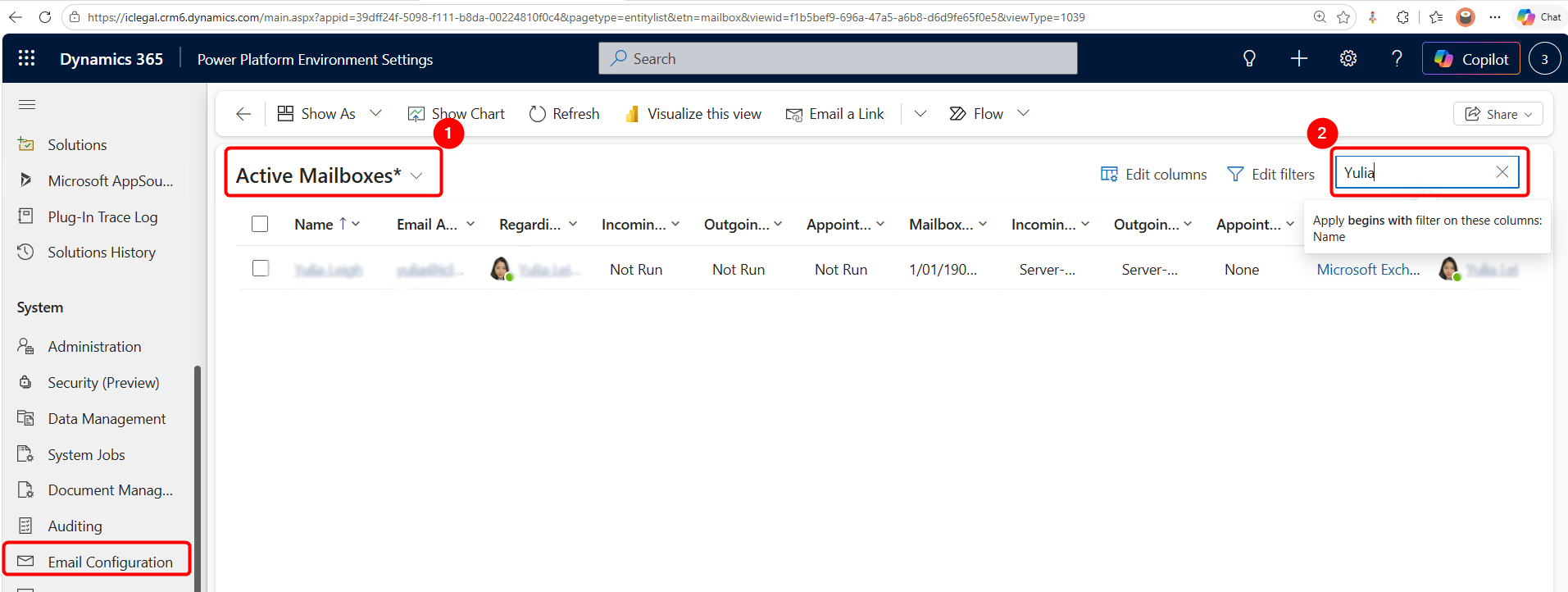
Change the view to Active Mailboxes and locate the user.
-
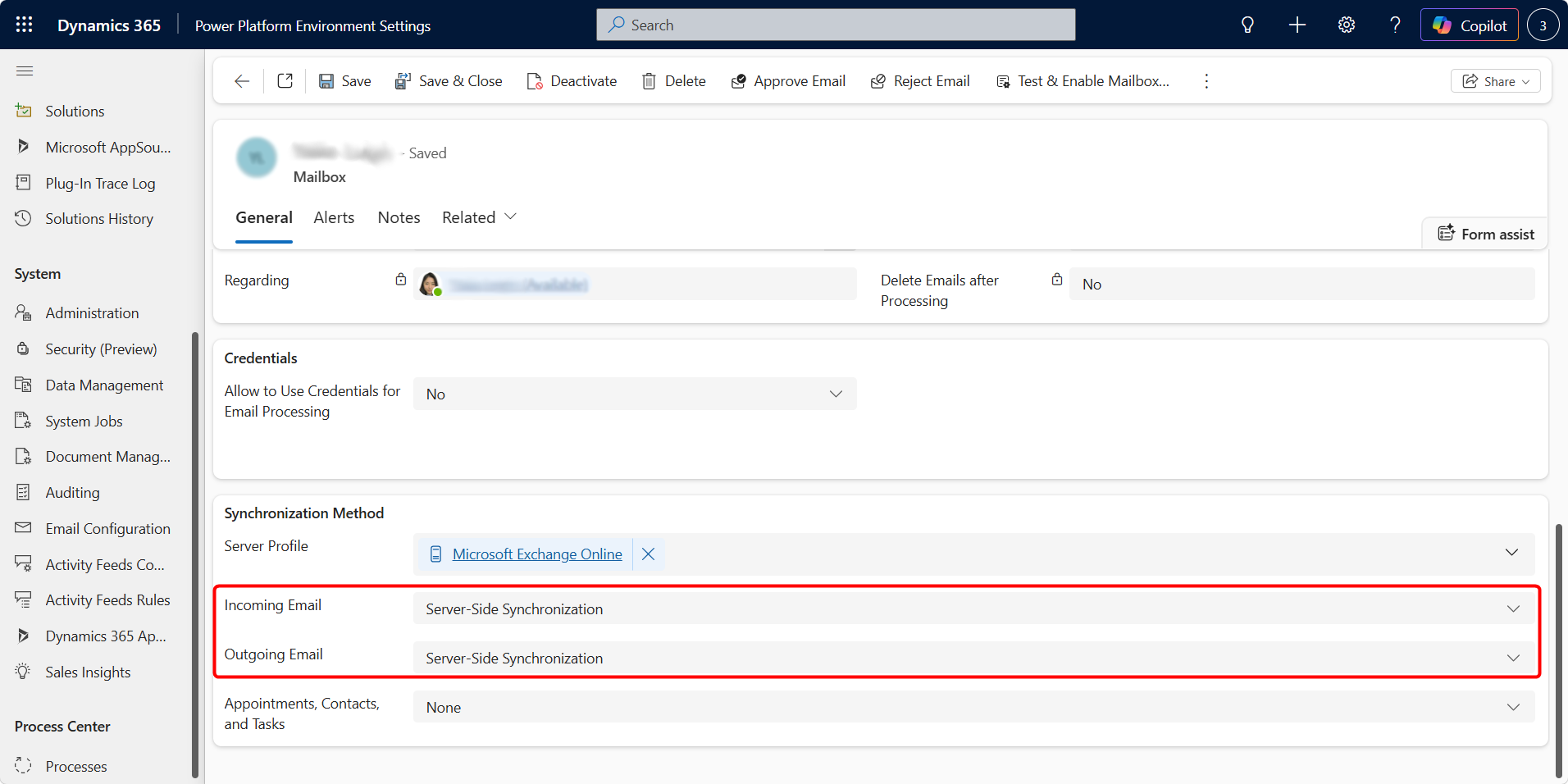
Open the mailbox and confirm the incoming/outgoing email synchronization method uses Server-Side Synchronization.
Approve, Test & Enable the Mailbox
-
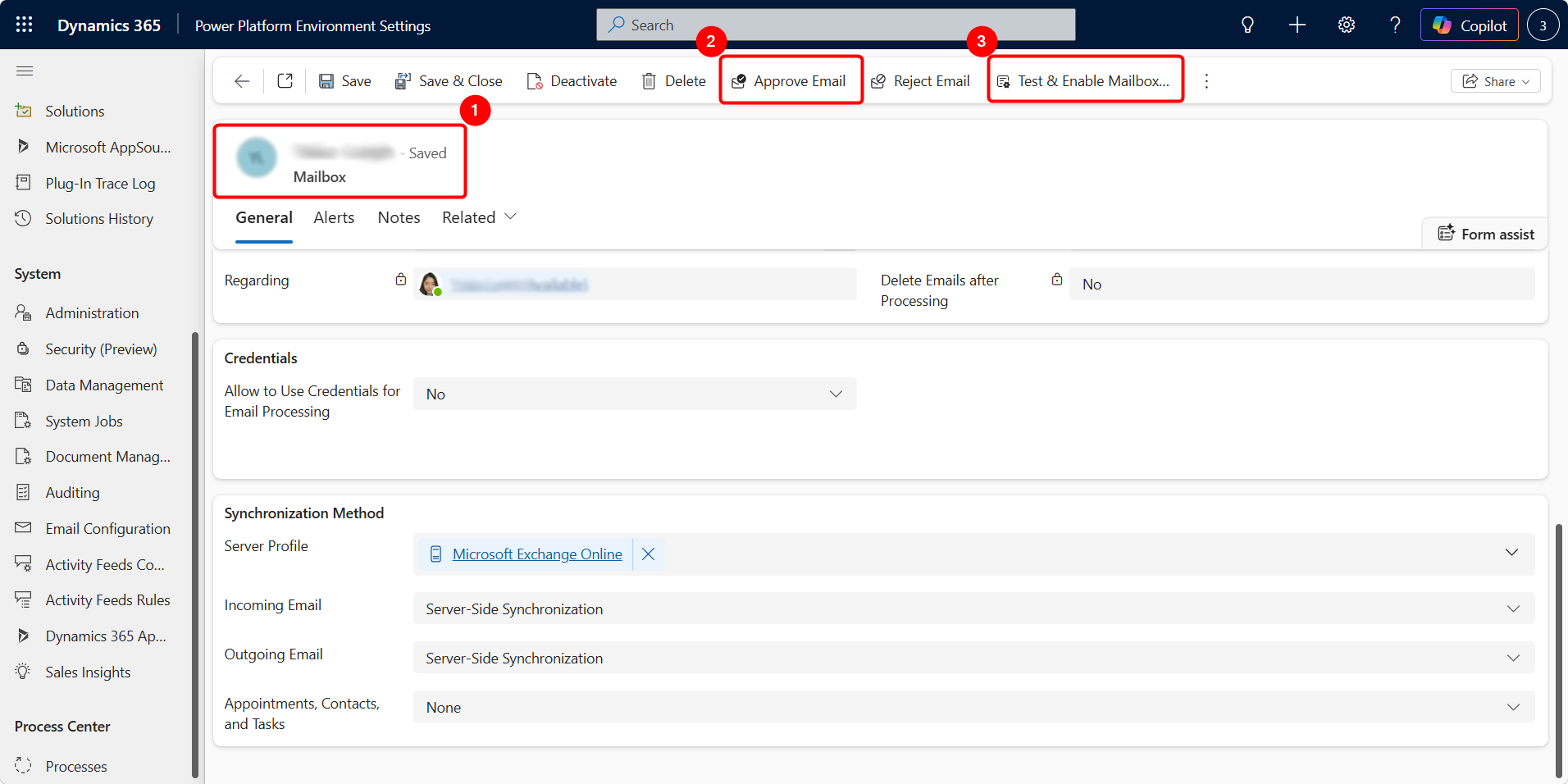
From Active Mailboxes, select the new user’s mailbox.
-
Select Approve Email and confirm the approval.
-
Select Test & Enable Mailbox.
-
Allow the process to complete. This may take a few minutes.
-
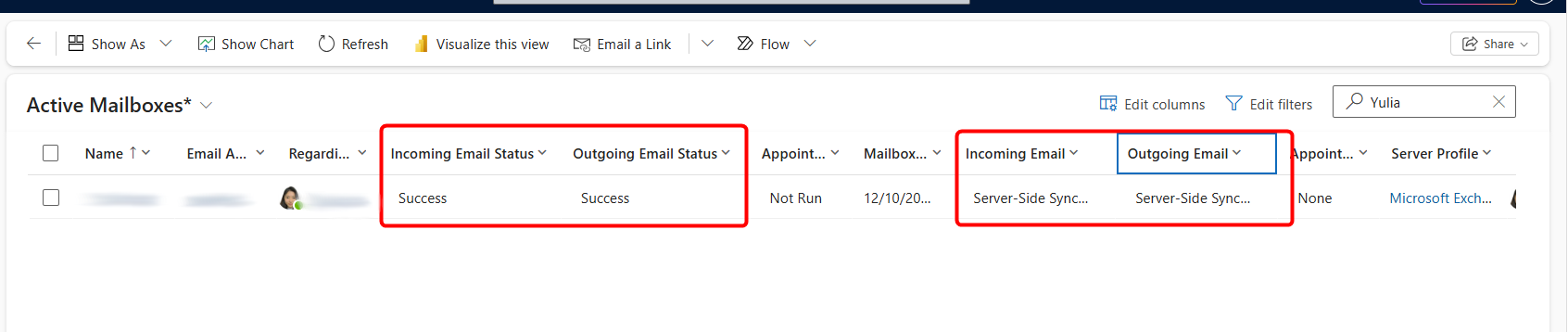
Open the mailbox again and confirm the relevant Test Results show Success.
Check: If the mailbox remains Not Run, Failure or shows an alert, resolve the mailbox issue before trying to deploy the Outlook app.
Assigning App for Outlook Security Access
The user needs the base privileges required by the Dynamics 365 App for Outlook in addition to their normal Legal Admin or Legal Standard access.
-
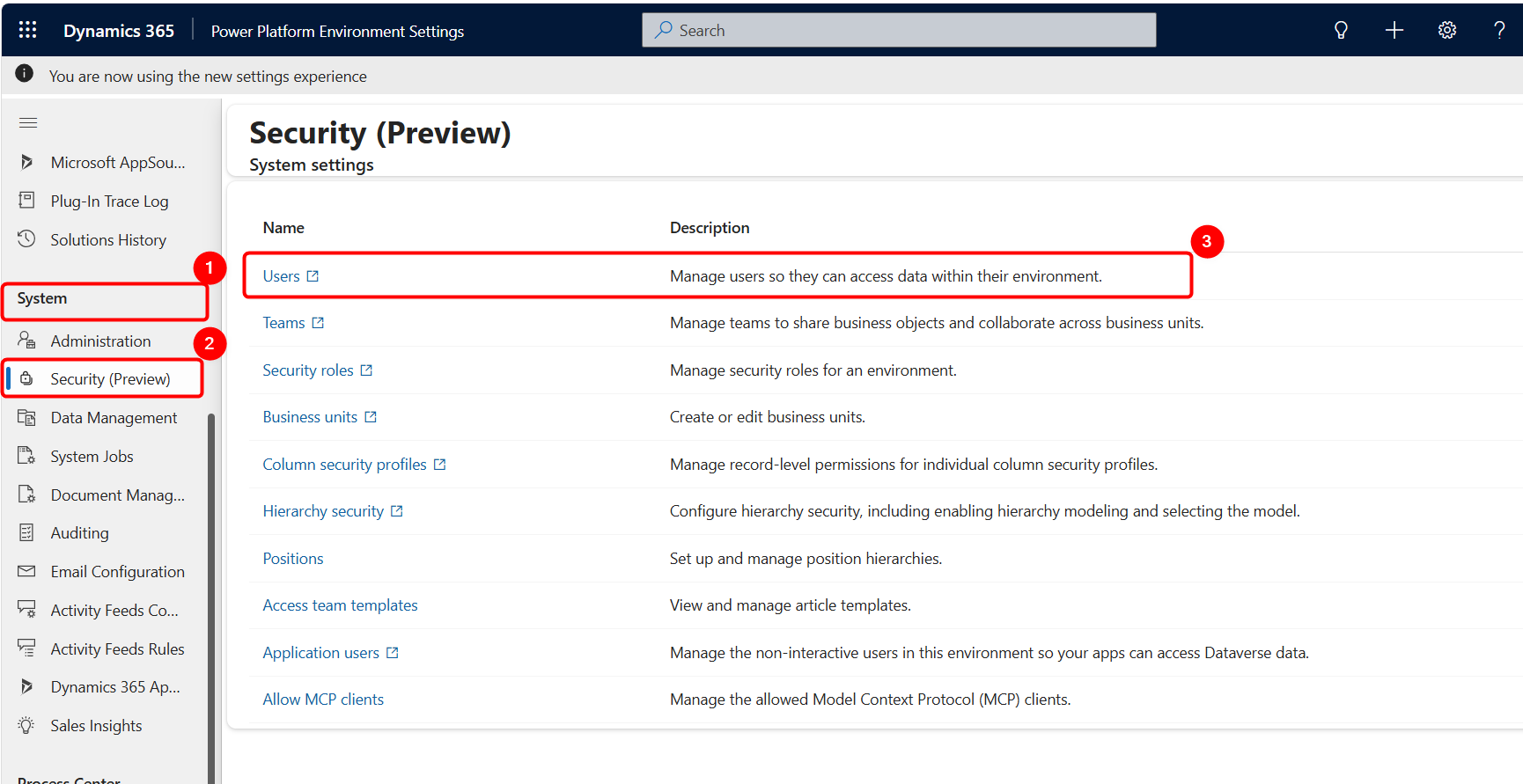
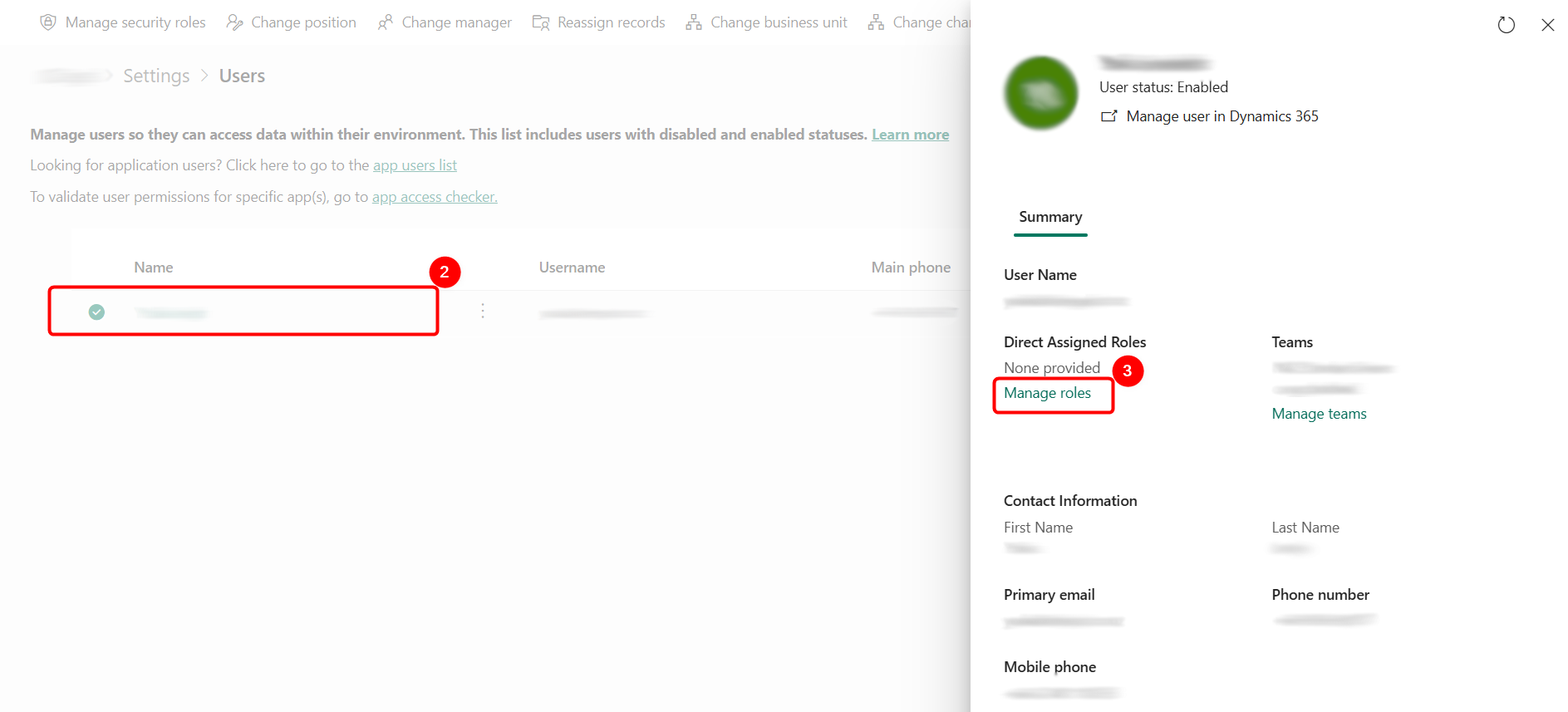
Go to System > Security > Users.
-
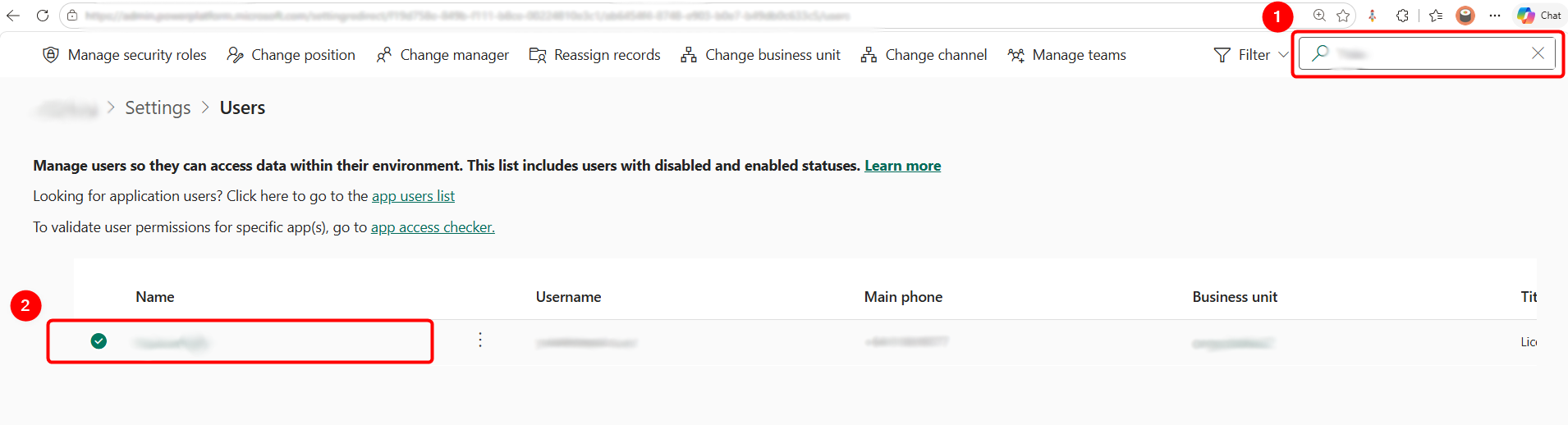
Select the user and choose Manage Roles.
-
Assign Dynamics 365 App for Outlook User.
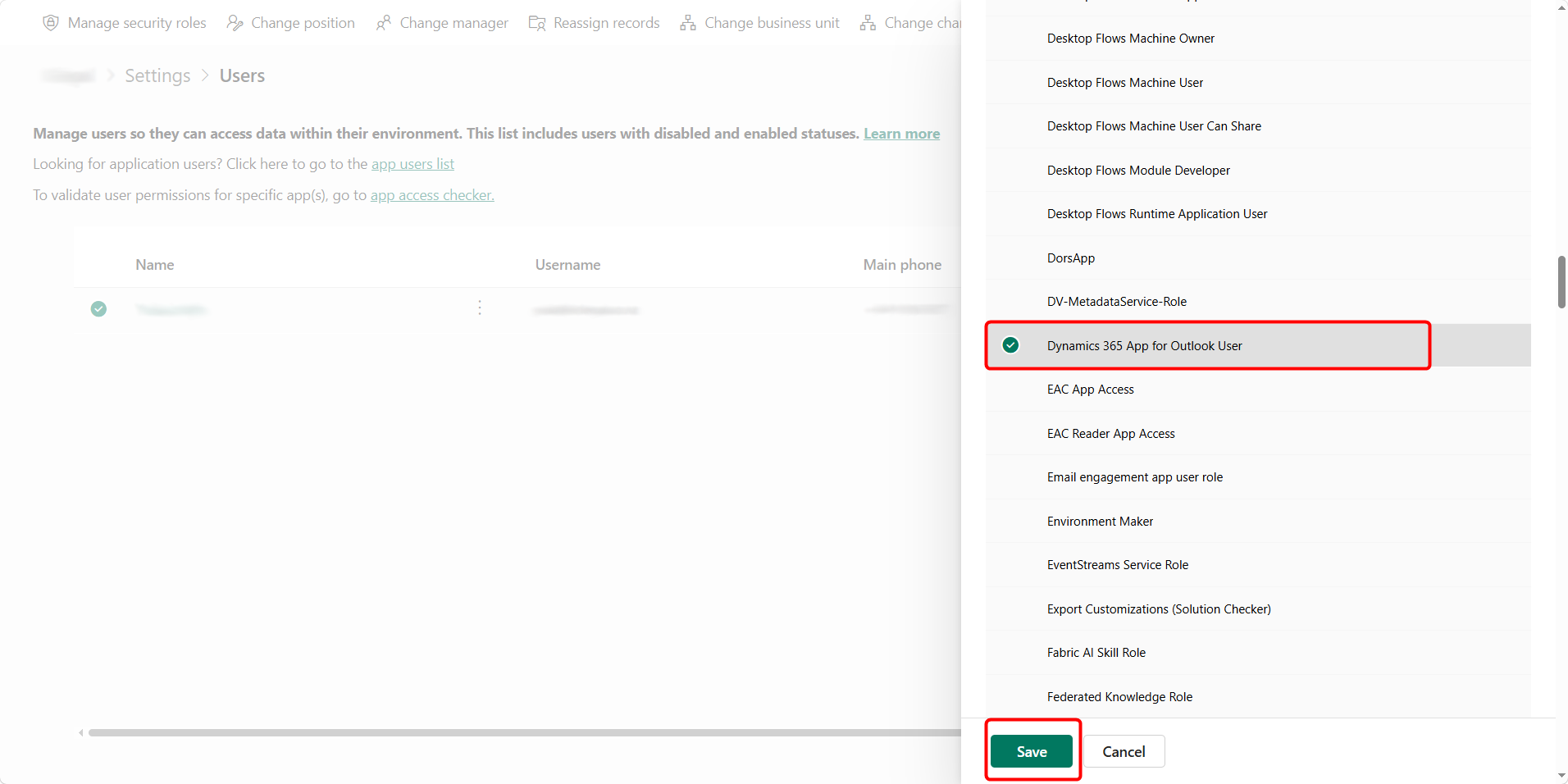
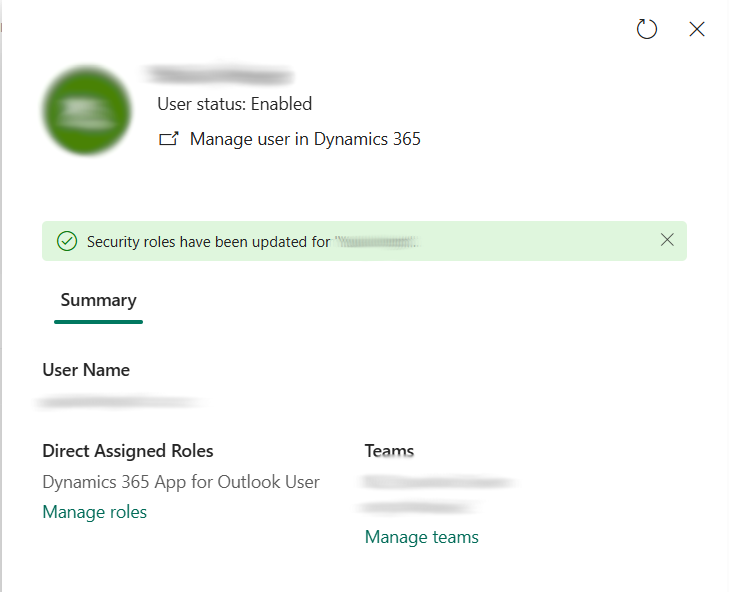
- Keep the user’s existing Legal Admin / Legal Standard roles or Standard/Admin Team as required.
Important: Assign the Dynamics 365 App for Outlook User role directly to the user. Microsoft notes that assigning this role only to a team does not automatically pass the required Outlook privileges to team members.
Deploy Dynamics 365 App for Outlook
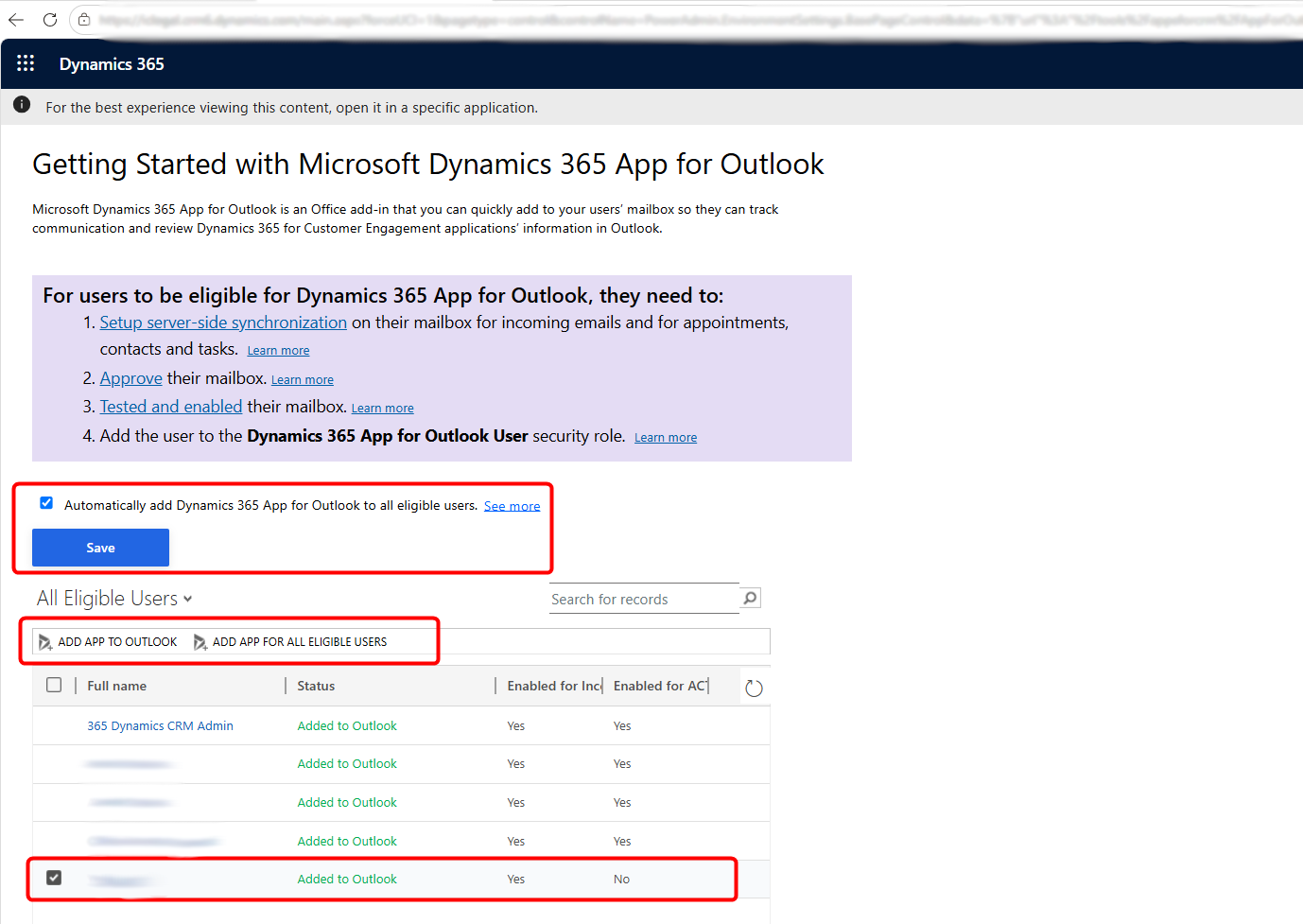
Once the mailbox is successfully enabled and the user has the required security access, deploy the app from the legal environment.
-
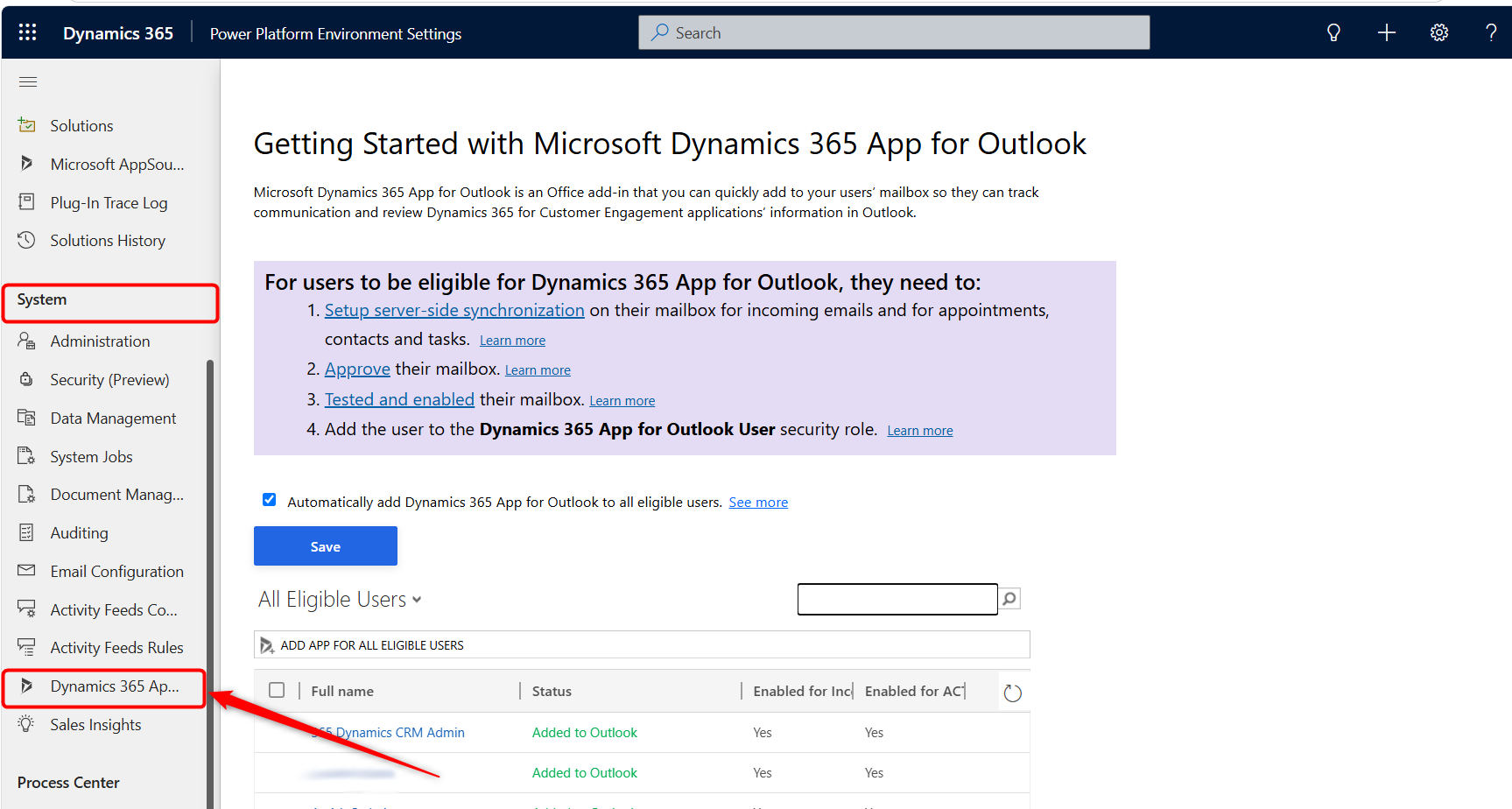
Go to System > Dynamics 365 App for Outlook.
-
Review the list of eligible users.
-
Select the required user.
-
Choose Add App to Outlook. Alternatively, an administrator can deploy the Add App to All Eligible Users.
-
Wait for the status to change to Added to Outlook.
Confirm the App in Outlook
After deployment, the user does not need to install the app manually from Microsoft Marketplace.
-
Ask the user to open Outlook Desktop or** Outlook on the Web**.
-
Open or select an email.
-
Select Apps in the message area or ribbon.
-
Confirm Dynamics 365 appears in the list.
-
Open Dynamics 365 and verify the side panel loads successfully.
Alternative Admin Access Path
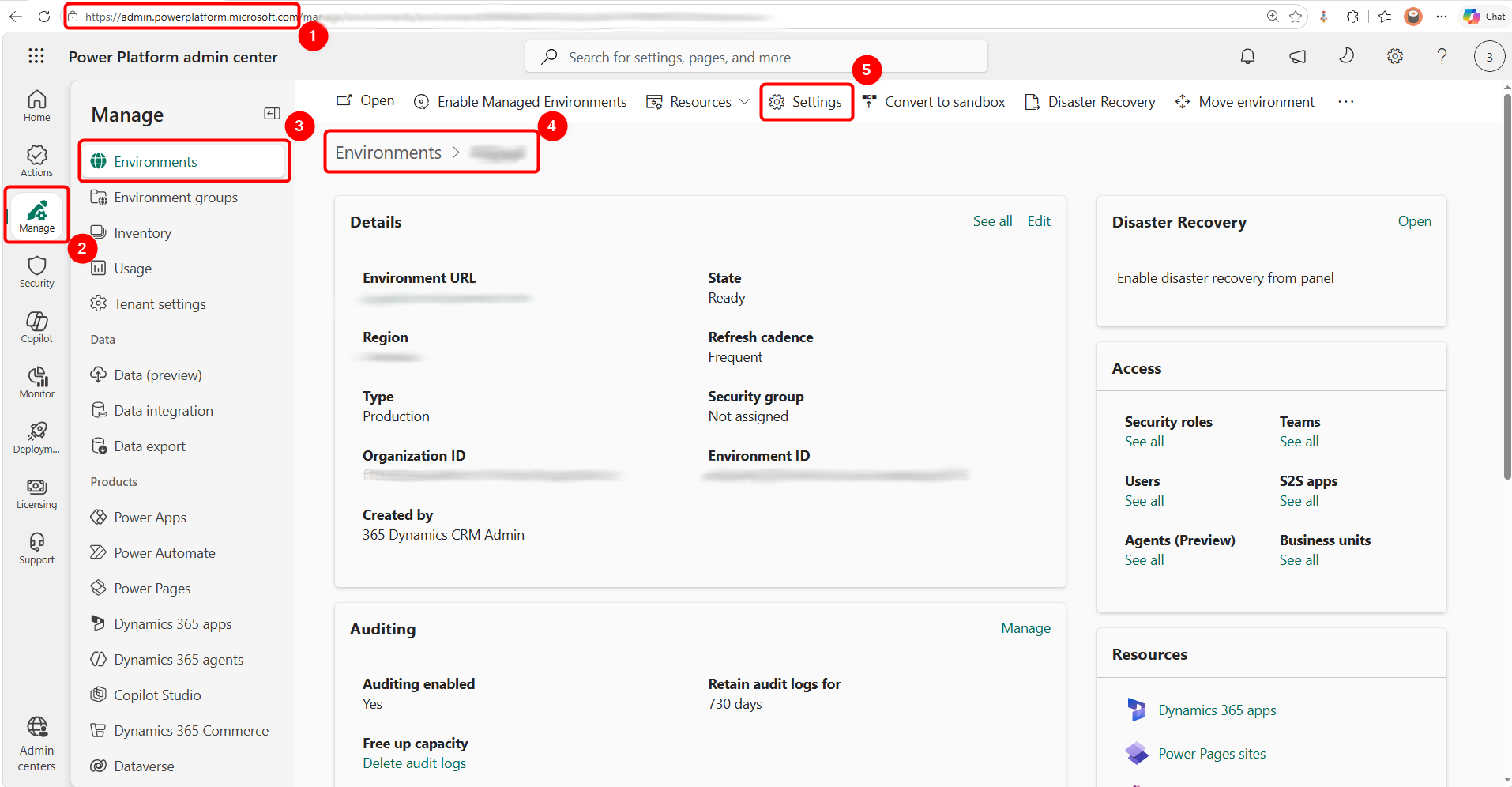
The same mailbox and Dynamics 365 App for Outlook settings can also be accessed through the Power Platform Admin Center.
- Open admin.powerplatform.microsoft.com
- Go to Manage > Environments >
<Your Legal Environment>> Settings - Select your Environment.
- The name of your environment will appear in the page tab.
- Select the Settings.
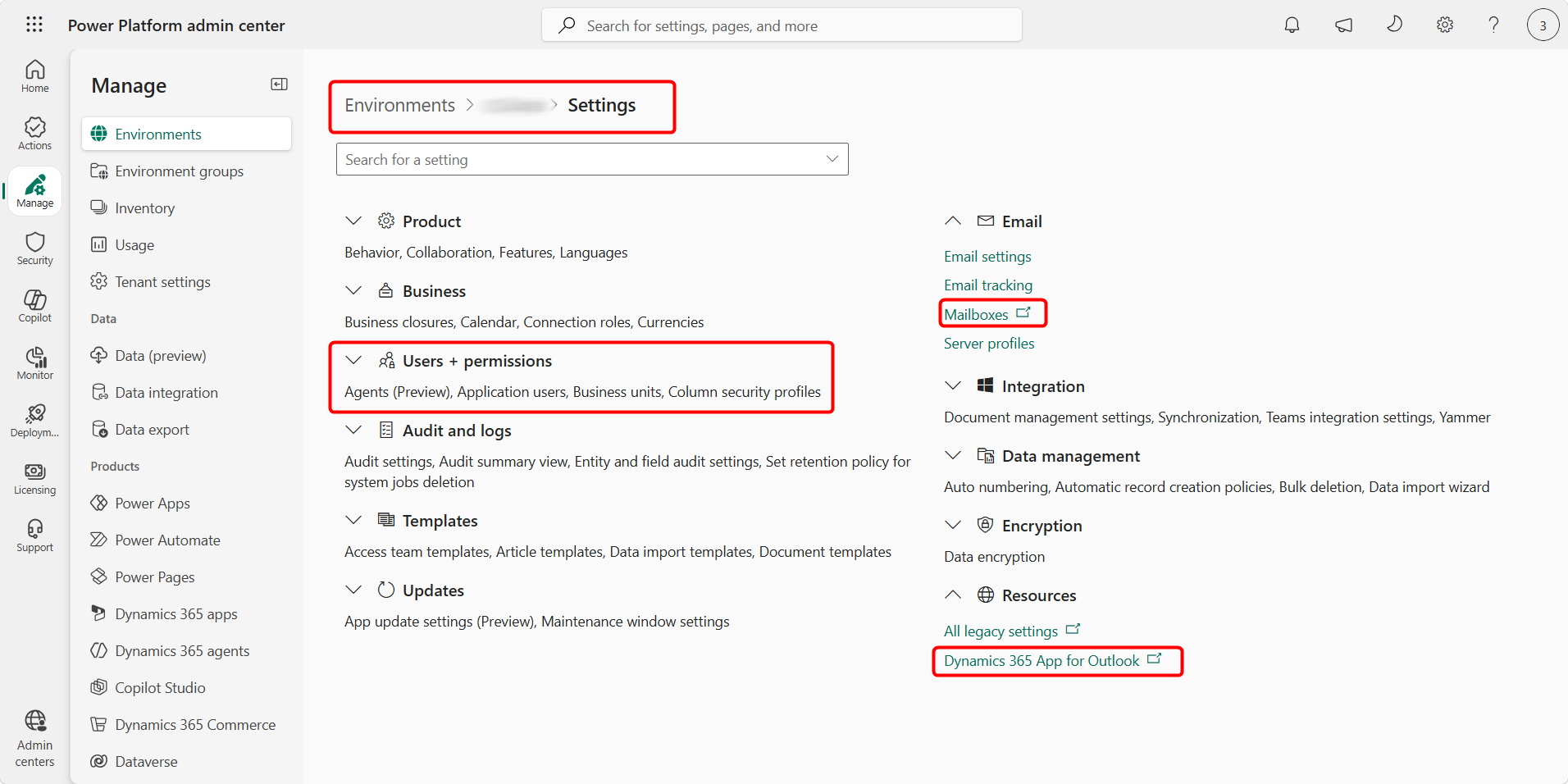
From the Settings page:
-
Email > Mailboxes — Use this to review, approve, test and enable user mailboxes.
-
Resources → Dynamics 365 App for Outlook — Use this to review eligible users and deploy the Dynamics 365 App for Outlook.
-
Users + permissions — Use this area to manage users, security roles, business units and related access settings.
Troubleshooting
If the User Cannot See the App, check the following before asking the user to install anything manually:
-
Dynamics license is assigned.
-
Users exist in the Legal environment.
-
Correct Legal security role/team is assigned.
-
Dynamics 365 App for Outlook User role is assigned directly to the user.
-
Mailbox exists in Dynamics.
-
Incoming email uses Server-Side Synchronization.
-
Mailbox has been approved.
-
Test & Enable Mailbox completed successfully.
-
User appears as eligible under Dynamics 365 App for Outlook.
-
App deployment status shows Added to Outlook.
-
The mailbox is not already configured to synchronize with another Dynamics/Dataverse organisation in a conflicting way.
Recommended Approach: Do not ask users to install the app from Marketplace as the first troubleshooting step. Administrator deployment is the recommended setup method.