App for Outlook User Guide for Immigration in Legal Solution for Microsoft Dynamics 365
Are you ready to try the solution or have questions?

Introduction
The Dynamics 365 App for Outlook (used in Immigration in Legal Solution) lets you work with Dynamics records while staying in Outlook. You can track emails, link an email to a Matter, Contact or Account, search Dynamics records, and create new records directly from Outlook.
IMPORTANT: Before You Begin
Your mailbox must first be enabled for the Dynamics 365 App for Outlook by an administrator. Once enabled, you do not need to install the app manually.
You can use the Dynamics 365 App for Outlook in both:
-
Outlook Desktop App — Open or select an email, then open Apps and choose Dynamics 365.
-
Outlook on the Web — Open or select an email, then use the Apps button in the message window and choose Dynamics 365.
Open Dynamics 365 in Outlook
Outlook Desktop App / on the Web
Follow these steps to open Outlook:
-
Open the App for Outlook app or (outlook.com ) in your browser and select the email you want to work with. The Outlook add-ins are shown for the selected message.
-
Click Apps button in the message area or ribbon.
-
Select Dynamics 365.
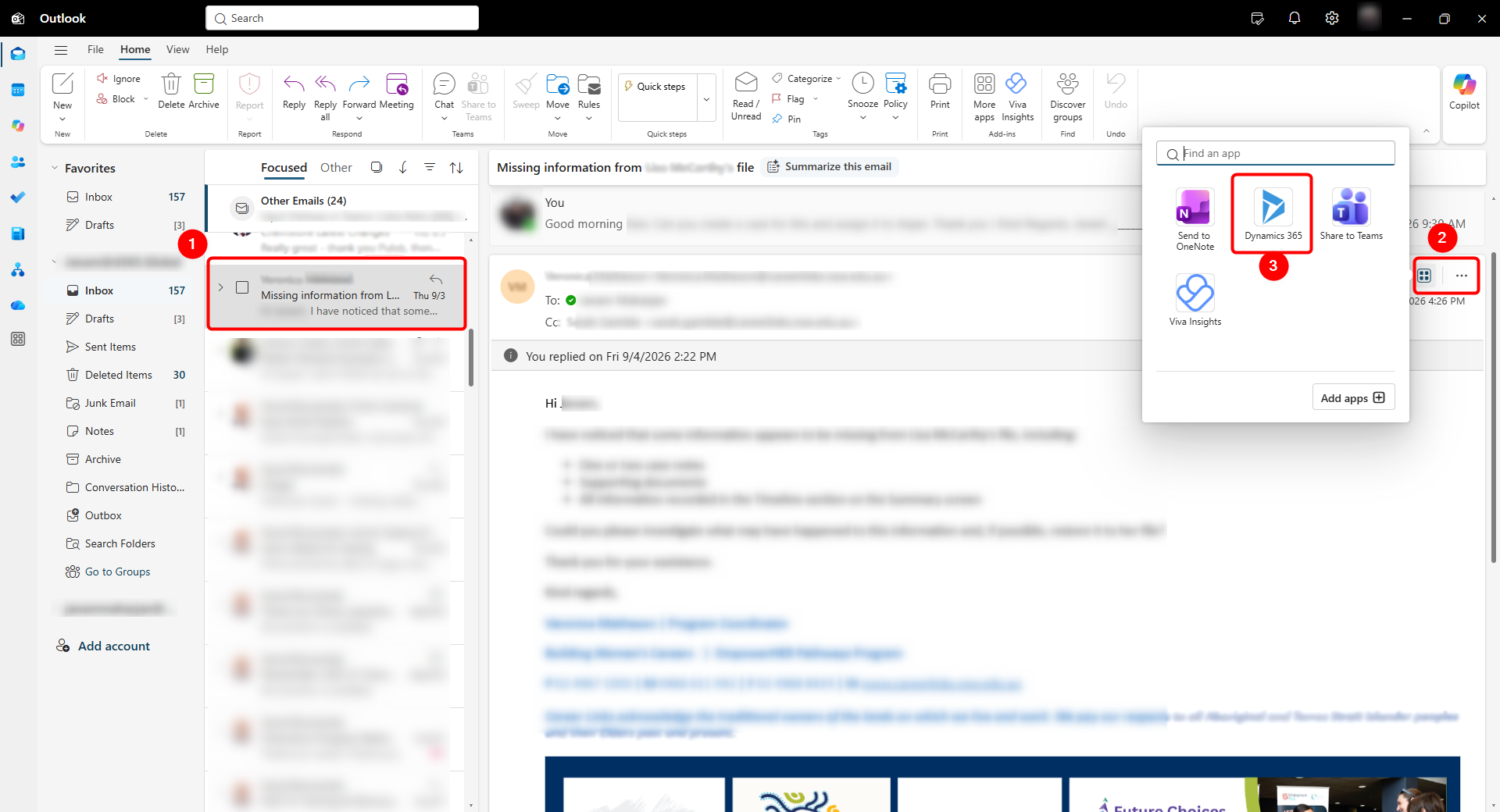
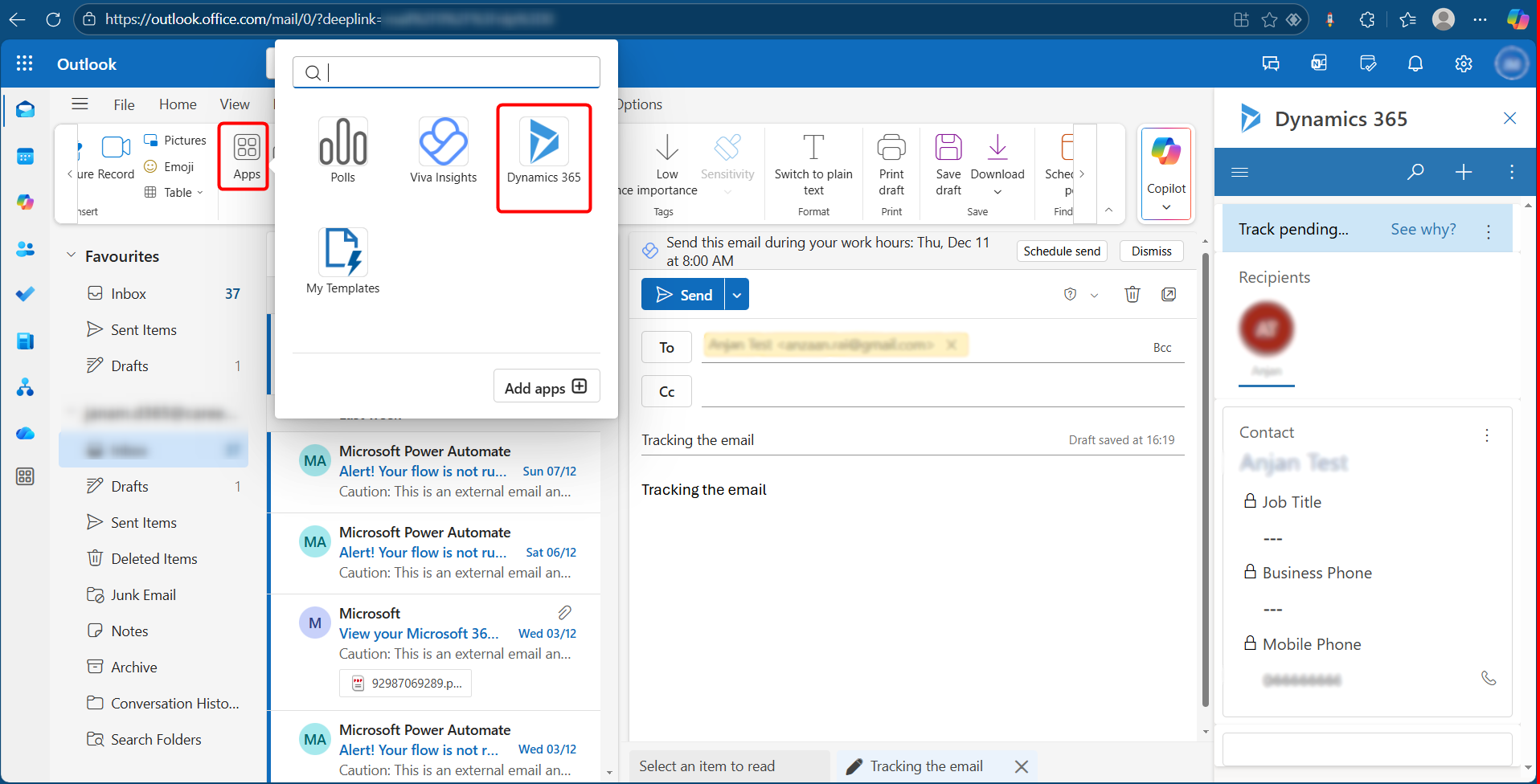
The Dynamics 365 panel opens on the right side of Outlook.
Tracking an Email in Dynamics 365
To track an email follow these steps:
-
Open or select the email you want to track in Outlook.
-
Open the Dynamics 365 panel on the right-hand side.
-
Click the three dots (⋮) beside the tracking status.
-
Choose one of the following:
a. Track without Regarding — Use this if you simply want to save the email in Dynamics without linking it to a specific Matter, Contact or Account.
b. Set Regarding — Use this if you want to link the email to a specific Dynamics record, such as a Matter, Contact or Account.
Setting a Regarding Record
Use Set Regarding when you want to link the email to a specific Matter, Contact or Account in Dynamics 365.
You can perform the following:
-
Use the search box to quickly find a record.
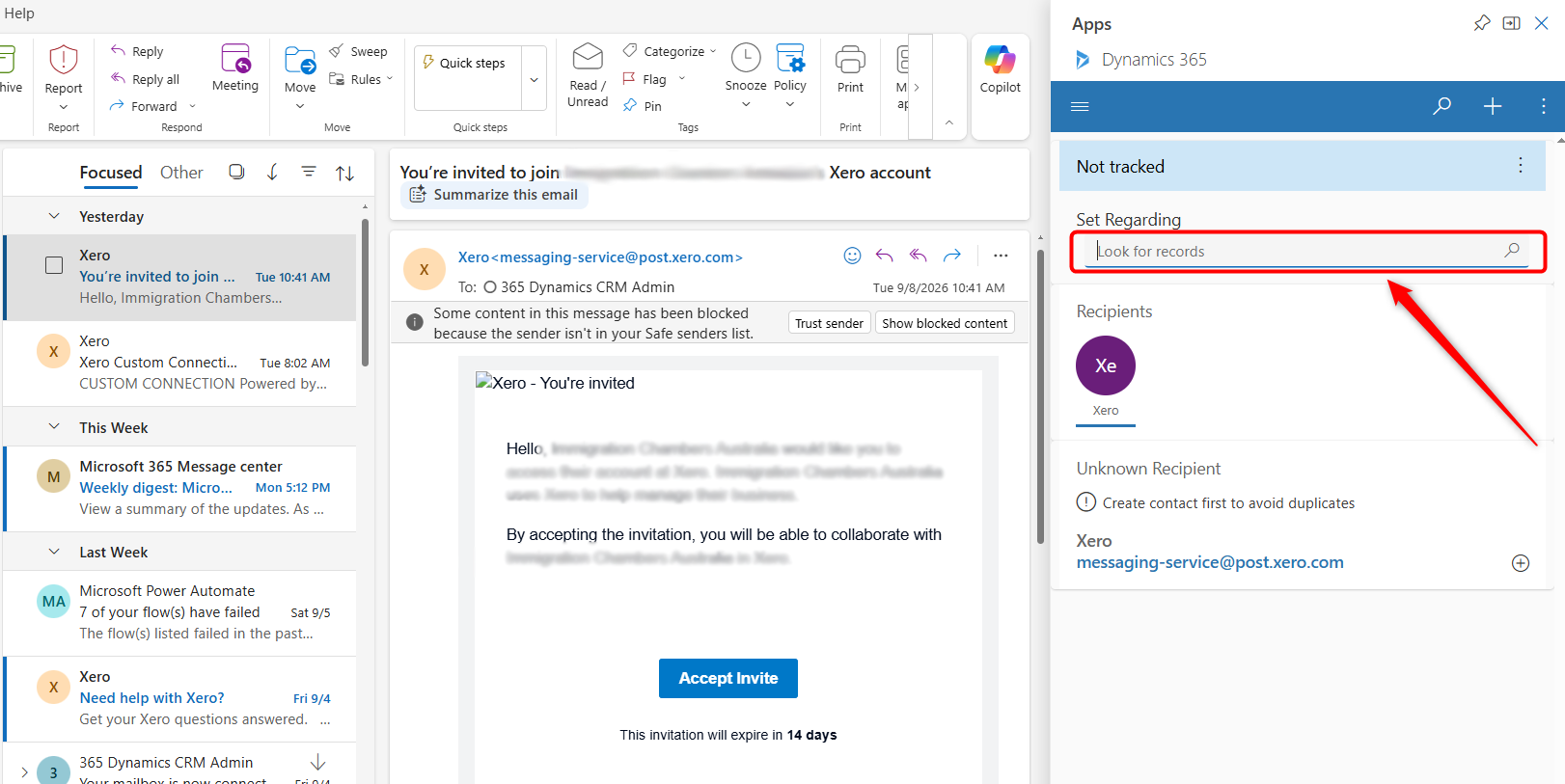
-
Select a recent record if it already appears in the list.
-
Click Advanced to choose the specific record type you want to search.
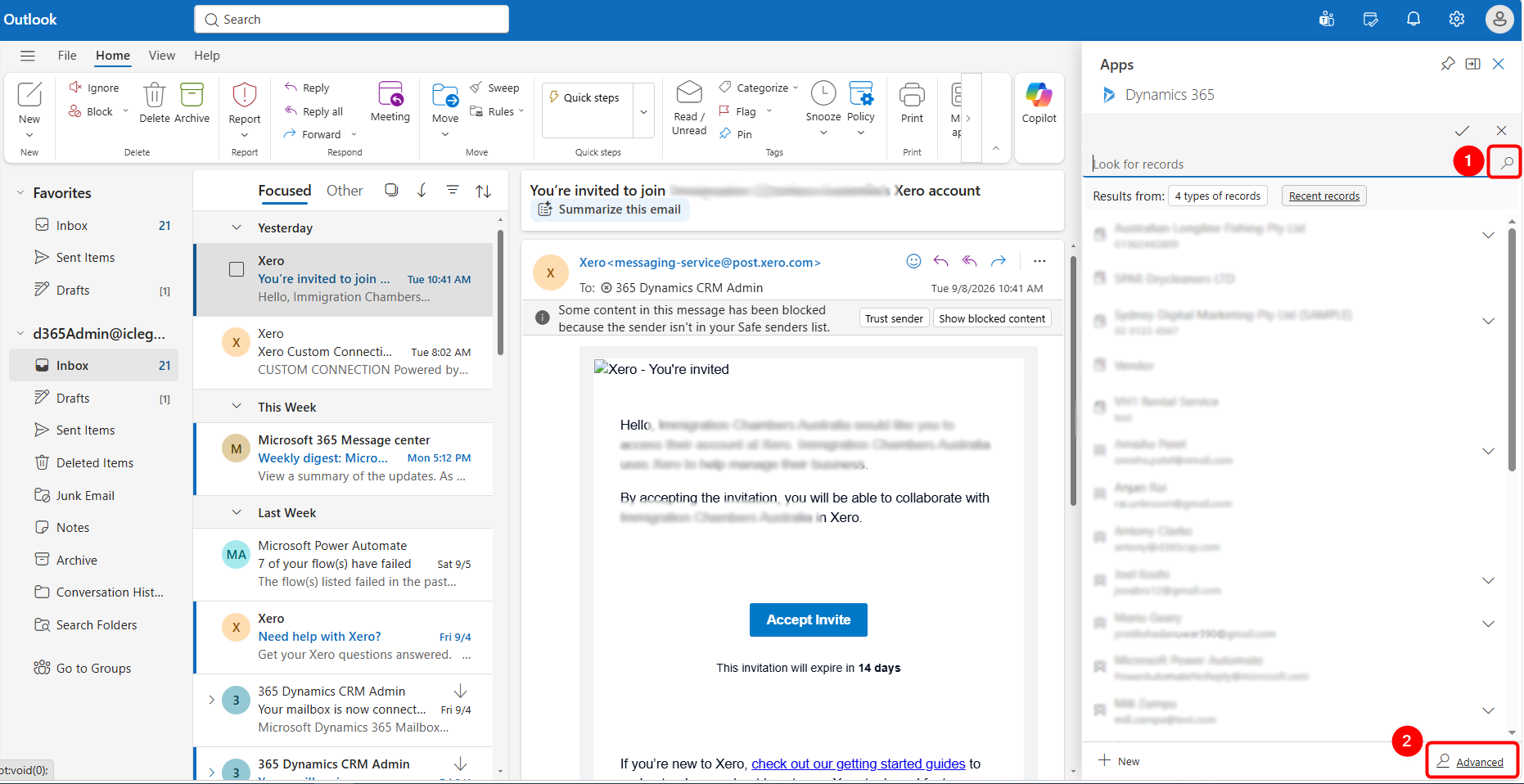
In Advanced Search, you can select from:
-
Matters
-
Contacts
-
Accounts
Follow these steps to access specific record:
- Choose if you need to access a record from Matters, Accounts or Contacts from Tables.
- Select the required record.
- Click Done.
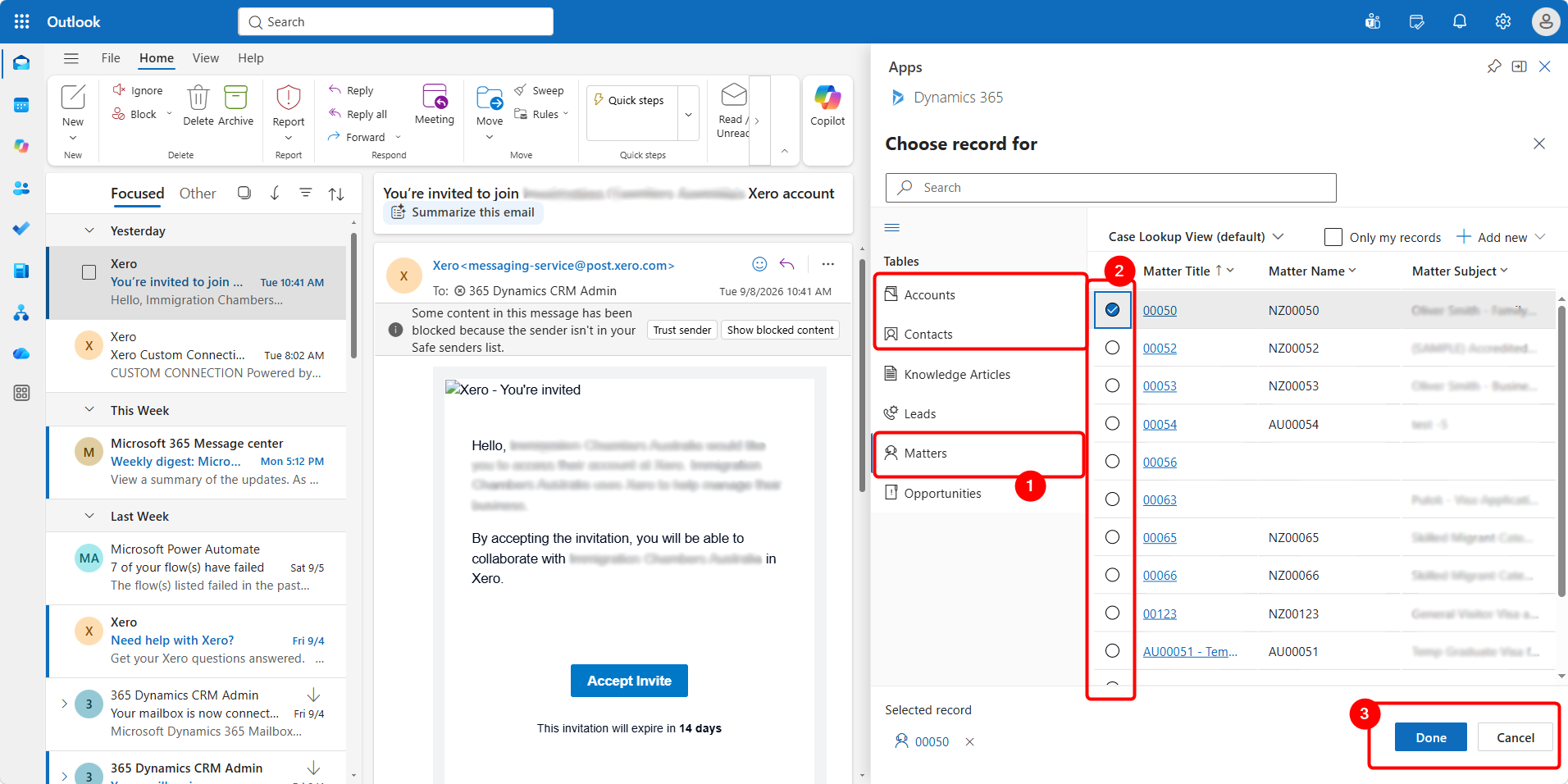
The email will then be tracked in Dynamics and linked to that record.
Note: You may need to expand the Dynamics 365 side panel to get a clearer view of the available tables and records when using Advanced Search.
Tracking Email
Once the Email is Tracked:
-
The email will appear in the Timeline of the selected Matter, Contact or Account.
-
Future replies in the same email conversation may also be tracked automatically, depending on the organisation’s email tracking settings.
-
Emails sent directly from Dynamics are automatically recorded in Dynamics.
Create a New Record from Outlook
You can also create a new Dynamics record directly from Outlook without first opening the Legal Hub application.
-
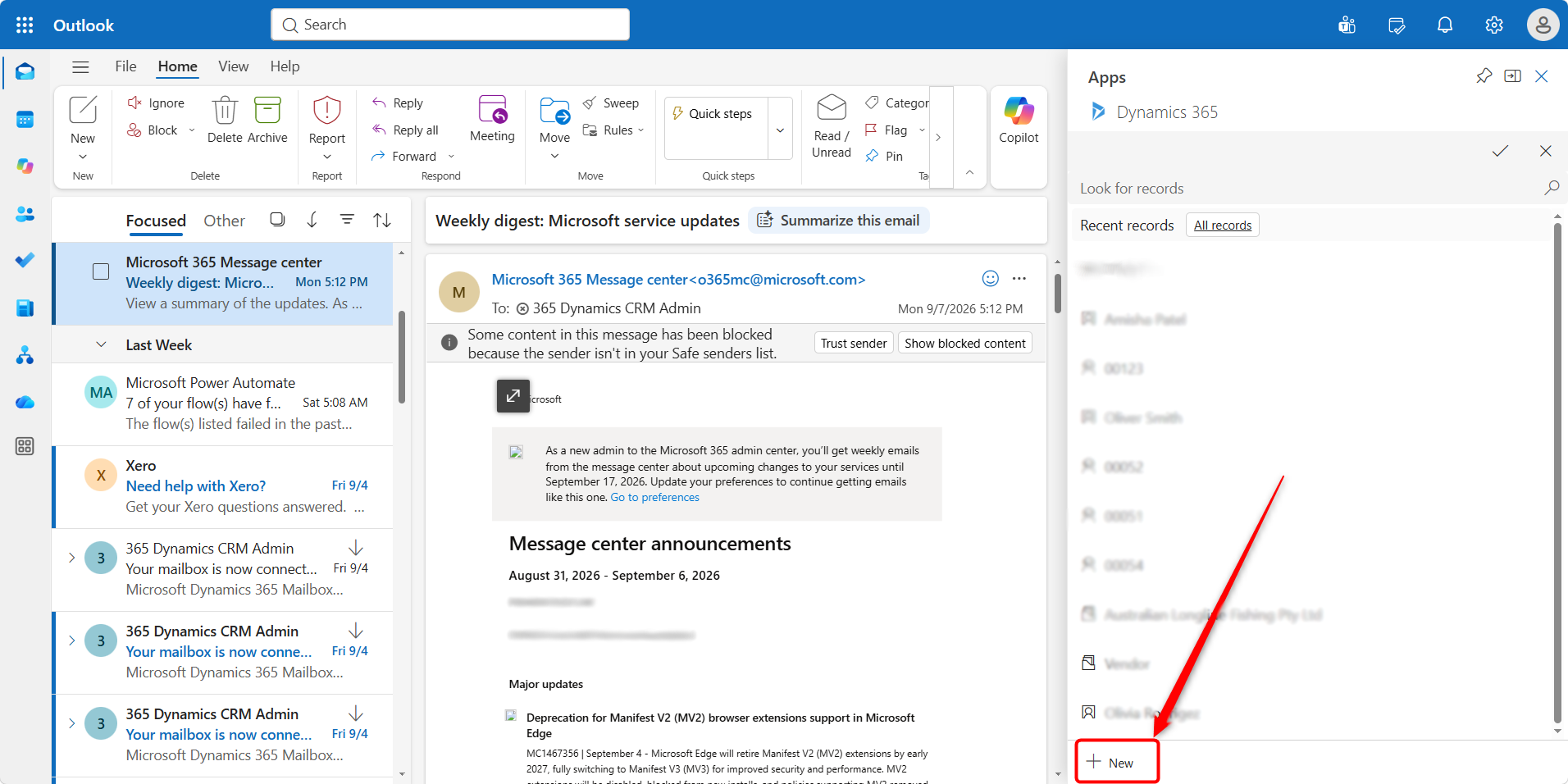
Open the Dynamics 365 panel.
-
Click on the regarding search box and then click + New at the bottom of the panel.
-
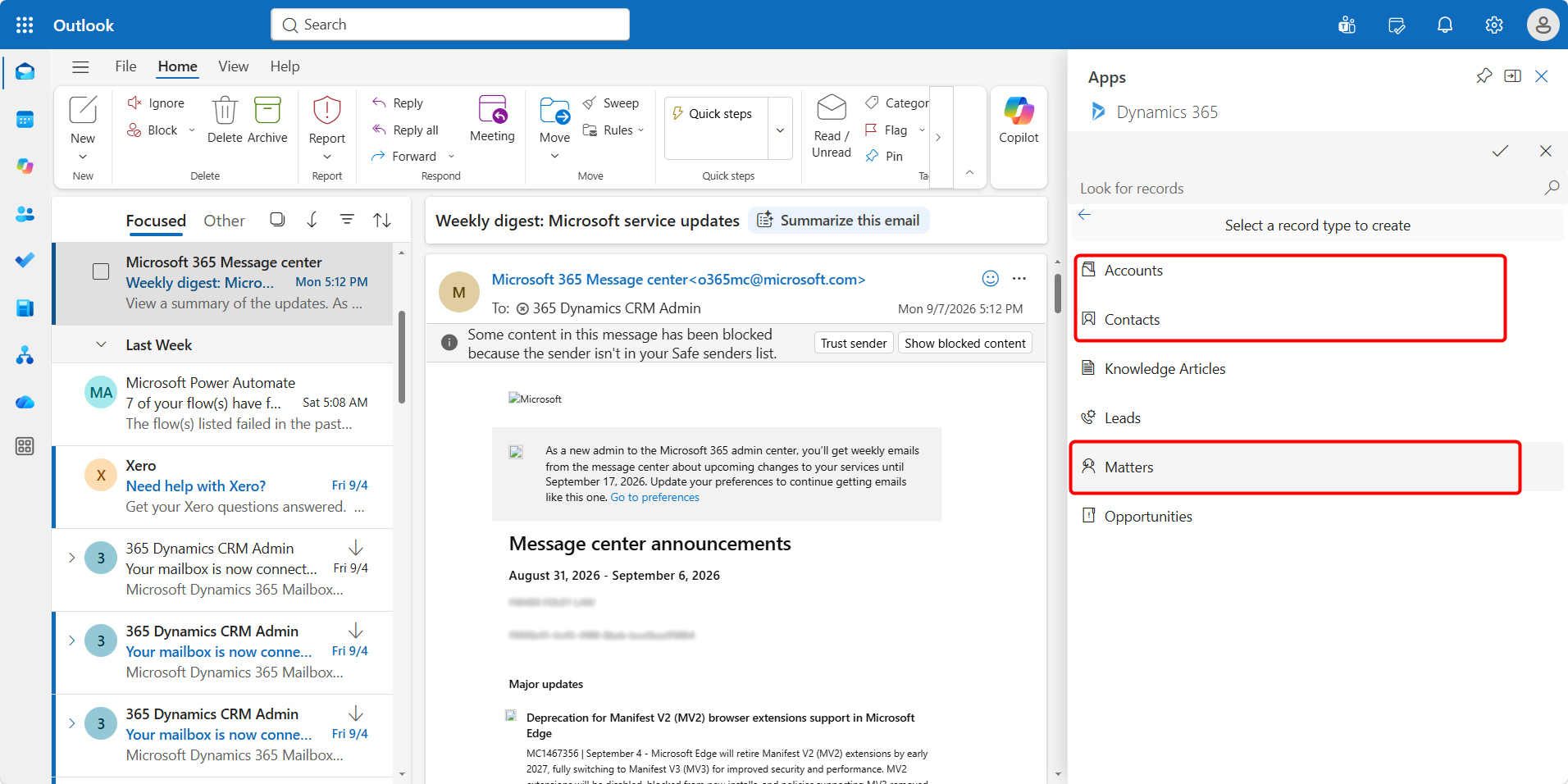
Choose the record type to create: Contact, Account or Matter.
-
Complete the Quick Create form and select Save and Close.
Description of Record Types
-
Contact: Create an individual client/applicant.
-
Account: Create an employer, organisation or other Account record.
-
Matter: Create a new legal Matter using the Quick Create fields. The full Matter can then be completed in Dynamics.
What Happens After Tracking?
-
The tracked email is stored as a Dynamics activity and can be viewed from the related record.
-
If the email is Set Regarding a Matter, it can be found from that Matter’s Timeline / Correspondence area.
-
If it is linked to a Contact or Account, the communication can be viewed from that client or organisation record.
-
Replies in an already tracked conversation may also be tracked according to your organisation’s Dynamics email tracking settings.