Purchase Budget Control in Microsoft Dynamics 365 Business Central User Guide
Are you ready to try the solution or have questions?

Introduction
Purchase Budget Control in Microsoft Dynamics 365 Business Central checks purchase spend against your G/L (General Ledger) budget before money is committed. Buyers see how much budget is left while they enter purchase lines, over-budget documents are stopped until the line is fixed or approved, and finance can see budget, commitments and actual spend in one place.
This guide describes how to set up and use Purchase Budget Control. Each article covers one task and uses the same structure as the Business Central documentation on Microsoft Learn.
To get the app, visit us at Microsoft Marketplace: G/L Budget Control .
Overview
Here is a list of the things you can do with Purchase Budget Control and the articles that describe how to do them.
| Task | Article |
|---|---|
| Set up the app | Set up Purchase Budget Control |
| Choose which accounts and dimensions to control | Set up control rules |
| Decide who can go over budget and who approves | Set up budget users and approvers |
| Route approvals | Set up budget approval workflows |
| Prepare, import and lock the budget | Prepare and release a budget; Export and import budgets with Excel |
| Enter purchases | Check budget on purchase documents |
| Handle overspend | Resolve over-budget lines; Approve budget requests |
| Change a locked budget | Change a released budget |
| Monitor | Track commitments; View funds available; Use the Budget Controller Role Center |
| Close the year | Carry forward commitments at year-end |
How Purchase Budget Control Works
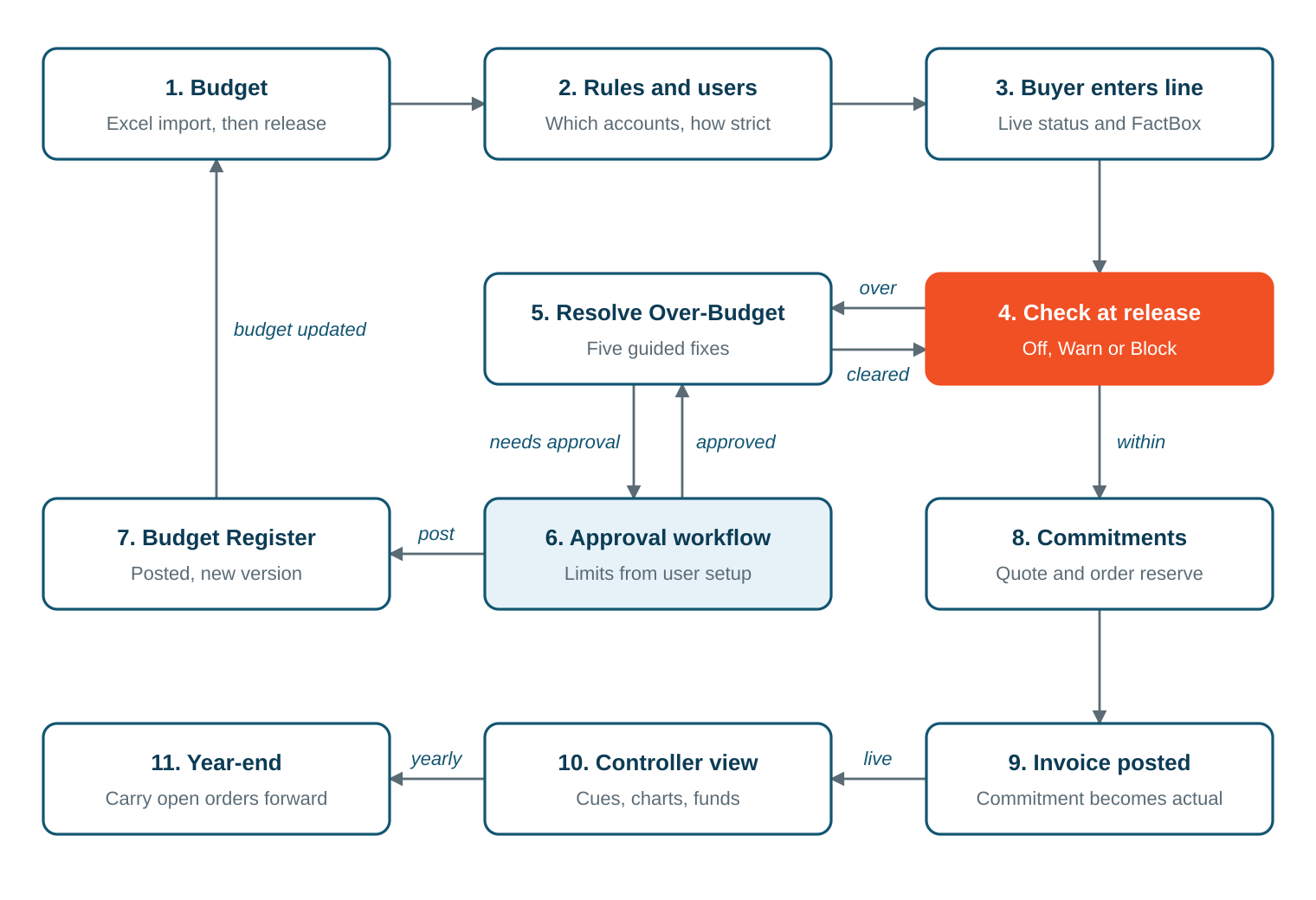
Process flow — from budget to invoice.
-
Finance enters or imports the budget and releases it. A released budget is locked.
-
Control rules decide which G/L accounts are controlled, by which dimensions, and at what levels Business Central warns or blocks.
-
When a buyer enters a purchase line, the line shows its budget status and how much budget is left.
-
When the document is released or posted, every line is checked again.
-
A line that is over budget can be fixed with the Resolve Over-Budget guide: reduce it, re-code it, request a budget transfer or a budget supplement, or request a one-off exception. Requests are approved through approval workflows.
-
When a document is released, its lines reserve budget as a commitment. Posting the invoice turns the commitment into actual spend.
-
The budget controller monitors everything on the Budget Controller Role Center and carries open commitments into the new year.
Budget Statuses
This section describes the budget statuses that appear.
| Status | Meaning |
|---|---|
| Within | There’s enough budget. |
| Warning | The budget is close to being used up. You can continue. |
| Over | There isn’t enough budget. The document can’t be released until the line is fixed or approved. |
| No Budget | The account has no budget for the period and dimensions. |
| Approved Exception | The line is over budget, but an approver has allowed it. |
| Not Controlled | No control rule covers the account. |
Terminology
These are the terms used in this guide and their meanings.
| Term | Meaning |
|---|---|
| Budget Line | One G/L account (or a group of accounts), one combination of controlled dimension values, and one control period. |
| Pre-encumbrance | Budget reserved by a released purchase quote. |
| Encumbrance | Budget committed by a released purchase order or purchase invoice that isn’t invoiced yet. |
| Actuals | Amounts posted to the general ledger. |
| Funds Available | Budget minus actuals, encumbrance and pre-encumbrance. |
NOTE: All amounts are shown in your local currency (LCY). Documents in a foreign currency are converted before they are checked.
Set Up Purchase Budget Control
Before buyers can use Purchase Budget Control, you choose the budget to control, the control period, and how strictly each type of document is checked. You do this on the Budget Control Setup page.
Prerequisites
-
You must have the Budget Control - Admin permission set. For more information, see Assign permissions for Purchase Budget Control.
-
A G/L budget exists. For more information, see Create G/L budgets.
Setup
To set up Purchase Budget Control follow these steps:
-
Choose the search icon, enter Budget Control Setup, and then choose the related link.
-
On the General FastTab, fill in the fields as described in the following table.
-
On the Check Points FastTab, choose what happens at each step when a line is over budget.
-
On the Resolution & Approval and Dashboard FastTabs, fill in the fields as needed.
-
Close the page. The settings are saved automatically.
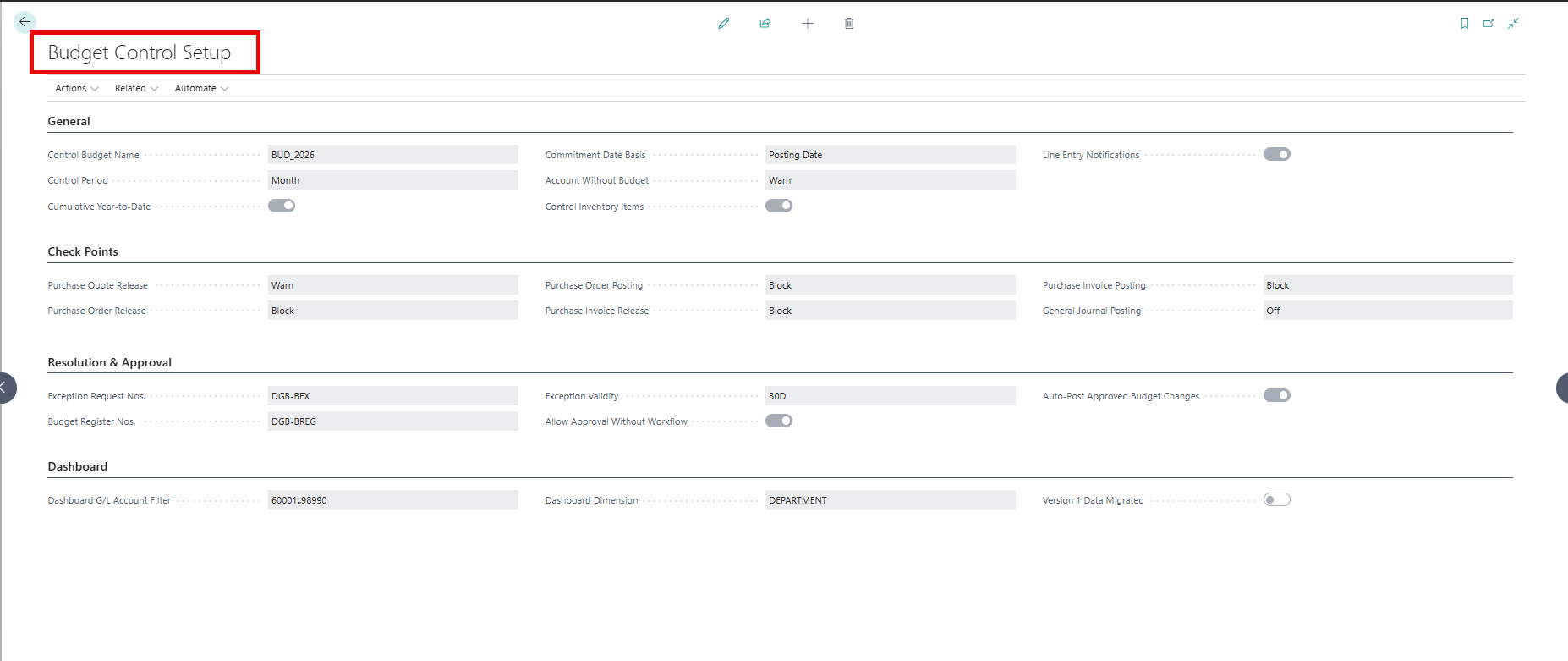
The Budget Control Setup page.
Tab Descriptions
This section describes the fields on the Budget Control Setup page FastTabs.
General FastTab
| Field | Description |
|---|---|
| Control Budget Name | Specifies the G/L budget that spend is checked against. New purchase documents copy this value to their Control Budget field. |
| Control Period | Specifies the period that budget and spend are compared over: Month, Quarter, or Fiscal Year. |
| Cumulative Year-to-Date | Specifies whether budget and spend are summed from the start of the fiscal year, so budget that wasn’t used in earlier periods can be used later. |
| Commitment Date Basis | Specifies which date puts a quote or order line into a period: the Posting Date of the document or the Expected Receipt Date of the line. |
| Account Without Budget | Specifies what happens when a controlled account has no budget for the period and dimensions: Allow, Warn, or Block. |
| Control Inventory Items | Specifies whether lines for inventory items are checked. G/L accounts, non-inventory items, services, fixed assets, resources and item charges are always checked. |
| Line Entry Notifications | Specifies whether users see a notification while they enter a line that is over budget or past the warning level. Entering lines is never blocked. |
Check Points FastTab
Each field can be set to Off (no check), Warn (a message, and the user continues), or Block (the user is stopped).
| Field | Applies when |
|---|---|
| Purchase Quote Release | A purchase quote is released. |
| Purchase Order Release | A purchase order is released or sent for approval. |
| Purchase Order Posting | A purchase order is posted with the Invoice option. Only lines with a Qty. to Invoice are checked. |
| Purchase Invoice Release | A purchase invoice is released. |
| Purchase Invoice Posting | A purchase invoice is posted. |
| General Journal Posting | A general journal is posted. |
NOTE: Purchase credit memos and return orders are never blocked. They give budget back when they’re posted.
TIP: If a user’s Over-Budget Permission is Allowed, a Block setting doesn’t stop them. The overspend is recorded automatically as a completed request so you keep an audit trail.
Resolution & Approval FastTab
| Field | Description |
|---|---|
| Exception Request Nos. | Specifies the number series for budget requests. A number series is created for you. |
| Budget Register Nos. | Specifies the number series for budget change documents. A number series is created for you. |
| Exception Validity | Specifies how long an approved exception stays valid, for example 30D for 30 days. |
| Allow Approval Without Workflow | Specifies whether users with enough authority can approve requests directly when no approval workflow is enabled. Users can never approve their own requests. |
| Auto-Post Approved Budget Changes | Specifies whether an approved budget change is posted to the budget immediately. If you turn this off, a user with permission posts it from the Budget Register page. |
Dashboard FastTab
| Field | Description |
|---|---|
| Dashboard G/L Account Filter | Specifies the accounts that the charts on the Role Center summarize, for example your expense accounts. |
| Dashboard Dimension | Specifies the dimension that the utilization chart groups by, for example DEPARTMENT. If you leave it blank, global dimension 1 is used. |
Actions on the Budget Control Setup Page
| Action | Description |
|---|---|
| Control Rules | Opens the control rules. |
| Budget User Setup | Opens the budget user setup. |
| Workflows | Opens the workflows. |
| Create / Repair Workflow Templates | Creates the three budget approval workflow templates if they’re missing, and registers what the workflows need to run. |
Set Up Control Rules
Control Rules decide which G/L accounts are controlled, which dimensions each budget is held by, and when Business Central warns or blocks. An account that no rule covers isn’t controlled.
Create a Control Rule
To create a control rule follow the steps provided:
-
Choose the search icon, enter Budget Control Rules, and then choose the related link. You can also open the page from Budget Control Setup by choosing the Control Rules action.
-
Choose New. The Budget Control Rule card opens.
-
Fill in the fields as described in the following table.
-
On the Controlled Dimensions FastTab, add the dimensions that the budget is held by.

The Budget Control Rules list.
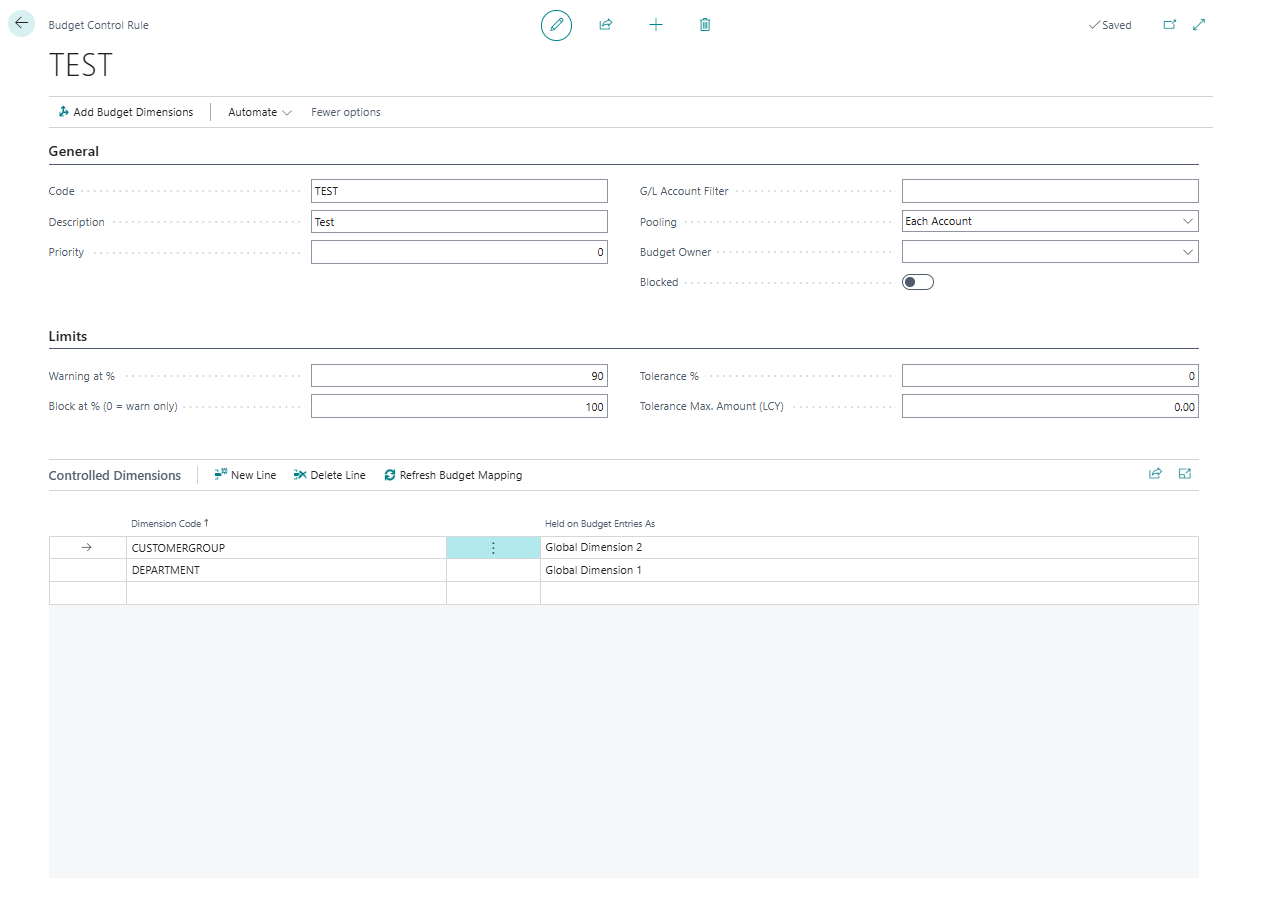
A Budget Control Rule card.
Here is a description of the fields on the Budget Control Rule card.
| Field | Description |
|---|---|
| Code | Specifies the rule. The code is shown on purchase lines and in the funds FactBox. |
| Description | Specifies what the rule covers. |
| Priority | Specifies the order that rules are tried in. The first rule, with the lowest number, that covers the account is used. Put specific rules first and a general rule last. |
| G/L Account Filter | Specifies the accounts that the rule covers, for example 6400..6499. If you leave it blank, the rule covers every account. |
| Pooling | Each Account gives every account its own budget. Pooled Account Range makes all accounts in the filter share one budget, for example all travel accounts. |
| Budget Owner User ID | Specifies the person responsible for this budget area. |
| Blocked | Specifies that the rule isn’t used. |
| Warning % | Specifies the share of the budget used at which lines get the Warning status. |
| Block % | Specifies the share of the budget used above which lines get the Over status and are stopped. 0 means warn only. |
| Tolerance % | Specifies how far above the block level spend can go, as a percentage of the budget, before it’s stopped. |
| Tolerance Max. Amount | Specifies the largest tolerance amount. 0 means no limit. |
Example:
With a budget of 10,000, Warning % 80, Block % 100, Tolerance % 2 and Tolerance Max. Amount 100:
-
Spend of 8,500 gets the Warning status.
-
Spend of 10,050 still gets the Warning status, because it’s within the tolerance.
-
Spend of 10,150 gets the Over status, 150 over budget.
Choose Controlled Dimensions
In this section we will discuss how to choose the controlled dimensions. Each combination of values of the controlled dimensions has its own budget. For example, if you control by DEPARTMENT, each department has its own budget for the account.
-
On the Budget Control Rule card, on the Controlled Dimensions FastTab, enter a dimension in the Dimension Code field.
-
The Budget Field column shows where the G/L budget holds the dimension: global dimension 1 or 2, or one of the four budget dimensions of the budget.
-
To add all the dimensions that your budget holds, choose Add Budget Dimensions.
IMPORTANT: A G/L budget holds global dimensions 1 and 2 and the four Budget Dimension fields that you choose on the G/L budget. A rule can therefore control up to six dimensions. To control another dimension, first add it as a budget dimension on the G/L Budget Names page.
NOTE: A line that has no value for a controlled dimension is checked against budget and spend that also have no value for it. This is shown as (blank).
If you change the budget dimensions on a G/L budget, choose Refresh Budget Mapping on the Controlled Dimensions FastTab.
Set Up Budget Users and Approvers
The Budget User Setup page decides what each user can do when they’re over budget and how much they can approve. Approval routing uses the approver chain from the standard Approval User Setup page.
Set Up Budget Users
To set up budget users, follow these steps:
-
Choose the search icon, enter Budget User Setup, and then choose the related link.
-
Add a line with a blank User ID. This line applies to all users who don’t have their own line.
-
Add a line for each approver and each user who needs different settings.

The Budget User Setup page.
Here is a description of the fields on the Budget User Setup page.
| Field | Description |
|---|---|
| User ID | Specifies the user. A line with a blank user applies to everyone who doesn’t have their own line. Users who aren’t covered by any line are treated as Blocked. |
| Over-Budget Permission | Blocked: the user must reduce or re-code the line, or request a budget change. Requires Approval: the user can also request a one-off exception. Allowed: the user can release and post over budget, and the overspend is recorded automatically. |
| Exception Approval Limit | Specifies the largest over-budget amount the user can approve. |
| Unlimited Exception Approval | Specifies that the user can approve any amount. |
| Can Approve Budget Changes | Specifies that the user can approve budget transfers, supplements and carry-forward documents, within their limit. |
| Can Post Budget Register | Specifies that the user can post approved budget changes. |
| Can Release Budgets | Specifies that the user can release and reopen G/L budgets when no approval workflow is used. |
Set Up Approver Chain
To set up the Approver Chain, follow these steps:
Budget requests go to the requester’s approver, then to that approver’s approver, and so on, until they reach a user with enough authority.
-
Choose the search icon, enter Approval User Setup, and then choose the related link.
-
For each user who raises requests, fill in the Approver ID field.
-
Make sure each approver has an email address, so they receive notifications.

The Approval User Setup page.
TIP: A typical setup is: buyers report to a department head with a limit of, for example, 1,000; department heads report to a budget controller with Unlimited Exception Approval and Can Approve Budget Changes.
Set Up Budget Approval Workflows
Purchase Budget Control includes three approval workflow templates in the Budget Control category. They’re standard Business Central approval workflows, so approvers use the Requests to Approve page, email notifications, delegation and the approval history.
| Workflow template | Approves | Who can approve |
|---|---|---|
| Budget Exception Approval | One-off exceptions for over-budget lines | An approver whose Exception Approval Limit covers the over-budget amount |
| Budget Change Approval | Budget transfers, supplements and carry-forward documents | An approver with Can Approve Budget Changes and a limit that covers the increase |
| G/L Budget Release Approval | Releasing a G/L budget | The requester’s approver |
NOTE: These workflows are separate from purchase document approval. You can keep using your existing purchase order approval process.
Create Workflows
To create the workflows:
-
Choose the search icon, enter Budget Control Setup, and then choose the related link.
-
Choose the Create / Repair Workflow Templates action.
-
Choose the search icon, enter Workflows, and then choose the related link.
-
Choose New Workflow from Template.
-
Select the Budget Control category, select a template, and then choose OK.
-
On the workflow, check the response Create an approval request for the record. Choose the response, and then check the approver settings.
-
Turn on the Enabled toggle.
-
Repeat steps 4 to 7 for each workflow that you want to use.
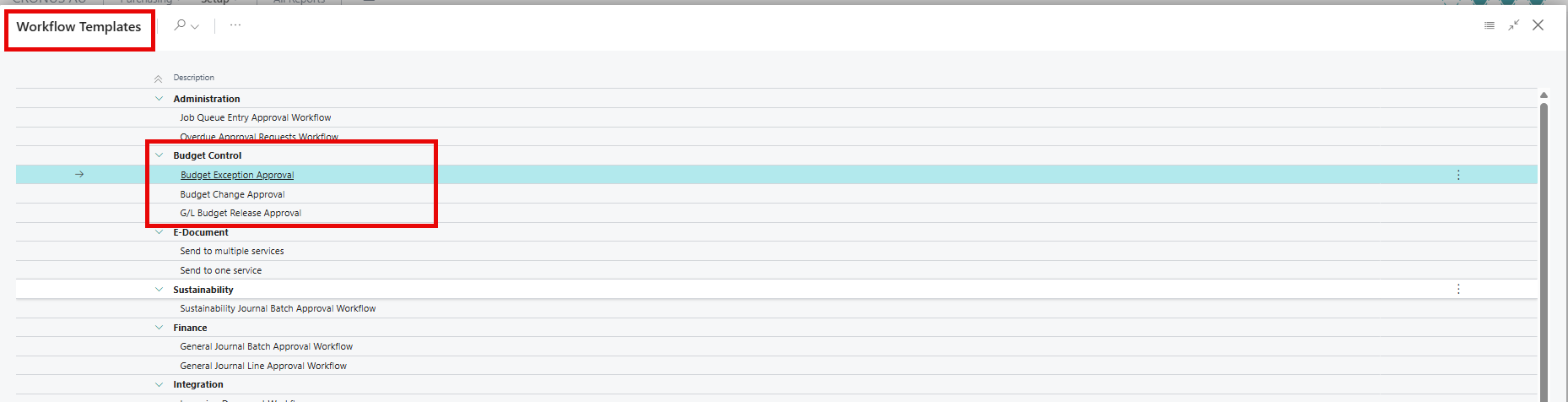
Workflow templates in the Budget Control category.
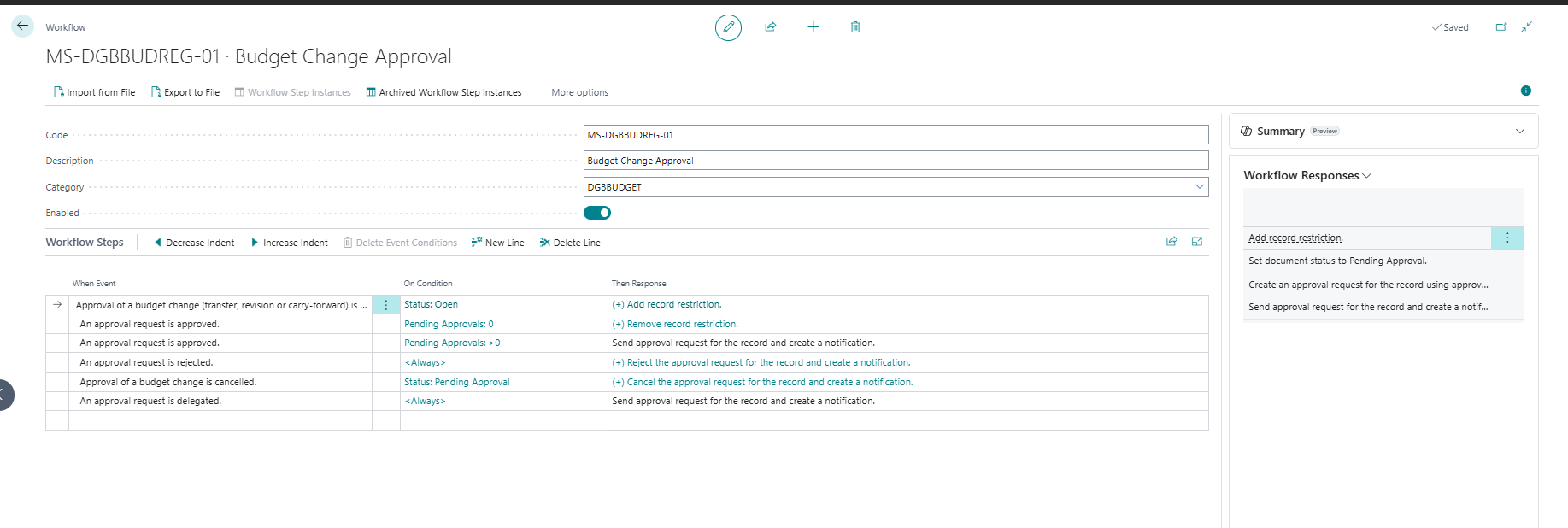
The Budget Change Approval workflow.
Request Results
This table outlines what happens to a request:
| When | Result |
|---|---|
| The request is sent for approval | The request is locked and sent to the first approver. |
| An approver approves and more approvals are needed | The request goes to the next approver. |
| The last approver approves | The request is approved. A budget change is approved, or posted if auto-post is on. A budget is released. |
| An approver rejects | An exception is rejected. A budget change or budget goes back to Open. |
| The requester cancels | The request goes back to Open. |
| An approver delegates | The request goes to the substitute approver. |
TIP: If you get the error “You must define a table relation between all records used in events” when you enable a workflow, choose Create / Repair Workflow Templates on the Budget Control Setup page, refresh the workflow page, and try again.
Prepare & Release a Budget
Purchase Budget Control uses a standard G/L budget. When you release the budget, it’s locked, and it can only be changed with an approved budget change.
Budget Status
The following table provides the Status and its Meaning:
| Status | Meaning |
|---|---|
| Open | The budget can be edited. |
| Pending Approval | The budget is sent for release approval and can’t be edited. |
| Released | The budget is locked. To change it, use a budget change document. For more information, see Change a Released Budget. |
The Budget Version field goes up by one each time a budget change is posted, so you can see that the budget changed.
Budget Preparation
To prepare a budget:
-
Choose the search icon, enter G/L Budgets, and then choose the related link.
-
Create a budget, or select an existing one. In the Budget Dimension 1 Code to Budget Dimension 4 Code fields, choose the dimensions that you want to control in addition to the global dimensions.
-
Choose Edit Budget, and then enter the budget amounts. You can also import them from Excel. For more information, see Export and Import Budgets with Excel.
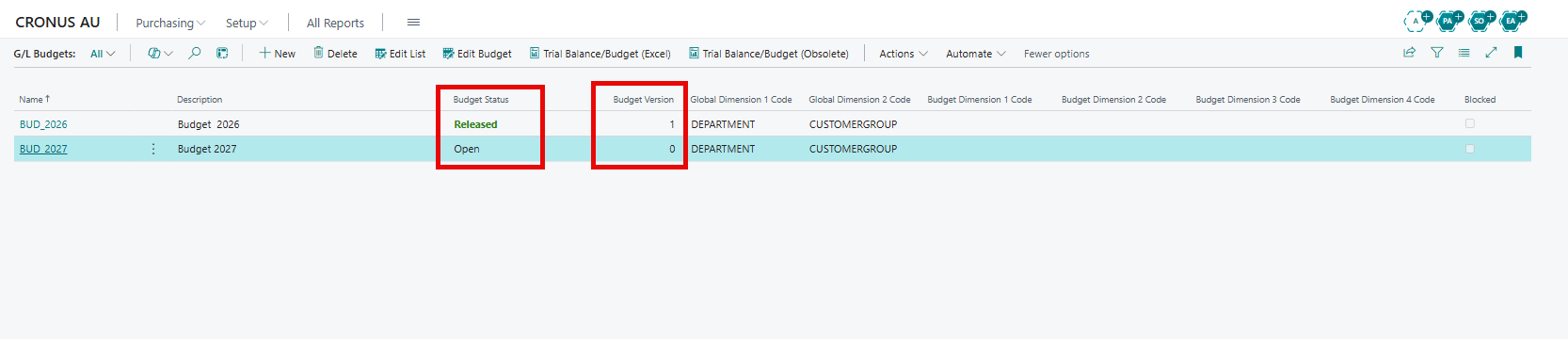
G/L Budget Names with budget status.
Budget Release
To release a budget:
-
On the G/L Budget Names page, select the budget.
-
Choose the Budget Status action group, and then choose Release.
If a G/L Budget Release Approval workflow is enabled, choose Send Approval Request instead.
-
The Budget Status field changes to Released.

The Budget Status actions.
NOTE: To release or reopen a budget, you need Can Release Budgets on the Budget User Setup page.
Budget Reopening
To reopen a budget:
On the G/L Budget Names page, select the budget, choose Budget Status, and then choose Reopen. You can’t reopen a budget that’s pending approval; cancel the approval request first.
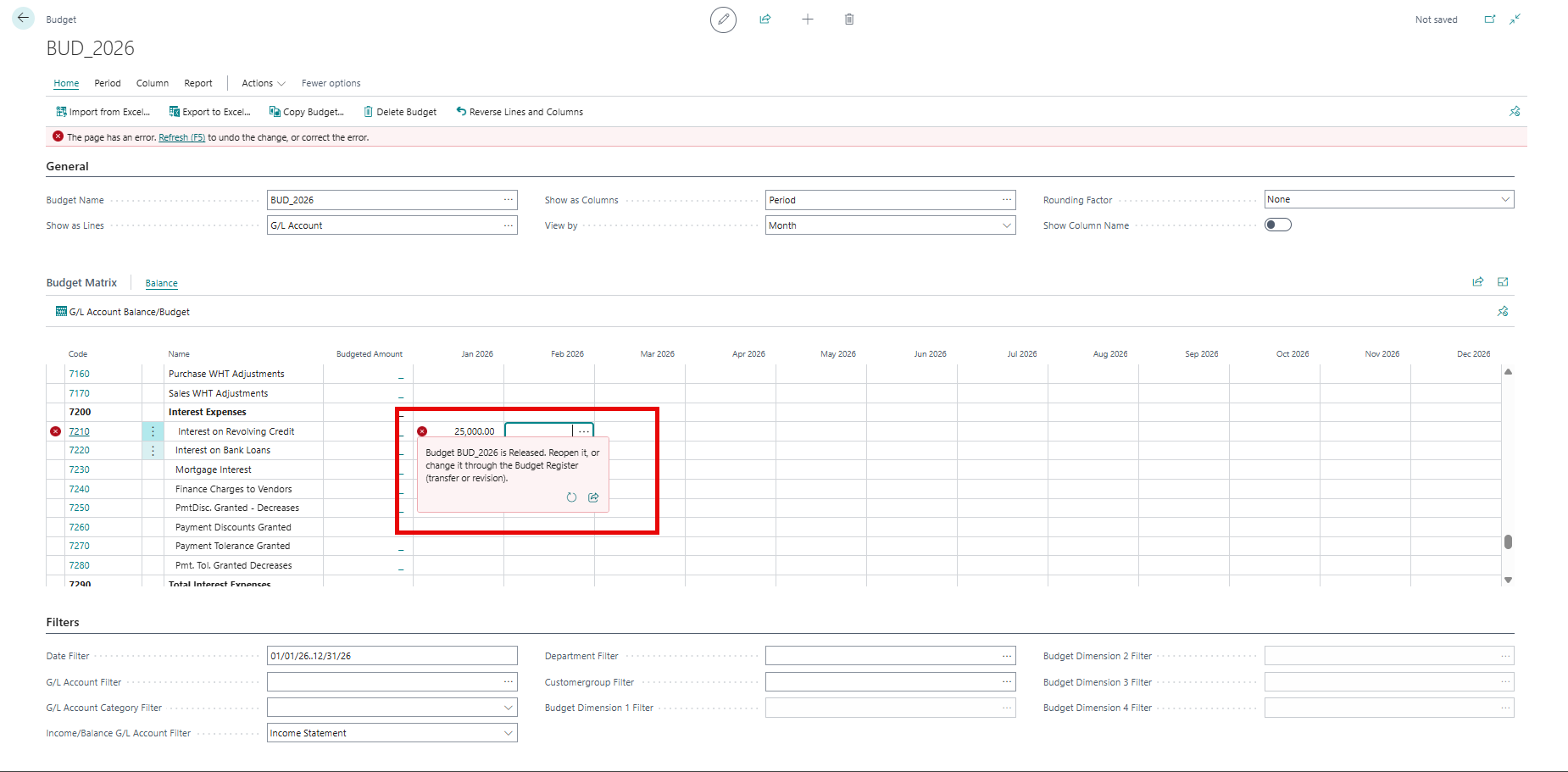
Message when a released budget is edited.
Export & Import Budgets with Excel
Export Budget (Simple) exports only the budget you have filtered: posting accounts only, one row per account and dimension combination, and one column per period. You edit the file in Excel and import it again with Import Budget (Simple). Only the differences are posted.
Export a Budget
To export a budget:
-
Choose the search icon, enter G/L Budgets, and then choose the related link.
-
Select the budget, and then choose Edit Budget.
-
At the top of the Budget page, set the filters that you want, for example the G/L accounts and the department.
-
Choose the Export Budget (Simple) action. The dialog shows the filters from the page.
-
Fill in the fields as described in the following table, and then choose OK.

The Export Budget (Simple) action on the Budget page.
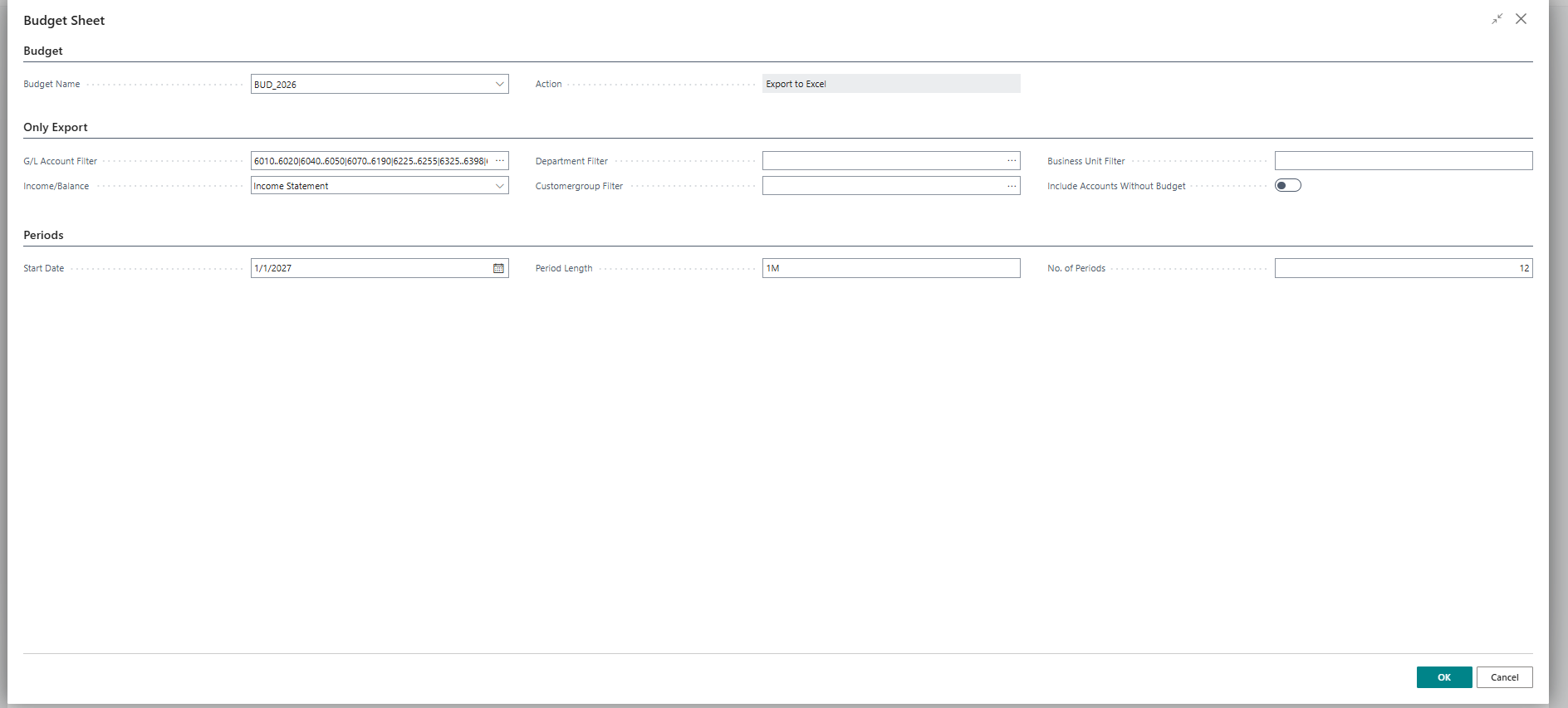
The export dialog.
The following table provides a description of the fields in the Budget Sheet page:
| Field | Description |
|---|---|
| Budget Name | Specifies the budget to export. |
| G/L Account Filter | Specifies the accounts to export. Only posting accounts are exported. |
| Income/Balance | Specifies whether to export only income statement or only balance sheet accounts. |
| Dimension Filters | One filter for each global and budget dimension of the budget. The filters also limit the drop-down lists in Excel. |
| Business Unit Filter | Specifies a business unit, if you budget by business unit. |
| Include Accounts Without Budget | Specifies whether accounts in the filter that have no budget get an empty row, so you can add budget for them. |
| Start Date | Specifies the first date of the first period column. The default is the start of the fiscal year. |
| Period Length | Specifies the length of each period column, for example 1M for months or 1Q for quarters. |
| No. of Periods | Specifies the number of period columns. |
Edit Budget in Excel
To edit the budget in Excel:
-
Change the amounts in the period columns.
-
To add a combination, add a row and choose the account and dimension values from the drop-down lists. The values are listed on the Dimension Values sheet.
-
A blank cell leaves that period unchanged. To clear an amount, enter 0.
-
Don’t change rows 1 to 3. The import uses them.
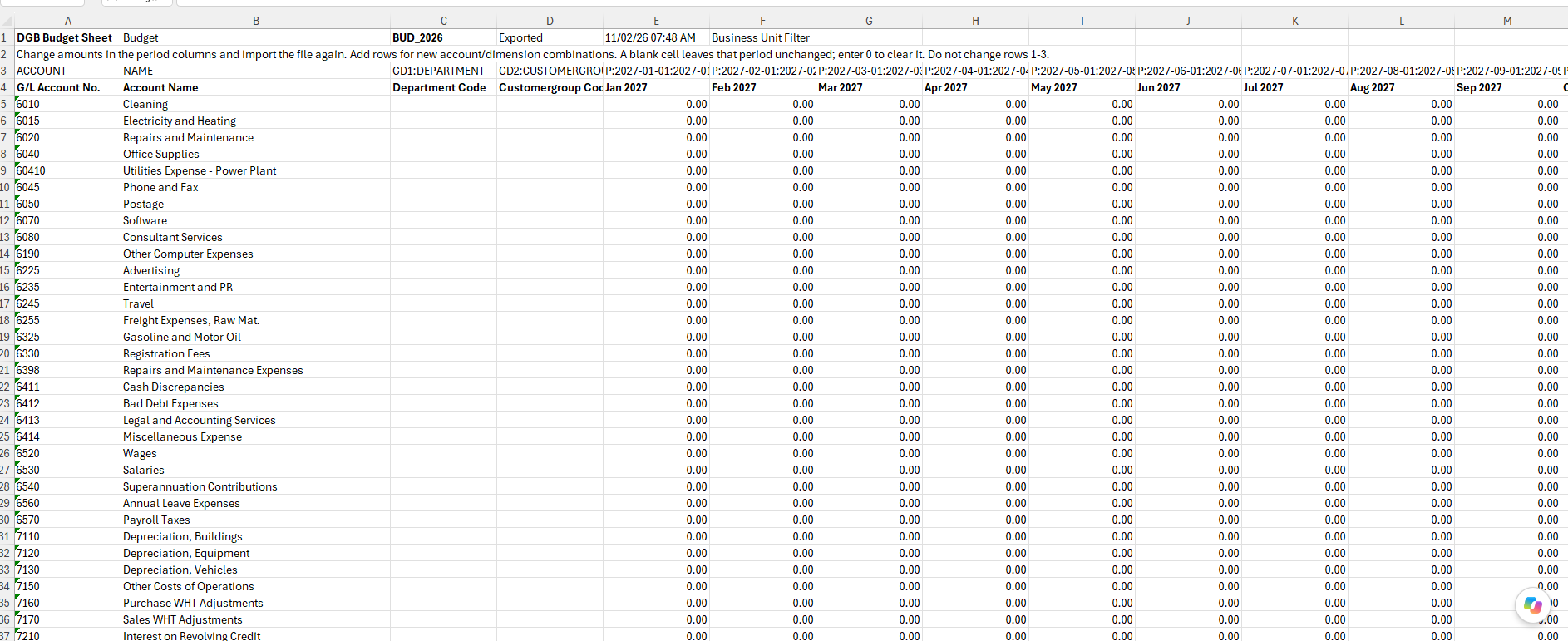
The exported budget in Excel.
Import a Budget
To import a budget:
-
On the Budget page for the same budget, choose the Import Budget (Simple) action.
-
Leave Add Amounts to Existing Budget turned off. The amount in the file replaces the budget, and only the difference is posted.
-
If you want the change to be approved first, turn on Create Budget Change Document.
-
Choose OK, and then select the file.
-
Business Central checks the whole file first. If there are errors, they’re listed by row number, and nothing is imported.
-
If the budget is open, confirm the number of changes. If the budget is released, a budget change document is created for approval.

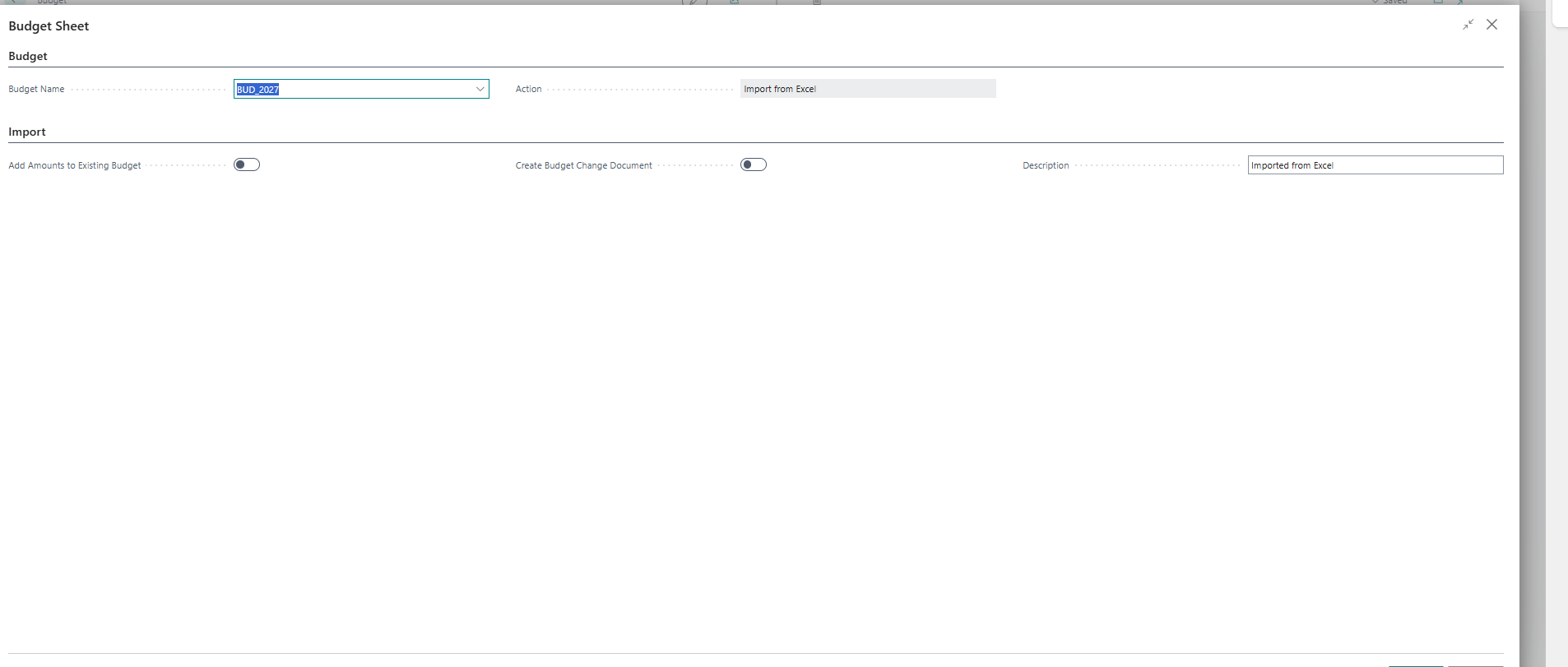
The import dialog.
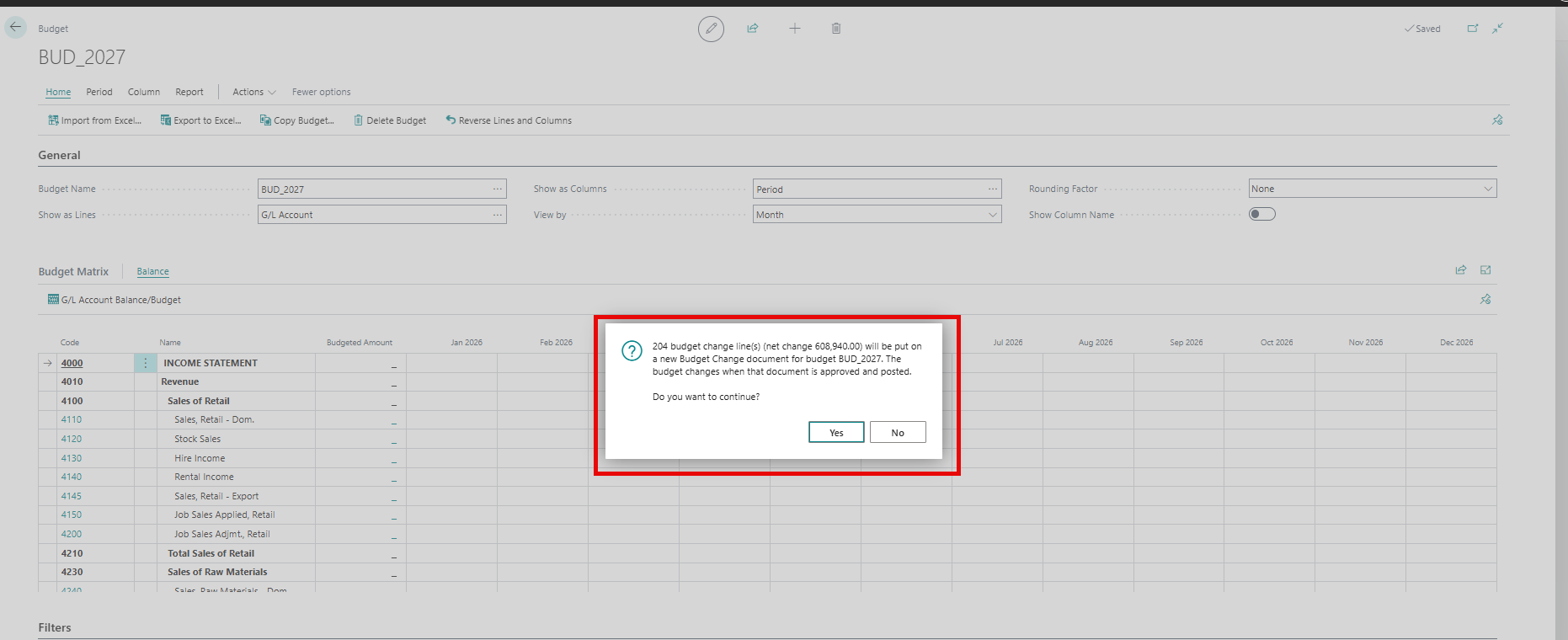
The import confirmation.
IMPORTANT: Import the file into the same budget that you exported it from. A file from another budget is refused.
Check Budget on Purchase Documents
Purchase quotes, purchase orders and purchase invoices are checked line by line. You see the budget status while you enter lines, and every line is checked again when the document is released or posted.
Accounts Checked
These are the accounts that are checked:
| Line type | Budget account |
|---|---|
| G/L Account | The account on the line |
| Item (non-inventory or service), Resource, Charge (Item) | The Purch. Account in the general posting setup |
| Item (inventory) | Only checked if Control Inventory Items is turned on |
| Fixed Asset | The Acquisition Cost Account of the FA posting group |
Check Purchase Order
To check the budget while you enter a purchase order:
-
Choose the search icon, enter Purchase Orders, and then choose the related link.
-
Create a purchase order and enter a line with a G/L account or item, quantity, cost and dimensions.
-
Look at the Budget Status column on the line and the Budget Funds Check FactBox.
-
If the line is over budget or close to the limit, a notification appears with Show budget and Resolve.
Line Columns
| Column | Description |
|---|---|
| Budget Status | Specifies the budget status of the line. |
| Budget Available After Line (LCY) | Specifies the funds left on the budget line after this line. |
| Over Budget By (LCY) | Specifies how much the line is over budget. |
| Budget Used % After Line | Specifies the share of the budget used after this line. |
| Budget Exception No. | Specifies the request linked to the line. |
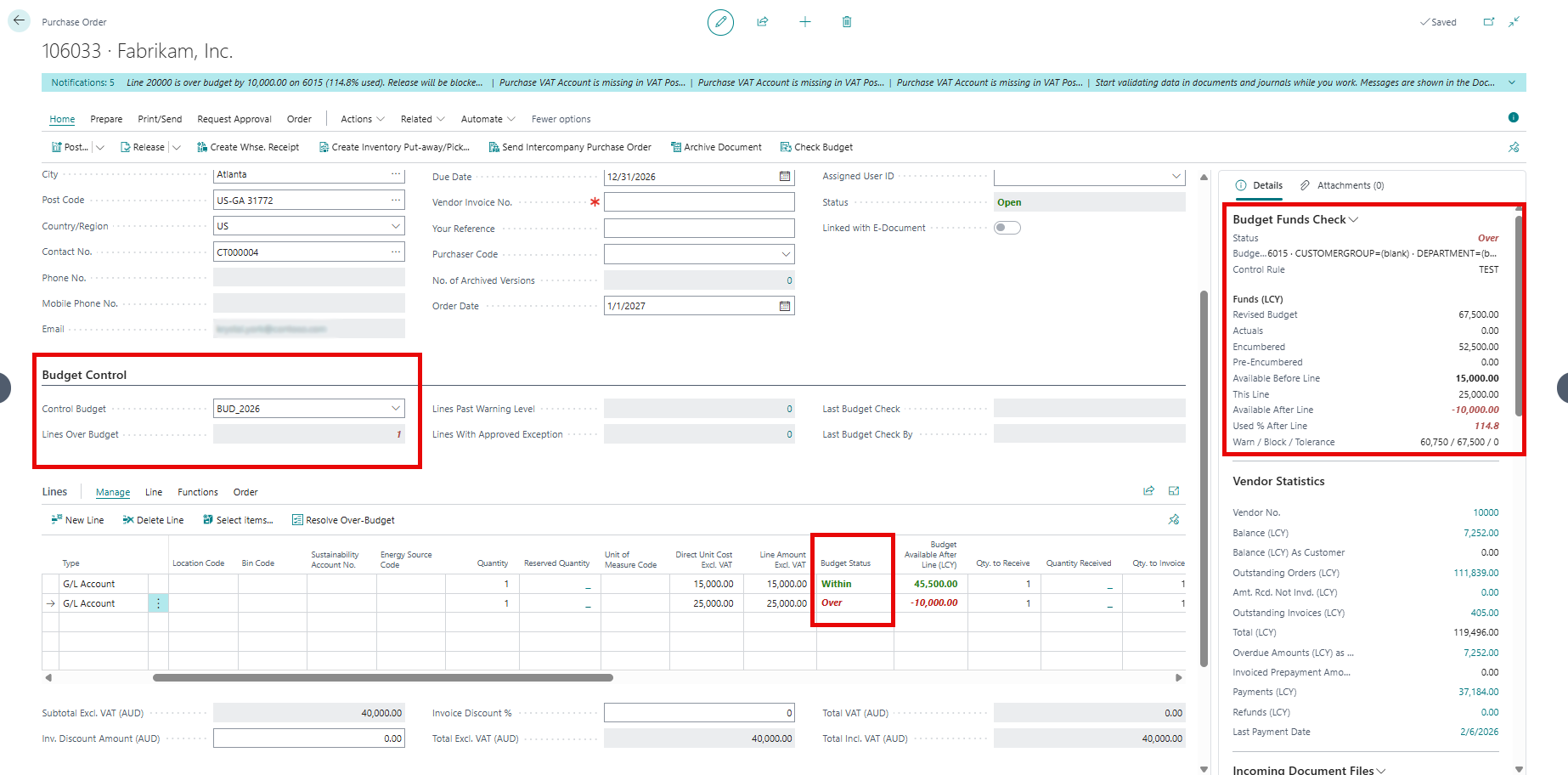
Purchase order lines with budget columns.
Budget Funds FactBox
| Field | Description |
|---|---|
| Status | The budget status of the selected line. |
| Budget Line | The account, controlled dimensions and control period. |
| Control Rule | The rule that applies. |
| Revised Budget | The budget for the period, including posted budget changes. |
| Actuals | Amounts posted to the general ledger. |
| Encumbered | Amounts committed by released orders and invoices. |
| Pre-Encumbered | Amounts reserved by released quotes. |
| Available Before Line | Funds available before this line. |
| This Line | What the line needs in addition to anything it already reserved. |
| Available After Line | Funds left after this line. |
| Used % After Line | Share of the budget used after this line. |
| Warn / Block / Tolerance | The warning level, block level and tolerance as amounts. |
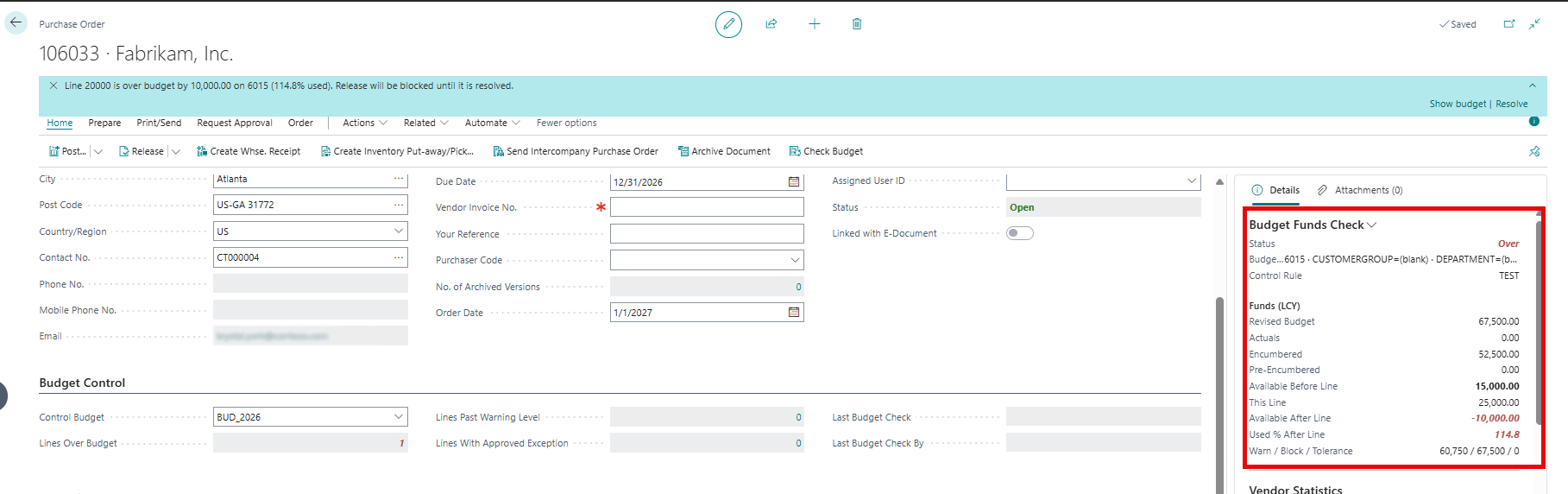
The Budget Funds Check FactBox.
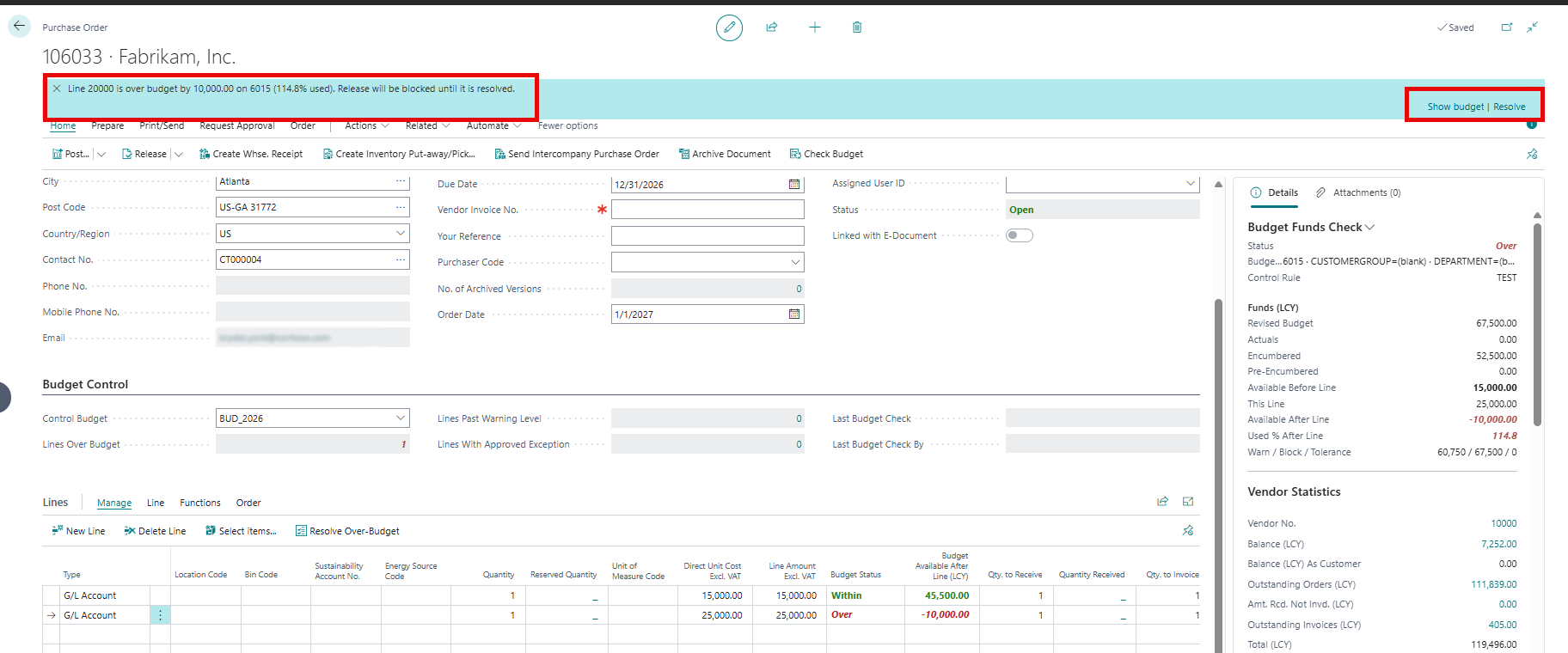
The over-budget notification.
Budget Control FastTab
Here is a description of the fields in the Budget Control FastTab:
| Field | Description |
|---|---|
| Control Budget | Specifies the budget that the document is checked against. |
| Lines Over Budget | Specifies how many lines are over budget. The document can’t be released until each one is resolved. |
| Lines Past Warning Level | Specifies how many lines are past the warning level. They don’t block the document. |
| Lines With Approved Exception | Specifies how many over-budget lines have an approved exception. |
| Last Budget Check and Last Budget Check By | Specify when the document was last checked, and by whom. |
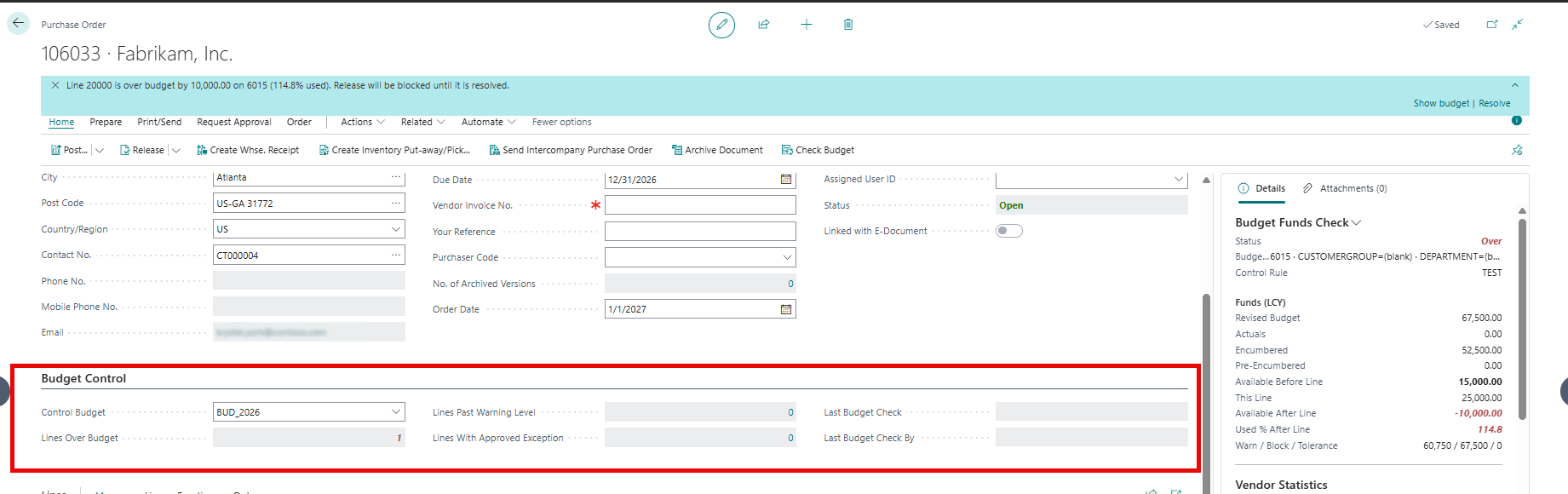
The Budget Control FastTab.
Check Whole Document
To check the whole document:
-
On the purchase order, choose Budget, and then choose Check Budget.
-
The Budget Check page shows each line with the figures used in the check.


TThe Budget Check page.
Release Purchase Order
To release a purchase order, follow these steps:
- When you choose Release, every line is checked.
- If a line is over budget and Purchase Order Release is set to Block, an error names the line.
- Choose Show budget check in the error to see the details.
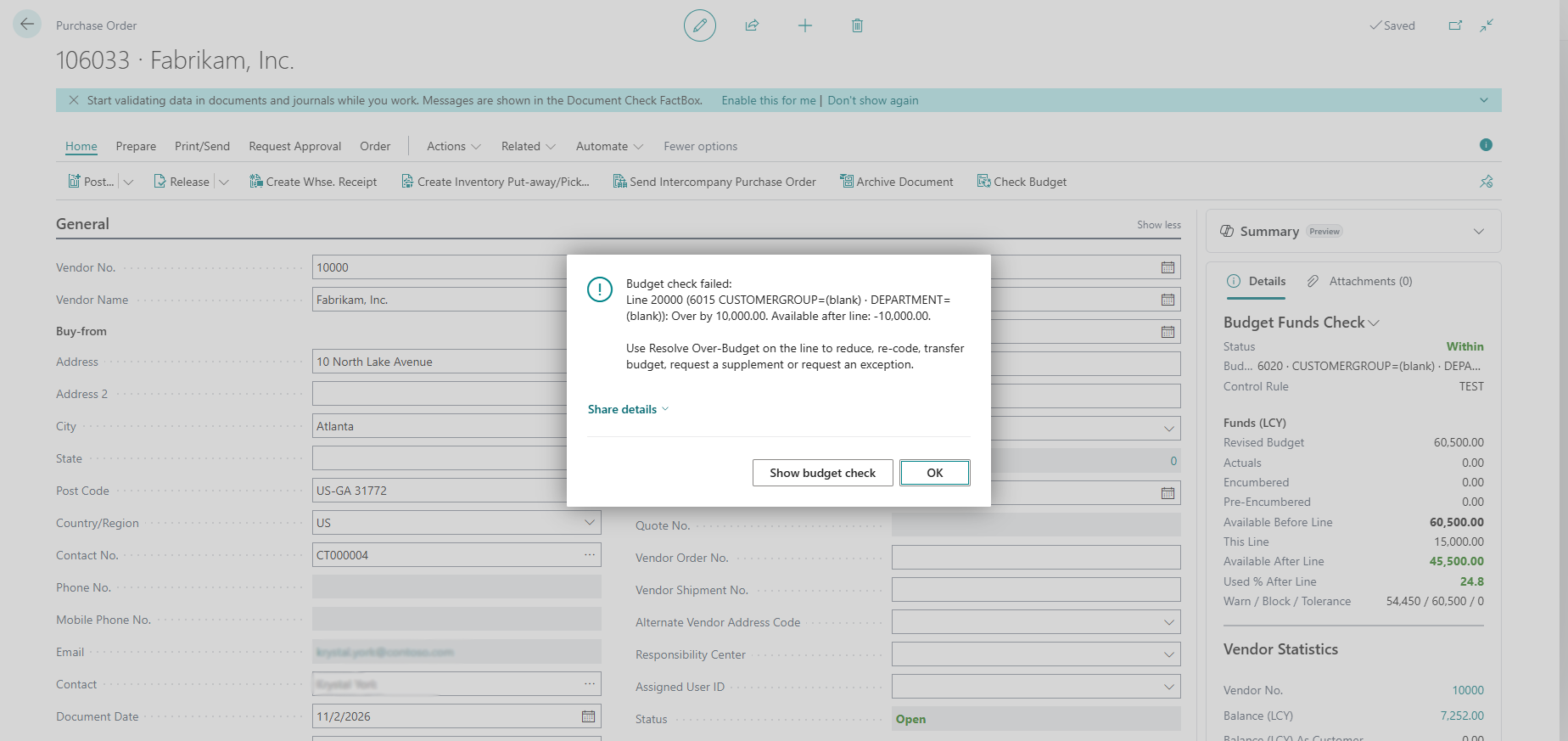
Release blocked error.
When the document is released, its lines reserve budget. If you reopen the document, the reservation is released.
NOTE: Purchase quotes and purchase invoices have the same Budget Control FastTab, line columns, FactBox and actions.
Resolve Over-Budget Lines
When a line is over budget, the Resolve Over-Budget guide offers five ways to fix it. Reduce and re-code fix the line straight away. Budget transfers, supplements and exceptions are sent for approval.
To open the guide, use one of the following:
-
On the purchase document line, choose Line, and then choose Resolve Over-Budget.
-
In the Budget Funds Check FactBox, choose Resolve Over-Budget.
-
In the over-budget notification, choose Resolve.
-
On the Budget Check page, choose Resolve Over-Budget.
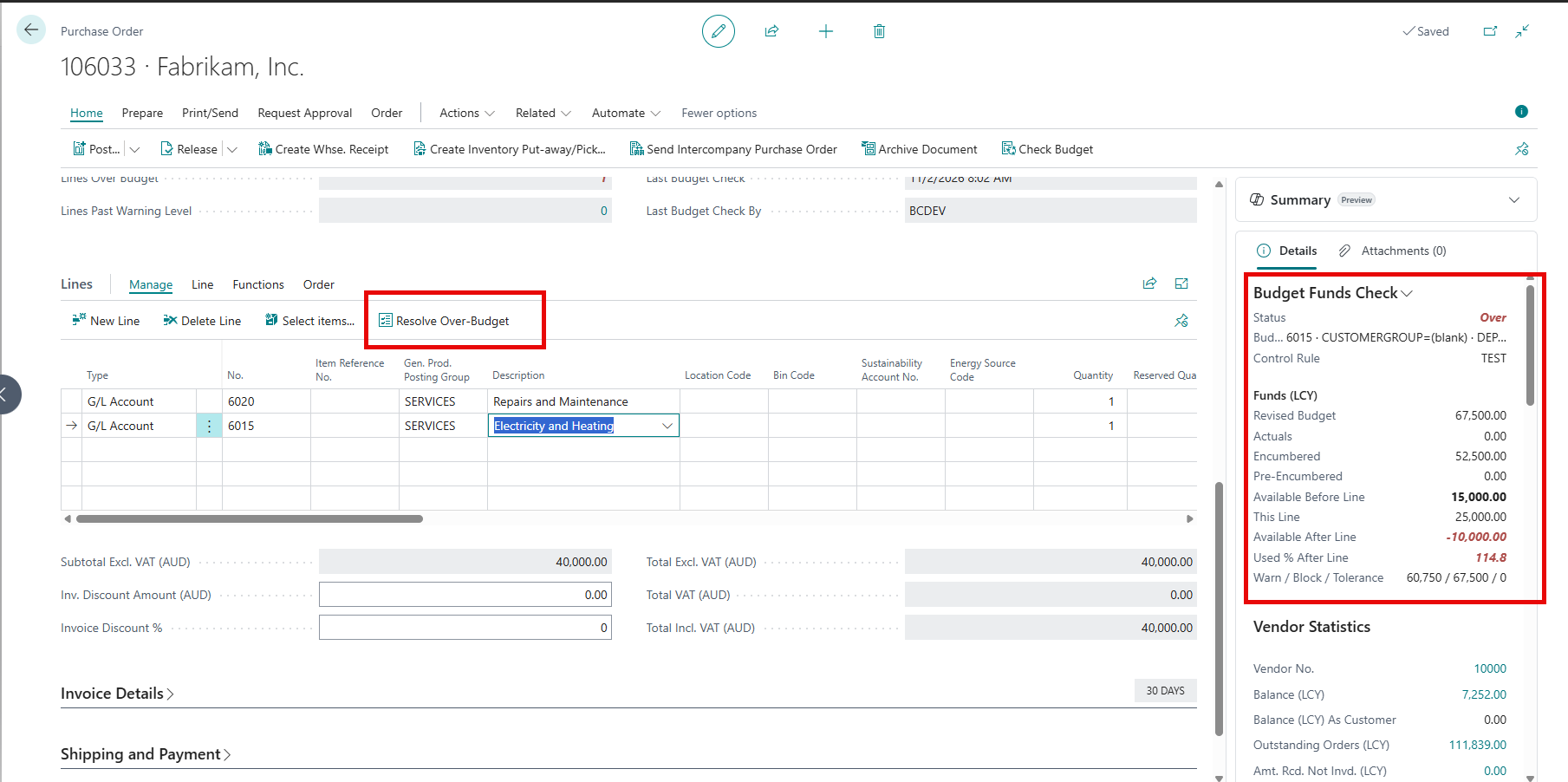
The Resolve Over-Budget action on a line.
Step 1: Choose a Resolution
The first page shows the document and line, the budget line, the line amount, the funds available before the line and how much it’s over budget. Choose one of the resolutions in the following table, and then choose Next.
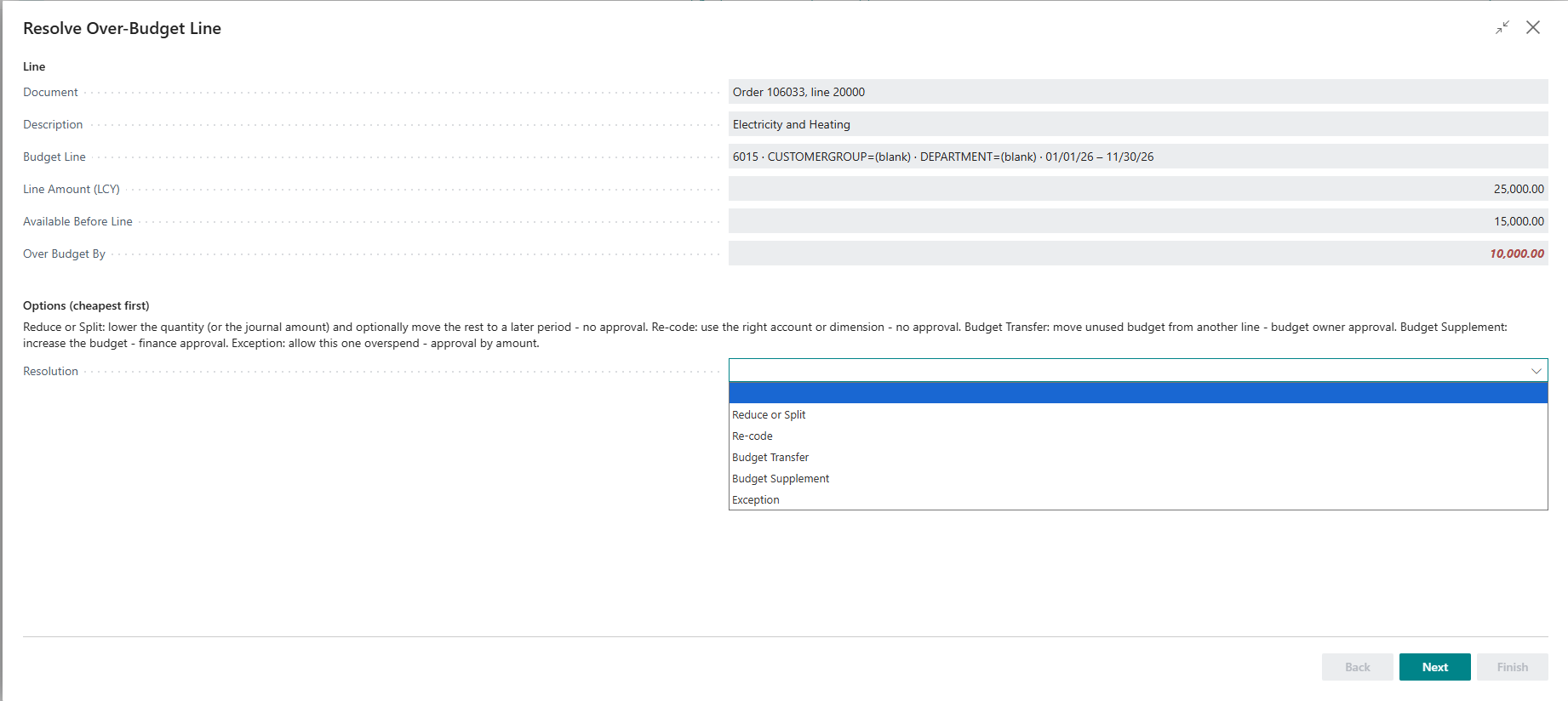
Step 1 of the guide.
This tables lists the resolutions:
| Resolution | What Happens | Approval |
|---|---|---|
| Reduce or Split | Lowers the quantity. You can move the rest to a new line with a later expected receipt date, which is checked in its own period. | None |
| Re-code | Changes the G/L account (for G/L account lines) or the dimensions of the line. | None |
| Budget Transfer | Moves budget from another budget line to this one. The total budget doesn’t change. | Budget Change Approval |
| Budget Supplement | Adds budget to this budget line. | Budget Change Approval |
| Exception | Allows this line to go over budget by the amount shown, until the expiry date. The budget doesn’t change. | Budget Exception Approval |
Step 2: Enter the Details
When entering the details, here are the resolutions and fields described:
| Resolution | Fields |
|---|---|
| Reduce or Split | New Quantity, Move Remainder to a New Line, Remainder Expected Receipt Date. Available in That Period shows the funds in the new period. |
| Re-code | New G/L Account, New Global Dimension 1 and 2, and All Dimensions (choose the assist button to change any dimension). Available on New Budget Line shows the funds there. |
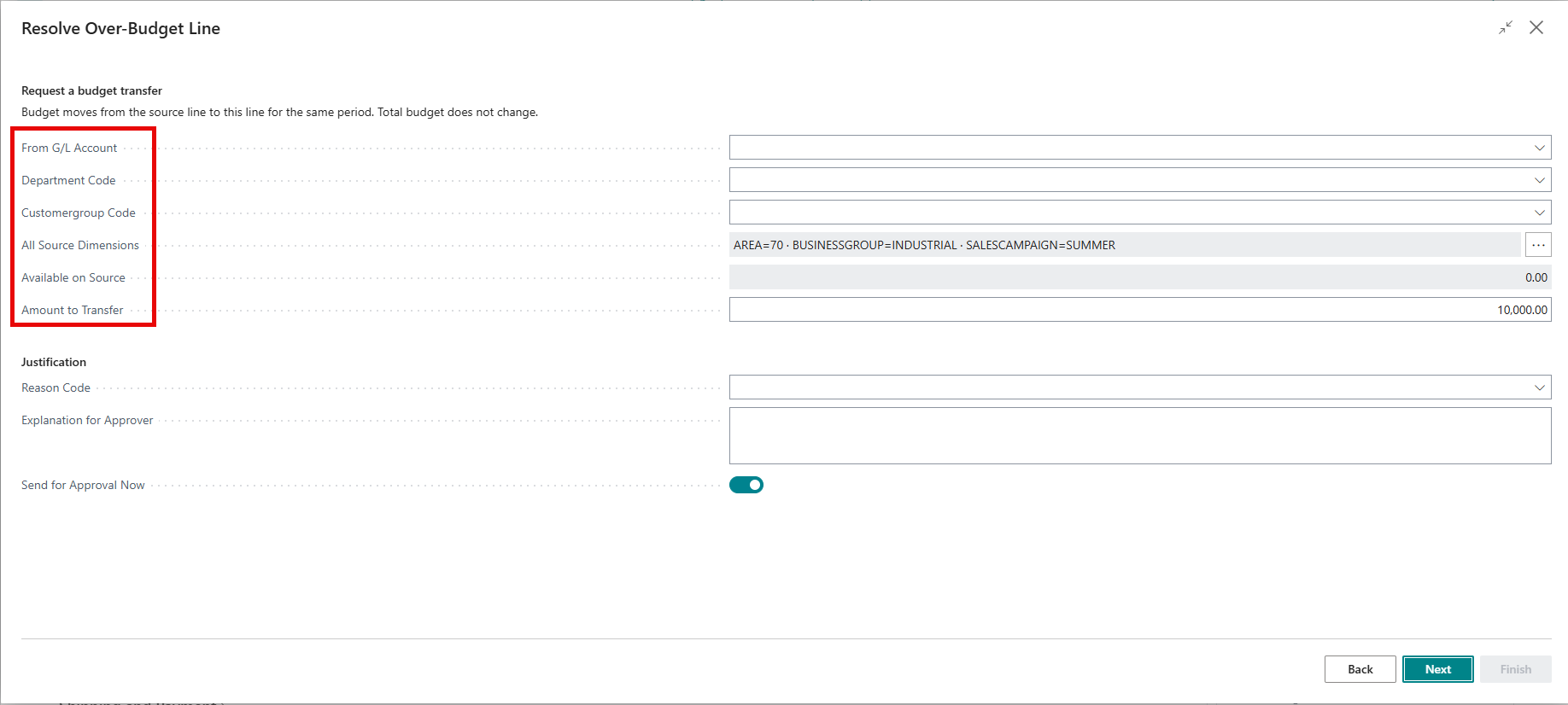
| Budget Transfer | From G/L Account, From Global Dimension 1 and 2, All Source Dimensions, Available on Source, and Amount to Transfer. |
| Budget Supplement | Amount to Add. |
| Exception | Over-Budget Amount to Approve. |
For a transfer, supplement or exception, also fill in Reason Code and Explanation for Approver, and choose whether to Send for Approval Now.
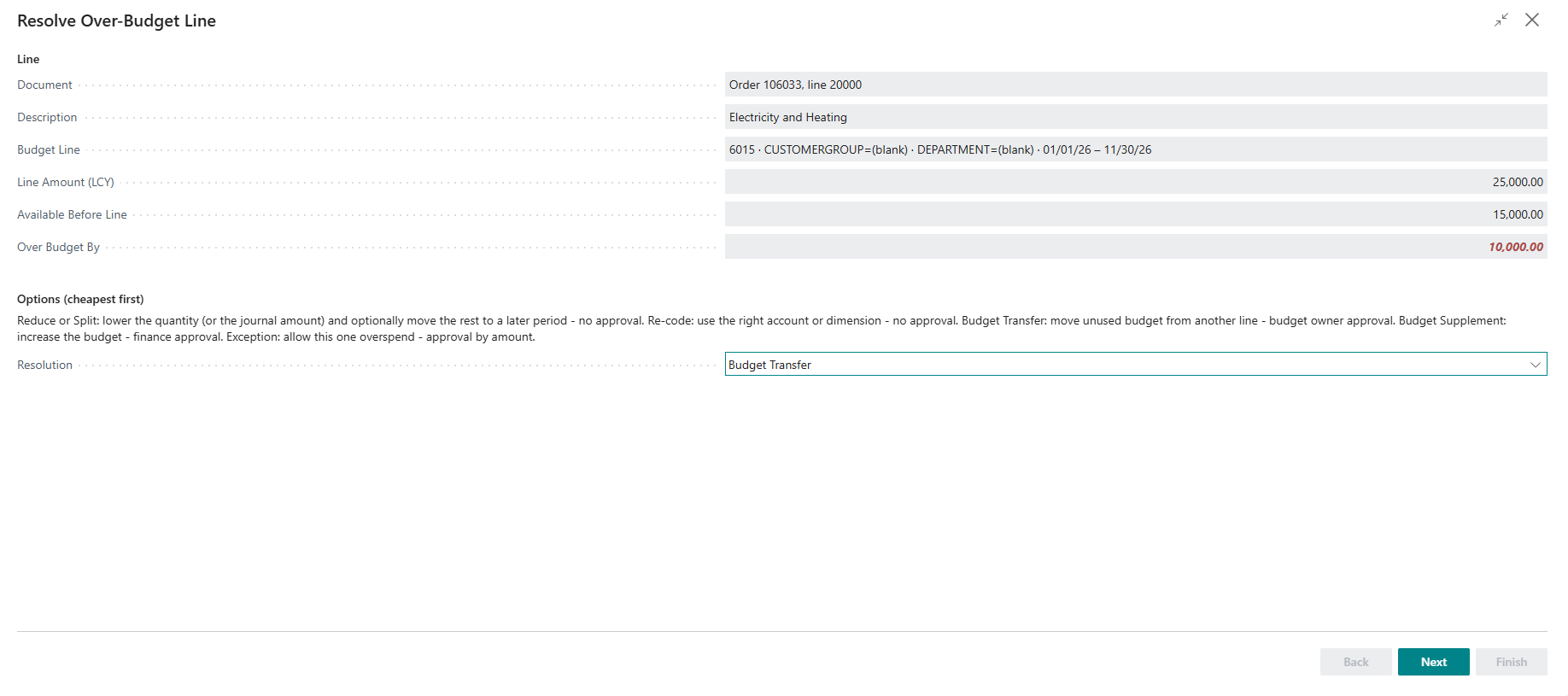
Step 2 for a budget transfer.
Step 2 for an exception.
Step 3: Confirm
The last page describes what will happen.
Choose Finish.
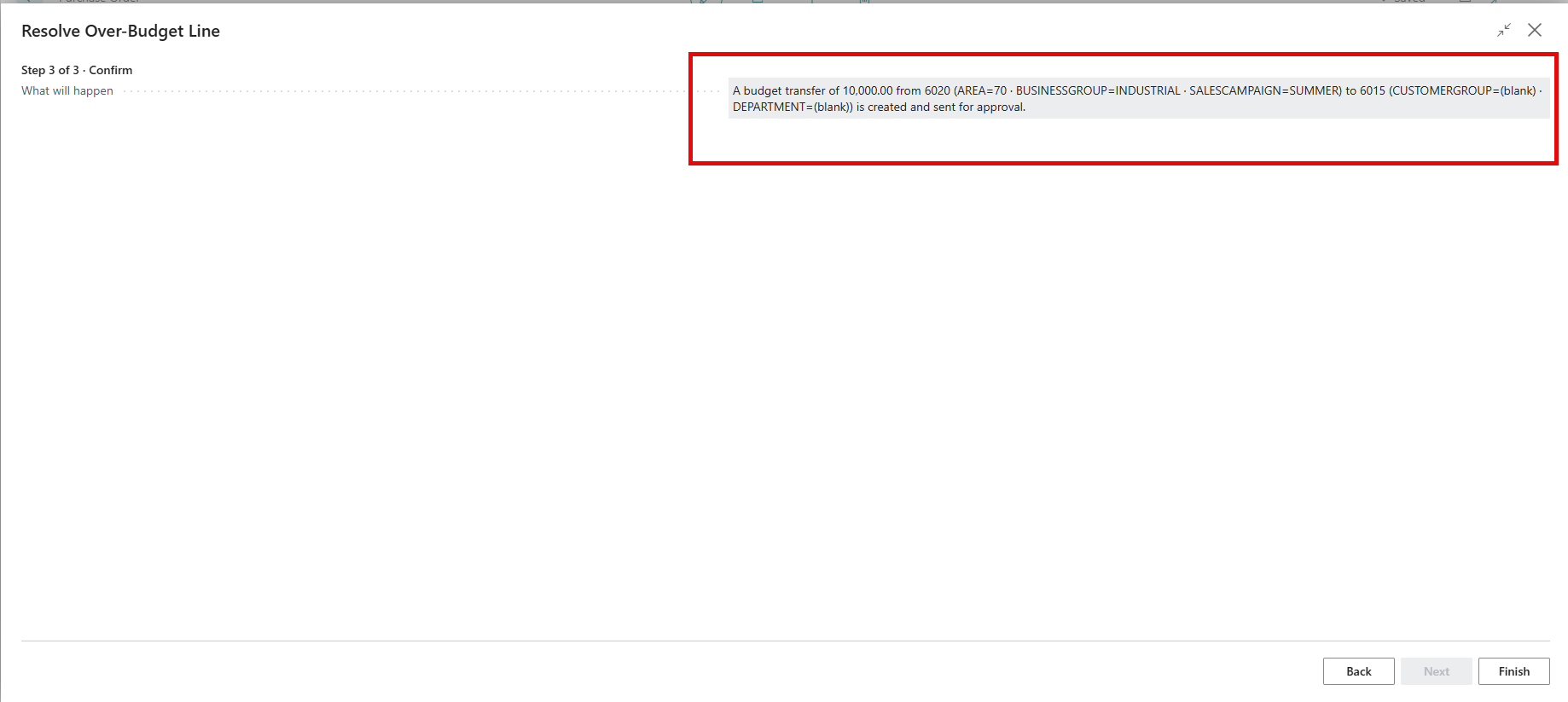
Step 3 of the guide.
NOTE: To reduce or re-code a line, the document must be open. If it’s released, reopen it first.
NOTE: If your Over-Budget Permission is Blocked, you can’t request an exception. Use one of the other resolutions.
IMPORTANT: An approved exception covers the approved amount only. If the line increases later, it’s over budget again.
When a budget transfer or supplement is posted, the line is checked again automatically.
Approve Budget Requests
Approvers approve budget requests in the same way as other approvals in Business Central.
Approve or Reject Budget Requests
To approve or reject a request:
-
Choose the search icon, enter Requests to Approve, and then choose the related link. If you use the Budget Controller Role Center, choose the Requests To Approve tile.
-
Select the request, and then choose Record to see the details: the line, amounts and the requester’s explanation.
-
Choose Approve or Reject.
View Budget Requests
To view budget requests:
- Choose the search icon.
- Enter Budget Exception Requests.
- Choose the related link.
Request Statuses
The following table describes the status of a budget request:
| Status | Meaning |
|---|---|
| Open | The request is created but not sent for approval. |
| Pending Approval | The request is waiting for an approver. |
| Approved | The line can be released up to the approved amount until the expiry date. |
| Rejected | The request was rejected. Choose another resolution. |
| Cancelled | The requester cancelled the request. |
| Completed | The budget transfer or supplement was posted, or the overspend was recorded automatically. |
Request Card
The following are details of a request card:
| FastTab | Fields |
|---|---|
| General | No., Status, Resolution Type, Reason Code, Justification, Requested By, Requested At |
| Over-Budget Line | Source Doc, Document No., Line No., Description, Vendor No., G/L Account No., dimensions, Period Start, Period End |
| Amounts (LCY) | Line Amount, Available, Over Amount, Approved Amount, Expiry Date, Approved By, Budget Register No. |
Actions
Here are the actions you can take with budget requests:
| Action | Description |
|---|---|
| Send Approval Request / Cancel Approval Request | Sends or withdraws the request. |
| Approve (No Workflow) / Reject (No Workflow) | Available only when no workflow is enabled and Allow Approval Without Workflow is turned on. You can’t approve your own request. |
| Cancel Request | Cancels the request. The line is over budget again. |
| Approvals | Shows the approval entries. |
| Open Document | Opens the purchase document or journal. |
| Budget Change Document | Opens the linked budget change. |
Change a Released Budget
A Released Budget is changed with a budget change document on the Budget Register page. The document is approved and posted, and each posting gives the budget a new version.
Types of Budget Change
These are the types of budget change:
| Type | Use it to | Rule |
|---|---|---|
| Revision | Add budget or take budget away. | Any lines. |
| Transfer | Move budget from one budget line to another. | Must have lines that take budget away and lines that add it, and must net to zero. |
| Carry Forward | Add last year’s open commitments to the new year’s budget. Created by the year-end carry forward. | Approved and posted like other changes. |
Create a Budget Change
To create a budget change:
-
Choose the search icon, enter Budget Register, and then choose the related link.
-
Choose New.
-
Fill in Document Type, Budget Name, Description, Posting Date and Reason Code.
-
On the lines, fill in G/L Account No., the dimensions, Budget Date and Amount. A negative amount takes budget away, and a positive amount adds it. To set all dimensions, choose Line, and then choose Dimensions.
-
Available Before (LCY) shows the funds on that budget line now.
-
Choose Approval, and then choose Send Approval Request.
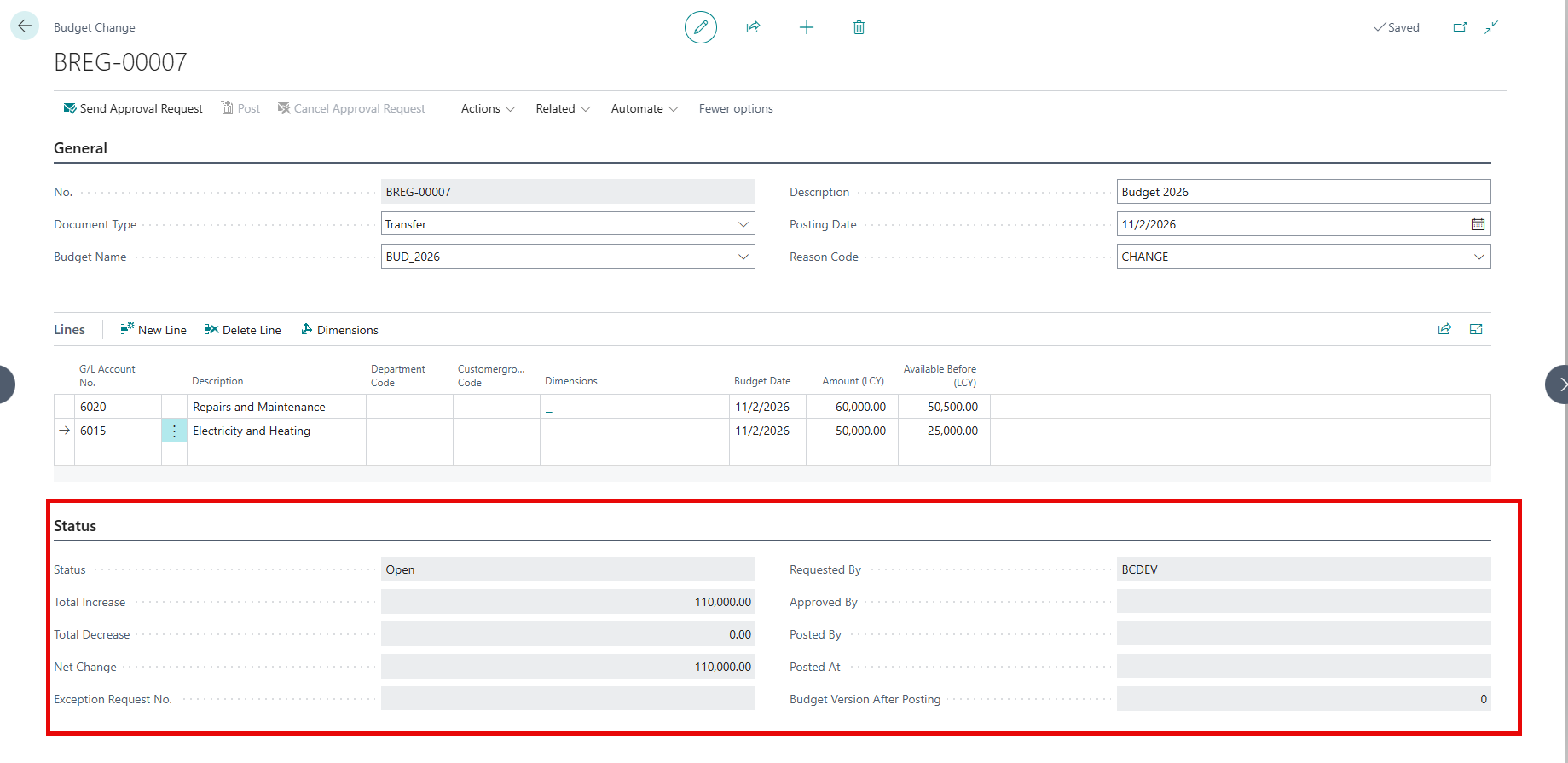
A budget change document.
Post a Budget Change
To post a budget change:
-
Open the approved budget change document.
-
Choose Post.
-
The budget is updated, and its Budget Version goes up by one.

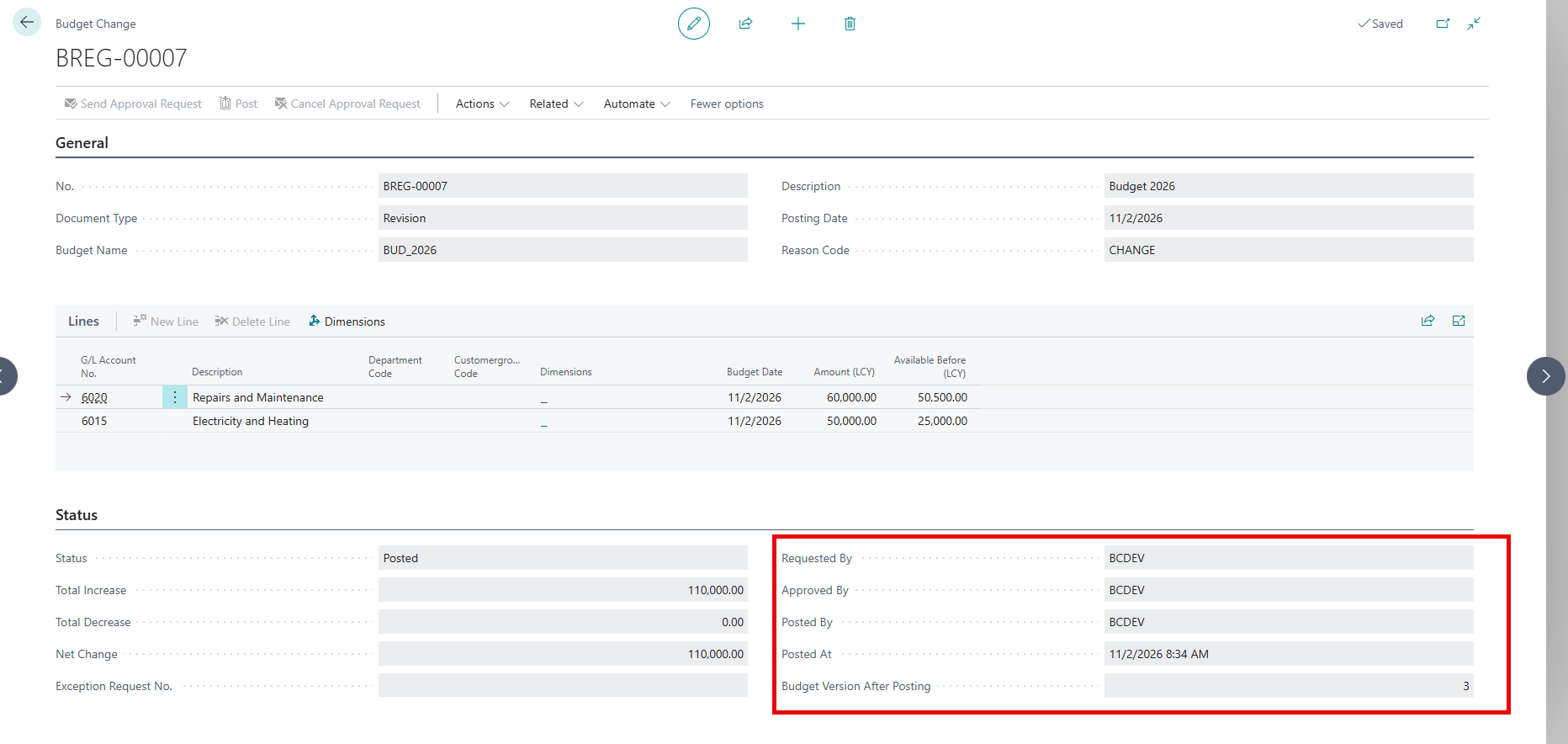
A posted budget change.
NOTE: To post, you need Can Post Budget Register on the Budget User Setup page. If Auto-Post Approved Budget Changes is turned on, the change is posted when it’s approved.
Track Commitments
Purchase Budget Control reserves budget when a document is released, so the same money isn’t counted twice.
| Event | Effect on budget |
|---|---|
| A purchase quote is released | Budget is reserved as pre-encumbrance. |
| A purchase order or invoice is released | Budget is committed as encumbrance. |
| A document is reopened or deleted | The reservation is released. |
| An invoice is posted | The invoiced amount moves from encumbrance to actuals. Funds available don’t change. |
| A purchase credit memo is posted | Actuals go down, and budget becomes available again. |
| Year-end carry forward | Open commitments move to the new year. |
View Commitment Entries
To view commitment entries:
- Choose the search icon.
- Enter Budget Commitment Entries.
- Choose the related link.
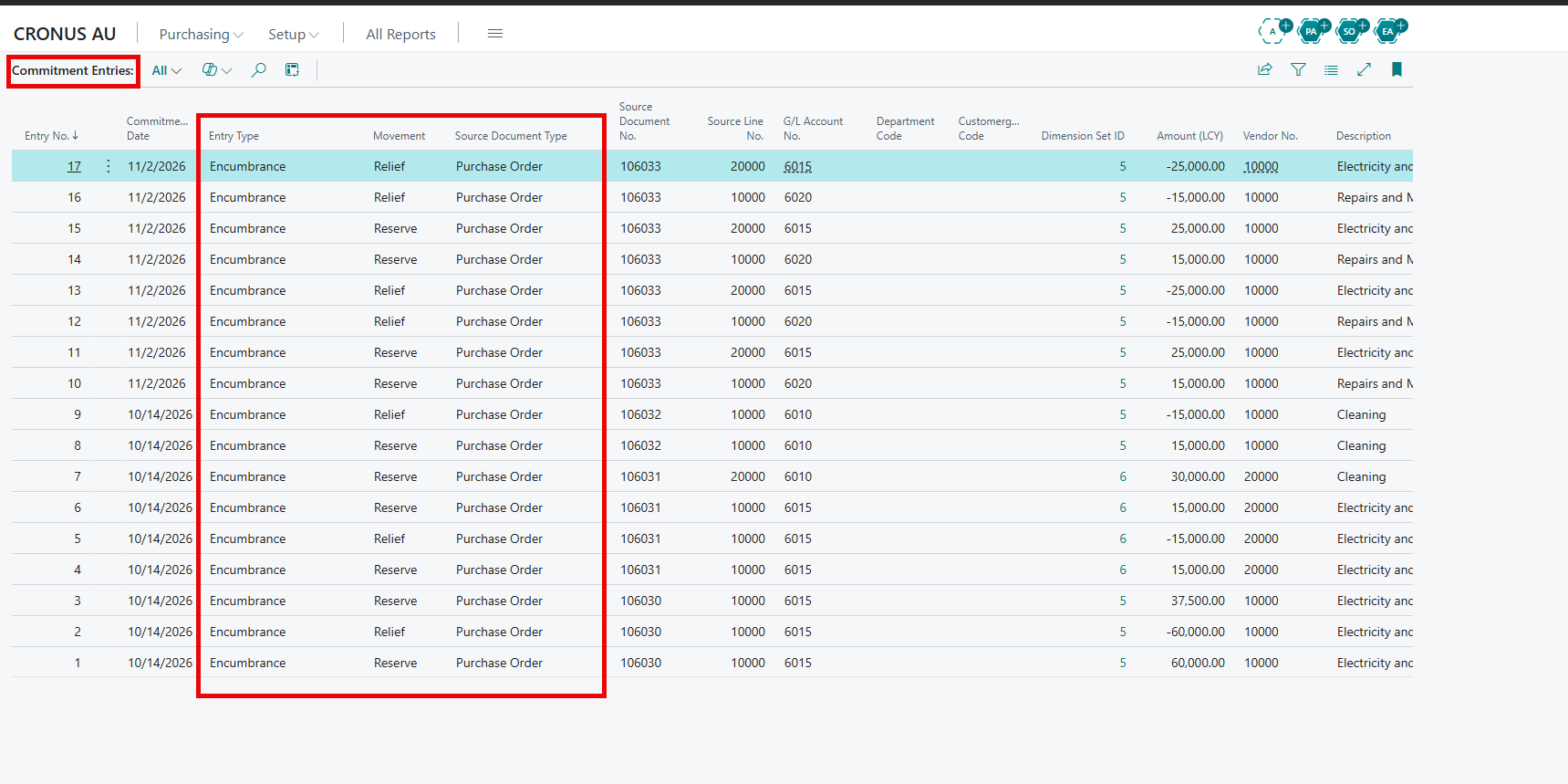
Budget Commitment Entries.
The following table provides a description of the fields:
| Field | Description |
|---|---|
| Commitment Date | Specifies the date that decides the budget period. |
| Entry Type | Pre-Encumbrance (quote) or Encumbrance (order or invoice). |
| Movement | Reserve, Relief, Carry Forward Out or Carry Forward In. |
| Source Doc, Source Document No., Source Line No. | Specify the document line. |
| G/L Account No. and dimensions | Specify the budget account and the line’s dimensions. |
| Amount (LCY) | Positive amounts reserve budget, negative amounts release it. |
| Vendor No., Description, User ID | Information from the document and the user who caused the entry. |
Funds Available
The Funds Available page shows budget, actuals, commitments and funds available for any account, department or other dimension.
View Funds Available
To view funds available:
-
Choose the search icon, enter Funds Available, and then choose the related link. You can also choose Funds Available on a purchase document or in the FactBox; the page then opens filtered for that line.
-
Fill in the filters as described in the following table.
-
To see one line per dimension value, fill in Split by Dimension.
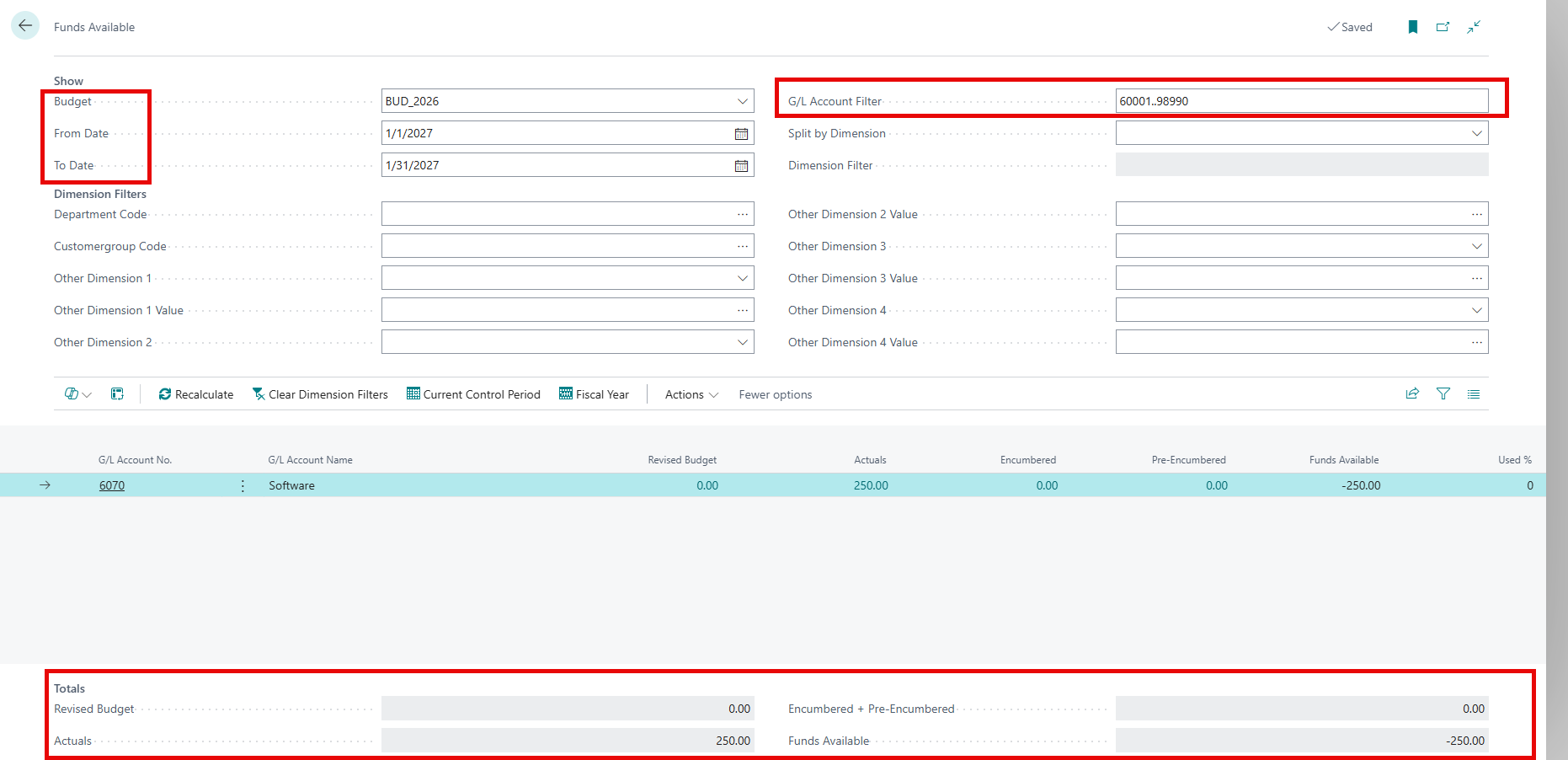
The Funds Available page.
The following table provides a description of the fields:
| Field | Description |
|---|---|
| Budget | Specifies the budget to compare against. |
| From Date and To Date | Specify the period. The Current Control Period and Fiscal Year actions fill them in. |
| G/L Account Filter | Specifies the accounts to show. |
| Split by Dimension | Shows one line per value of the dimension, and a (BLANK) line. |
| Global Dimension 1 and 2, Other Dimension 1 to 4 | Limit the figures to dimension values. |
| Column | Description |
|---|---|
| Budget Amount | The revised budget. Choose the amount to see the budget entries. |
| Actual Amount | Amounts posted to the general ledger. Choose the amount to see the G/L entries. |
| Encumbrance Amount | Amounts committed by released orders and invoices. Choose the amount to see the commitment entries. |
| Pre-Encumbrance Amount | Amounts reserved by released quotes. |
| Funds Available | Budget minus actuals and commitments. |
| Used % | Share of the budget used or committed. |
Actions
Here are actions that can be taken:
| Action | Description |
|---|---|
| Recalculate | Recalculates the figures. |
| Clear Dimension Filters | Removes all dimension filters. |
| Current Control Period / Fiscal Year | Sets the dates. |
| New Budget Change | Creates a budget change document. |
Control Budget on General Journals
Spend posted through a general journal (G/L) is checked in the same way as purchase documents.
Check General Journal
To check a general journal:
-
Choose the search icon, enter General Journals, and then choose the related link.
-
Enter the lines. Each line shows Budget Status, Budget Available After Line (LCY), Over Budget By (LCY) and Budget Exception No.
-
The Budget Funds Check FactBox shows the figures for the selected line.
-
To check all lines together, choose Check Budget.
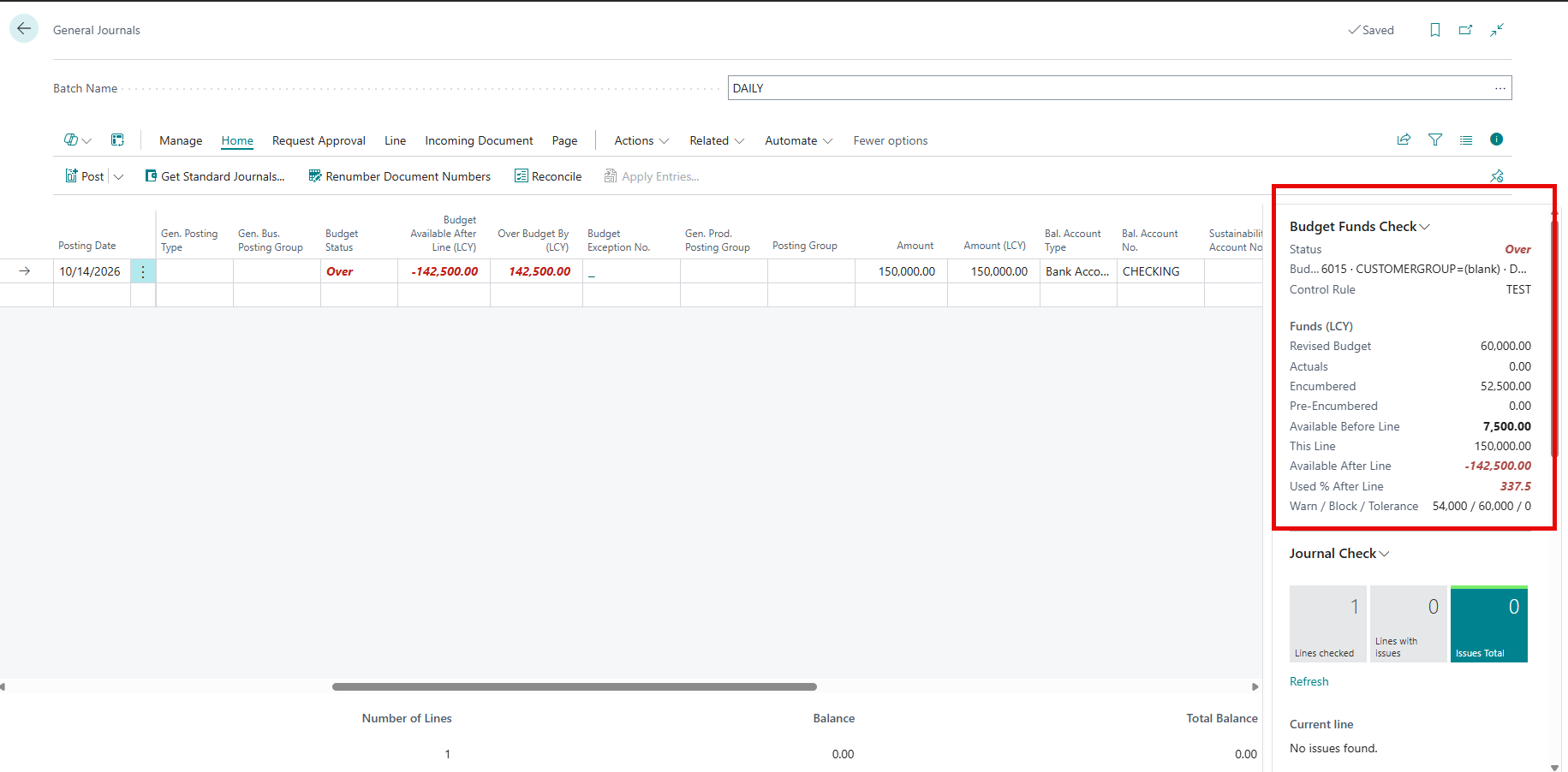
A general journal with budget columns.
Resolve Over-Budget Journal Line
To resolve an over-budget journal line:
-
Select the line, and then choose Resolve Over-Budget.
-
Choose a resolution. For journals, Reduce asks for a new amount instead of a quantity. The other resolutions work as described in Resolve over-budget lines.
-
When the request is approved, or the budget change is posted, the line is checked again automatically. You can then post the journal.
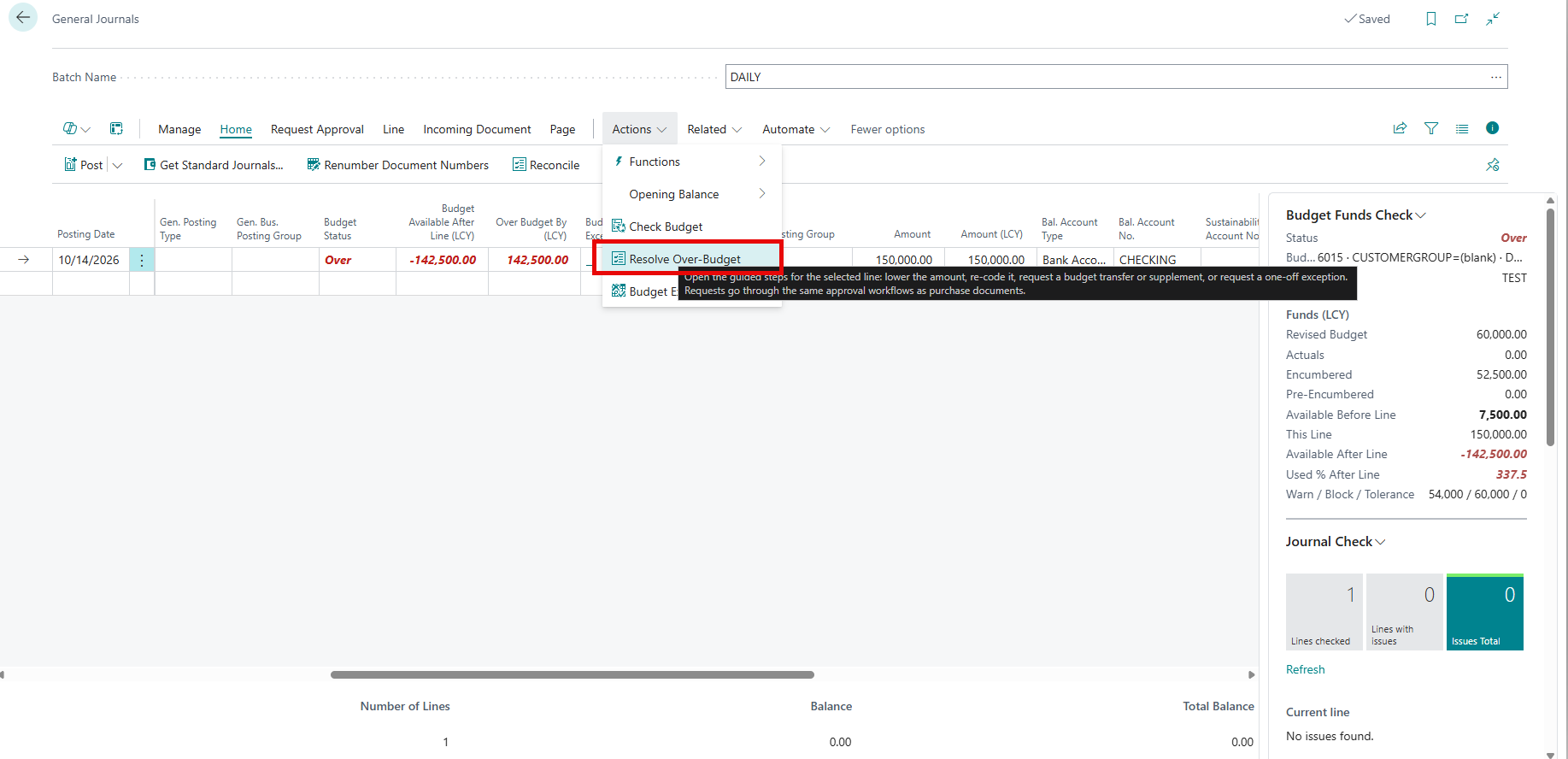
Resolve Over-Budget from a journal.
NOTE: When the journal is posted, all lines are checked together. Two lines that each fit the budget on their own, but not together, are stopped.
Use the Budget Controller Role Center
The Budget Controller Role Center shows everything a budget controller needs on one page.
To use the Budget Controller Role Center:
-
Choose the settings icon, and then choose My Settings.
-
In the Role field, choose Budget Controller, and then choose OK.
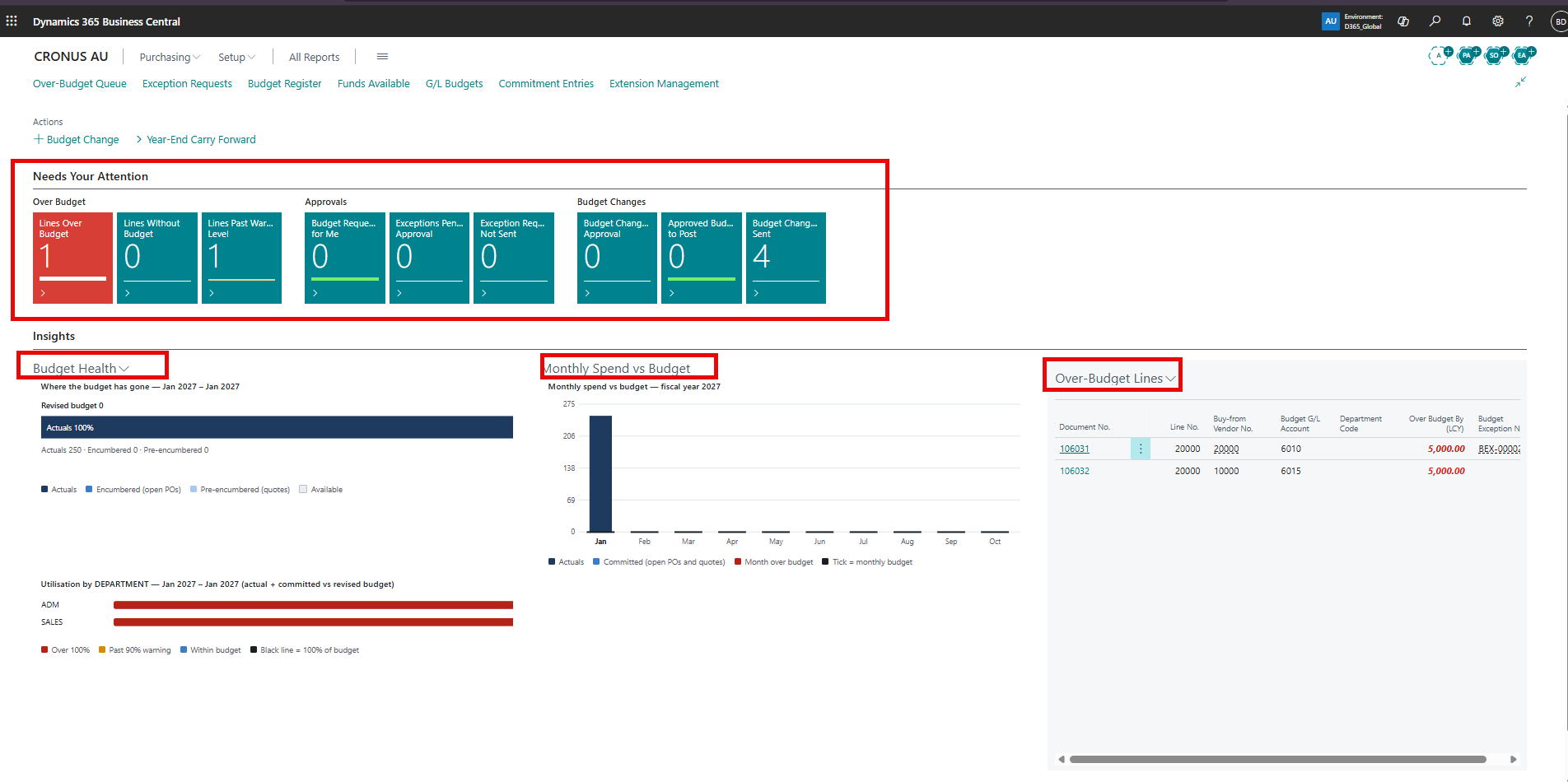
The Budget Controller Role Center.
Tiles
Here is a description of the tiles:
| Tile | Shows |
|---|---|
| Over-Budget Lines | Purchase lines over budget with no resolution started |
| No Budget Lines | Lines on controlled accounts that have no budget |
| Warning Lines | Lines past the warning level |
| Requests To Approve | Budget requests waiting for you |
| Pending Exceptions / Open Exceptions | Requests waiting for approval / not sent yet |
| Pending Register Docs / Register Docs To Post / Open Register Docs | Budget changes waiting for approval / approved but not posted / not sent yet |
Choose a tile to open the list behind it.
Charts
Here is a description of the charts:
| Chart | Shows |
|---|---|
| Budget Health | Budget against actuals, encumbrance and pre-encumbrance for the year to date. |
| Utilization Bars | One bar per value of the dashboard dimension. Red over 100%, amber from 90%. Choose a bar to open Funds Available for that value. |
| Monthly Spend vs Budget | Actuals plus commitments per month against the budget. Months over budget are red. |
Over-Budget Queue
The Over-Budget Queue lists every over-budget purchase line, and shows where each one is waiting in the Where It Is Stuck column. Open it from the Role Center or from Budget > Over-Budget Queue on a purchase document.
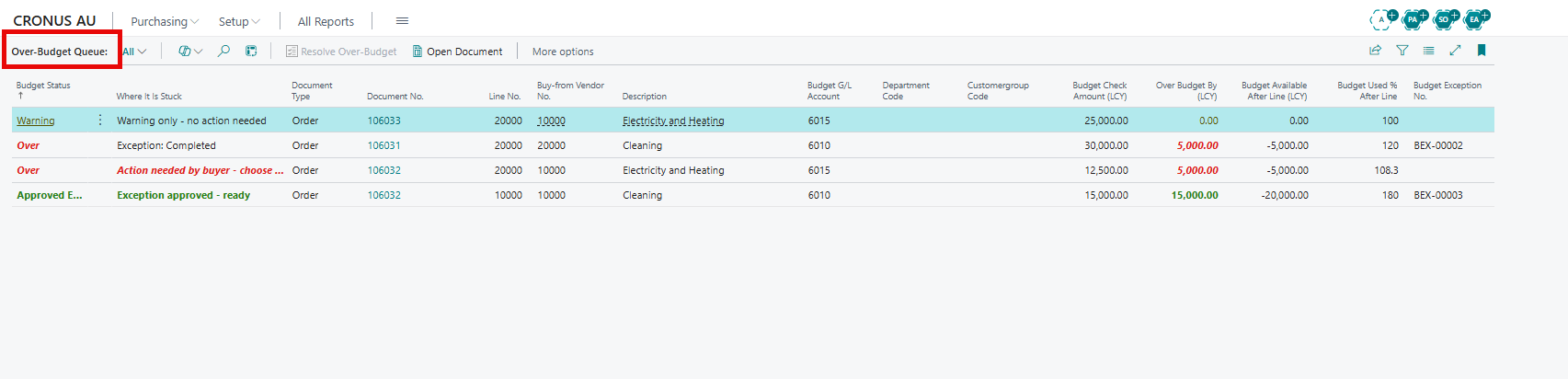
The Over-Budget Queue.
Here is a description of the Where It Is Stuck column:
| Where It Is Stuck | Meaning |
|---|---|
| Action needed by buyer - choose a resolution | Nobody has acted on the line yet. |
| Resolution: status, for example Exception: Pending Approval | A request exists, and this is its status. |
| Exception approved - ready | The buyer can release the document. |
| Warning only - no action needed | The line is past the warning level but isn’t blocked. |
Carry Forward Commitments at Year-end
At year-end, open commitments from the closing year are moved to the new year, so open orders use the new year’s budget. You can also prepare a budget change that adds the carried amounts to the new year’s budget.
To Carry Forward Commitments:
-
On the Budget Controller Role Center, choose Year-End Carry Forward. You can also choose the search icon, enter Budget Year-End Carry Forward, and then choose the related link.
-
Fill in the fields as described in the following table.
-
Choose OK, and then confirm.
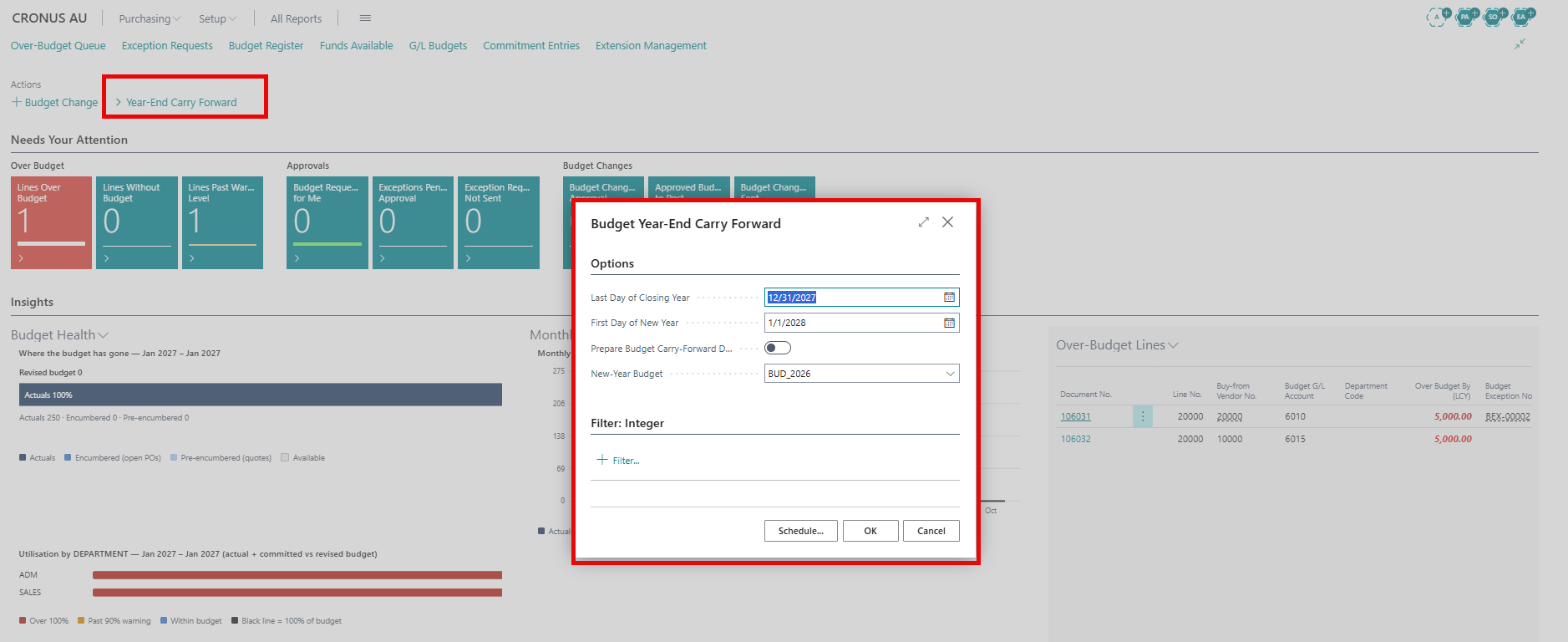
The Year-End Carry Forward request page.
Here is a description of the fields:
| Field | Description |
|---|---|
| Last Day of Closing Year | Specifies the last date of the year being closed. Commitments dated on or before this date are moved. |
| First Day of New Year | Specifies the date that the commitments are moved to. |
| Prepare Budget Carry-Forward Document | Specifies whether to create a Carry Forward budget change document that adds the carried amounts to the new-year budget. |
| New-Year Budget | Specifies the budget that the document adds to. |
The commitments are moved immediately. The new-year budget changes only when the carry-forward document is approved and posted.
Assign Permissions for Purchase Budget Control
Purchase Budget Control includes three permission sets. Permission Sets control which pages users can open. What users can do with the budget, such as approving or posting, is set on the Budget User Setup page.
Permission Sets
Here is an overview of Permission Sets.
| Permission Set | For | Gives access to |
|---|---|---|
| Budget Control - View | Managers and auditors | Read access to funds, requests, budget changes, commitments and the Role Center |
| Budget Control - User | Buyers and requesters | Everything in View, plus creating requests and budget change documents |
| Budget Control - Admin | Budget controllers and administrators | Everything, including setup, rules and budget user setup |
Assign a Permission Set
To assign a permission set:
-
Choose the search icon, enter Users, and then choose the related link.
-
Open the user card.
-
On the User Permission Sets FastTab, add the permission set.
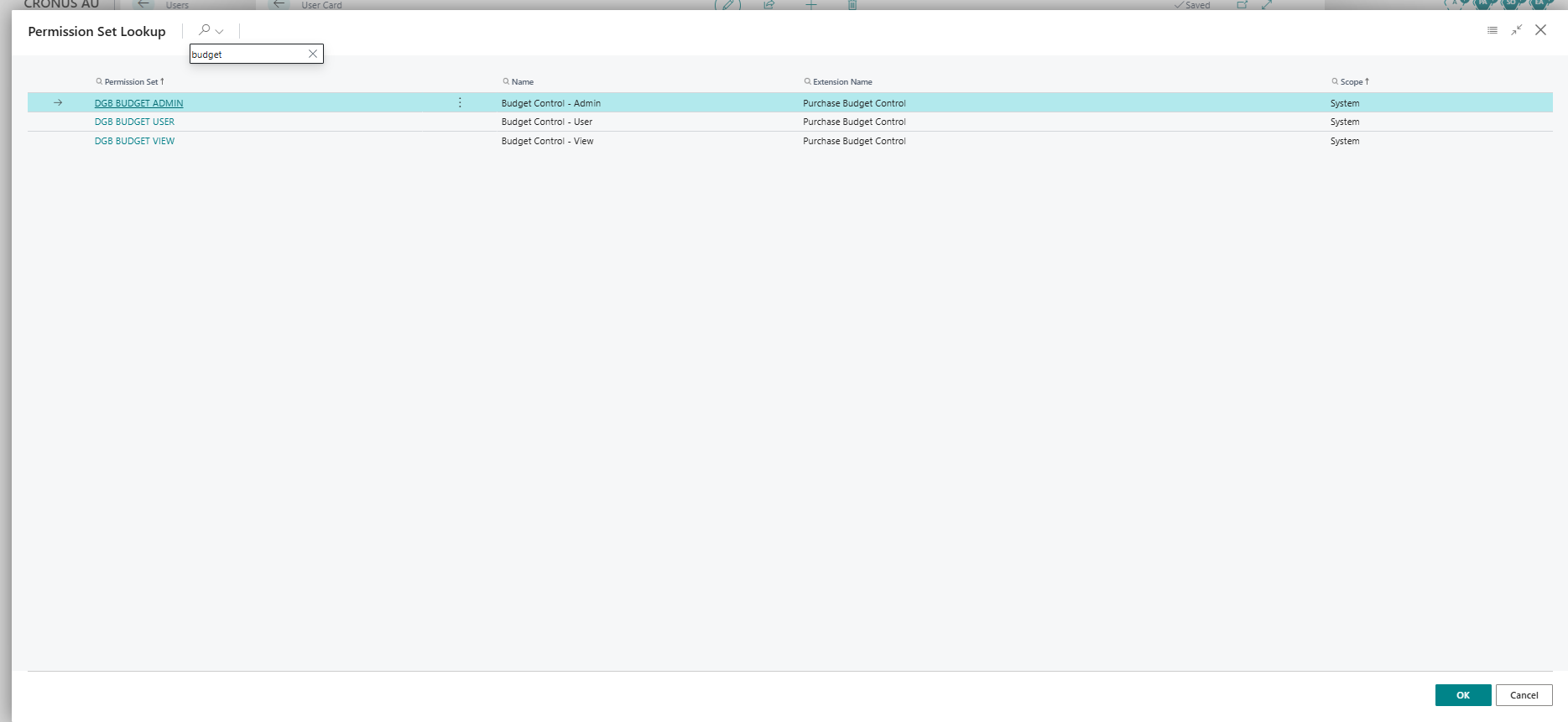
Permission sets on a user.
Troubleshooting
In this section, we provide some tips to troubleshoot common problems.
| Problem | Solution |
|---|---|
| I can’t edit the budget. | The budget is released. Create a budget change, or ask a user with Can Release Budgets to reopen it. |
| My purchase order won’t release. | A line is over budget. Choose Resolve Over-Budget on the line. |
| The line status didn’t change after I changed dimensions on the Dimensions page. | Choose Check Budget. Releasing and posting always check the document again. |
| I don’t see notifications while I enter lines. | Ask your administrator to turn on Line Entry Notifications on the Budget Control Setup page. You can always use Check Budget. |
| My exception was approved, but the document is blocked again. | The line increased beyond the approved amount, or the exception expired. Request a new exception. |
| I can’t request an exception. | Your Over-Budget Permission is Blocked. Use another resolution, or ask your administrator. |
| A workflow can’t be enabled. | On the Budget Control Setup page, choose Create / Repair Workflow Templates, refresh the page, and try again. |
| Who approves my request? | Your Approver ID on the Approval User Setup page, and then the next approver, until someone has enough authority. |
| Can we control by project or customer group? | Yes. Add the dimension as a budget dimension on the G/L budget, and then add it to the control rule. |
| Are credit memos and blanket orders checked? | Credit memos are never blocked; they give budget back. Blanket orders aren’t checked. |