AP Automation V2 for Microsoft Dynamics 365 User Guide
Are you ready to try the solution or have questions?

Part A - How AP Automation Works
Let us begin with what the app does for you, the terminilogies (words) it uses, and how a vendor invoice travels from the mailbox to a posted purchase invoice.
1. Introduction
AP Automation turns vendor invoices and credit notes that arrive by email into Microsoft Dynamics 365 Business Central purchase invoices and credit memos. The invoice PDF is read automatically, the vendor and every line are recognised, the purchase document is created and checked against your purchase orders and goods receipts.
The idea is simple: the app does the routine work, you handle the exceptions. Everything that needs a person appears on a tile on the AP Cockpit, coloured red, with the reason and the next step. When a tile is green and shows 0, there is nothing to do.
1.1 Who This Guide is For
| Reader | Read |
|---|---|
| AP clerks and accounts payable team | Part A, Part B (workflows) and Part C (screens and fields) |
| Finance managers / approvers | Part A and the workflows on matching, approval and posting |
| Administrators and consultants | Part D (setup) and the appendices |
1.2 Conventions
-
Bold text is a page, field, tile or action name exactly as it appears in Business Central.
-
Tip or Note boxes give a quicker way of doing something; Important boxes warn about something that affects your books.
-
Screenshots show a standard setup. Your field layout, number series and tile counts will differ.
2. The Five Stages
Every document goes through the same five stages. The AP Cockpit has one group of tiles per stage, so the tile tells you where a document is waiting.
| Stage | What happens | Who |
|---|---|---|
| Capture | The invoice email is received, the PDF is stored in SharePoint and read by OCR. The result becomes an AP document in Business Central. Duplicates are stopped here. | Automatic |
| Mapping | The app recognises the vendor (by tax ID, then name) and maps each line to an item, G/L account, fixed asset, resource or item charge, and each unit to a Business Central unit of measure. It uses rules it has learned from your earlier corrections. | Automatic - you answer what it cannot recognise |
| Create | Fully mapped AP documents become purchase invoices or purchase credit memos. | Automatic on a schedule, or on demand |
| Match | Each line is checked against the purchase order (2-way) or the order and the goods receipt (3-way), within the vendor’s tolerances. The invoice total and tax are compared with the vendor’s total. | Automatic - you resolve differences |
| Approve & Post | Standard Business Central approval and posting. Unresolved differences can block posting. | You |
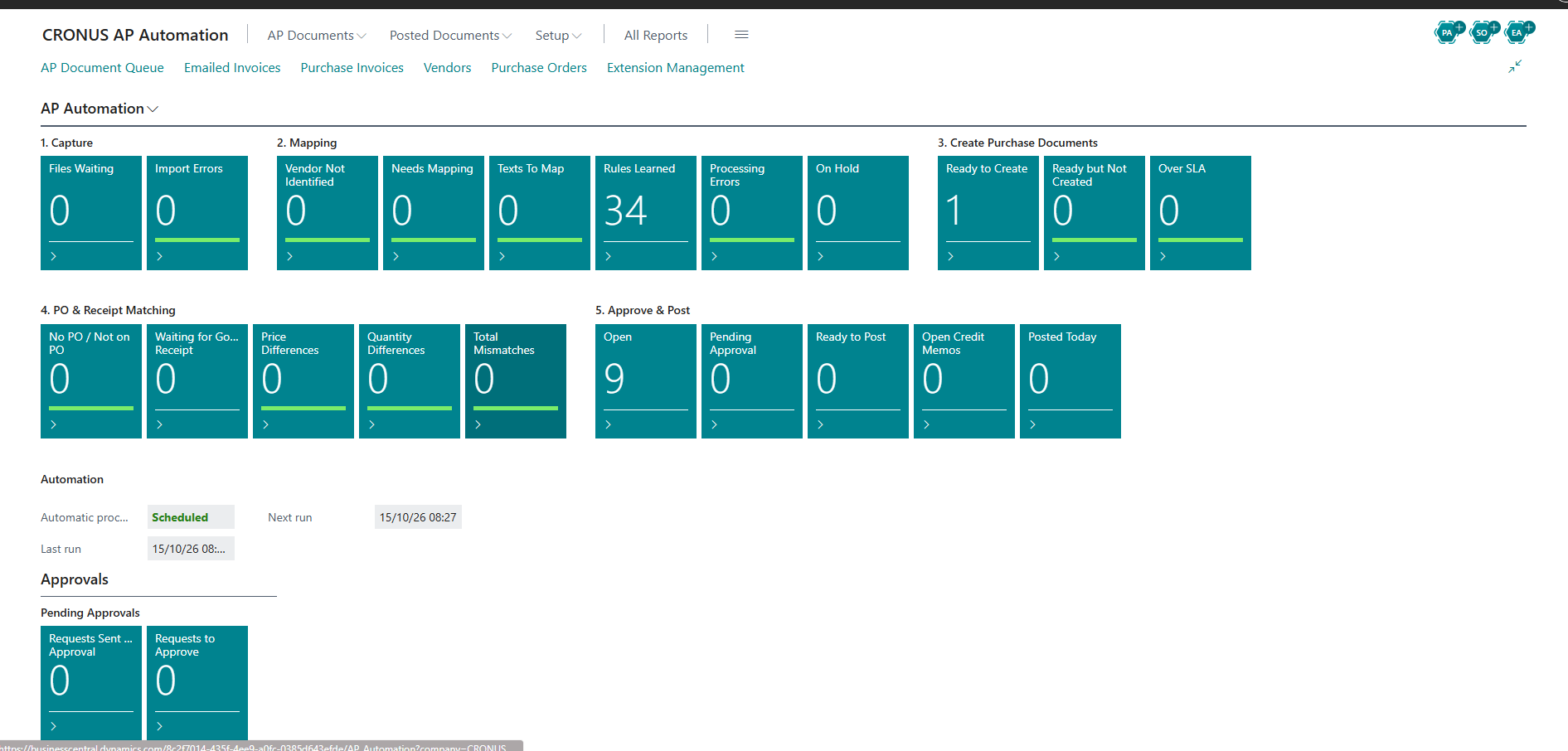
AP Cockpit with the five tile groups (Capture, Mapping, Create,Matching, Approve & Post)
3. Key Ideas
3.1 AP Document
The AP document is the staging copy of the vendor invoice exactly as it was read: vendor name and tax ID, invoice number and date, PO number, totals, and every line with its SKU, description, unit, quantity and price. You correct mapping here before (or after) the purchase document is created. The purchase document keeps a link back to its AP document and to the PDF.
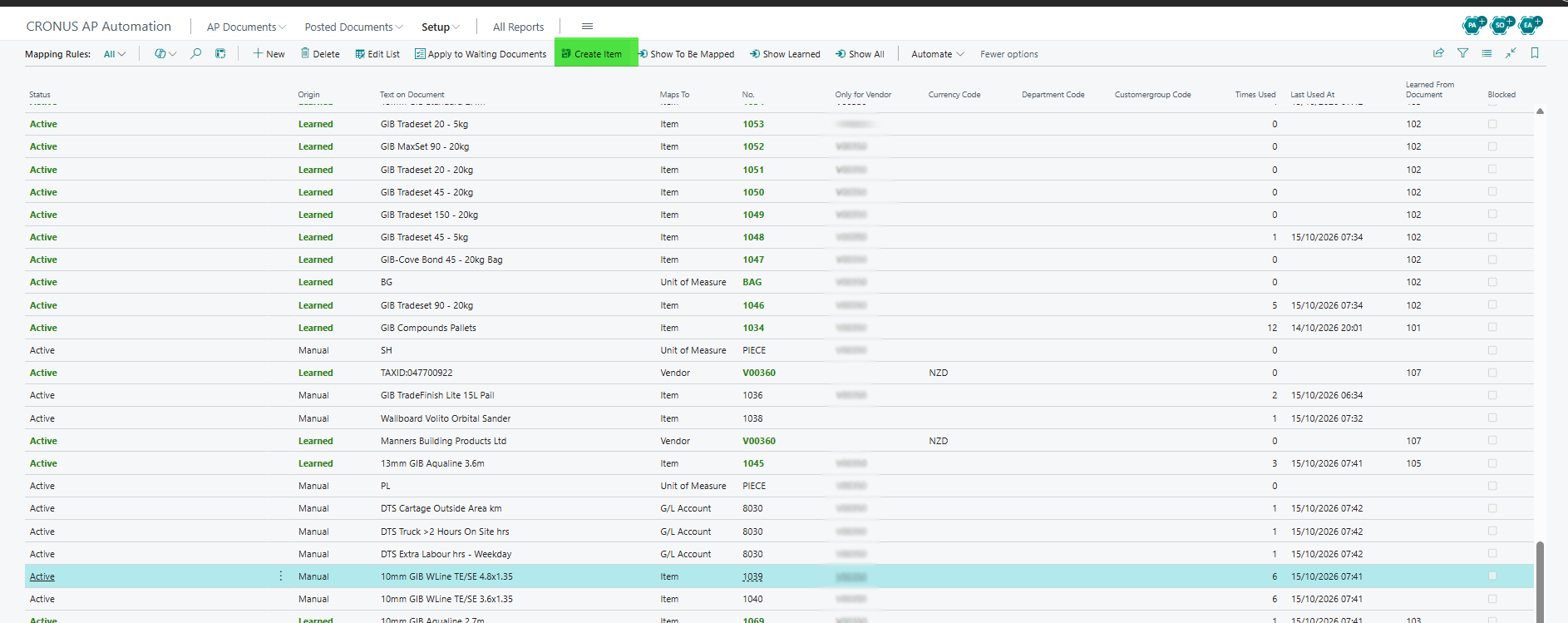
3.2 Mapping Rules & Learning
A mapping rule says “this text on a vendor document means this vendor / account / item / unit”. Rules can be global or for one vendor (vendor rules win).
There are three kinds:
| Origin | Meaning |
|---|---|
| Manual | A rule someone set up or answered. |
| Learned | Created automatically when a user corrected a vendor, a line or a unit. Learned rules used three or more times count as high confidence. |
| To Be Mapped | The app could not recognise a text and is asking you for an answer. These rows feed the Texts To Map tile. They disappear by themselves when no waiting document needs them any more. |
In addition to rules, the app recognises lines by item number, by vendor item reference (the vendor’s own SKU) and by G/L account name, and units by unit code, description or international standard code.
3.3 Confidence
| Confidence | Meaning |
|---|---|
| High (green) | Set by you, an exact match, a vendor item reference, or a learned rule used 3+ times. |
| Medium | A mapping rule, a learned rule used fewer than 3 times, an item charge vendor, or a number that came with the document. Text-only lines (no quantity) also show Medium. |
| Low - check (amber) | A partial / similar match. Check the line before it is created. |
| Not mapped (red) | Nothing found. Fill in Type and No., or use Create Item from Line. |
3.4 2-way & 3-way Matching
2-way: The invoice line is compared with the purchase order line - unit cost, and quantity against what is still to be invoiced.
3-way: The same, but quantity is compared with what has been received and not yet invoiced. When it passes, the line is linked to the receipt so posting follows standard Business Central.
Everything is compared in the item’s base unit and in the invoice currency, so an invoice in BOX can match a PO in PCS. A line passes when the difference is within the vendor’s % tolerance or amount tolerance.
| Line type | Vendor on 2-way | Vendor on 3-way |
|---|---|---|
| Item | 2-way check - blocks posting if it fails | 3-way check (needs the goods receipt) - blocks posting if it fails |
| G/L account, resource, fixed asset - on the PO | 2-way check - blocks posting if it fails | Not checked, never blocks. The PO is shown for information. |
| G/L account, resource, fixed asset - not on the PO (freight, fees) | Not checked | Not checked |
3.5 Vendor Total & Tax Check
After matching, the purchase document total (including tax) is compared with the total on the vendor invoice. A small difference within the Invoice Total Tolerance is adjusted automatically on the Total Difference G/L Account. A larger difference is flagged as Total Mismatch and, if posting blocks are on, must be resolved or accepted with a reason.
4. Getting Started
4.1 Choose the AP Clerk Role
-
Choose the Settings icon (gear) and then My Settings.
-
In Role, select AP Clerk (AP Automation) and choose OK.
-
Your home page now shows the AP Cockpit.
Tip: The AP Cockpit is also shown on the Business Manager home page, so finance managers see the same tiles.
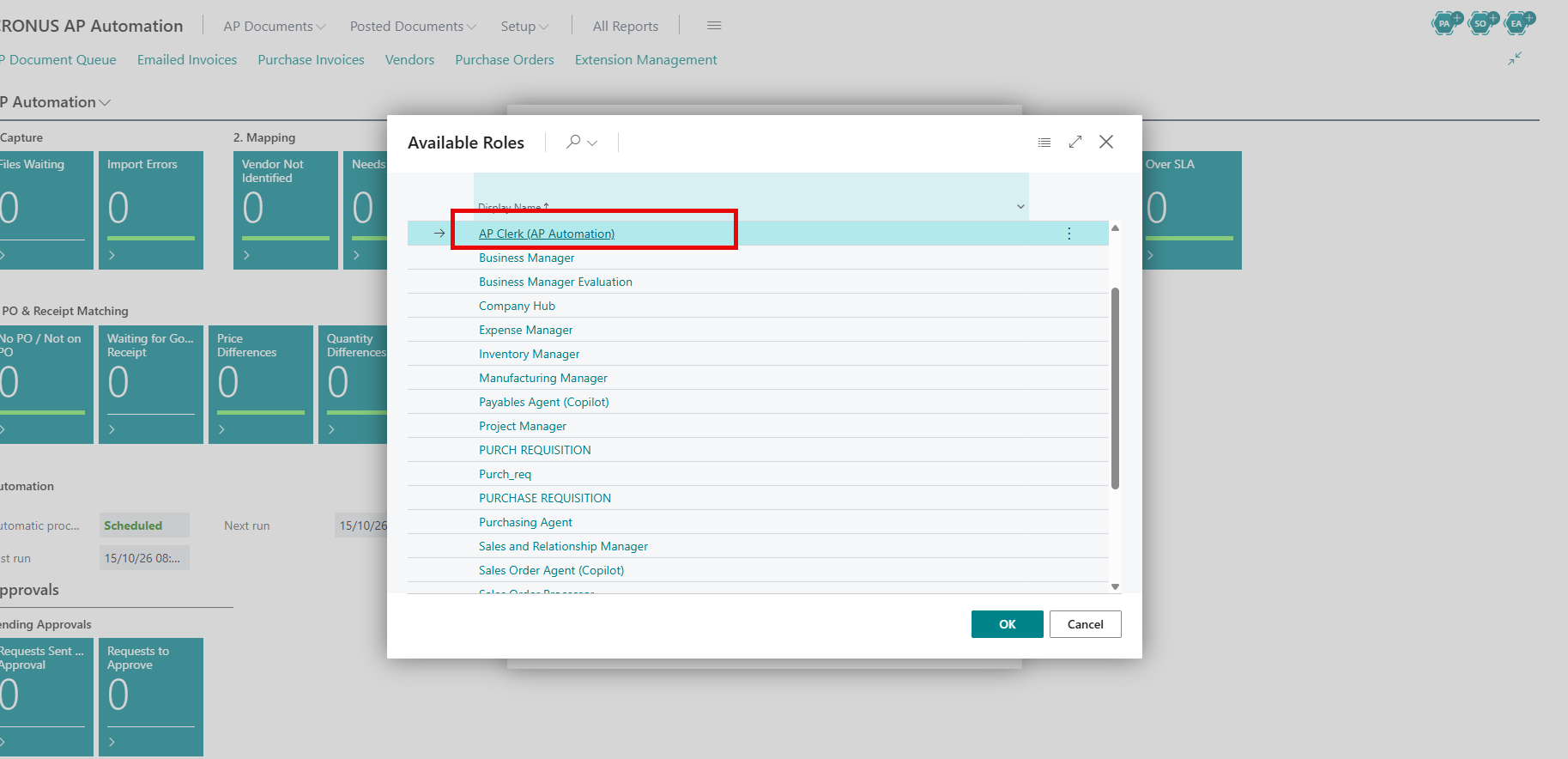
My Settings - choosing the AP Clerk (AP Automation) role
4.2 The Home Page
| Area | What you find there |
|---|---|
| Top menu | AP Documents (pending and invoiced lists), Posted Documents, Setup (mapping rules, vendor tax ID fields, text line patterns, SharePoint, Purchases & Payables Setup). |
| Quick links | AP Document Queue, Emailed Invoices, Purchase Invoices, Vendors, Purchase Orders. |
| Actions | Import JSON File, Paste JSON, Set Up / Restart Automation, Process Inbox Now. |
| AP Cockpit | Tiles for the five stages, and the Automation status at the bottom. |
AP Clerk home page with the AP Cockpit
4.3 How Tiles & Lists Help You
-
A tile is red when something needs you and green when all is clear. Choose the number to open the list behind it.
-
Lists opened from a tile carry the tile’s name and a bar explaining when documents leave the list.
-
After every action, a message tells you the document’s new status and where to find it. When nothing is left in a tile’s list, you see All done and the list closes.
Part B - Step-by-Step Workflows
In this section learn what to do for each situation you meet in daily work. Each workflow starts from the tile that tells you about it.
5. The Daily Routine
A typical day takes a few minutes when the app has learned your vendors. Work through the cockpit from left to right, top to bottom:
-
Check the Automation status at the bottom of the cockpit: it should be green (Scheduled or Running). If it is red, see workflow 6.15.
-
1. Capture - Clear Import Errors (workflow 6.13).
-
2. Mapping - Clear Vendor Not Identified, Needs Mapping and Texts To Map (workflows 6.2 - 6.5), then Processing Errors (6.6).
-
3. Create - Ready to Create empties itself on the next automatic run. Ready but Not Created or Over SLA above 0 means something is stuck (6.8).
-
4. Matching - Work through No PO / Not on PO, Price Differences, Quantity Differences and Total Mismatches (6.9 - 6.12). Waiting for Goods Receipt clears itself when the receipt is posted.
-
5. Approve & Post - Send for approval or post as usual.
Tip: Every list opened from a tile closes with All done when you have handled everything in it, so you never have to wonder whether you are finished.
6. Workflows
6.1 An Invoice That Goes Straight Through
This is what happens without anyone touching the invoice. Use it to explain the process to new users or in a demo.
-
The vendor emails the invoice. The flow stores the PDF in SharePoint and sends the OCR result to Business Central (Files Waiting tile).
-
On the next automatic run the file is imported as an AP document. The vendor is found by its tax ID or name; every line is mapped with your rules, item numbers or vendor item references.
-
The document is Ready and appears on Ready to Create. On the same or next run a purchase invoice is created.
-
The invoice is matched with the PO and receipt and the vendor total is checked. If all is within tolerance, it appears on 5. Approve & Post as Open.
-
You send it for approval or post it.
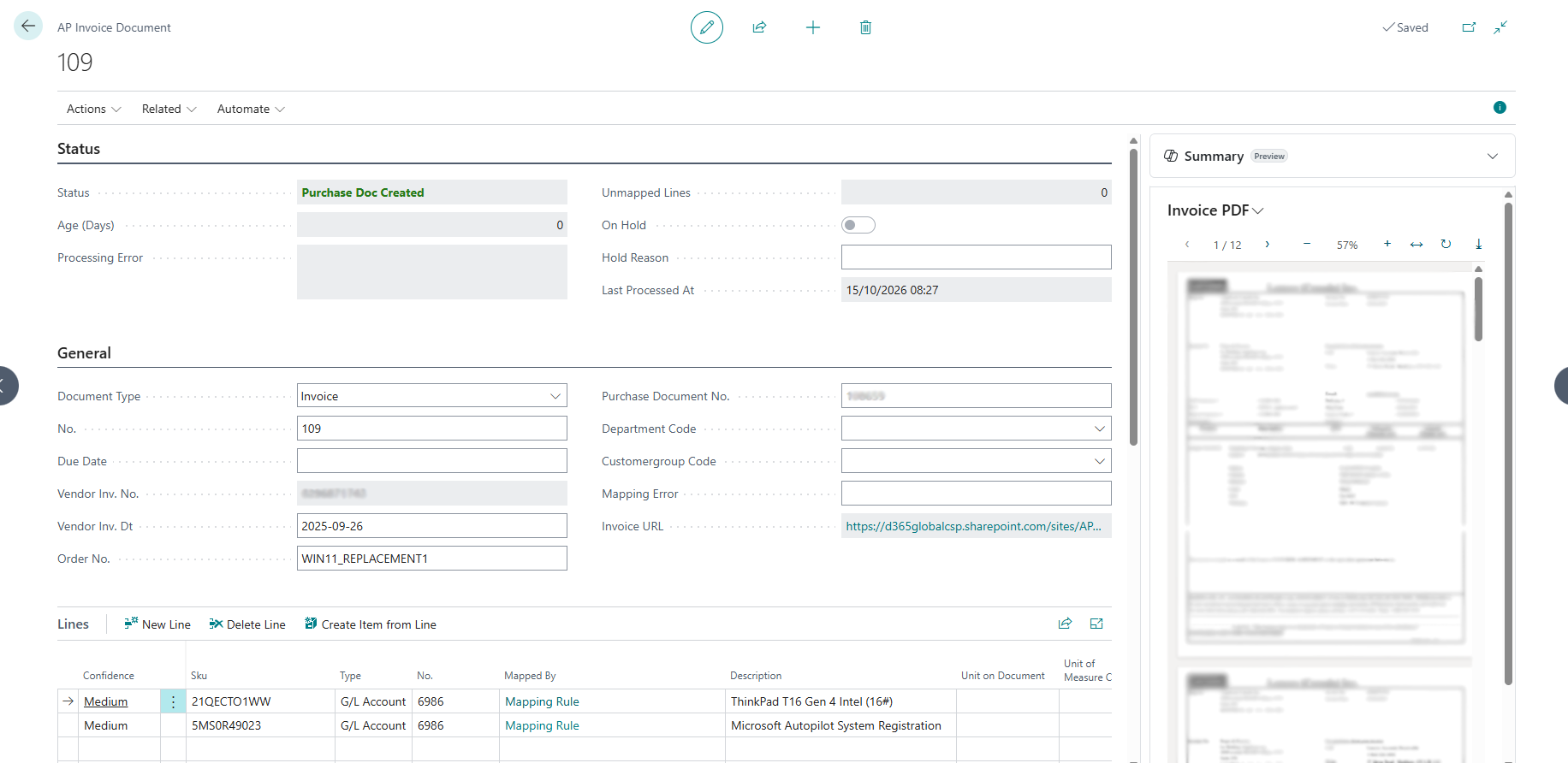
A purchase invoice created by AP Automation with the Invoice PDF next to it
6.2 Vendor Not Identified
In case the vendor’s tax ID and name did not match any vendor, or matched several:
Where AP Cockpit > Mapping > Vendor Not Identified
-
Open the tile and open the document. Check the Invoice PDF on the right.
-
In Vendor No., select the vendor. Vendor Found By changes to Set by User.
-
The app remembers the vendor name (and tax ID) for next time - you do not need to create a rule.
-
If the vendor’s tax number is stored in a field the app does not search, ask your administrator to add it in AP Vendor Tax ID Fields (chapter 18).
Tip: If the vendor does not exist yet, create it from the Vendor No. lookup with New, then select it.
AP document with Vendor No. selected and Vendor Found By = Set by User
6.3 A Line Needs Mapping
In the case of one or more lines could not be recognised (Confidence Not mapped, red). The Mapping Error field names the first one.
Where AP Cockpit > Mapping > Needs Mapping**, or the **AP Document Queue**
6.3.1 Option A
Map the line to an existing item or account
-
Open the document. On the line, choose Type (Item, G/L Account, Fixed Asset, Resource or Charge (Item)) and No..
-
The app learns a rule for this vendor and text. For items, it also adds a vendor item reference for the vendor’s SKU, so the next invoice maps by SKU.
-
Choose Find Mapping. A message tells you whether the document is now Ready and where it went.
6.3.2 Option B
The item does not exist yet: Create Item from Line
-
Select the line and choose Create Item from Line (line actions).
-
Confirm. Choose an item template if you are asked.
-
The item is created with the line’s description, the vendor as Vendor No. and the SKU as Vendor Item No.. The item card opens - complete the base unit, posting groups and units of measure, then close it.
-
The vendor item reference is added, the line is mapped to the new item, the rule is learned and the document is mapped again. A message tells you what was done and where the document went.
6.3.3 Option C
Answer all texts of the document in Mapping Rules
-
On the document choose Mapping Rules. Only this document’s texts that need an answer are shown (vendor name, unmapped lines, unknown units).
-
For each row fill in Maps To and No., or use Create Item.
-
Close the page. The document is mapped again straight away and you are told where it went.
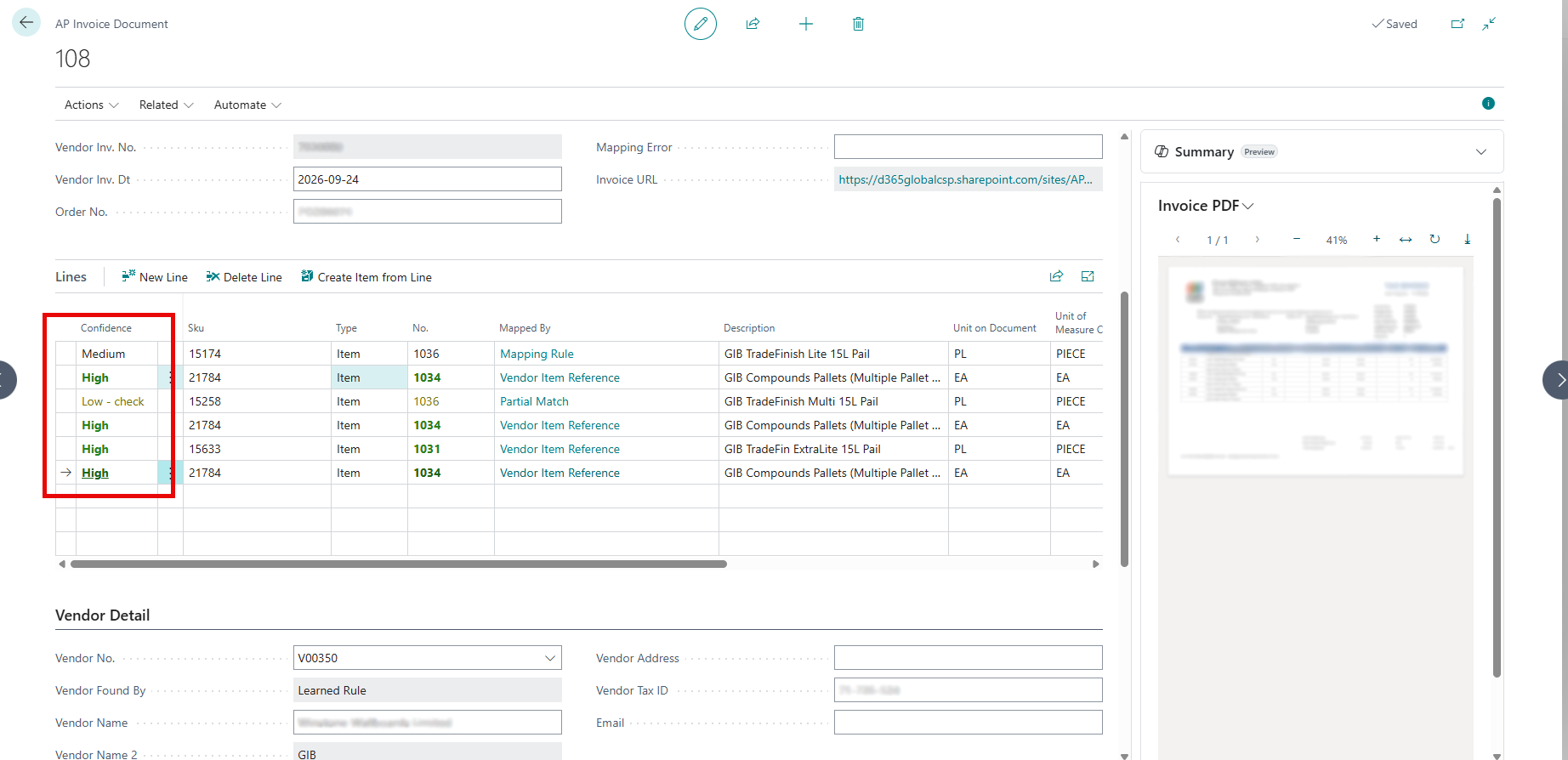
AP document lines with Confidence and the Create Item from Line action
6.4 Unit of Measure Not Recognised
The unit on the invoice (for example “CTN” or “Each”) is unknown, or the item does not have that unit. The Unit of Measure Code is shown in red.
-
If the unit is simply unknown: select the right Unit of Measure Code on the line. The app learns it for this vendor.
-
If the message says “Item X has no unit of measure Y”: open the item, choose Units of Measure and add the unit with its conversion to the base unit (for example BOX = 12 PCS). Then choose Find Mapping.
Important: Quantities and prices are converted through the item’s units of measure. A wrong conversion means wrong quantities on the invoice and wrong matching - check it when you add a unit.
6.5 Texts To Map
In the case of answering many texts at once:
Texts To Map counts every text the app has asked about, across all waiting documents. Answer them in one go:
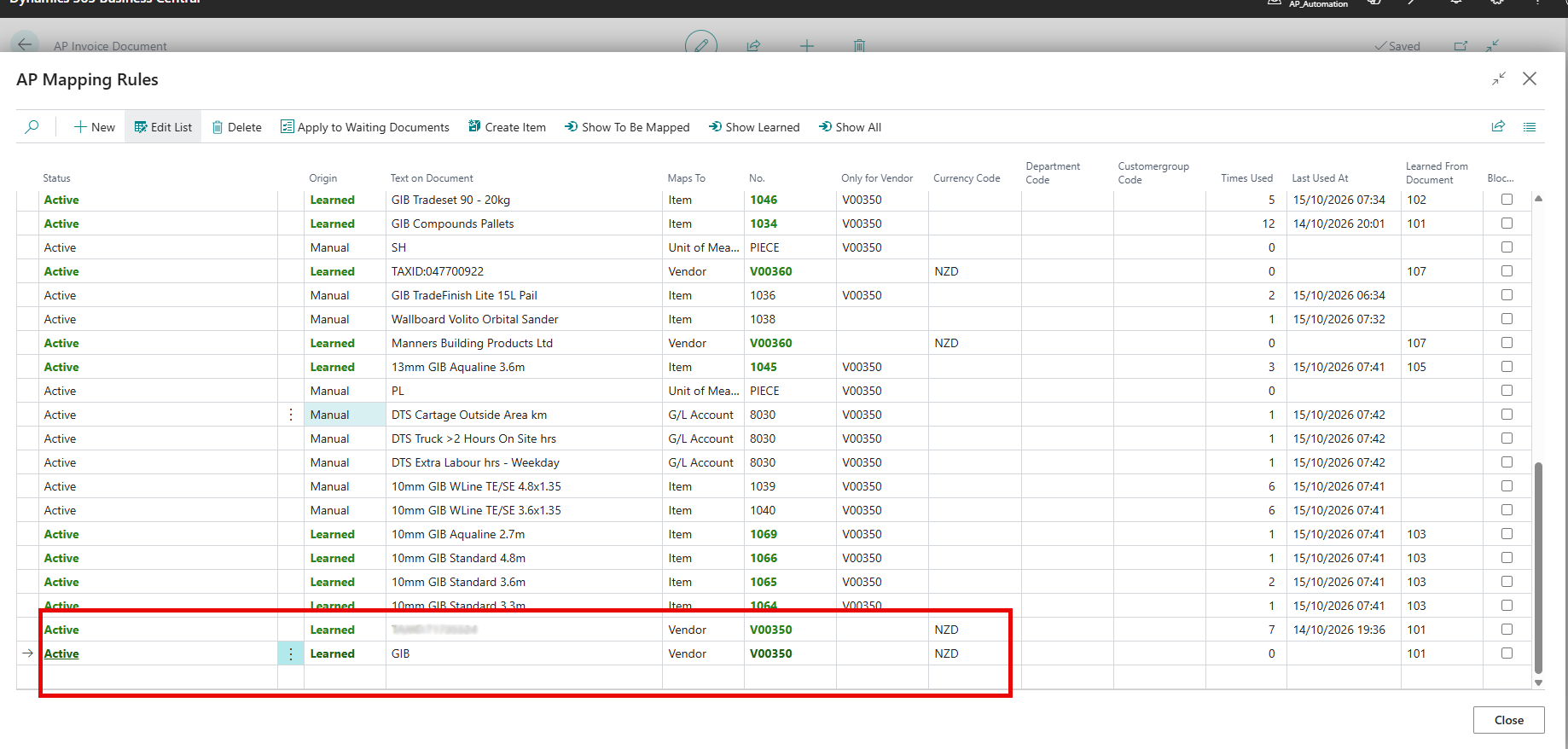
Where AP Cockpit > Mapping > Texts To Map, or Setup > AP Mapping Rules > Show To Be Mapped
-
For each row fill in Maps To and No. (or use Create Item). The Status changes from Needs an answer to Answered - used from now on. The row stays in the list while you work.
-
Choose Apply to Waiting Documents (or the action on the notification). You are told how many documents became ready.
-
When you close the page, answered rows become manual rules.
Tip: Fill in Vendor No. to make a rule vendor-specific; leave it blank for all vendors. Use Blocked to switch off a wrong rule without deleting it. Texts that are no longer needed by any waiting document (for example because the line was mapped by SKU) disappear from this tile automatically.
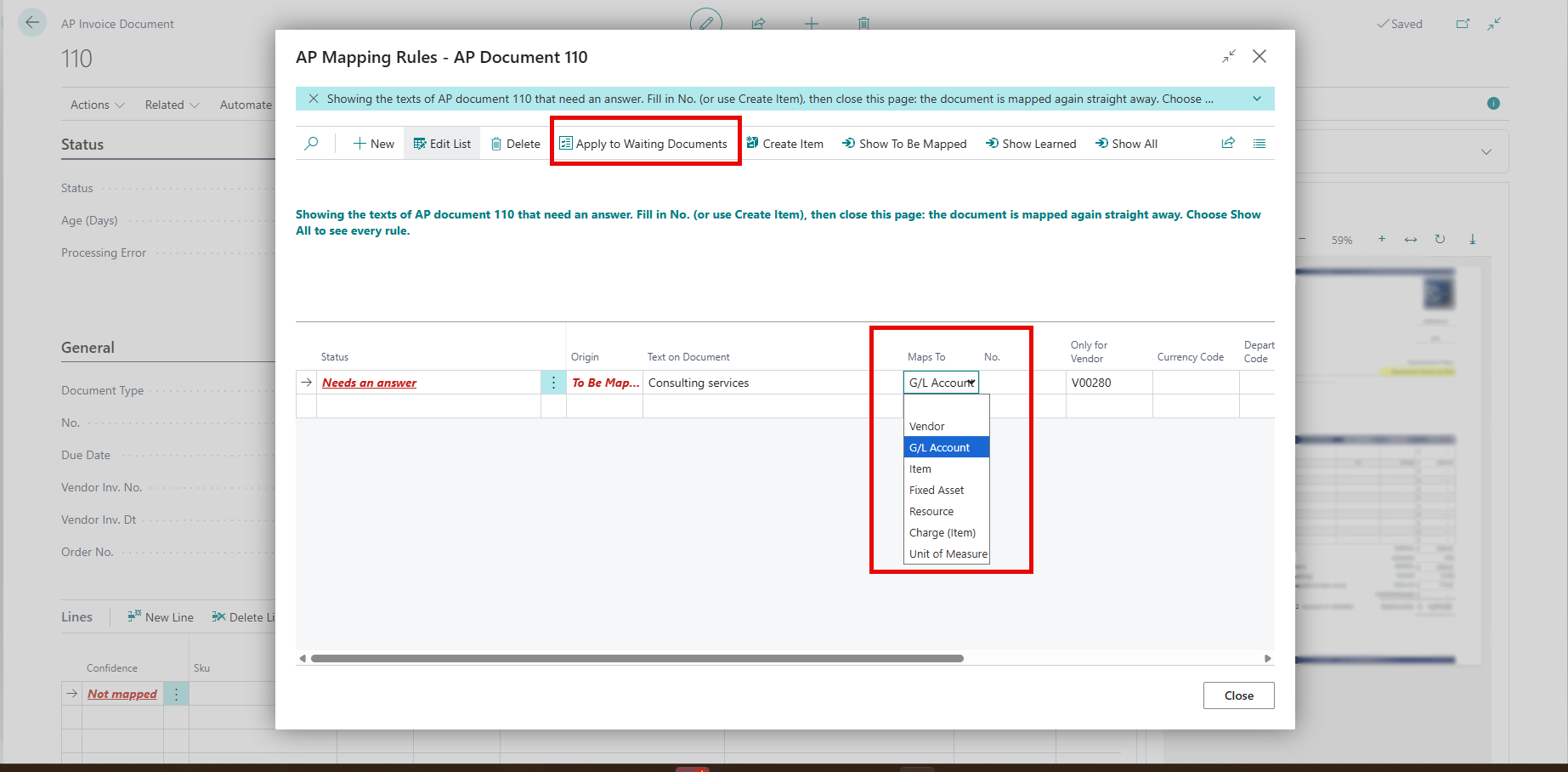
AP Mapping Rules showing To Be Mapped texts and the Status column
6.6 Processing Errors - Creating the Purchase Document Failed
Where AP Cockpit > Mapping > Processing Errors
-
Open the document and read What needs attention / Processing Error (for example a blocked item, a missing posting group or a closed period).
-
Fix the cause in Business Central.
-
Choose Retry. The error is cleared, the document is mapped again and the purchase document is created where possible.
6.7 Put a Document On Hold & Release It
Use a hold when you need information from the vendor or a colleague and do not want automation to create the document yet.
-
Fill in Hold Reason, then choose Put on Hold. The document moves to the On Hold tile.
-
When you are ready, choose Release Hold. The document returns to automation.
6.8 Create Purchase Documents Now
Ready documents are created on the next automatic run. To create them immediately:
-
From the cockpit, Create All Ready Documents Now.
-
From the AP Document Queue, select documents and choose Create Purchase Documents.
-
From one AP document, Create Purchase Document. You are asked whether to open it, and told what still needs attention.
Important: If Ready to Create keeps growing or the list shows “Automation is not scheduled”, automation is not running. Choose Set Up / Restart Automation (or ask your administrator).
6.9 No PO / Not on PO
In the case of an item line on the invoice could not be found on a purchase order - the invoice has no PO number, a wrong one, or the invoice arrived before purchasing raised the PO:
Where AP Cockpit > PO & Receipt Matching > No PO / Not on PO (opens Invoice Match Details)
-
Select the line. Check On Order (this vendor and item) on the right: it lists the vendor’s open PO lines for this item with ordered, received and invoiced quantities and cost.
-
If the right PO line is there, choose Link to PO Line, pick it and choose OK. Matching runs again at once and you see the result.
-
If there is no PO yet, ask purchasing to create it. Then select the lines and choose Match Again.
-
If the item on the line is wrong (the vendor text was mapped to the wrong item), correct No. on the purchase invoice line first - the app learns the correction.
Important: Accept Variance on a No PO line releases the posting block without any purchase order. Use it only for invoices that are genuinely approved without a PO.
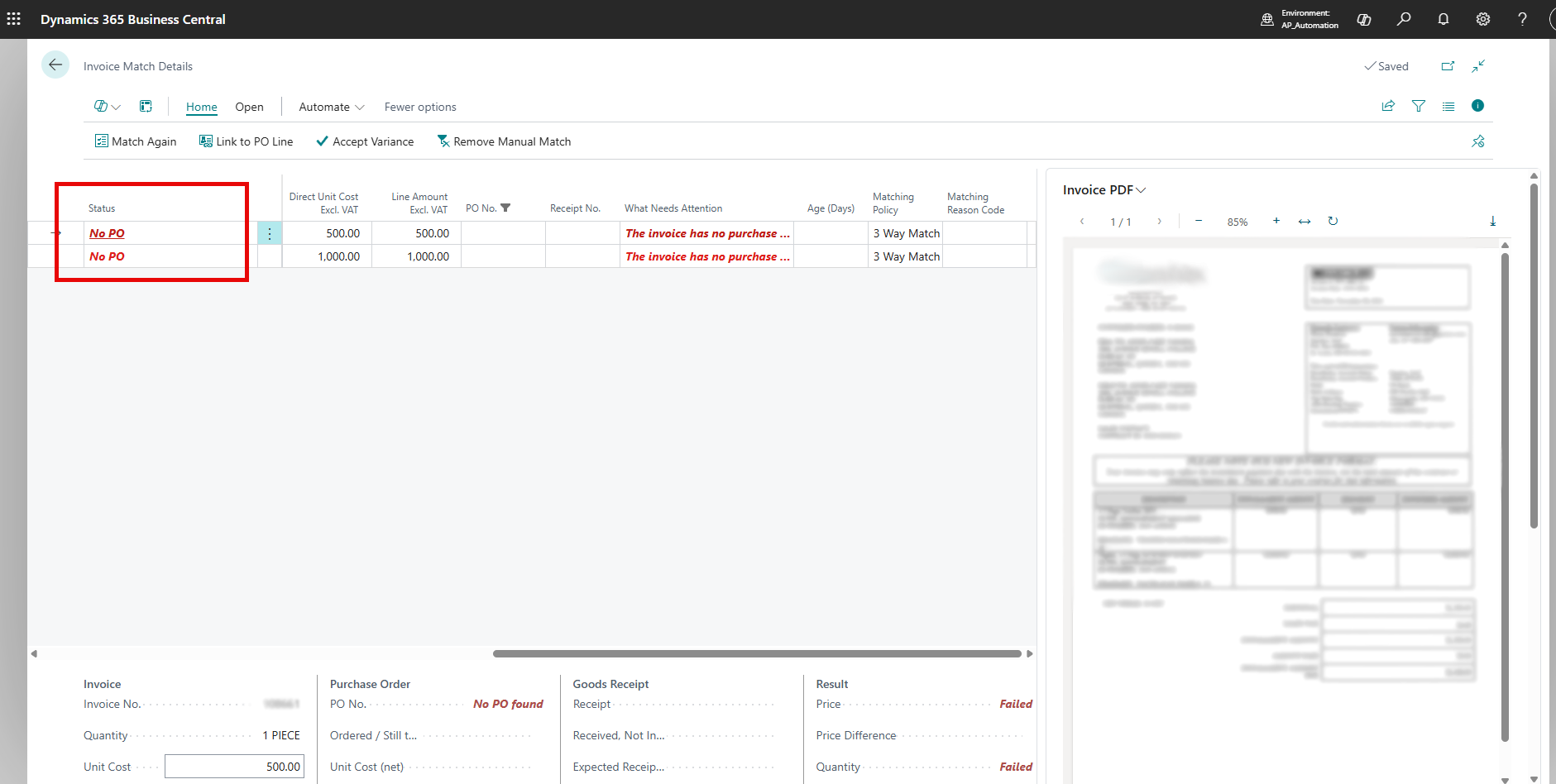
Invoice Match Details with the On Order FactBox and Link to PO Line
6.10 Waiting for Goods Receipt
3-way matching: The PO line was found but nothing has been received yet. The line is checked again on every automatic run until Wait for Receipt (Days) has passed; then it becomes a quantity difference.
-
Usually nothing to do - Follow up with the warehouse if it takes long. The line clears itself when the receipt is posted.
-
To check immediately after a receipt was posted, open Invoice Match Details and choose Match Again.
6.11 Price or Quantity Differences
Where AP Cockpit > PO & Receipt Matching > Price Differences / Quantity Differences
The comparison panel at the bottom shows the invoice, the PO and the receipt side by side, with the price difference and %.
The Vendor Invoiced the Wrong Price
-
In the Invoice column, correct Unit Cost. It is checked against the PO cost with the vendor’s tolerance at once.
-
Ask the vendor for a credit note if needed.
The Difference is Agreed - Accept It
-
Select the line, or several lines (Ctrl+A for all).
-
Choose Accept Variance. If any selected line has no Matching Reason Code, pick one reason - it is applied to all of them; lines that already have a reason keep it.
-
Confirm. You see per invoice whether it can now be posted or what is still open. The reason stays on each line for audit.
To undo an acceptance, select the line and choose Remove Manual Match.
6.12 Total Mismatches
The purchase invoice total (including tax) differs from the vendor’s total by more than the tolerance.
-
Open the purchase invoice. In the AP Automation group compare Vendor Invoice Total, Total Difference and Tax Difference.
-
A tax difference usually means a wrong tax area or tax group on the lines - correct it and choose Recheck Vendor Total.
-
If lines are missing or wrong, correct them and choose Match Again.
-
If the difference is agreed, fill in Total Difference Reason and choose Accept Total Difference.
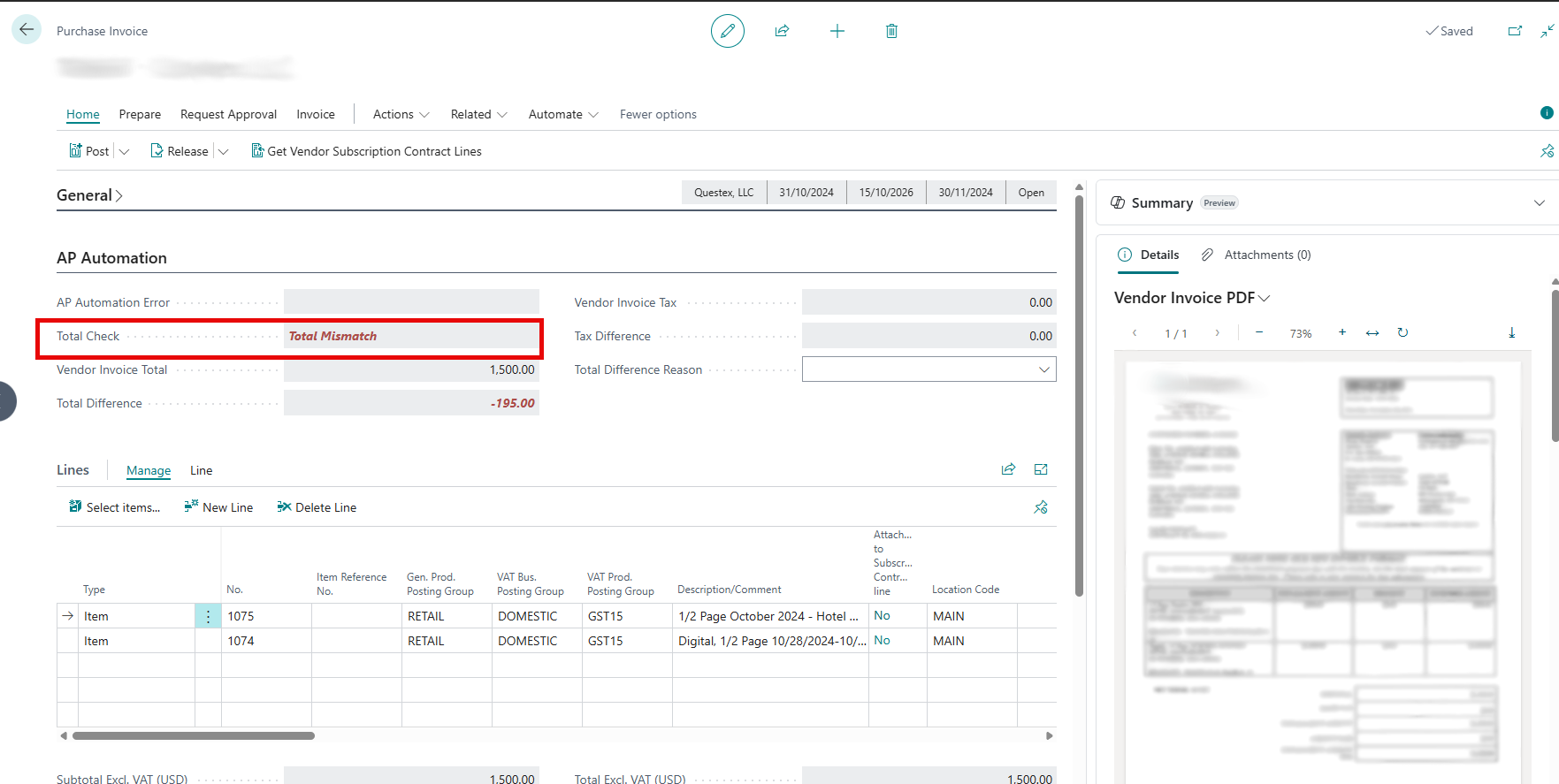
Purchase Invoice - AP Automation group with the total and tax check
6.13 Import Errors & Duplicate Invoices
Where AP Cockpit > Capture > Import Errors (opens Emailed Invoices)
A file could not be imported - typically because the same vendor invoice was already imported (duplicate), or the OCR result was not readable.
Duplicate invoice
-
Read the Error Message: “Vendor document … was already imported as AP document …”.
-
Choose Open Original AP Document (or the Duplicate of AP Document number) to open the original with its PDF and compare.
-
If it really is the same invoice, select the file and choose Archive. It leaves Import Errors, is never imported and is kept for audit with who archived it and when.
-
If it is a different invoice (for example the vendor re-used a number), correct the original if needed and choose Retry Import.
Other Import Errors
-
Read the Error Message, fix the cause (for example a missing number series), select the file and choose Retry Import.
-
Files that cannot be used can be archived.
Show Archived lists archived files; Restore brings one back so it can be retried; Hide Archived returns to the normal view.
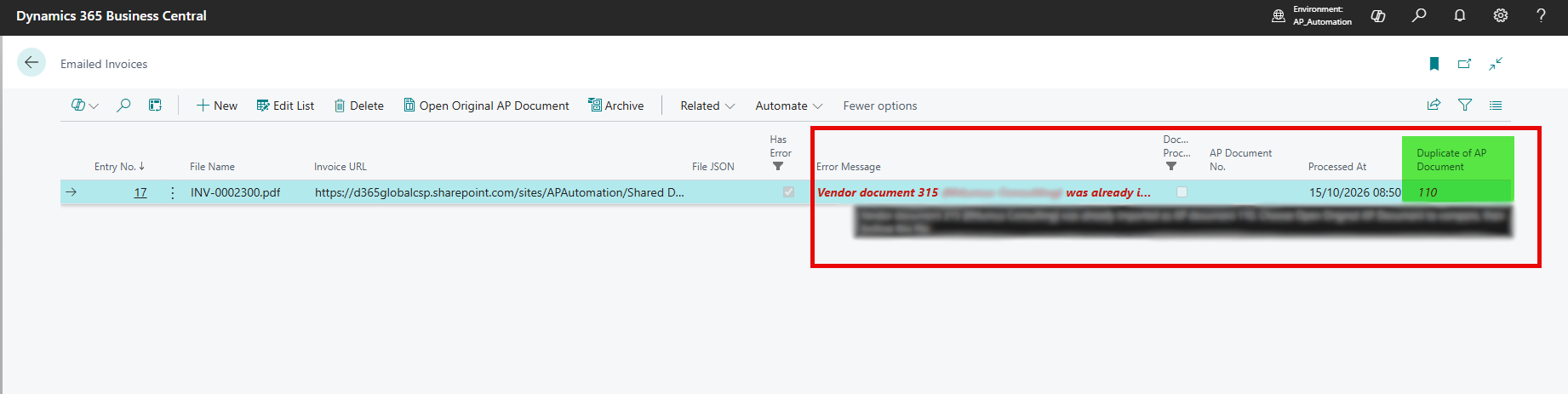
Emailed Invoices - a duplicate with Open Original AP Document and Archive
6.14 Credit Notes
Credit notes follow the same path and become purchase credit memos. They are not matched against orders. Find them under AP Documents > Pending Credit Memos and, once created, on the Open Credit Memos tile.
6.15 Automation is Not Running
The Automation group at the bottom of the cockpit shows the status, last and next run. Green means it is running as planned; Red means it needs attention from someone (to fix or resolve).
-
Choose the status value to open the job queue entry and read the error.
-
Choose Set Up / Restart Automation. If the entry does not exist it is created; if it stopped with an error it is restarted.
Important: Creating or restarting the job queue entry requires the AP Automation - Admin permission set and permission to schedule jobs in Business Central.
6.16 Import an Invoice File By Hand (Testing)
Used to test without the email flow, or to re-import a file from another environment.
-
Import JSON File: Upload the OCR JSON file (raw JSON or the Base64 text the flow sends).
-
Paste JSON: Paste the JSON, optionally with a File Name and the SharePoint Invoice URL so the PDF preview works.
The AP document is created and opened, or the error is shown. Duplicate detection still applies.
Part C - Screen & Field Reference
In this section let us cover every AP Automation screen, what each field means and what each action does. Standard Business Central fields are not repeated.
7. AP Cockpit
Where Home page of the AP Clerk role (also on the Business Manager home page)
AP Cockpit - all tiles
| Group | Tile | What it counts - and what to do |
|---|---|---|
| 1. Capture | Files Waiting | Received invoice files not imported yet. Imported on the next run, or choose Process Inbox Now. |
| Import Errors | Files that could not be imported (duplicate, unreadable). Workflow 6.13. | |
| 2. Mapping | Vendor Not Identified | AP documents without a vendor. Workflow 6.2. |
| Needs Mapping | AP documents with lines or units still to map. Workflows 6.3, 6.4. | |
| Texts To Map | Texts the app is asking about across all waiting documents. Workflow 6.5. | |
| Rules Learned | Rules the app learned from your corrections (information). | |
| Processing Errors | Creating the purchase document failed. Workflow 6.6. | |
| On Hold | Documents you excluded from automation. Workflow 6.7. | |
| 3. Create Purchase Documents | Ready to Create | Fully mapped documents; created on the next run. Workflow 6.8. |
| Ready but Not Created | Ready for longer than two automatic runs - automation is probably not running. Workflow 6.15. | |
| Over SLA | Open AP documents older than the AP Exception SLA (Days). | |
| 4. PO & Receipt Matching | No PO / Not on PO | Invoice lines with no purchase order or no matching PO line. Workflow 6.9. |
| Waiting for Goods Receipt | PO found, nothing received yet; checked again on every run. Workflow 6.10. | |
| Price Differences | Unit cost outside the vendor tolerance compared with the PO. Workflow 6.11. | |
| Quantity Differences | More invoiced than ordered (2-way) or received (3-way), beyond tolerance. Workflow 6.11. | |
| Total Mismatches | Invoice total differs from the vendor total by more than the tolerance. Workflow 6.12. | |
| 5. Approve & Post | Open | AP purchase invoices still open - review, then release or send for approval. |
| Pending Approval | AP purchase invoices waiting for approval. | |
| Ready to Post | Released AP purchase invoices that can be posted. | |
| Open Credit Memos | AP purchase credit memos not posted yet. | |
| Posted Today | AP invoices posted today. |
7.1 Automation Status (Bottom of the Cockpit)
| Field | What it shows / what to do |
|---|---|
| Automatic processing | Scheduled or Running (green) - documents are processed automatically. Not scheduled, On hold or Stopped with an error (red) - nothing is processed. Choose the value to open the job queue entry. |
| Last run | When automation last ran and with what result. |
| Next run | When it runs next. |
| Error | Only shown when automation stopped: the reason. |
| Action | What it does |
| Set Up / Restart Automation | Creates the job queue entry if it is missing, or restarts it. |
| Create All Ready Documents Now | Creates purchase documents for everything that is Ready to Create, without waiting for the next run. |
| Process Inbox Now | (on the Capture tiles) Imports waiting files and creates purchase documents for everything that is ready. |
8. Emailed Invoices
Where Quick link Emailed Invoices, or the Files Waiting / Import Errors tiles
One row per received file. Archived files are hidden unless you choose Show Archived.
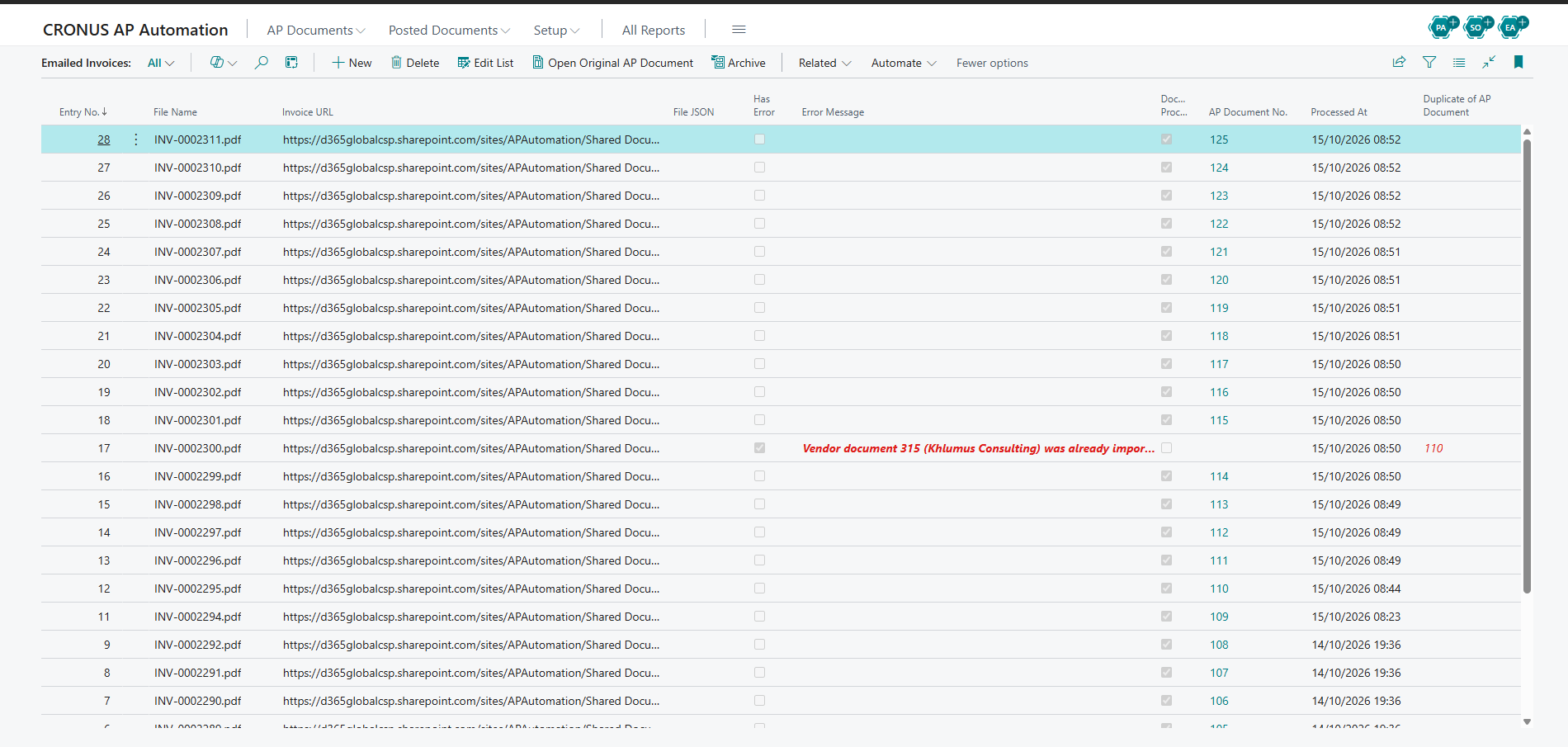
Emailed Invoices list
| Field | What it shows / what to do |
|---|---|
| Entry No. | Running number of the received file. |
| File Name | Name of the invoice file. |
| Invoice URL | Link to the PDF in SharePoint. |
| File JSON | The OCR result received for the file. |
| Has Error | The file could not be imported - see Error Message. |
| Error Message | Why the file could not be imported. |
| Document Processed | The file was imported as an AP document. |
| AP Document No. | The AP document created from the file. Choose it to open the document. |
| Processed At | When the file was last processed. |
| Duplicate of AP Document | The AP document this file duplicates. Choose it to open the original with its PDF. |
| Archived / Archived By / Archived At | The file was archived, by whom and when (hidden columns - add them with Personalize if needed). |
| Action | What it does |
|---|---|
| Import JSON File / Paste JSON | Create an AP document from an OCR file by hand (workflow 6.16). |
| Retry Import | Clears the error on the selected files and imports them again. A summary lists the AP documents created. |
| Open Original AP Document | Opens the AP document a duplicate file refers to. |
| Archive | Archives the selected files that were not imported: they leave Import Errors and are kept for audit. |
| Restore | Brings archived files back so they can be retried. |
| Show Archived / Hide Archived | Switches between archived files and the normal view. |
| Inspect JSON Data | Shows the raw OCR content of the file. |
9. AP Document
Where AP Document Queue, the AP Documents menu, or any Mapping tile
The page has four areas: the status, the vendor invoice details, the lines and the Invoice PDF on the right.
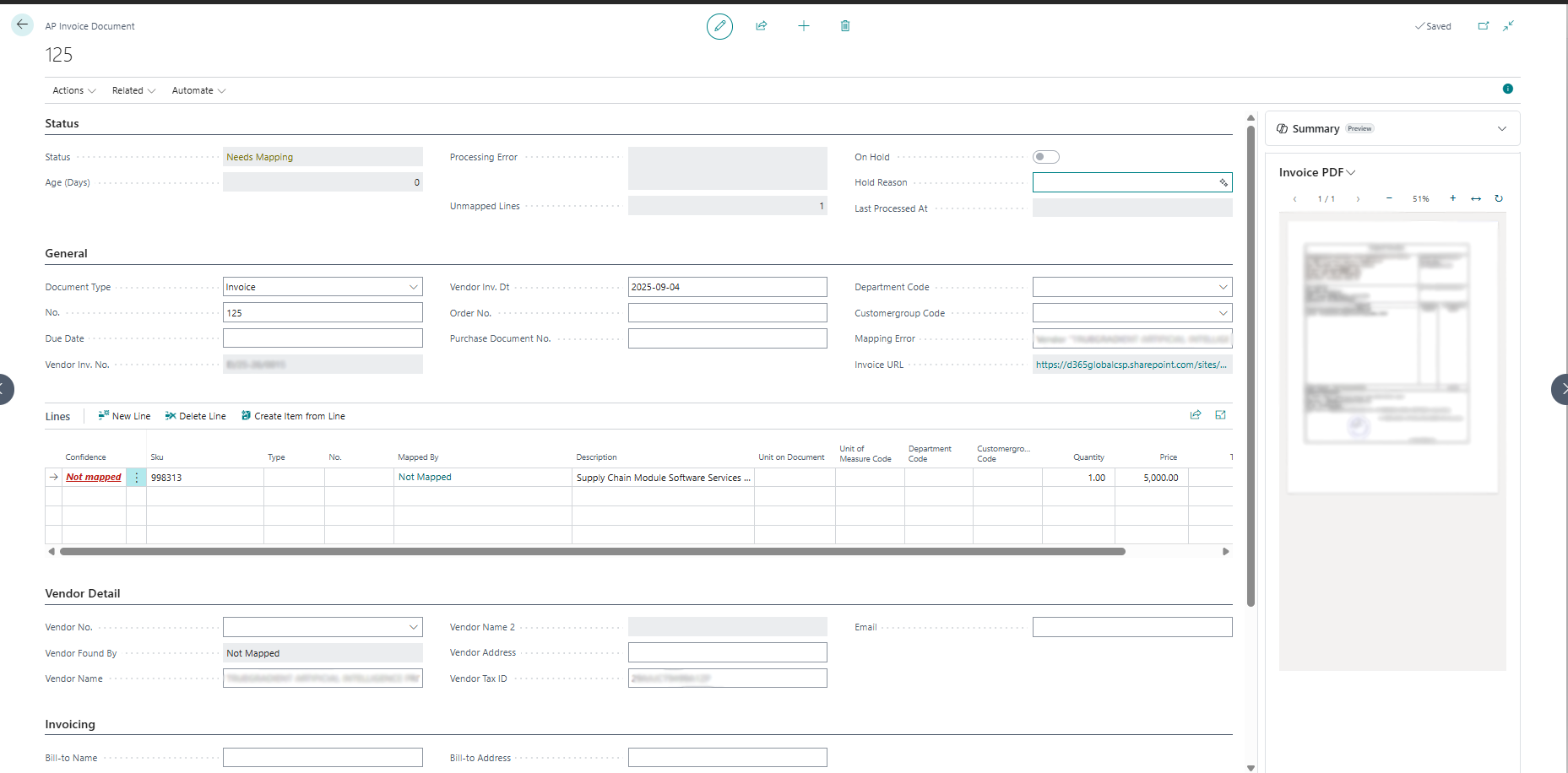
AP document with status, lines and the Invoice PDF
9.1 Status & General Fields
| Field | What it shows / what to do |
|---|---|
| Status | Ready, Needs Mapping, Error, On Hold or Purchase Doc Created (coloured). |
| Processing Error | Why creating the purchase document failed last time. Fix the cause and choose Retry. |
| Unmapped Lines | How many lines still need Type and No. |
| On Hold / Hold Reason | The document is excluded from automation, and why. Fill in Hold Reason before Put on Hold. |
| Last Processed At | When automation last tried to create the purchase document. |
| Document Type | Invoice or Credit Note. |
| No. | AP document number (from the AP Invoice Nos / AP Credit Memo Nos series). |
| Vendor Inv. No. / Vendor Inv. Dt / Due Date | Invoice number and dates as read from the vendor document. |
| Order No. | The purchase order number(s) on the vendor document. Several numbers can be separated by comma. |
| Purchase Document No. | The purchase invoice or credit memo created from this document. |
| Mapping Error | The first thing that could not be mapped, in plain words. |
| Invoice URL | Link to the PDF in SharePoint. |
| Shortcut Dimension 1 / 2 Code | Dimensions copied to the purchase document. |
9.2 Vendor Fields
| Field | What it shows / what to do |
|---|---|
| Vendor No. | The vendor. If you change it, the app remembers this vendor name and tax ID for next time. |
| Vendor Found By | How the vendor was found: Tax ID, Learned Rule, Mapping Rule, Exact Match, Partial Match or Set by User. |
| Vendor Name / Name 2 / Address / Email | As read from the document. |
| Vendor Tax ID | The vendor’s tax number as read from the document (VAT, GST, ABN, EIN, PAN …). Used to find the vendor before the name. |
| Bill-to, Ship-to, Currency, Totals | Header values as read from the document; the totals are used for the vendor total check. |
9.3 Line Fields
| Field | What it shows / what to do |
|---|---|
| Confidence | How sure the app is about the mapping: High, Medium, Low - check, Not mapped. |
| Sku | The item number or SKU as read from the vendor document. |
| Type / No. | What the line is created as. Changing No. teaches the app (rule for vendor and text, plus a vendor item reference for items). |
| Mapped By | How the line was mapped: Set by User, Learned Rule, Mapping Rule, Exact Match, Vendor Item Reference, Item Charge Vendor, From Document, Partial Match. |
| Description | Line text from the vendor document. |
| Unit on Document | The unit as printed on the invoice (e.g. “CTN”). |
| Unit of Measure Code | The Business Central unit the line is created in. Red when the invoice unit was not recognised; changing it teaches the app. |
| Unit Mapping Source | How the unit was recognised. |
| Quantity / Price / Tax % / Total | As read from the document. |
9.4 Actions
| Action | What it does |
|---|---|
| Find Mapping | Maps vendor, lines and units again with the current rules. You are told the new status and where to find the document. |
| Mapping Rules | Opens the rules for this document’s texts that need an answer. When you close it, the document is mapped again. |
| Create Item from Line | (line action) Creates an item from the line, adds the vendor item reference and maps the line. |
| Put on Hold / Release Hold | Excludes the document from automation / returns it. |
| Retry | After a processing error: clears the error, maps again and creates the purchase document. |
| Create Purchase Document | Creates the purchase invoice / credit memo now, runs matching and the total check, and asks whether to open it. |
| Open Purchase Document | Opens the purchase document created from this AP document. |
10. AP Document Queue
Where Quick link AP Document Queue
One list for all AP documents that are not finished, with the reason each one is waiting.
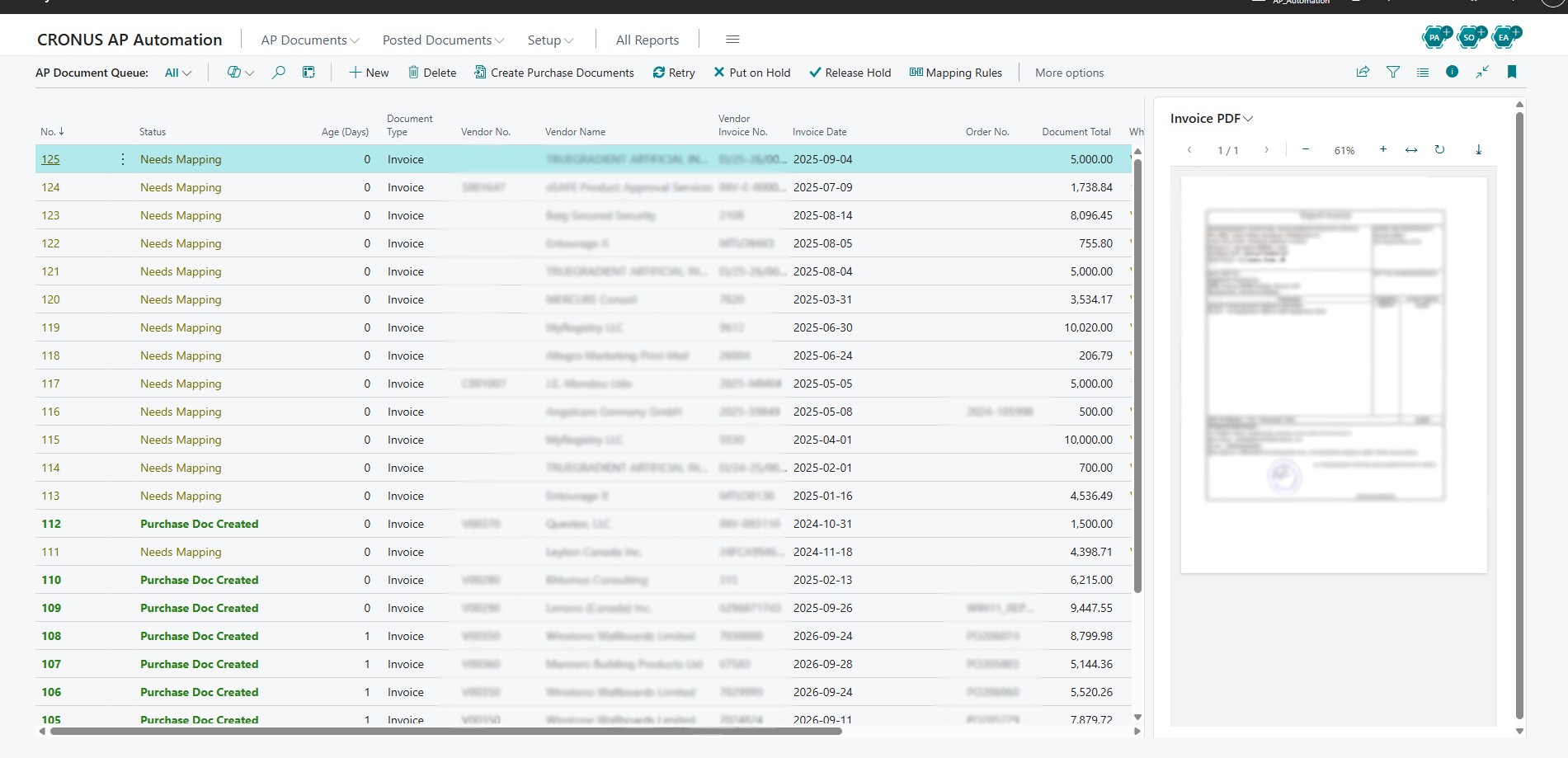
AP Document Queue
| Field | What it shows / what to do |
|---|---|
| No. | AP document number. |
| Status | Where the document is in the process. |
| Age (Days) | Days since the document was received. Red when older than the AP Exception SLA. |
| Document Type | Invoice or credit note. |
| Vendor No. / Vendor Name | The vendor found, and the name as read. |
| Vendor Invoice No. / Invoice Date / Order No. | As read from the document. |
| Document Total | Total as read from the document. |
| What needs attention | The mapping error, processing error or hold reason. |
| Purchase Document No. | The purchase document created from it. |
| Action | What it does |
|---|---|
| Retry | Clears errors on the selected documents, maps again and creates purchase documents where possible. |
| Create Purchase Documents | Creates purchase documents now for the selected Ready documents. |
| Put on Hold / Release Hold | For the selected documents. |
| Mapping Rules | Opens AP Mapping Rules. |
| Open Purchase Document | Opens the created purchase document. |
11. AP Mapping Rules
Where Setup > Mapping Rules, the Texts To Map tile, or Mapping Rules on an AP document
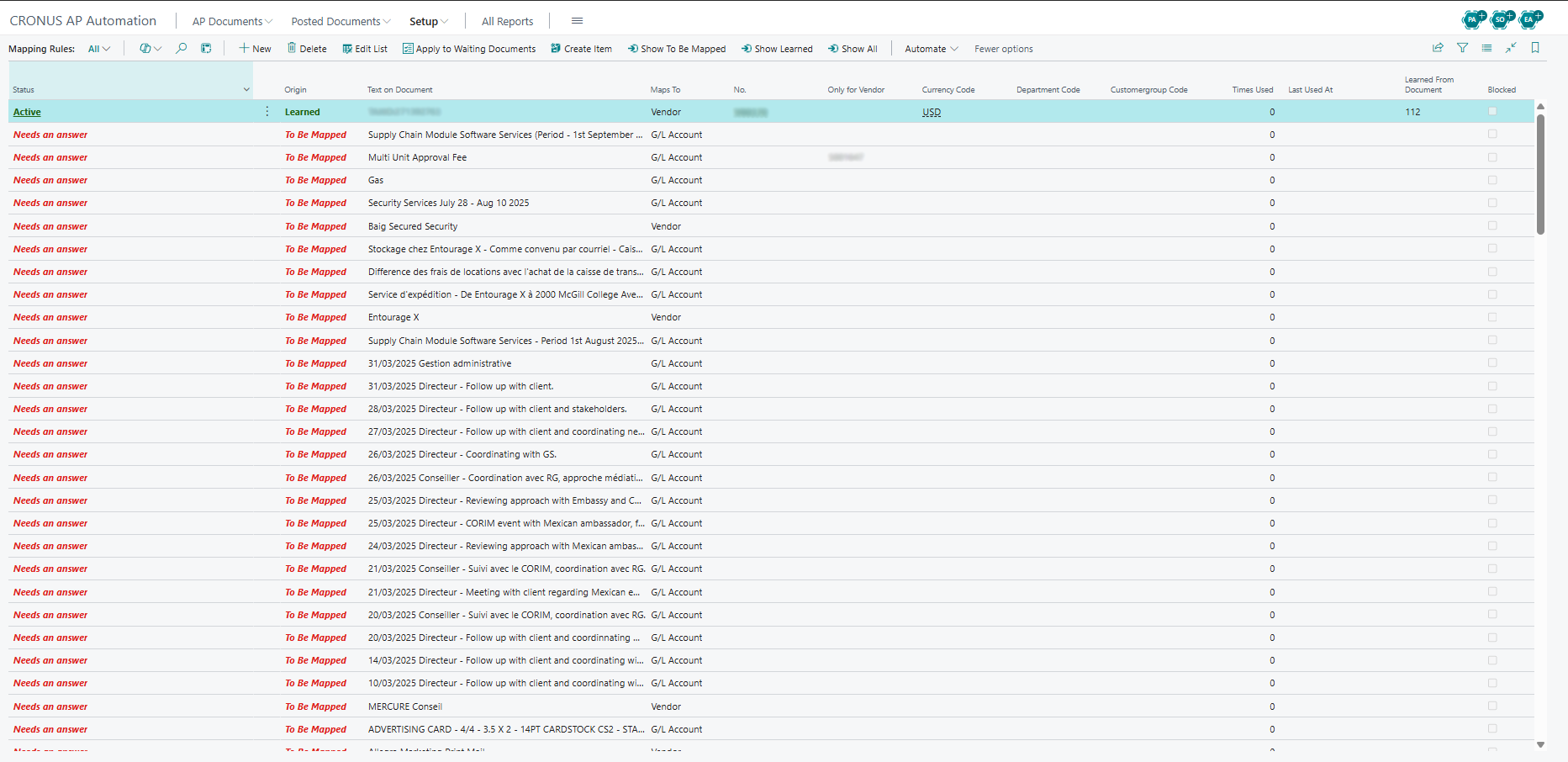
AP Mapping Rules
| Field | What it shows / what to do |
|---|---|
| Status | Needs an answer (fill in No.), Answered - used from now on, Active or Blocked. |
| Origin | Manual, Learned or To Be Mapped. |
| Text on Document | The vendor name, line text or unit as printed on the document. Upper/lower case is ignored. Tax IDs are stored as TAXID:<number>. |
| Maps To | Vendor, G/L Account, Item, Fixed Asset, Resource, Charge (Item) or Unit of Measure. |
| No. | The vendor, account, item or unit the text maps to. |
| Vendor No. | Rule only for this vendor; blank = all vendors. Vendor rules win. |
| Currency Code | Rule only for this currency; blank = local currency. |
| Shortcut Dimension 1 / 2 Code | Dimensions applied to lines mapped by the rule. |
| Times Used / Last Used At | How often and when the rule was applied. Learned rules used 3+ times are high confidence. |
| Learned From Document | The document on which the correction was made. |
| Blocked | Switches the rule off without deleting it. |
| Action | What it does |
|---|---|
| Apply to Waiting Documents | Maps all waiting documents again with the rules as they are now; tells you how many became ready. |
| Create Item | Creates an item with the rule text as description (vendor and SKU from a waiting document line), adds the vendor item reference and answers the rule. |
| Show To Be Mapped / Show Learned / Show All | Filters the list. Show All also removes the “this document only” filter. |
12. Invoice Match Details
Where Tiles in 4. PO & Receipt Matching, or Open Match Details on a purchase invoice
One row per purchase invoice line, the comparison panel below, and three FactBoxes on the right.
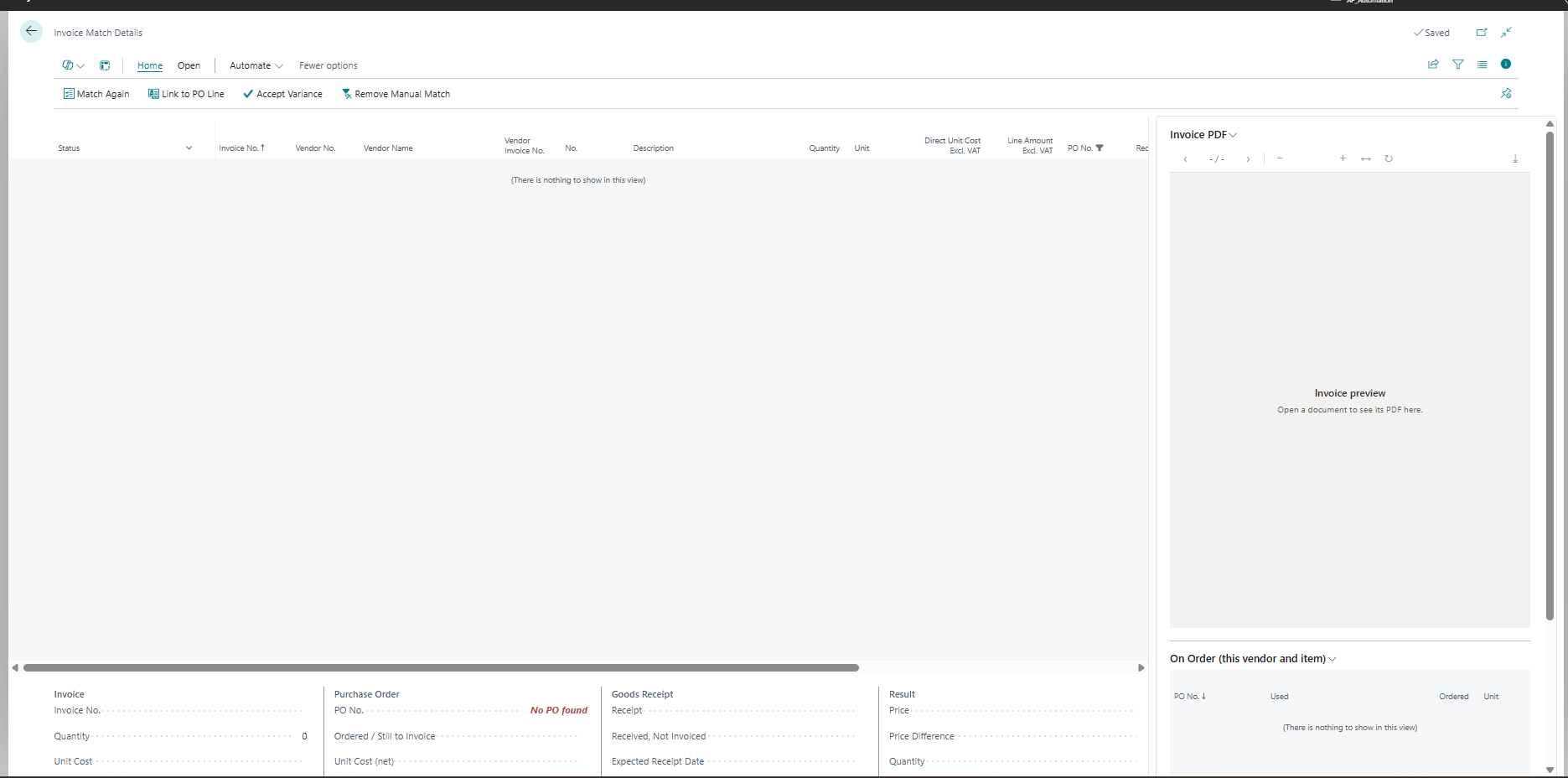
Invoice Match Details - lines, comparison panel and FactBoxes
12.1 Line Columns
| Field | What it shows / what to do |
|---|---|
| Status | No PO, Price, Quantity, Price + Quantity, Waiting for Receipt, Matched, Accepted or Not Checked (coloured). |
| Invoice No. | The purchase invoice. Choose it to open the invoice. |
| Vendor No. / Vendor Name / Vendor Invoice No. | Whose invoice it is. |
| No. / Description / Quantity / Unit | The invoice line. |
| Invoice Unit Cost / Line Amount | Cost and amount on the invoice. |
| PO No. | The purchase order the line was matched with. Choose it to open the order. |
| Receipt No. | The posted receipt the line is linked to (3-way). |
| What Needs Attention | Why the line is not matched and what to do, in plain words. |
| Age (Days) | Days since the purchase invoice was created. |
| Matching Policy | 2-way or 3-way. |
| Matching Reason Code | Why a difference was accepted (required for Accept Variance). |
12.2 Comparison Panel
| Column | Fields |
|---|---|
| Invoice | Invoice No., Quantity and unit, Unit Cost (editable when the price check failed - corrected costs are checked with the tolerance at once). |
| Purchase Order | PO and line (“No PO found” when there is none), Ordered / Still to Invoice, Unit Cost (net of line discount, in the invoice unit and currency). |
| Goods Receipt | Linked receipt or what was received on the order, Received Not Invoiced, Expected Receipt Date. |
| Result | Price status, Price Difference (amount and %), Quantity status. |
12.3 FactBoxes
| FactBox | Shows |
|---|---|
| Invoice PDF | The vendor invoice for the selected line, from SharePoint. |
| On Order (this vendor and item) | The vendor’s PO lines for the item: PO, ordered, unit, cost, discount, received, invoiced, expected date. The matched or linked line is highlighted. |
| Received, Not Invoiced | Posted receipts for the item not invoiced yet. |
12.4 Actions
| Action | What it does |
|---|---|
| Match Again | Runs matching and the total check again for the invoices of the selected lines. |
| Link to PO Line | Choose the PO line this invoice line belongs to; matching runs again at once and uses it first. |
| Accept Variance | Accepts the difference on all selected lines; asks once for a reason for lines without one. |
| Remove Manual Match | Undoes an accepted variance. |
| Open > Purchase Invoice / Purchase Order / AP Document | Opens the related document. |
13. Purchase Invoices & Credit Memos
Purchase documents created by AP Automation show an AP Automation group, the Invoice PDF FactBox and extra line fields. Posted documents keep the Invoice URL, the AP Document No. and the PDF.
13.1 AP Automation Group (Header)
| Field | What it shows / what to do |
|---|---|
| Invoice URL | Link to the original vendor invoice. |
| AP Document No. | The AP document the invoice was created from. |
| AP Automation Error | Why matching or the total check could not run. Fix the cause and choose Match Again. |
| Total Check | Matches Vendor Total, Small Difference Adjusted, Total Mismatch, Difference Accepted or Not Checked. |
| Vendor Invoice Total / Vendor Invoice Tax | Total and tax on the vendor invoice. |
| Total Difference / Tax Difference | Vendor value minus the Business Central value when last checked. A tax difference usually explains a total difference. |
| Total Difference Reason | Required to accept a total difference above the tolerance. |
13.2 Line Fields
| Field | What it shows / what to do |
|---|---|
| Price Match / Receipt Quantity Match | Not Performed, Passed, Failed or Awaiting Receipt. |
| Matched Purchase Order No. | The PO the line was matched with. |
| Receipt No. / Receipt Line No. | The receipt the line is linked to (3-way). |
| Price / Quantity Matching Error Details | Why the check failed or what the line is waiting for. |
| Matching Reason Code | Reason given when a variance was accepted. |
13.3 Actions
| Action | What it does |
|---|---|
| Recheck Vendor Total | Compares the total with the vendor total again (document must be Open). |
| Match Again | Runs matching and the total check again. |
| Accept Total Difference | Accepts the total difference; Total Difference Reason is required. |
| Open Match Details | Opens Invoice Match Details for this invoice. |
Important: When Block Posting on Match Exception is on, posting stops with a clear message while a price, quantity or total difference is unresolved. Resolve or accept it first.
Part D - Setup for Administrators
In this section we will discuss everything that has to be set up once, and in the order you should do it.
14. Setup Checklist
The following checklist provides setup information for administrators and which chapter in the document to find the steps to follow.
| # | Step | Chapter |
|---|---|---|
| 1 | Assign permission sets and the AP Clerk role to users | 22 |
| 2 | Number series for AP documents; matching policy, tolerances and posting block in Purchases & Payables Setup | 15 |
| 3 | Vendor settings: matching policy, tolerances, special vendor types | 16 |
| 4 | Items: units of measure and vendor item references | 17 |
| 5 | Vendor tax ID fields for your localization | 18 |
| 6 | Text line patterns | 19 |
| 7 | SharePoint connection for the PDF preview | 20 |
| 8 | Reason codes for accepted differences | 15.2 |
| 9 | Connect the email / OCR flow (Emailed Invoices API) | 21 |
| 10 | Start automation (job queue) | 21 |
15. Purchases & Payables Setup
Where Setup > Purchases & Payables Setup, AP Automation Fields
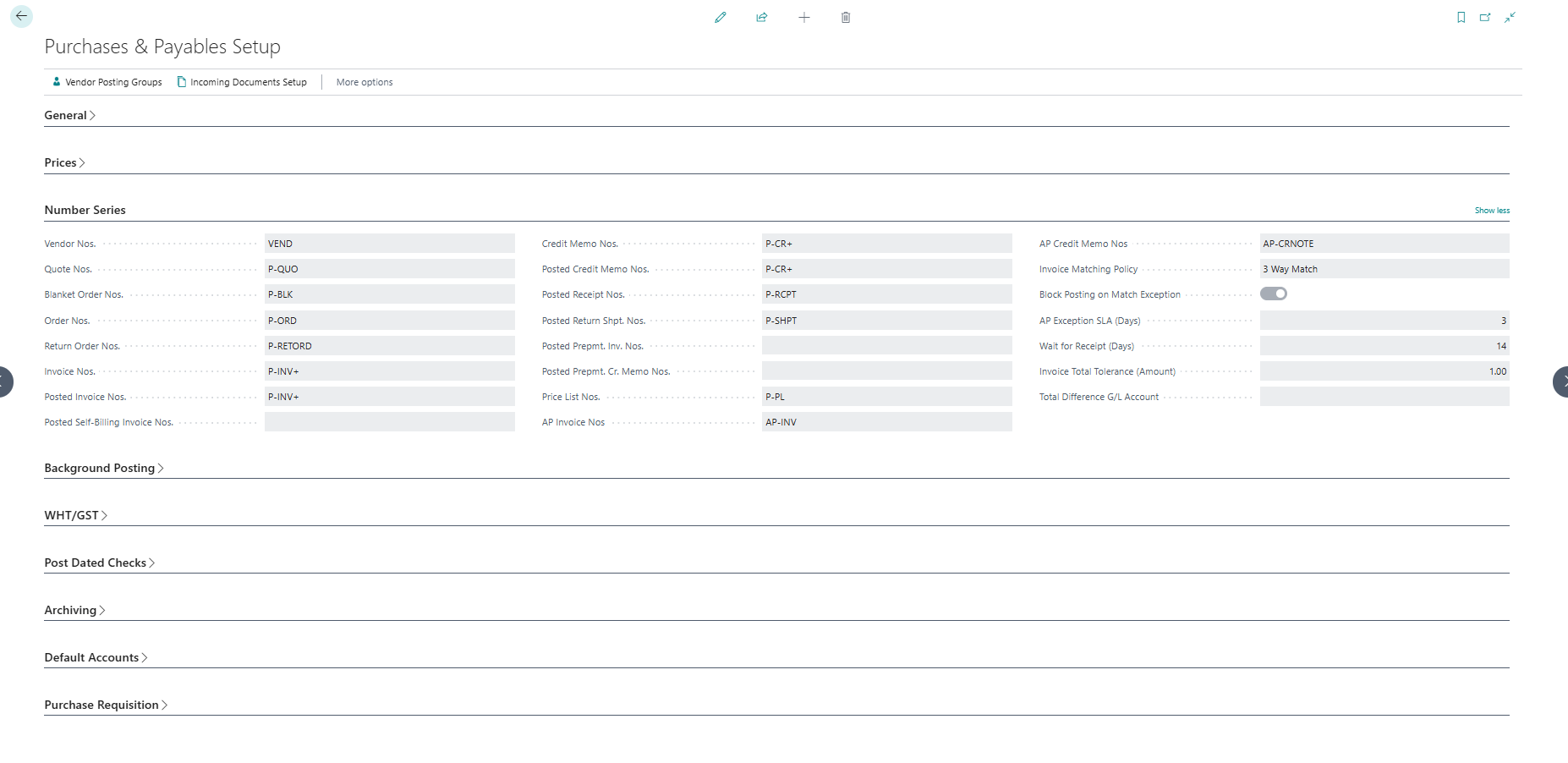
Purchases & Payables Setup - AP Automation fields
| Field | What it shows / what to do |
|---|---|
| AP Invoice Nos | Number series for AP documents (invoices). |
| AP Credit Memo Nos | Number series for AP documents (credit notes). |
| Invoice Matching Policy | Default policy for vendors that have none: blank (no matching), 2 Way Match (order) or 3 Way Match (order and receipt). |
| Block Posting on Match Exception | When on, AP invoices with an unresolved price, quantity or total difference cannot be posted until it is resolved or accepted with a reason. Recommended. |
| AP Exception SLA (Days) | After how many days an open AP document counts as Over SLA (default 3). |
| Wait for Receipt (Days) | How long a 3-way line waits for its goods receipt before it is flagged (default 14). |
| Invoice Total Tolerance (Amount) | Largest total difference that is adjusted automatically. Larger differences become Total Mismatch. |
| Total Difference G/L Account | Account for automatically adjusted small differences. Use an account without tax (no tax group / 0% VAT). |
15.1 Choosing Tolerances
Tolerances are set per vendor (chapter 16). A line passes when the difference is within the % tolerance OR the amount tolerance. Both 0 means it must match exactly. Start strict and widen for vendors whose rounding or freight surcharges cause routine differences.
15.2 Reason Codes
Accepted differences require a Reason Code. Create reason codes such as PRICE-OK, QTY-OK, NO-PO or ROUNDING in the standard Reason Codes page so they can be selected in Invoice Match Details and on purchase invoices.
16. Vendor Settings
Where Vendor Card, AP Automation Fields
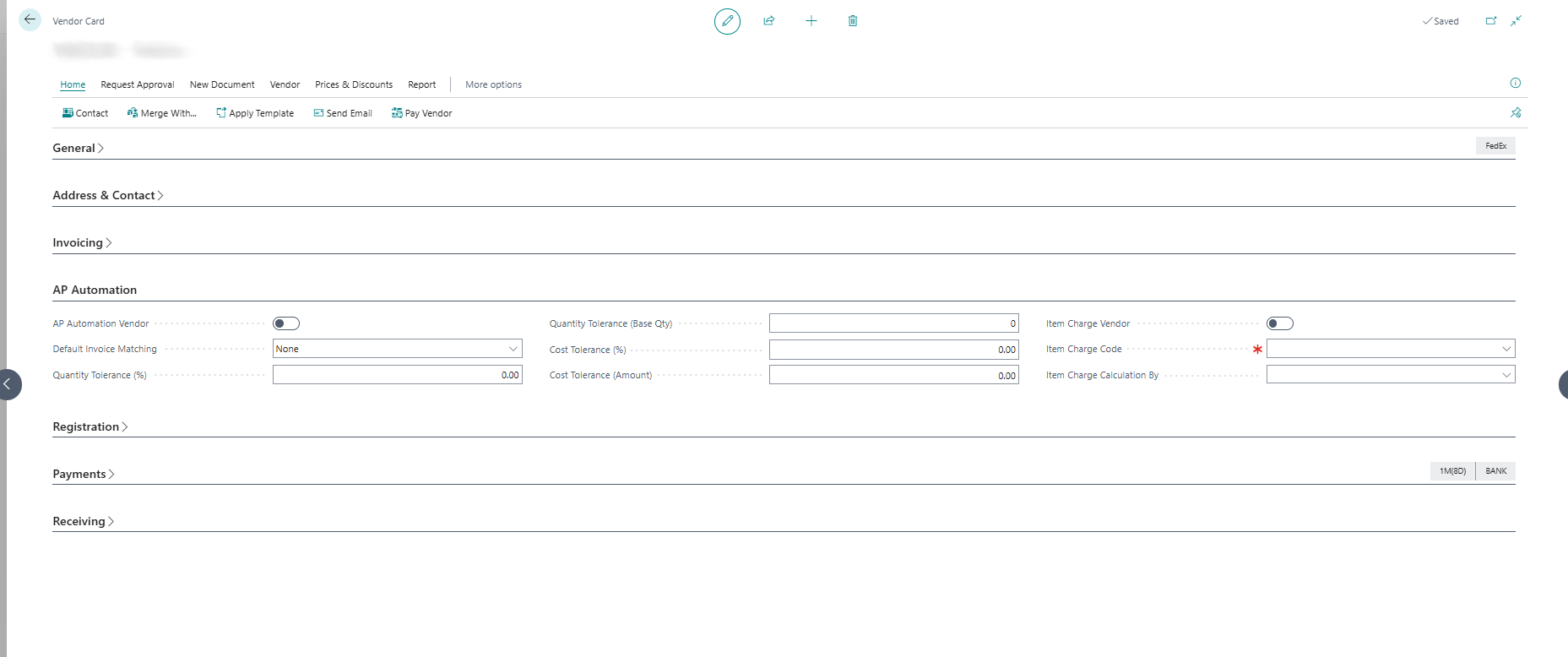
Vendor Card - AP Automation fields
| Field | What it shows / what to do |
|---|---|
| Default Invoice Matching | Blank = use the Purchases & Payables Setup policy; 2 Way Match; 3 Way Match; No Matching (never match this vendor, for example services without POs). |
| Quantity Tolerance (%) / (Base Qty) | How far the invoiced quantity may exceed what was ordered (2-way) or received (3-way). |
| Cost Tolerance (%) / (Amount) | How far the invoiced unit cost may differ from the PO cost (amount per base unit, in the invoice currency). |
| AP Automation Vendor | For recurring invoices (rent, subscriptions): the invoice is created from the vendor’s standard purchase lines and the vendor’s amount is put on the first line. Lines on the vendor document do not need mapping and the invoice is not matched. |
| Item Charge Vendor | For freight / handling vendors that invoice against your PO: every line becomes an item charge. |
| Item Charge Code | The item charge used for this vendor. |
| Item Charge Calculation By | How the charge is assigned to the PO receipt lines: Equally, By Amount, By Weight, By Volume or By Quantity. |
Tip: Item lines are the only lines that must match under 3-way. G/L, resource and fixed asset lines on the PO are checked only when the vendor is on 2-way (see 3.4).
17. Items, Units & Vendor Item References
-
Units of measure: Every unit a vendor invoices in (BOX, CASE, PALLET, TON …) must exist in the item’s Item Units of Measure with its conversion to the base unit. Otherwise the AP document shows “Item X has no unit of measure Y”.
-
Vendor item references: The vendor’s SKU per item (Item > Related > Item References, type Vendor). Lines with a known SKU map automatically with high confidence. The app adds references itself when users map lines or create items from AP documents.
-
Unit rules: Units printed differently from your codes (“Each”, “Ctn”) can be answered once in AP Mapping Rules (Maps To = Unit of Measure), globally or per vendor.
Item References for a vendor, added by AP Automation
18. Vendor Tax ID Fields
Where Setup > Vendor Tax ID Fields
Vendors are identified by the tax number on the invoice before their name. Because every localization stores it in a different field (VAT Registration No., ABN, GST Registration No., Federal ID No., RFC No. …), the app keeps a list of vendor fields to search.
| Field | What it shows / what to do |
|---|---|
| Field No. / Field Caption | The vendor field that holds a tax registration number. Any Code or Text field on the vendor can be used, including fields from other extensions. |
| Enabled | The tax ID on incoming invoices is compared with this field. |
| Added Automatically | The field was found automatically. |
The list is filled automatically on installation. Detect Tax ID Fields searches again. Spaces, dashes and dots are ignored, and a tax ID is only used when exactly one vendor matches.
19. Text line patterns
Where Setup > Text Line Patterns
Invoice lines without a quantity whose description starts with a text in this list (for example Mobile, Telephone, Internet Data) stay as text lines on the purchase invoice. Other lines without a quantity are created with quantity 1.
| Field | What it shows / what to do |
|---|---|
| Starts With | Start of the description, not case-sensitive. |
20. SharePoint PDF Preview
The invoice PDF is streamed from SharePoint through Microsoft Graph each time it is shown; it is never stored in Business Central.
20.1 Microsoft Entra App Registration
Once, by an Entra administrator.
-
In Microsoft Entra, App registrations > New registration (single tenant, no redirect URI). Note the Application (client) ID and Directory (tenant) ID.
-
API permissions > Microsoft Graph > Application permissions: add Sites.Selected and choose Grant admin consent. The type must be Application, not Delegated.
-
Grant the app Read on the AP SharePoint site (SharePoint administrator, for example with PnP PowerShell Grant-PnPAzureADAppSitePermission). Alternatively use Sites.Read.All (Application), which allows all sites.
-
Certificates & secrets > New client secret. Copy the Value (not the Secret ID) and note the expiry date.
20.2 AP SharePoint Setup
Where Setup > AP SharePoint Setup
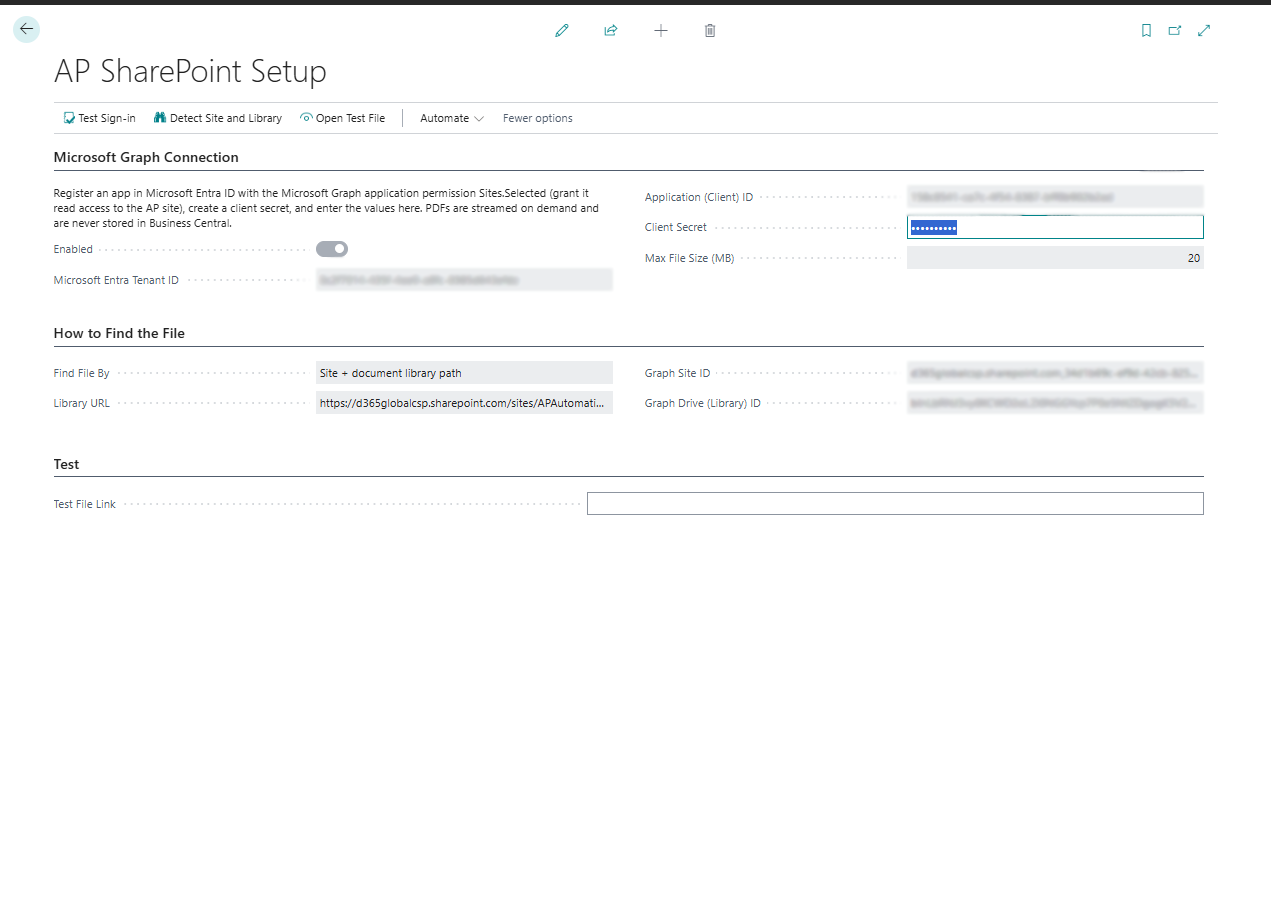
AP SharePoint Setup
| Field | What it shows / what to do |
|---|---|
| Enabled | Turns the preview on. Enable it after the test file opens. |
| Microsoft Entra Tenant ID / Application (Client) ID | From the app registration. |
| Client Secret | The secret Value. Stored encrypted in isolated storage, never in a table. |
| Max File Size (MB) | Larger files are not previewed (they can still be opened in SharePoint). |
| Find File By | Site + document library path (recommended, works with Sites.Selected) or File link (Graph shares API) for sharing links (needs Files.Read.All or Sites.Read.All). |
| Library URL | URL of the document library, up to and including the library name, e.g. https://contoso.sharepoint.com/sites/AP/Shared Documents. Not the /Forms/AllItems.aspx view. |
| Graph Site ID / Graph Drive ID | Filled in by Detect Site and Library. |
| Test File Link | Paste an Invoice URL from an AP document to test. |
| Action | What it does |
|---|---|
| Test Sign-in | Signs in, then checks the site and the library step by step and explains any failure (permission type, consent, site grant, wrong ID, outbound calls blocked). |
| Detect Site and Library | Reads the Graph Site ID and Drive ID from the Library URL. |
| Open Test File | Downloads the test file and opens it in the PDF viewer. |
Important: In Extension Management, select AP Automation, choose Configure and turn on Allow HttpClient Requests - otherwise Business Central blocks the call to Microsoft Graph (common in sandboxes).
21. Email Flow & Automation
21.1 Email / OCR Flow
The Power Automate flow receives vendor emails, saves the PDF in SharePoint, runs OCR and posts the result to the Emailed Invoices API of Business Central. Every received file appears in Emailed Invoices and on the Files Waiting tile.
21.2 Automation (Job Queue)
A recurring job queue entry imports waiting files, maps waiting documents again, re-checks lines waiting for a goods receipt, cleans up texts no longer needed and creates purchase documents for everything that is Ready.
-
On the AP Cockpit or home page choose Set Up > Restart Automation.
-
If no entry exists, one is created (default every 10 minutes, every day). You can change the interval on the job queue entry.
-
Check Automatic processing at the bottom of the cockpit: it should show Scheduled or Running.
22. Permissions & Roles
| Item | Purpose |
|---|---|
| AP Automation (permission set) | Daily work for AP clerks; includes read access to the automation status. |
| AP Automation - Admin (permission set) | Includes AP Automation plus SharePoint setup, tax ID fields, text line patterns and creating / restarting the job queue entry. |
| AP Clerk (AP Automation) (role) | Home page with the AP Cockpit. |
Users also need the standard Business Central permissions for purchasing (purchase invoices, items, vendors, posting). Creating items from AP documents requires permission to create items and item references.
Appendix
A. Statuses at a Glance
| Where | Value | Meaning |
|---|---|---|
| AP document | Ready | Fully mapped; becomes a purchase document on the next run. |
| Needs Mapping | Vendor, lines or units still to map. | |
| Error | Creating the purchase document failed - see Processing Error. | |
| On Hold | Excluded from automation by a user. | |
| Purchase Doc Created | Done - see Purchase Document No. | |
| Line match | Passed / Failed | Within / outside tolerance. |
| Awaiting Receipt | 3-way: waiting for the goods receipt. | |
| Not Performed | Not checked (no matching, or a G/L line under 3-way / not on the PO). | |
| Total check | Matches Vendor Total | No difference. |
| Small Difference Adjusted | Within tolerance; a line was added on the Total Difference G/L Account. | |
| Total Mismatch | Above tolerance; blocks posting when the posting block is on. | |
| Difference Accepted | A user accepted it with a reason. | |
| Mapping rule | Needs an answer / Answered / Active / Blocked | See chapter 11. |
B. Troubleshooting
| Symptom | Cause and Fix |
|---|---|
| Ready to Create keeps growing | Automation is not running. Check Automatic processing; choose Set Up / Restart Automation. |
| ”Vendor X was not identified” | Select the vendor on the AP document - it is remembered. Check AP Vendor Tax ID Fields if the tax ID should have matched. |
| ”3 vendors match X” | Several vendors have that name. Select the right one; next time the tax ID or the learned rule is used. |
| ”Unit X was not recognized” | Set Unit of Measure Code on the line (learned), or add a unit rule. |
| ”Item X has no unit of measure Y” | Add the unit with its conversion in Item Units of Measure. |
| Line on No PO / Not on PO | Link to PO Line, or Match Again after purchasing created the PO. |
| Line stays Waiting for Goods Receipt | Post the goods receipt on the PO; the next run links it, or choose Match Again. |
| Posting stops with a match exception | Resolve or accept the difference in Invoice Match Details (reason required). |
| Total Mismatch | Check Tax Difference and the tax setup on the lines; Recheck Vendor Total, or accept with a reason. |
| Invoice PDF says “Preview not set up” | Complete AP SharePoint Setup (chapter 20). |
| SharePoint 401 / 403 | Permission is Delegated instead of Application, admin consent missing, or the site grant for Sites.Selected not done. Test Sign-in shows which. |
| Import error “already imported” | Duplicate. Open Original AP Document to compare, then Archive. |
| A text stays on Texts To Map | It is still needed by a waiting document (for example one on hold). Answer it or release / finish the document. |
C. Glossary
| Term | Meaning |
|---|---|
| AP Document | The staging record created from the OCR result of one vendor invoice or credit note. |
| Mapping Rule | Tells the app what a text on a vendor document means (vendor, account, item, unit). |
| Learned Rule | A rule created automatically from a user correction. |
| Vendor Item Reference | The vendor’s own item number (SKU) linked to your item. |
| 2-way match | Invoice compared with the purchase order. |
| 3-way match | Invoice compared with the purchase order and the goods receipt. |
| Base Unit | The item’s base unit of measure; quantities and prices are compared in it. |
| Tolerance | Allowed difference before a line is flagged: % or amount, per vendor. |
| Accept Variance | Approve a difference with a reason so it no longer blocks posting. |
| Automation | The recurring job queue entry that processes AP documents. |